


Hidden Gems

Easily Create WBS with UI-Apps

Copyright © Project Partners, LLC
Creating WBS in UI-Apps
 See all workplan tasks with Gantt display
 Choose the order in which you want to display tasks
 Easily add new tasks, adjust durations, dates
 Schedule – identify predecessors, set constraint flag
 View other task information
 Manage Project Structures Easily
 For projects with partially shared structures, see both financial and
workplan tasks in one display
 For projects with separate, mapped structures, select a financial task
to map directly against a workplan task

 UI-Apps offers easier approach in one MS-Excel

Worksheet
Copyright © Project Partners, LLC
Eight Easy Steps – with UI-Apps
 Step 1: See all WBS tasks
 Step 2: Choose order of display

 Step 3: Add tasks as needed
 Step 4: Change task dates, durations
 Step 5: Schedule tasks
 Step 6: See other project/task information
 Step 7: See workplan and financial plan relationship
 Step 8: Map financial tasks to workplan tasks
 UI-Apps offers easier approach in one MS-Excel

Worksheet
Copyright © Project Partners, LLC
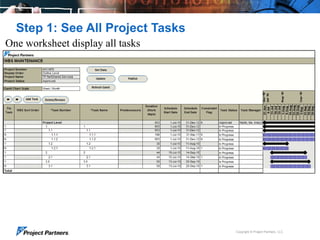
Step 1: See All Project Tasks
One worksheet display all tasks

Copyright © Project Partners, LLC
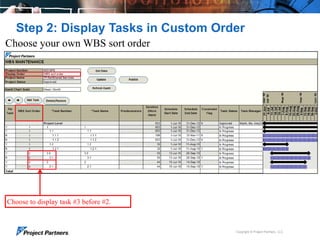
Step 2: Display Tasks in Custom Order
Choose your own WBS sort order

Choose to display task #3 before #2.

Copyright © Project Partners, LLC
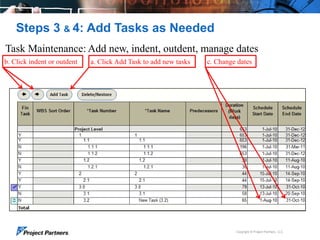
Steps 3 & 4: Add Tasks as Needed
Task Maintenance: Add new, indent, outdent, manage dates
b. Click indent or outdent

a. Click Add Task to add new tasks

c. Change dates

Copyright © Project Partners, LLC
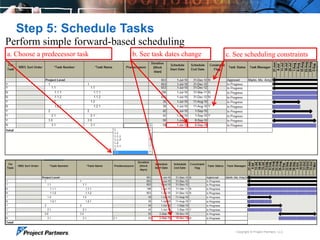
Step 5: Schedule Tasks
Perform simple forward-based scheduling
a. Choose a predecessor task

b. See task dates change

c. See scheduling constraints

Copyright © Project Partners, LLC
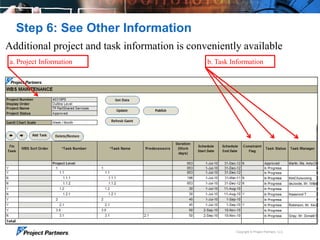
Step 6: See Other Information
Additional project and task information is conveniently available
a. Project Information

b. Task Information

Copyright © Project Partners, LLC
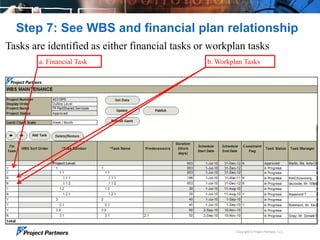
Step 7: See WBS and financial plan relationship
Tasks are identified as either financial tasks or workplan tasks
a. Financial Task

b. Workplan Tasks

Copyright © Project Partners, LLC
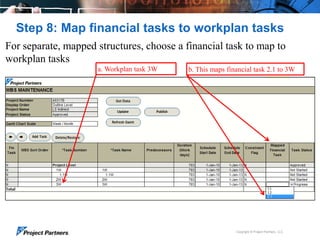
Step 8: Map financial tasks to workplan tasks
For separate, mapped structures, choose a financial task to map to
workplan tasks
a. Workplan task 3W

b. This maps financial task 2.1 to 3W

Copyright © Project Partners, LLC
Easy WBS Creation with UI-Apps
 Use the flexibility of workplan and financial plans in

Oracle Projects to effectively plan your project
 Quickly and Easily create and schedule workplan tasks

and update your WBS in one MS-Excel worksheet using
UI-Apps

 Stay tuned for more Hidden Gems from Project Partners

Copyright © Project Partners, LLC
UI-Apps Hidden Gems
A series of videos describing unique features of Project Partners
UI-Apps which add significant functionality to Oracle Projects
 See them all on the Project Partners YouTube Channel

http://www.youtube.com/user/ProjectPartnersLLC

Copyright © Project Partners, LLC
For more information:
Phone: 650.712.6200
email: info@projectp.com
www.projectp.com
Copyright © Project Partners, LLC

13

Easily Create your Project WBS in MS-Excel with Simple Forward Scheduling using Project Partners UI-Apps

  • 1.
    Hidden Gems Easily CreateWBS with UI-Apps Copyright © Project Partners, LLC
  • 2.
    Creating WBS inUI-Apps  See all workplan tasks with Gantt display  Choose the order in which you want to display tasks  Easily add new tasks, adjust durations, dates  Schedule – identify predecessors, set constraint flag  View other task information  Manage Project Structures Easily  For projects with partially shared structures, see both financial and workplan tasks in one display  For projects with separate, mapped structures, select a financial task to map directly against a workplan task  UI-Apps offers easier approach in one MS-Excel Worksheet Copyright © Project Partners, LLC
  • 3.
    Eight Easy Steps– with UI-Apps  Step 1: See all WBS tasks  Step 2: Choose order of display  Step 3: Add tasks as needed  Step 4: Change task dates, durations  Step 5: Schedule tasks  Step 6: See other project/task information  Step 7: See workplan and financial plan relationship  Step 8: Map financial tasks to workplan tasks  UI-Apps offers easier approach in one MS-Excel Worksheet Copyright © Project Partners, LLC
  • 4.
    Step 1: SeeAll Project Tasks One worksheet display all tasks Copyright © Project Partners, LLC
  • 5.
    Step 2: DisplayTasks in Custom Order Choose your own WBS sort order Choose to display task #3 before #2. Copyright © Project Partners, LLC
  • 6.
    Steps 3 &4: Add Tasks as Needed Task Maintenance: Add new, indent, outdent, manage dates b. Click indent or outdent a. Click Add Task to add new tasks c. Change dates Copyright © Project Partners, LLC
  • 7.
    Step 5: ScheduleTasks Perform simple forward-based scheduling a. Choose a predecessor task b. See task dates change c. See scheduling constraints Copyright © Project Partners, LLC
  • 8.
    Step 6: SeeOther Information Additional project and task information is conveniently available a. Project Information b. Task Information Copyright © Project Partners, LLC
  • 9.
    Step 7: SeeWBS and financial plan relationship Tasks are identified as either financial tasks or workplan tasks a. Financial Task b. Workplan Tasks Copyright © Project Partners, LLC
  • 10.
    Step 8: Mapfinancial tasks to workplan tasks For separate, mapped structures, choose a financial task to map to workplan tasks a. Workplan task 3W b. This maps financial task 2.1 to 3W Copyright © Project Partners, LLC
  • 11.
    Easy WBS Creationwith UI-Apps  Use the flexibility of workplan and financial plans in Oracle Projects to effectively plan your project  Quickly and Easily create and schedule workplan tasks and update your WBS in one MS-Excel worksheet using UI-Apps  Stay tuned for more Hidden Gems from Project Partners Copyright © Project Partners, LLC
  • 12.
    UI-Apps Hidden Gems Aseries of videos describing unique features of Project Partners UI-Apps which add significant functionality to Oracle Projects  See them all on the Project Partners YouTube Channel http://www.youtube.com/user/ProjectPartnersLLC Copyright © Project Partners, LLC
  • 13.
    For more information: Phone:650.712.6200 email: info@projectp.com www.projectp.com Copyright © Project Partners, LLC 13

Editor's Notes

  • #3 Depending on your organization’s requirements, it could be either one or a blended solution of both…If you have sophisticated, complex timecards or want to enter timecards for groups of people, TimeSpeed is right for youIf you have a mobile workforce that needs the convenience and flexibility to enter time while on the job, or on the go, mProjects is the answer3 flavors here?
  • #4 Depending on your organization’s requirements, it could be either one or a blended solution of both…If you have sophisticated, complex timecards or want to enter timecards for groups of people, TimeSpeed is right for youIf you have a mobile workforce that needs the convenience and flexibility to enter time while on the job, or on the go, mProjects is the answer3 flavors here?
  • #5 For customer If you have sophisticated, complex timecards or want to enter timecards for groups of people, TimeSpeed is right for youIf you have a mobile workforce that needs the convenience and flexibility to enter time while on the job, or on the go, mProjects is the answer3 flavors here?
  • #6 For customer If you have sophisticated, complex timecards or want to enter timecards for groups of people, TimeSpeed is right for youIf you have a mobile workforce that needs the convenience and flexibility to enter time while on the job, or on the go, mProjects is the answer3 flavors here?
  • #7 For customer If you have sophisticated, complex timecards or want to enter timecards for groups of people, TimeSpeed is right for youIf you have a mobile workforce that needs the convenience and flexibility to enter time while on the job, or on the go, mProjects is the answer3 flavors here?
  • #8 For customer If you have sophisticated, complex timecards or want to enter timecards for groups of people, TimeSpeed is right for youIf you have a mobile workforce that needs the convenience and flexibility to enter time while on the job, or on the go, mProjects is the answer3 flavors here?
  • #9 For customer If you have sophisticated, complex timecards or want to enter timecards for groups of people, TimeSpeed is right for youIf you have a mobile workforce that needs the convenience and flexibility to enter time while on the job, or on the go, mProjects is the answer3 flavors here?
  • #10 For customer If you have sophisticated, complex timecards or want to enter timecards for groups of people, TimeSpeed is right for youIf you have a mobile workforce that needs the convenience and flexibility to enter time while on the job, or on the go, mProjects is the answer3 flavors here?
  • #11 For customer If you have sophisticated, complex timecards or want to enter timecards for groups of people, TimeSpeed is right for youIf you have a mobile workforce that needs the convenience and flexibility to enter time while on the job, or on the go, mProjects is the answer3 flavors here?
  • #12 Depending on your organization’s requirements, it could be either one or a blended solution of both…If you have sophisticated, complex timecards or want to enter timecards for groups of people, TimeSpeed is right for youIf you have a mobile workforce that needs the convenience and flexibility to enter time while on the job, or on the go, mProjects is the answer3 flavors here?