Hidden Gems

Easy Forecast Creation with UI-Apps

Copyright © Project Partners, LLC
Project Forecasts
 Oracle Projects provides project managers the ability to

create periodic project forecasts
 The most accurate forecasts can be created when the

project manager sees project budget amounts, actuals todate, committed amounts, and then can add Estimate-toComplete amounts for each task/resource
 It is also necessary to be able to add new tasks and

resources as projects mature
 Most importantly, access to up-to-date actuals and

commitments is important for accurate forecasts
 UI-Apps offers easier approach in one MS-Excel

Worksheet
Copyright © Project Partners, LLC
Eight Steps – with UI-Apps
 Step 1: See all financial tasks with

budgets, actuals, commitments, and prior forecast
 Step 2: Add new tasks/resources as needed
 Step 3: Choose tasks/resources to forecast against
 Step 4: Add/update ETC amounts as needed
 Step 5: See amounts roll-up in real time
 Step 6: Refresh Actuals
 Step 7: See total forecast plan in one sheet
 Step 8: Compare total forecast plan totals with Original and

Baselined budgets
 UI-Apps offers easier approach in one MS-Excel

Worksheet
Copyright © Project Partners, LLC
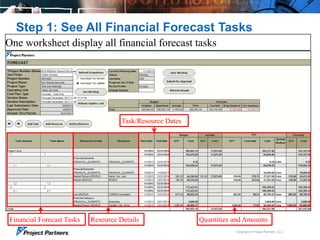
Step 1: See All Financial Forecast Tasks
One worksheet display all financial forecast tasks

Task/Resource Dates

Financial Forecast Tasks

Resource Details

Quantities and Amounts
Copyright © Project Partners, LLC
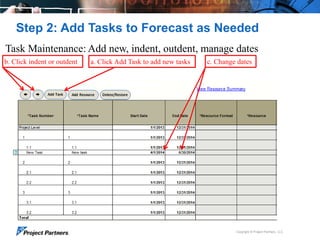
Step 2: Add Tasks to Forecast as Needed
Task Maintenance: Add new, indent, outdent, manage dates
b. Click indent or outdent

a. Click Add Task to add new tasks

c. Change dates

Copyright © Project Partners, LLC
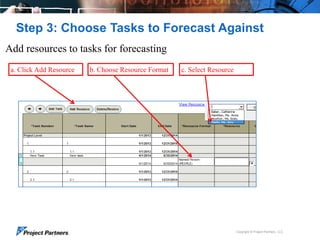
Step 3: Choose Tasks to Forecast Against
Add resources to tasks for forecasting
a. Click Add Resource

b. Choose Resource Format

c. Select Resource

Copyright © Project Partners, LLC
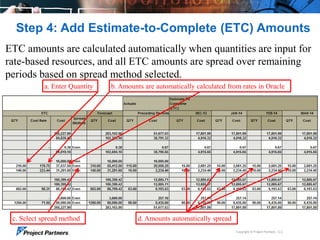
Step 4: Add Estimate-to-Complete (ETC) Amounts
ETC amounts are calculated automatically when quantities are input for
rate-based resources, and all ETC amounts are spread over remaining
periods based on spread method selected.
a. Enter Quantity

c. Select spread method

b. Amounts are automatically calculated from rates in Oracle

d. Amounts automatically spread
Copyright © Project Partners, LLC
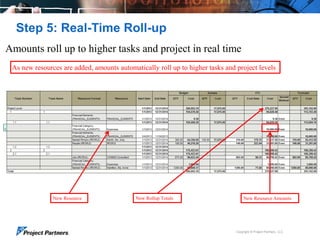
Step 5: Real-Time Roll-up
Amounts roll up to higher tasks and project in real time
As new resources are added, amounts automatically roll up to higher tasks and project levels

New Resource

New Rollup Totals

New Resource Amounts

Copyright © Project Partners, LLC
Step 6: Refresh Actuals
Maintain total forecast, but get real-time actual amounts
Refresh Actuals Button

Replaces current Pd ETC with actuals
Keeps current forecast the same

Downloads current actual amounts

Adjusts next open period ETC to reflect any difference between actuals and current period ETC
Copyright © Project Partners, LLC
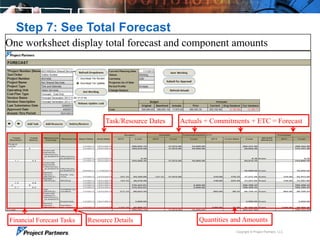
Step 7: See Total Forecast
One worksheet display total forecast and component amounts

Task/Resource Dates

Financial Forecast Tasks

Resource Details

Actuals + Commitments + ETC = Forecast

Quantities and Amounts
Copyright © Project Partners, LLC
Step 8: Compare Forecast Plan Totals
One worksheet display all financial forecast tasks
Compare Forecast Amounts

Copyright © Project Partners, LLC
Easy Forecast Creation with UI-Apps
 Use the flexibility of financial plans in Oracle Projects to

effectively forecast your project
 Quickly and easily create and update your forecasts with

one MS-Excel worksheet using UI-Apps

 Stay tuned for more Hidden Gems from Project Partners

Copyright © Project Partners, LLC
UI-Apps Hidden Gems
A series of videos describing unique features of Project Partners
UI-Apps which add significant functionality to Oracle Projects
 See them all on the Project Partners YouTube Channel

http://www.youtube.com/user/ProjectPartnersLLC

Copyright © Project Partners, LLC
For more information:
Phone: 650.712.6200
email: info@projectp.com
www.projectp.com
Copyright © Project Partners, LLC

14

Quickly update your Project financial Forecast for your Oracle EBS Projects from an MS-Excel Worksheet using Project Partners UI-Apps

  • 1.
    Hidden Gems Easy ForecastCreation with UI-Apps Copyright © Project Partners, LLC
  • 2.
    Project Forecasts  OracleProjects provides project managers the ability to create periodic project forecasts  The most accurate forecasts can be created when the project manager sees project budget amounts, actuals todate, committed amounts, and then can add Estimate-toComplete amounts for each task/resource  It is also necessary to be able to add new tasks and resources as projects mature  Most importantly, access to up-to-date actuals and commitments is important for accurate forecasts  UI-Apps offers easier approach in one MS-Excel Worksheet Copyright © Project Partners, LLC
  • 3.
    Eight Steps –with UI-Apps  Step 1: See all financial tasks with budgets, actuals, commitments, and prior forecast  Step 2: Add new tasks/resources as needed  Step 3: Choose tasks/resources to forecast against  Step 4: Add/update ETC amounts as needed  Step 5: See amounts roll-up in real time  Step 6: Refresh Actuals  Step 7: See total forecast plan in one sheet  Step 8: Compare total forecast plan totals with Original and Baselined budgets  UI-Apps offers easier approach in one MS-Excel Worksheet Copyright © Project Partners, LLC
  • 4.
    Step 1: SeeAll Financial Forecast Tasks One worksheet display all financial forecast tasks Task/Resource Dates Financial Forecast Tasks Resource Details Quantities and Amounts Copyright © Project Partners, LLC
  • 5.
    Step 2: AddTasks to Forecast as Needed Task Maintenance: Add new, indent, outdent, manage dates b. Click indent or outdent a. Click Add Task to add new tasks c. Change dates Copyright © Project Partners, LLC
  • 6.
    Step 3: ChooseTasks to Forecast Against Add resources to tasks for forecasting a. Click Add Resource b. Choose Resource Format c. Select Resource Copyright © Project Partners, LLC
  • 7.
    Step 4: AddEstimate-to-Complete (ETC) Amounts ETC amounts are calculated automatically when quantities are input for rate-based resources, and all ETC amounts are spread over remaining periods based on spread method selected. a. Enter Quantity c. Select spread method b. Amounts are automatically calculated from rates in Oracle d. Amounts automatically spread Copyright © Project Partners, LLC
  • 8.
    Step 5: Real-TimeRoll-up Amounts roll up to higher tasks and project in real time As new resources are added, amounts automatically roll up to higher tasks and project levels New Resource New Rollup Totals New Resource Amounts Copyright © Project Partners, LLC
  • 9.
    Step 6: RefreshActuals Maintain total forecast, but get real-time actual amounts Refresh Actuals Button Replaces current Pd ETC with actuals Keeps current forecast the same Downloads current actual amounts Adjusts next open period ETC to reflect any difference between actuals and current period ETC Copyright © Project Partners, LLC
  • 10.
    Step 7: SeeTotal Forecast One worksheet display total forecast and component amounts Task/Resource Dates Financial Forecast Tasks Resource Details Actuals + Commitments + ETC = Forecast Quantities and Amounts Copyright © Project Partners, LLC
  • 11.
    Step 8: CompareForecast Plan Totals One worksheet display all financial forecast tasks Compare Forecast Amounts Copyright © Project Partners, LLC
  • 12.
    Easy Forecast Creationwith UI-Apps  Use the flexibility of financial plans in Oracle Projects to effectively forecast your project  Quickly and easily create and update your forecasts with one MS-Excel worksheet using UI-Apps  Stay tuned for more Hidden Gems from Project Partners Copyright © Project Partners, LLC
  • 13.
    UI-Apps Hidden Gems Aseries of videos describing unique features of Project Partners UI-Apps which add significant functionality to Oracle Projects  See them all on the Project Partners YouTube Channel http://www.youtube.com/user/ProjectPartnersLLC Copyright © Project Partners, LLC
  • 14.
    For more information: Phone:650.712.6200 email: info@projectp.com www.projectp.com Copyright © Project Partners, LLC 14

Editor's Notes

  • #3 Depending on your organization’s requirements, it could be either one or a blended solution of both…If you have sophisticated, complex timecards or want to enter timecards for groups of people, TimeSpeed is right for youIf you have a mobile workforce that needs the convenience and flexibility to enter time while on the job, or on the go, mProjects is the answer3 flavors here?
  • #4 Depending on your organization’s requirements, it could be either one or a blended solution of both…If you have sophisticated, complex timecards or want to enter timecards for groups of people, TimeSpeed is right for youIf you have a mobile workforce that needs the convenience and flexibility to enter time while on the job, or on the go, mProjects is the answer3 flavors here?
  • #5 For customer If you have sophisticated, complex timecards or want to enter timecards for groups of people, TimeSpeed is right for youIf you have a mobile workforce that needs the convenience and flexibility to enter time while on the job, or on the go, mProjects is the answer3 flavors here?
  • #6 For customer If you have sophisticated, complex timecards or want to enter timecards for groups of people, TimeSpeed is right for youIf you have a mobile workforce that needs the convenience and flexibility to enter time while on the job, or on the go, mProjects is the answer3 flavors here?
  • #7 For customer If you have sophisticated, complex timecards or want to enter timecards for groups of people, TimeSpeed is right for youIf you have a mobile workforce that needs the convenience and flexibility to enter time while on the job, or on the go, mProjects is the answer3 flavors here?
  • #8 For customer If you have sophisticated, complex timecards or want to enter timecards for groups of people, TimeSpeed is right for youIf you have a mobile workforce that needs the convenience and flexibility to enter time while on the job, or on the go, mProjects is the answer3 flavors here?
  • #9 For customer If you have sophisticated, complex timecards or want to enter timecards for groups of people, TimeSpeed is right for youIf you have a mobile workforce that needs the convenience and flexibility to enter time while on the job, or on the go, mProjects is the answer3 flavors here?
  • #10 For customer If you have sophisticated, complex timecards or want to enter timecards for groups of people, TimeSpeed is right for youIf you have a mobile workforce that needs the convenience and flexibility to enter time while on the job, or on the go, mProjects is the answer3 flavors here?
  • #11 For customer If you have sophisticated, complex timecards or want to enter timecards for groups of people, TimeSpeed is right for youIf you have a mobile workforce that needs the convenience and flexibility to enter time while on the job, or on the go, mProjects is the answer3 flavors here?
  • #12 For customer If you have sophisticated, complex timecards or want to enter timecards for groups of people, TimeSpeed is right for youIf you have a mobile workforce that needs the convenience and flexibility to enter time while on the job, or on the go, mProjects is the answer3 flavors here?
  • #13 Depending on your organization’s requirements, it could be either one or a blended solution of both…If you have sophisticated, complex timecards or want to enter timecards for groups of people, TimeSpeed is right for youIf you have a mobile workforce that needs the convenience and flexibility to enter time while on the job, or on the go, mProjects is the answer3 flavors here?