

Hidden Gems

Easily Update Workplan and Financial Plan
Simultaneously with UI-Apps

Copyright © Project Partners, LLC
Update Workplans and Financial Plans Together
 Oracle Projects allows for flexibility in creating workplan tasks

and financial plan tasks
 The structures may be fully shared, partially shared, separate

but mapped, or non-shared
 If they are fully shared, the two structures may be

created/updated simultaneously in one UI-Apps MS-Excel
worksheet. In Oracle, each structure must be updated
separately – and requires navigating to multiple pages
 With UI-Apps easily add new tasks, adjust durations, dates
 Quickly add resources
 Easily add amounts with automatic spread to time-phased

periods
 UI-Apps offers easier approach in one MS-Excel

Worksheet
Copyright © Project Partners, LLC
Seven Easy Steps – with UI-Apps
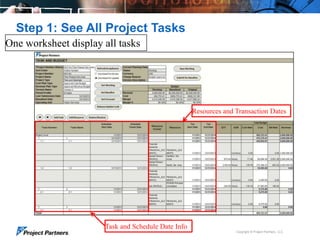
 Step 1: See all tasks in one sheet
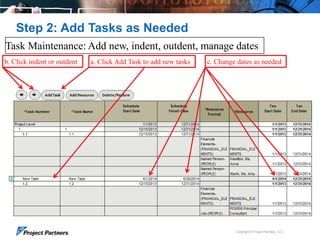
 Step 2: Easily add new tasks for both workplan and

financial plan
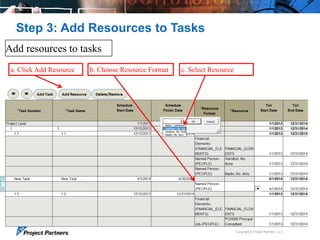
 Step 3: Choose tasks/resources to budget against
 Step 4: Add amounts as needed
 Step 5: See amounts roll-up in real time
 Step 6: Compare total budget with original and baseline
 Step 7: Save and submit both plans together

 UI-Apps offers easier approach in one MS-Excel

Worksheet
Copyright © Project Partners, LLC
Step 1: See All Project Tasks
One worksheet display all tasks

Resources and Transaction Dates

Task and Schedule Date Info
Copyright © Project Partners, LLC
Step 2: Add Tasks as Needed
Task Maintenance: Add new, indent, outdent, manage dates
b. Click indent or outdent

a. Click Add Task to add new tasks

c. Change dates as needed

Copyright © Project Partners, LLC
Step 3: Add Resources to Tasks
Add resources to tasks
a. Click Add Resource

b. Choose Resource Format

c. Select Resource

Copyright © Project Partners, LLC
Step 4: Add Amounts
Amounts are calculated automatically when quantities are input for ratebased resources
a. Enter Quantity

b. Amounts are automatically calculated from rates in Oracle

Copyright © Project Partners, LLC
Step 5: Real-Time Roll-up
Amounts roll up to higher tasks and project in real time
As new resources are added, amounts automatically roll up to higher tasks and project levels

New Resource

New Rollup Totals

New Resource Amounts

Copyright © Project Partners, LLC
Step 6: Compare Budget Totals
Compare working budget totals with Original and Baseline
Compare Budget Amounts

Copyright © Project Partners, LLC
Step 7: Save and Submit both Plans Together
On Save, the plan entered is saved to both
workplan and financial plan

On Submit, the financial plan and
workplan are both submitted

Copyright © Project Partners, LLC
Updating fully shared structures with UI-Apps
 Use the flexibility of workplan and financial plan structures

in Oracle Projects to effectively plan your project
 When using fully shared structures, quickly and easily

create and update both workplan and financial tasks in
one MS-Excel worksheet using UI-Apps

 Stay tuned for more Hidden Gems from Project Partners

Copyright © Project Partners, LLC
UI-Apps Hidden Gems
A series of videos describing unique features of Project Partners
UI-Apps which add significant functionality to Oracle Projects
 See them all on the Project Partners YouTube Channel

http://www.youtube.com/user/ProjectPartnersLLC

Copyright © Project Partners, LLC
For more information:
Phone: 650.712.6200
email: info@projectp.com
www.projectp.com
Copyright © Project Partners, LLC

13

Update Oracle EBS Projects Workplan and Financial Plan (Budgets) together in MS-Excel using Project Partners UI-Apps

  • 1.
    Hidden Gems Easily UpdateWorkplan and Financial Plan Simultaneously with UI-Apps Copyright © Project Partners, LLC
  • 2.
    Update Workplans andFinancial Plans Together  Oracle Projects allows for flexibility in creating workplan tasks and financial plan tasks  The structures may be fully shared, partially shared, separate but mapped, or non-shared  If they are fully shared, the two structures may be created/updated simultaneously in one UI-Apps MS-Excel worksheet. In Oracle, each structure must be updated separately – and requires navigating to multiple pages  With UI-Apps easily add new tasks, adjust durations, dates  Quickly add resources  Easily add amounts with automatic spread to time-phased periods  UI-Apps offers easier approach in one MS-Excel Worksheet Copyright © Project Partners, LLC
  • 3.
    Seven Easy Steps– with UI-Apps  Step 1: See all tasks in one sheet  Step 2: Easily add new tasks for both workplan and financial plan  Step 3: Choose tasks/resources to budget against  Step 4: Add amounts as needed  Step 5: See amounts roll-up in real time  Step 6: Compare total budget with original and baseline  Step 7: Save and submit both plans together  UI-Apps offers easier approach in one MS-Excel Worksheet Copyright © Project Partners, LLC
  • 4.
    Step 1: SeeAll Project Tasks One worksheet display all tasks Resources and Transaction Dates Task and Schedule Date Info Copyright © Project Partners, LLC
  • 5.
    Step 2: AddTasks as Needed Task Maintenance: Add new, indent, outdent, manage dates b. Click indent or outdent a. Click Add Task to add new tasks c. Change dates as needed Copyright © Project Partners, LLC
  • 6.
    Step 3: AddResources to Tasks Add resources to tasks a. Click Add Resource b. Choose Resource Format c. Select Resource Copyright © Project Partners, LLC
  • 7.
    Step 4: AddAmounts Amounts are calculated automatically when quantities are input for ratebased resources a. Enter Quantity b. Amounts are automatically calculated from rates in Oracle Copyright © Project Partners, LLC
  • 8.
    Step 5: Real-TimeRoll-up Amounts roll up to higher tasks and project in real time As new resources are added, amounts automatically roll up to higher tasks and project levels New Resource New Rollup Totals New Resource Amounts Copyright © Project Partners, LLC
  • 9.
    Step 6: CompareBudget Totals Compare working budget totals with Original and Baseline Compare Budget Amounts Copyright © Project Partners, LLC
  • 10.
    Step 7: Saveand Submit both Plans Together On Save, the plan entered is saved to both workplan and financial plan On Submit, the financial plan and workplan are both submitted Copyright © Project Partners, LLC
  • 11.
    Updating fully sharedstructures with UI-Apps  Use the flexibility of workplan and financial plan structures in Oracle Projects to effectively plan your project  When using fully shared structures, quickly and easily create and update both workplan and financial tasks in one MS-Excel worksheet using UI-Apps  Stay tuned for more Hidden Gems from Project Partners Copyright © Project Partners, LLC
  • 12.
    UI-Apps Hidden Gems Aseries of videos describing unique features of Project Partners UI-Apps which add significant functionality to Oracle Projects  See them all on the Project Partners YouTube Channel http://www.youtube.com/user/ProjectPartnersLLC Copyright © Project Partners, LLC
  • 13.
    For more information: Phone:650.712.6200 email: info@projectp.com www.projectp.com Copyright © Project Partners, LLC 13

Editor's Notes

  • #3 Depending on your organization’s requirements, it could be either one or a blended solution of both…If you have sophisticated, complex timecards or want to enter timecards for groups of people, TimeSpeed is right for youIf you have a mobile workforce that needs the convenience and flexibility to enter time while on the job, or on the go, mProjects is the answer3 flavors here?
  • #4 Depending on your organization’s requirements, it could be either one or a blended solution of both…If you have sophisticated, complex timecards or want to enter timecards for groups of people, TimeSpeed is right for youIf you have a mobile workforce that needs the convenience and flexibility to enter time while on the job, or on the go, mProjects is the answer3 flavors here?
  • #5 For customer If you have sophisticated, complex timecards or want to enter timecards for groups of people, TimeSpeed is right for youIf you have a mobile workforce that needs the convenience and flexibility to enter time while on the job, or on the go, mProjects is the answer3 flavors here?
  • #6 For customer If you have sophisticated, complex timecards or want to enter timecards for groups of people, TimeSpeed is right for youIf you have a mobile workforce that needs the convenience and flexibility to enter time while on the job, or on the go, mProjects is the answer3 flavors here?
  • #7 For customer If you have sophisticated, complex timecards or want to enter timecards for groups of people, TimeSpeed is right for youIf you have a mobile workforce that needs the convenience and flexibility to enter time while on the job, or on the go, mProjects is the answer3 flavors here?
  • #8 For customer If you have sophisticated, complex timecards or want to enter timecards for groups of people, TimeSpeed is right for youIf you have a mobile workforce that needs the convenience and flexibility to enter time while on the job, or on the go, mProjects is the answer3 flavors here?
  • #9 For customer If you have sophisticated, complex timecards or want to enter timecards for groups of people, TimeSpeed is right for youIf you have a mobile workforce that needs the convenience and flexibility to enter time while on the job, or on the go, mProjects is the answer3 flavors here?
  • #10 For customer If you have sophisticated, complex timecards or want to enter timecards for groups of people, TimeSpeed is right for youIf you have a mobile workforce that needs the convenience and flexibility to enter time while on the job, or on the go, mProjects is the answer3 flavors here?
  • #11 Depending on your organization’s requirements, it could be either one or a blended solution of both…If you have sophisticated, complex timecards or want to enter timecards for groups of people, TimeSpeed is right for youIf you have a mobile workforce that needs the convenience and flexibility to enter time while on the job, or on the go, mProjects is the answer3 flavors here?