Email Basics
What is email?
 Short for electronic mail - Email
 Send & receive messages over the internet
 Must have an email account on-line.
What you need
 a computer with internet access
 an email account with a service provider such as
Yahoo, Gmail, Hotmail, etc
 NOTE: Microsoft Outlook and Apple Mail, are
NOT email providers (which is why you can’t
email from library computers without an account)
Choosing an email provider
 Most common are Hotmail (Microsoft), Gmail
(Google), Yahoo Mail (Yahoo!)
 For this class, we’ll be using Yahoo
Setting up your account
 Parts of an email address:
 Username and domain
 Example
 snoopy@yahoo.com
 user name : snoopy- you create your own - each
must be unique
 @ symbol : unique to email addresses (Shift key +
2) Separates user name from domain
 email provider’s name: yahoo
 domain : .com - others could be .net or .org
Password
 Something easy to remember, but difficult to guess
 Do NOT use sensitive information, such as SSN,
bank PIN, etc.
 Usually a combination of letters and numbers is
best
 Verification questions in case you forget your
password may be required on accounts.
Let’s set up our accounts!
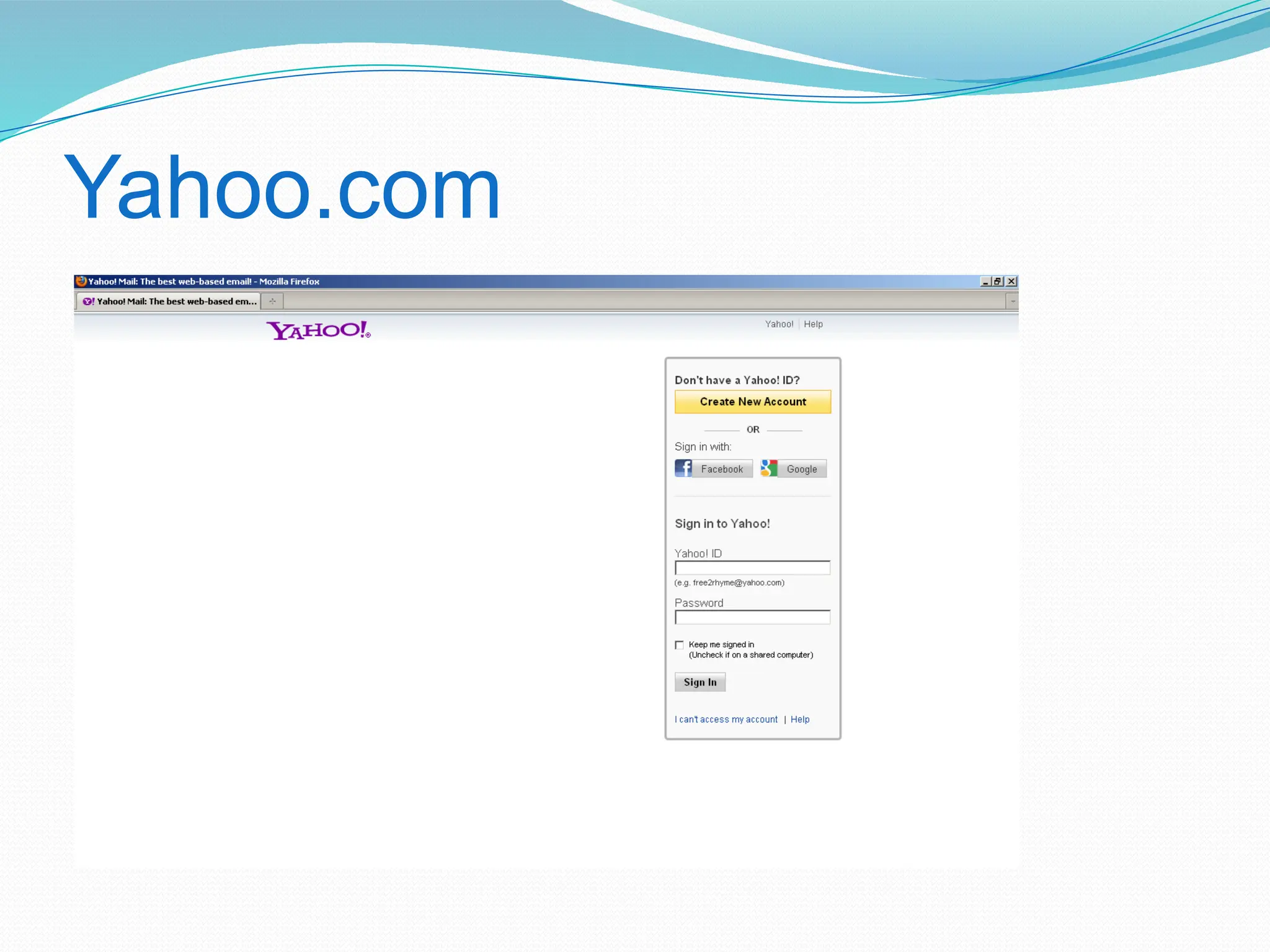
Yahoo.com
Yahoo.com
 Click on “Create new account”
 Be sure to have user name and password ready
 Fill in as many blanks as required
 When finished – “Create new Account”
http://yahoo.com
Let’s compose an email!
 Click on NEW
 Have email address ready for the person to
receive your email
Parts of an email
 To : Enter the exact email address of your recipient
 Remember: name@provider.domain
 For multiple recipients, separate each address
with a comma (semi colon)
 CC : carbon copy
 BCC : BLIND carbon copy – is anonymous
 Subject : the topic of your email – very important –
keep it brief and to the point.
Parts of an email
 Body : the message of your email
 Attachments : Use the ATTACH button for files or
photos or other emails
Sending an email
 Communication can be tough with written
correspondence. No body language or facial cues
to help set the tone properly. Can be easily
misunderstood
 Err on the side of too formal
 Punctuation & spelling
 Greeting & closing signature
 ATTACH a file from a flash drive
 ALWAYS - Spell-check & proofread!
Sending an email
 Click on SEND to mail your letter
 Message will now appear in your SENT folder
 Once an email is sent, you cannot stop it or take it
back
 Check your SENT box now
 Check your inbox for your BCC
Draft Emails
 Drafts:
 When creating an e-mail the computer will
automatically save your work periodically. If for
any reason you should be interrupted (i.e. lapse
in internet connection) you can retrieve your
latest work in the DRAFT BOX.
Receiving email
 If you have any messages you should see them
listed in your Inbox
 At the top of each message is a header with
information about the sender, date, and routing of
each message.
Receiving email
 From: snoopy@yahoo.com
To: you@yahoo.com
CC:
Subject: Email Basics class
Date:Tues, 1 March 2011 10:31 PST
Replying to an email
 Reply vs Reply All
 When you click on Reply, your message will
automatically be sent to the person who sent
you the email (FROM field in header.)
 When you click on Reply All, your message will
automatically be sent to the person who sent
you the email AND everyone in the CC fields in
the header.
Forwarding an email
 When you click on FORWARD, you may share the
email you’ve received by sending it to others.
 You may add your own message before sending.
 Enter the TO’s and CC’s if using
 Click on SEND
Opening attachments
 Usually photos or documents are attached
 If you don’t know the sender, do NOT open the
attachment(s)
 SAVE vs OPEN the attachment FILE dialog box
Deleting email
 Once you’ve read an email, you should decide if
you want to save/file it or delete it.
 Click on delete to send the email to the TRASH
CAN(delete folder)
 The message disappears from your list of
messages but is not truly deleted, so if you make a
mistake you can get the message back – look in
the trash folder.
Deleting email
 Once you exit the program, the messages are
usually deleted for good.
Netiquette
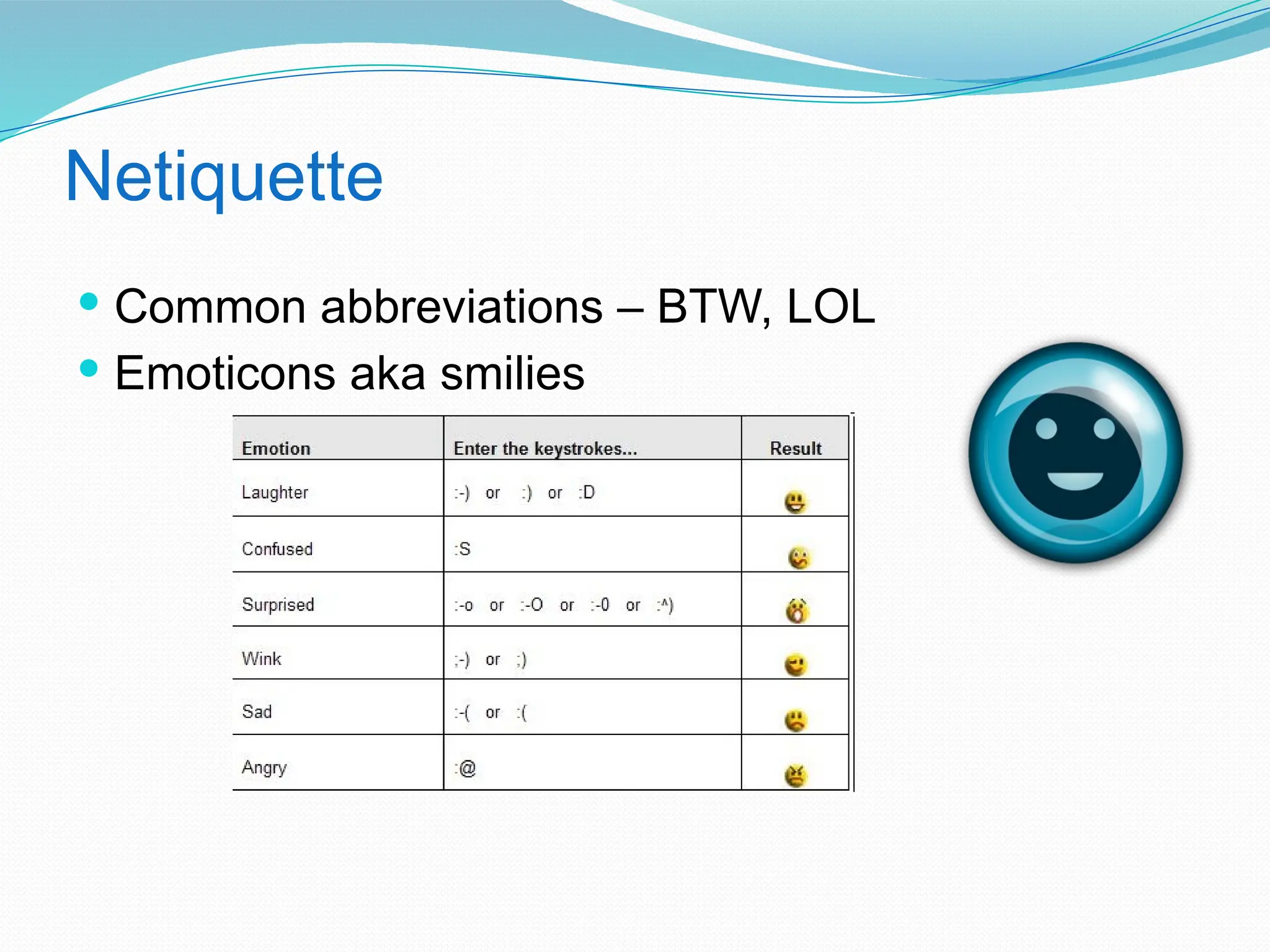
 Common abbreviations – BTW, LOL
 Emoticons aka smilies
Privacy, viruses, & spam
 Privacy: CC vs BCC
 Viruses: Never open attachments from unknown
senders.
 Safety: Never send personal financial information
via email, even if it looks like a legitimate request
from your bank or financial institution.
 Spam: unsolicited commercial email
Delete - Click on Report Spam
SPAM BOX on Yahoo
Chatting
 Chatting
This is real-time communication with no delay.
Usually done with those you know online. Be
selective who you chat with. As with spam and
phishing, scams can occur with chatting as well
Important – Sign Out!
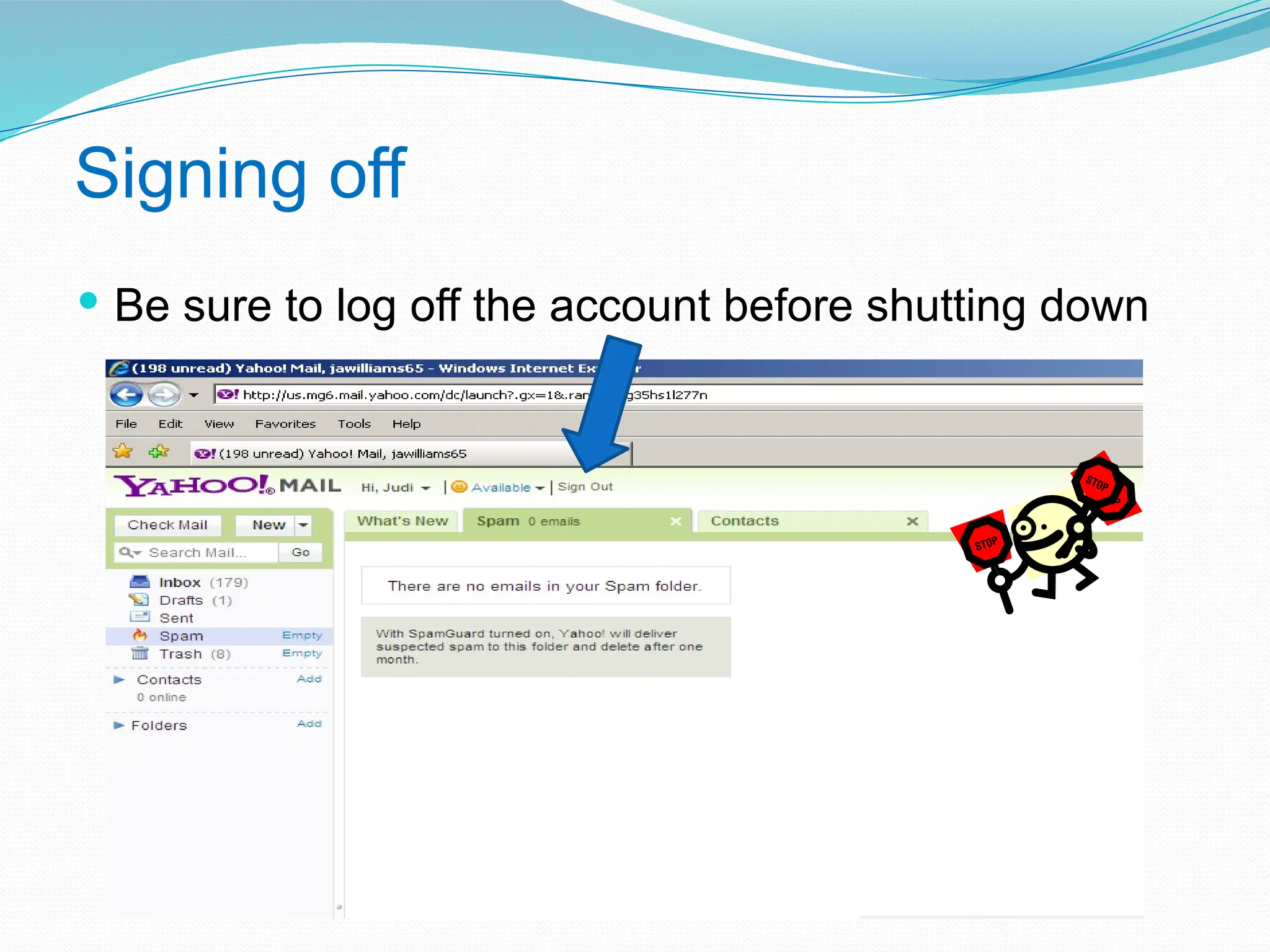
Signing off
 Be sure to log off the account before shutting down
Next Steps
 Visit the Computer Coaches
 Most hours that the library is open
Hours are subject to change. Please call ahead
to confirm: 714-842-4481 ext. 6
 Don’t forget that we’re here to help!
 Good luck!
Questions

Email Basics: Introduction to Email >pptx

  • 1.
  • 2.
    What is email? Short for electronic mail - Email  Send & receive messages over the internet  Must have an email account on-line.
  • 3.
    What you need a computer with internet access  an email account with a service provider such as Yahoo, Gmail, Hotmail, etc  NOTE: Microsoft Outlook and Apple Mail, are NOT email providers (which is why you can’t email from library computers without an account)
  • 4.
    Choosing an emailprovider  Most common are Hotmail (Microsoft), Gmail (Google), Yahoo Mail (Yahoo!)  For this class, we’ll be using Yahoo
  • 5.
    Setting up youraccount  Parts of an email address:  Username and domain  Example  snoopy@yahoo.com  user name : snoopy- you create your own - each must be unique  @ symbol : unique to email addresses (Shift key + 2) Separates user name from domain  email provider’s name: yahoo  domain : .com - others could be .net or .org
  • 6.
    Password  Something easyto remember, but difficult to guess  Do NOT use sensitive information, such as SSN, bank PIN, etc.  Usually a combination of letters and numbers is best  Verification questions in case you forget your password may be required on accounts.
  • 7.
    Let’s set upour accounts!
  • 8.
  • 9.
    Yahoo.com  Click on“Create new account”  Be sure to have user name and password ready  Fill in as many blanks as required  When finished – “Create new Account” http://yahoo.com
  • 10.
    Let’s compose anemail!  Click on NEW  Have email address ready for the person to receive your email
  • 11.
    Parts of anemail  To : Enter the exact email address of your recipient  Remember: name@provider.domain  For multiple recipients, separate each address with a comma (semi colon)  CC : carbon copy  BCC : BLIND carbon copy – is anonymous  Subject : the topic of your email – very important – keep it brief and to the point.
  • 12.
    Parts of anemail  Body : the message of your email  Attachments : Use the ATTACH button for files or photos or other emails
  • 13.
    Sending an email Communication can be tough with written correspondence. No body language or facial cues to help set the tone properly. Can be easily misunderstood  Err on the side of too formal  Punctuation & spelling  Greeting & closing signature  ATTACH a file from a flash drive  ALWAYS - Spell-check & proofread!
  • 14.
    Sending an email Click on SEND to mail your letter  Message will now appear in your SENT folder  Once an email is sent, you cannot stop it or take it back  Check your SENT box now  Check your inbox for your BCC
  • 15.
    Draft Emails  Drafts: When creating an e-mail the computer will automatically save your work periodically. If for any reason you should be interrupted (i.e. lapse in internet connection) you can retrieve your latest work in the DRAFT BOX.
  • 16.
    Receiving email  Ifyou have any messages you should see them listed in your Inbox  At the top of each message is a header with information about the sender, date, and routing of each message.
  • 17.
    Receiving email  From:snoopy@yahoo.com To: you@yahoo.com CC: Subject: Email Basics class Date:Tues, 1 March 2011 10:31 PST
  • 18.
    Replying to anemail  Reply vs Reply All  When you click on Reply, your message will automatically be sent to the person who sent you the email (FROM field in header.)  When you click on Reply All, your message will automatically be sent to the person who sent you the email AND everyone in the CC fields in the header.
  • 19.
    Forwarding an email When you click on FORWARD, you may share the email you’ve received by sending it to others.  You may add your own message before sending.  Enter the TO’s and CC’s if using  Click on SEND
  • 20.
    Opening attachments  Usuallyphotos or documents are attached  If you don’t know the sender, do NOT open the attachment(s)  SAVE vs OPEN the attachment FILE dialog box
  • 21.
    Deleting email  Onceyou’ve read an email, you should decide if you want to save/file it or delete it.  Click on delete to send the email to the TRASH CAN(delete folder)  The message disappears from your list of messages but is not truly deleted, so if you make a mistake you can get the message back – look in the trash folder.
  • 22.
    Deleting email  Onceyou exit the program, the messages are usually deleted for good.
  • 23.
    Netiquette  Common abbreviations– BTW, LOL  Emoticons aka smilies
  • 24.
    Privacy, viruses, &spam  Privacy: CC vs BCC  Viruses: Never open attachments from unknown senders.  Safety: Never send personal financial information via email, even if it looks like a legitimate request from your bank or financial institution.  Spam: unsolicited commercial email Delete - Click on Report Spam SPAM BOX on Yahoo
  • 25.
    Chatting  Chatting This isreal-time communication with no delay. Usually done with those you know online. Be selective who you chat with. As with spam and phishing, scams can occur with chatting as well
  • 26.
  • 27.
    Signing off  Besure to log off the account before shutting down
  • 28.
    Next Steps  Visitthe Computer Coaches  Most hours that the library is open Hours are subject to change. Please call ahead to confirm: 714-842-4481 ext. 6  Don’t forget that we’re here to help!  Good luck!
  • 29.