HOW TO USE EMAIL Heidi McLaughlin
SNAIL MAIL VS EMAIL
Snail mail
 Your letter or package is received in the mail and sent directly to the
person.
 This usually takes up to 2 days for letters and 3-10 working days for
packages.
 You have to know the address of the person before you can send the
package/ letter.
 Costs money to purchase stamps to send your package.
Email
 Is done entirely digitally across the internet through different servers.
 The individual will receive their email in their inbox of their provider such
as, Gmail, Hotmail, Yahoo.
ADVANTAGES: EMAIL
 Includes features such as a calendar, address book and instant
messaging.
 Is essential to sign up for websites or social media accounts that
usually need an email before creating your account. This could
include Wix, Facebook, Ebay, etc.
 You have access to a range of tools and features to file, label, find,
prioritize and group your emails to create easy management. (You
can personalise your inbox to the way it suits you).
 Communicating with a large amount of people, groups, as you can
send an email to multiple people at once (They will all receive it at the
same time).
 Your email is personal and private. It requires a password to access
WHAT ARE EMAIL ADDRESSES?
 To receive and send emails your will need to
have a email account and a email address.
 You will need to obtain other peoples email
address if your want to send them something
and ensure you have the correct email address
or it will be send to another person.
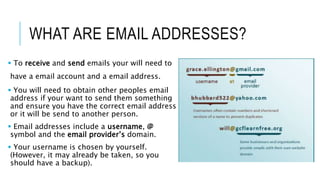
 Email addresses include a username, @
symbol and the email provider’s domain.
 Your username is chosen by yourself.
(However, it may already be taken, so you
should have a backup).
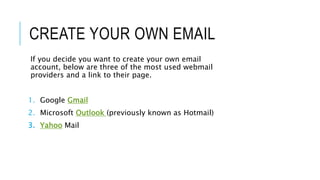
CREATE YOUR OWN EMAIL
If you decide you want to create your own email
account, below are three of the most used webmail
providers and a link to their page.
1. Google Gmail
2. Microsoft Outlook (previously known as Hotmail)
3. Yahoo Mail
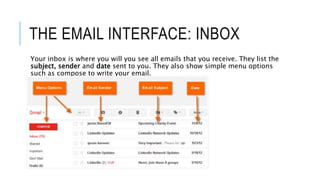
THE EMAIL INTERFACE: INBOX
Your inbox is where you will you see all emails that you receive. They list the
subject, sender and date sent to you. They also show simple menu options
such as compose to write your email.
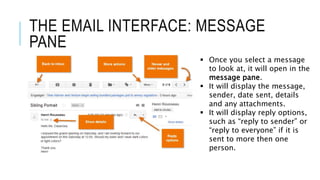
THE EMAIL INTERFACE: MESSAGE
PANE
 Once you select a message
to look at, it will open in the
message pane.
 It will display the message,
sender, date sent, details
and any attachments.
 It will display reply options,
such as “reply to sender” or
“reply to everyone” if it is
sent to more then one
person.
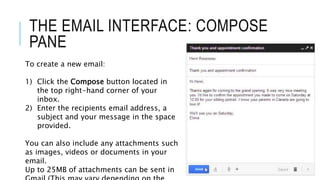
THE EMAIL INTERFACE: COMPOSE
PANE
To create a new email:
1) Click the Compose button located in
the top right-hand corner of your
inbox.
2) Enter the recipients email address, a
subject and your message in the space
provided.
You can also include any attachments such
as images, videos or documents in your
email.
Up to 25MB of attachments can be sent in
OTHER EMAIL TERMS
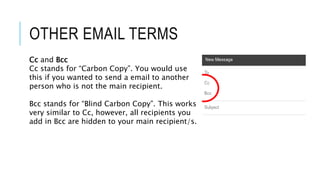
Cc and Bcc
Cc stands for “Carbon Copy”. You would use
this if you wanted to send a email to another
person who is not the main recipient.
Bcc stands for “Blind Carbon Copy”. This works
very similar to Cc, however, all recipients you
add in Bcc are hidden to your main recipient/s.
EMAIL SAFETY
Email is not entirely secure 100% of the
time, therefor you should be careful
when sending personal and sensitive
information, such as credit card details
and passwords.
You may also receive emails from
scammers and it is important to delete
these and not reply or click on anything
they send you to avoid getting a virus or
your details lost/ taken.
EMAIL SAFETY
Phishing
 When someone pretends
to be from a trusted
source, such as your bank.
 They try and steal your
personal information.
 Look out for these as they
can easily create
something that looks like
it is from a specific,
legitimate business.
Attachments
 Can sometimes
contain viruses or
malware.
 Do not open these, to
avoid getting a virus
on your computer or
other digital device.
Spam
 Also known as junk
mail.
 It is best to ignore
and delete these
messages.
 Usually most email
services offer spam
filtering.

How to use Email - Heidi McLaughlin

  • 1.
    HOW TO USEEMAIL Heidi McLaughlin
  • 2.
    SNAIL MAIL VSEMAIL Snail mail  Your letter or package is received in the mail and sent directly to the person.  This usually takes up to 2 days for letters and 3-10 working days for packages.  You have to know the address of the person before you can send the package/ letter.  Costs money to purchase stamps to send your package. Email  Is done entirely digitally across the internet through different servers.  The individual will receive their email in their inbox of their provider such as, Gmail, Hotmail, Yahoo.
  • 3.
    ADVANTAGES: EMAIL  Includesfeatures such as a calendar, address book and instant messaging.  Is essential to sign up for websites or social media accounts that usually need an email before creating your account. This could include Wix, Facebook, Ebay, etc.  You have access to a range of tools and features to file, label, find, prioritize and group your emails to create easy management. (You can personalise your inbox to the way it suits you).  Communicating with a large amount of people, groups, as you can send an email to multiple people at once (They will all receive it at the same time).  Your email is personal and private. It requires a password to access
  • 4.
    WHAT ARE EMAILADDRESSES?  To receive and send emails your will need to have a email account and a email address.  You will need to obtain other peoples email address if your want to send them something and ensure you have the correct email address or it will be send to another person.  Email addresses include a username, @ symbol and the email provider’s domain.  Your username is chosen by yourself. (However, it may already be taken, so you should have a backup).
  • 5.
    CREATE YOUR OWNEMAIL If you decide you want to create your own email account, below are three of the most used webmail providers and a link to their page. 1. Google Gmail 2. Microsoft Outlook (previously known as Hotmail) 3. Yahoo Mail
  • 6.
    THE EMAIL INTERFACE:INBOX Your inbox is where you will you see all emails that you receive. They list the subject, sender and date sent to you. They also show simple menu options such as compose to write your email.
  • 7.
    THE EMAIL INTERFACE:MESSAGE PANE  Once you select a message to look at, it will open in the message pane.  It will display the message, sender, date sent, details and any attachments.  It will display reply options, such as “reply to sender” or “reply to everyone” if it is sent to more then one person.
  • 8.
    THE EMAIL INTERFACE:COMPOSE PANE To create a new email: 1) Click the Compose button located in the top right-hand corner of your inbox. 2) Enter the recipients email address, a subject and your message in the space provided. You can also include any attachments such as images, videos or documents in your email. Up to 25MB of attachments can be sent in
  • 9.
    OTHER EMAIL TERMS Ccand Bcc Cc stands for “Carbon Copy”. You would use this if you wanted to send a email to another person who is not the main recipient. Bcc stands for “Blind Carbon Copy”. This works very similar to Cc, however, all recipients you add in Bcc are hidden to your main recipient/s.
  • 10.
    EMAIL SAFETY Email isnot entirely secure 100% of the time, therefor you should be careful when sending personal and sensitive information, such as credit card details and passwords. You may also receive emails from scammers and it is important to delete these and not reply or click on anything they send you to avoid getting a virus or your details lost/ taken.
  • 11.
    EMAIL SAFETY Phishing  Whensomeone pretends to be from a trusted source, such as your bank.  They try and steal your personal information.  Look out for these as they can easily create something that looks like it is from a specific, legitimate business. Attachments  Can sometimes contain viruses or malware.  Do not open these, to avoid getting a virus on your computer or other digital device. Spam  Also known as junk mail.  It is best to ignore and delete these messages.  Usually most email services offer spam filtering.