Using E-MAIL
What is E-Mail Creating an E-Mail Account Opening Mailbox Deleting Mails Composing a new Mail Sending Mail Sending a File as an Attachment What is Spam What is Trash Folder What is the use of Draft Folder Adding a E-mail Address to the Address Book What are Tasks, Events under the Calendar What is the use of Options CONTENTS
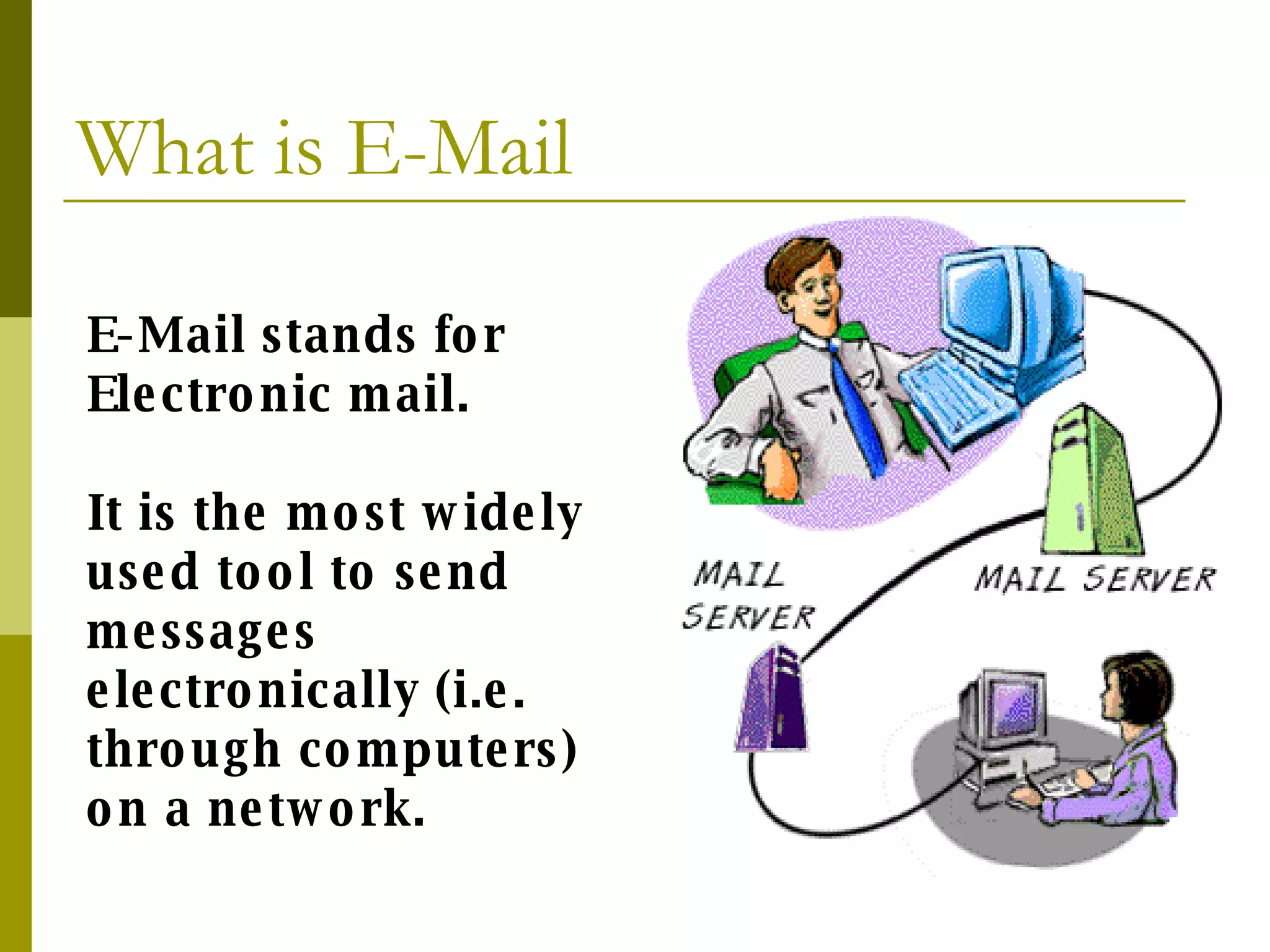
What is E-Mail E-Mail stands for Electronic mail. It is the most widely used tool to send messages electronically (i.e. through computers) on a network.
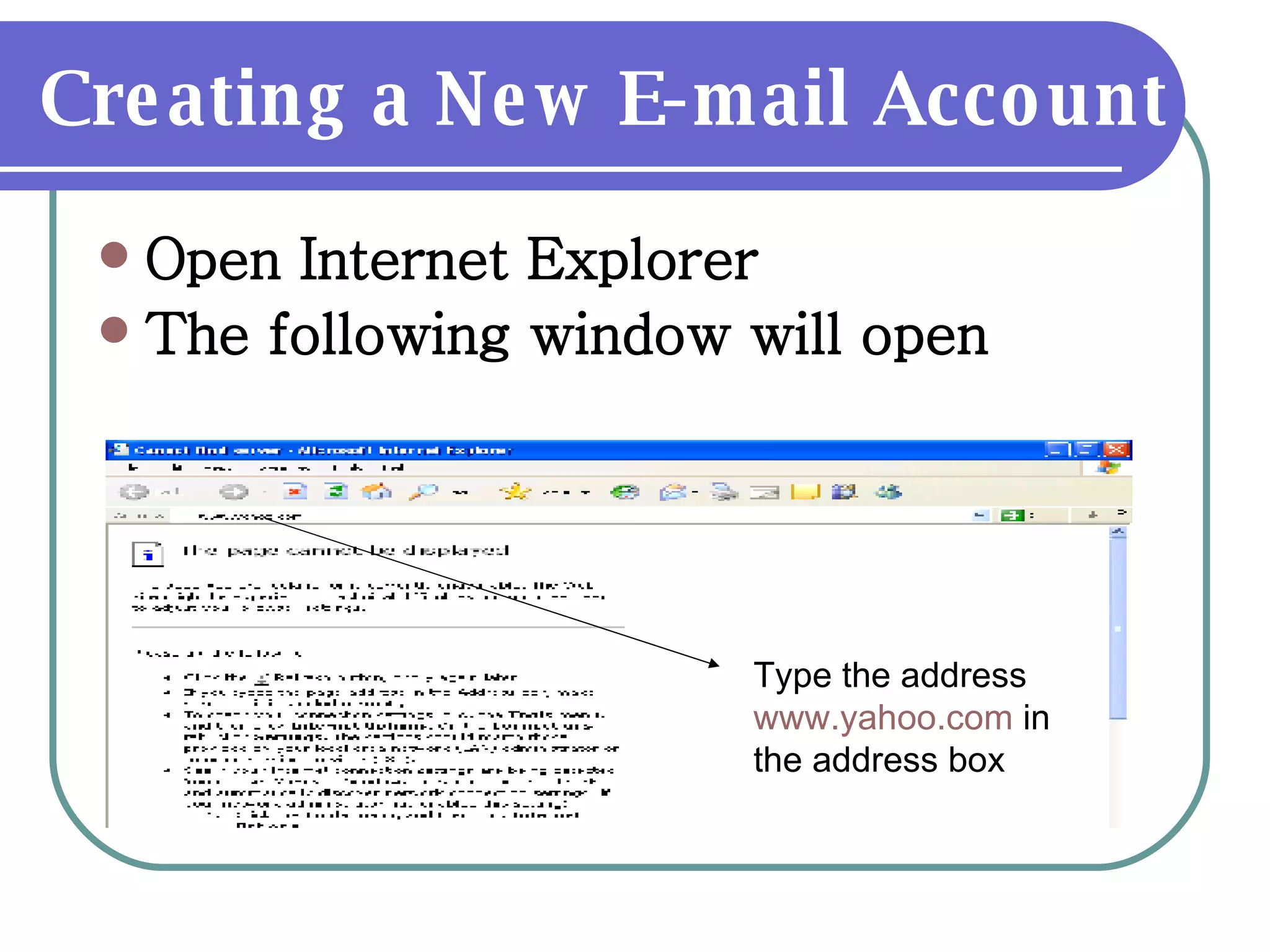
Creating a New E-mail Account Open Internet Explorer The following window will open Type the address  www.yahoo.com  in the address box
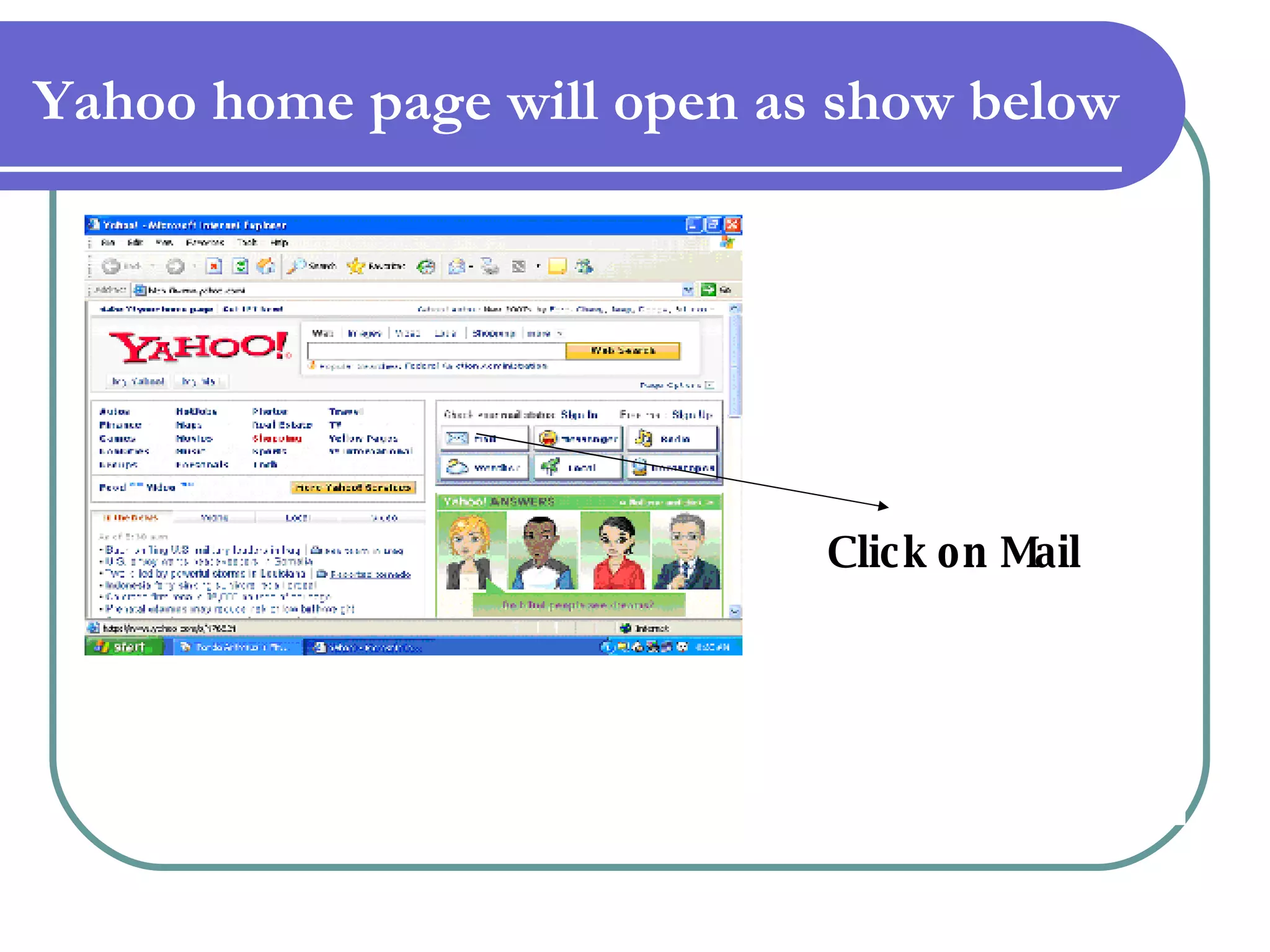
Yahoo home page will open as show below Click on Mail
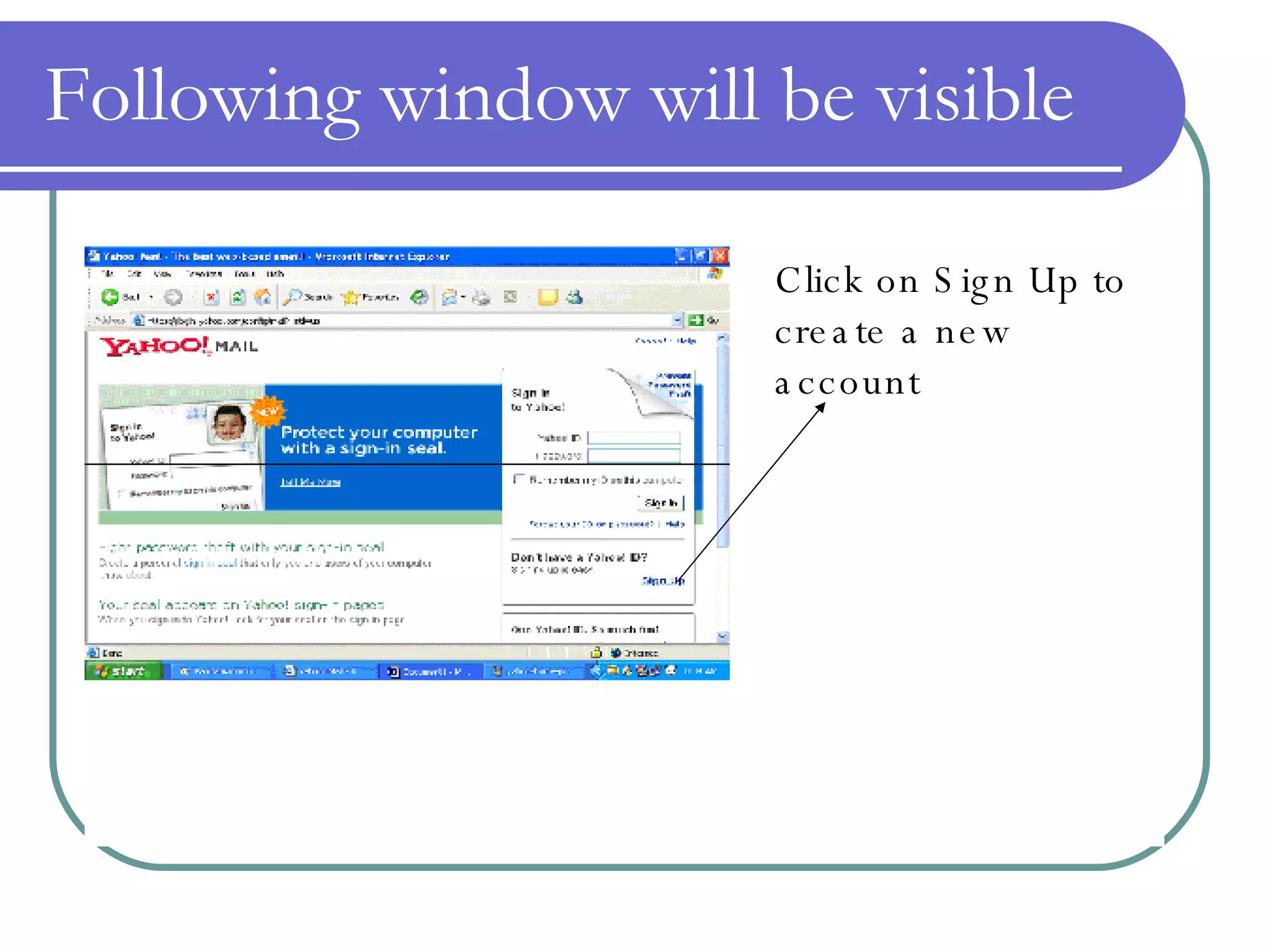
Following window will be visible Click on Sign Up to create a new account
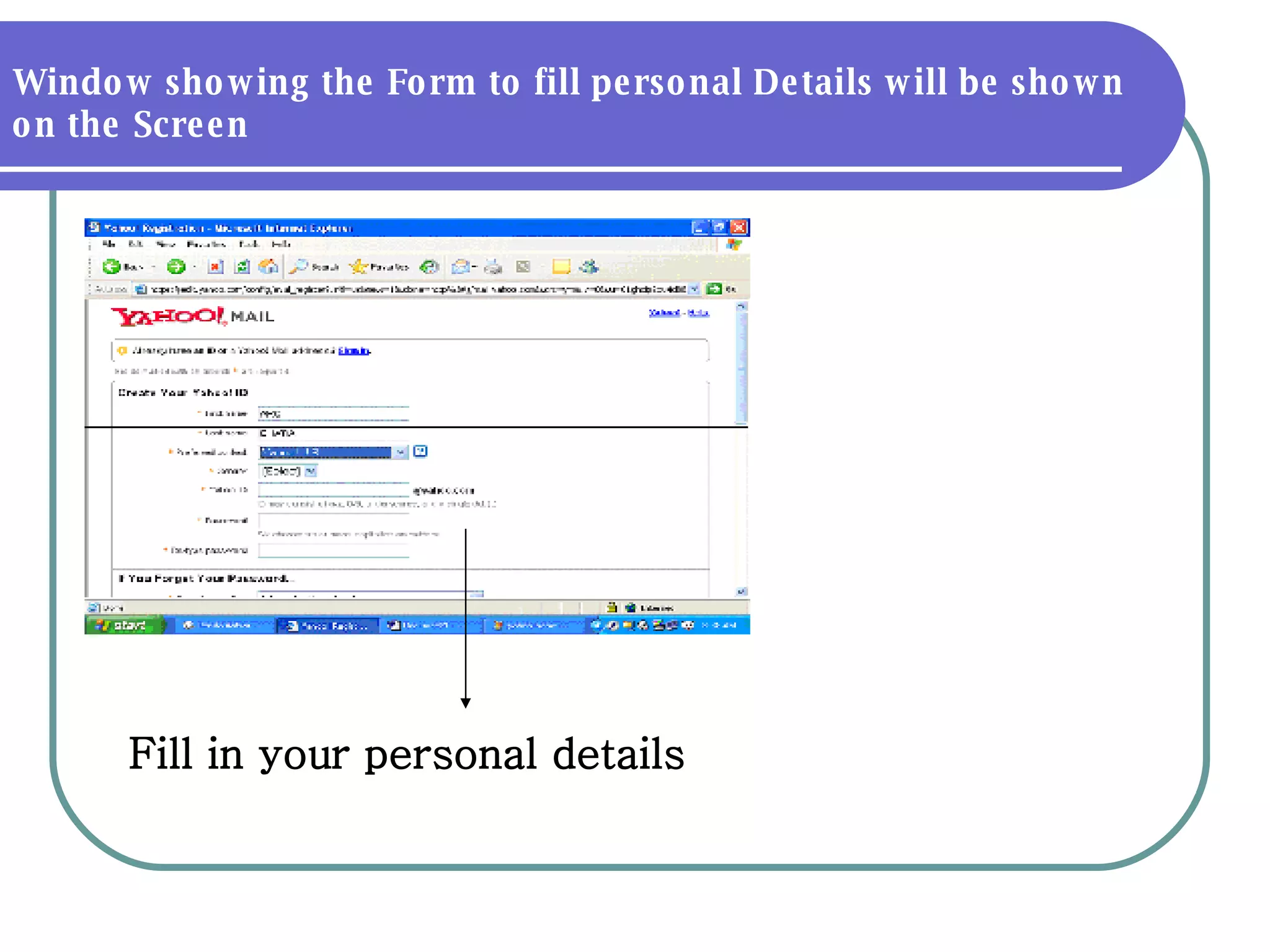
Window showing the Form to fill personal Details will be shown on the Screen Fill in your personal details
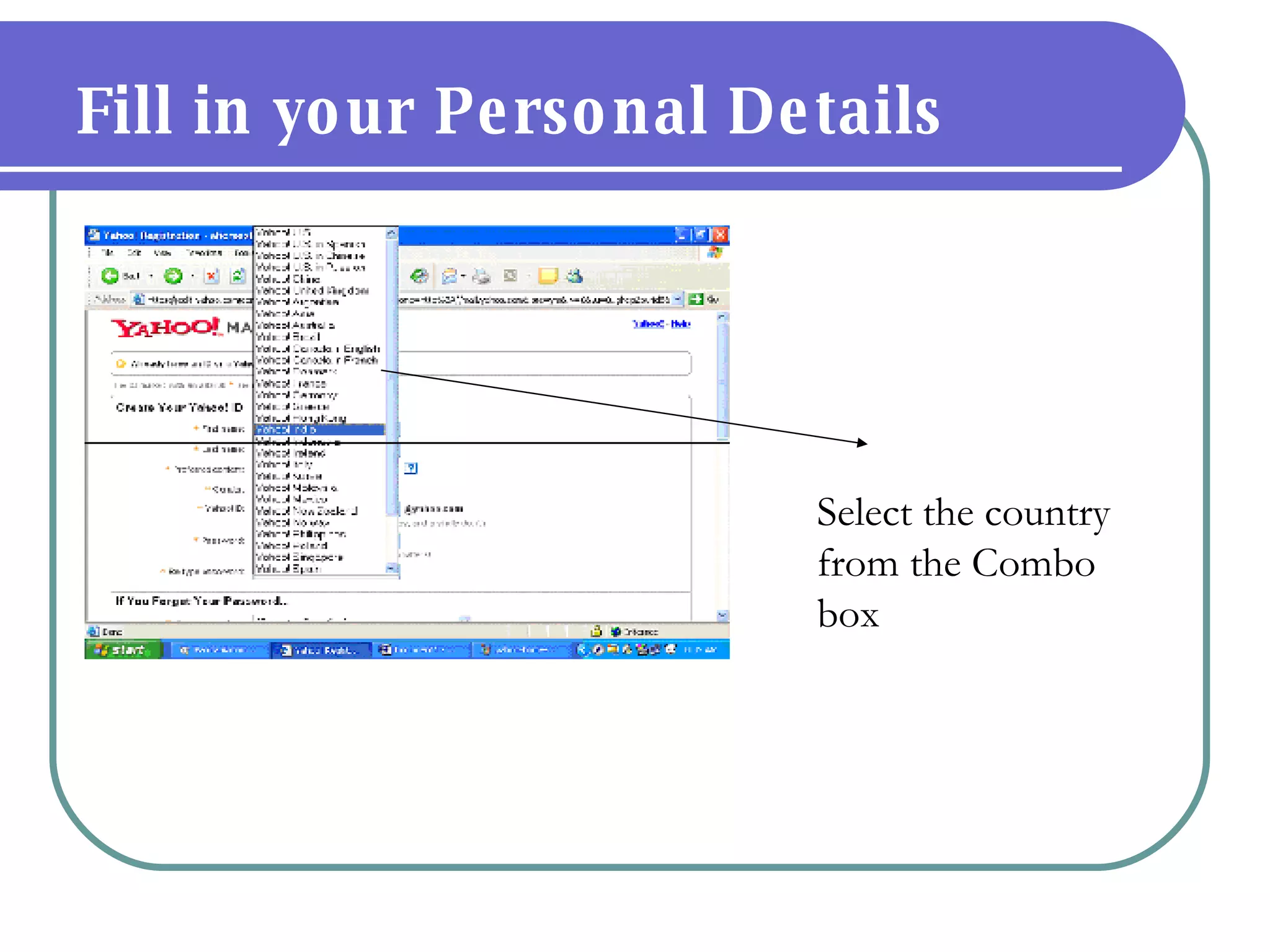
Select the country from the Combo box Fill in your Personal Details
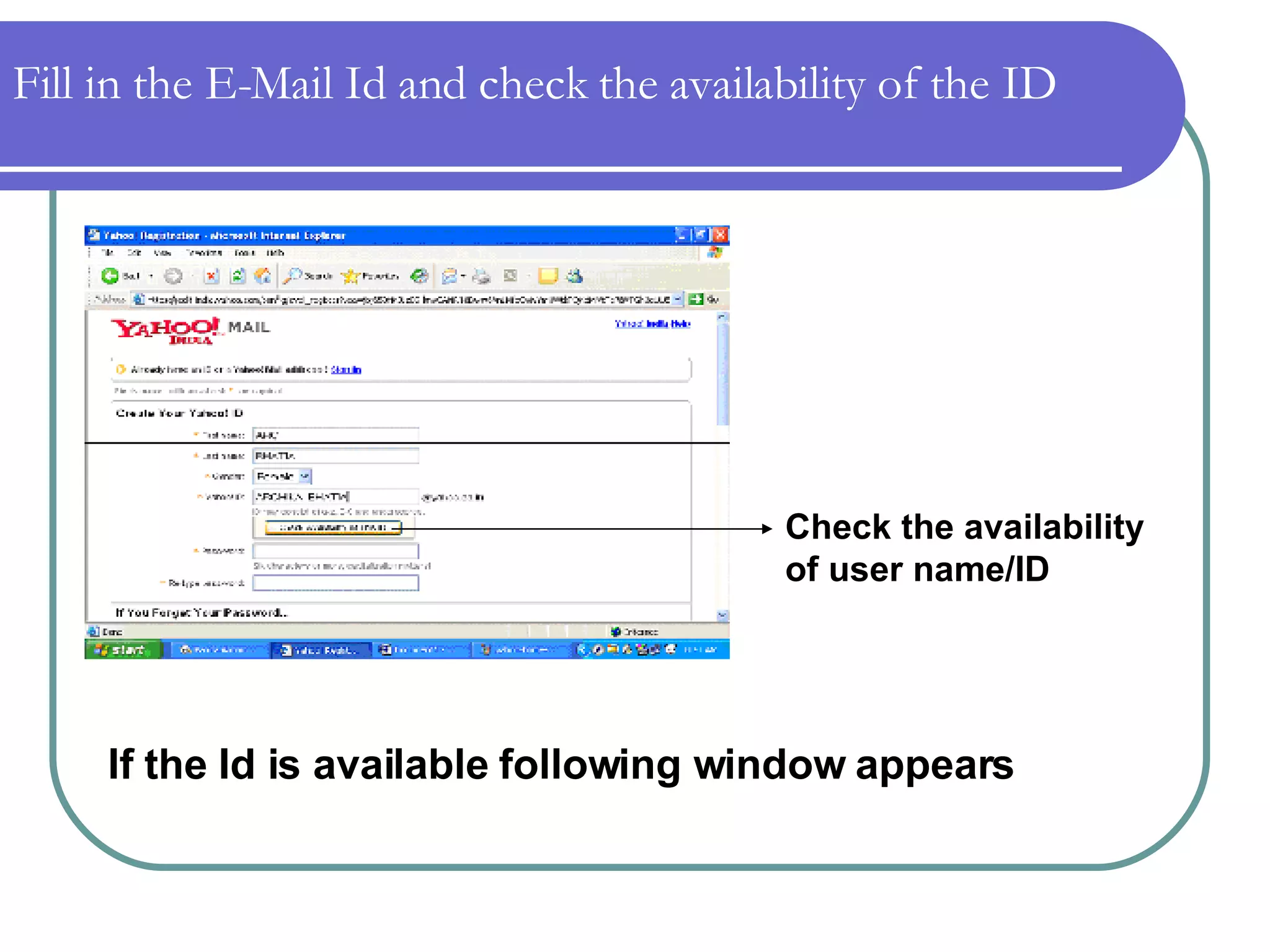
Check the availability of user name/ID If the Id is available following window appears Fill in the E-Mail Id and check the availability of the ID
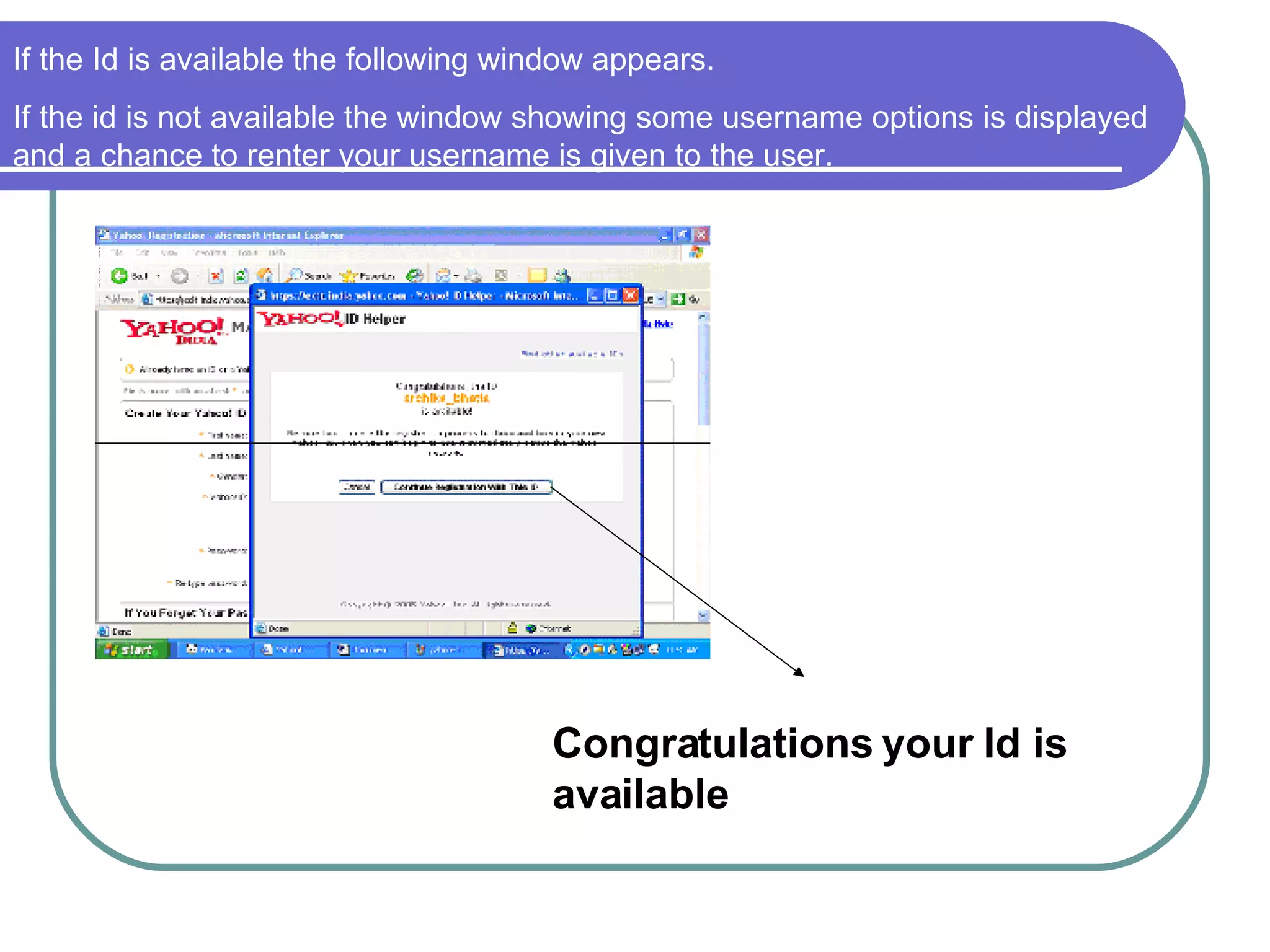
Congratulations your Id is available If the Id is available the following window appears. If the id is not available the window showing some username options is displayed and a chance to renter your username is given to the user.
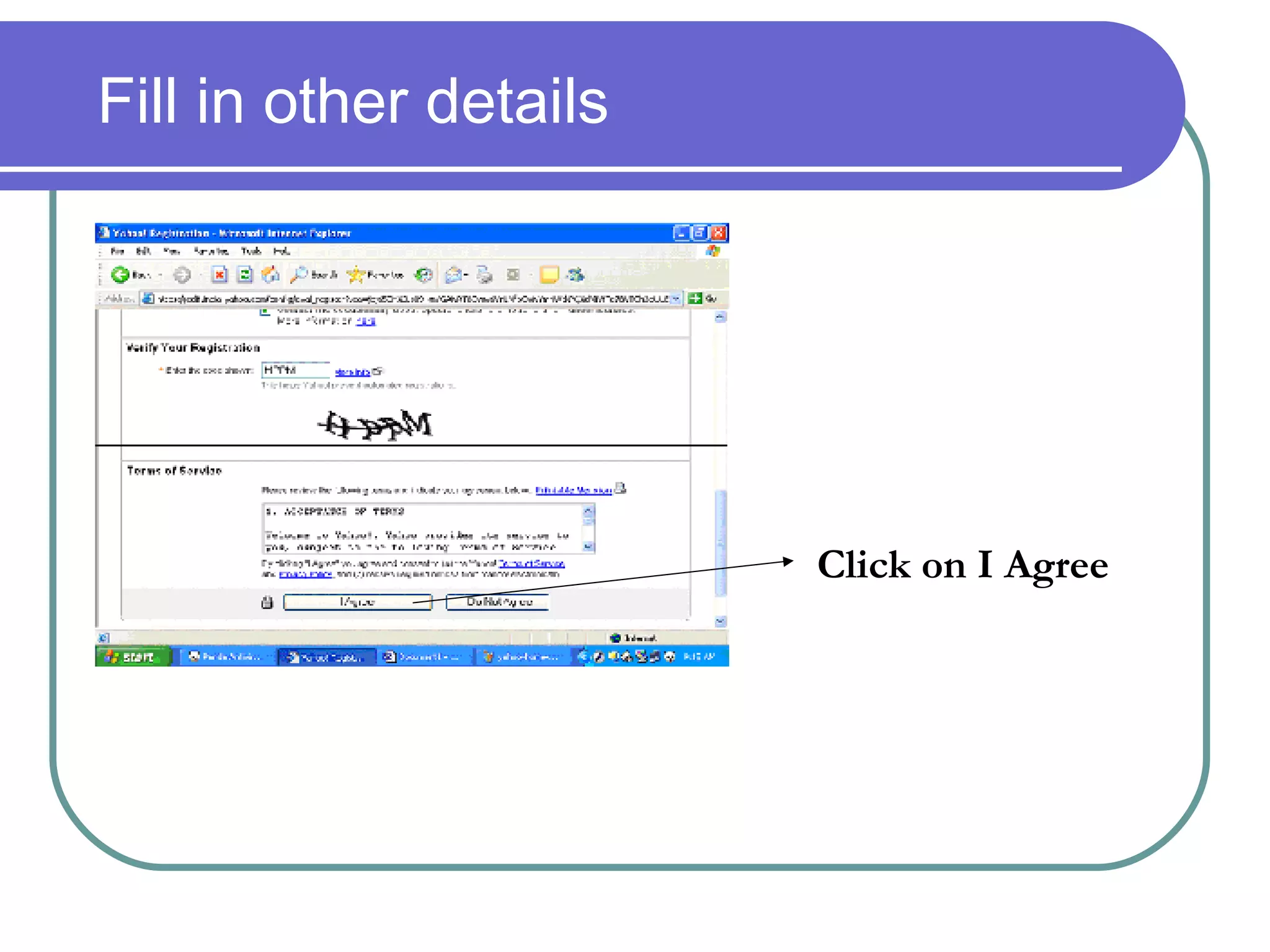
Fill in other details Click on I Agree
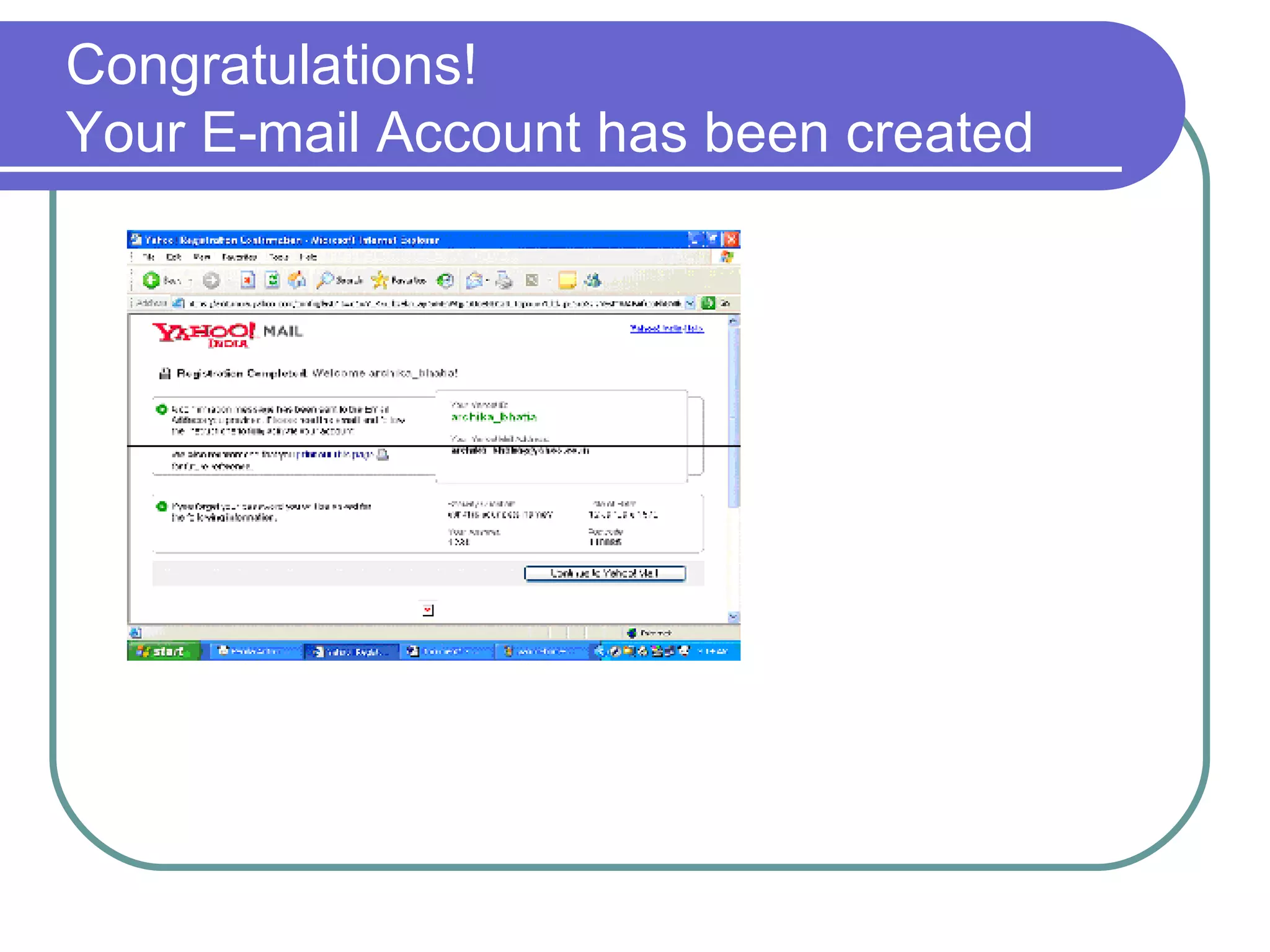
Congratulations! Your E-mail Account has been created
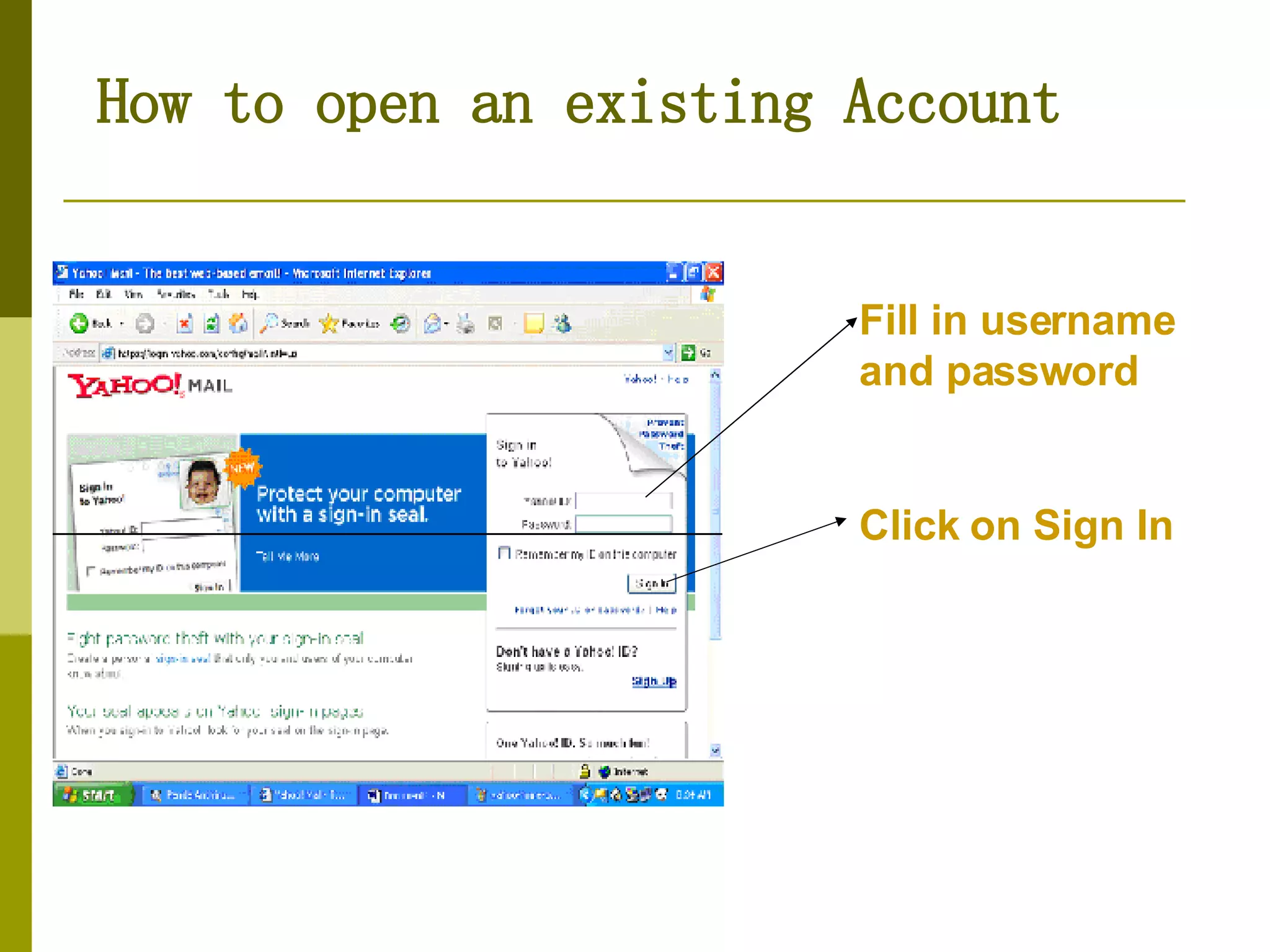
How to open an existing Account Fill in username and password Click on Sign In
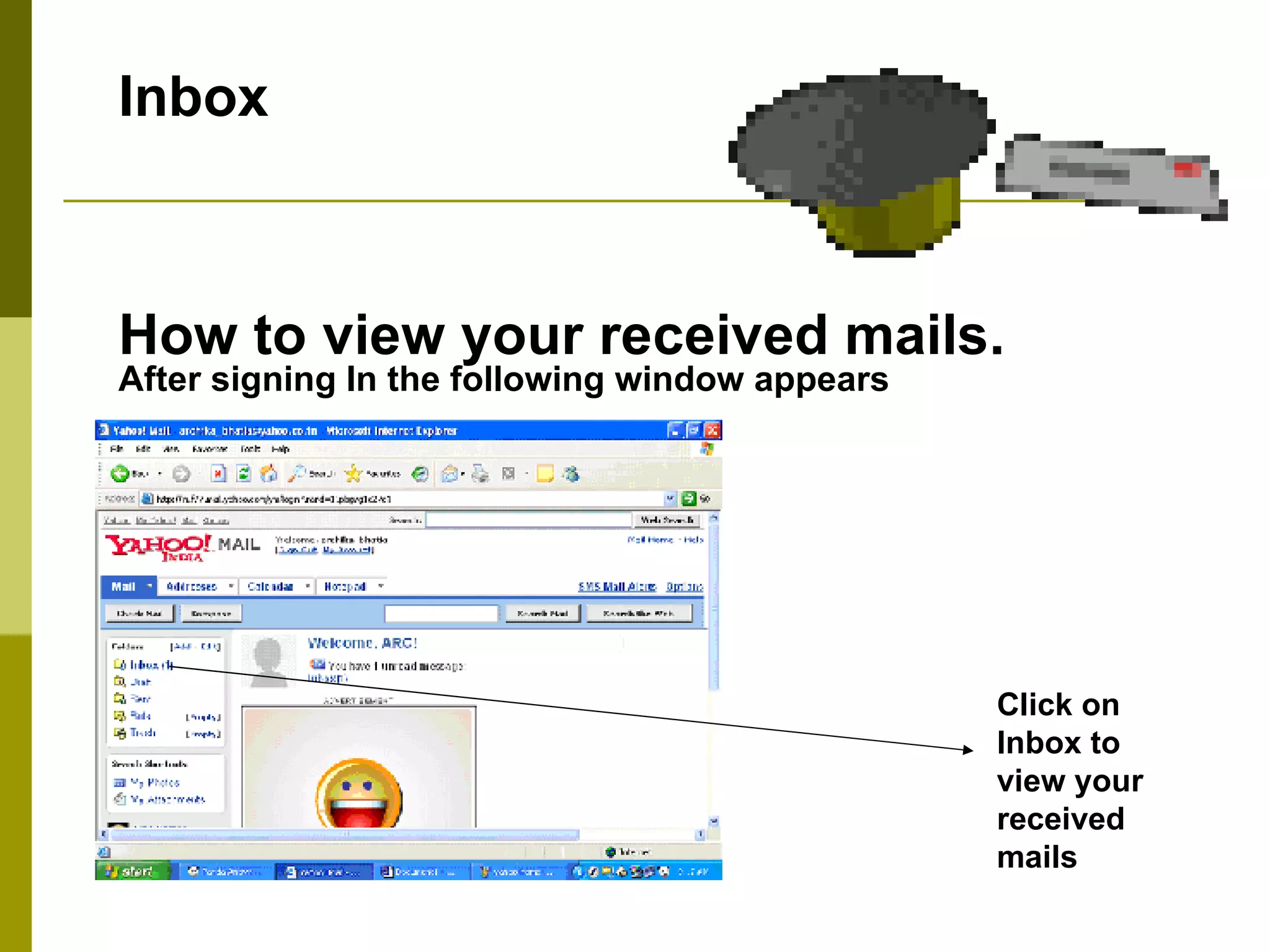
Inbox  How to view your received mails. After signing In the following window appears Click on Inbox to view your received mails
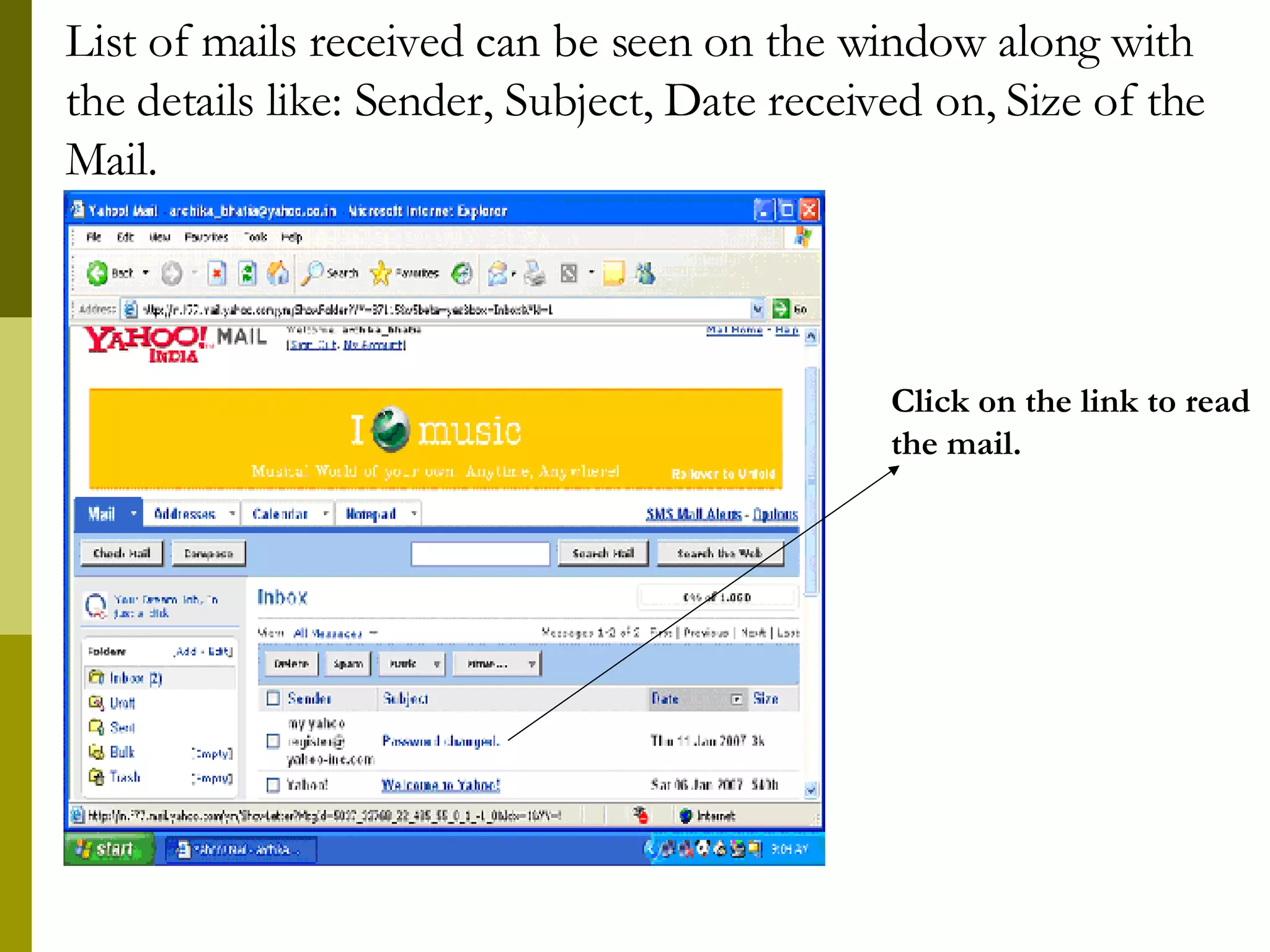
List of mails received can be seen on the window along with the details like: Sender, Subject, Date received on, Size of the Mail. Click on the link to read the mail.
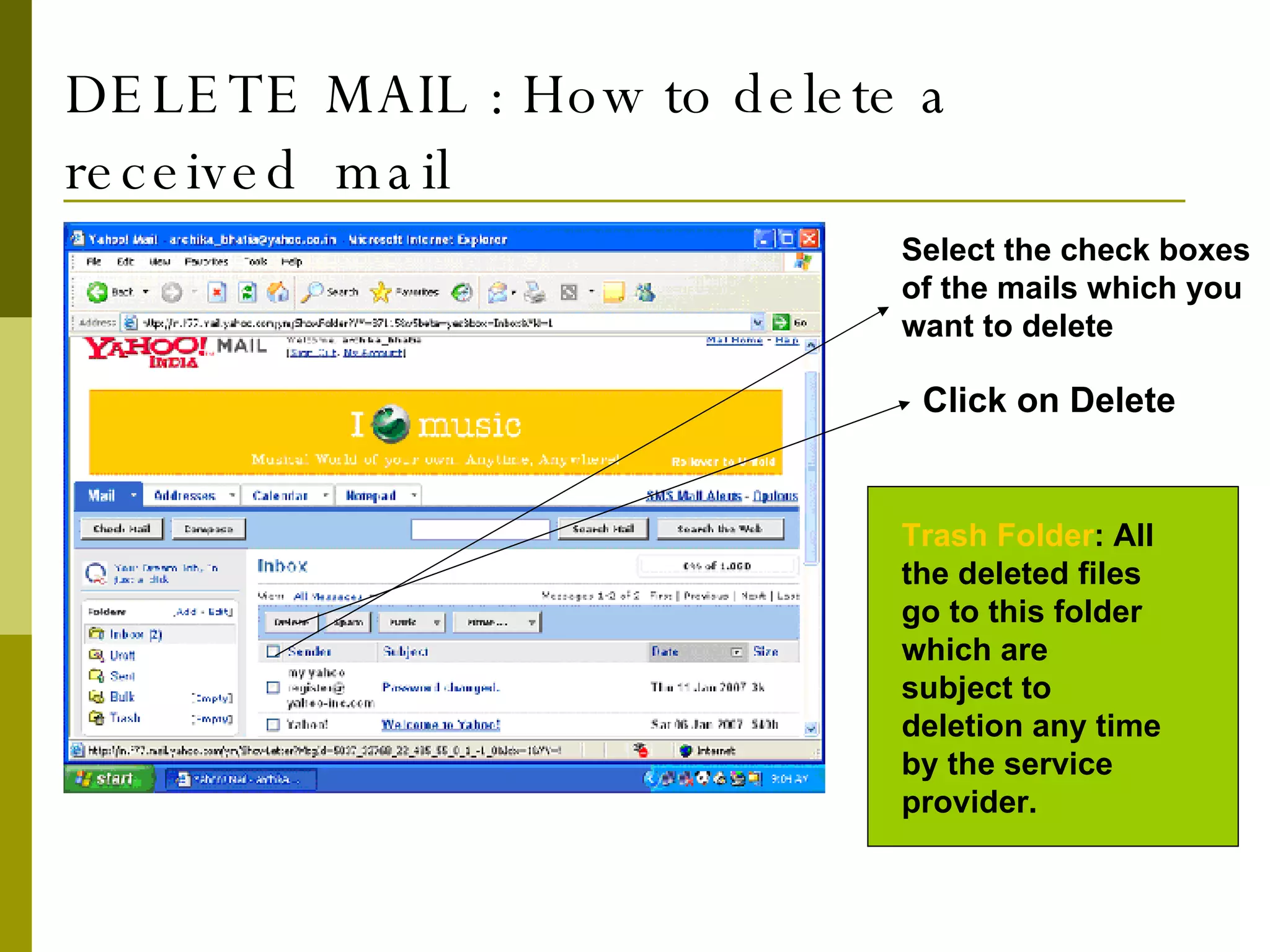
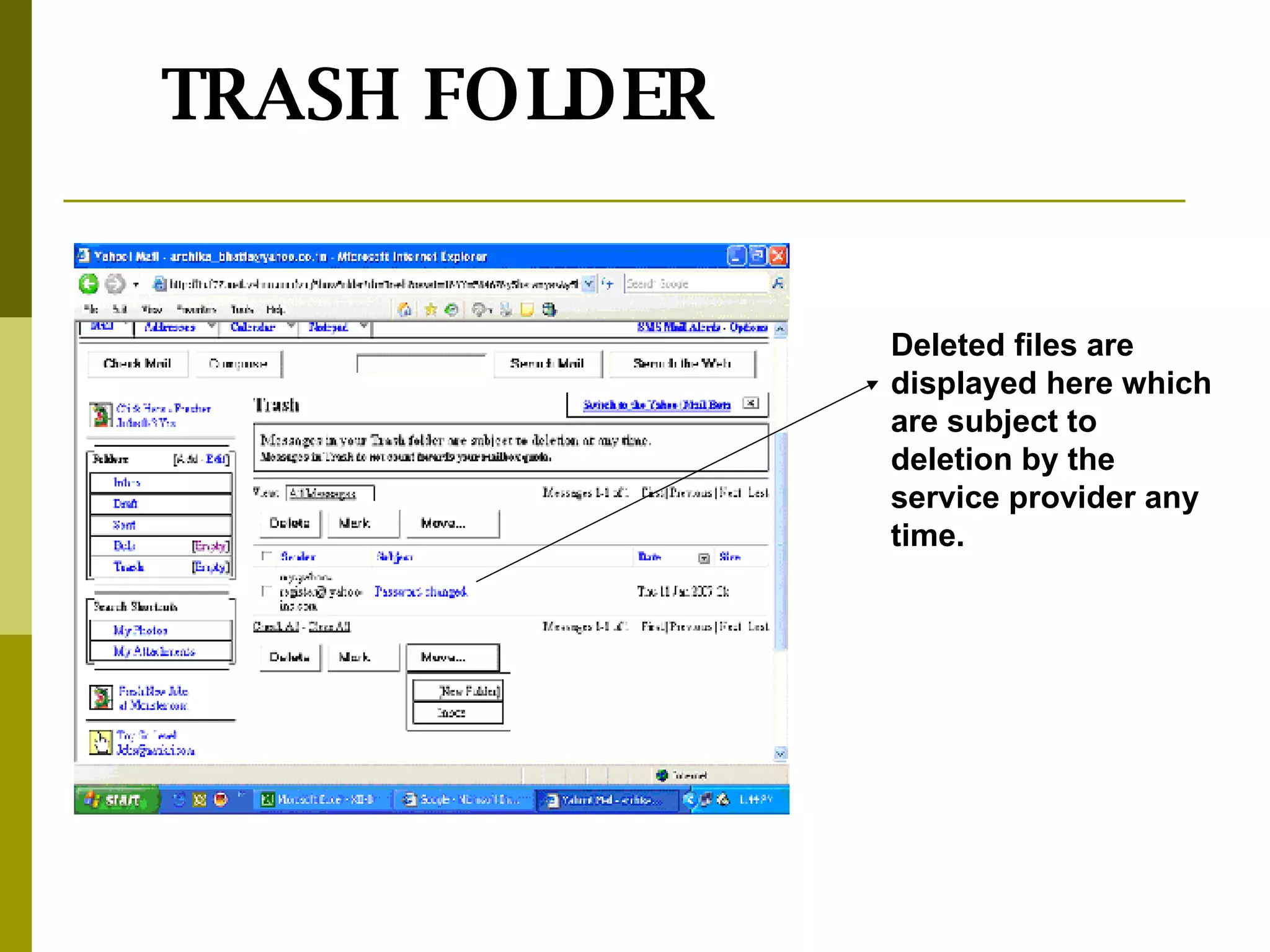
DELETE MAIL : How to delete a received  mail Select the check boxes of the mails which you want to delete Click on Delete Trash Folder : All the deleted files go to this folder which are subject to deletion any time by the service provider.
Deleted files are displayed here which are subject to deletion by the service provider any time. TRASH FOLDER
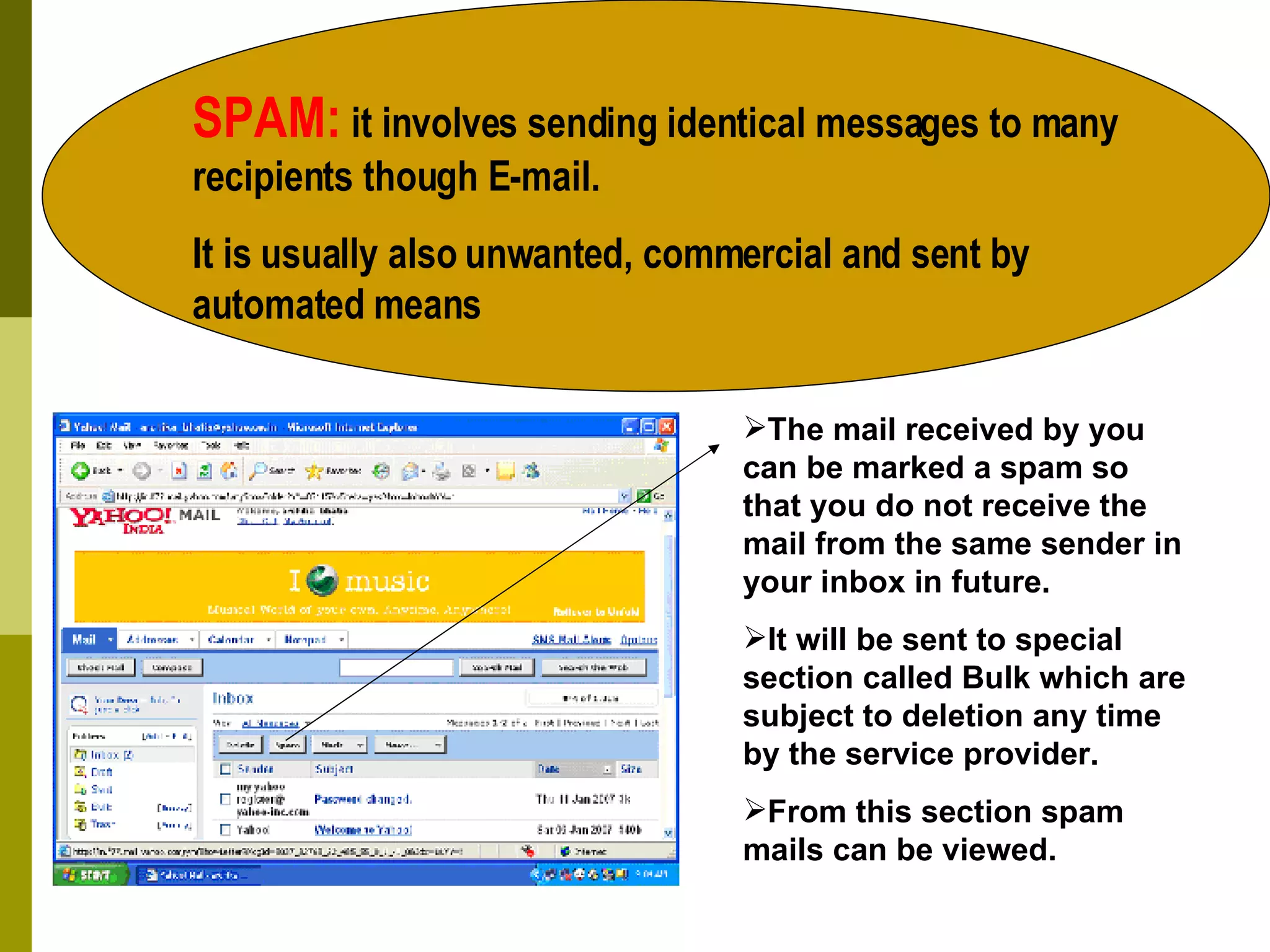
SPAM:  it involves sending identical messages to many recipients though E-mail. It is usually also unwanted, commercial and sent by automated means The mail received by you can be marked a spam so that you do not receive the mail from the same sender in your inbox in future. It will be sent to special section called Bulk which are subject to deletion any time by the service provider. From this section spam mails can be viewed.
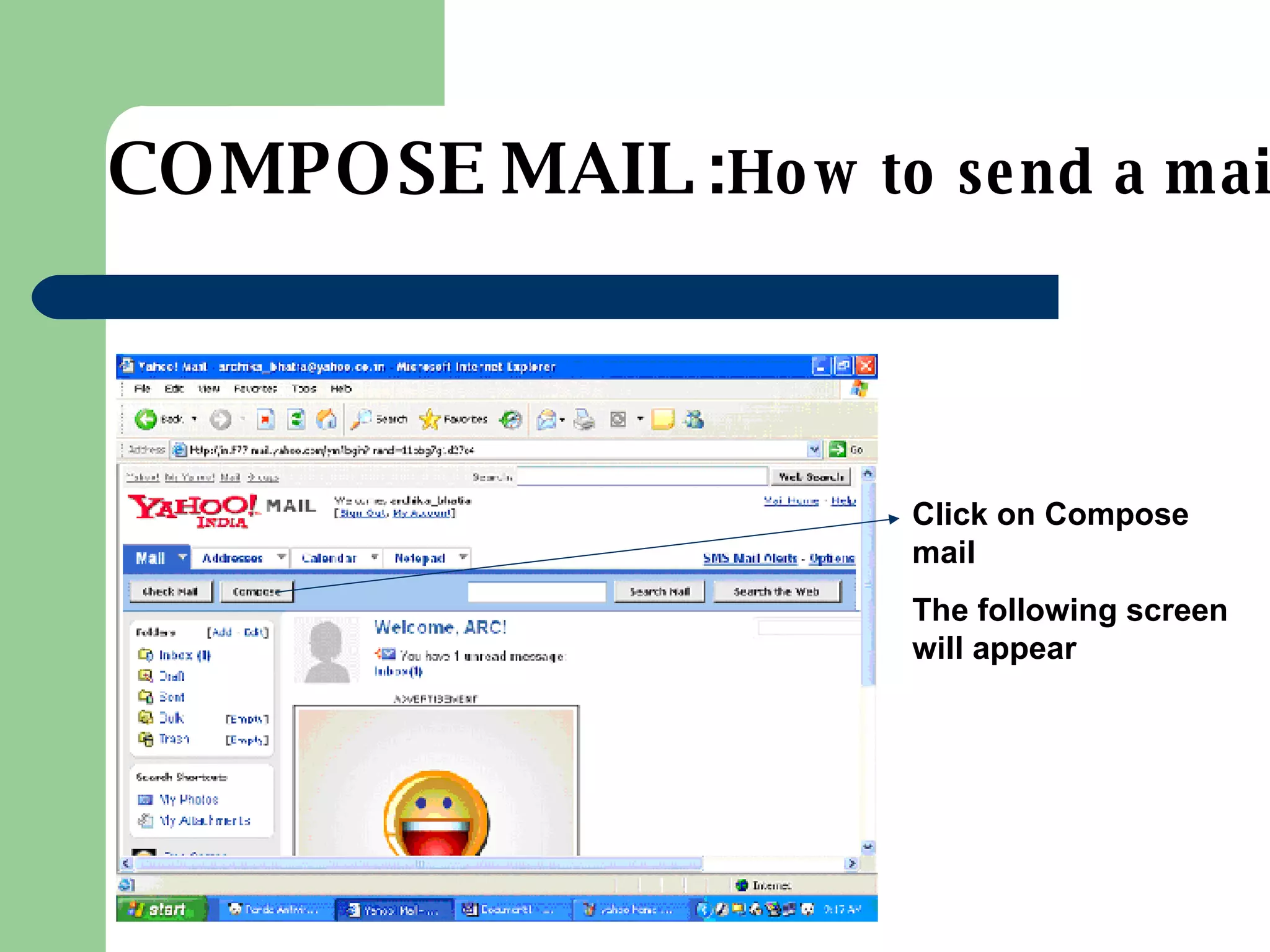
COMPOSE MAIL : How to send a mail Click on Compose mail The following screen will appear
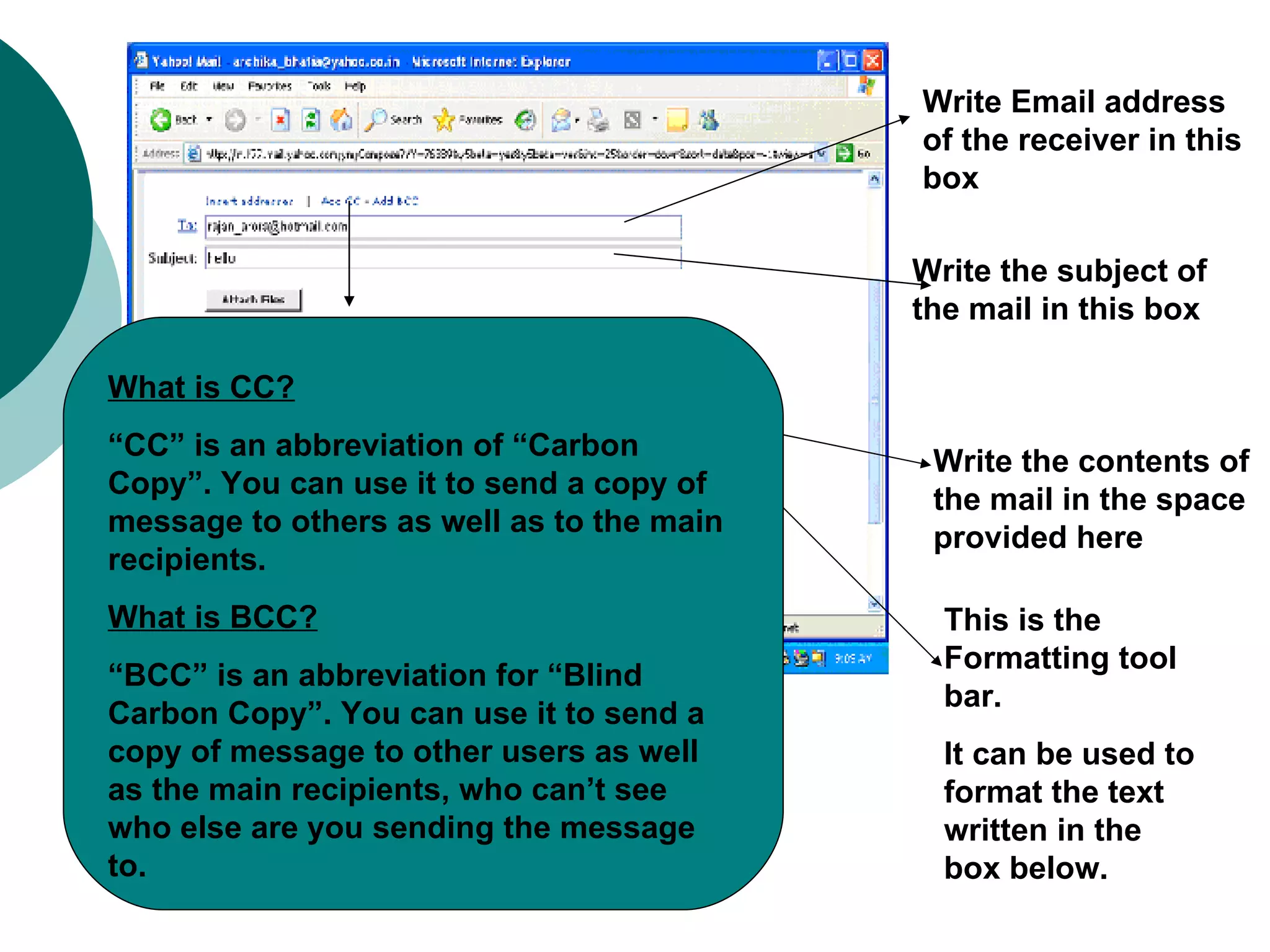
Write Email address of the receiver in this box  Write the subject of the mail in this box Write the contents of the mail in the space provided here This is the Formatting tool bar. It can be used to format the text written in the box below. What is CC? “ CC” is an abbreviation of “Carbon Copy”. You can use it to send a copy of message to others as well as to the main recipients. What is BCC? “ BCC” is an abbreviation for “Blind Carbon Copy”. You can use it to send a copy of message to other users as well as the main recipients, who can’t see who else are you sending the message to.
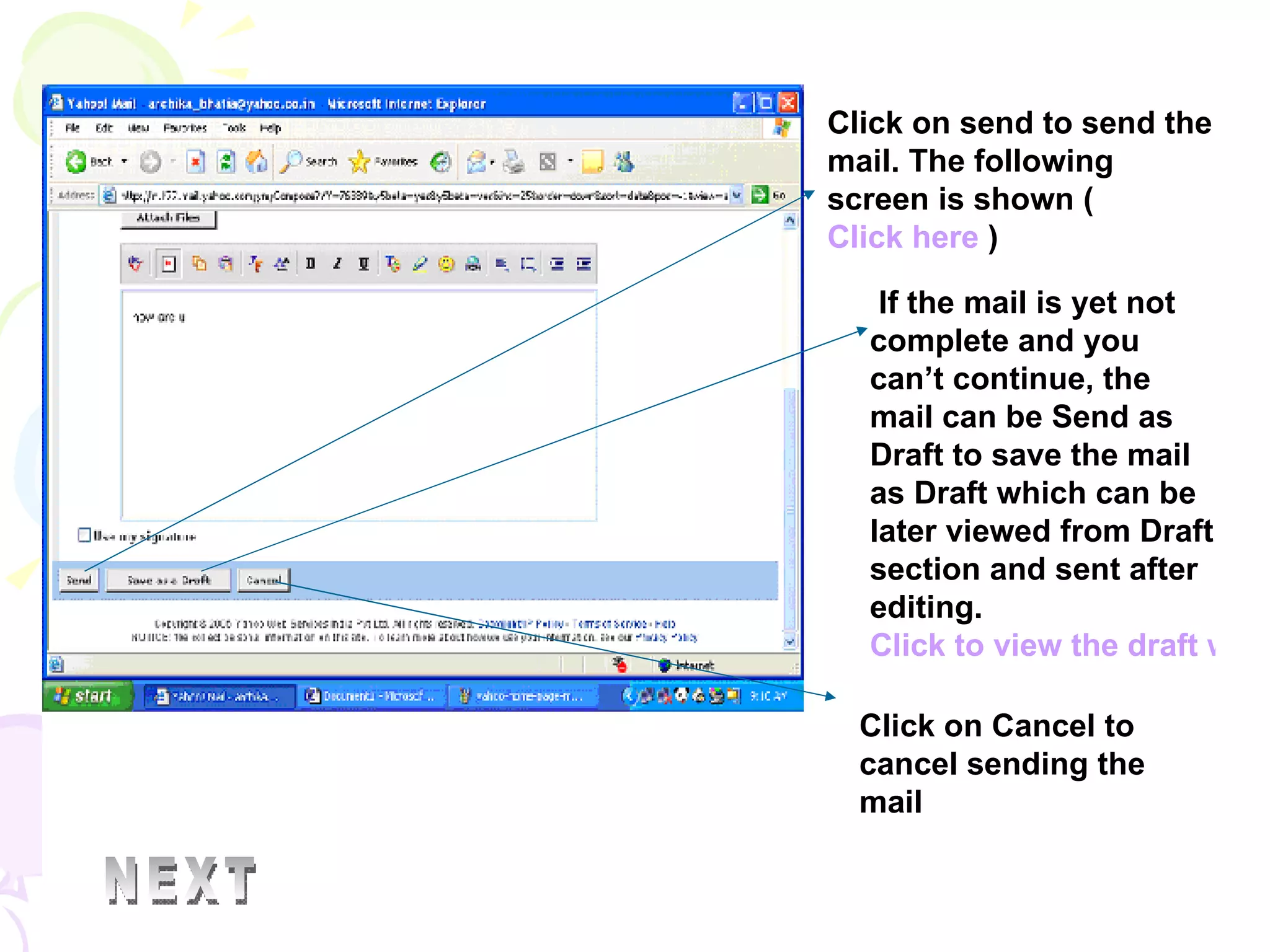
Click on send to send the mail. The following screen is shown (  Click here  ) If the mail is yet not complete and you can’t continue, the mail can be Send as Draft to save the mail as Draft which can be later viewed from Draft section and sent after editing.  Click to view the draft window Click on Cancel to cancel sending the mail NEXT
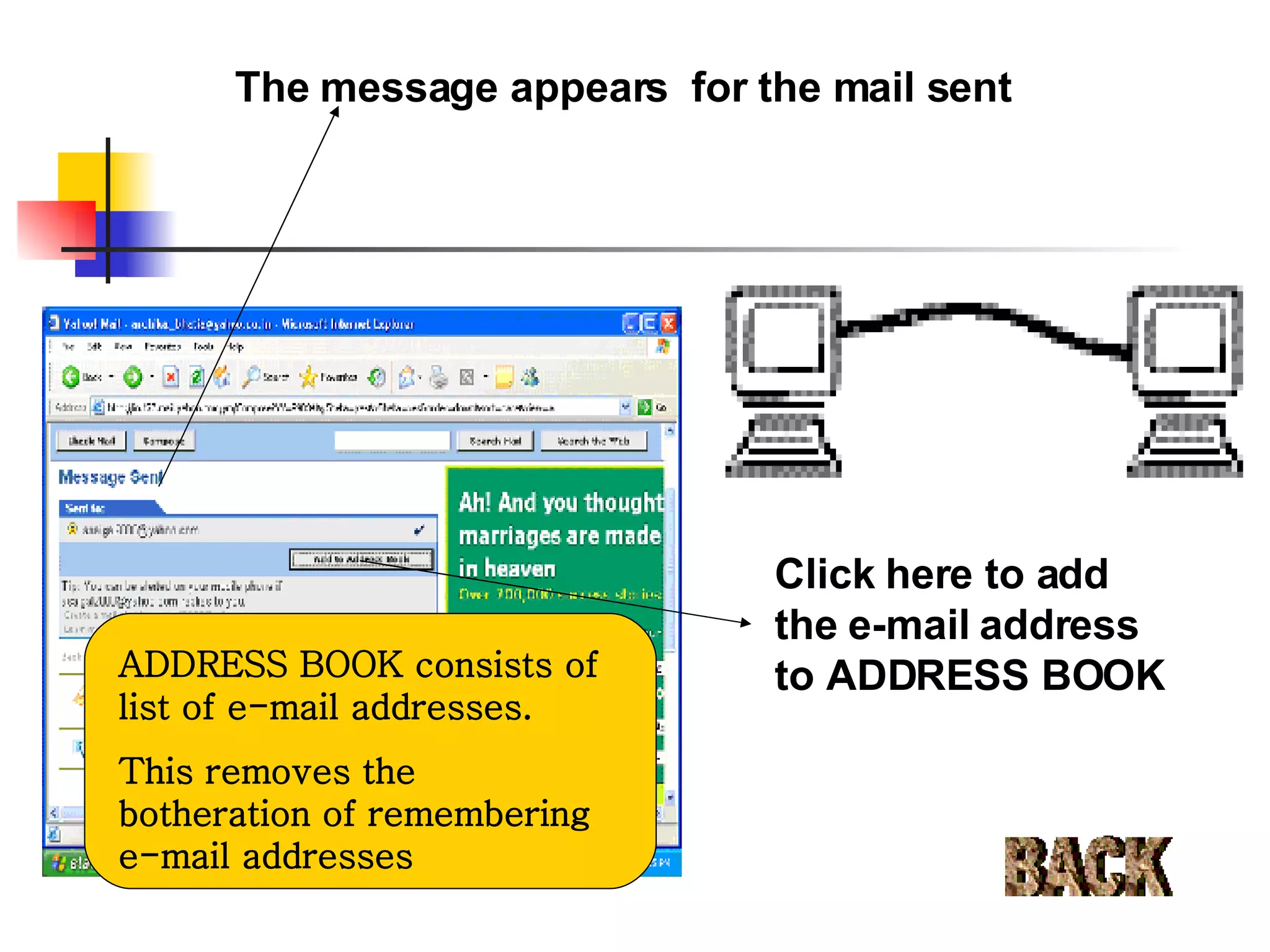
Click here to add the e-mail address to ADDRESS BOOK BACK The message appears  for the mail sent ADDRESS BOOK consists of list of e-mail addresses. This removes the botheration of remembering e-mail addresses
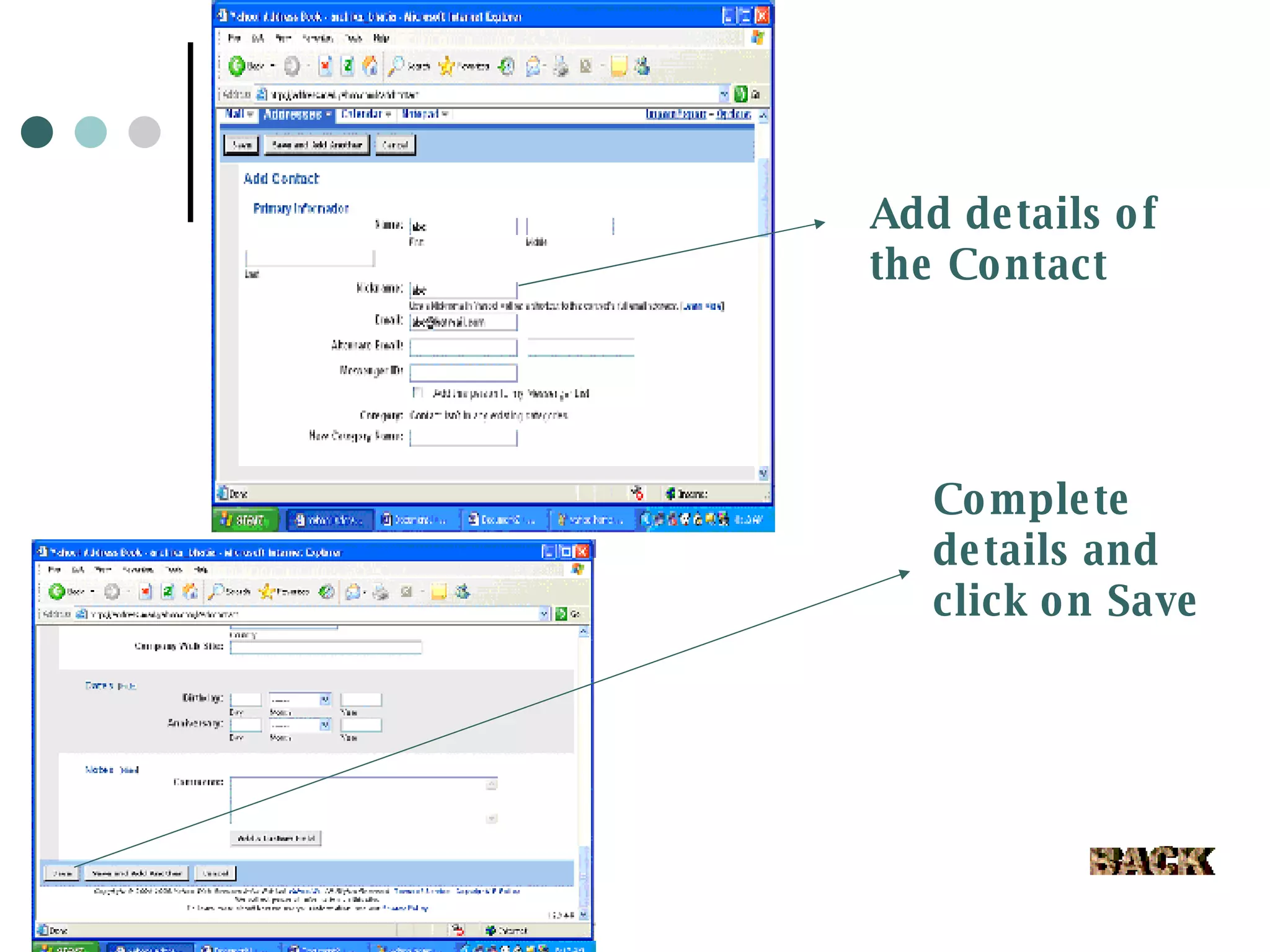
Add details of the Contact Complete details and click on Save BACK
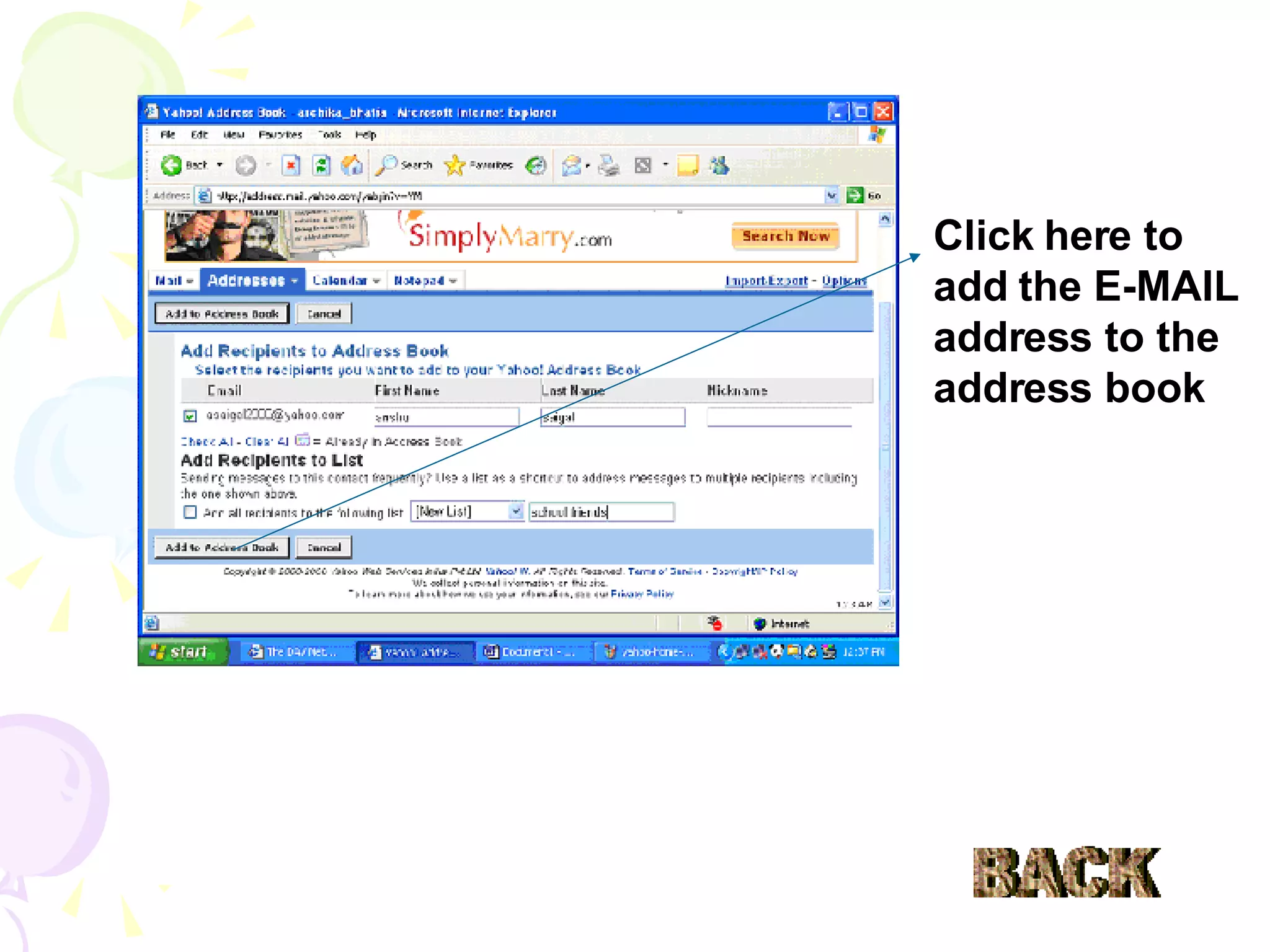
Click here to add the E-MAIL address to the address book BACK
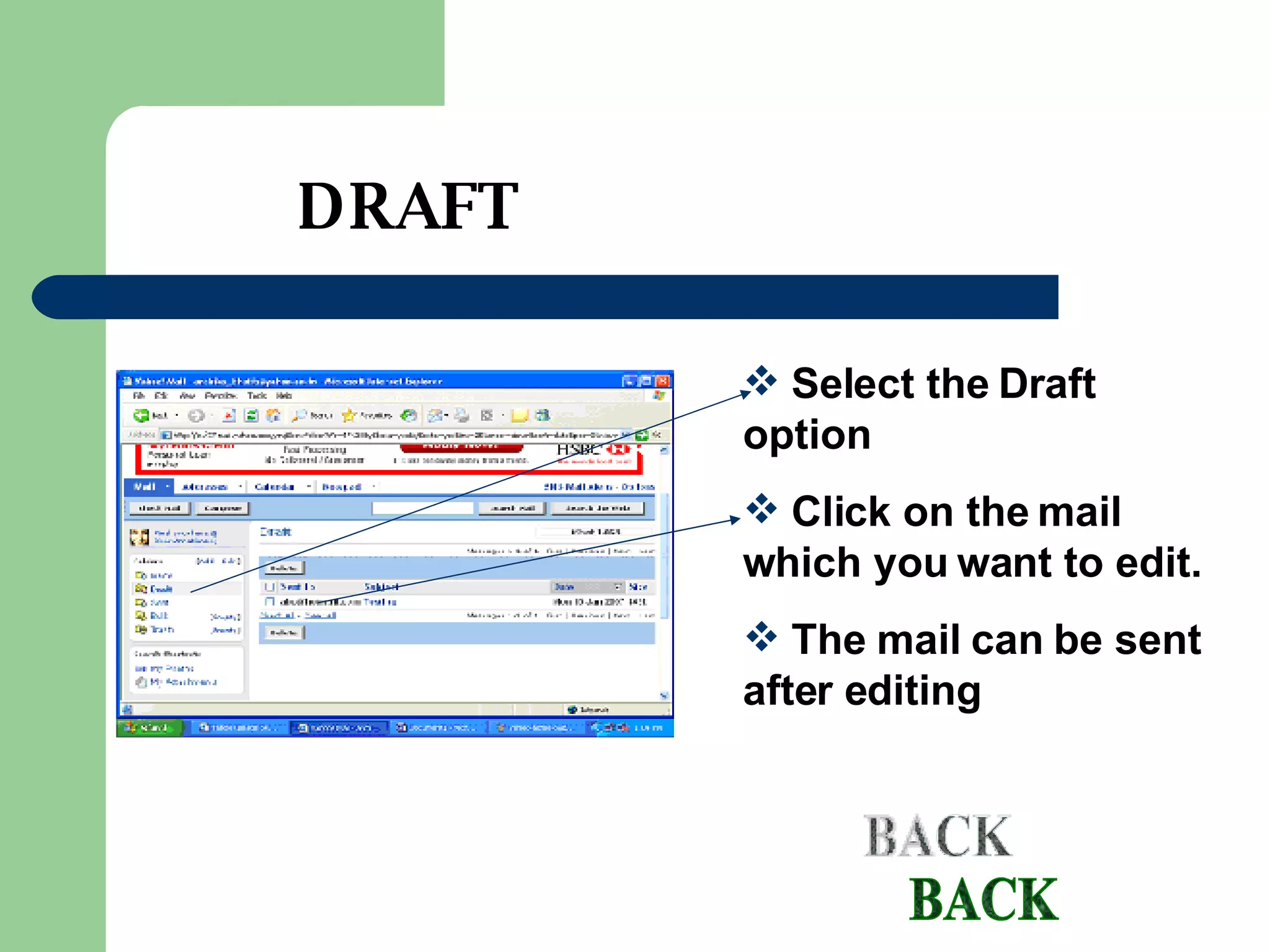
Select the Draft option Click on the mail which you want to edit. The mail can be sent after editing DRAFT BACK
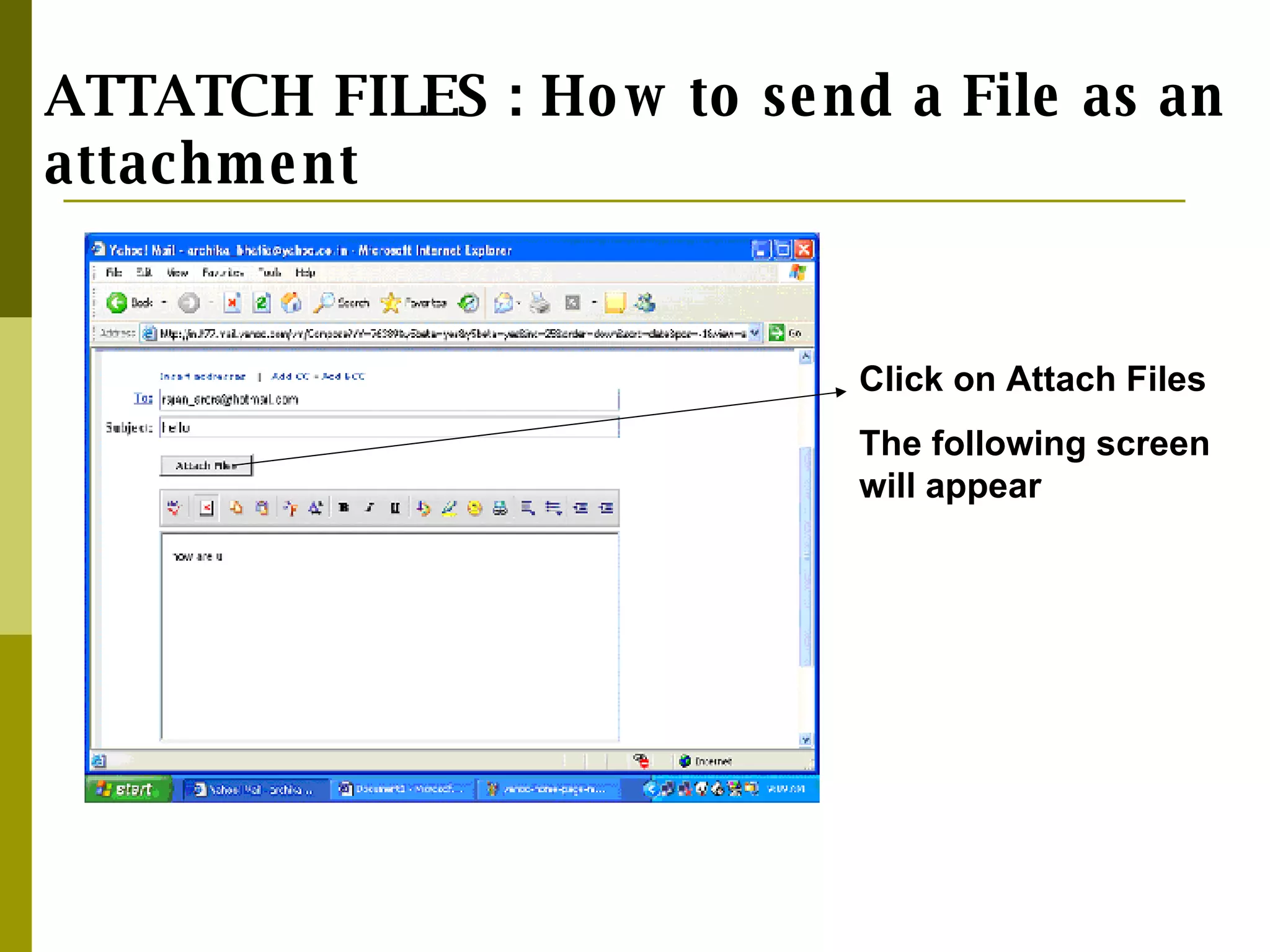
ATTATCH FILES : How to send a File as an attachment Click on Attach Files The following screen will appear
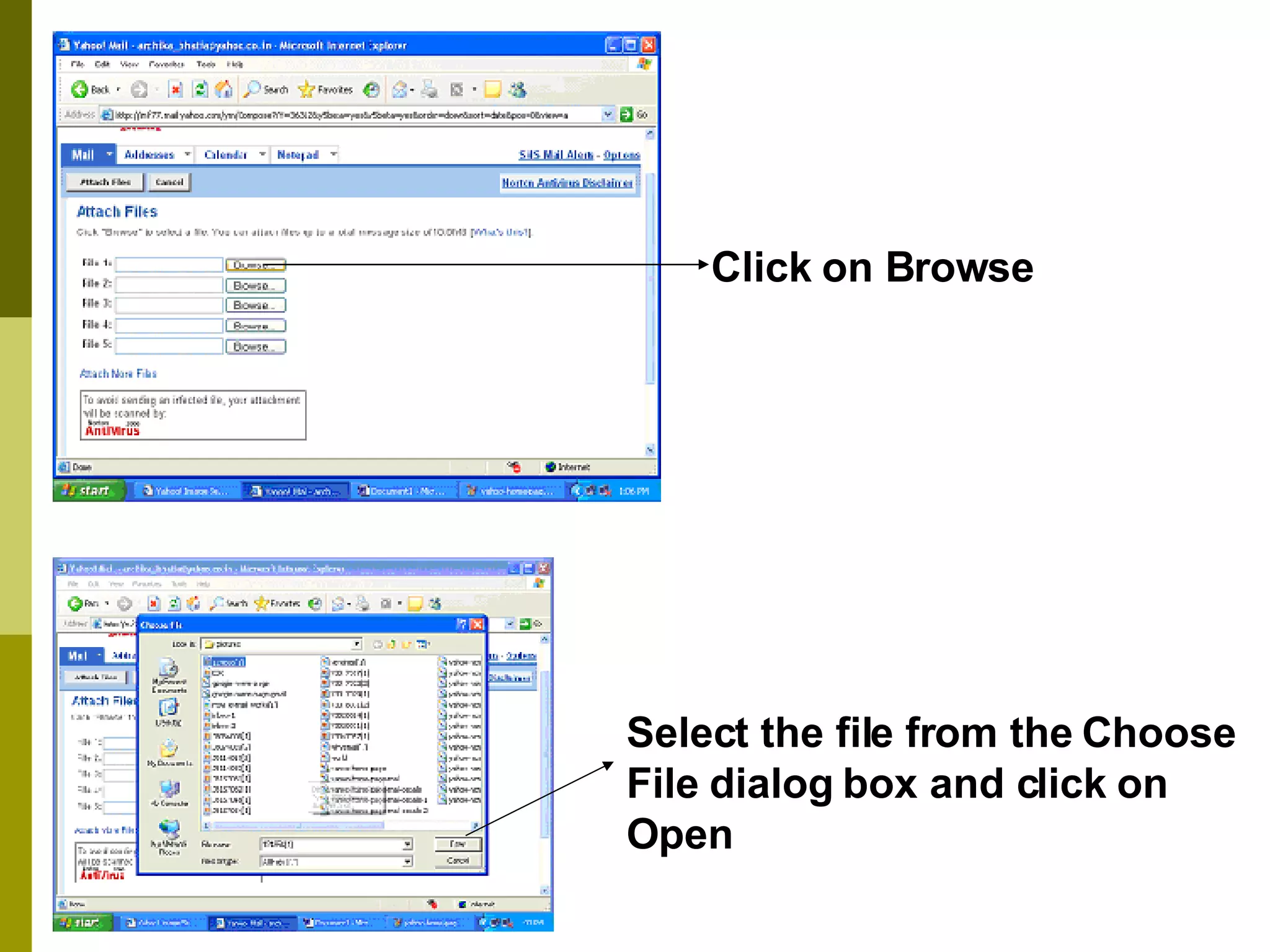
Click on Browse Select the file from the Choose File dialog box and click on Open
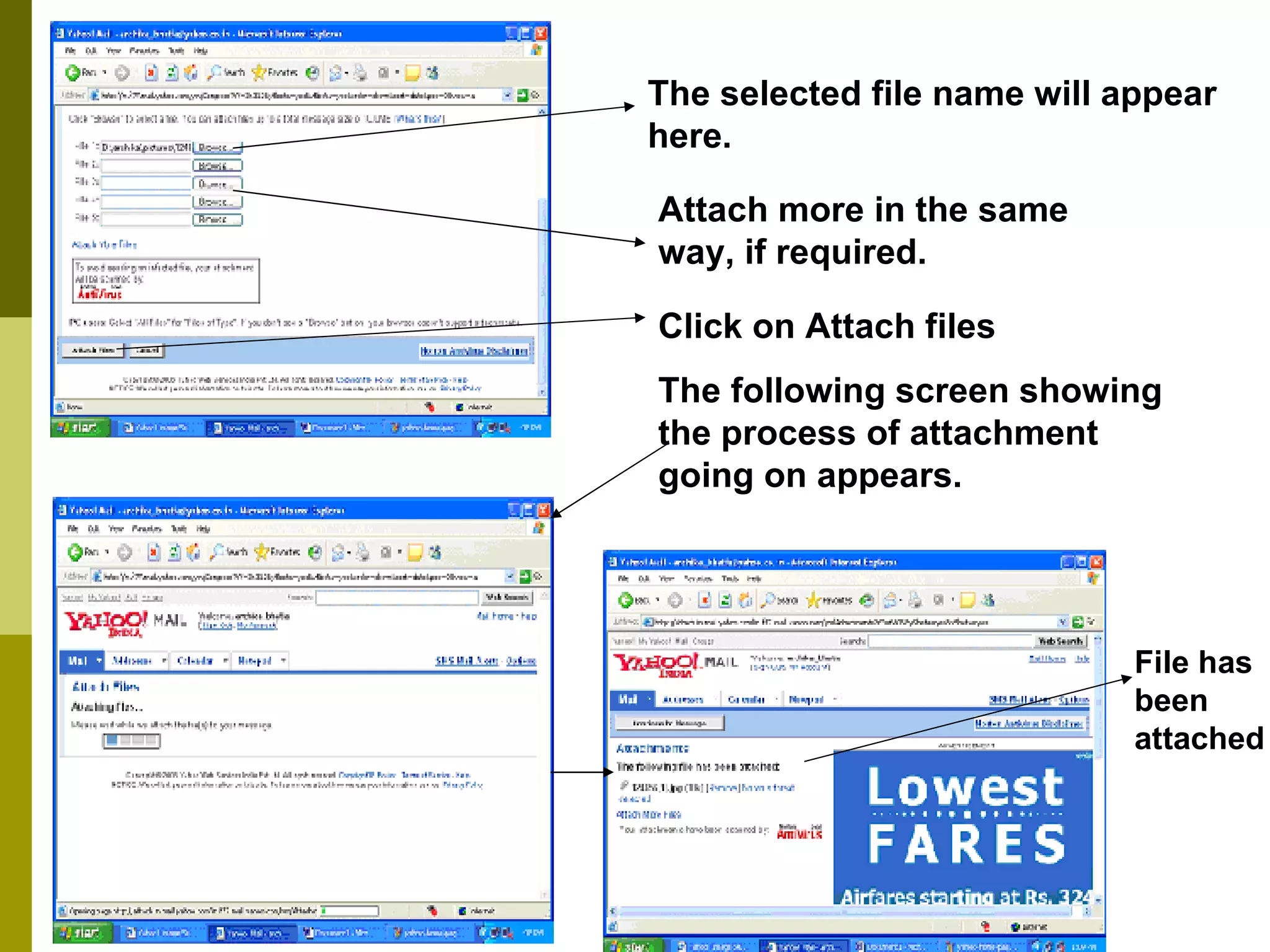
The selected file name will appear here. Attach more in the same way, if required. Click on Attach files The following screen showing the process of attachment going on appears. File has been attached
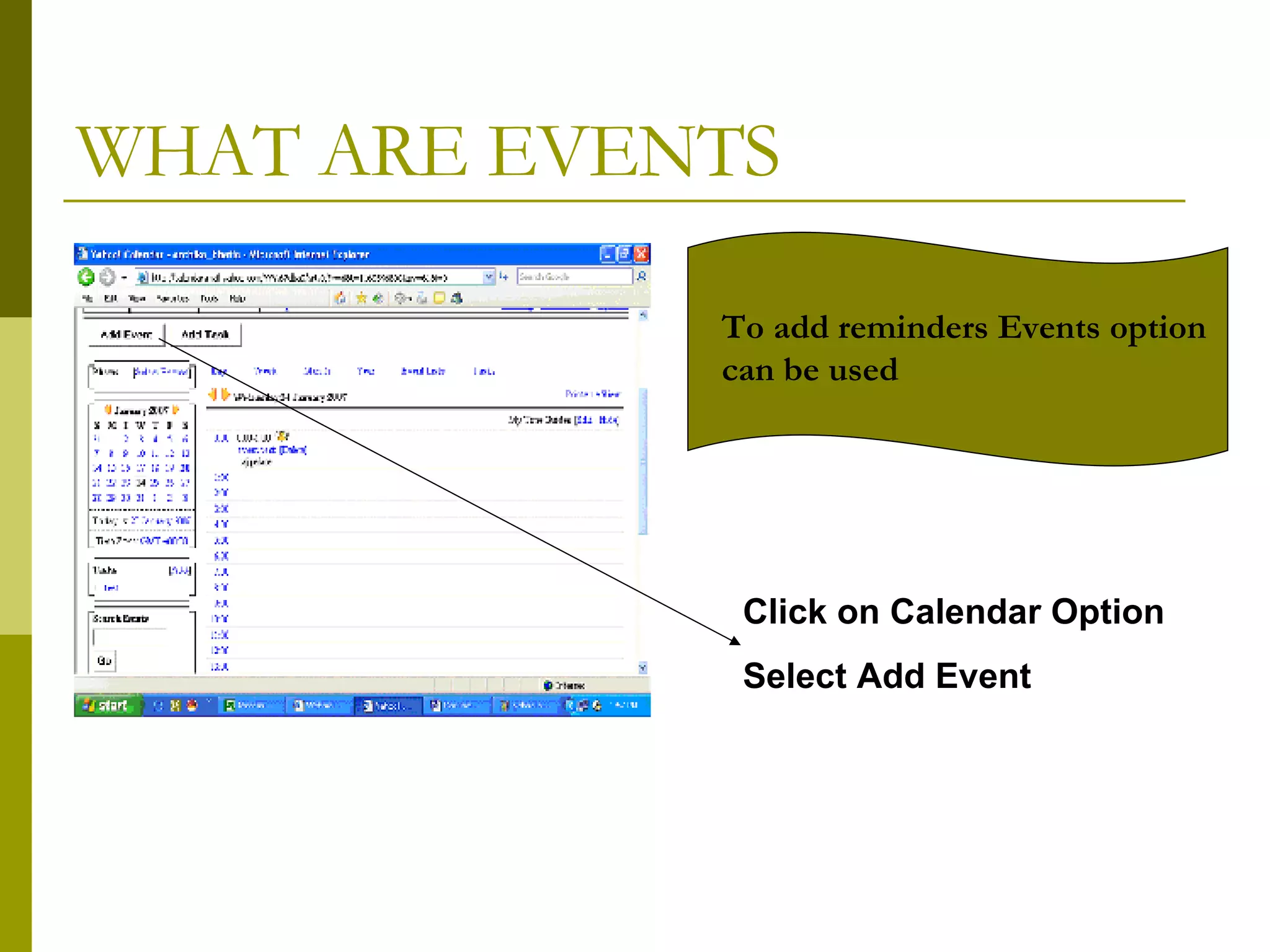
WHAT ARE EVENTS Click on Calendar Option Select Add Event To add reminders Events option can be used
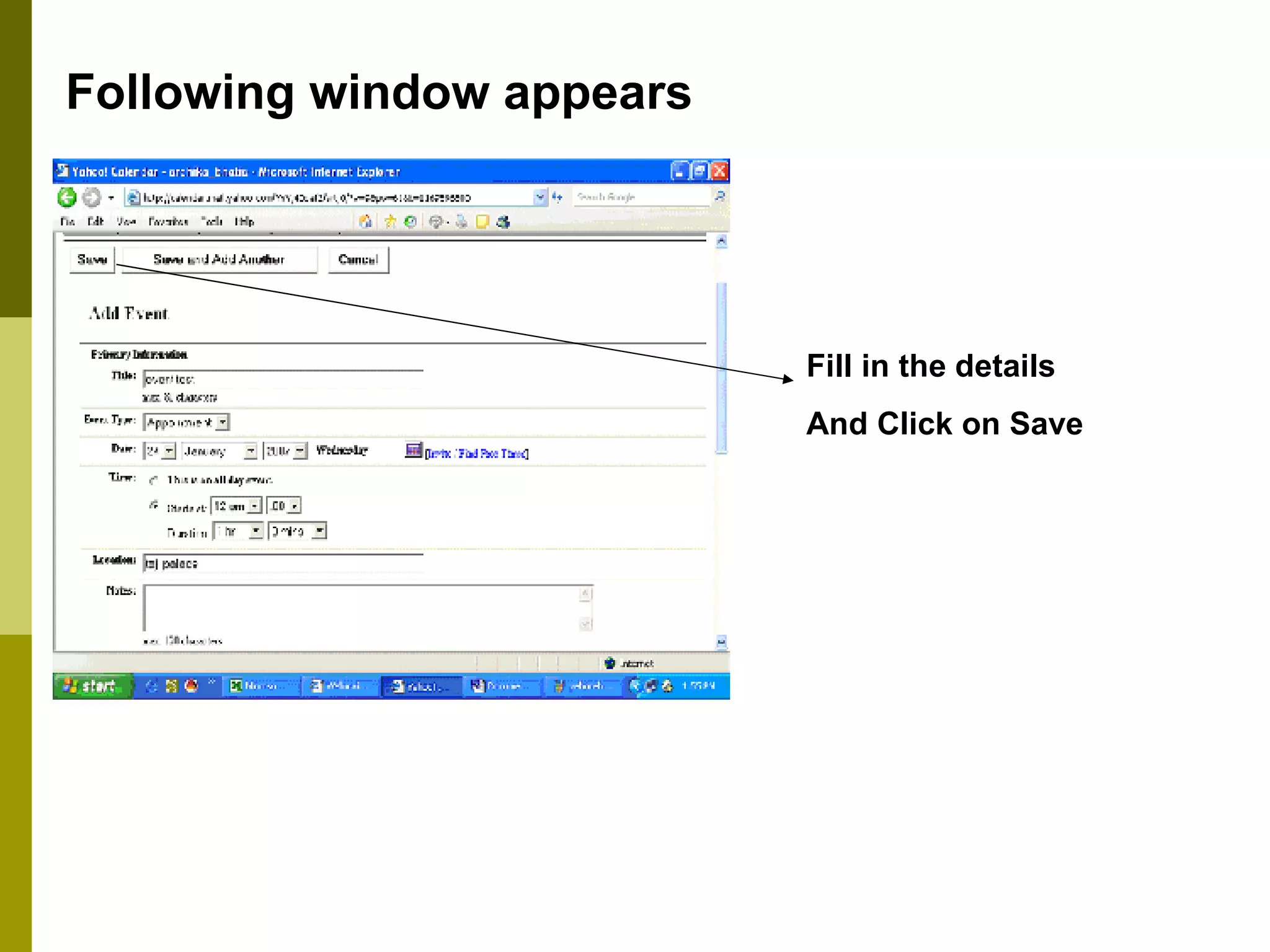
Following window appears Fill in the details And Click on Save
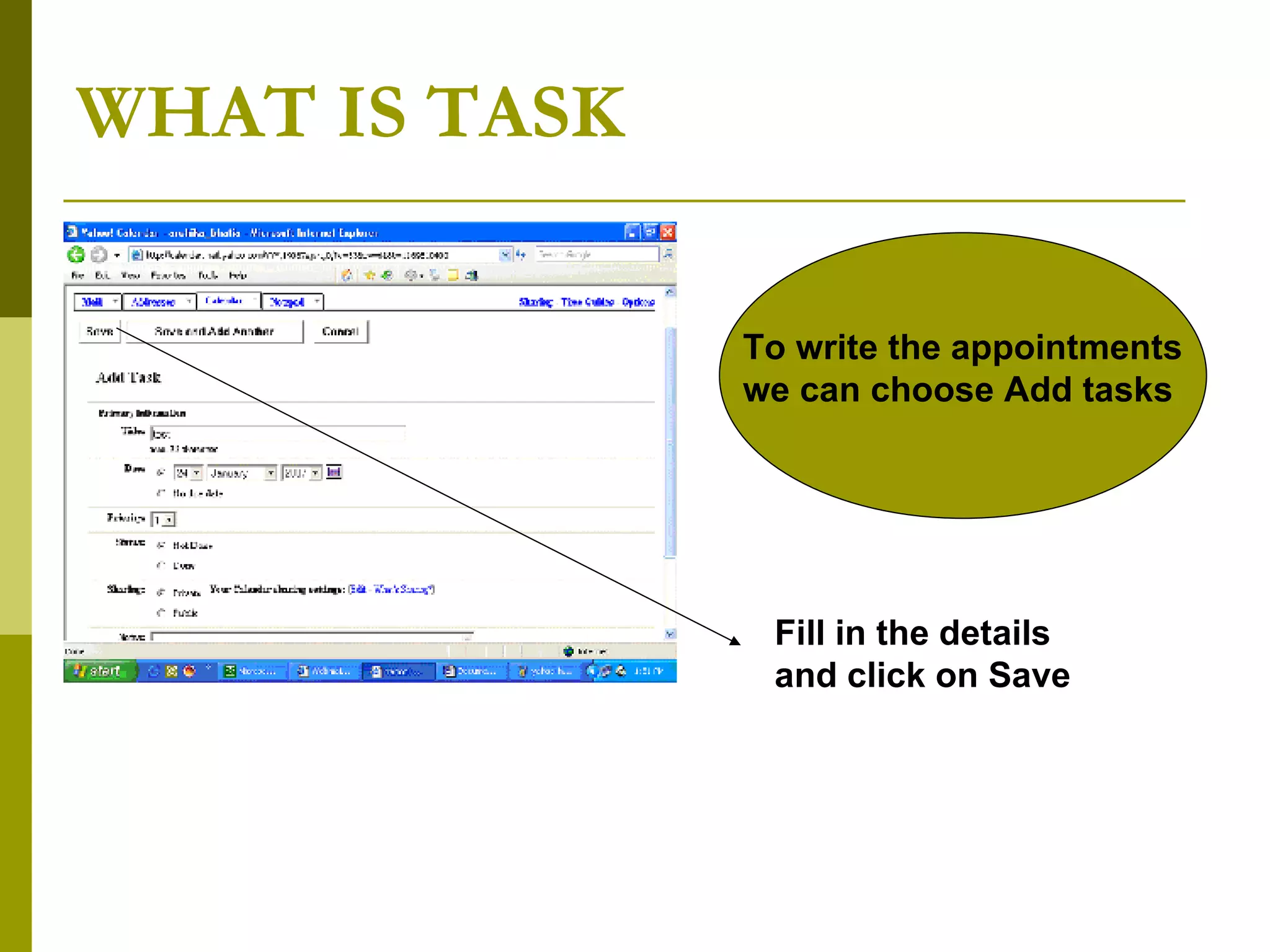
WHAT IS TASK Fill in the details and click on Save To write the appointments we can choose Add tasks
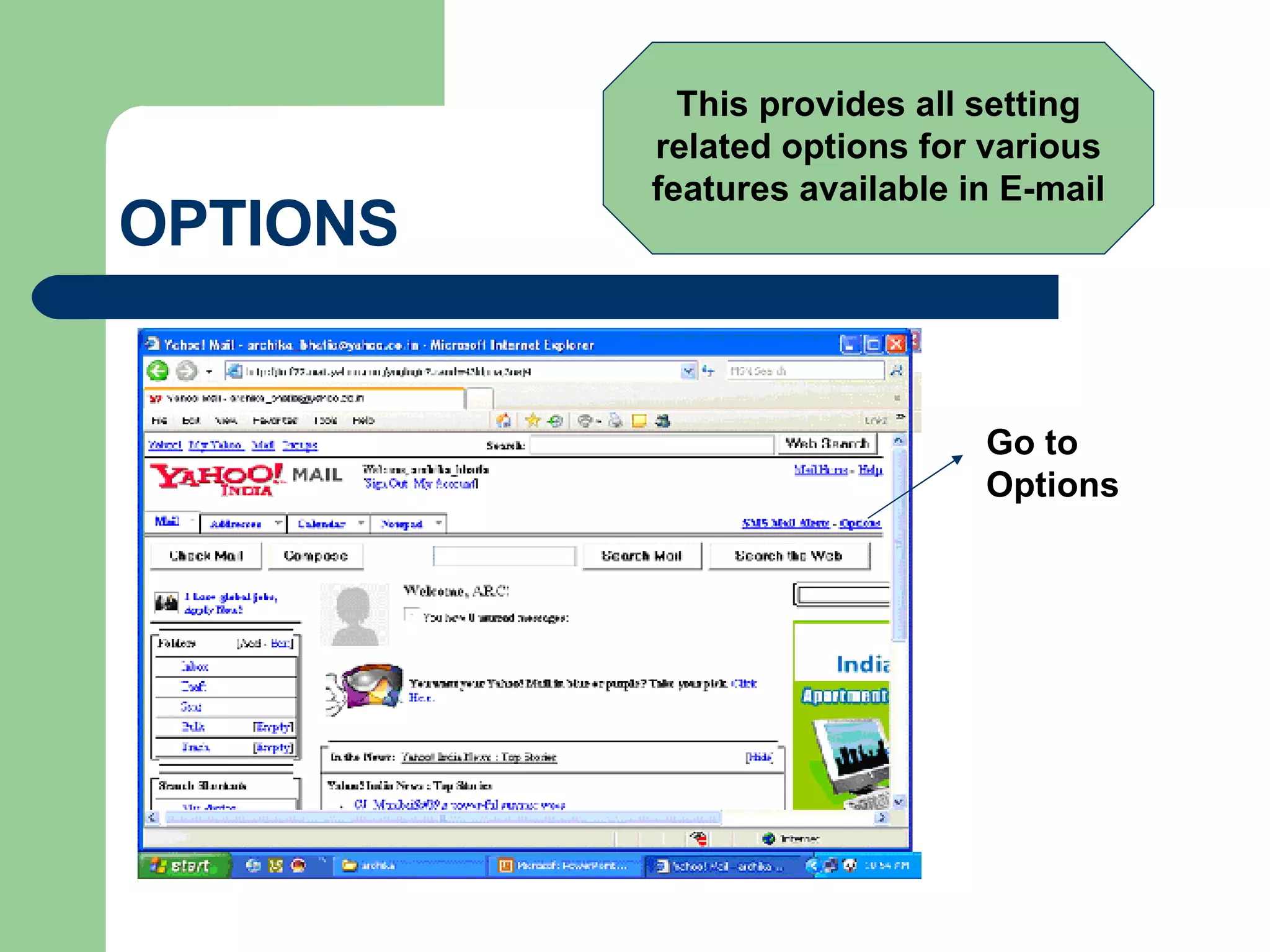
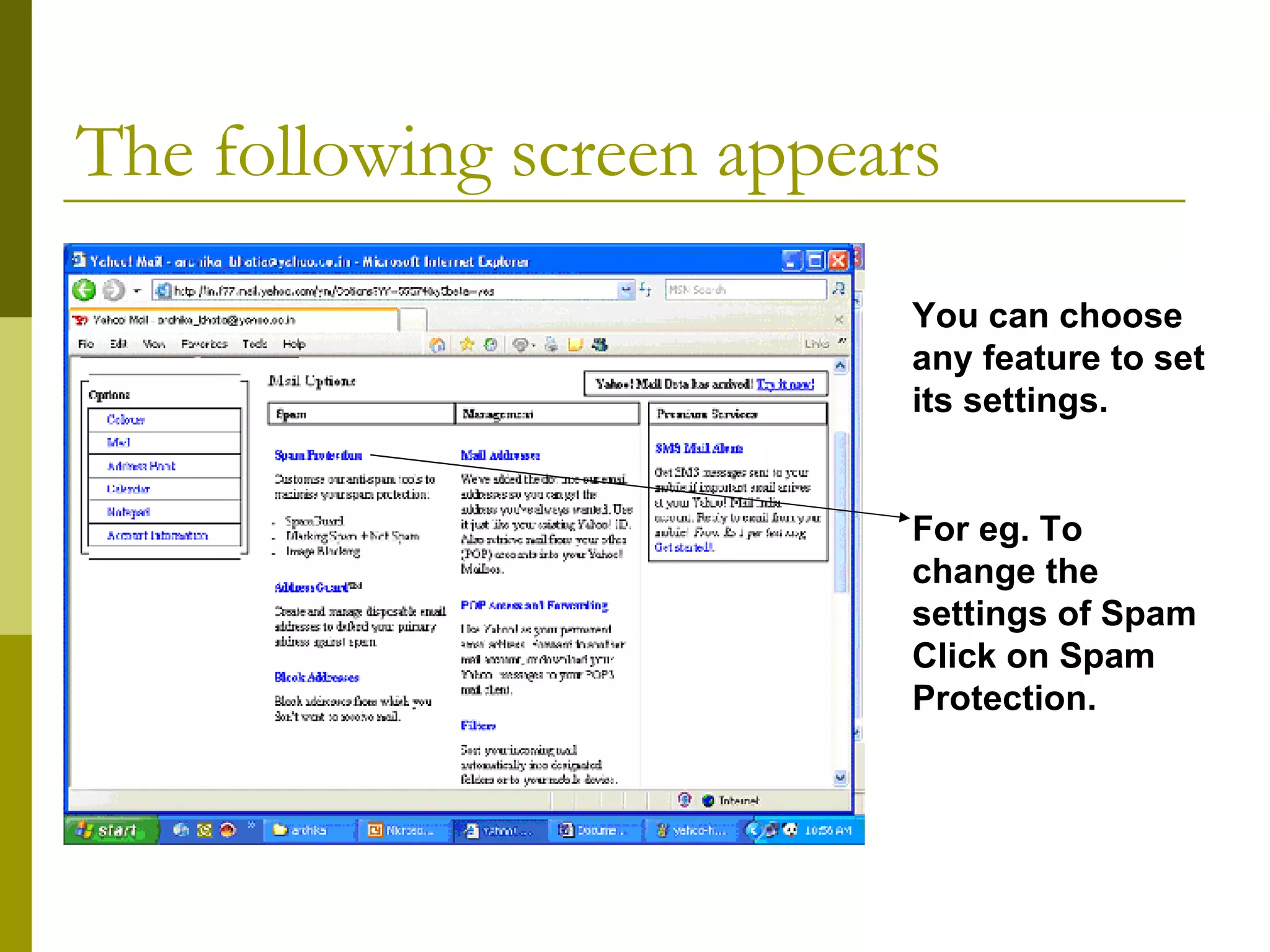
OPTIONS Go to Options This provides all setting related options for various features available in E-mail
The following screen appears You can choose any feature to set its settings. For eg. To change the settings of Spam Click on Spam Protection.
Hope you had a Fruitful training session! Thank You! Presented by: Ms. Archika Bhatia

E Mail by Ms. Archika Bhatia

  • 1.
  • 2.
    What is E-MailCreating an E-Mail Account Opening Mailbox Deleting Mails Composing a new Mail Sending Mail Sending a File as an Attachment What is Spam What is Trash Folder What is the use of Draft Folder Adding a E-mail Address to the Address Book What are Tasks, Events under the Calendar What is the use of Options CONTENTS
  • 3.
    What is E-MailE-Mail stands for Electronic mail. It is the most widely used tool to send messages electronically (i.e. through computers) on a network.
  • 4.
    Creating a NewE-mail Account Open Internet Explorer The following window will open Type the address www.yahoo.com in the address box
  • 5.
    Yahoo home pagewill open as show below Click on Mail
  • 6.
    Following window willbe visible Click on Sign Up to create a new account
  • 7.
    Window showing theForm to fill personal Details will be shown on the Screen Fill in your personal details
  • 8.
    Select the countryfrom the Combo box Fill in your Personal Details
  • 9.
    Check the availabilityof user name/ID If the Id is available following window appears Fill in the E-Mail Id and check the availability of the ID
  • 10.
    Congratulations your Idis available If the Id is available the following window appears. If the id is not available the window showing some username options is displayed and a chance to renter your username is given to the user.
  • 11.
    Fill in otherdetails Click on I Agree
  • 12.
    Congratulations! Your E-mailAccount has been created
  • 13.
    How to openan existing Account Fill in username and password Click on Sign In
  • 14.
    Inbox Howto view your received mails. After signing In the following window appears Click on Inbox to view your received mails
  • 15.
    List of mailsreceived can be seen on the window along with the details like: Sender, Subject, Date received on, Size of the Mail. Click on the link to read the mail.
  • 16.
    DELETE MAIL :How to delete a received mail Select the check boxes of the mails which you want to delete Click on Delete Trash Folder : All the deleted files go to this folder which are subject to deletion any time by the service provider.
  • 17.
    Deleted files aredisplayed here which are subject to deletion by the service provider any time. TRASH FOLDER
  • 18.
    SPAM: itinvolves sending identical messages to many recipients though E-mail. It is usually also unwanted, commercial and sent by automated means The mail received by you can be marked a spam so that you do not receive the mail from the same sender in your inbox in future. It will be sent to special section called Bulk which are subject to deletion any time by the service provider. From this section spam mails can be viewed.
  • 19.
    COMPOSE MAIL :How to send a mail Click on Compose mail The following screen will appear
  • 20.
    Write Email addressof the receiver in this box Write the subject of the mail in this box Write the contents of the mail in the space provided here This is the Formatting tool bar. It can be used to format the text written in the box below. What is CC? “ CC” is an abbreviation of “Carbon Copy”. You can use it to send a copy of message to others as well as to the main recipients. What is BCC? “ BCC” is an abbreviation for “Blind Carbon Copy”. You can use it to send a copy of message to other users as well as the main recipients, who can’t see who else are you sending the message to.
  • 21.
    Click on sendto send the mail. The following screen is shown ( Click here ) If the mail is yet not complete and you can’t continue, the mail can be Send as Draft to save the mail as Draft which can be later viewed from Draft section and sent after editing. Click to view the draft window Click on Cancel to cancel sending the mail NEXT
  • 22.
    Click here toadd the e-mail address to ADDRESS BOOK BACK The message appears for the mail sent ADDRESS BOOK consists of list of e-mail addresses. This removes the botheration of remembering e-mail addresses
  • 23.
    Add details ofthe Contact Complete details and click on Save BACK
  • 24.
    Click here toadd the E-MAIL address to the address book BACK
  • 25.
    Select the Draftoption Click on the mail which you want to edit. The mail can be sent after editing DRAFT BACK
  • 26.
    ATTATCH FILES :How to send a File as an attachment Click on Attach Files The following screen will appear
  • 27.
    Click on BrowseSelect the file from the Choose File dialog box and click on Open
  • 28.
    The selected filename will appear here. Attach more in the same way, if required. Click on Attach files The following screen showing the process of attachment going on appears. File has been attached
  • 29.
    WHAT ARE EVENTSClick on Calendar Option Select Add Event To add reminders Events option can be used
  • 30.
    Following window appearsFill in the details And Click on Save
  • 31.
    WHAT IS TASKFill in the details and click on Save To write the appointments we can choose Add tasks
  • 32.
    OPTIONS Go toOptions This provides all setting related options for various features available in E-mail
  • 33.
    The following screenappears You can choose any feature to set its settings. For eg. To change the settings of Spam Click on Spam Protection.
  • 34.
    Hope you hada Fruitful training session! Thank You! Presented by: Ms. Archika Bhatia