Dali Lesson Instructions
Mrs. Natalie Hurd
Computer Assisted Art
For this Project you will be expected to
have the 4 main elements of Surrealism
present in your final image:
• Levitation - To rise or cause to rise into
the air and float in apparent defiance
of gravity.
• Transformation - A thorough or
dramatic change in form or
appearance.
• Scale change – Scale is the dimensional
element defined by other elements of
design size relative to art, its
surroundings, or in relation to humans.
• Juxtaposition - an act or instance of
placing close together or side by side,
especially for comparison or contrast.
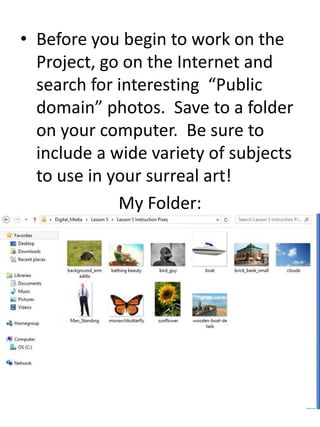
• Before you begin to work on the
Project, go on the Internet and
search for interesting “Public
domain” photos. Save to a folder
on your computer. Be sure to
include a wide variety of subjects
to use in your surreal art!
My Folder:
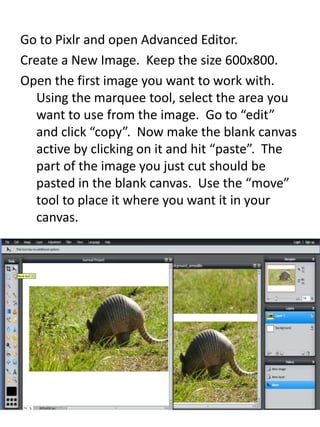
Go to Pixlr and open Advanced Editor.
Create a New Image. Keep the size 600x800.
Open the first image you want to work with.
Using the marquee tool, select the area you
want to use from the image. Go to “edit”
and click “copy”. Now make the blank canvas
active by clicking on it and hit “paste”. The
part of the image you just cut should be
pasted in the blank canvas. Use the “move”
tool to place it where you want it in your
canvas.
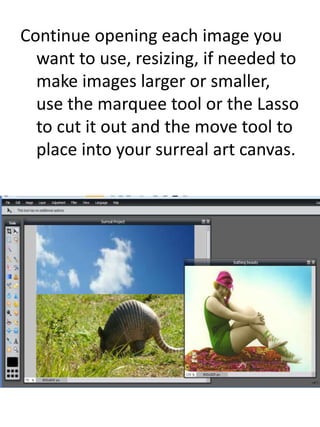
Continue opening each image you
want to use, resizing, if needed to
make images larger or smaller,
use the marquee tool or the Lasso
to cut it out and the move tool to
place into your surreal art canvas.
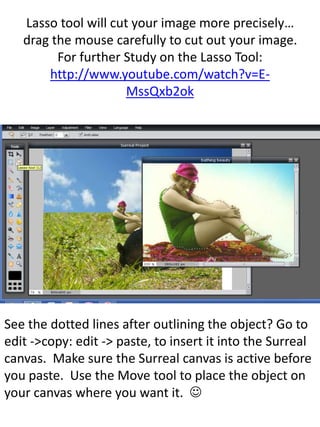
Lasso tool will cut your image more precisely…
drag the mouse carefully to cut out your image.
For further Study on the Lasso Tool:
http://www.youtube.com/watch?v=E-
MssQxb2ok
See the dotted lines after outlining the object? Go to
edit ->copy: edit -> paste, to insert it into the Surreal
canvas. Make sure the Surreal canvas is active before
you paste. Use the Move tool to place the object on
your canvas where you want it. 
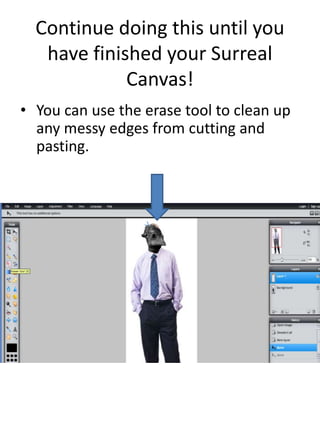
Continue doing this until you
have finished your Surreal
Canvas!
• You can use the erase tool to clean up
any messy edges from cutting and
pasting.
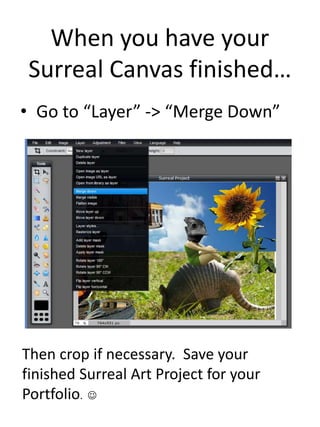
When you have your
Surreal Canvas finished…
• Go to “Layer” -> “Merge Down”
Then crop if necessary. Save your
finished Surreal Art Project for your
Portfolio. 
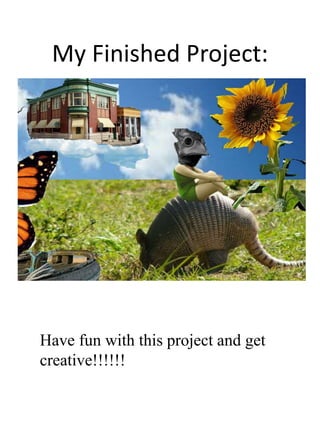
My Finished Project:
Have fun with this project and get
creative!!!!!!

Digital media-semester lesson-5-instructions (1)

  • 1.
    Dali Lesson Instructions Mrs.Natalie Hurd Computer Assisted Art
  • 2.
    For this Projectyou will be expected to have the 4 main elements of Surrealism present in your final image: • Levitation - To rise or cause to rise into the air and float in apparent defiance of gravity. • Transformation - A thorough or dramatic change in form or appearance. • Scale change – Scale is the dimensional element defined by other elements of design size relative to art, its surroundings, or in relation to humans. • Juxtaposition - an act or instance of placing close together or side by side, especially for comparison or contrast.
  • 3.
    • Before youbegin to work on the Project, go on the Internet and search for interesting “Public domain” photos. Save to a folder on your computer. Be sure to include a wide variety of subjects to use in your surreal art! My Folder:
  • 4.
    Go to Pixlrand open Advanced Editor. Create a New Image. Keep the size 600x800. Open the first image you want to work with. Using the marquee tool, select the area you want to use from the image. Go to “edit” and click “copy”. Now make the blank canvas active by clicking on it and hit “paste”. The part of the image you just cut should be pasted in the blank canvas. Use the “move” tool to place it where you want it in your canvas.
  • 5.
    Continue opening eachimage you want to use, resizing, if needed to make images larger or smaller, use the marquee tool or the Lasso to cut it out and the move tool to place into your surreal art canvas.
  • 6.
    Lasso tool willcut your image more precisely… drag the mouse carefully to cut out your image. For further Study on the Lasso Tool: http://www.youtube.com/watch?v=E- MssQxb2ok See the dotted lines after outlining the object? Go to edit ->copy: edit -> paste, to insert it into the Surreal canvas. Make sure the Surreal canvas is active before you paste. Use the Move tool to place the object on your canvas where you want it. 
  • 7.
    Continue doing thisuntil you have finished your Surreal Canvas! • You can use the erase tool to clean up any messy edges from cutting and pasting.
  • 8.
    When you haveyour Surreal Canvas finished… • Go to “Layer” -> “Merge Down” Then crop if necessary. Save your finished Surreal Art Project for your Portfolio. 
  • 9.
    My Finished Project: Havefun with this project and get creative!!!!!!