Logic Pro X Key Commands
Desktop Music Production
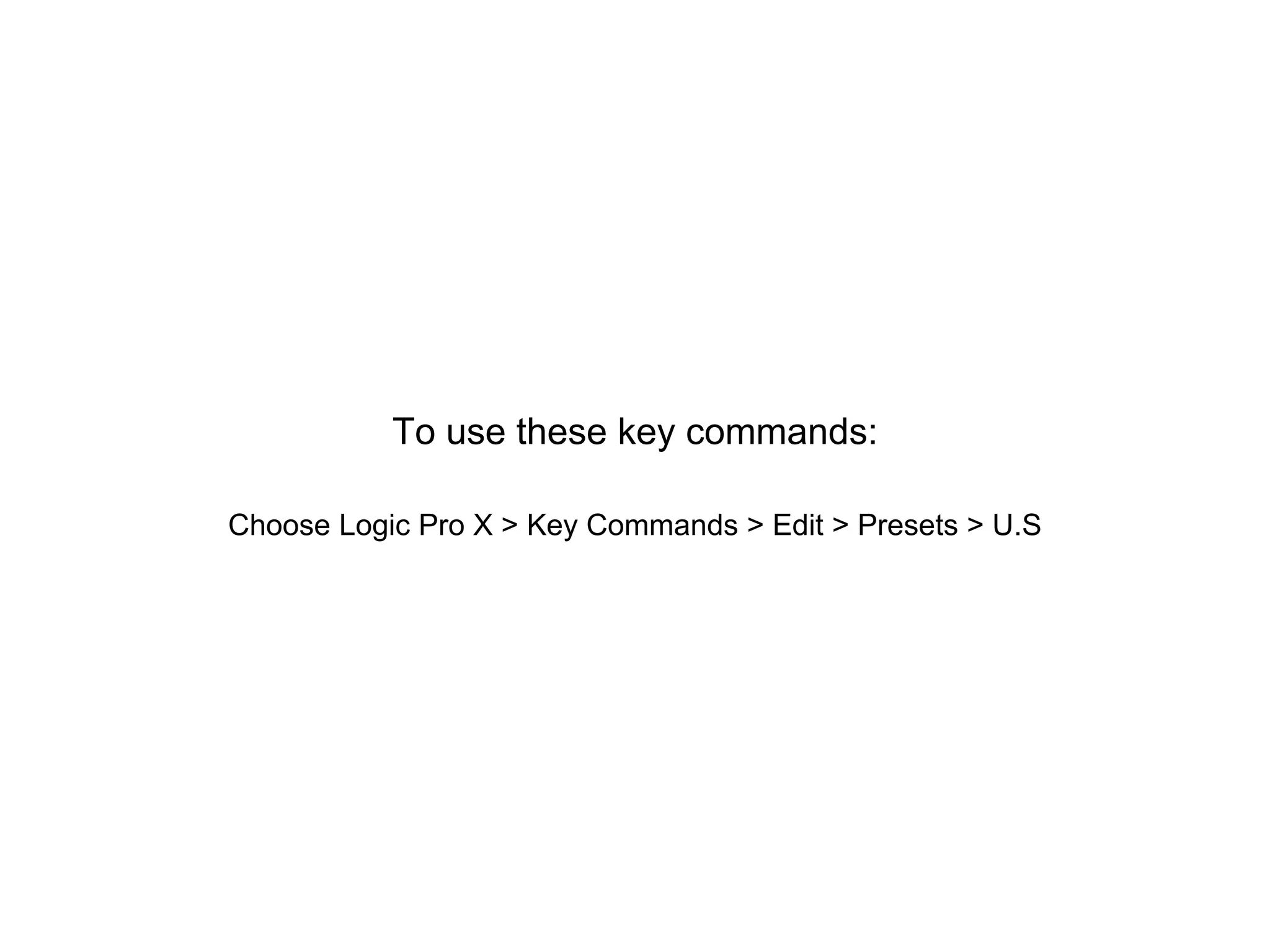
To use these key commands:
Choose Logic Pro X > Key Commands > Edit > Presets > U.S
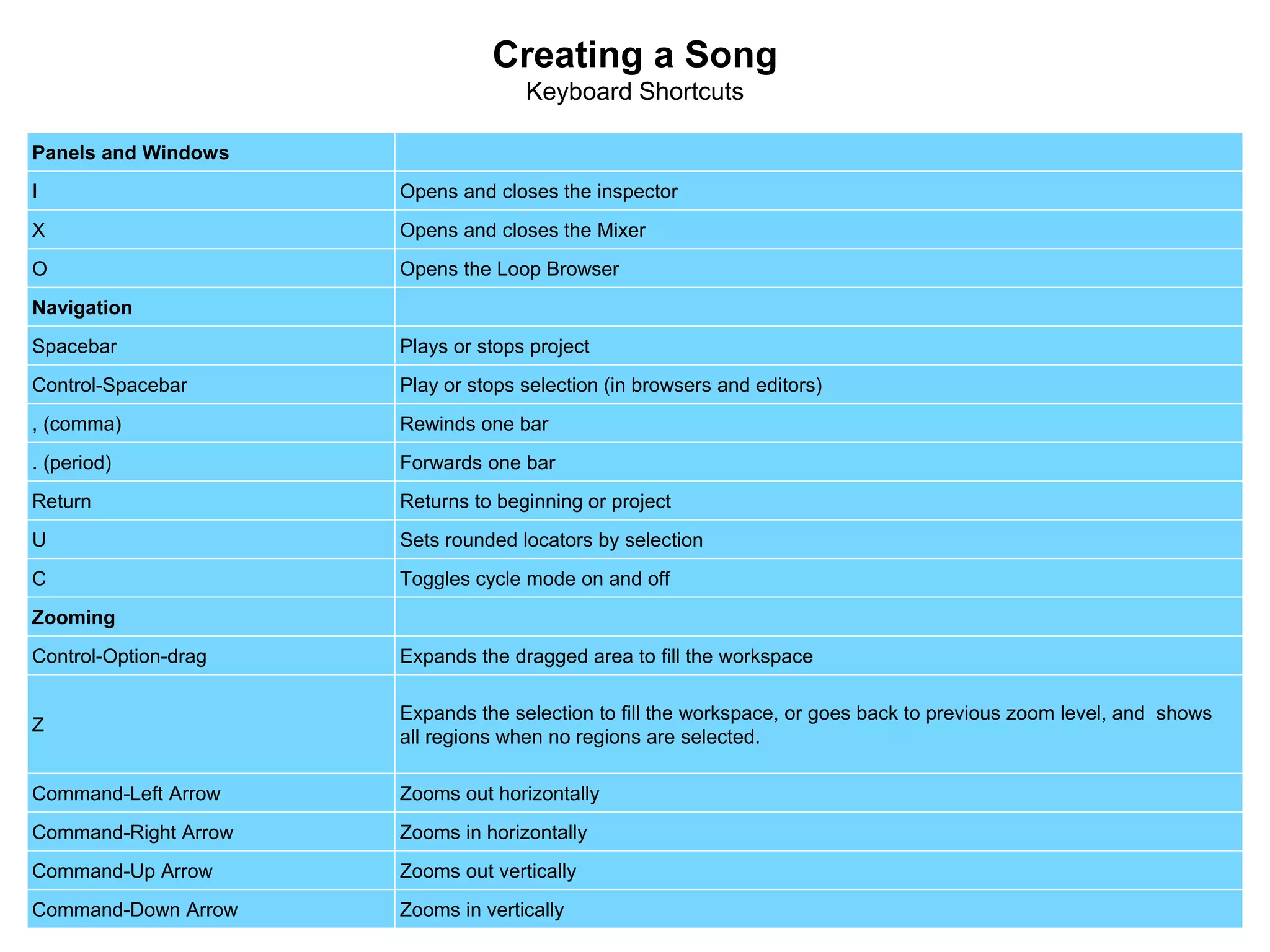
Creating a Song
Keyboard Shortcuts
Panels and Windows
I Opens and closes the inspector
X Opens and closes the Mixer
O Opens the Loop Browser
Navigation
Spacebar Plays or stops project
Control-Spacebar Play or stops selection (in browsers and editors)
, (comma) Rewinds one bar
. (period) Forwards one bar
Return Returns to beginning or project
U Sets rounded locators by selection
C Toggles cycle mode on and off
Zooming
Control-Option-drag Expands the dragged area to fill the workspace
Z
Expands the selection to fill the workspace, or goes back to previous zoom level, and shows
all regions when no regions are selected.
Command-Left Arrow Zooms out horizontally
Command-Right Arrow Zooms in horizontally
Command-Up Arrow Zooms out vertically
Command-Down Arrow Zooms in vertically
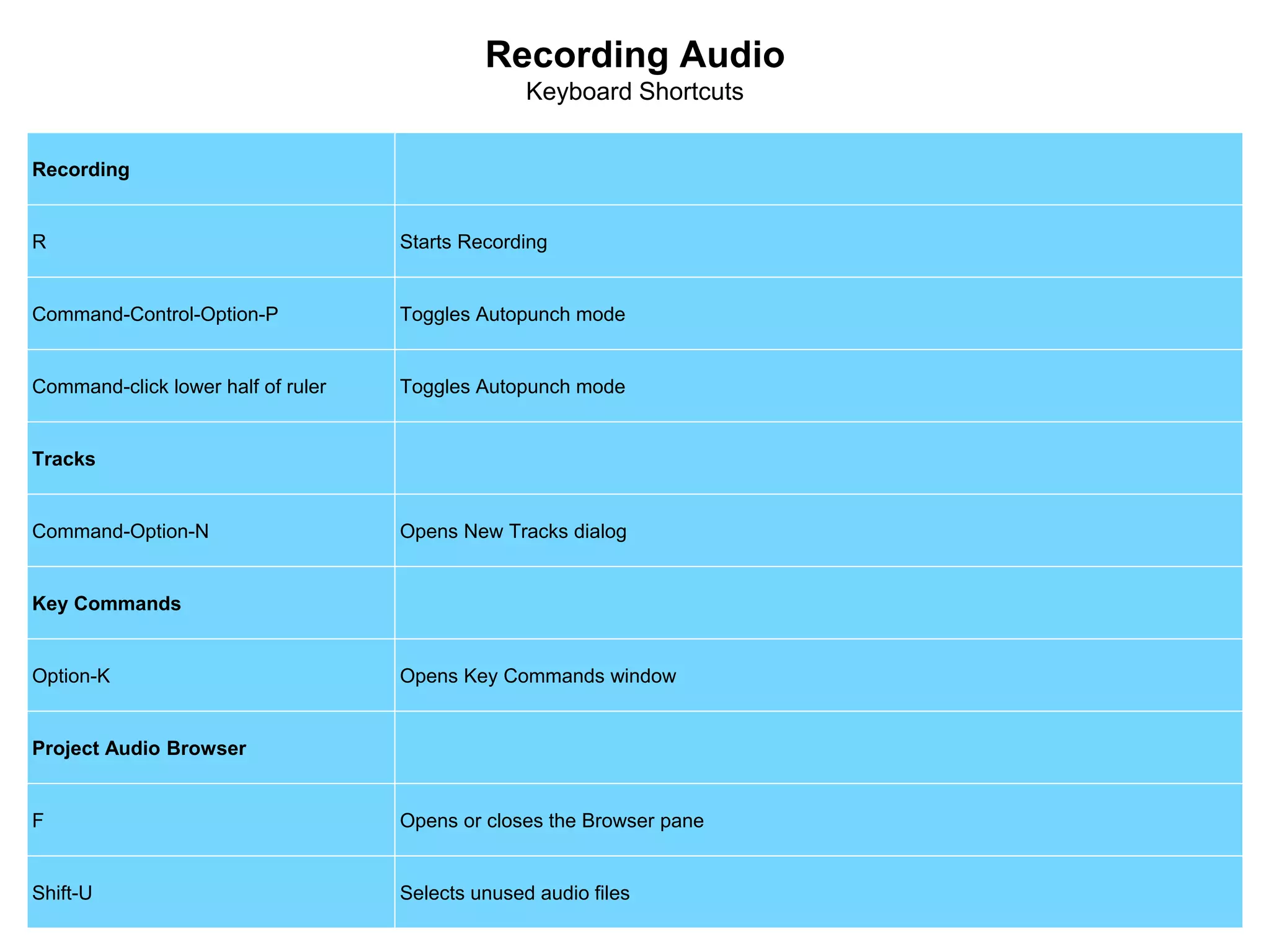
Recording Audio
Keyboard Shortcuts
Recording
R Starts Recording
Command-Control-Option-P Toggles Autopunch mode
Command-click lower half of ruler Toggles Autopunch mode
Tracks
Command-Option-N Opens New Tracks dialog
Key Commands
Option-K Opens Key Commands window
Project Audio Browser
F Opens or closes the Browser pane
Shift-U Selects unused audio files
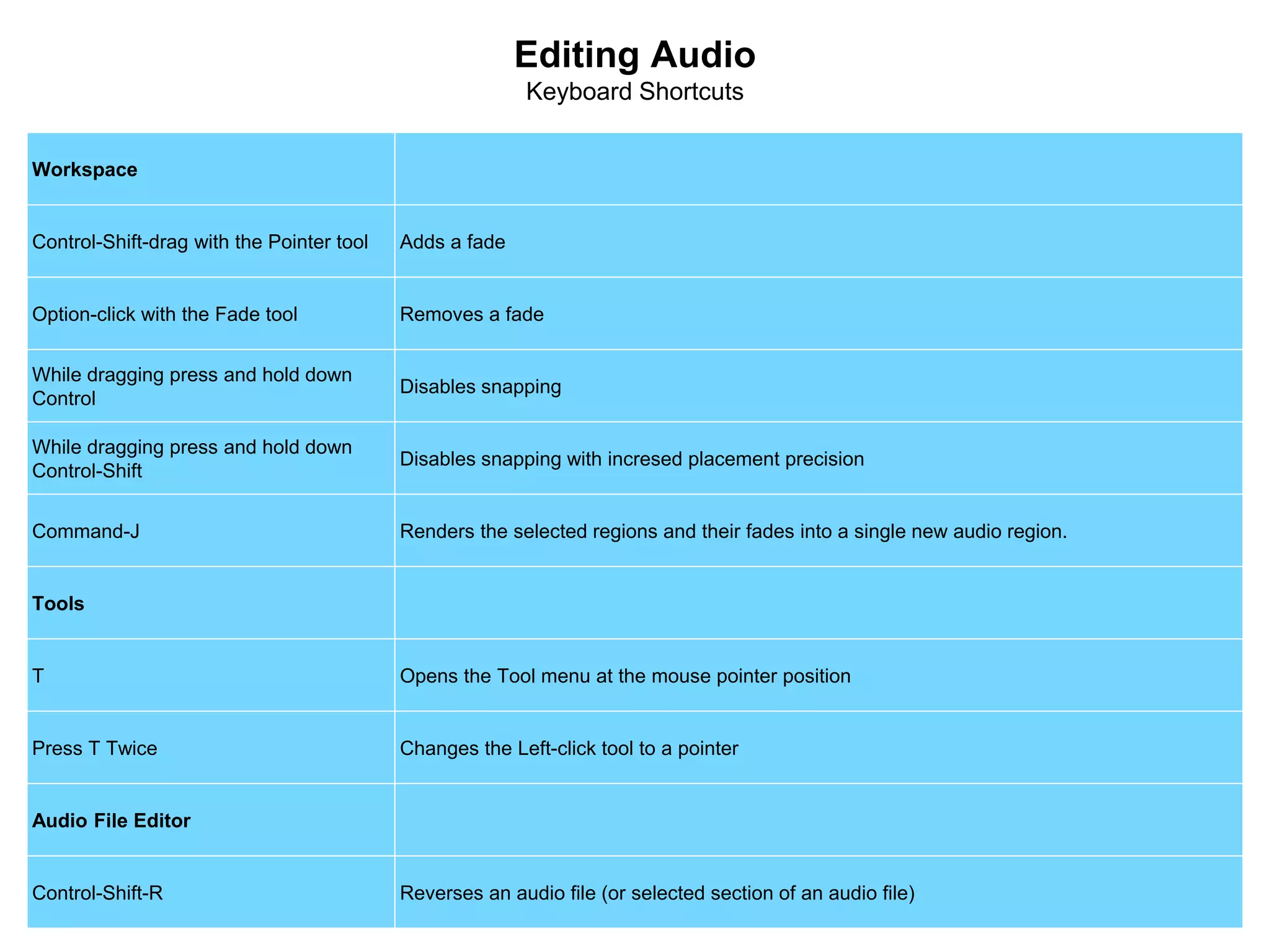
Editing Audio
Keyboard Shortcuts
Workspace
Control-Shift-drag with the Pointer tool Adds a fade
Option-click with the Fade tool Removes a fade
While dragging press and hold down
Control
Disables snapping
While dragging press and hold down
Control-Shift
Disables snapping with incresed placement precision
Command-J Renders the selected regions and their fades into a single new audio region.
Tools
T Opens the Tool menu at the mouse pointer position
Press T Twice Changes the Left-click tool to a pointer
Audio File Editor
Control-Shift-R Reverses an audio file (or selected section of an audio file)
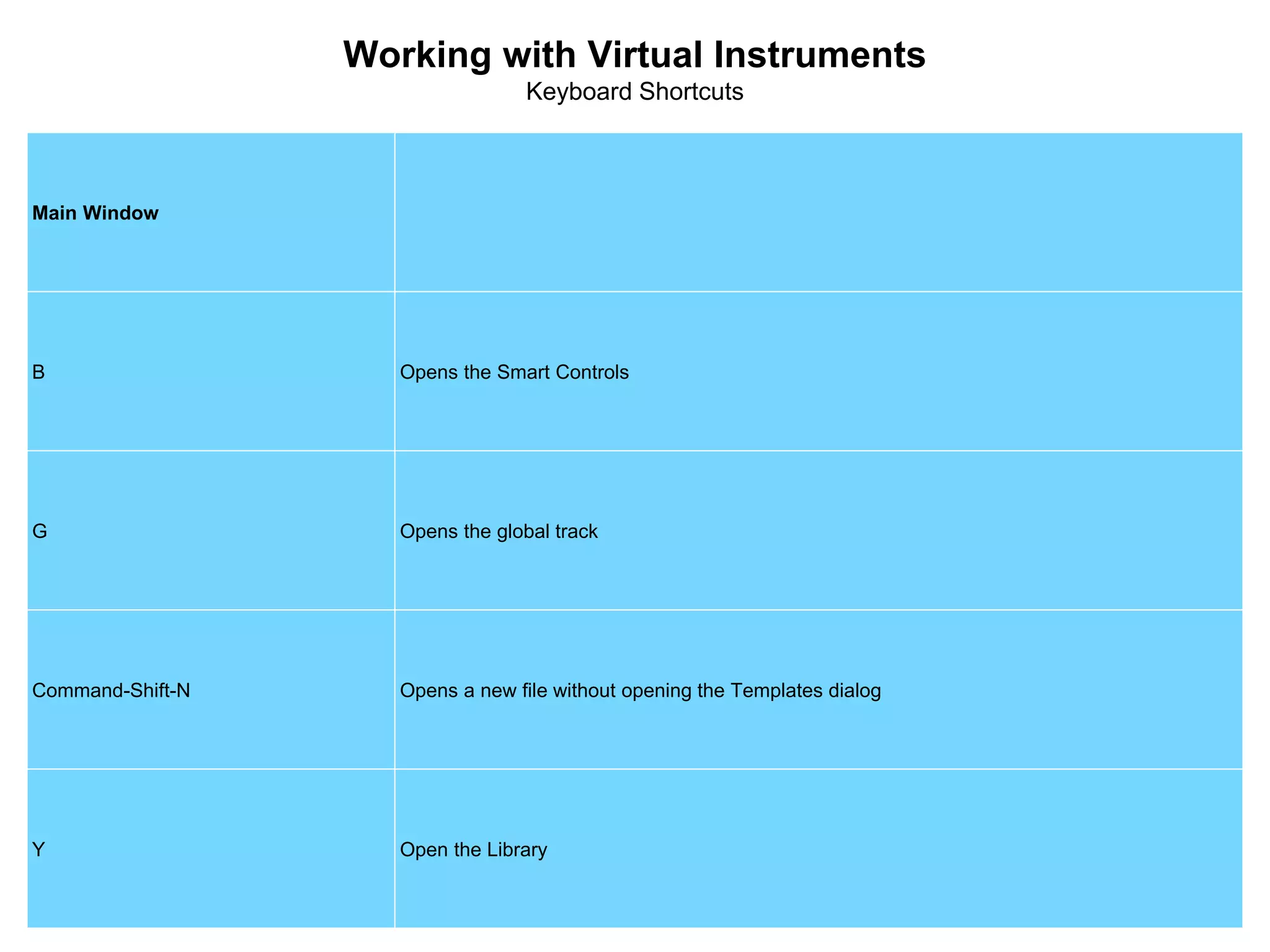
Working with Virtual Instruments
Keyboard Shortcuts
Main Window
B Opens the Smart Controls
G Opens the global track
Command-Shift-N Opens a new file without opening the Templates dialog
Y Open the Library
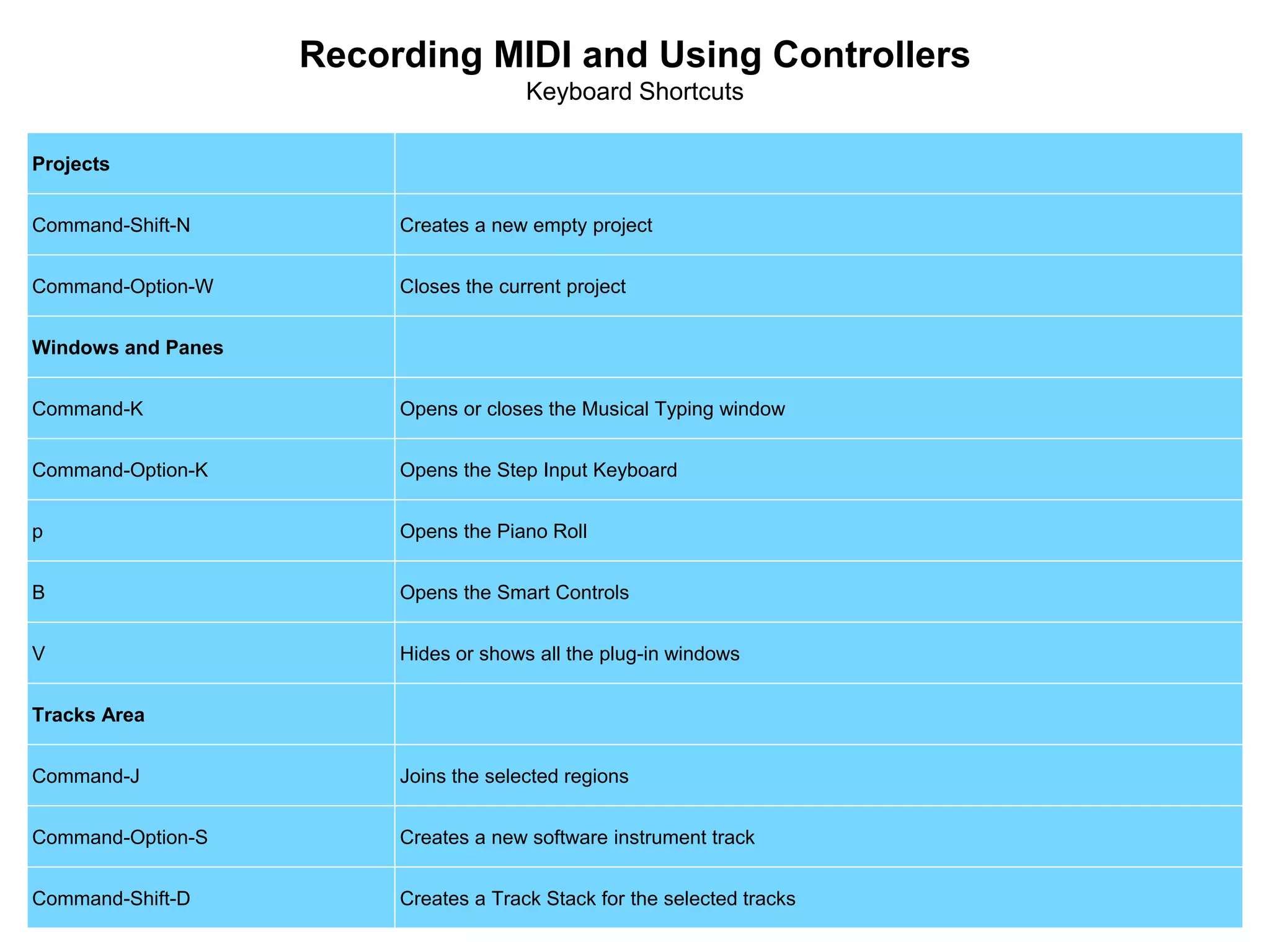
Recording MIDI and Using Controllers
Keyboard Shortcuts
Projects
Command-Shift-N Creates a new empty project
Command-Option-W Closes the current project
Windows and Panes
Command-K Opens or closes the Musical Typing window
Command-Option-K Opens the Step Input Keyboard
p Opens the Piano Roll
B Opens the Smart Controls
V Hides or shows all the plug-in windows
Tracks Area
Command-J Joins the selected regions
Command-Option-S Creates a new software instrument track
Command-Shift-D Creates a Track Stack for the selected tracks
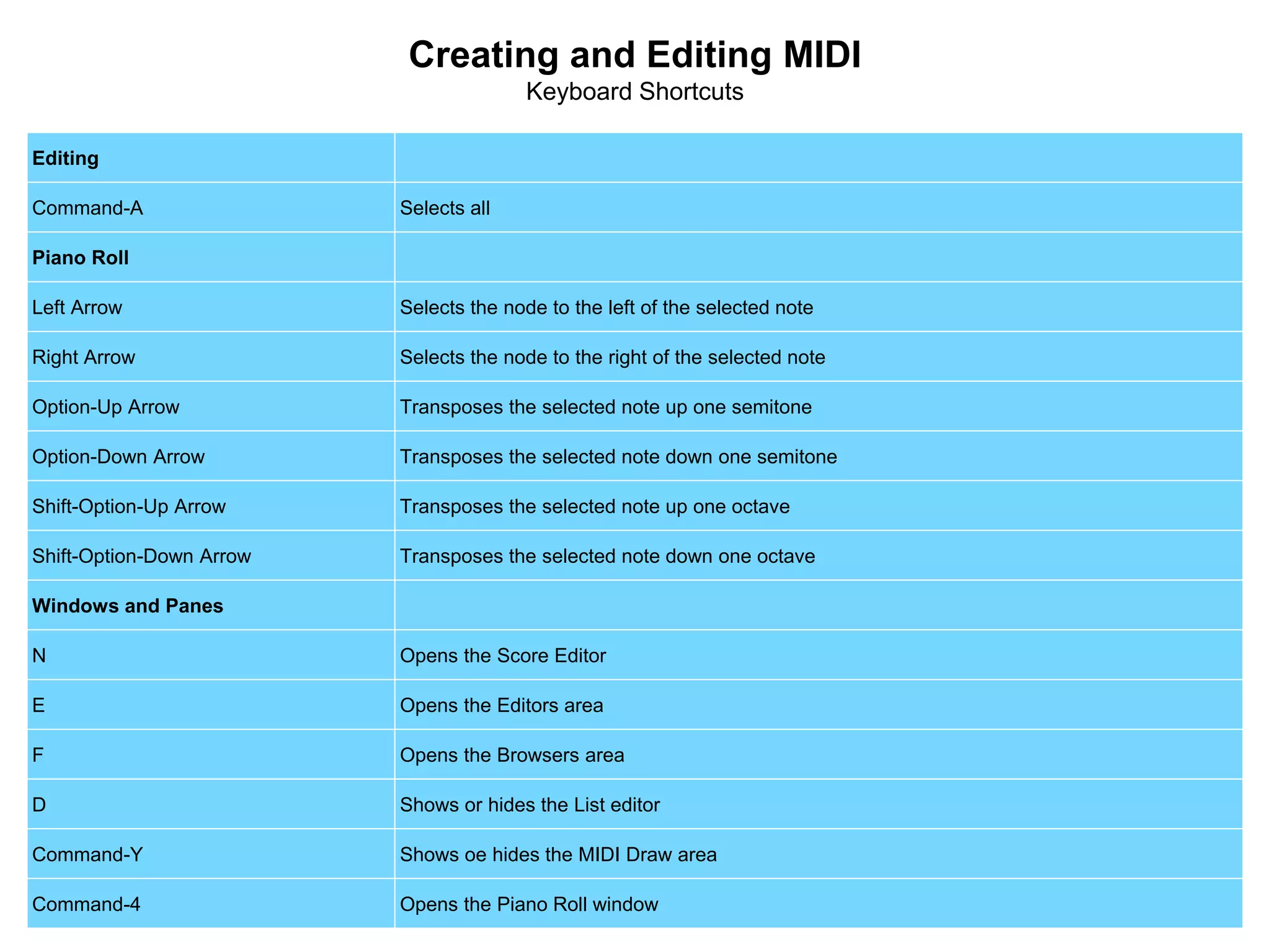
Creating and Editing MIDI
Keyboard Shortcuts
Editing
Command-A Selects all
Piano Roll
Left Arrow Selects the node to the left of the selected note
Right Arrow Selects the node to the right of the selected note
Option-Up Arrow Transposes the selected note up one semitone
Option-Down Arrow Transposes the selected note down one semitone
Shift-Option-Up Arrow Transposes the selected note up one octave
Shift-Option-Down Arrow Transposes the selected note down one octave
Windows and Panes
N Opens the Score Editor
E Opens the Editors area
F Opens the Browsers area
D Shows or hides the List editor
Command-Y Shows oe hides the MIDI Draw area
Command-4 Opens the Piano Roll window
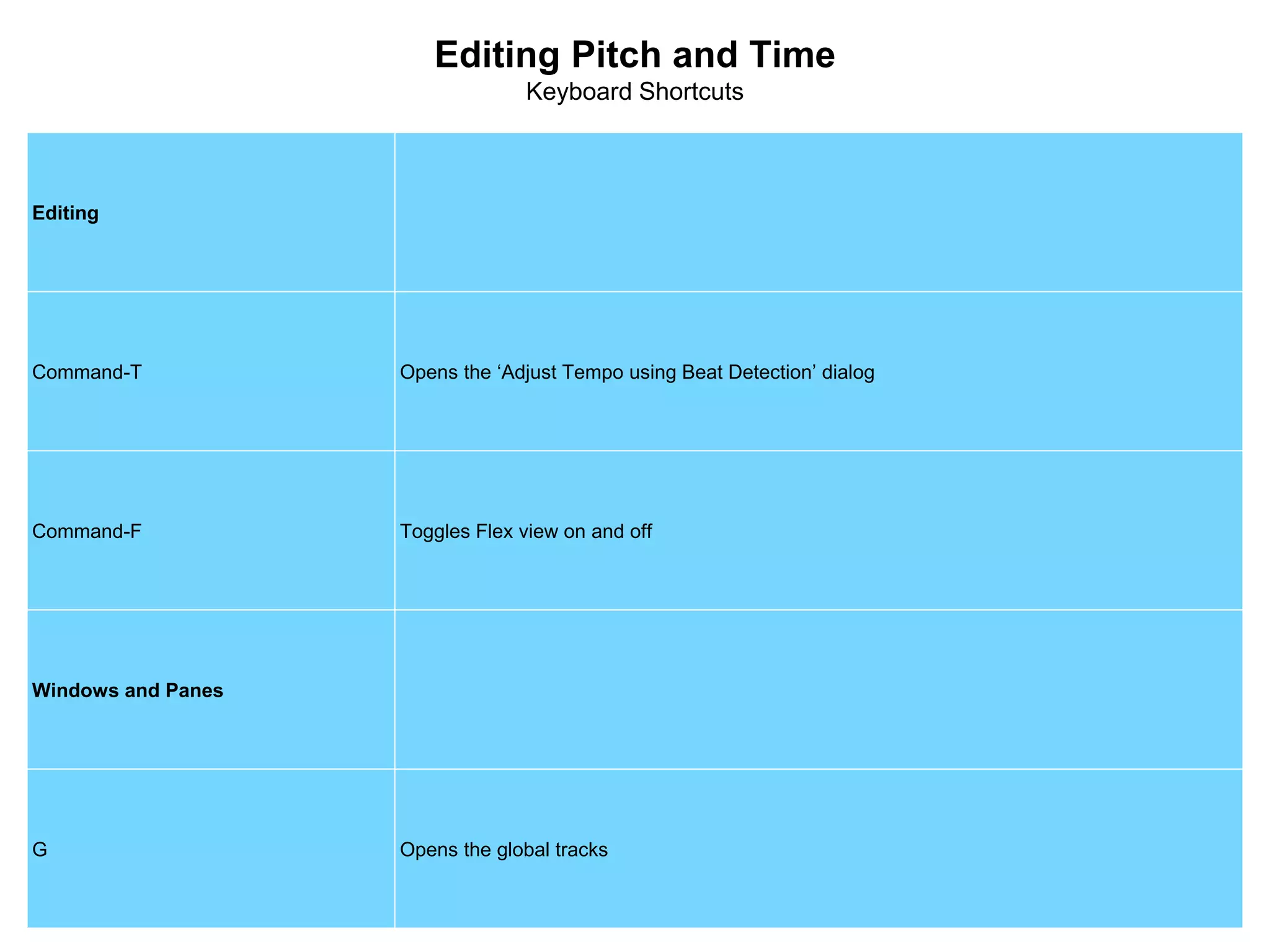
Editing Pitch and Time
Keyboard Shortcuts
Editing
Command-T Opens the ‘Adjust Tempo using Beat Detection’ dialog
Command-F Toggles Flex view on and off
Windows and Panes
G Opens the global tracks
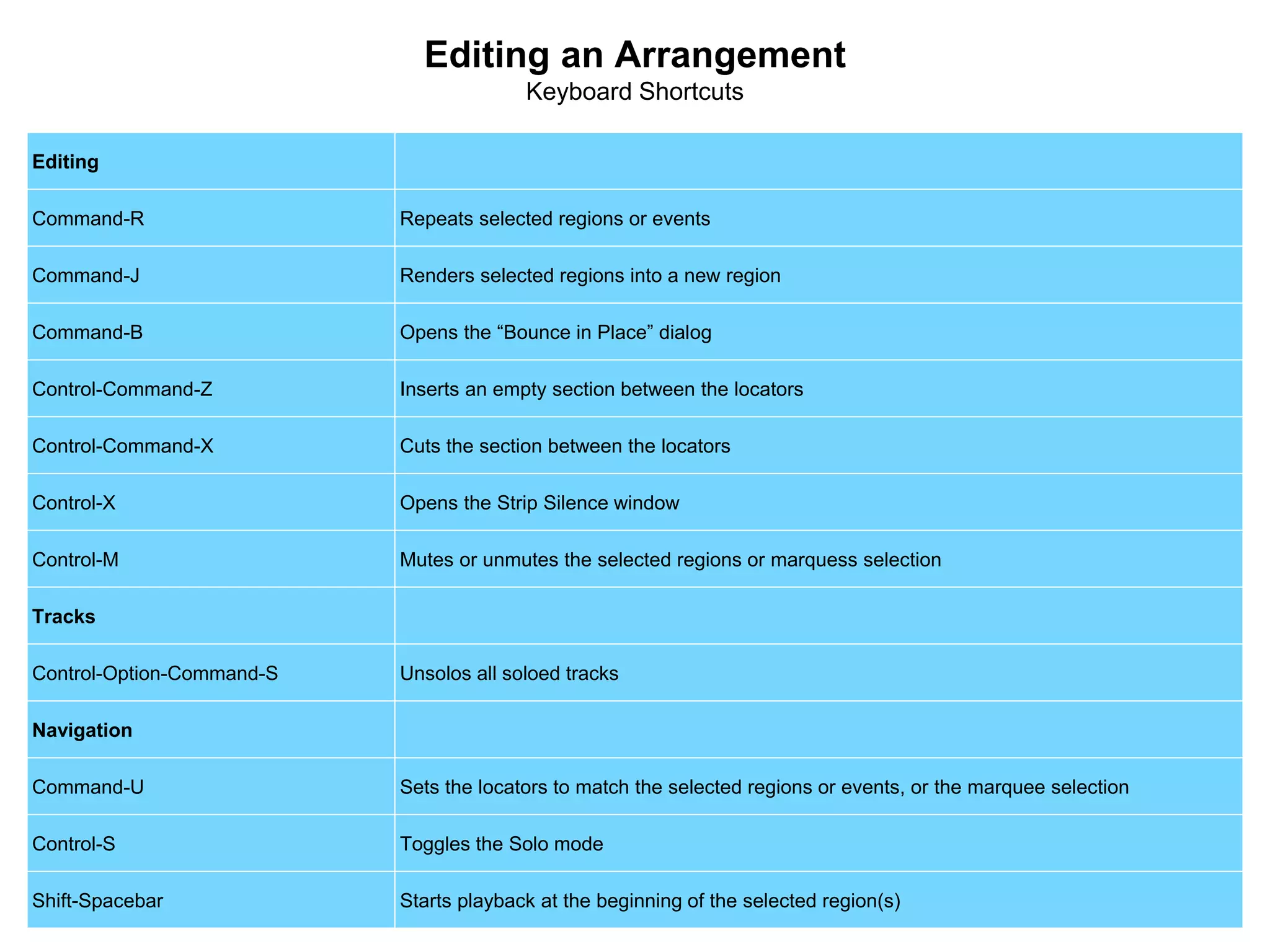
Editing an Arrangement
Keyboard Shortcuts
Editing
Command-R Repeats selected regions or events
Command-J Renders selected regions into a new region
Command-B Opens the “Bounce in Place” dialog
Control-Command-Z Inserts an empty section between the locators
Control-Command-X Cuts the section between the locators
Control-X Opens the Strip Silence window
Control-M Mutes or unmutes the selected regions or marquess selection
Tracks
Control-Option-Command-S Unsolos all soloed tracks
Navigation
Command-U Sets the locators to match the selected regions or events, or the marquee selection
Control-S Toggles the Solo mode
Shift-Spacebar Starts playback at the beginning of the selected region(s)
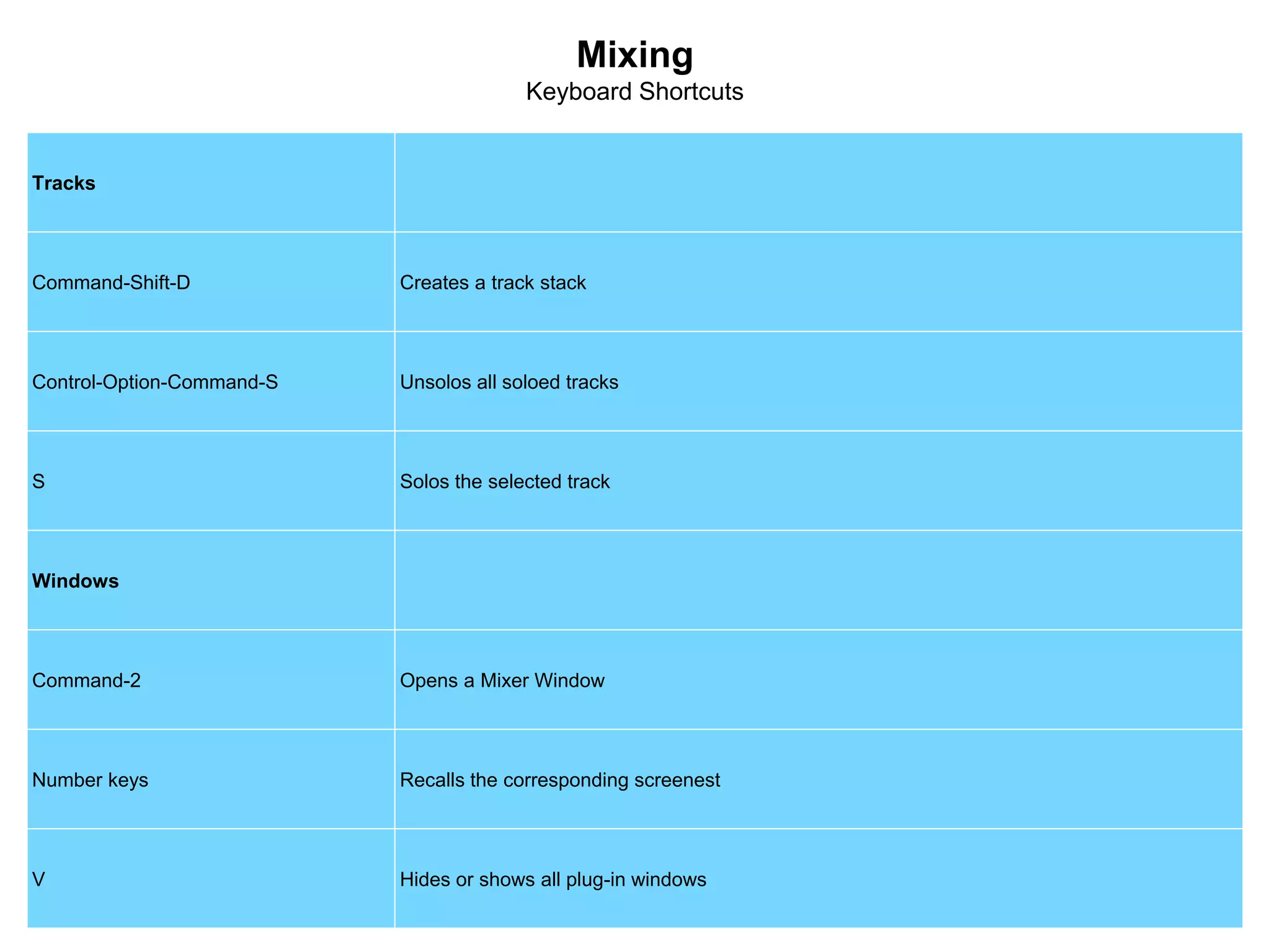
Mixing
Keyboard Shortcuts
Tracks
Command-Shift-D Creates a track stack
Control-Option-Command-S Unsolos all soloed tracks
S Solos the selected track
Windows
Command-2 Opens a Mixer Window
Number keys Recalls the corresponding screenest
V Hides or shows all plug-in windows
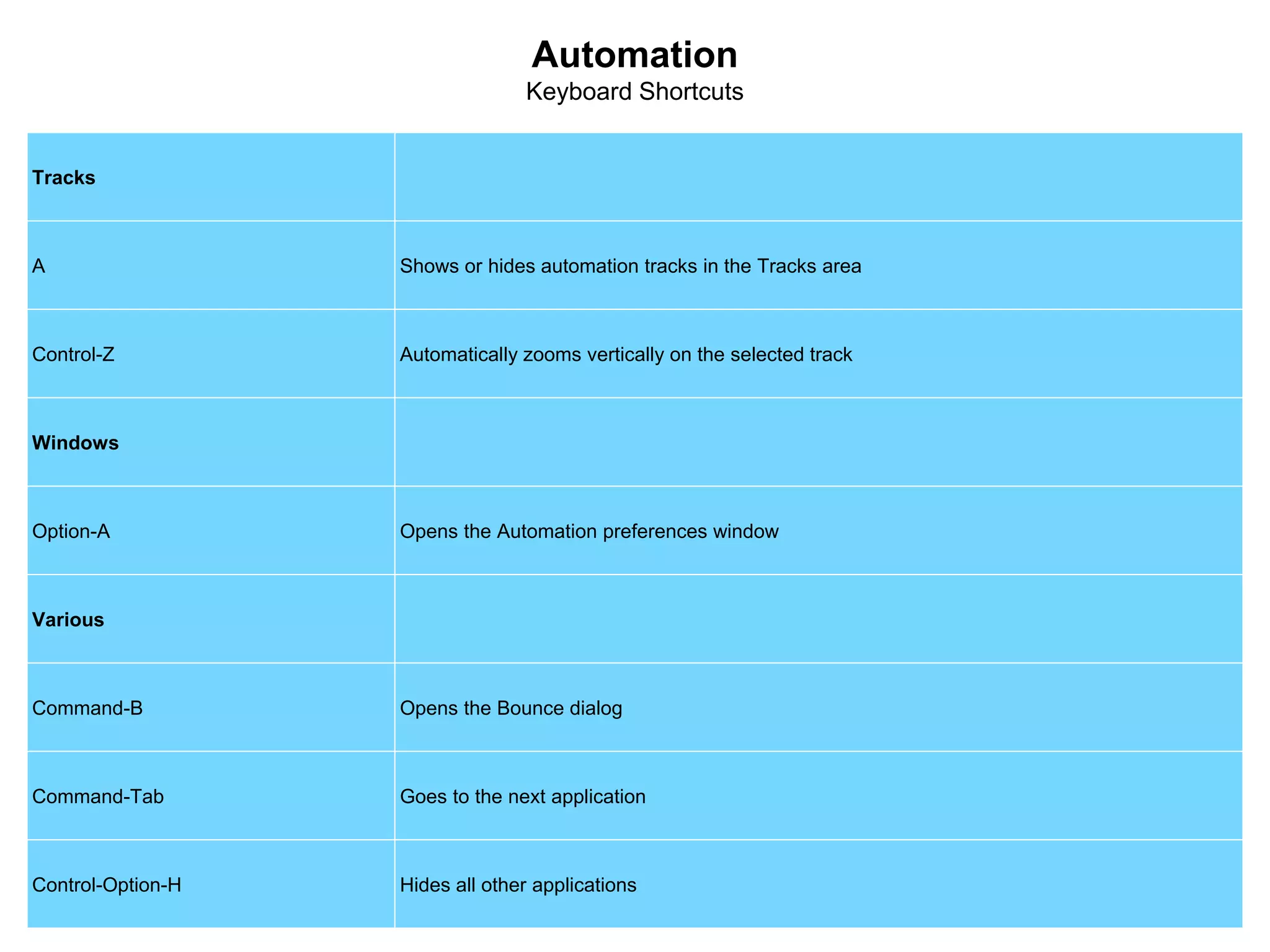
Automation
Keyboard Shortcuts
Tracks
A Shows or hides automation tracks in the Tracks area
Control-Z Automatically zooms vertically on the selected track
Windows
Option-A Opens the Automation preferences window
Various
Command-B Opens the Bounce dialog
Command-Tab Goes to the next application
Control-Option-H Hides all other applications
Desktop Music Production
www.stuartjones.org

Desktop Production Logic Pro X Keyboard Shortcuts

  • 1.
    Logic Pro XKey Commands Desktop Music Production
  • 2.
    To use thesekey commands: Choose Logic Pro X > Key Commands > Edit > Presets > U.S
  • 3.
    Creating a Song KeyboardShortcuts Panels and Windows I Opens and closes the inspector X Opens and closes the Mixer O Opens the Loop Browser Navigation Spacebar Plays or stops project Control-Spacebar Play or stops selection (in browsers and editors) , (comma) Rewinds one bar . (period) Forwards one bar Return Returns to beginning or project U Sets rounded locators by selection C Toggles cycle mode on and off Zooming Control-Option-drag Expands the dragged area to fill the workspace Z Expands the selection to fill the workspace, or goes back to previous zoom level, and shows all regions when no regions are selected. Command-Left Arrow Zooms out horizontally Command-Right Arrow Zooms in horizontally Command-Up Arrow Zooms out vertically Command-Down Arrow Zooms in vertically
  • 4.
    Recording Audio Keyboard Shortcuts Recording RStarts Recording Command-Control-Option-P Toggles Autopunch mode Command-click lower half of ruler Toggles Autopunch mode Tracks Command-Option-N Opens New Tracks dialog Key Commands Option-K Opens Key Commands window Project Audio Browser F Opens or closes the Browser pane Shift-U Selects unused audio files
  • 5.
    Editing Audio Keyboard Shortcuts Workspace Control-Shift-dragwith the Pointer tool Adds a fade Option-click with the Fade tool Removes a fade While dragging press and hold down Control Disables snapping While dragging press and hold down Control-Shift Disables snapping with incresed placement precision Command-J Renders the selected regions and their fades into a single new audio region. Tools T Opens the Tool menu at the mouse pointer position Press T Twice Changes the Left-click tool to a pointer Audio File Editor Control-Shift-R Reverses an audio file (or selected section of an audio file)
  • 6.
    Working with VirtualInstruments Keyboard Shortcuts Main Window B Opens the Smart Controls G Opens the global track Command-Shift-N Opens a new file without opening the Templates dialog Y Open the Library
  • 7.
    Recording MIDI andUsing Controllers Keyboard Shortcuts Projects Command-Shift-N Creates a new empty project Command-Option-W Closes the current project Windows and Panes Command-K Opens or closes the Musical Typing window Command-Option-K Opens the Step Input Keyboard p Opens the Piano Roll B Opens the Smart Controls V Hides or shows all the plug-in windows Tracks Area Command-J Joins the selected regions Command-Option-S Creates a new software instrument track Command-Shift-D Creates a Track Stack for the selected tracks
  • 8.
    Creating and EditingMIDI Keyboard Shortcuts Editing Command-A Selects all Piano Roll Left Arrow Selects the node to the left of the selected note Right Arrow Selects the node to the right of the selected note Option-Up Arrow Transposes the selected note up one semitone Option-Down Arrow Transposes the selected note down one semitone Shift-Option-Up Arrow Transposes the selected note up one octave Shift-Option-Down Arrow Transposes the selected note down one octave Windows and Panes N Opens the Score Editor E Opens the Editors area F Opens the Browsers area D Shows or hides the List editor Command-Y Shows oe hides the MIDI Draw area Command-4 Opens the Piano Roll window
  • 9.
    Editing Pitch andTime Keyboard Shortcuts Editing Command-T Opens the ‘Adjust Tempo using Beat Detection’ dialog Command-F Toggles Flex view on and off Windows and Panes G Opens the global tracks
  • 10.
    Editing an Arrangement KeyboardShortcuts Editing Command-R Repeats selected regions or events Command-J Renders selected regions into a new region Command-B Opens the “Bounce in Place” dialog Control-Command-Z Inserts an empty section between the locators Control-Command-X Cuts the section between the locators Control-X Opens the Strip Silence window Control-M Mutes or unmutes the selected regions or marquess selection Tracks Control-Option-Command-S Unsolos all soloed tracks Navigation Command-U Sets the locators to match the selected regions or events, or the marquee selection Control-S Toggles the Solo mode Shift-Spacebar Starts playback at the beginning of the selected region(s)
  • 11.
    Mixing Keyboard Shortcuts Tracks Command-Shift-D Createsa track stack Control-Option-Command-S Unsolos all soloed tracks S Solos the selected track Windows Command-2 Opens a Mixer Window Number keys Recalls the corresponding screenest V Hides or shows all plug-in windows
  • 12.
    Automation Keyboard Shortcuts Tracks A Showsor hides automation tracks in the Tracks area Control-Z Automatically zooms vertically on the selected track Windows Option-A Opens the Automation preferences window Various Command-B Opens the Bounce dialog Command-Tab Goes to the next application Control-Option-H Hides all other applications
  • 13.