USING REASON
     FOR LIVE P.A.

By Lionel Zivan S. Valdellon [acid42]
       http://acid42.bluechronicles.net
       http://www.twitter.com/acid42
              acid42@gmail.com
About this guide
• Originally created in 2005
• At the time, only Reason 2.5
• Most principles are still valid however


                                            2
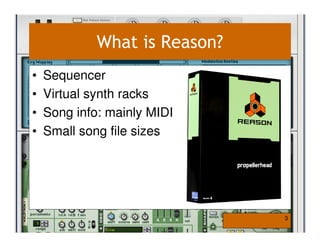
What is Reason?
•   Sequencer
•   Virtual synth racks
•   Song info: mainly MIDI
•   Small song file sizes


                               3
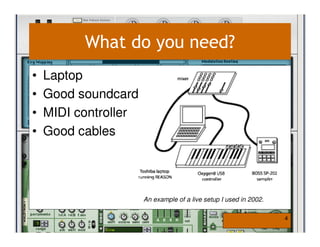
What do you need?
•   Laptop
•   Good soundcard
•   MIDI controller
•   Good cables


                      An example of a live setup I used in 2002.

                                                                   4
#1. Use Reason as a
     sequencer
#1. Use Reason as a sequencer


 [A] Go Linear. For ultimate control.
 – Sequence entire songs.
 – Play them from start to finish.
 – Problem: Not much variety.


                                        6
Add variety by:
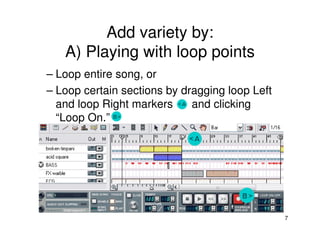
   A) Playing with loop points
– Loop entire song, or
– Loop certain sections by dragging loop Left
  and loop Right markers     and clicking
  “Loop On.”


                                                7
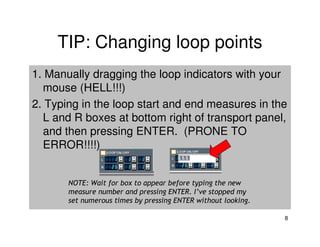
TIP: Changing loop points
1. Manually dragging the loop indicators with your
  mouse (HELL!!!)
2. Typing in the loop start and end measures in the
  L and R boxes at bottom right of transport panel,
  and then pressing ENTER. (PRONE TO
  ERROR!!!!)


       NOTE: Wait for box to appear before typing the new
       measure number and pressing ENTER. I’ve stopped my
       set numerous times by pressing ENTER without looking.

                                                               8
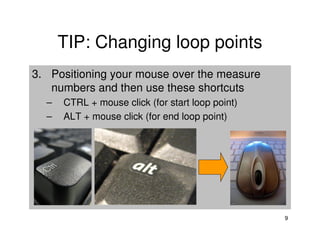
TIP: Changing loop points
3. Positioning your mouse over the measure
   numbers and then use these shortcuts
  –   CTRL + mouse click (for start loop point)
  –   ALT + mouse click (for end loop point)


                                                  9
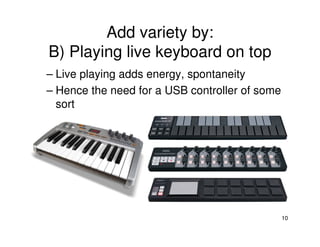
Add variety by:
B) Playing live keyboard on top
– Live playing adds energy, spontaneity
– Hence the need for a USB controller of some
  sort


                                                10
Add variety by:
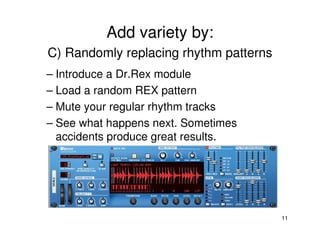
C) Randomly replacing rhythm patterns
– Introduce a Dr.Rex module
– Load a random REX pattern
– Mute your regular rhythm tracks
– See what happens next. Sometimes
  accidents produce great results.


                                        11
#1. Use Reason as a sequencer
 [B] Play short repeating grooves.
 – Pre-sequence short phrases
   (think 16, 32, 64 measures)
 – Play with loop points.


      Here is an example of a track I made with only two sections, each 16
      bars in length. Toggling between sections is the tricky part.

                                                                             12
#1. Use Reason as a sequencer

 [C] Build it from scratch
    • Most radical method. Most stressful.
    • Start with basic drum loop
    • Build parts as you go

    • Spontaneity results in either pure genius
      or massive error

                                                  13
#1. Use Reason as a sequencer

 [D] Mix pre-made songs like a DJ.
 – You can have several songs open at a time
   (watch your CPU)
 – Match the BPMs of your songs
   (Beat matching)


                                               14
TIP: Beat matching
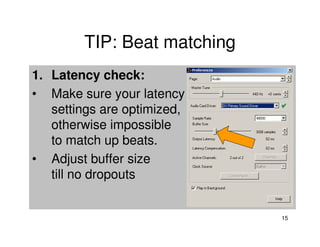
1. Latency check:
• Make sure your latency
   settings are optimized,
   otherwise impossible
   to match up beats.
• Adjust buffer size
   till no dropouts


                             15
TIP: Beat matching
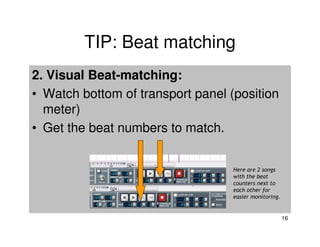
2. Visual Beat-matching:
• Watch bottom of transport panel (position
  meter)
• Get the beat numbers to match.


                                   Here are 2 songs
                                   with the beat
                                   counters next to
                                   each other for
                                   easier monitoring.


                                                        16
TIP: Beat matching
3. Layered parts: Bonus tip
• Set 2nd song to loop for 8 bars or so
• Use 2nd song's rhythms as a layer over
  the 1st song's melodic parts, or vice versa.


                                             17
TIP: Beat matching
          3. Layered parts: Bonus tip


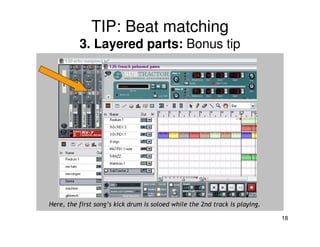
Here, the first song’s kick drum is soloed while the 2nd track is playing.

                                                                             18
#2. Use Reason as a
   tone module
#2. Use Reason as a tone module
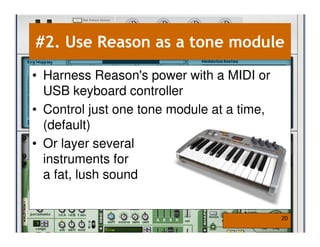
• Harness Reason's power with a MIDI or
  USB keyboard controller
• Control just one tone module at a time,
  (default)
• Or layer several
  instruments for
  a fat, lush sound


                                            20
TIP: Layering synths
             Taken from ReasonStation.com

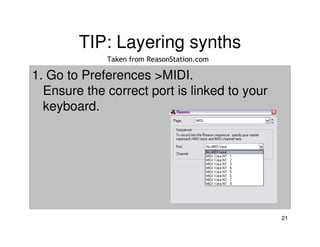
1. Go to Preferences >MIDI.
  Ensure the correct port is linked to your
  keyboard.


                                              21
TIP: Layering synths
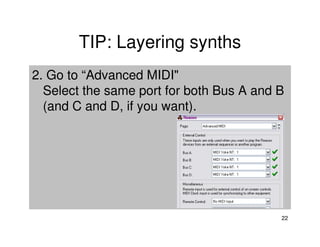
2. Go to “Advanced MIDI"
  Select the same port for both Bus A and B
  (and C and D, if you want).


                                          22
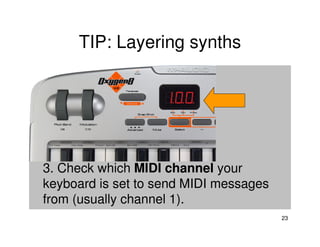
TIP: Layering synths


3. Check which MIDI channel your
keyboard is set to send MIDI messages
from (usually channel 1).
                                        23
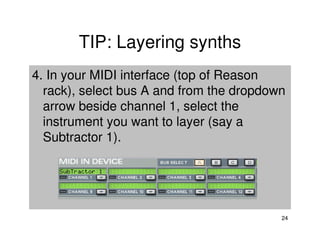
TIP: Layering synths
4. In your MIDI interface (top of Reason
  rack), select bus A and from the dropdown
  arrow beside channel 1, select the
  instrument you want to layer (say a
  Subtractor 1).


                                          24
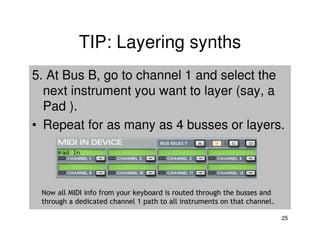
TIP: Layering synths
5. At Bus B, go to channel 1 and select the
  next instrument you want to layer (say, a
  Pad ).
• Repeat for as many as 4 busses or layers.


 Now all MIDI info from your keyboard is routed through the busses and
 through a dedicated channel 1 path to all instruments on that channel.

                                                                          25
#3. Changing parameters
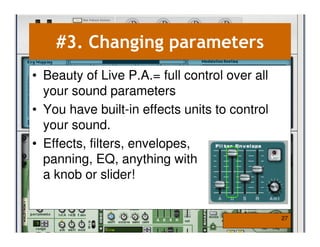
• Beauty of Live P.A.= full control over all
  your sound parameters
• You have built-in effects units to control
  your sound.
• Effects, filters, envelopes,
  panning, EQ, anything with
  a knob or slider!


                                               27
#3. Changing parameters
[A] TWEAK EFFECTS
• Easiest way to "play" with your sound
• Effects in Reason are built-in, thus stable
• Play around. Experiment.


                                                28
#3. Changing parameters
[B] ALTER NOTES
• Highlight some sequenced notes,
  right-click, and pick
  Change Events>
  Alter Notes. Choose %
• Randomly changes note
  position. New melodies
  and rhythms from old.

                                    29
#3. Changing parameters
[C] TWEAK THOSE KNOBS
• Parameters such as: filter, resonance,
  attack, decay, sustain, release.
• Find out what each can do to a sound.
  And then play with your sound.
• Some examples…


                                           30
TIP: Knobs and Filters
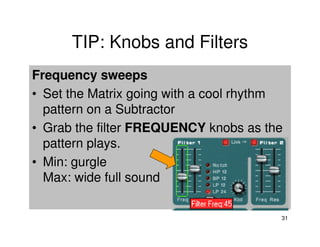
Frequency sweeps
• Set the Matrix going with a cool rhythm
  pattern on a Subtractor
• Grab the filter FREQUENCY knobs as the
  pattern plays.
• Min: gurgle
  Max: wide full sound

                                        31
TIP: Knobs and Filters
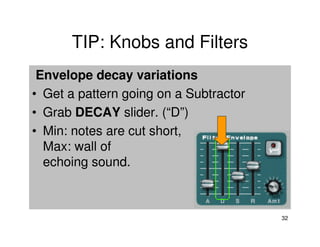
 Envelope decay variations
• Get a pattern going on a Subtractor
• Grab DECAY slider. (“D”)
• Min: notes are cut short,
  Max: wall of
  echoing sound.


                                        32
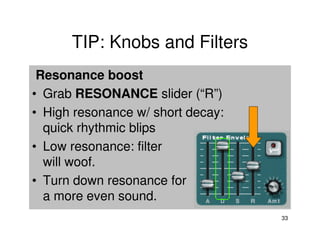
TIP: Knobs and Filters
 Resonance boost
• Grab RESONANCE slider (“R”)
• High resonance w/ short decay:
  quick rhythmic blips
• Low resonance: filter
  will woof.
• Turn down resonance for
  a more even sound.
                                   33
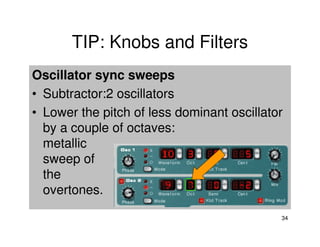
TIP: Knobs and Filters
Oscillator sync sweeps
• Subtractor:2 oscillators
• Lower the pitch of less dominant oscillator
  by a couple of octaves:
  metallic
  sweep of
  the
  overtones.

                                            34
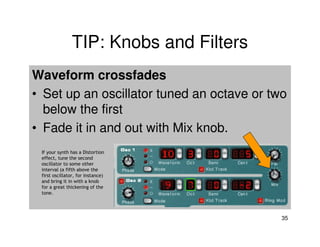
TIP: Knobs and Filters
Waveform crossfades
• Set up an oscillator tuned an octave or two
  below the first
• Fade it in and out with Mix knob.
 If your synth has a Distortion
 effect, tune the second
 oscillator to some other
 interval (a fifth above the
 first oscillator, for instance)
 and bring it in with a knob
 for a great thickening of the
 tone.


                                            35
#4. Personalized settings
[A] KEYBOARD MAPPING
• Allows you to activate something without using
  mouse.
• Options > Edit Keyboard Remote
• Assign QWERTY keys to buttons you’ll need
• Personally, I have set it up so that each mixer
  channel mute button, each Redrum pattern
  and each Matrix pattern is mapped to a
  QWERTY key.

                                                    37
#4. Personalized
[A] KEYBOARD MAPPING                                                            settings


ACID42's Keyboard Map:
Mixer Channel mute buttons:    1: Q. 2: W. 3: E 4: R      5: T 6: Y      7: U   8: I   9: O   10: P

Redrum Pattern enable buttons: 1, 2, 3, 4, 5, 6, 7, 8
Redrum Bank A enable: shift + 1
Redrum Bank B enable: shift + 2
Redrum Bank C enable: shift + 3
Redrum Bank D enable: shift + 4

Matrix Pattern enable buttons: 1: A 2:S     3: D   4: F    5: G   6: H     7: J 8: K
Matrix Bank A enable: shift + A
Matrix Bank B enable: shift + S
Matrix Bank C enable: shift + D
Matrix Bank D enable: shift + F

                                                                                                      38
#4. Personalized settings
[B] YOUR OWN DEFAULT SONG
• Save your keyboard
  mappings and all
  shortcuts as your
  "Default Song.rns"
• Start every new song
  with "Default Song.rns"


                               39
#4. Personalized settings
[C] SONG INFO = USEFUL INFO
• Pressing CTRL+I >
   Song Information
   window
• Place useful
   info for your
   performance:
a.) Chords (in “Text in window title”)
b.) List relevant measure numbers where
sections change (in “Text in window title”)
c.) Lyrics even! (in “More information”)


                                              40
#4. Personalized settings
[D] MAKE FILENAMES USEFUL
• Make it is easy to find songs which can
   be beat-matched.
• Put BPM before
   song title.
• Put genre
   after BPM.


                                            41
END
Hope this tutorial has been useful. If you have any
 questions or comments or even your own tips,
 I’d love to hear them. Email me at
 acid42@gmail.com.

Thanks for reading!
     Lionel Zivan S. Valdellon [acid42]
     web: http:/ / acid42.bluechronicles.net
     Twitter: http://www.twitter.com/acid42
     Email: acid42@gmail.com

                                                  42
About the Author

•   Acid42 = Lionel Valdellon
•   Live P.A. since 2002
    [Japan, Brunei, Malaysia, USA]
•   Originally from Philippines,
    now based in California
•   Member of ElectronicaManila
•   All Acid42 music = Creative Commons
•   Netlabel releases on QED Records
•   Web: http://acid42.bluechronicles.net
•   Email: acid42@gmail.com


                                            43

Using Reason For Live P.A. by Acid42

  • 1.
    USING REASON FOR LIVE P.A. By Lionel Zivan S. Valdellon [acid42] http://acid42.bluechronicles.net http://www.twitter.com/acid42 acid42@gmail.com
  • 2.
    About this guide •Originally created in 2005 • At the time, only Reason 2.5 • Most principles are still valid however 2
  • 3.
    What is Reason? • Sequencer • Virtual synth racks • Song info: mainly MIDI • Small song file sizes 3
  • 4.
    What do youneed? • Laptop • Good soundcard • MIDI controller • Good cables An example of a live setup I used in 2002. 4
  • 5.
    #1. Use Reasonas a sequencer
  • 6.
    #1. Use Reasonas a sequencer [A] Go Linear. For ultimate control. – Sequence entire songs. – Play them from start to finish. – Problem: Not much variety. 6
  • 7.
    Add variety by: A) Playing with loop points – Loop entire song, or – Loop certain sections by dragging loop Left and loop Right markers and clicking “Loop On.” 7
  • 8.
    TIP: Changing looppoints 1. Manually dragging the loop indicators with your mouse (HELL!!!) 2. Typing in the loop start and end measures in the L and R boxes at bottom right of transport panel, and then pressing ENTER. (PRONE TO ERROR!!!!) NOTE: Wait for box to appear before typing the new measure number and pressing ENTER. I’ve stopped my set numerous times by pressing ENTER without looking. 8
  • 9.
    TIP: Changing looppoints 3. Positioning your mouse over the measure numbers and then use these shortcuts – CTRL + mouse click (for start loop point) – ALT + mouse click (for end loop point) 9
  • 10.
    Add variety by: B)Playing live keyboard on top – Live playing adds energy, spontaneity – Hence the need for a USB controller of some sort 10
  • 11.
    Add variety by: C)Randomly replacing rhythm patterns – Introduce a Dr.Rex module – Load a random REX pattern – Mute your regular rhythm tracks – See what happens next. Sometimes accidents produce great results. 11
  • 12.
    #1. Use Reasonas a sequencer [B] Play short repeating grooves. – Pre-sequence short phrases (think 16, 32, 64 measures) – Play with loop points. Here is an example of a track I made with only two sections, each 16 bars in length. Toggling between sections is the tricky part. 12
  • 13.
    #1. Use Reasonas a sequencer [C] Build it from scratch • Most radical method. Most stressful. • Start with basic drum loop • Build parts as you go • Spontaneity results in either pure genius or massive error 13
  • 14.
    #1. Use Reasonas a sequencer [D] Mix pre-made songs like a DJ. – You can have several songs open at a time (watch your CPU) – Match the BPMs of your songs (Beat matching) 14
  • 15.
    TIP: Beat matching 1.Latency check: • Make sure your latency settings are optimized, otherwise impossible to match up beats. • Adjust buffer size till no dropouts 15
  • 16.
    TIP: Beat matching 2.Visual Beat-matching: • Watch bottom of transport panel (position meter) • Get the beat numbers to match. Here are 2 songs with the beat counters next to each other for easier monitoring. 16
  • 17.
    TIP: Beat matching 3.Layered parts: Bonus tip • Set 2nd song to loop for 8 bars or so • Use 2nd song's rhythms as a layer over the 1st song's melodic parts, or vice versa. 17
  • 18.
    TIP: Beat matching 3. Layered parts: Bonus tip Here, the first song’s kick drum is soloed while the 2nd track is playing. 18
  • 19.
    #2. Use Reasonas a tone module
  • 20.
    #2. Use Reasonas a tone module • Harness Reason's power with a MIDI or USB keyboard controller • Control just one tone module at a time, (default) • Or layer several instruments for a fat, lush sound 20
  • 21.
    TIP: Layering synths Taken from ReasonStation.com 1. Go to Preferences >MIDI. Ensure the correct port is linked to your keyboard. 21
  • 22.
    TIP: Layering synths 2.Go to “Advanced MIDI" Select the same port for both Bus A and B (and C and D, if you want). 22
  • 23.
    TIP: Layering synths 3.Check which MIDI channel your keyboard is set to send MIDI messages from (usually channel 1). 23
  • 24.
    TIP: Layering synths 4.In your MIDI interface (top of Reason rack), select bus A and from the dropdown arrow beside channel 1, select the instrument you want to layer (say a Subtractor 1). 24
  • 25.
    TIP: Layering synths 5.At Bus B, go to channel 1 and select the next instrument you want to layer (say, a Pad ). • Repeat for as many as 4 busses or layers. Now all MIDI info from your keyboard is routed through the busses and through a dedicated channel 1 path to all instruments on that channel. 25
  • 26.
  • 27.
    #3. Changing parameters •Beauty of Live P.A.= full control over all your sound parameters • You have built-in effects units to control your sound. • Effects, filters, envelopes, panning, EQ, anything with a knob or slider! 27
  • 28.
    #3. Changing parameters [A]TWEAK EFFECTS • Easiest way to "play" with your sound • Effects in Reason are built-in, thus stable • Play around. Experiment. 28
  • 29.
    #3. Changing parameters [B]ALTER NOTES • Highlight some sequenced notes, right-click, and pick Change Events> Alter Notes. Choose % • Randomly changes note position. New melodies and rhythms from old. 29
  • 30.
    #3. Changing parameters [C]TWEAK THOSE KNOBS • Parameters such as: filter, resonance, attack, decay, sustain, release. • Find out what each can do to a sound. And then play with your sound. • Some examples… 30
  • 31.
    TIP: Knobs andFilters Frequency sweeps • Set the Matrix going with a cool rhythm pattern on a Subtractor • Grab the filter FREQUENCY knobs as the pattern plays. • Min: gurgle Max: wide full sound 31
  • 32.
    TIP: Knobs andFilters Envelope decay variations • Get a pattern going on a Subtractor • Grab DECAY slider. (“D”) • Min: notes are cut short, Max: wall of echoing sound. 32
  • 33.
    TIP: Knobs andFilters Resonance boost • Grab RESONANCE slider (“R”) • High resonance w/ short decay: quick rhythmic blips • Low resonance: filter will woof. • Turn down resonance for a more even sound. 33
  • 34.
    TIP: Knobs andFilters Oscillator sync sweeps • Subtractor:2 oscillators • Lower the pitch of less dominant oscillator by a couple of octaves: metallic sweep of the overtones. 34
  • 35.
    TIP: Knobs andFilters Waveform crossfades • Set up an oscillator tuned an octave or two below the first • Fade it in and out with Mix knob. If your synth has a Distortion effect, tune the second oscillator to some other interval (a fifth above the first oscillator, for instance) and bring it in with a knob for a great thickening of the tone. 35
  • 36.
  • 37.
    #4. Personalized settings [A]KEYBOARD MAPPING • Allows you to activate something without using mouse. • Options > Edit Keyboard Remote • Assign QWERTY keys to buttons you’ll need • Personally, I have set it up so that each mixer channel mute button, each Redrum pattern and each Matrix pattern is mapped to a QWERTY key. 37
  • 38.
    #4. Personalized [A] KEYBOARDMAPPING settings ACID42's Keyboard Map: Mixer Channel mute buttons: 1: Q. 2: W. 3: E 4: R 5: T 6: Y 7: U 8: I 9: O 10: P Redrum Pattern enable buttons: 1, 2, 3, 4, 5, 6, 7, 8 Redrum Bank A enable: shift + 1 Redrum Bank B enable: shift + 2 Redrum Bank C enable: shift + 3 Redrum Bank D enable: shift + 4 Matrix Pattern enable buttons: 1: A 2:S 3: D 4: F 5: G 6: H 7: J 8: K Matrix Bank A enable: shift + A Matrix Bank B enable: shift + S Matrix Bank C enable: shift + D Matrix Bank D enable: shift + F 38
  • 39.
    #4. Personalized settings [B]YOUR OWN DEFAULT SONG • Save your keyboard mappings and all shortcuts as your "Default Song.rns" • Start every new song with "Default Song.rns" 39
  • 40.
    #4. Personalized settings [C]SONG INFO = USEFUL INFO • Pressing CTRL+I > Song Information window • Place useful info for your performance: a.) Chords (in “Text in window title”) b.) List relevant measure numbers where sections change (in “Text in window title”) c.) Lyrics even! (in “More information”) 40
  • 41.
    #4. Personalized settings [D]MAKE FILENAMES USEFUL • Make it is easy to find songs which can be beat-matched. • Put BPM before song title. • Put genre after BPM. 41
  • 42.
    END Hope this tutorialhas been useful. If you have any questions or comments or even your own tips, I’d love to hear them. Email me at acid42@gmail.com. Thanks for reading! Lionel Zivan S. Valdellon [acid42] web: http:/ / acid42.bluechronicles.net Twitter: http://www.twitter.com/acid42 Email: acid42@gmail.com 42
  • 43.
    About the Author • Acid42 = Lionel Valdellon • Live P.A. since 2002 [Japan, Brunei, Malaysia, USA] • Originally from Philippines, now based in California • Member of ElectronicaManila • All Acid42 music = Creative Commons • Netlabel releases on QED Records • Web: http://acid42.bluechronicles.net • Email: acid42@gmail.com 43