Quick Start Guide to Second Life
Quick Start Guide to Second LifeThis self-guided presentation will introduce the various elements of Second Life from interface basics to controlling actions and behaviors.
Quick Start SL TopicsInterfaceMenusFunction ButtonsKeyboard CommandsGuide to Second Life Actions
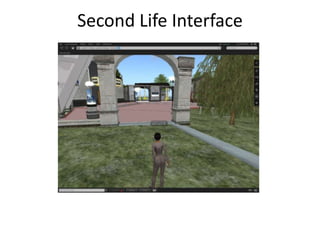
Second Life Interface
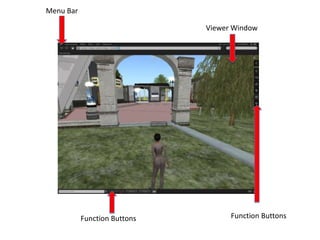
Menu BarViewer WindowFunction ButtonsFunction Buttons
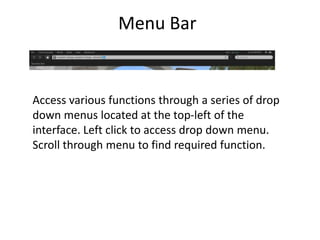
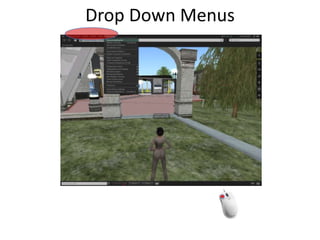
Menu BarAccess various functions through a series of drop down menus located at the top-left of the interface. Left click to access drop down menu. Scroll through menu to find required function.
Drop Down Menus
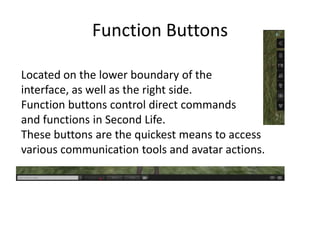
Function ButtonsLocated on the lower boundary of the interface, as well as the right side.Function buttons control direct commands and functions in Second Life. These buttons are the quickest means to access various communication tools and avatar actions.
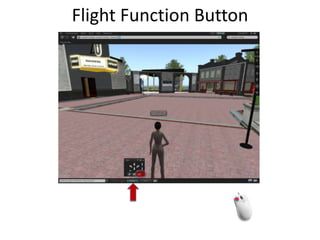
Flight Function Button
Keyboard CommandsMany of the basic movements in Second Life are managed through keyboard interaction. Additionally, many of the other functions controlled by both menu and button items may also be achieved using keyboard shortcuts. Access menu items to determine the associated keyboard commands.
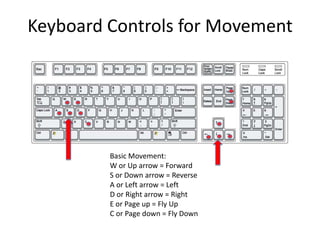
Keyboard Controls for MovementBasic Movement:W or Up arrow = ForwardS or Down arrow = ReverseA or Left arrow = LeftD or Right arrow = RightE or Page up = Fly Up C or Page down = Fly Down
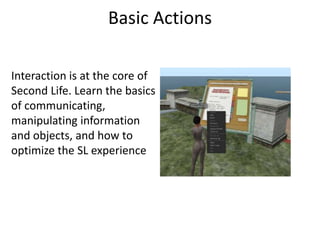
Basic ActionsInteraction is at the core of Second Life. Learn the basics of communicating, manipulating information and objects, and how to optimize the SL experience
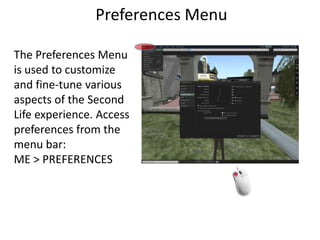
Preferences MenuThe Preferences Menu is used to customize and fine-tune various aspects of the Second Life experience. Access preferences from the menu bar: ME > PREFERENCES
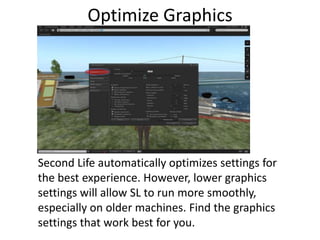
Optimize GraphicsSecond Life automatically optimizes settings for the best experience. However, lower graphics settings will allow SL to run more smoothly, especially on older machines. Find the graphics settings that work best for you.
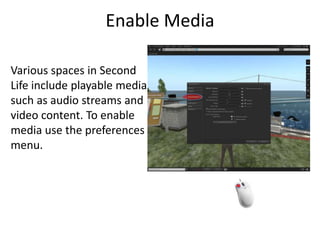
Enable MediaVarious spaces in Second Life include playable media such as audio streams and video content. To enable media use the preferences menu.
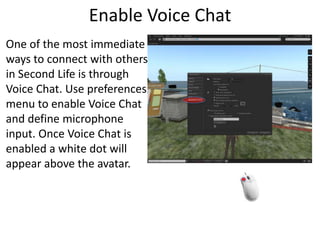
Enable Voice ChatOne of the most immediate ways to connect with others in Second Life is through Voice Chat. Use preferences menu to enable Voice Chat and define microphone input. Once Voice Chat is enabled a white dot will appear above the avatar.
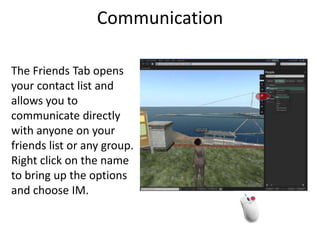
CommunicationThe Friends Tab opens your contact list and allows you to communicate directly with anyone on your friends list or any group.Right click on the name to bring up the options and choose IM.
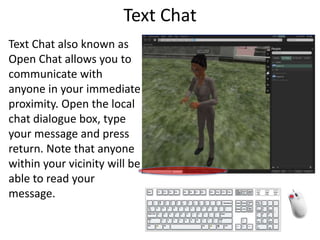
Text ChatText Chat also known as Open Chat allows you to communicate with anyone in your immediate proximity. Open the local chat dialogue box, type your message and press return. Note that anyone within your vicinity will be able to read your message.
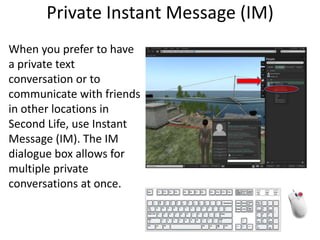
Private Instant Message (IM)When you prefer to have a private text conversation or to communicate with friends in other locations in Second Life, use Instant Message (IM). The IM dialogue box allows for multiple private conversations at once.
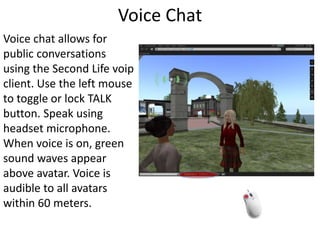
Voice ChatVoice chat allows for public conversations using the Second Life voip client. Use the left mouse to toggle or lock TALK button. Speak using headset microphone. When voice is on, green sound waves appear above avatar. Voice is audible to all avatars within 60 meters.
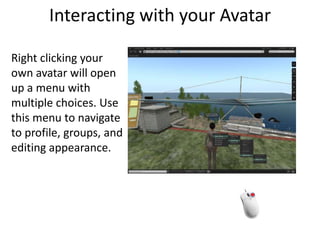
Interacting with your AvatarRight clicking your own avatar will open up a menu with multiple choices. Use this menu to navigate to profile, groups, and editing appearance.
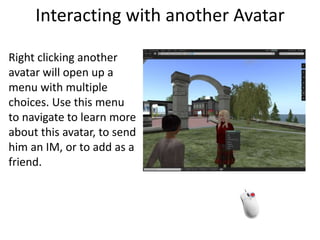
Interacting with another AvatarRight clicking another avatar will open up a menu with multiple choices. Use this menu to navigate to learn more about this avatar, to send him an IM, or to add as a friend.
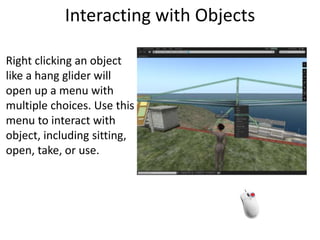
Interacting with ObjectsRight clicking an object like a hang glider will open up a menu with multiple choices. Use this menu to interact with object, including sitting, open, take, or use.
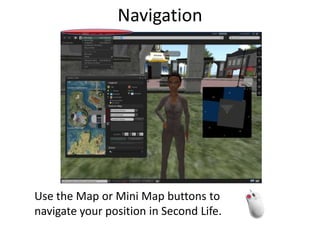
NavigationUse the Map or Mini Map buttons to navigate your position in Second Life.
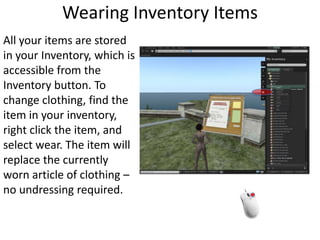
Wearing Inventory ItemsAll your items are stored in your Inventory, which is accessible from the Inventory button. To change clothing, find the item in your inventory, right click the item, and select wear. The item will replace the currently worn article of clothing – no undressing required.
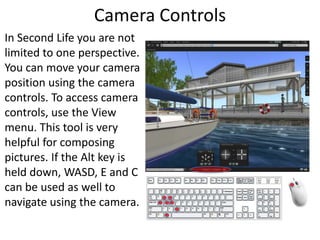
Camera ControlsIn Second Life you are not limited to one perspective. You can move your camera position using the camera controls. To access camera controls, use the View menu. This tool is very helpful for composing pictures. If the Alt key is held down, WASD, E and C can be used as well to navigate using the camera.
Quick Start Guide to Second Life

Second life training_viewer2

  • 1.
    Quick Start Guideto Second Life
  • 2.
    Quick Start Guideto Second LifeThis self-guided presentation will introduce the various elements of Second Life from interface basics to controlling actions and behaviors.
  • 3.
    Quick Start SLTopicsInterfaceMenusFunction ButtonsKeyboard CommandsGuide to Second Life Actions
  • 4.
  • 5.
    Menu BarViewer WindowFunctionButtonsFunction Buttons
  • 6.
    Menu BarAccess variousfunctions through a series of drop down menus located at the top-left of the interface. Left click to access drop down menu. Scroll through menu to find required function.
  • 7.
  • 8.
    Function ButtonsLocated onthe lower boundary of the interface, as well as the right side.Function buttons control direct commands and functions in Second Life. These buttons are the quickest means to access various communication tools and avatar actions.
  • 9.
  • 10.
    Keyboard CommandsMany ofthe basic movements in Second Life are managed through keyboard interaction. Additionally, many of the other functions controlled by both menu and button items may also be achieved using keyboard shortcuts. Access menu items to determine the associated keyboard commands.
  • 11.
    Keyboard Controls forMovementBasic Movement:W or Up arrow = ForwardS or Down arrow = ReverseA or Left arrow = LeftD or Right arrow = RightE or Page up = Fly Up C or Page down = Fly Down
  • 12.
    Basic ActionsInteraction isat the core of Second Life. Learn the basics of communicating, manipulating information and objects, and how to optimize the SL experience
  • 13.
    Preferences MenuThe PreferencesMenu is used to customize and fine-tune various aspects of the Second Life experience. Access preferences from the menu bar: ME > PREFERENCES
  • 14.
    Optimize GraphicsSecond Lifeautomatically optimizes settings for the best experience. However, lower graphics settings will allow SL to run more smoothly, especially on older machines. Find the graphics settings that work best for you.
  • 15.
    Enable MediaVarious spacesin Second Life include playable media such as audio streams and video content. To enable media use the preferences menu.
  • 16.
    Enable Voice ChatOneof the most immediate ways to connect with others in Second Life is through Voice Chat. Use preferences menu to enable Voice Chat and define microphone input. Once Voice Chat is enabled a white dot will appear above the avatar.
  • 17.
    CommunicationThe Friends Tabopens your contact list and allows you to communicate directly with anyone on your friends list or any group.Right click on the name to bring up the options and choose IM.
  • 18.
    Text ChatText Chatalso known as Open Chat allows you to communicate with anyone in your immediate proximity. Open the local chat dialogue box, type your message and press return. Note that anyone within your vicinity will be able to read your message.
  • 19.
    Private Instant Message(IM)When you prefer to have a private text conversation or to communicate with friends in other locations in Second Life, use Instant Message (IM). The IM dialogue box allows for multiple private conversations at once.
  • 20.
    Voice ChatVoice chatallows for public conversations using the Second Life voip client. Use the left mouse to toggle or lock TALK button. Speak using headset microphone. When voice is on, green sound waves appear above avatar. Voice is audible to all avatars within 60 meters.
  • 21.
    Interacting with yourAvatarRight clicking your own avatar will open up a menu with multiple choices. Use this menu to navigate to profile, groups, and editing appearance.
  • 22.
    Interacting with anotherAvatarRight clicking another avatar will open up a menu with multiple choices. Use this menu to navigate to learn more about this avatar, to send him an IM, or to add as a friend.
  • 23.
    Interacting with ObjectsRightclicking an object like a hang glider will open up a menu with multiple choices. Use this menu to interact with object, including sitting, open, take, or use.
  • 24.
    NavigationUse the Mapor Mini Map buttons to navigate your position in Second Life.
  • 25.
    Wearing Inventory ItemsAllyour items are stored in your Inventory, which is accessible from the Inventory button. To change clothing, find the item in your inventory, right click the item, and select wear. The item will replace the currently worn article of clothing – no undressing required.
  • 26.
    Camera ControlsIn SecondLife you are not limited to one perspective. You can move your camera position using the camera controls. To access camera controls, use the View menu. This tool is very helpful for composing pictures. If the Alt key is held down, WASD, E and C can be used as well to navigate using the camera.
  • 27.
    Quick Start Guideto Second Life