Building Table RelationshipsLesson Five ( ACCESS 2007)
By now, you have set up the tables you need for your database, and created fields for those different tables. Relationships provide Access 2007 with the means to bring that information together for you when you need it. 

This lesson explains how to establish relationships between the tables in an Access 2007 database. You will learn how to read and manipulate the relationship map. You will also learn about Primary and Foreign Keys, relationship types, and about referential integrity.2Guevarra Institute of Technology
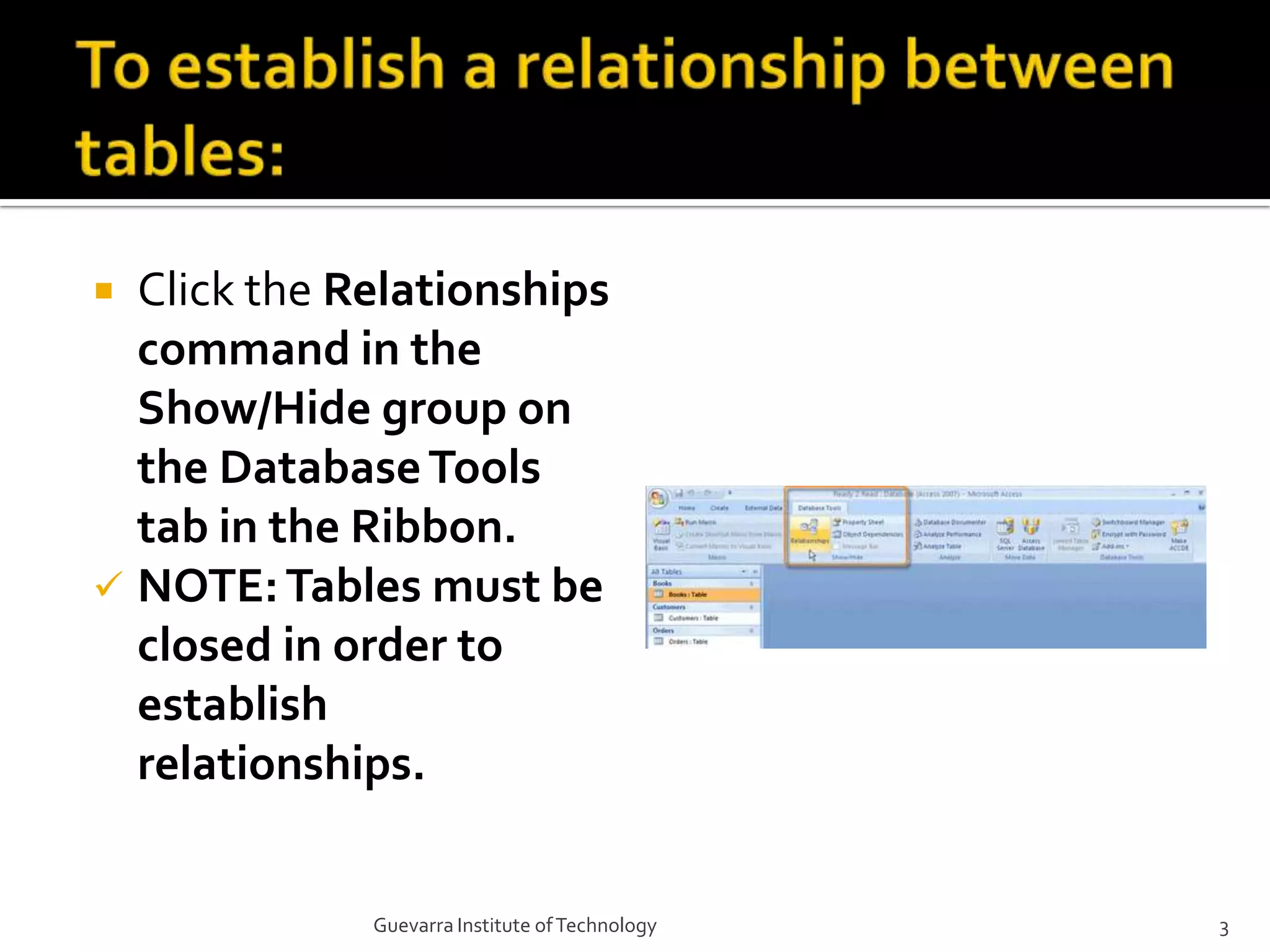
To establish a relationship between tables:Click the Relationships command in the Show/Hide group on the Database Tools tab in the Ribbon.NOTE: Tables must be closed in order to establish relationships.3Guevarra Institute of Technology
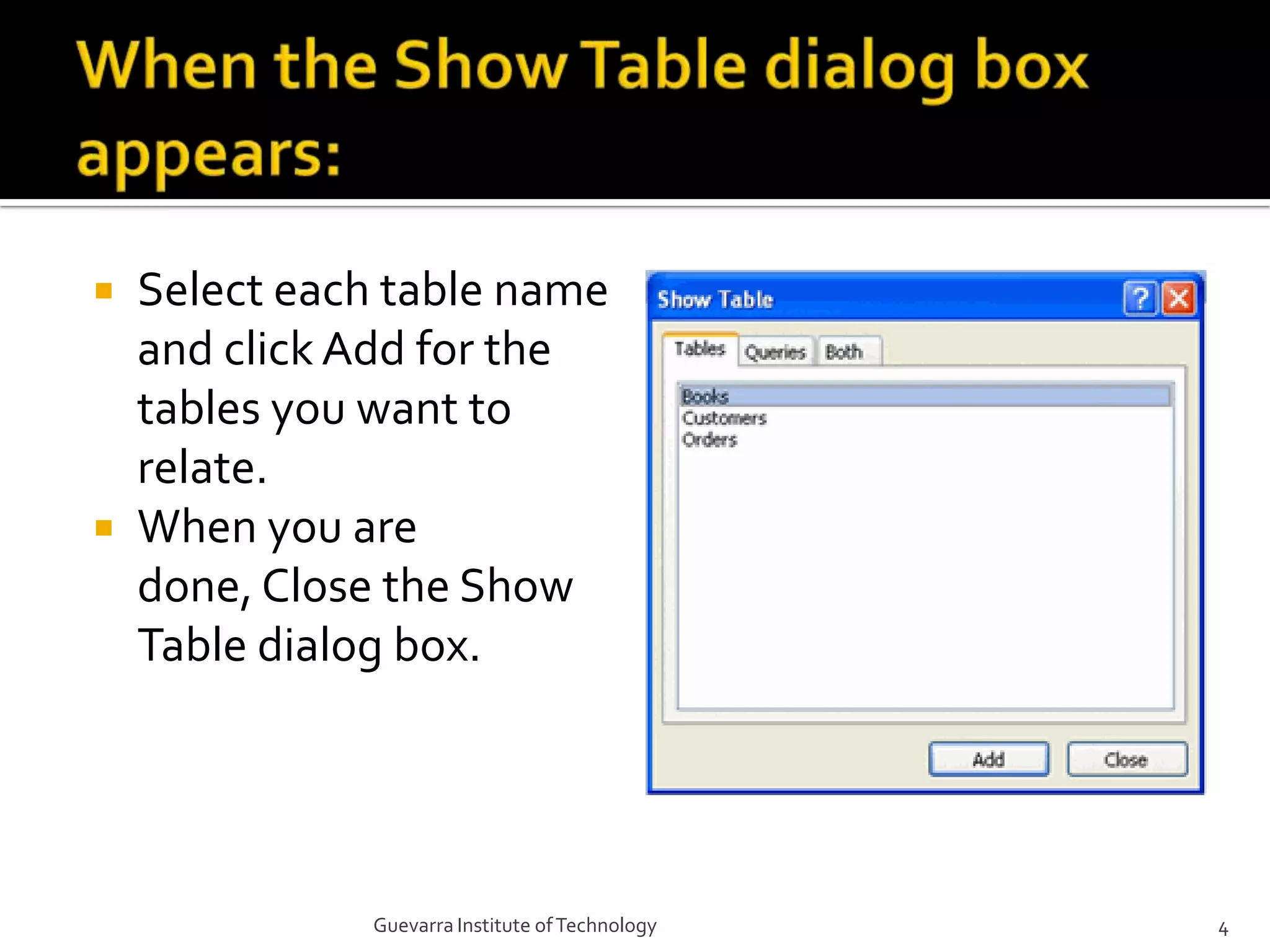
When the Show Table dialog box appears:Select each table name and click Add for the tables you want to relate.When you are done, Close the Show Table dialog box.4Guevarra Institute of Technology
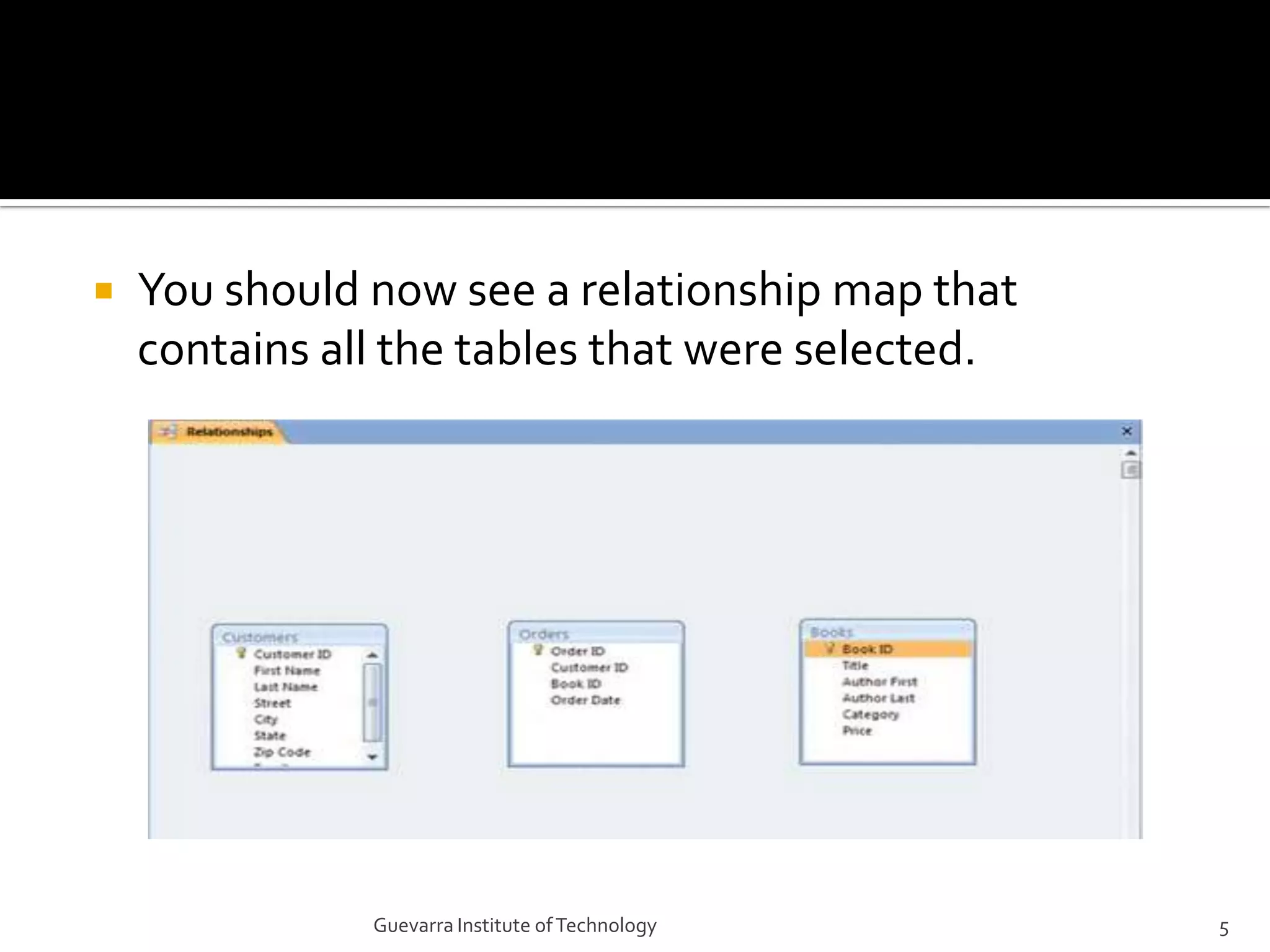
You should now see a relationship map that contains all the tables that were selected.5Guevarra Institute of Technology
To move a table that appears in the relationship map:Place your mouse over the table you want to move.Hold down the left mouse button, and drag the table to a new location.Release the mouse button to drop the table in its new place.6Guevarra Institute of Technology
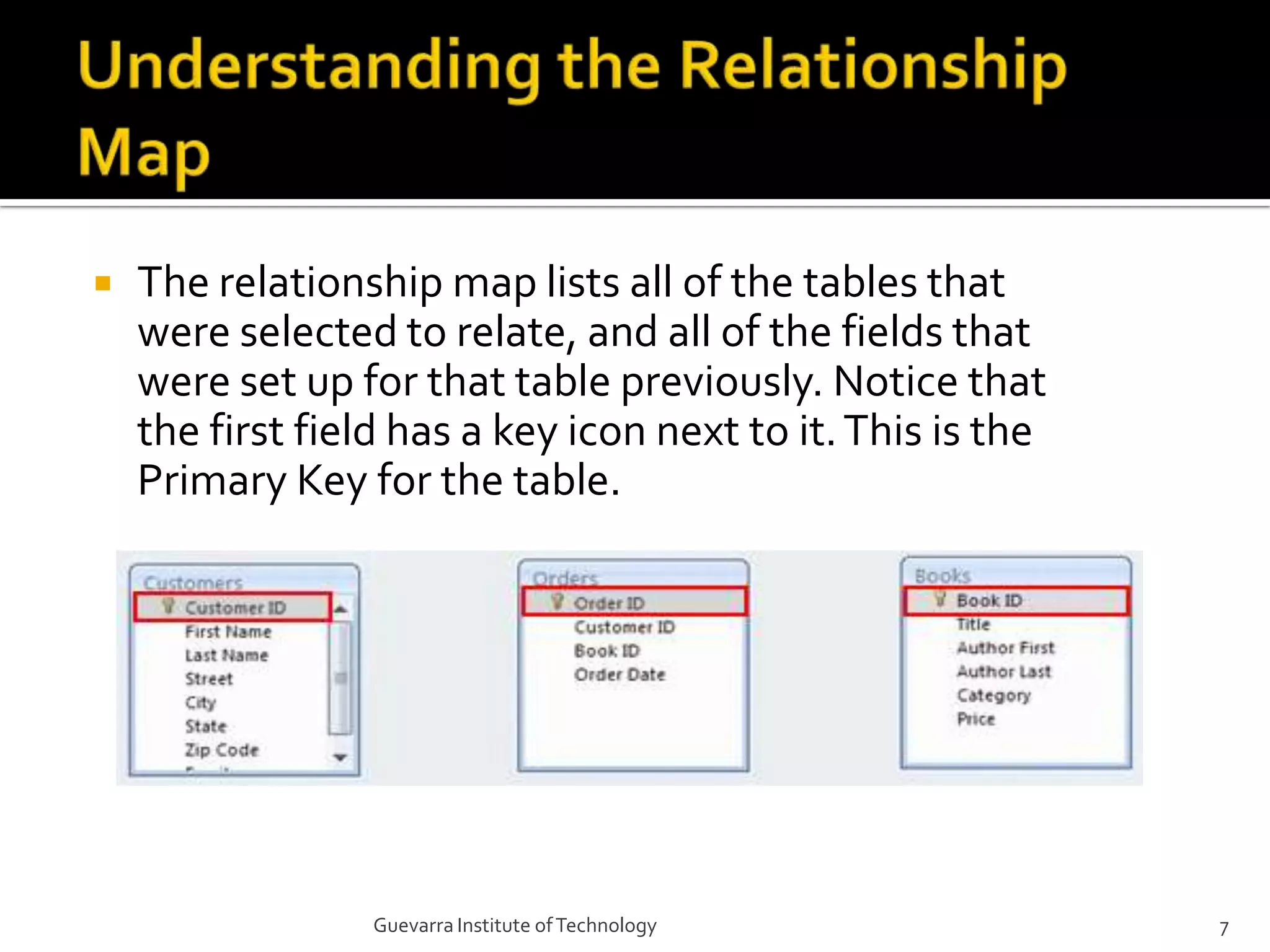
Understanding the Relationship MapThe relationship map lists all of the tables that were selected to relate, and all of the fields that were set up for that table previously. Notice that the first field has a key icon next to it. This is the Primary Key for the table.7Guevarra Institute of Technology
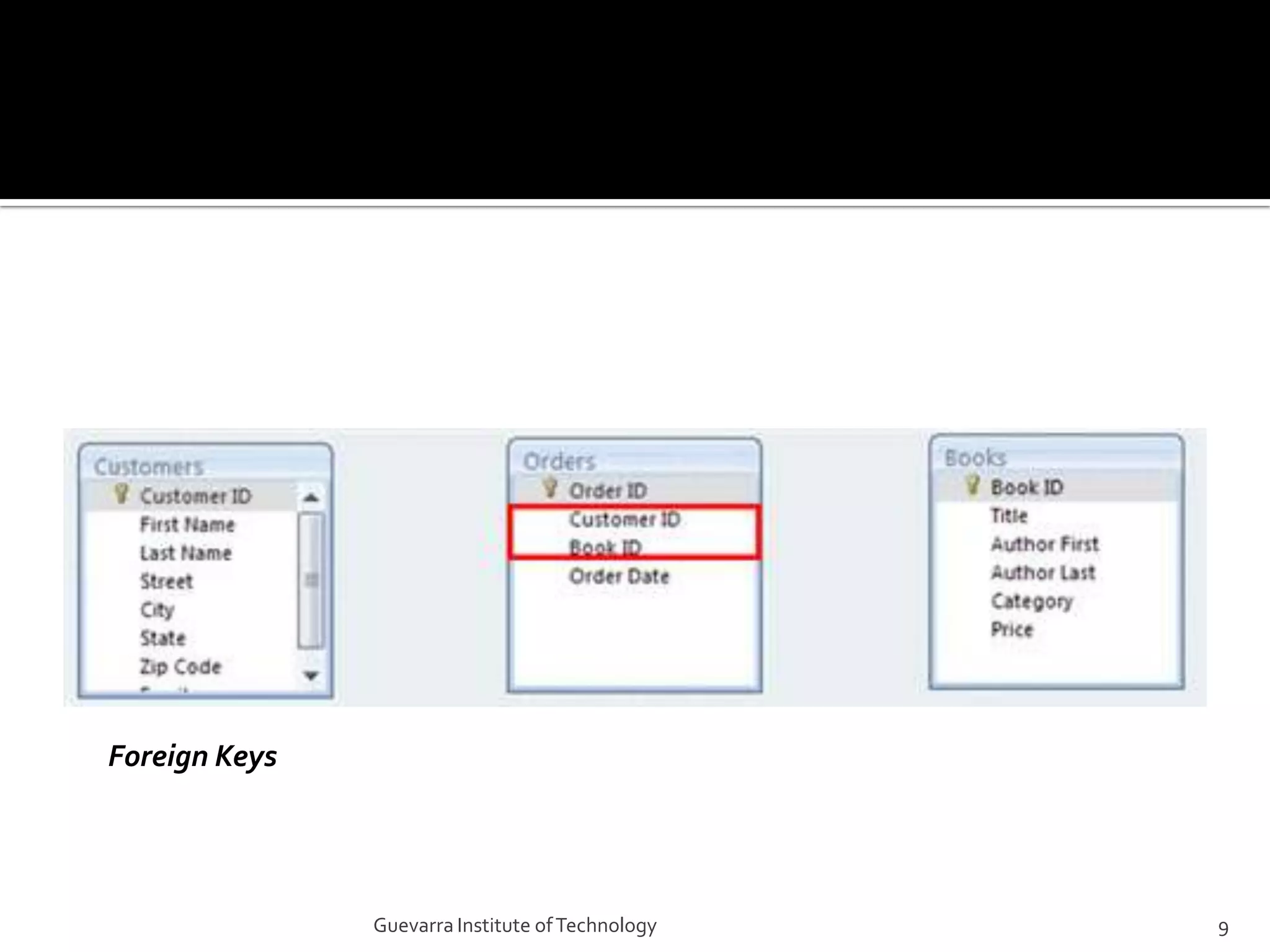
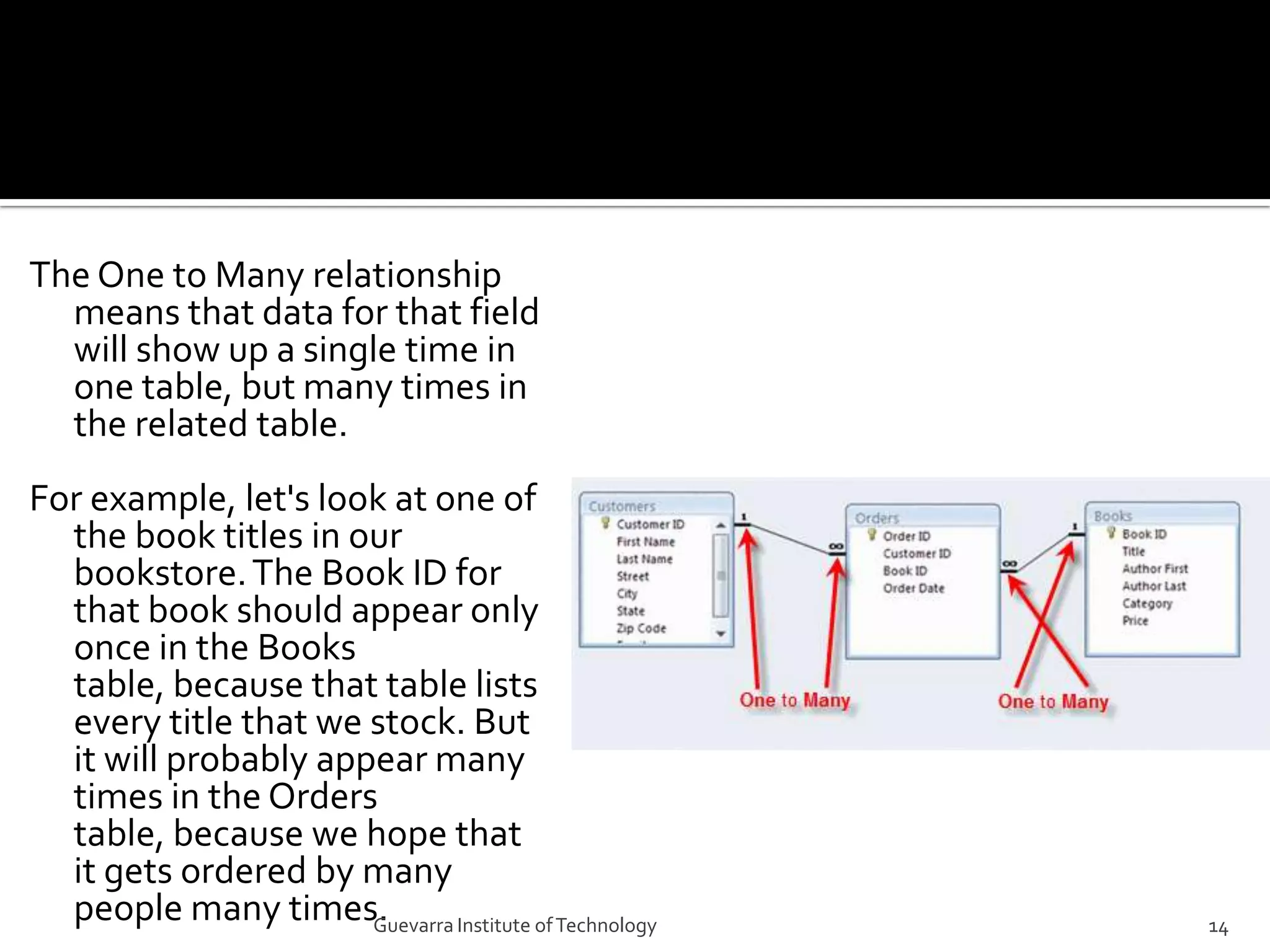
Primary and Foreign KeysA Primary Key is the first field in each table of the database. You may recall that this field auto numbers by default, so that every record in the table has its own unique number to identify it. Access uses this number to quickly pull information together for you when you run queries or reports, which are covered later.In the example above, the primary key for the Customers table is Customer ID, the primary key for the Orders table is Order ID, and the primary key for the Books table is Book ID.A Foreign Key is a field that is the Primary Field in its own table, but that shows up in another table. If you look closely at the Orders table, the fields Customer ID and Book ID appear there, as well as in their own respective tables. These fields are the primary key in their own tables, but in the Orders table, they are considered Foreign Keys.8Guevarra Institute of Technology
Foreign Keys9Guevarra Institute of Technology
Relating TablesThere are a few ways to establish relationships between tables:Using the Edit Relationships command located on the Design tab of the RibbonUsing the Drag and Drop methodBoth methods give you the same end result, but the Drag and Drop method is much easier and saves you several steps.10Guevarra Institute of Technology
Relating Tables with the Drag and Drop MethodIt is easy to relate tables from the relationship map:Select a field name from one table by holding down the left mouse buttonDrag the field name from the one table to the other table in the desired relationship.Drop the first field name onto the field name that you want to relate by releasing the left mouse button.In the example above, we selected the Book ID field from the Books table, and dragged and dropped it on the Book ID field in the Orders table.11Guevarra Institute of Technology
The Edit Relationships dialog box appears.Select the Enforce Referential Integrity option. This option is explained in detail below.Click Create.Edit Relationships Dialog Box12Guevarra Institute of Technology
Understanding Types of RelationshipsAccess 2007 allows for several different types of relationships. These include:One to OneOne to ManyMany to ManyThe relationship type you will come across most frequently, and the one created in our bookstore scenario, is the One to Many relationship.13Guevarra Institute of Technology
The One to Many relationship means that data for that field will show up a single time in one table, but many times in the related table.For example, let's look at one of the book titles in our bookstore. The Book ID for that book should appear only once in the Books table, because that table lists every title that we stock. But it will probably appear many times in the Orders table, because we hope that it gets ordered by many people many times.14Guevarra Institute of Technology
Enforcing Referential IntegrityIn the Edit Relationships dialog box, an option to Enforce Referential Integrity appears.You should click Enforce Referential Integrity to make sure that we NEVER have an order for a book that doesn't appear in our Books table. Selecting this option tells Access to check for these things when someone is working with your data records.15Guevarra Institute of Technology
Editing Existing RelationshipsAccess 2007 allows you to edit relationships that already exist. This can be done using the Edit Relationships command on the Ribbon. However, a much simpler way is to simply double click on the link that appears in the relationship map. Either method brings up the Edit Relationships dialog box, where you can change your settings.16Guevarra Institute of Technology
ChallengeOpen the database and establish a relationship between the Books table and the Orders table using the Drag and Drop method.Establish a relationship between the Customers table and the Orders table using the Edit Relationships command on the Ribbon.Edit an established relationship by double-clicking the link.Explore the options and settings in the Edit Relationships dialog box.Move the tables around in the relationship map.17Guevarra Institute of Technology

Lesson Five Building Table Relationships

  • 1.
  • 2.
    By now, youhave set up the tables you need for your database, and created fields for those different tables. Relationships provide Access 2007 with the means to bring that information together for you when you need it. 

This lesson explains how to establish relationships between the tables in an Access 2007 database. You will learn how to read and manipulate the relationship map. You will also learn about Primary and Foreign Keys, relationship types, and about referential integrity.2Guevarra Institute of Technology
  • 3.
    To establish arelationship between tables:Click the Relationships command in the Show/Hide group on the Database Tools tab in the Ribbon.NOTE: Tables must be closed in order to establish relationships.3Guevarra Institute of Technology
  • 4.
    When the ShowTable dialog box appears:Select each table name and click Add for the tables you want to relate.When you are done, Close the Show Table dialog box.4Guevarra Institute of Technology
  • 5.
    You should nowsee a relationship map that contains all the tables that were selected.5Guevarra Institute of Technology
  • 6.
    To move atable that appears in the relationship map:Place your mouse over the table you want to move.Hold down the left mouse button, and drag the table to a new location.Release the mouse button to drop the table in its new place.6Guevarra Institute of Technology
  • 7.
    Understanding the RelationshipMapThe relationship map lists all of the tables that were selected to relate, and all of the fields that were set up for that table previously. Notice that the first field has a key icon next to it. This is the Primary Key for the table.7Guevarra Institute of Technology
  • 8.
    Primary and ForeignKeysA Primary Key is the first field in each table of the database. You may recall that this field auto numbers by default, so that every record in the table has its own unique number to identify it. Access uses this number to quickly pull information together for you when you run queries or reports, which are covered later.In the example above, the primary key for the Customers table is Customer ID, the primary key for the Orders table is Order ID, and the primary key for the Books table is Book ID.A Foreign Key is a field that is the Primary Field in its own table, but that shows up in another table. If you look closely at the Orders table, the fields Customer ID and Book ID appear there, as well as in their own respective tables. These fields are the primary key in their own tables, but in the Orders table, they are considered Foreign Keys.8Guevarra Institute of Technology
  • 9.
  • 10.
    Relating TablesThere area few ways to establish relationships between tables:Using the Edit Relationships command located on the Design tab of the RibbonUsing the Drag and Drop methodBoth methods give you the same end result, but the Drag and Drop method is much easier and saves you several steps.10Guevarra Institute of Technology
  • 11.
    Relating Tables withthe Drag and Drop MethodIt is easy to relate tables from the relationship map:Select a field name from one table by holding down the left mouse buttonDrag the field name from the one table to the other table in the desired relationship.Drop the first field name onto the field name that you want to relate by releasing the left mouse button.In the example above, we selected the Book ID field from the Books table, and dragged and dropped it on the Book ID field in the Orders table.11Guevarra Institute of Technology
  • 12.
    The Edit Relationshipsdialog box appears.Select the Enforce Referential Integrity option. This option is explained in detail below.Click Create.Edit Relationships Dialog Box12Guevarra Institute of Technology
  • 13.
    Understanding Types ofRelationshipsAccess 2007 allows for several different types of relationships. These include:One to OneOne to ManyMany to ManyThe relationship type you will come across most frequently, and the one created in our bookstore scenario, is the One to Many relationship.13Guevarra Institute of Technology
  • 14.
    The One toMany relationship means that data for that field will show up a single time in one table, but many times in the related table.For example, let's look at one of the book titles in our bookstore. The Book ID for that book should appear only once in the Books table, because that table lists every title that we stock. But it will probably appear many times in the Orders table, because we hope that it gets ordered by many people many times.14Guevarra Institute of Technology
  • 15.
    Enforcing Referential IntegrityInthe Edit Relationships dialog box, an option to Enforce Referential Integrity appears.You should click Enforce Referential Integrity to make sure that we NEVER have an order for a book that doesn't appear in our Books table. Selecting this option tells Access to check for these things when someone is working with your data records.15Guevarra Institute of Technology
  • 16.
    Editing Existing RelationshipsAccess2007 allows you to edit relationships that already exist. This can be done using the Edit Relationships command on the Ribbon. However, a much simpler way is to simply double click on the link that appears in the relationship map. Either method brings up the Edit Relationships dialog box, where you can change your settings.16Guevarra Institute of Technology
  • 17.
    ChallengeOpen the databaseand establish a relationship between the Books table and the Orders table using the Drag and Drop method.Establish a relationship between the Customers table and the Orders table using the Edit Relationships command on the Ribbon.Edit an established relationship by double-clicking the link.Explore the options and settings in the Edit Relationships dialog box.Move the tables around in the relationship map.17Guevarra Institute of Technology