Microsoft Access
The Basics
Introduction
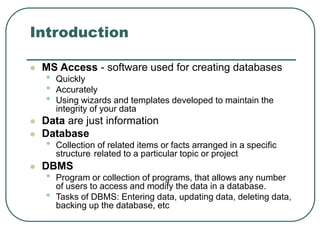
 MS Access - software used for creating databases
• Quickly
• Accurately
• Using wizards and templates developed to maintain the
integrity of your data
 Data are just information
 Database
• Collection of related items or facts arranged in a specific
structure related to a particular topic or project
 DBMS
• Program or collection of programs, that allows any number
of users to access and modify the data in a database.
• Tasks of DBMS: Entering data, updating data, deleting data,
backing up the database, etc
MS Access vs. MS Excel
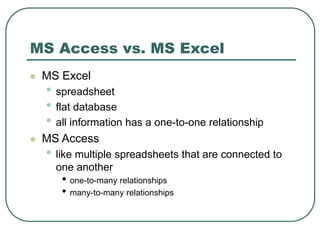
 MS Excel
• spreadsheet
• flat database
• all information has a one-to-one relationship
 MS Access
• like multiple spreadsheets that are connected to
one another
• one-to-many relationships
• many-to-many relationships
MS Access vs. MS Excel
 The choice is simple:
• IF you have only one-to-one
relationships, you need to use MS
Excel.
• IF you have one-to-many or many-to-
many relationships, you need to use MS
Access.
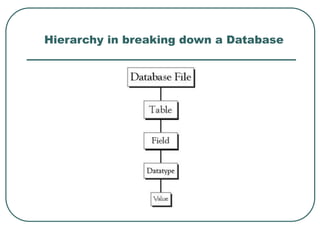
Hierarchy in breaking down a Database
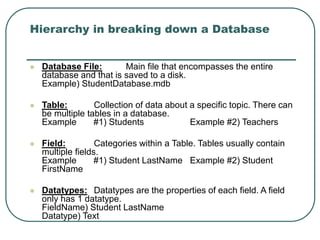
 Database File: Main file that encompasses the entire
database and that is saved to a disk.
Example) StudentDatabase.mdb
 Table: Collection of data about a specific topic. There can
be multiple tables in a database.
Example #1) Students Example #2) Teachers
 Field: Categories within a Table. Tables usually contain
multiple fields.
Example #1) Student LastName Example #2) Student
FirstName
 Datatypes: Datatypes are the properties of each field. A field
only has 1 datatype.
FieldName) Student LastName
Datatype) Text
Creating New Databases
Creating Table in Design View
Creating Table using Wizard
Primary Key
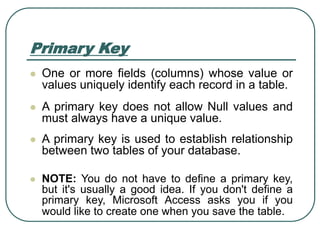
 One or more fields (columns) whose value or
values uniquely identify each record in a table.
 A primary key does not allow Null values and
must always have a unique value.
 A primary key is used to establish relationship
between two tables of your database.
 NOTE: You do not have to define a primary key,
but it's usually a good idea. If you don't define a
primary key, Microsoft Access asks you if you
would like to create one when you save the table.
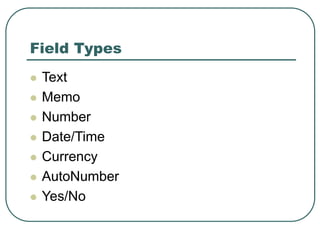
Field Types
 Text
 Memo
 Number
 Date/Time
 Currency
 AutoNumber
 Yes/No
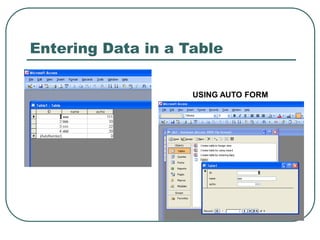
Entering Data in a Table
USING AUTO FORM
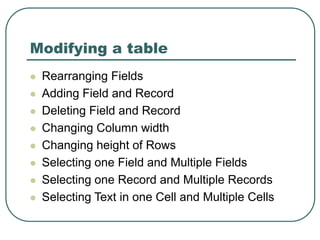
Modifying a table
 Rearranging Fields
 Adding Field and Record
 Deleting Field and Record
 Changing Column width
 Changing height of Rows
 Selecting one Field and Multiple Fields
 Selecting one Record and Multiple Records
 Selecting Text in one Cell and Multiple Cells
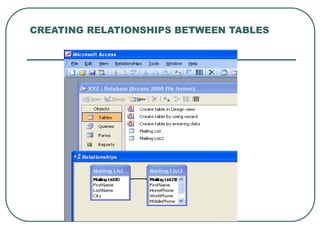
CREATING RELATIONSHIPS BETWEEN TABLES
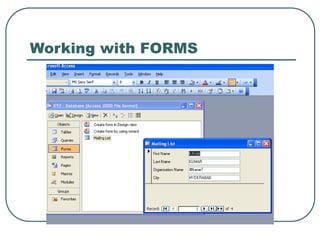
Working with FORMS
Handling Queries
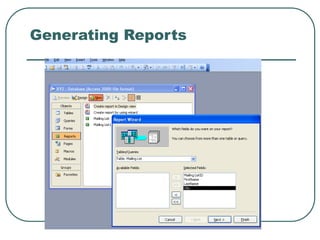
Generating Reports
Reports

microsoft_access_working_with_forms_and_generating_reports__107.ppt

  • 1.
  • 2.
    Introduction  MS Access- software used for creating databases • Quickly • Accurately • Using wizards and templates developed to maintain the integrity of your data  Data are just information  Database • Collection of related items or facts arranged in a specific structure related to a particular topic or project  DBMS • Program or collection of programs, that allows any number of users to access and modify the data in a database. • Tasks of DBMS: Entering data, updating data, deleting data, backing up the database, etc
  • 3.
    MS Access vs.MS Excel  MS Excel • spreadsheet • flat database • all information has a one-to-one relationship  MS Access • like multiple spreadsheets that are connected to one another • one-to-many relationships • many-to-many relationships
  • 4.
    MS Access vs.MS Excel  The choice is simple: • IF you have only one-to-one relationships, you need to use MS Excel. • IF you have one-to-many or many-to- many relationships, you need to use MS Access.
  • 5.
    Hierarchy in breakingdown a Database
  • 6.
    Hierarchy in breakingdown a Database  Database File: Main file that encompasses the entire database and that is saved to a disk. Example) StudentDatabase.mdb  Table: Collection of data about a specific topic. There can be multiple tables in a database. Example #1) Students Example #2) Teachers  Field: Categories within a Table. Tables usually contain multiple fields. Example #1) Student LastName Example #2) Student FirstName  Datatypes: Datatypes are the properties of each field. A field only has 1 datatype. FieldName) Student LastName Datatype) Text
  • 7.
  • 8.
    Creating Table inDesign View
  • 9.
  • 10.
    Primary Key  Oneor more fields (columns) whose value or values uniquely identify each record in a table.  A primary key does not allow Null values and must always have a unique value.  A primary key is used to establish relationship between two tables of your database.  NOTE: You do not have to define a primary key, but it's usually a good idea. If you don't define a primary key, Microsoft Access asks you if you would like to create one when you save the table.
  • 11.
    Field Types  Text Memo  Number  Date/Time  Currency  AutoNumber  Yes/No
  • 12.
    Entering Data ina Table USING AUTO FORM
  • 13.
    Modifying a table Rearranging Fields  Adding Field and Record  Deleting Field and Record  Changing Column width  Changing height of Rows  Selecting one Field and Multiple Fields  Selecting one Record and Multiple Records  Selecting Text in one Cell and Multiple Cells
  • 14.
  • 15.
  • 16.
  • 17.
  • 18.