Climate data in R
with the raster package
     Jacob van Etten
     Alberto Labarga
Packages
There are many packages specifically created
for R that allow you to do specialized tasks.

One of these packages is raster, created by
Robert Hijmans and Jacob van Etten (mainly
the former, though).

The raster package allows you to work with
geographical grid (raster) data.
Get raster in RStudio
Click on the “Packages” tab in the lower right
corner.

Click “Install Packages”.

Type “raster” and click on “Install”.

Leave “Install dependencies” checked. This will
also get some other essential packages.
Load the package
With the following command, we load the
package into R. Make sure you put this in the first
line of your new script.

library(raster)
help(package="raster")

The second function gives you an overview of the
functions in the package.
The raster() function
The main function to read raster data into R is
called (very conveniently) raster.
?raster
Let’s make a raster!
r1 <- raster()
r1
As you can see, there are no values in the
raster. Next thing to solve.
Adding values
How many values do we need to fill the
raster? The function ncell() will tell us.
n <- ncell(r1)
Let’s make a vector with n random values
between 0 and 1 with the function runif().
vals<- runif(n)
And we add the values to the raster.
values(r1) <- vals
Raster graphics
We make a picture of the raster we just made.
plot(r1, main=“My first raster map in R”)
Now let’s take a look at the different options
that plot() gives.
?plot
Click “Plot a Raster* object”.
Also, take a look at the examples and try some
if you want.
Real data
Let’s get some real data to play with.
http://goo.gl/4488T
This is a raster representing current conditions
(a bit over 1 MB).
Unzip the file, and put it in a (new) folder.
Now make this folder your working directory
in R.
setwd(“D:/yourfolder”)
Getting raster data into R
Reading this data into R is really easy now.
r2 <- raster(“current_bio_1_1.asc”)

What class is this raster?
class(r2)

Plot this raster.
Cutting an area of interest
The function extents requires a vector of 4 values:
{xmin, xmax, ymin, ymax}. For instance:
newExtent <- extent(c(60, 100, 0, 40))
Or choose your own area of interest, for instance
using Google Earth.
Then cut the new extent out of r2 and visualize.
r3 <- crop(r2, newExtent)
plot(r3)
Raster algebra
It is very convenient to calculate with rasters.
Try this and visualize the result.

r4 <- r3 + sqrt(r3)

What happens when you do the following and
why?

r5 <- r2 + r3
Some operations
Aggregating cells means the grid becomes
coarser. By default the function aggregate()
will take the mean of the cells it will
aggregate.
r6 <- aggregate(r2, fact=2)
Now take a look at the examples under
?aggregate and try to understand what
happens.
Interpolation
See if you can work this out for yourself.

Take a look at the first example of

?interpolate
Sources of data
For an overview of a lot of relevant climate
and weather data, visit this website:

http://iridl.ldeo.columbia.edu/
Moreover...
Worldclim data are global climate data (get it
using the raster package, getData function)

NCDC-NOAA – Global Summary of Day,
weather data from thousands of stations
(weatherData package)

CCAFS data
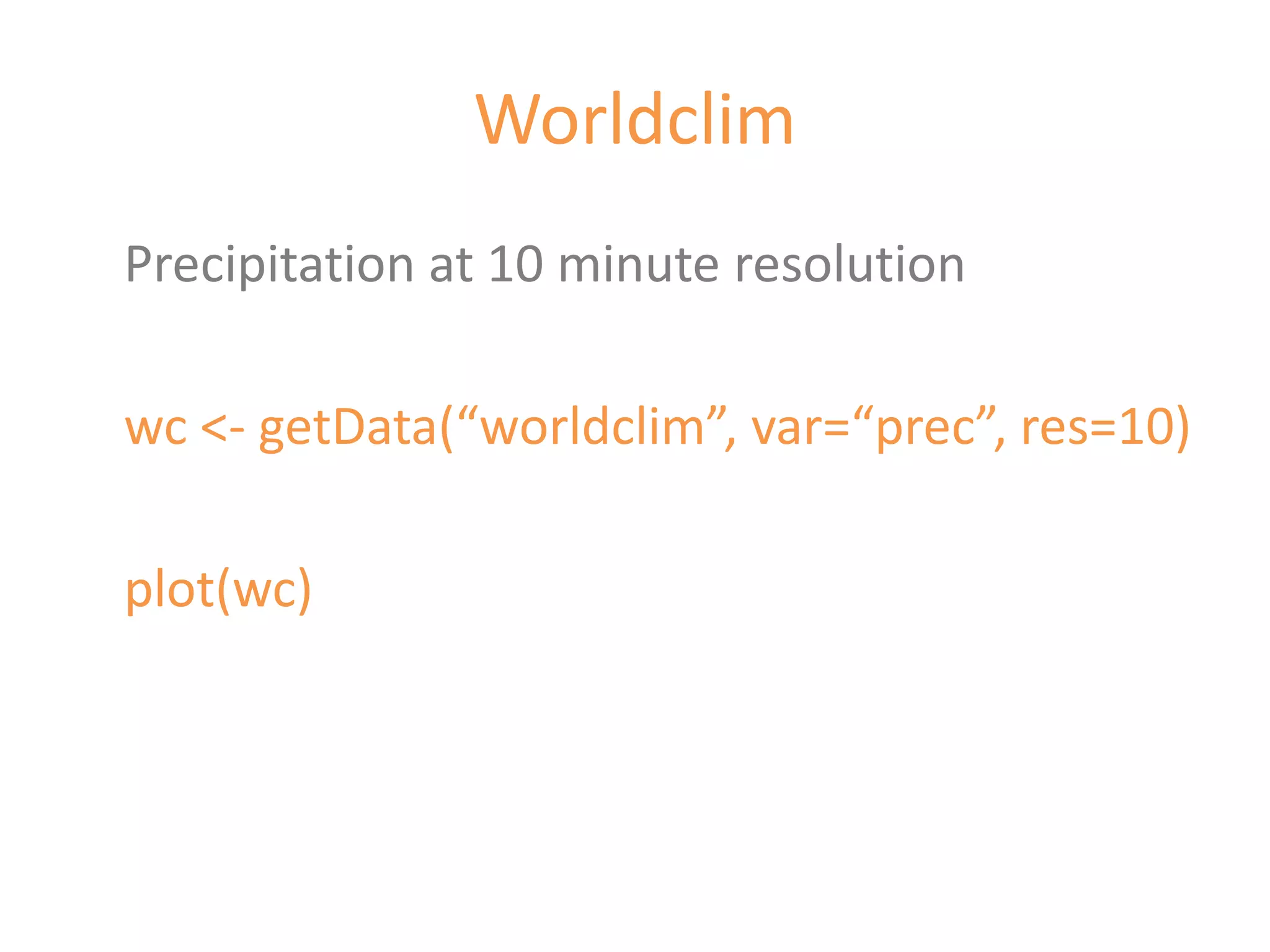
Worldclim
Precipitation at 10 minute resolution

wc <- getData(“worldclim”, var=“prec”, res=10)

plot(wc)
Global Summary of Day
Available from:
ftp://ftp.ncdc.noaa.gov/pub/data/gsod/

These data are massive.

Use the weatherData package to download
these data.
Climate data in r with the raster package

Climate data in r with the raster package

  • 1.
    Climate data inR with the raster package Jacob van Etten Alberto Labarga
  • 2.
    Packages There are manypackages specifically created for R that allow you to do specialized tasks. One of these packages is raster, created by Robert Hijmans and Jacob van Etten (mainly the former, though). The raster package allows you to work with geographical grid (raster) data.
  • 3.
    Get raster inRStudio Click on the “Packages” tab in the lower right corner. Click “Install Packages”. Type “raster” and click on “Install”. Leave “Install dependencies” checked. This will also get some other essential packages.
  • 4.
    Load the package Withthe following command, we load the package into R. Make sure you put this in the first line of your new script. library(raster) help(package="raster") The second function gives you an overview of the functions in the package.
  • 5.
    The raster() function Themain function to read raster data into R is called (very conveniently) raster. ?raster Let’s make a raster! r1 <- raster() r1 As you can see, there are no values in the raster. Next thing to solve.
  • 6.
    Adding values How manyvalues do we need to fill the raster? The function ncell() will tell us. n <- ncell(r1) Let’s make a vector with n random values between 0 and 1 with the function runif(). vals<- runif(n) And we add the values to the raster. values(r1) <- vals
  • 7.
    Raster graphics We makea picture of the raster we just made. plot(r1, main=“My first raster map in R”) Now let’s take a look at the different options that plot() gives. ?plot Click “Plot a Raster* object”. Also, take a look at the examples and try some if you want.
  • 8.
    Real data Let’s getsome real data to play with. http://goo.gl/4488T This is a raster representing current conditions (a bit over 1 MB). Unzip the file, and put it in a (new) folder. Now make this folder your working directory in R. setwd(“D:/yourfolder”)
  • 9.
    Getting raster datainto R Reading this data into R is really easy now. r2 <- raster(“current_bio_1_1.asc”) What class is this raster? class(r2) Plot this raster.
  • 10.
    Cutting an areaof interest The function extents requires a vector of 4 values: {xmin, xmax, ymin, ymax}. For instance: newExtent <- extent(c(60, 100, 0, 40)) Or choose your own area of interest, for instance using Google Earth. Then cut the new extent out of r2 and visualize. r3 <- crop(r2, newExtent) plot(r3)
  • 11.
    Raster algebra It isvery convenient to calculate with rasters. Try this and visualize the result. r4 <- r3 + sqrt(r3) What happens when you do the following and why? r5 <- r2 + r3
  • 12.
    Some operations Aggregating cellsmeans the grid becomes coarser. By default the function aggregate() will take the mean of the cells it will aggregate. r6 <- aggregate(r2, fact=2) Now take a look at the examples under ?aggregate and try to understand what happens.
  • 13.
    Interpolation See if youcan work this out for yourself. Take a look at the first example of ?interpolate
  • 14.
    Sources of data Foran overview of a lot of relevant climate and weather data, visit this website: http://iridl.ldeo.columbia.edu/
  • 15.
    Moreover... Worldclim data areglobal climate data (get it using the raster package, getData function) NCDC-NOAA – Global Summary of Day, weather data from thousands of stations (weatherData package) CCAFS data
  • 16.
    Worldclim Precipitation at 10minute resolution wc <- getData(“worldclim”, var=“prec”, res=10) plot(wc)
  • 17.
    Global Summary ofDay Available from: ftp://ftp.ncdc.noaa.gov/pub/data/gsod/ These data are massive. Use the weatherData package to download these data.