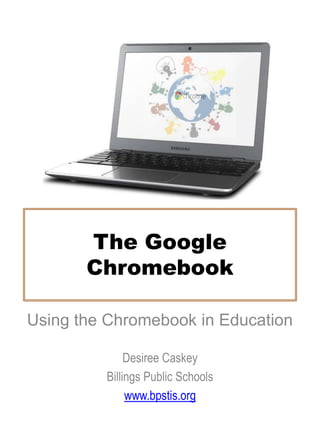
The Google
Chromebook
Using the Chromebook in Education
Desiree Caskey
Billings Public Schools
www.bpstis.org
Access this document online:
http://www.slideshare.net/caskeyd/chromebook-overview
Introductions!
2
Chromebook Facts
• Instant on
• Always connected (can use offline too)
• All-day battery
• Access your stuff anywhere
• Google Apps & more available
• Gets better over time
• Security built in
• http://bit.ly/13fEIOO - OS Guided Tour
3
Why the Chromebook?
• Based on the Chrome web browser – simple, fast and streamlined
• Cloud-based so everything you create, share, do or view is stored
in your account in the cloud.
• No backup necessary
• $249 – BPS pays $279, which includes the student management
system
• Replacement and repair are amazingly cheap
• App store with large collection of free tools
• Long battery life
• Secure environment – BPS uses Gaggle also ($1 per student)
• 8 seconds too boot up
• Management for the IT department is a breeze
• It is a laptop – keyboard integrated
4
What is the Chrome OS
5
http://bit.ly/13fEtn4
What can you do with a
Chromebook?
• Connect –
– Email & Video Conference with Gmail & Google Hangout
– Twitter, Facebook, Google +
– Edmodo and Schoology
• Enjoy –
– Listen to music and watch movies with Google Play
– View, upload and share videos with YouTube
• Work –
– Use a wide variety of productivity tools in Google Drive
– Use Chrome Remote Desktop to access & run software on any
of your other computers
6
What can you do with a
Chromebook?
• Create –
– Edit photos with Pixlr
– Home videos with YouTube or Stupeflix
• Play –
– Anatomy games
– Typing games
– Math games
– Storybook creation
• Offline –
– Gmail
– Google Drive
– Scratchpad
– Calendar
7
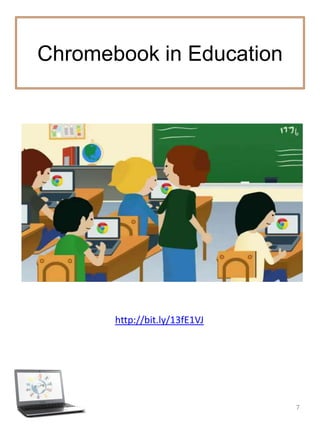
Chromebook in Education
8
http://bit.ly/13fE1VJ
Using Chromebooks in BPS
9
Jamie Jarvis – 7th Grade
Using Chromebooks in BPS
10
We have used our Chromebooks for everything from
reading/vocabulary/research to Spelling practice games to
math fact practice to research to creating documents and
presentations...I can't imagine a greater tool for my
classroom in regards to motivation and
authentic, differentiated learning. They require so little
management on my part and every single one of my
students is able to jump on their Chromebook and get
going quickly on the task at hand.
I have a class blog that I put the necessary links for my
students. This way, we don't have to spend time hunting for
where we are going. This allows students/families to use
what we are doing in class at home, too.
We store them in hanging files in our filing cabinet, which
locks, in number order so each student is responsible for
their own computer. They need charging about once a
week, so we have charging stations set up around the
Amy Leffler – 4th Grade
Using Chromebooks in BPS
11
Ann Brucker– 4 & 5 Grades
My students use their Chromebooks for:
• responding to writing prompts on our classroom blog.
• determining mileage between two locations using
Google Maps.
• researching the history, economy, culture, and
geography of historical sites.
• entering measurements into a spreadsheet that
calculate ratios to create proportional drawings.
• learning and practicing correct keyboarding.
• constructing and presenting independent and
collaborative projects using Google Documents, Google
Presentation, Popplet, Prezi, and Glogster.
• supplementing reading and math Common Core
curriculum with online resources, games, and activities.
Chromebooks in Education
12
Additional Classroom Ideas with Google Apps
Google Apps for Education –
http://www.appsusergroup.org/presentations/gafe-overview
The Paperless Classroom -
http://www.appsusergroup.org/presentations/paperless-classroom
Google Forms –
http://www.appsusergroup.org/presentations/google-forms-for-everything
Creating Comic Strips –
http://www.appsusergroup.org/presentations/comic-strips-with-google-
presentations
Google Presentations –
http://www.appsusergroup.org/presentations/interactive-pres
Chromebook
Guidelines
Just getting started? This site is a “must
use” resource…http://goo.gl/CsC0l
Chromebook
Guidelines
Rules & Tutorials for Students
Using Chromebooks in BPS
15
Management Console
• Create User Groups
– apply policies
– Separate groups (teachers, students)
• Preinstall and block apps
– Blacklist or whitelist apps, extensions and URLs
• Track assets
– Assign to specific students or teachers and get usage reports
• Manage User Access
– Disable guest mode
– Designate groups allowed to use a device (teachers only)
• Configure Network
• Customize user features
– Bookmark and app sync across computers
http://goo.gl/xkPoi
Using Chromebooks in BPS
16
Some Guidelines for Students
• When unplugging your Chromebook, do so gently
• Carry the Chromebook closed and with two hands
• Keep water bottle on the floor to avoid water damage
• When not using your Chromebook, close it to save the
battery
• At the end of the day make sure to log off
• Plug your Chromebook in to make sure it gets charged- look
for the light
Using Chromebooks in BPS
Connecting to the Internet
1 – Click on the Status Area
2 – Click the wireless connection options.
Choose your wireless connection (you may need to enter a password)
1
2
Remember: The Status bar is also where you see the
current time, can adjust sound, and shows your battery
status. Click anywhere on the Status bar to get the
menu shown above.
Adding a New User
1 – Click on the Status Area
2 – Click Sign Out
Adding a New User
3 – From the login screen, click on Add User
4 – Fill in your email address
5 – Fill in your password
6 – Click Sign In
Adding a New User
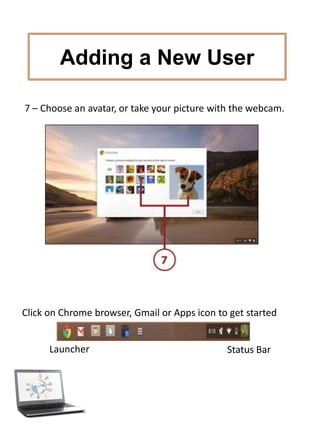
7 – Choose an avatar, or take your picture with the webcam.
Click on Chrome browser, Gmail or Apps icon to get started
Launcher Status Bar
Chromebook Environment
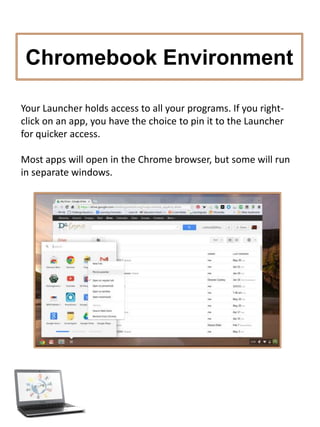
Your Launcher holds access to all your programs. If you right-
click on an app, you have the choice to pin it to the Launcher
for quicker access.
Most apps will open in the Chrome browser, but some will run
in separate windows.
Bookmarking & Settings
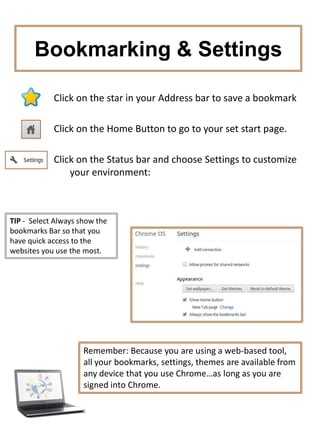
Click on the star in your Address bar to save a bookmark
Click on the Home Button to go to your set start page.
Click on the Status bar and choose Settings to customize
your environment:
Remember: Because you are using a web-based
tool, all your bookmarks, settings, themes are available
from any device that you use Chrome…as long as you
are signed into Chrome.
TIP - Select Always show the
bookmarks Bar so that you
have quick access to the
websites you use the most.
Chrome Web Store
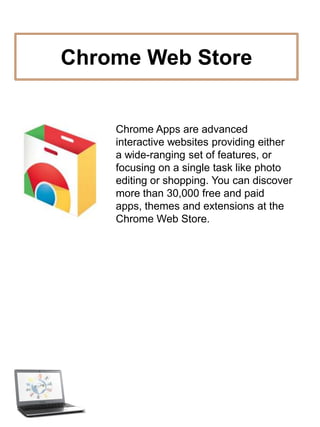
Chrome Apps are advanced
interactive websites providing either
a wide-ranging set of features, or
focusing on a single task like photo
editing or shopping. You can discover
more than 30,000 free and paid
apps, themes and extensions at the
Chrome Web Store.
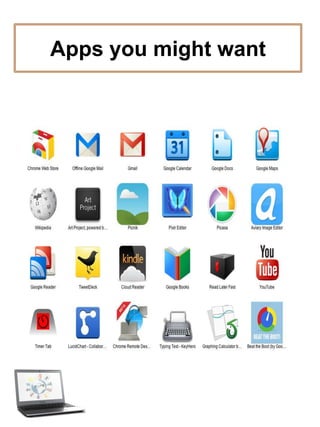
Apps you might want
Signing Off & Logging Out
There are several ways you can sign off and log out:
• Click 'Sign out' from the Status bar.
• Key command Ctrl+Shift+Q
• Using the Power key
Using Chromebooks Offline
If your school has enabled offline access for the Chromebooks,
you will be able to use certain Drive tools and apps when the
Chromebook is not connected to a network.
To enable Offline:
1. Log into Drive or launch Drive from the Apps menu (you will
need Internet access to do this)
2. From the More Menu, select Offline
3. Click Enable Offline
Your Docs listed in Drive will show an Offline label
At this time, Drive tools available offline include
• Documents
• Presentation
• Drawing
Using Chromebooks Offline
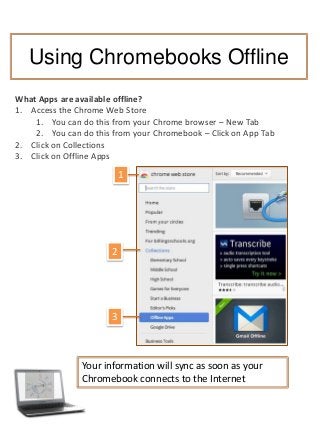
What Apps are available offline?
1. Access the Chrome Web Store
1. You can do this from your Chrome browser – New Tab
2. You can do this from your Chromebook – Click on App Tab
2. Click on Collections
3. Click on Offline Apps
3
2
1
Your information will sync as soon as your
Chromebook connects to the Internet
Chromebook
References
References & User Resources
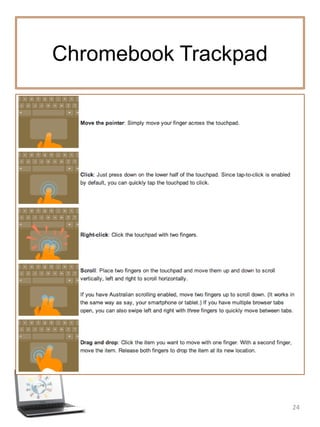
Chromebook Trackpad
29
Learning the Chrome OS
30
How to Use Chrome
http://goo.gl/AEmXA
Chrome Features
http://goo.gl/TTVIL
How to Use the Chrome Devices
http://goo.gl/o5Hk1
Chrome Device Features
http://goo.gl/yTTBy
How to Use the Chrome Web Store:
http://goo.gl/SGu6p
Chrome Web Store Features:
http://goo.gl/NyIVI
Chrome in Education
References
31
Google Apps Learning Center
http://learn.googleapps.com/
Chrome for Education
http://www.google.com/intl/en/chrome/education/
The Chromebook Classroom
http://goo.gl/YQSha
YouTube Videos for Chromebook in the Classroom
http://www.youtube.com/chromebookclassroom
Chrome OS wiki
https://sites.google.com/site/chromeoswikisite/home
10 Creative Ways to Use Google Tools – Maximize Learning
http://goo.gl/00m0G
Everything Teachers Need to Know about G. Presentation
http://goo.gl/B5EXw
Teacher’s Guide to G. Spreadsheets
http://goo.gl/YirZ2

Chromebook Overview

  • 1.
    The Google Chromebook Using theChromebook in Education Desiree Caskey Billings Public Schools www.bpstis.org Access this document online: http://www.slideshare.net/caskeyd/chromebook-overview
  • 2.
  • 3.
    Chromebook Facts • Instanton • Always connected (can use offline too) • All-day battery • Access your stuff anywhere • Google Apps & more available • Gets better over time • Security built in • http://bit.ly/13fEIOO - OS Guided Tour 3
  • 4.
    Why the Chromebook? •Based on the Chrome web browser – simple, fast and streamlined • Cloud-based so everything you create, share, do or view is stored in your account in the cloud. • No backup necessary • $249 – BPS pays $279, which includes the student management system • Replacement and repair are amazingly cheap • App store with large collection of free tools • Long battery life • Secure environment – BPS uses Gaggle also ($1 per student) • 8 seconds too boot up • Management for the IT department is a breeze • It is a laptop – keyboard integrated 4
  • 5.
    What is theChrome OS 5 http://bit.ly/13fEtn4
  • 6.
    What can youdo with a Chromebook? • Connect – – Email & Video Conference with Gmail & Google Hangout – Twitter, Facebook, Google + – Edmodo and Schoology • Enjoy – – Listen to music and watch movies with Google Play – View, upload and share videos with YouTube • Work – – Use a wide variety of productivity tools in Google Drive – Use Chrome Remote Desktop to access & run software on any of your other computers 6
  • 7.
    What can youdo with a Chromebook? • Create – – Edit photos with Pixlr – Home videos with YouTube or Stupeflix • Play – – Anatomy games – Typing games – Math games – Storybook creation • Offline – – Gmail – Google Drive – Scratchpad – Calendar 7
  • 8.
  • 9.
    Using Chromebooks inBPS 9 Jamie Jarvis – 7th Grade
  • 10.
    Using Chromebooks inBPS 10 We have used our Chromebooks for everything from reading/vocabulary/research to Spelling practice games to math fact practice to research to creating documents and presentations...I can't imagine a greater tool for my classroom in regards to motivation and authentic, differentiated learning. They require so little management on my part and every single one of my students is able to jump on their Chromebook and get going quickly on the task at hand. I have a class blog that I put the necessary links for my students. This way, we don't have to spend time hunting for where we are going. This allows students/families to use what we are doing in class at home, too. We store them in hanging files in our filing cabinet, which locks, in number order so each student is responsible for their own computer. They need charging about once a week, so we have charging stations set up around the Amy Leffler – 4th Grade
  • 11.
    Using Chromebooks inBPS 11 Ann Brucker– 4 & 5 Grades My students use their Chromebooks for: • responding to writing prompts on our classroom blog. • determining mileage between two locations using Google Maps. • researching the history, economy, culture, and geography of historical sites. • entering measurements into a spreadsheet that calculate ratios to create proportional drawings. • learning and practicing correct keyboarding. • constructing and presenting independent and collaborative projects using Google Documents, Google Presentation, Popplet, Prezi, and Glogster. • supplementing reading and math Common Core curriculum with online resources, games, and activities.
  • 12.
    Chromebooks in Education 12 AdditionalClassroom Ideas with Google Apps Google Apps for Education – http://www.appsusergroup.org/presentations/gafe-overview The Paperless Classroom - http://www.appsusergroup.org/presentations/paperless-classroom Google Forms – http://www.appsusergroup.org/presentations/google-forms-for-everything Creating Comic Strips – http://www.appsusergroup.org/presentations/comic-strips-with-google- presentations Google Presentations – http://www.appsusergroup.org/presentations/interactive-pres
  • 13.
    Chromebook Guidelines Just getting started?This site is a “must use” resource…http://goo.gl/CsC0l
  • 14.
  • 15.
    Using Chromebooks inBPS 15 Management Console • Create User Groups – apply policies – Separate groups (teachers, students) • Preinstall and block apps – Blacklist or whitelist apps, extensions and URLs • Track assets – Assign to specific students or teachers and get usage reports • Manage User Access – Disable guest mode – Designate groups allowed to use a device (teachers only) • Configure Network • Customize user features – Bookmark and app sync across computers http://goo.gl/xkPoi
  • 16.
    Using Chromebooks inBPS 16 Some Guidelines for Students • When unplugging your Chromebook, do so gently • Carry the Chromebook closed and with two hands • Keep water bottle on the floor to avoid water damage • When not using your Chromebook, close it to save the battery • At the end of the day make sure to log off • Plug your Chromebook in to make sure it gets charged- look for the light
  • 17.
    Using Chromebooks inBPS Connecting to the Internet 1 – Click on the Status Area 2 – Click the wireless connection options. Choose your wireless connection (you may need to enter a password) 1 2 Remember: The Status bar is also where you see the current time, can adjust sound, and shows your battery status. Click anywhere on the Status bar to get the menu shown above.
  • 18.
    Adding a NewUser 1 – Click on the Status Area 2 – Click Sign Out
  • 19.
    Adding a NewUser 3 – From the login screen, click on Add User 4 – Fill in your email address 5 – Fill in your password 6 – Click Sign In
  • 20.
    Adding a NewUser 7 – Choose an avatar, or take your picture with the webcam. Click on Chrome browser, Gmail or Apps icon to get started Launcher Status Bar
  • 21.
    Chromebook Environment Your Launcherholds access to all your programs. If you right- click on an app, you have the choice to pin it to the Launcher for quicker access. Most apps will open in the Chrome browser, but some will run in separate windows.
  • 22.
    Bookmarking & Settings Clickon the star in your Address bar to save a bookmark Click on the Home Button to go to your set start page. Click on the Status bar and choose Settings to customize your environment: Remember: Because you are using a web-based tool, all your bookmarks, settings, themes are available from any device that you use Chrome…as long as you are signed into Chrome. TIP - Select Always show the bookmarks Bar so that you have quick access to the websites you use the most.
  • 23.
    Chrome Web Store ChromeApps are advanced interactive websites providing either a wide-ranging set of features, or focusing on a single task like photo editing or shopping. You can discover more than 30,000 free and paid apps, themes and extensions at the Chrome Web Store.
  • 24.
  • 25.
    Signing Off &Logging Out There are several ways you can sign off and log out: • Click 'Sign out' from the Status bar. • Key command Ctrl+Shift+Q • Using the Power key
  • 26.
    Using Chromebooks Offline Ifyour school has enabled offline access for the Chromebooks, you will be able to use certain Drive tools and apps when the Chromebook is not connected to a network. To enable Offline: 1. Log into Drive or launch Drive from the Apps menu (you will need Internet access to do this) 2. From the More Menu, select Offline 3. Click Enable Offline Your Docs listed in Drive will show an Offline label At this time, Drive tools available offline include • Documents • Presentation • Drawing
  • 27.
    Using Chromebooks Offline WhatApps are available offline? 1. Access the Chrome Web Store 1. You can do this from your Chrome browser – New Tab 2. You can do this from your Chromebook – Click on App Tab 2. Click on Collections 3. Click on Offline Apps 3 2 1 Your information will sync as soon as your Chromebook connects to the Internet
  • 28.
  • 29.
  • 30.
    Learning the ChromeOS 30 How to Use Chrome http://goo.gl/AEmXA Chrome Features http://goo.gl/TTVIL How to Use the Chrome Devices http://goo.gl/o5Hk1 Chrome Device Features http://goo.gl/yTTBy How to Use the Chrome Web Store: http://goo.gl/SGu6p Chrome Web Store Features: http://goo.gl/NyIVI
  • 31.
    Chrome in Education References 31 GoogleApps Learning Center http://learn.googleapps.com/ Chrome for Education http://www.google.com/intl/en/chrome/education/ The Chromebook Classroom http://goo.gl/YQSha YouTube Videos for Chromebook in the Classroom http://www.youtube.com/chromebookclassroom Chrome OS wiki https://sites.google.com/site/chromeoswikisite/home 10 Creative Ways to Use Google Tools – Maximize Learning http://goo.gl/00m0G Everything Teachers Need to Know about G. Presentation http://goo.gl/B5EXw Teacher’s Guide to G. Spreadsheets http://goo.gl/YirZ2