© 2017 by McGraw-Hill Education. This proprietary material solely for authorized instructor use. Not authorized for sale or distribution in any manner. This document may not be copied, scanned, duplicated, forwarded, distributed, or
posted on a website, in whole or part.
Chapter
5
Computing
Essentials
2017
© 2017 by McGraw-Hill Education. This proprietary material solely for authorized instructor use. Not authorized for sale or distribution in any manner. This document may not be copied, scanned, duplicated, forwarded, distributed, or
posted on a website, in whole or part.
Learning Objectives
1. Differentiate between the five basic types of system units.
2. Describe system boards, including sockets, slots, and bus lines.
3. Recognize different microprocessors, including microprocessor
chips and specialty processors.
4. Compare different types of computer memory including RAM,
ROM, and flash memory.
5. Explain expansion slots and cards.
6. Describe bus lines, bus widths, and expansion buses.
7. Describe ports, including standard and specialized ports.
8. Identify power supplies for desktop, laptop, tablet, and mobile
devices.
9. Explain how a computer can represent numbers and encode
characters electronically.
2
Computing
Essentials
2017
© 2017 by McGraw-Hill Education. This proprietary material solely for authorized instructor use. Not authorized for sale or distribution in any manner. This document may not be copied, scanned, duplicated, forwarded, distributed, or
posted on a website, in whole or part.
Introduction
Speed, capacity, and flexibility determine
the power of personal computers.
Knowledge of a computer’s power allows
you to make good buying decisions and to
determine if your current system will run
new applications.
Competent end users need to understand
the functionality of the basic components of
the system unit
Computing
Essentials
2017
© 2017 by McGraw-Hill Education. This proprietary material solely for authorized instructor use. Not authorized for sale or distribution in any manner. This document may not be copied, scanned, duplicated, forwarded, distributed, or
posted on a website, in whole or part.
System Unit
System Chassis
Container that houses most of the electronic
components that make up a computer system
System Unit
Contains system’s electronic components and
selected secondary storage devices
4
Computing
Essentials
2017
© 2017 by McGraw-Hill Education. This proprietary material solely for authorized instructor use. Not authorized for sale or distribution in any manner. This document may not be copied, scanned, duplicated, forwarded, distributed, or
posted on a website, in whole or part.
System Unit Types
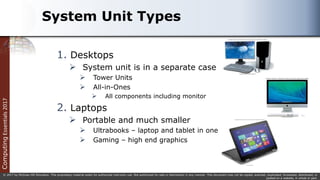
1. Desktops
 System unit is in a separate case
 Tower Units
 All-in-Ones
 All components including monitor
2. Laptops
 Portable and much smaller
 Ultrabooks – laptop and tablet in one
 Gaming – high end graphics
Computing
Essentials
2017
© 2017 by McGraw-Hill Education. This proprietary material solely for authorized instructor use. Not authorized for sale or distribution in any manner. This document may not be copied, scanned, duplicated, forwarded, distributed, or
posted on a website, in whole or part.
System Unit Types cont.
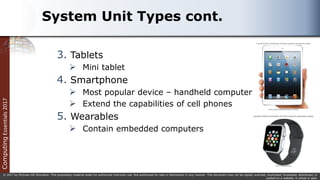
3. Tablets
 Mini tablet
4. Smartphone
 Most popular device – handheld computer
 Extend the capabilities of cell phones
5. Wearables
 Contain embedded computers
Computing
Essentials
2017
© 2017 by McGraw-Hill Education. This proprietary material solely for authorized instructor use. Not authorized for sale or distribution in any manner. This document may not be copied, scanned, duplicated, forwarded, distributed, or
posted on a website, in whole or part.
Components
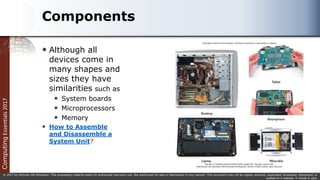
 Although all
devices come in
many shapes and
sizes they have
similarities such as
 System boards
 Microprocessors
 Memory
 How to Assemble
and Disassemble a
System Unit?
Computing
Essentials
2017
© 2017 by McGraw-Hill Education. This proprietary material solely for authorized instructor use. Not authorized for sale or distribution in any manner. This document may not be copied, scanned, duplicated, forwarded, distributed, or
posted on a website, in whole or part.
System Board
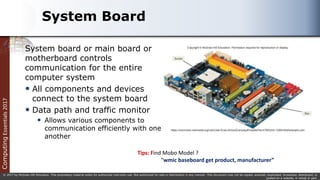
System board or main board or
motherboard controls
communication for the entire
computer system
 All components and devices
connect to the system board
 Data path and traffic monitor
 Allows various components to
communication efficiently with one
another
Tips: Find Mobo Model ?
“wmic baseboard get product, manufacturer”
Computing
Essentials
2017
© 2017 by McGraw-Hill Education. This proprietary material solely for authorized instructor use. Not authorized for sale or distribution in any manner. This document may not be copied, scanned, duplicated, forwarded, distributed, or
posted on a website, in whole or part.
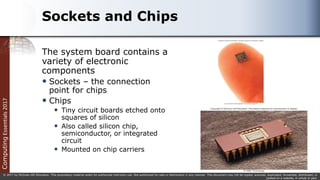
Sockets and Chips
The system board contains a
variety of electronic
components
 Sockets – the connection
point for chips
 Chips
 Tiny circuit boards etched onto
squares of silicon
 Also called silicon chip,
semiconductor, or integrated
circuit
 Mounted on chip carriers
Computing
Essentials
2017
© 2017 by McGraw-Hill Education. This proprietary material solely for authorized instructor use. Not authorized for sale or distribution in any manner. This document may not be copied, scanned, duplicated, forwarded, distributed, or
posted on a website, in whole or part.
Slots and Bus Lines
Additional system board components:
 Slots
 Provide a connection point for specialized cards or circuit boards
 Provide expansion capabilities for the computer
 Bus lines
 Connecting lines that provide pathways to support communication
among electronic components
Computing
Essentials
2017
© 2017 by McGraw-Hill Education. This proprietary material solely for authorized instructor use. Not authorized for sale or distribution in any manner. This document may not be copied, scanned, duplicated, forwarded, distributed, or
posted on a website, in whole or part.
Microprocessor
Central Processing Unit (CPU) or Processor
 Contained on a single chip call a Microprocessor
 Brains of the computer
Two Basic Components of the CPU
 Control unit
Tells the computer system how to carry out a
program’s instruction
 Arithmetic-logic unit (ALU)
Performs arithmetic and logical operations
11
Computing
Essentials
2017
© 2017 by McGraw-Hill Education. This proprietary material solely for authorized instructor use. Not authorized for sale or distribution in any manner. This document may not be copied, scanned, duplicated, forwarded, distributed, or
posted on a website, in whole or part.
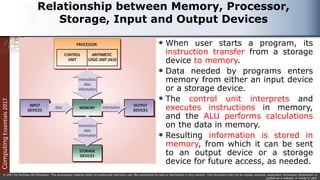
Relationship between Memory, Processor,
Storage, Input and Output Devices
 When user starts a program, its
instruction transfer from a storage
device to memory.
 Data needed by programs enters
memory from either an input device
or a storage device.
 The control unit interprets and
executes instructions in memory,
and the ALU performs calculations
on the data in memory.
 Resulting information is stored in
memory, from which it can be sent
to an output device or a storage
device for future access, as needed.
Computing
Essentials
2017
© 2017 by McGraw-Hill Education. This proprietary material solely for authorized instructor use. Not authorized for sale or distribution in any manner. This document may not be copied, scanned, duplicated, forwarded, distributed, or
posted on a website, in whole or part.
Processor Machine Cycle
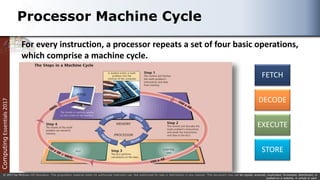
For every instruction, a processor repeats a set of four basic operations,
which comprise a machine cycle.
FETCH
DECODE
EXECUTE
STORE
Computing
Essentials
2017
© 2017 by McGraw-Hill Education. This proprietary material solely for authorized instructor use. Not authorized for sale or distribution in any manner. This document may not be copied, scanned, duplicated, forwarded, distributed, or
posted on a website, in whole or part.
Microprocessor Chips
 Chip capacities are expressed in word size
 Word is the number of bits that can be processed at one
time: 16, 32 or 64
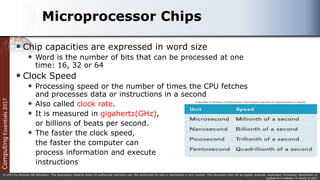
 Clock Speed
 Processing speed or the number of times the CPU fetches
and processes data or instructions in a second
 Also called clock rate.
 It is measured in gigahertz(GHz),
or billions of beats per second.
 The faster the clock speed,
the faster the computer can
process information and execute
instructions
Computing
Essentials
2017
© 2017 by McGraw-Hill Education. This proprietary material solely for authorized instructor use. Not authorized for sale or distribution in any manner. This document may not be copied, scanned, duplicated, forwarded, distributed, or
posted on a website, in whole or part.
Multicore Chips
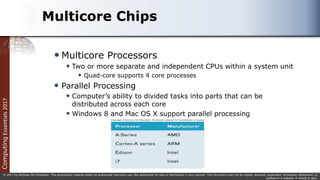
 Multicore Processors
 Two or more separate and independent CPUs within a system unit
 Quad-core supports 4 core processes
 Parallel Processing
 Computer’s ability to divided tasks into parts that can be
distributed across each core
 Windows 8 and Mac OS X support parallel processing
Computing
Essentials
2017
© 2017 by McGraw-Hill Education. This proprietary material solely for authorized instructor use. Not authorized for sale or distribution in any manner. This document may not be copied, scanned, duplicated, forwarded, distributed, or
posted on a website, in whole or part.
Specialty Processors
Coprocessors
 Designed to improve specific computing operations
 Graphics Processing Unit (GPU) / Graphics
coprocessors
 Designed to handle a variety of specialized tasks
 3D images
 Encrypting data
 Standard features in gaming computers
Computing
Essentials
2017
© 2017 by McGraw-Hill Education. This proprietary material solely for authorized instructor use. Not authorized for sale or distribution in any manner. This document may not be copied, scanned, duplicated, forwarded, distributed, or
posted on a website, in whole or part.
Memory
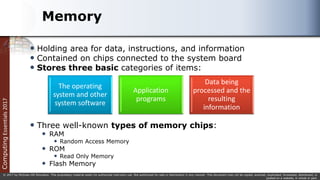
 Holding area for data, instructions, and information
 Contained on chips connected to the system board
 Stores three basic categories of items:
 Three well-known types of memory chips:
 RAM
 Random Access Memory
 ROM
 Read Only Memory
 Flash Memory
The operating
system and other
system software
Application
programs
Data being
processed and the
resulting
information
Computing
Essentials
2017
© 2017 by McGraw-Hill Education. This proprietary material solely for authorized instructor use. Not authorized for sale or distribution in any manner. This document may not be copied, scanned, duplicated, forwarded, distributed, or
posted on a website, in whole or part.
Memory
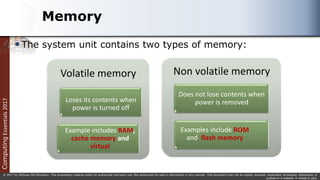
The system unit contains two types of memory:
Volatile memory Non volatile memory
Loses its contents when
power is turned off
Example includes RAM,
cache memory and
virtual
Does not lose contents when
power is removed
Examples include ROM
and flash memory
Computing
Essentials
2017
© 2017 by McGraw-Hill Education. This proprietary material solely for authorized instructor use. Not authorized for sale or distribution in any manner. This document may not be copied, scanned, duplicated, forwarded, distributed, or
posted on a website, in whole or part.
RAM
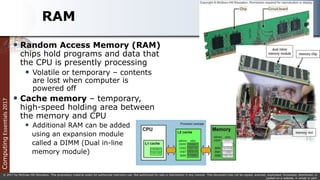
 Random Access Memory (RAM)
chips hold programs and data that
the CPU is presently processing
 Volatile or temporary – contents
are lost when computer is
powered off
 Cache memory – temporary,
high-speed holding area between
the memory and CPU
 Additional RAM can be added
using an expansion module
called a DIMM (Dual in-line
memory module)
Computing
Essentials
2017
© 2017 by McGraw-Hill Education. This proprietary material solely for authorized instructor use. Not authorized for sale or distribution in any manner. This document may not be copied, scanned, duplicated, forwarded, distributed, or
posted on a website, in whole or part.
RAM continued
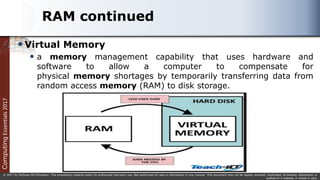
Virtual Memory
 a memory management capability that uses hardware and
software to allow a computer to compensate for
physical memory shortages by temporarily transferring data from
random access memory (RAM) to disk storage.
Computing
Essentials
2017
© 2017 by McGraw-Hill Education. This proprietary material solely for authorized instructor use. Not authorized for sale or distribution in any manner. This document may not be copied, scanned, duplicated, forwarded, distributed, or
posted on a website, in whole or part.
RAM continued
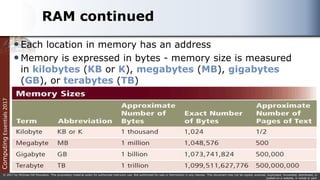
Each location in memory has an address
Memory is expressed in bytes - memory size is measured
in kilobytes (KB or K), megabytes (MB), gigabytes
(GB), or terabytes (TB)
Computing
Essentials
2017
© 2017 by McGraw-Hill Education. This proprietary material solely for authorized instructor use. Not authorized for sale or distribution in any manner. This document may not be copied, scanned, duplicated, forwarded, distributed, or
posted on a website, in whole or part.
ROM
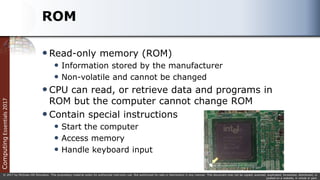
Read-only memory (ROM)
 Information stored by the manufacturer
 Non-volatile and cannot be changed
CPU can read, or retrieve data and programs in
ROM but the computer cannot change ROM
Contain special instructions
 Start the computer
 Access memory
 Handle keyboard input
Computing
Essentials
2017
© 2017 by McGraw-Hill Education. This proprietary material solely for authorized instructor use. Not authorized for sale or distribution in any manner. This document may not be copied, scanned, duplicated, forwarded, distributed, or
posted on a website, in whole or part.
Flash Memory
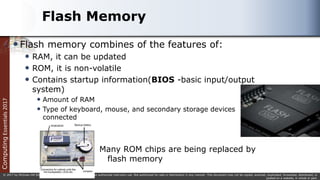
Flash memory combines of the features of:
 RAM, it can be updated
 ROM, it is non-volatile
 Contains startup information(BIOS -basic input/output
system)
 Amount of RAM
 Type of keyboard, mouse, and secondary storage devices
connected
Many ROM chips are being replaced by
flash memory
Computing
Essentials
2017
© 2017 by McGraw-Hill Education. This proprietary material solely for authorized instructor use. Not authorized for sale or distribution in any manner. This document may not be copied, scanned, duplicated, forwarded, distributed, or
posted on a website, in whole or part.
Expansion Slots and Cards
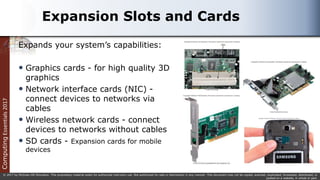
Expands your system’s capabilities:
 Graphics cards - for high quality 3D
graphics
 Network interface cards (NIC) -
connect devices to networks via
cables
 Wireless network cards - connect
devices to networks without cables
 SD cards - Expansion cards for mobile
devices
Computing
Essentials
2017
© 2017 by McGraw-Hill Education. This proprietary material solely for authorized instructor use. Not authorized for sale or distribution in any manner. This document may not be copied, scanned, duplicated, forwarded, distributed, or
posted on a website, in whole or part.
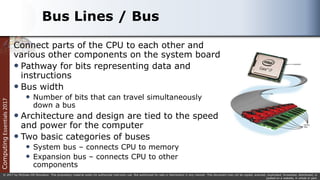
Bus Lines / Bus
Connect parts of the CPU to each other and
various other components on the system board
 Pathway for bits representing data and
instructions
 Bus width
 Number of bits that can travel simultaneously
down a bus
 Architecture and design are tied to the speed
and power for the computer
 Two basic categories of buses
 System bus – connects CPU to memory
 Expansion bus – connects CPU to other
components
Computing
Essentials
2017
© 2017 by McGraw-Hill Education. This proprietary material solely for authorized instructor use. Not authorized for sale or distribution in any manner. This document may not be copied, scanned, duplicated, forwarded, distributed, or
posted on a website, in whole or part.
Expansion Buses
Principle types:
 Universal Serial Bus (USB)
 Connects external USB devices onto the USB bus
 FireWire
 Primarily used to connect audio and video equipment to the
system board
 PCI Express (PCIe)
 Single dedicated path for each connected device
Computing
Essentials
2017
© 2017 by McGraw-Hill Education. This proprietary material solely for authorized instructor use. Not authorized for sale or distribution in any manner. This document may not be copied, scanned, duplicated, forwarded, distributed, or
posted on a website, in whole or part.
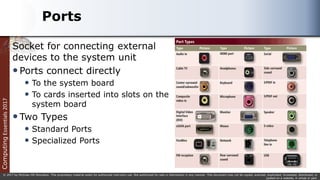
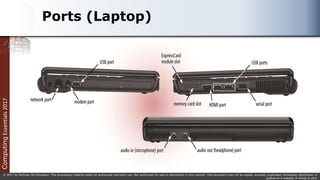
Ports
Socket for connecting external
devices to the system unit
Ports connect directly
 To the system board
 To cards inserted into slots on the
system board
Two Types
 Standard Ports
 Specialized Ports
Computing
Essentials
2017
© 2017 by McGraw-Hill Education. This proprietary material solely for authorized instructor use. Not authorized for sale or distribution in any manner. This document may not be copied, scanned, duplicated, forwarded, distributed, or
posted on a website, in whole or part.
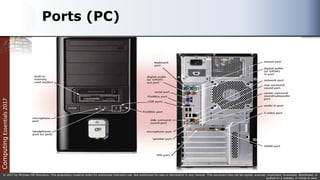
Ports (PC)
Computing
Essentials
2017
© 2017 by McGraw-Hill Education. This proprietary material solely for authorized instructor use. Not authorized for sale or distribution in any manner. This document may not be copied, scanned, duplicated, forwarded, distributed, or
posted on a website, in whole or part.
Ports (Laptop)
Computing
Essentials
2017
© 2017 by McGraw-Hill Education. This proprietary material solely for authorized instructor use. Not authorized for sale or distribution in any manner. This document may not be copied, scanned, duplicated, forwarded, distributed, or
posted on a website, in whole or part.
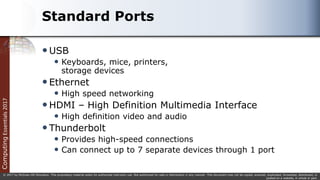
Standard Ports
USB
 Keyboards, mice, printers,
storage devices
Ethernet
 High speed networking
HDMI – High Definition Multimedia Interface
 High definition video and audio
Thunderbolt
 Provides high-speed connections
 Can connect up to 7 separate devices through 1 port
Computing
Essentials
2017
© 2017 by McGraw-Hill Education. This proprietary material solely for authorized instructor use. Not authorized for sale or distribution in any manner. This document may not be copied, scanned, duplicated, forwarded, distributed, or
posted on a website, in whole or part.
Specialized Ports
 External Serial Advanced Technology Attachment (eSATA)
 High-speed connection for external secondary storage
 Musical Instrument Digital Interface (MIDI)
 Connect musical instruments
 Mini DisplayPort (MiniDP or mDP)
 Connection to large monitors
 VGA & DVI
 Connections to analog and digital monitors
 FireWire
 High-speed connections to FireWire devices
Computing
Essentials
2017
© 2017 by McGraw-Hill Education. This proprietary material solely for authorized instructor use. Not authorized for sale or distribution in any manner. This document may not be copied, scanned, duplicated, forwarded, distributed, or
posted on a website, in whole or part.
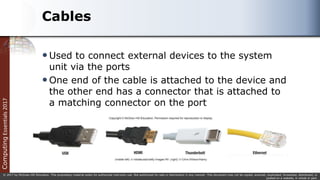
Cables
Used to connect external devices to the system
unit via the ports
One end of the cable is attached to the device and
the other end has a connector that is attached to
a matching connector on the port
Computing
Essentials
2017
© 2017 by McGraw-Hill Education. This proprietary material solely for authorized instructor use. Not authorized for sale or distribution in any manner. This document may not be copied, scanned, duplicated, forwarded, distributed, or
posted on a website, in whole or part.
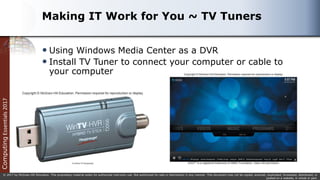
Making IT Work for You ~ TV Tuners
 Using Windows Media Center as a DVR
 Install TV Tuner to connect your computer or cable to
your computer
Computing
Essentials
2017
© 2017 by McGraw-Hill Education. This proprietary material solely for authorized instructor use. Not authorized for sale or distribution in any manner. This document may not be copied, scanned, duplicated, forwarded, distributed, or
posted on a website, in whole or part.
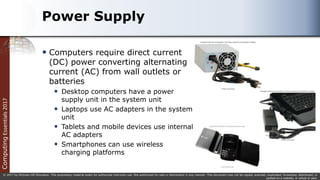
Power Supply
 Computers require direct current
(DC) power converting alternating
current (AC) from wall outlets or
batteries
 Desktop computers have a power
supply unit in the system unit
 Laptops use AC adapters in the system
unit
 Tablets and mobile devices use internal
AC adapters
 Smartphones can use wireless
charging platforms
Computing
Essentials
2017
© 2017 by McGraw-Hill Education. This proprietary material solely for authorized instructor use. Not authorized for sale or distribution in any manner. This document may not be copied, scanned, duplicated, forwarded, distributed, or
posted on a website, in whole or part.
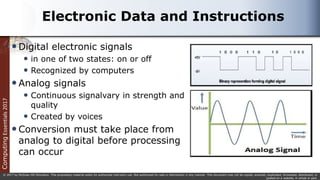
Electronic Data and Instructions
Digital electronic signals
 in one of two states: on or off
 Recognized by computers
Analog signals
 Continuous signalvary in strength and
quality
 Created by voices
Conversion must take place from
analog to digital before processing
can occur
Computing
Essentials
2017
© 2017 by McGraw-Hill Education. This proprietary material solely for authorized instructor use. Not authorized for sale or distribution in any manner. This document may not be copied, scanned, duplicated, forwarded, distributed, or
posted on a website, in whole or part.
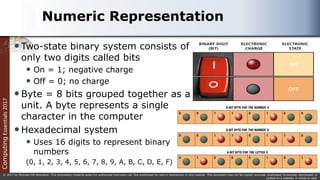
Numeric Representation
Two-state binary system consists of
only two digits called bits
 On = 1; negative charge
 Off = 0; no charge
Byte = 8 bits grouped together as a
unit. A byte represents a single
character in the computer
Hexadecimal system
 Uses 16 digits to represent binary
numbers
(0, 1, 2, 3, 4, 5, 6, 7, 8, 9, A, B, C, D, E, F)
Computing
Essentials
2017
© 2017 by McGraw-Hill Education. This proprietary material solely for authorized instructor use. Not authorized for sale or distribution in any manner. This document may not be copied, scanned, duplicated, forwarded, distributed, or
posted on a website, in whole or part.
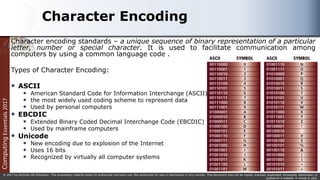
Character Encoding
Character encoding standards – a unique sequence of binary representation of a particular
letter, number or special character. It is used to facilitate communication among
computers by using a common language code .
Types of Character Encoding:
 ASCII
 American Standard Code for Information Interchange (ASCII)
 the most widely used coding scheme to represent data
 Used by personal computers
 EBCDIC
 Extended Binary Coded Decimal Interchange Code (EBCDIC)
 Used by mainframe computers
 Unicode
 New encoding due to explosion of the Internet
 Uses 16 bits
 Recognized by virtually all computer systems
Computing
Essentials
2017
© 2017 by McGraw-Hill Education. This proprietary material solely for authorized instructor use. Not authorized for sale or distribution in any manner. This document may not be copied, scanned, duplicated, forwarded, distributed, or
posted on a website, in whole or part.
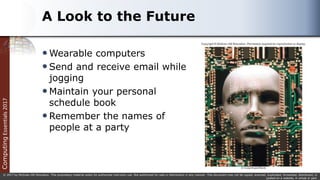
A Look to the Future
Wearable computers
Send and receive email while
jogging
Maintain your personal
schedule book
Remember the names of
people at a party
Computing
Essentials
2017
© 2017 by McGraw-Hill Education. This proprietary material solely for authorized instructor use. Not authorized for sale or distribution in any manner. This document may not be copied, scanned, duplicated, forwarded, distributed, or
posted on a website, in whole or part.
Open-Ended Questions (Page 1 of 3)
1. Describe the five most common types of personal
computers.
2. Describe system boards including sockets, chips, chip
carriers, slots, and bus lines.
3. Discuss microprocessor components, chips, and specialty
processors.
Computing
Essentials
2017
© 2017 by McGraw-Hill Education. This proprietary material solely for authorized instructor use. Not authorized for sale or distribution in any manner. This document may not be copied, scanned, duplicated, forwarded, distributed, or
posted on a website, in whole or part.
Open-Ended Questions (Page 2 of 3)
4. Define computer memory including RAM, ROM, and flash
memory.
5. Define expansion slots, cards, including graphics cards,
network interface cards, wireless network cards, and SD
cards.
6. Describe bus lines, bus width, system bus, and expansion bus.
Computing
Essentials
2017
© 2017 by McGraw-Hill Education. This proprietary material solely for authorized instructor use. Not authorized for sale or distribution in any manner. This document may not be copied, scanned, duplicated, forwarded, distributed, or
posted on a website, in whole or part.
Open-Ended Questions (Page 3 of 3)
7. Define ports including standard and specialized ports.
Give examples of each.
8. Describe power supply including power supply units and
AC adapters.
9. Discuss electronic data and instructions.

Chapter 2 - The System Unit.pptx

  • 1.
    © 2017 byMcGraw-Hill Education. This proprietary material solely for authorized instructor use. Not authorized for sale or distribution in any manner. This document may not be copied, scanned, duplicated, forwarded, distributed, or posted on a website, in whole or part. Chapter 5
  • 2.
    Computing Essentials 2017 © 2017 byMcGraw-Hill Education. This proprietary material solely for authorized instructor use. Not authorized for sale or distribution in any manner. This document may not be copied, scanned, duplicated, forwarded, distributed, or posted on a website, in whole or part. Learning Objectives 1. Differentiate between the five basic types of system units. 2. Describe system boards, including sockets, slots, and bus lines. 3. Recognize different microprocessors, including microprocessor chips and specialty processors. 4. Compare different types of computer memory including RAM, ROM, and flash memory. 5. Explain expansion slots and cards. 6. Describe bus lines, bus widths, and expansion buses. 7. Describe ports, including standard and specialized ports. 8. Identify power supplies for desktop, laptop, tablet, and mobile devices. 9. Explain how a computer can represent numbers and encode characters electronically. 2
  • 3.
    Computing Essentials 2017 © 2017 byMcGraw-Hill Education. This proprietary material solely for authorized instructor use. Not authorized for sale or distribution in any manner. This document may not be copied, scanned, duplicated, forwarded, distributed, or posted on a website, in whole or part. Introduction Speed, capacity, and flexibility determine the power of personal computers. Knowledge of a computer’s power allows you to make good buying decisions and to determine if your current system will run new applications. Competent end users need to understand the functionality of the basic components of the system unit
  • 4.
    Computing Essentials 2017 © 2017 byMcGraw-Hill Education. This proprietary material solely for authorized instructor use. Not authorized for sale or distribution in any manner. This document may not be copied, scanned, duplicated, forwarded, distributed, or posted on a website, in whole or part. System Unit System Chassis Container that houses most of the electronic components that make up a computer system System Unit Contains system’s electronic components and selected secondary storage devices 4
  • 5.
    Computing Essentials 2017 © 2017 byMcGraw-Hill Education. This proprietary material solely for authorized instructor use. Not authorized for sale or distribution in any manner. This document may not be copied, scanned, duplicated, forwarded, distributed, or posted on a website, in whole or part. System Unit Types 1. Desktops  System unit is in a separate case  Tower Units  All-in-Ones  All components including monitor 2. Laptops  Portable and much smaller  Ultrabooks – laptop and tablet in one  Gaming – high end graphics
  • 6.
    Computing Essentials 2017 © 2017 byMcGraw-Hill Education. This proprietary material solely for authorized instructor use. Not authorized for sale or distribution in any manner. This document may not be copied, scanned, duplicated, forwarded, distributed, or posted on a website, in whole or part. System Unit Types cont. 3. Tablets  Mini tablet 4. Smartphone  Most popular device – handheld computer  Extend the capabilities of cell phones 5. Wearables  Contain embedded computers
  • 7.
    Computing Essentials 2017 © 2017 byMcGraw-Hill Education. This proprietary material solely for authorized instructor use. Not authorized for sale or distribution in any manner. This document may not be copied, scanned, duplicated, forwarded, distributed, or posted on a website, in whole or part. Components  Although all devices come in many shapes and sizes they have similarities such as  System boards  Microprocessors  Memory  How to Assemble and Disassemble a System Unit?
  • 8.
    Computing Essentials 2017 © 2017 byMcGraw-Hill Education. This proprietary material solely for authorized instructor use. Not authorized for sale or distribution in any manner. This document may not be copied, scanned, duplicated, forwarded, distributed, or posted on a website, in whole or part. System Board System board or main board or motherboard controls communication for the entire computer system  All components and devices connect to the system board  Data path and traffic monitor  Allows various components to communication efficiently with one another Tips: Find Mobo Model ? “wmic baseboard get product, manufacturer”
  • 9.
    Computing Essentials 2017 © 2017 byMcGraw-Hill Education. This proprietary material solely for authorized instructor use. Not authorized for sale or distribution in any manner. This document may not be copied, scanned, duplicated, forwarded, distributed, or posted on a website, in whole or part. Sockets and Chips The system board contains a variety of electronic components  Sockets – the connection point for chips  Chips  Tiny circuit boards etched onto squares of silicon  Also called silicon chip, semiconductor, or integrated circuit  Mounted on chip carriers
  • 10.
    Computing Essentials 2017 © 2017 byMcGraw-Hill Education. This proprietary material solely for authorized instructor use. Not authorized for sale or distribution in any manner. This document may not be copied, scanned, duplicated, forwarded, distributed, or posted on a website, in whole or part. Slots and Bus Lines Additional system board components:  Slots  Provide a connection point for specialized cards or circuit boards  Provide expansion capabilities for the computer  Bus lines  Connecting lines that provide pathways to support communication among electronic components
  • 11.
    Computing Essentials 2017 © 2017 byMcGraw-Hill Education. This proprietary material solely for authorized instructor use. Not authorized for sale or distribution in any manner. This document may not be copied, scanned, duplicated, forwarded, distributed, or posted on a website, in whole or part. Microprocessor Central Processing Unit (CPU) or Processor  Contained on a single chip call a Microprocessor  Brains of the computer Two Basic Components of the CPU  Control unit Tells the computer system how to carry out a program’s instruction  Arithmetic-logic unit (ALU) Performs arithmetic and logical operations 11
  • 12.
    Computing Essentials 2017 © 2017 byMcGraw-Hill Education. This proprietary material solely for authorized instructor use. Not authorized for sale or distribution in any manner. This document may not be copied, scanned, duplicated, forwarded, distributed, or posted on a website, in whole or part. Relationship between Memory, Processor, Storage, Input and Output Devices  When user starts a program, its instruction transfer from a storage device to memory.  Data needed by programs enters memory from either an input device or a storage device.  The control unit interprets and executes instructions in memory, and the ALU performs calculations on the data in memory.  Resulting information is stored in memory, from which it can be sent to an output device or a storage device for future access, as needed.
  • 13.
    Computing Essentials 2017 © 2017 byMcGraw-Hill Education. This proprietary material solely for authorized instructor use. Not authorized for sale or distribution in any manner. This document may not be copied, scanned, duplicated, forwarded, distributed, or posted on a website, in whole or part. Processor Machine Cycle For every instruction, a processor repeats a set of four basic operations, which comprise a machine cycle. FETCH DECODE EXECUTE STORE
  • 14.
    Computing Essentials 2017 © 2017 byMcGraw-Hill Education. This proprietary material solely for authorized instructor use. Not authorized for sale or distribution in any manner. This document may not be copied, scanned, duplicated, forwarded, distributed, or posted on a website, in whole or part. Microprocessor Chips  Chip capacities are expressed in word size  Word is the number of bits that can be processed at one time: 16, 32 or 64  Clock Speed  Processing speed or the number of times the CPU fetches and processes data or instructions in a second  Also called clock rate.  It is measured in gigahertz(GHz), or billions of beats per second.  The faster the clock speed, the faster the computer can process information and execute instructions
  • 15.
    Computing Essentials 2017 © 2017 byMcGraw-Hill Education. This proprietary material solely for authorized instructor use. Not authorized for sale or distribution in any manner. This document may not be copied, scanned, duplicated, forwarded, distributed, or posted on a website, in whole or part. Multicore Chips  Multicore Processors  Two or more separate and independent CPUs within a system unit  Quad-core supports 4 core processes  Parallel Processing  Computer’s ability to divided tasks into parts that can be distributed across each core  Windows 8 and Mac OS X support parallel processing
  • 16.
    Computing Essentials 2017 © 2017 byMcGraw-Hill Education. This proprietary material solely for authorized instructor use. Not authorized for sale or distribution in any manner. This document may not be copied, scanned, duplicated, forwarded, distributed, or posted on a website, in whole or part. Specialty Processors Coprocessors  Designed to improve specific computing operations  Graphics Processing Unit (GPU) / Graphics coprocessors  Designed to handle a variety of specialized tasks  3D images  Encrypting data  Standard features in gaming computers
  • 17.
    Computing Essentials 2017 © 2017 byMcGraw-Hill Education. This proprietary material solely for authorized instructor use. Not authorized for sale or distribution in any manner. This document may not be copied, scanned, duplicated, forwarded, distributed, or posted on a website, in whole or part. Memory  Holding area for data, instructions, and information  Contained on chips connected to the system board  Stores three basic categories of items:  Three well-known types of memory chips:  RAM  Random Access Memory  ROM  Read Only Memory  Flash Memory The operating system and other system software Application programs Data being processed and the resulting information
  • 18.
    Computing Essentials 2017 © 2017 byMcGraw-Hill Education. This proprietary material solely for authorized instructor use. Not authorized for sale or distribution in any manner. This document may not be copied, scanned, duplicated, forwarded, distributed, or posted on a website, in whole or part. Memory The system unit contains two types of memory: Volatile memory Non volatile memory Loses its contents when power is turned off Example includes RAM, cache memory and virtual Does not lose contents when power is removed Examples include ROM and flash memory
  • 19.
    Computing Essentials 2017 © 2017 byMcGraw-Hill Education. This proprietary material solely for authorized instructor use. Not authorized for sale or distribution in any manner. This document may not be copied, scanned, duplicated, forwarded, distributed, or posted on a website, in whole or part. RAM  Random Access Memory (RAM) chips hold programs and data that the CPU is presently processing  Volatile or temporary – contents are lost when computer is powered off  Cache memory – temporary, high-speed holding area between the memory and CPU  Additional RAM can be added using an expansion module called a DIMM (Dual in-line memory module)
  • 20.
    Computing Essentials 2017 © 2017 byMcGraw-Hill Education. This proprietary material solely for authorized instructor use. Not authorized for sale or distribution in any manner. This document may not be copied, scanned, duplicated, forwarded, distributed, or posted on a website, in whole or part. RAM continued Virtual Memory  a memory management capability that uses hardware and software to allow a computer to compensate for physical memory shortages by temporarily transferring data from random access memory (RAM) to disk storage.
  • 21.
    Computing Essentials 2017 © 2017 byMcGraw-Hill Education. This proprietary material solely for authorized instructor use. Not authorized for sale or distribution in any manner. This document may not be copied, scanned, duplicated, forwarded, distributed, or posted on a website, in whole or part. RAM continued Each location in memory has an address Memory is expressed in bytes - memory size is measured in kilobytes (KB or K), megabytes (MB), gigabytes (GB), or terabytes (TB)
  • 22.
    Computing Essentials 2017 © 2017 byMcGraw-Hill Education. This proprietary material solely for authorized instructor use. Not authorized for sale or distribution in any manner. This document may not be copied, scanned, duplicated, forwarded, distributed, or posted on a website, in whole or part. ROM Read-only memory (ROM)  Information stored by the manufacturer  Non-volatile and cannot be changed CPU can read, or retrieve data and programs in ROM but the computer cannot change ROM Contain special instructions  Start the computer  Access memory  Handle keyboard input
  • 23.
    Computing Essentials 2017 © 2017 byMcGraw-Hill Education. This proprietary material solely for authorized instructor use. Not authorized for sale or distribution in any manner. This document may not be copied, scanned, duplicated, forwarded, distributed, or posted on a website, in whole or part. Flash Memory Flash memory combines of the features of:  RAM, it can be updated  ROM, it is non-volatile  Contains startup information(BIOS -basic input/output system)  Amount of RAM  Type of keyboard, mouse, and secondary storage devices connected Many ROM chips are being replaced by flash memory
  • 24.
    Computing Essentials 2017 © 2017 byMcGraw-Hill Education. This proprietary material solely for authorized instructor use. Not authorized for sale or distribution in any manner. This document may not be copied, scanned, duplicated, forwarded, distributed, or posted on a website, in whole or part. Expansion Slots and Cards Expands your system’s capabilities:  Graphics cards - for high quality 3D graphics  Network interface cards (NIC) - connect devices to networks via cables  Wireless network cards - connect devices to networks without cables  SD cards - Expansion cards for mobile devices
  • 25.
    Computing Essentials 2017 © 2017 byMcGraw-Hill Education. This proprietary material solely for authorized instructor use. Not authorized for sale or distribution in any manner. This document may not be copied, scanned, duplicated, forwarded, distributed, or posted on a website, in whole or part. Bus Lines / Bus Connect parts of the CPU to each other and various other components on the system board  Pathway for bits representing data and instructions  Bus width  Number of bits that can travel simultaneously down a bus  Architecture and design are tied to the speed and power for the computer  Two basic categories of buses  System bus – connects CPU to memory  Expansion bus – connects CPU to other components
  • 26.
    Computing Essentials 2017 © 2017 byMcGraw-Hill Education. This proprietary material solely for authorized instructor use. Not authorized for sale or distribution in any manner. This document may not be copied, scanned, duplicated, forwarded, distributed, or posted on a website, in whole or part. Expansion Buses Principle types:  Universal Serial Bus (USB)  Connects external USB devices onto the USB bus  FireWire  Primarily used to connect audio and video equipment to the system board  PCI Express (PCIe)  Single dedicated path for each connected device
  • 27.
    Computing Essentials 2017 © 2017 byMcGraw-Hill Education. This proprietary material solely for authorized instructor use. Not authorized for sale or distribution in any manner. This document may not be copied, scanned, duplicated, forwarded, distributed, or posted on a website, in whole or part. Ports Socket for connecting external devices to the system unit Ports connect directly  To the system board  To cards inserted into slots on the system board Two Types  Standard Ports  Specialized Ports
  • 28.
    Computing Essentials 2017 © 2017 byMcGraw-Hill Education. This proprietary material solely for authorized instructor use. Not authorized for sale or distribution in any manner. This document may not be copied, scanned, duplicated, forwarded, distributed, or posted on a website, in whole or part. Ports (PC)
  • 29.
    Computing Essentials 2017 © 2017 byMcGraw-Hill Education. This proprietary material solely for authorized instructor use. Not authorized for sale or distribution in any manner. This document may not be copied, scanned, duplicated, forwarded, distributed, or posted on a website, in whole or part. Ports (Laptop)
  • 30.
    Computing Essentials 2017 © 2017 byMcGraw-Hill Education. This proprietary material solely for authorized instructor use. Not authorized for sale or distribution in any manner. This document may not be copied, scanned, duplicated, forwarded, distributed, or posted on a website, in whole or part. Standard Ports USB  Keyboards, mice, printers, storage devices Ethernet  High speed networking HDMI – High Definition Multimedia Interface  High definition video and audio Thunderbolt  Provides high-speed connections  Can connect up to 7 separate devices through 1 port
  • 31.
    Computing Essentials 2017 © 2017 byMcGraw-Hill Education. This proprietary material solely for authorized instructor use. Not authorized for sale or distribution in any manner. This document may not be copied, scanned, duplicated, forwarded, distributed, or posted on a website, in whole or part. Specialized Ports  External Serial Advanced Technology Attachment (eSATA)  High-speed connection for external secondary storage  Musical Instrument Digital Interface (MIDI)  Connect musical instruments  Mini DisplayPort (MiniDP or mDP)  Connection to large monitors  VGA & DVI  Connections to analog and digital monitors  FireWire  High-speed connections to FireWire devices
  • 32.
    Computing Essentials 2017 © 2017 byMcGraw-Hill Education. This proprietary material solely for authorized instructor use. Not authorized for sale or distribution in any manner. This document may not be copied, scanned, duplicated, forwarded, distributed, or posted on a website, in whole or part. Cables Used to connect external devices to the system unit via the ports One end of the cable is attached to the device and the other end has a connector that is attached to a matching connector on the port
  • 33.
    Computing Essentials 2017 © 2017 byMcGraw-Hill Education. This proprietary material solely for authorized instructor use. Not authorized for sale or distribution in any manner. This document may not be copied, scanned, duplicated, forwarded, distributed, or posted on a website, in whole or part. Making IT Work for You ~ TV Tuners  Using Windows Media Center as a DVR  Install TV Tuner to connect your computer or cable to your computer
  • 34.
    Computing Essentials 2017 © 2017 byMcGraw-Hill Education. This proprietary material solely for authorized instructor use. Not authorized for sale or distribution in any manner. This document may not be copied, scanned, duplicated, forwarded, distributed, or posted on a website, in whole or part. Power Supply  Computers require direct current (DC) power converting alternating current (AC) from wall outlets or batteries  Desktop computers have a power supply unit in the system unit  Laptops use AC adapters in the system unit  Tablets and mobile devices use internal AC adapters  Smartphones can use wireless charging platforms
  • 35.
    Computing Essentials 2017 © 2017 byMcGraw-Hill Education. This proprietary material solely for authorized instructor use. Not authorized for sale or distribution in any manner. This document may not be copied, scanned, duplicated, forwarded, distributed, or posted on a website, in whole or part. Electronic Data and Instructions Digital electronic signals  in one of two states: on or off  Recognized by computers Analog signals  Continuous signalvary in strength and quality  Created by voices Conversion must take place from analog to digital before processing can occur
  • 36.
    Computing Essentials 2017 © 2017 byMcGraw-Hill Education. This proprietary material solely for authorized instructor use. Not authorized for sale or distribution in any manner. This document may not be copied, scanned, duplicated, forwarded, distributed, or posted on a website, in whole or part. Numeric Representation Two-state binary system consists of only two digits called bits  On = 1; negative charge  Off = 0; no charge Byte = 8 bits grouped together as a unit. A byte represents a single character in the computer Hexadecimal system  Uses 16 digits to represent binary numbers (0, 1, 2, 3, 4, 5, 6, 7, 8, 9, A, B, C, D, E, F)
  • 37.
    Computing Essentials 2017 © 2017 byMcGraw-Hill Education. This proprietary material solely for authorized instructor use. Not authorized for sale or distribution in any manner. This document may not be copied, scanned, duplicated, forwarded, distributed, or posted on a website, in whole or part. Character Encoding Character encoding standards – a unique sequence of binary representation of a particular letter, number or special character. It is used to facilitate communication among computers by using a common language code . Types of Character Encoding:  ASCII  American Standard Code for Information Interchange (ASCII)  the most widely used coding scheme to represent data  Used by personal computers  EBCDIC  Extended Binary Coded Decimal Interchange Code (EBCDIC)  Used by mainframe computers  Unicode  New encoding due to explosion of the Internet  Uses 16 bits  Recognized by virtually all computer systems
  • 38.
    Computing Essentials 2017 © 2017 byMcGraw-Hill Education. This proprietary material solely for authorized instructor use. Not authorized for sale or distribution in any manner. This document may not be copied, scanned, duplicated, forwarded, distributed, or posted on a website, in whole or part. A Look to the Future Wearable computers Send and receive email while jogging Maintain your personal schedule book Remember the names of people at a party
  • 39.
    Computing Essentials 2017 © 2017 byMcGraw-Hill Education. This proprietary material solely for authorized instructor use. Not authorized for sale or distribution in any manner. This document may not be copied, scanned, duplicated, forwarded, distributed, or posted on a website, in whole or part. Open-Ended Questions (Page 1 of 3) 1. Describe the five most common types of personal computers. 2. Describe system boards including sockets, chips, chip carriers, slots, and bus lines. 3. Discuss microprocessor components, chips, and specialty processors.
  • 40.
    Computing Essentials 2017 © 2017 byMcGraw-Hill Education. This proprietary material solely for authorized instructor use. Not authorized for sale or distribution in any manner. This document may not be copied, scanned, duplicated, forwarded, distributed, or posted on a website, in whole or part. Open-Ended Questions (Page 2 of 3) 4. Define computer memory including RAM, ROM, and flash memory. 5. Define expansion slots, cards, including graphics cards, network interface cards, wireless network cards, and SD cards. 6. Describe bus lines, bus width, system bus, and expansion bus.
  • 41.
    Computing Essentials 2017 © 2017 byMcGraw-Hill Education. This proprietary material solely for authorized instructor use. Not authorized for sale or distribution in any manner. This document may not be copied, scanned, duplicated, forwarded, distributed, or posted on a website, in whole or part. Open-Ended Questions (Page 3 of 3) 7. Define ports including standard and specialized ports. Give examples of each. 8. Describe power supply including power supply units and AC adapters. 9. Discuss electronic data and instructions.

Editor's Notes

  • #4 Inform students about the Computer Buyer’s Guide at the end of the book which provides additional information on purchasing a computer.
  • #5 System unit (key term) is also referred to as the system chassis(Key Term)
  • #6 All computers have a system unit Desktop (key term) – contains electronic components and selected secondary storage. System units are placed in tower units (key term) or tower computers (key term) Laptop (key term) – contains electronic components, secondary devices, and input devices – often called notebook computers (Key Term) Ultrabook or Ultraportables (key term) or mini notebook (key term) are very portable laptops. Lighter, thinner, longer battery life
  • #7 Tablet (Key Term) or tablet computer – flat screen and typically do not have a keyboard. Operating system controls their operations Smartphones (key term) or Hand-held computer systems (key term) – entire computer system is contained in the device. Most popular Wearables (key term) contain embedded computers Smartwatches and Activity Trackers
  • #8 Components are very similar on different devices.
  • #9 System board (key term) or mainboard (key term) or motherboard (key term) – controls communication for the entire computer system All devices and components connect to the system board Acts as a data path and traffic monitor that allows the components to communicate with each other.
  • #10 Sockets (key term) – connection point for chips Chips (key term) contain numerous circuits etched on a small wafer of layers of silicon and other materials Chips are mounted on carrier packages (Key Term) Chips are also referred to as a silicon chip (Key Term), semiconductor (Key Term), or integrated circuit (Key Term)
  • #11 Slots (key term) – connection point for specialized cards or circuit board Provides expansion capability Bus lines (key term) –connecting lines that provide pathways that support communication
  • #12 Central Processing Unit (CPU) (key term) or processor is located on the microprocessor (key term) chip and has two components - the control unit and the arithmetic-logic unit Control Unit (key term) Program instructions Directs flow between memory and Arithmetic-Logic Unit Directs flow between CPU and I/O devices Arithmetic-Logic Unit – ALU (key term) Two types of operations Arithmetic operation (Key Term) such as addition, subtraction, multiplication and division Logical operation (Key Term) comparisons such as equal to, less than and greater than
  • #15 A word (Key Term) is the number of bits that can be accessed at one time by the CPU 8 bits group together to form a byte 32 bit word computer can access 4 bytes at a time 64 bit word computer can access 8 bytes at a time Clock speed (key term) – number of times the CPU can fetch and process data and instructions in a second Older computers measured in millionth of a second – microsecond Newer computers measured in billionth of a second – nanosecond Super computers measured in picoseconds
  • #16 Multicore processors (key term) – allow a single computer to run two or more operations at the same time Example: quad-core processor could have one core computing a complex Excel spreadsheet while the other is running a multimedia presentation while the third is running Word and the fourth is running Acess. Parallel Processing (key term) – dividing tasks into parts that can be distributed across each core
  • #17 Specialty processors are designed to handle special functions Coprocessor (key term) chips designed to improve specific computing operations Graphics coprocessor (key term), Graphics Processing Unit Displaying 3-D images and encrypting data Cars may have up to 70 specialty processors now.
  • #18 Memory (key term) – holding area for data, instructions and information RAM (Random-access memory) (Key Term) ROM (Read-only memory) (Key Term) Flash (Key Term)
  • #20 Temporarily holds data and programs being processed by the CPU Volatile - when power shuts off, contents of RAM are emptied Exception - flash RAM can retain data when power disrupted, used in high end portable computers Cache memory (key term) – improves processing by acting as a temporary high-speed holding area between the memory and CPU Area in RAM set aside to store information frequently accessed DIMM (dual in-line memory module) (key term) – additional RAM RAM is also referred to as temporary or volatile storage It is a good idea to save your work in progress to a second a secondary storage device. which is permanent or nonvolatile storage
  • #21 Virtual memory (key term) – dividing a program between memory and storage enabling the system to run very large programs
  • #23 ROM is used for special instructions such as starting the computer, accessing memory and handling keyboard input. Many ROM chips have been replaced by flash memory by many applications
  • #24 Used for a wide-range of applications Used to store start-up instructions; BIOS (basic input/output system) (key term) Flash memory – can retain data even if the power is disrupted Most expensive type of RAM Used for digital telephones, digital video cameras, and portable computers
  • #25 Expansion slots (key term) used to insert expansion cards (key term) Graphics cards (Key term) - provides high quality of 3-D graphics Network Interface Cards (Key Term) (NICs) or Network Adapter Cards) – attaches a user to a network Wireless network cards (key term) – allow computers to be connected to a network without cables SD Cards (key term) – expansion cards for laptops, tablets and smartphones.
  • #26 Bus lines provide (key term) data pathways that connect various system components A bus line is also called a bus (Key Term) Bus width (key term) is the number of bits that can travel at once It is a pathway for bits representing data and instructions A bus is similar to a multilane highway. Every computer has two basic categories of buses System bus (key term) – connects the CPU to memory on the system board Expansion bus (key term) – connects the CPU other components and to slots on the system board
  • #27 Universal Serial Bus (USB) (key term) – most widely userd FireWire buses (key term) – similar to USB but more specialized. used primarily to connect audio and video equipment to the system board PCI Express (PCIe) (key term)– widely used in many of today’s most powerful computers; provides a single dedicated path for each connected device (unlike other buses which share a single bus line or path with several devices.
  • #28 Ports are connecting sockets on the outside of a system unit Ports are often standard features of computer systems and others are more specialized Two types of ports: Standardized Specialized
  • #31 Port (key term) – socket for external devices USB (universal serial bus) (key term) - connects several devices to the system unit Ethernet (key term) – standard for networking, allows you to connect multiple computers for sharing files, or to a DSL or cable modem for internet access HDMI (key term) – High-Definition Multimedia Interface – provides high-definition video and audio Thunderbolt – identified by Apple’s MacBook Pro and provides a high-speed connection Promises to replace a number of ports such as Mini Display port.
  • #32 External Serial Advanced Technology Attachment (eSATA) (key term) – provides a very high-speed hard drive connection Musical Instrument Digital Interface (MIDI) (key term) – special ports for connecting musical instruments Mini DisplayPort (MiniDP or mDP) (key term) – Provides a connection for a large monitor VGA and DVI – connections to analog and digital monitors FireWire ports (key term) connects camcorders and storage devices
  • #33 Cables (key term) physical connections for devices to the system unit via ports
  • #35 Direct current (DC) powers computers Desktop computers have a power supply unit (key term) unit located within the system unit Laptop computers use AC adapters (key term) that are located outside the system unit Tablets and mobile devices use AC adapters Smartphones use a wireless charging platforms
  • #36 Digital signals (key terms) – electronic signals only recognized by computers Analog signals (key terms) – created by voice
  • #37 Binary System (key term) – consists of only two digits, 0 and 1. Each 0 or 1 is called a bit (key term) which is short for binary digit 8 bits grouped together is a byte (key term) Binary numbers are difficult to read so they are represented in a hexadecimal system (key term) or hex using 16 digits to represent binary numbers
  • #38 Character encoding standards (key term) assign a unique sequence of bits to each character Historically used ASCII (key term) for microcomputers and EBCDIC (Extended Binary coded Decimal Interchange Code) (key term) for mainframes Unicode (key term) is a new character encoding using 16 bits Uses a variable number of bits to represent each character.
  • #39 Wearable computers already exist for the military In the future, will be used by surgeons in operating rooms