15
FLOATING AND POSITIONING
OVERVIEW
• Understanding normal flow
• Floating elements to the left and right
• Clearing and containing floated elements
• Text wrap shapes
• Positioning: Absolute, relative, fixed
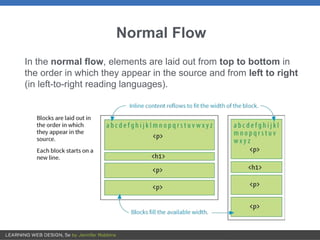
Normal Flow
In the normal flow, elements are laid out from top to bottom in
the order in which they appear in the source and from left to right
(in left-to-right reading languages).
Floating
float
Values: left, right, none
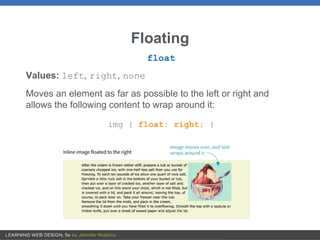
Moves an element as far as possible to the left or right and
allows the following content to wrap around it:
img { float: right; }
Floating (cont’d)
• Floated elements are removed from the normal flow but
influence the surrounding content.
• Floated elements stay within the content area of the element
that contains it.
• Margins are always maintained (they don’t collapse) on all
sides of floated elements.
• You must provide a width for a floated text element (because
default width is auto).
• Elements don’t float higher than their reference in the source.
Clearing Floated Elements
clear
Values: left, right, both, none
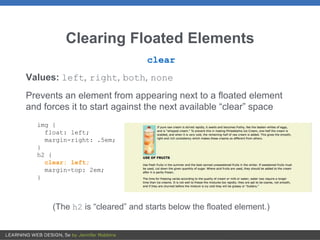
Prevents an element from appearing next to a floated element
and forces it to start against the next available “clear” space
img {
float: left;
margin-right: .5em;
}
h2 {
clear: left;
margin-top: 2em;
}
(The h2 is “cleared” and starts below the floated element.)
Floating Multiple Elements
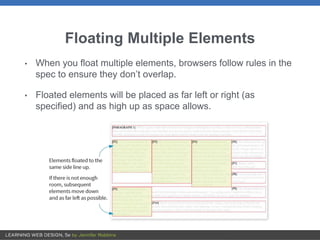
• When you float multiple elements, browsers follow rules in the
spec to ensure they don’t overlap.
• Floated elements will be placed as far left or right (as
specified) and as high up as space allows.
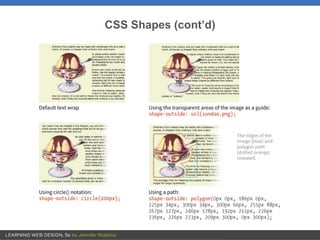
CSS Shapes (Text Wrap)
shape-outside
Values: none, circle(), ellipse(), polygon(), url(),
[margin-box | padding-box | content-box ]
Changes the shape of the text wrap to a circle or ellipse, a
complex path, or based on transparent areas in an image
shape-margin
Values: length, percentage
Specifies an amount of space to hold between the image and the
wrapped text
CSS Shapes (cont’d)
Positioning
position
Values: static, relative, absolute, fixed, sticky
Indicates that an element is to be positioned and specifies which
positioning method to use
top, right, bottom, left
Values: length, percentage, auto
Offset properties that provide the distance the element should be
moved away from that respective edge
Types of Positioning
• Static: The default position in the flow
• Relative: Moves the element relative to its original position
• Absolute: Removes the element from the flow and places it
relative to the viewport or other containing element
• Fixed: Element stays in one position relative to the viewport
• Sticky: Element starts in the flow but stays fixed once it
scrolls to a particular position relative to the viewport
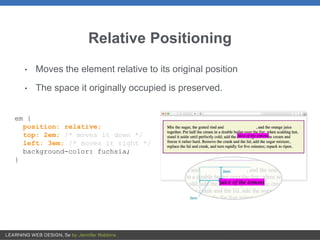
Relative Positioning
• Moves the element relative to its original position
• The space it originally occupied is preserved.
em {
position: relative;
top: 2em; /* moves it down */
left: 3em; /* moves it right */
background-color: fuchsia;
}
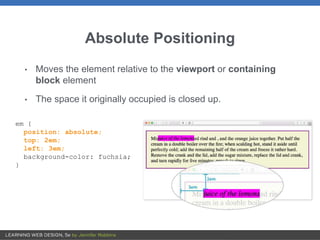
Absolute Positioning
• Moves the element relative to the viewport or containing
block element
• The space it originally occupied is closed up.
em {
position: absolute;
top: 2em;
left: 3em;
background-color: fuchsia;
}
Containing Blocks
• A positioned element serves as a containing block (or
positioning context) for the elements it contains.
• If a positioned element has an ancestor that has its position
set to relative, absolute, or fixed, then its position will
be relative to that containing block element.
• If a positioned element is not contained within another
positioned element, then it is placed relative to the initial
containing block (the html element) and the viewport.
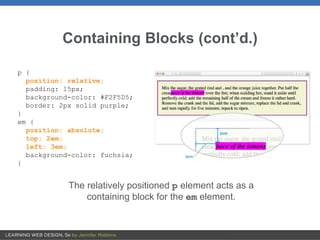
Containing Blocks (cont’d.)
p {
position: relative;
padding: 15px;
background-color: #F2F5D5;
border: 2px solid purple;
}
em {
position: absolute;
top: 2em;
left: 3em;
background-color: fuchsia;
}
The relatively positioned p element acts as a
containing block for the em element.
Specifying Position
• Position can be specified in length measurements (like pixels)
or percentages.
• The measurement moves it away from the positioning offset
property provided (i.e., top: 200px; moves the element
DOWN from the top edge).
• Be careful not to overspecify. Two offset properties are usually
enough.
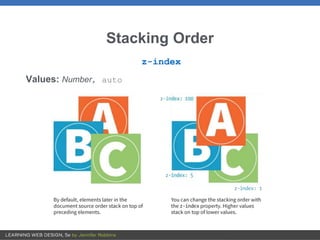
Stacking Order
z-index
Values: Number, auto

Chapter 15: Floating and Positioning

  • 1.
  • 2.
    OVERVIEW • Understanding normalflow • Floating elements to the left and right • Clearing and containing floated elements • Text wrap shapes • Positioning: Absolute, relative, fixed
  • 3.
    Normal Flow In thenormal flow, elements are laid out from top to bottom in the order in which they appear in the source and from left to right (in left-to-right reading languages).
  • 4.
    Floating float Values: left, right,none Moves an element as far as possible to the left or right and allows the following content to wrap around it: img { float: right; }
  • 5.
    Floating (cont’d) • Floatedelements are removed from the normal flow but influence the surrounding content. • Floated elements stay within the content area of the element that contains it. • Margins are always maintained (they don’t collapse) on all sides of floated elements. • You must provide a width for a floated text element (because default width is auto). • Elements don’t float higher than their reference in the source.
  • 6.
    Clearing Floated Elements clear Values:left, right, both, none Prevents an element from appearing next to a floated element and forces it to start against the next available “clear” space img { float: left; margin-right: .5em; } h2 { clear: left; margin-top: 2em; } (The h2 is “cleared” and starts below the floated element.)
  • 7.
    Floating Multiple Elements •When you float multiple elements, browsers follow rules in the spec to ensure they don’t overlap. • Floated elements will be placed as far left or right (as specified) and as high up as space allows.
  • 8.
    CSS Shapes (TextWrap) shape-outside Values: none, circle(), ellipse(), polygon(), url(), [margin-box | padding-box | content-box ] Changes the shape of the text wrap to a circle or ellipse, a complex path, or based on transparent areas in an image shape-margin Values: length, percentage Specifies an amount of space to hold between the image and the wrapped text
  • 9.
  • 10.
    Positioning position Values: static, relative,absolute, fixed, sticky Indicates that an element is to be positioned and specifies which positioning method to use top, right, bottom, left Values: length, percentage, auto Offset properties that provide the distance the element should be moved away from that respective edge
  • 11.
    Types of Positioning •Static: The default position in the flow • Relative: Moves the element relative to its original position • Absolute: Removes the element from the flow and places it relative to the viewport or other containing element • Fixed: Element stays in one position relative to the viewport • Sticky: Element starts in the flow but stays fixed once it scrolls to a particular position relative to the viewport
  • 12.
    Relative Positioning • Movesthe element relative to its original position • The space it originally occupied is preserved. em { position: relative; top: 2em; /* moves it down */ left: 3em; /* moves it right */ background-color: fuchsia; }
  • 13.
    Absolute Positioning • Movesthe element relative to the viewport or containing block element • The space it originally occupied is closed up. em { position: absolute; top: 2em; left: 3em; background-color: fuchsia; }
  • 14.
    Containing Blocks • Apositioned element serves as a containing block (or positioning context) for the elements it contains. • If a positioned element has an ancestor that has its position set to relative, absolute, or fixed, then its position will be relative to that containing block element. • If a positioned element is not contained within another positioned element, then it is placed relative to the initial containing block (the html element) and the viewport.
  • 15.
    Containing Blocks (cont’d.) p{ position: relative; padding: 15px; background-color: #F2F5D5; border: 2px solid purple; } em { position: absolute; top: 2em; left: 3em; background-color: fuchsia; } The relatively positioned p element acts as a containing block for the em element.
  • 16.
    Specifying Position • Positioncan be specified in length measurements (like pixels) or percentages. • The measurement moves it away from the positioning offset property provided (i.e., top: 200px; moves the element DOWN from the top edge). • Be careful not to overspecify. Two offset properties are usually enough.
  • 17.