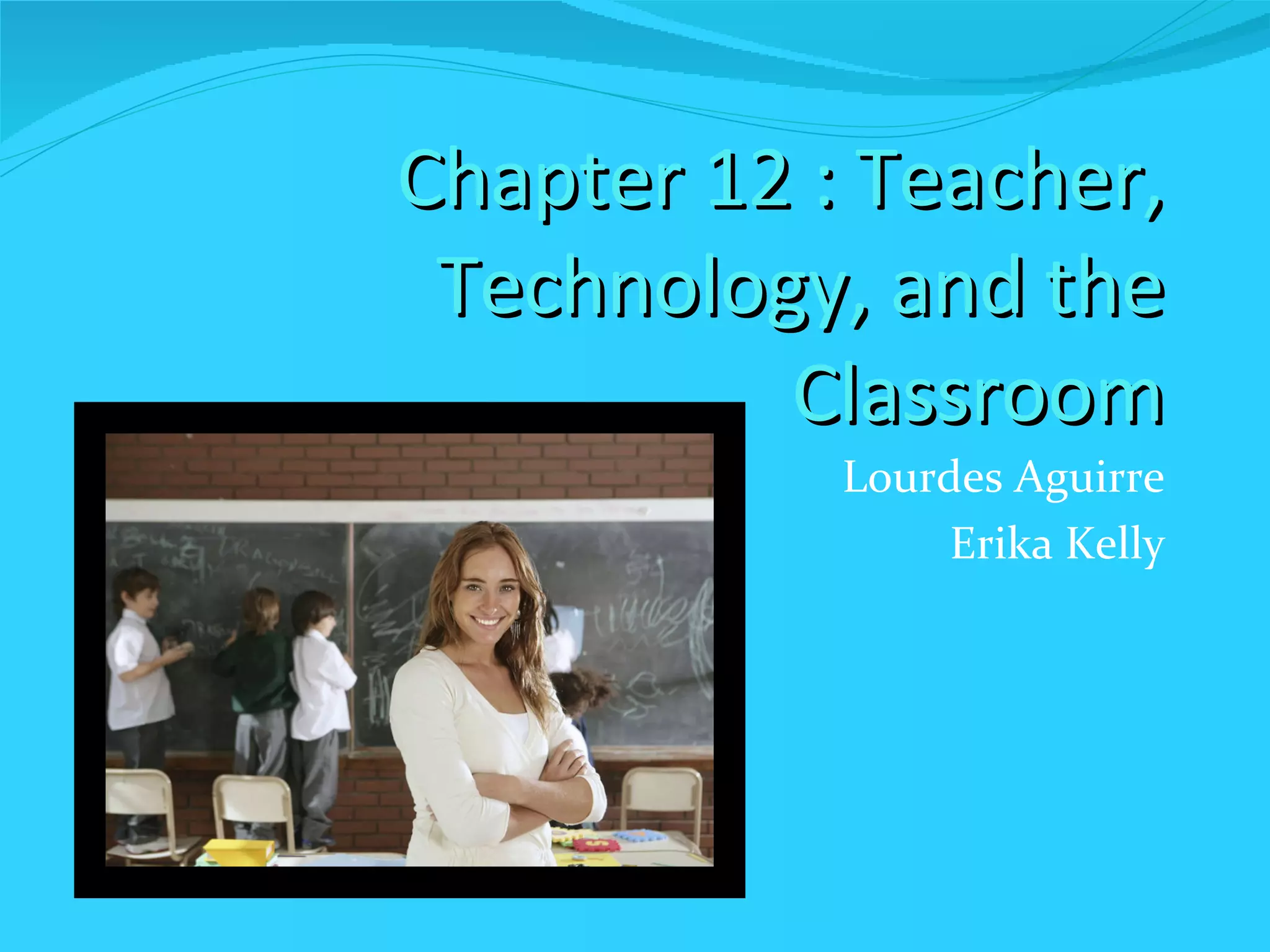
Chapter 12 : Teacher, Technology, and the Classroom Lourdes Aguirre Erika Kelly
In this chapter…… What can I do to “get ready” for a lesson if I’m using the computers? Where does the “computer part” come in while I’m teaching? How do I make it equal for my students with the limited  number of computers I have?
ISTE National Educational Technology Standards for Teachers 1. Facilitate & Inspire Student Learning & Creativity 2. Design & Develop Digital-Age Learning Experiences & Assessments 3. Model Digital-Age Work & Learning 4. Promote & Model Digital Citizenship & Responsibility 5. Engage in Professional Growth & Leadership
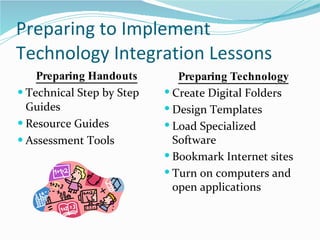
Preparing to Implement Technology Integration Lessons Preparing Handouts Technical Step by Step Guides Resource Guides Assessment Tools Preparing Technology Create Digital Folders Design Templates Load Specialized Software Bookmark Internet sites Turn on computers and open applications
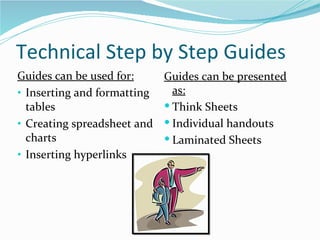
Technical Step by Step Guides Guides can be used for: Inserting and formatting tables Creating spreadsheet and charts Inserting hyperlinks Guides can be presented as: Think Sheets Individual handouts Laminated Sheets
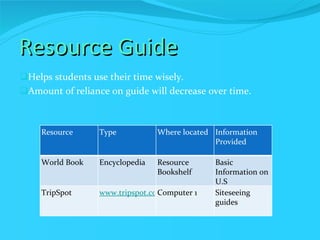
Resource Guide Helps students use their time wisely. Amount of reliance on guide will decrease over time. Resource Type Where located Information Provided World Book Encycl0pedia Resource Bookshelf Basic Information on U.S TripSpot www.tripspot.com Computer 1 Siteseeing guides
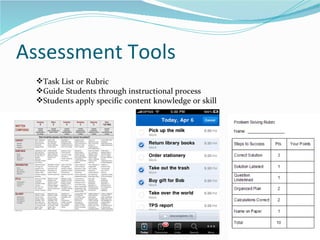
Assessment Tools Task List or Rubric Guide Students through instructional process Students apply specific content knowledge or skill
Preparing Technology Create Digital Folder Design Templates Load Specialized Software Bookmark Internet Sites Turn On Computers and Open Applications http://www.youtube.com/watch?v=cpv-qUyp0FI
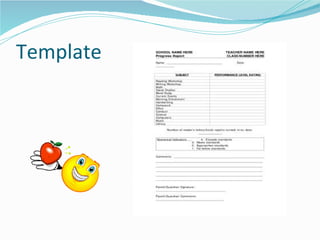
Template
Managing the Classroom Question 1: What are some classroom rules that you would include aimed specifically toward computer use in the classroom?
Computer Learning Culture Helping one another solve problems Reinforcing each other for making progress Effectively working in physically close proximity to one another Extending the effective working relationships beyond the computer environment
Classroom Management Strategies Create a checklist and proposed timeline Frequently model effective and appropriate use of computers Grade student work in stages Give points/grade for productive lab time Define and communicate inappropriate use and enforce loss of computer privileges
Managing the Rotation One Computer -lessons require minimal computer access -focus on “class” product -Use a projector or large monitor, if possible Small group (3-6 computers) -Group projects - Cooperative learning Computer Lab -Routine included in lessons -Encourage sharing ideas  One to one laptop access -Offers challenges and opportunities -Individual challenges
Assisting students with Computer Skills Teaching Modeling/Demonstrating Peer Modeling and Assistance Technology Posters or Job Aids Student Handouts
Question 2 1. How do you think that you could use the Peer Modeling and Assistance method described on page 323 in order to assist your student with their computer skills?
Keeping Students on Task Implement the NTeQ Model Create interesting problems with real world emphasis Involve students in decision making Collaborative learning groups Provide individual assistance as needed Check internet sites students visit frequently Involve students in class computer rules
Managing the Resources Student storage devices Software Printing Supplies File Management
Computer Care Do not allow students to have any food, drinks, or gum when using computers. Avoid touching the computer screen with fingers. Use screensaver software to protect the monitor. Secure cords and cables away from traffic and students. Clean tracking ball on the mouse. Use virus protection software.
Question 3: 3. What are a few main points that we have read about throughout this book about teaching students skills for the 21st Century?
ACTIVITY Develop a 21st Century classroom layout.  Choose either to make a poster or use the computer. On the computer suggested programs or websites: Paint http://teacher.scholastic.com/tools/class_setup / http://classroom.4teachers.org / Be sure to include the following: - How is the layout going to help you manage the classroom activity? -Will your students be sitting in groups and is so how many per group? - Will the students be moving in a group rotation or independent rotation? -Include anything else that you read about in the chapter and that you feel is of importance.

Chapter 12

  • 1.
    Chapter 12 :Teacher, Technology, and the Classroom Lourdes Aguirre Erika Kelly
  • 2.
    In this chapter……What can I do to “get ready” for a lesson if I’m using the computers? Where does the “computer part” come in while I’m teaching? How do I make it equal for my students with the limited number of computers I have?
  • 3.
    ISTE National EducationalTechnology Standards for Teachers 1. Facilitate & Inspire Student Learning & Creativity 2. Design & Develop Digital-Age Learning Experiences & Assessments 3. Model Digital-Age Work & Learning 4. Promote & Model Digital Citizenship & Responsibility 5. Engage in Professional Growth & Leadership
  • 4.
    Preparing to ImplementTechnology Integration Lessons Preparing Handouts Technical Step by Step Guides Resource Guides Assessment Tools Preparing Technology Create Digital Folders Design Templates Load Specialized Software Bookmark Internet sites Turn on computers and open applications
  • 5.
    Technical Step byStep Guides Guides can be used for: Inserting and formatting tables Creating spreadsheet and charts Inserting hyperlinks Guides can be presented as: Think Sheets Individual handouts Laminated Sheets
  • 6.
    Resource Guide Helpsstudents use their time wisely. Amount of reliance on guide will decrease over time. Resource Type Where located Information Provided World Book Encycl0pedia Resource Bookshelf Basic Information on U.S TripSpot www.tripspot.com Computer 1 Siteseeing guides
  • 7.
    Assessment Tools TaskList or Rubric Guide Students through instructional process Students apply specific content knowledge or skill
  • 8.
    Preparing Technology CreateDigital Folder Design Templates Load Specialized Software Bookmark Internet Sites Turn On Computers and Open Applications http://www.youtube.com/watch?v=cpv-qUyp0FI
  • 9.
  • 10.
    Managing the ClassroomQuestion 1: What are some classroom rules that you would include aimed specifically toward computer use in the classroom?
  • 11.
    Computer Learning CultureHelping one another solve problems Reinforcing each other for making progress Effectively working in physically close proximity to one another Extending the effective working relationships beyond the computer environment
  • 12.
    Classroom Management StrategiesCreate a checklist and proposed timeline Frequently model effective and appropriate use of computers Grade student work in stages Give points/grade for productive lab time Define and communicate inappropriate use and enforce loss of computer privileges
  • 13.
    Managing the RotationOne Computer -lessons require minimal computer access -focus on “class” product -Use a projector or large monitor, if possible Small group (3-6 computers) -Group projects - Cooperative learning Computer Lab -Routine included in lessons -Encourage sharing ideas One to one laptop access -Offers challenges and opportunities -Individual challenges
  • 14.
    Assisting students withComputer Skills Teaching Modeling/Demonstrating Peer Modeling and Assistance Technology Posters or Job Aids Student Handouts
  • 15.
    Question 2 1.How do you think that you could use the Peer Modeling and Assistance method described on page 323 in order to assist your student with their computer skills?
  • 16.
    Keeping Students onTask Implement the NTeQ Model Create interesting problems with real world emphasis Involve students in decision making Collaborative learning groups Provide individual assistance as needed Check internet sites students visit frequently Involve students in class computer rules
  • 17.
    Managing the ResourcesStudent storage devices Software Printing Supplies File Management
  • 18.
    Computer Care Donot allow students to have any food, drinks, or gum when using computers. Avoid touching the computer screen with fingers. Use screensaver software to protect the monitor. Secure cords and cables away from traffic and students. Clean tracking ball on the mouse. Use virus protection software.
  • 19.
    Question 3: 3.What are a few main points that we have read about throughout this book about teaching students skills for the 21st Century?
  • 20.
    ACTIVITY Develop a21st Century classroom layout. Choose either to make a poster or use the computer. On the computer suggested programs or websites: Paint http://teacher.scholastic.com/tools/class_setup / http://classroom.4teachers.org / Be sure to include the following: - How is the layout going to help you manage the classroom activity? -Will your students be sitting in groups and is so how many per group? - Will the students be moving in a group rotation or independent rotation? -Include anything else that you read about in the chapter and that you feel is of importance.