Welcome   Introductions What we will learn How we will learn Learning Spaces & Tools Models of Working Live Tutorials Assessment
Task Feedback Take the mic HTML Exercises Cascading Style Sheets
Assessment Task Overview Develop a design for a learning object Develop a website based on your learning design Develop and Display Images
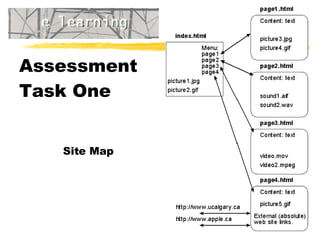
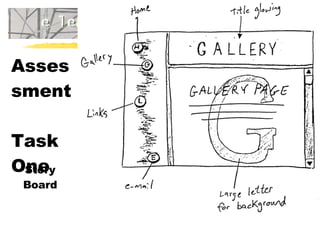
Assessment Task One Develop a design for a learning object Complete  Design Workshops  (Wiki) Site Map  and  Story Board  for small Learning Object
Assessment  Task One Site Map
Assessment  Task One Story Board
Learning HTML Not  expected to be an HTML expert! A lot of web designers use WYSIWYG editors such as FrontPage Learn enough of the basic tags to produce simple web pages or make minor changes to a web page
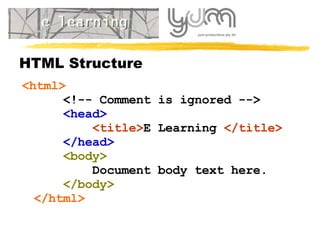
HTML Structure <html>   <!-- Comment is ignored -->   <head>   <title> E Learning  < /title>   </head>   <body>   Document body text here.   </body> </html>
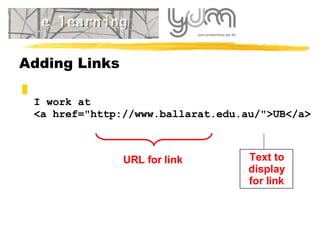
Adding Links I work at <a href=&quot;http://www.ballarat.edu.au/&quot;>UB</a> URL for link Text to display for link
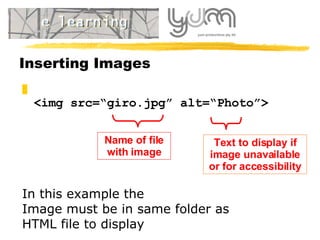
Inserting Images <img src=“giro.jpg” alt=“Photo”> Name of file with image Text to display if image unavailable  or for accessibility In this example the Image must be in same folder as  HTML file to display
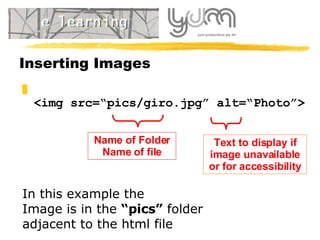
Inserting Images <img src=“ pics/ giro.jpg” alt=“Photo”> Name of Folder Name of file Text to display if image unavailable  or for accessibility In this example the Image is in the  “pics”  folder  adjacent to the html file
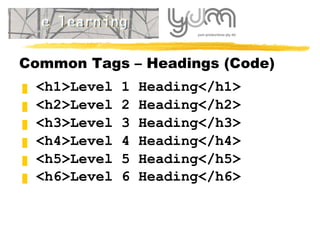
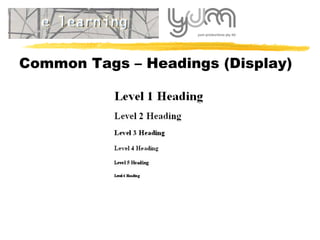
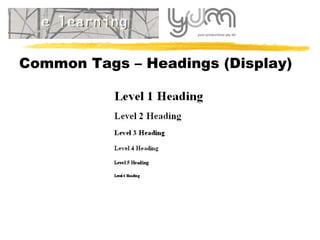
Common Tags – Headings (Code) <h1>Level 1 Heading</h1> <h 2 >Level  2  Heading</h 2 > <h 3 >Level  3  Heading</h 3 > <h 4 >Level  4  Heading</h 4 > <h 5 >Level  5  Heading</h 5 > <h 6 >Level  6  Heading</h 6 >
Common Tags – Headings (Display)
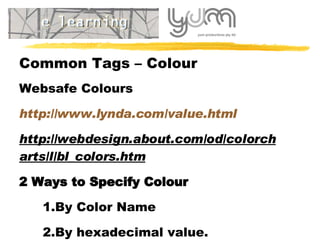
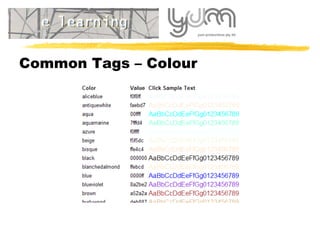
Common Tags – Colour Websafe Colours http://www.lynda.com/value.html http://webdesign.about.com/od/colorcharts/l/bl_colors.htm 2 Ways to Specify Colour By Color Name  By hexadecimal value.
Common Tags – Colour
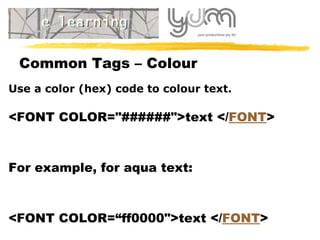
Common Tags – Colour U se a color (hex) code to  colour text .  <FONT COLOR=&quot;######&quot;>text </ FONT > For example, for aqua text: <FONT COLOR=“ ff0000 &quot;>text </ FONT >
Common Tags – Colour across Page <TEXT=&quot;######&quot;>   T he full-page text colo u r. <LINK=&quot;######&quot;>   C olo u r of the links on your page. <ALINK=&quot;######&quot;>   C olo u r the link will flash when clicked upon. <VLINK=&quot;######&quot;>   colo u rs of the links after  user has  visited .
Common Tags – Colour across Page P lace them all together inside the same command along with any  background  commands.  Something like this:  < BODY BGCOLOR=&quot;######&quot; TEXT=&quot;######&quot; LINK=&quot;######&quot; VLINK=&quot;######&quot;>
Style Sheets O ne file that defines all the values  (including HTML tags)   Can  leave out most of the formatting tags in HTML and use only nice  structural elements  (like headings, paragraphs and links) — separating structure and presentation.
Style Sheets T he syntax is: selector {style-attribute1:value1; style-attribute2:value2; ... } EG H2 {color:red; text-transform:capitalize}   Most of the style attributes concern:   borders , margins  and  padding    backgrounds    lists fonts and text properties
Style Sheets We can determine the styles: In the Head of our webpage With the Tag attribute on the webpage In an external link CSS file
Style Sheets 1 – Examples Basic paragraph text is to be a dark green 12 point Verdana, bold, italic and degrading to Arial, Helvetica and sans serif. Redefining the style of an existing html tag Defining the style on the page
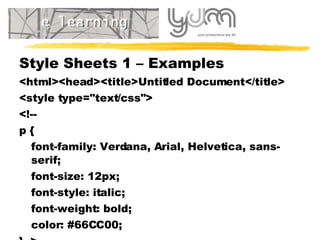
Style Sheets 1 – Examples  <html><head><title>Untitled Document</title> <style type=&quot;text/css&quot;> <!-- p { font-family: Verdana, Arial, Helvetica, sans-serif; font-size: 12px; font-style: italic; font-weight: bold; color: #66CC00; }--> </style></head>
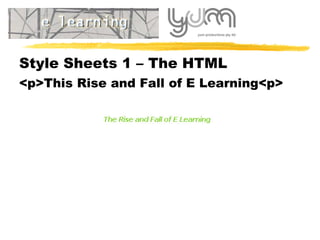
Style Sheets 1 – The HTML <p>This Rise and Fall of E Learning<p>
Style Sheets – Examples We can define styles in an external file (with a .css extension) and link them to our pages. One change to the p style will “cascade” across all our pages linked to the .css file
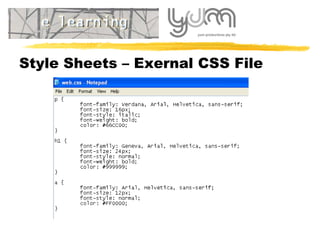
Style Sheets – Exernal CSS File
Style Sheets – Exernal CSS File <html > <head> <title>Untitled Document</title> <link href=&quot;pagedesign/web.css&quot; rel=&quot;stylesheet&quot; type=&quot;text/css&quot; /> </head>
Style Sheets – Uses Use One File to:  Control web site look  Customise HTML Tags Create Custom Styles Control Layout of site
Next Live Tutorials Times Wednesday 28 May 2008,  6.30-7.30pm AES
Thank you for playing

Block2 Session2 Presentation

  • 1.
    Welcome Introductions What we will learn How we will learn Learning Spaces & Tools Models of Working Live Tutorials Assessment
  • 2.
    Task Feedback Takethe mic HTML Exercises Cascading Style Sheets
  • 3.
    Assessment Task OverviewDevelop a design for a learning object Develop a website based on your learning design Develop and Display Images
  • 4.
    Assessment Task OneDevelop a design for a learning object Complete Design Workshops (Wiki) Site Map and Story Board for small Learning Object
  • 5.
    Assessment TaskOne Site Map
  • 6.
    Assessment TaskOne Story Board
  • 7.
    Learning HTML Not expected to be an HTML expert! A lot of web designers use WYSIWYG editors such as FrontPage Learn enough of the basic tags to produce simple web pages or make minor changes to a web page
  • 8.
    HTML Structure <html> <!-- Comment is ignored --> <head> <title> E Learning < /title> </head> <body> Document body text here. </body> </html>
  • 9.
    Adding Links Iwork at <a href=&quot;http://www.ballarat.edu.au/&quot;>UB</a> URL for link Text to display for link
  • 10.
    Inserting Images <imgsrc=“giro.jpg” alt=“Photo”> Name of file with image Text to display if image unavailable or for accessibility In this example the Image must be in same folder as HTML file to display
  • 11.
    Inserting Images <imgsrc=“ pics/ giro.jpg” alt=“Photo”> Name of Folder Name of file Text to display if image unavailable or for accessibility In this example the Image is in the “pics” folder adjacent to the html file
  • 12.
    Common Tags –Headings (Code) <h1>Level 1 Heading</h1> <h 2 >Level 2 Heading</h 2 > <h 3 >Level 3 Heading</h 3 > <h 4 >Level 4 Heading</h 4 > <h 5 >Level 5 Heading</h 5 > <h 6 >Level 6 Heading</h 6 >
  • 13.
    Common Tags –Headings (Display)
  • 14.
    Common Tags –Headings (Display)
  • 15.
    Common Tags –Colour Websafe Colours http://www.lynda.com/value.html http://webdesign.about.com/od/colorcharts/l/bl_colors.htm 2 Ways to Specify Colour By Color Name By hexadecimal value.
  • 16.
  • 17.
    Common Tags –Colour U se a color (hex) code to colour text . <FONT COLOR=&quot;######&quot;>text </ FONT > For example, for aqua text: <FONT COLOR=“ ff0000 &quot;>text </ FONT >
  • 18.
    Common Tags –Colour across Page <TEXT=&quot;######&quot;> T he full-page text colo u r. <LINK=&quot;######&quot;> C olo u r of the links on your page. <ALINK=&quot;######&quot;> C olo u r the link will flash when clicked upon. <VLINK=&quot;######&quot;> colo u rs of the links after user has visited .
  • 19.
    Common Tags –Colour across Page P lace them all together inside the same command along with any background commands. Something like this: < BODY BGCOLOR=&quot;######&quot; TEXT=&quot;######&quot; LINK=&quot;######&quot; VLINK=&quot;######&quot;>
  • 20.
    Style Sheets One file that defines all the values (including HTML tags) Can leave out most of the formatting tags in HTML and use only nice structural elements (like headings, paragraphs and links) — separating structure and presentation.
  • 21.
    Style Sheets The syntax is: selector {style-attribute1:value1; style-attribute2:value2; ... } EG H2 {color:red; text-transform:capitalize} Most of the style attributes concern:   borders , margins and padding   backgrounds   lists fonts and text properties
  • 22.
    Style Sheets Wecan determine the styles: In the Head of our webpage With the Tag attribute on the webpage In an external link CSS file
  • 23.
    Style Sheets 1– Examples Basic paragraph text is to be a dark green 12 point Verdana, bold, italic and degrading to Arial, Helvetica and sans serif. Redefining the style of an existing html tag Defining the style on the page
  • 24.
    Style Sheets 1– Examples <html><head><title>Untitled Document</title> <style type=&quot;text/css&quot;> <!-- p { font-family: Verdana, Arial, Helvetica, sans-serif; font-size: 12px; font-style: italic; font-weight: bold; color: #66CC00; }--> </style></head>
  • 25.
    Style Sheets 1– The HTML <p>This Rise and Fall of E Learning<p>
  • 26.
    Style Sheets –Examples We can define styles in an external file (with a .css extension) and link them to our pages. One change to the p style will “cascade” across all our pages linked to the .css file
  • 27.
    Style Sheets –Exernal CSS File
  • 28.
    Style Sheets –Exernal CSS File <html > <head> <title>Untitled Document</title> <link href=&quot;pagedesign/web.css&quot; rel=&quot;stylesheet&quot; type=&quot;text/css&quot; /> </head>
  • 29.
    Style Sheets –Uses Use One File to: Control web site look Customise HTML Tags Create Custom Styles Control Layout of site
  • 30.
    Next Live TutorialsTimes Wednesday 28 May 2008, 6.30-7.30pm AES
  • 31.