HTML 
Definition and Structure of Html 
Basic Html Tags 
Formatting Tags 
Body and Font Tag 
Using Marquee 
Hyperlinks
HTML File 
Stands for Hyper Text Markup Language 
An HTML file is a text file containing small 
markup tags 
A markup tags tell the web browser how to 
display the page 
An HTML file must have an htm or html file 
extension 
An HTML file can be created using a simple 
text editor
HTML 
A collection of platform independent 
styles(indicated by markup tags) that define 
the various components of a world wide web. 
It is also the language used to prepare web 
hypertext documents. 
It is a structured language that allows certain 
rules to enforce an overall logical structure 
upon the document.
HTML 
HTML documents are plain-text files known as 
ASCII, that can be created by using a text 
editor. An example is a WordPad or Notepad. 
Things you need to create a HTML File: 
Text Editor 
Web browser 
Internet Connection
Creating Html document 
Click the Window button 
Go to Programs > Accessories 
Click Notepad 
Viewing Html document 
Open your browser 
From the file menu click open 
Click on browse 
Look for the drive and the name of 
the html document 
Click OK
HTML 
HTML documents are plain-text files known as 
ASCII, that can be created by using a text 
editor. An example is a WordPad or Notepad. 
Things you need to create a HTML File: 
Text Editor 
Web browser 
Internet Connection
Structure of HTML 
Elements – fundamental components of the 
structure of a text document. Examples of 
elements are heads, tables, paragraphs and 
lists. 
Tags - refers to the various elements in an 
HTML document. 
HTML Tags consist of a left angle bracket 
<a tag name and a right angle>. Tags are 
usually paired <html> </html>. 
Tags without pairs are called empty tags.
Structure of HTML 
Element Attributes – Additional information 
included inside the start tag. 
Examples are text alignments (right, left).
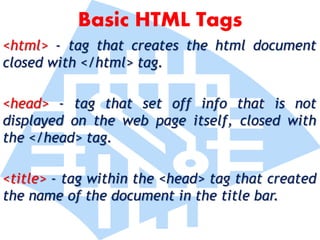
Basic HTML Tags 
<html> - tag that creates the html document 
closed with </html> tag. 
<head> - tag that set off info that is not 
displayed on the web page itself, closed with 
the </head> tag. 
<title> - tag within the <head> tag that created 
the name of the document in the title bar.
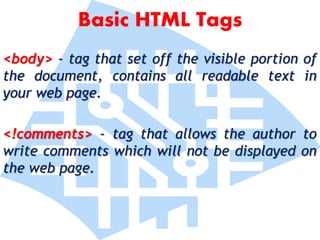
Basic HTML Tags 
<body> - tag that set off the visible portion of 
the document, contains all readable text in 
your web page. 
<!comments> - tag that allows the author to 
write comments which will not be displayed on 
the web page.
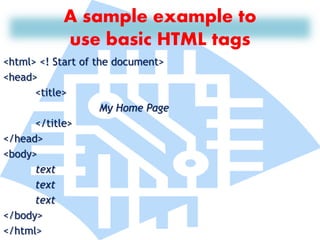
A sample example to 
use basic HTML tags 
<html> <! Start of the document> 
<head> 
<title> 
My Home Page 
</title> 
</head> 
<body> 
text 
text 
text 
</body> 
</html>
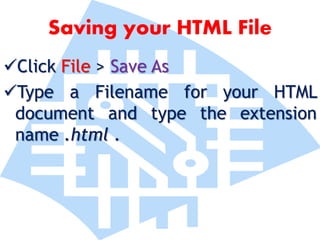
Saving your HTML File 
Click File > Save As 
Type a Filename for your HTML 
document and type the extension 
name .html .
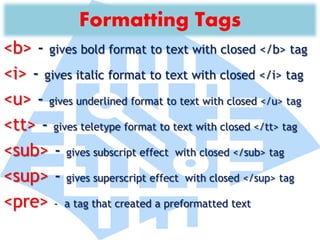
Formatting Tags 
<b> - gives bold format to text with closed </b> tag 
<i> - gives italic format to text with closed </i> tag 
<u> - gives underlined format to text with closed </u> tag 
<tt> - gives teletype format to text with closed </tt> tag 
<sub> - gives subscript effect with closed </sub> tag 
<sup> - gives superscript effect with closed </sup> tag 
<pre> - a tag that created a preformatted text
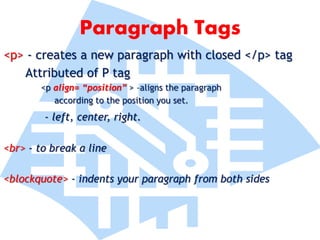
Paragraph Tags 
<p> - creates a new paragraph with closed </p> tag 
Attributed of P tag 
<p align= “position” > –aligns the paragraph 
according to the position you set. 
- left, center, right. 
<br> - to break a line 
<blockquote> - indents your paragraph from both sides
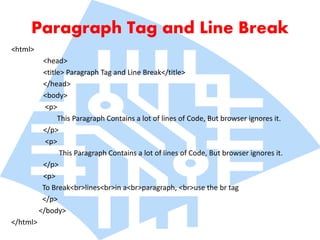
Paragraph Tag and Line Break 
<html> 
<head> 
<title> Paragraph Tag and Line Break</title> 
</head> 
<body> 
<p> 
This Paragraph Contains a lot of lines of Code, But browser ignores it. 
</p> 
<p> 
This Paragraph Contains a lot of lines of Code, But browser ignores it. 
</p> 
<p> 
To Break<br>lines<br>in a<br>paragraph, <br>use the br tag 
</p> 
</body> 
</html>
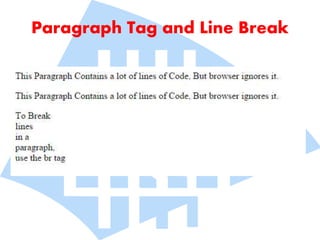
Paragraph Tag and Line Break
Creating a Centered Align heading 
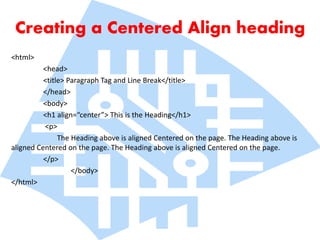
<html> 
<head> 
<title> Paragraph Tag and Line Break</title> 
</head> 
<body> 
<h1 align=“center”> This is the Heading</h1> 
<p> 
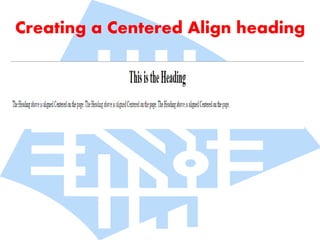
The Heading above is aligned Centered on the page. The Heading above is 
aligned Centered on the page. The Heading above is aligned Centered on the page. 
</p> 
</body> 
</html>
Creating a Centered Align heading
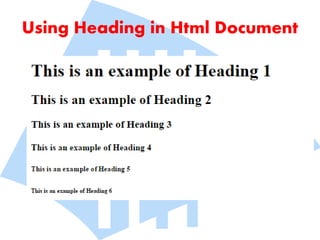
Using Heading in Html Document 
Headings are use to differentiate certain 
sections of a html document from other 
sections. As their name implies , they create 
an impression of using headlines in your html 
document.
Using Heading in Html Document 
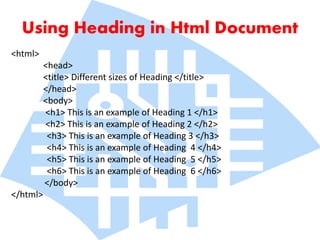
<html> 
<head> 
<title> Different sizes of Heading </title> 
</head> 
<body> 
<h1> This is an example of Heading 1 </h1> 
<h2> This is an example of Heading 2 </h2> 
<h3> This is an example of Heading 3 </h3> 
<h4> This is an example of Heading 4 </h4> 
<h5> This is an example of Heading 5 </h5> 
<h6> This is an example of Heading 6 </h6> 
</body> 
</html>
Using Heading in Html Document
Working with Body 
and Font Attributes 
Using the body tag enables the user to 
manipulate the background colors and text for 
a HTML documents and using the font you can 
override the text color in body tag.
Working with Body 
and Font Attributes 
<body> specifies that your in the body part of the document 
<body text = “blue” > - color of normal text within document 
background = “url”> - indicates the location of the file of an image to 
tile across the document background. 
bgcolor =“blue”> indicates the color of the document background 
<font> specifies the appearance of text of the body 
<font color = “blue”> - indicates the color of the browser 
uses to display text. 
face = “arial”> - specifies the font face to be use in the document 
size = “10”> - specifies the size of text affected by the font tag
Working with Hyperlinks 
 A hyperlink is an underlined text or image that lets 
you jump from one webpage to another. 
Types of Text link in HTML: 
1. Relative links – creates the link to the other page of 
the site. 
2. Absolute links – uses URL to create a link to the 
address of that particular web page.
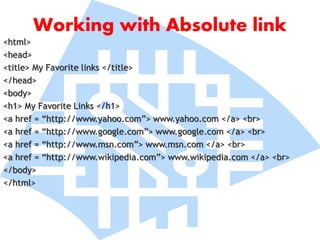
Working with Absolute link 
<html> 
<head> 
<title> My Favorite links </title> 
</head> 
<body> 
<h1> My Favorite Links </h1> 
<a href = “http://www.yahoo.com”> www.yahoo.com </a> <br> 
<a href = “http://www.google.com”> www.google.com </a> <br> 
<a href = “http://www.msn.com”> www.msn.com </a> <br> 
<a href = “http://www.wikipedia.com”> www.wikipedia.com </a> <br> 
</body> 
</html>
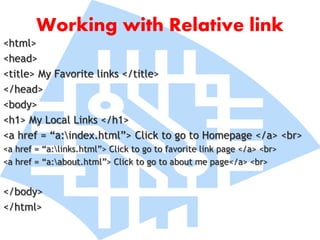
Working with Relative link 
<html> 
<head> 
<title> My Favorite links </title> 
</head> 
<body> 
<h1> My Local Links </h1> 
<a href = “a:index.html”> Click to go to Homepage </a> <br> 
<a href = “a:links.html”> Click to go to favorite link page </a> <br> 
<a href = “a:about.html”> Click to go to about me page</a> <br> 
</body> 
</html>
Using Marquee Tag 
Animation is very easy in creating HTML 
documents using the marquee tag where 
in you convert a simple text into a 
moving set of characters from left to 
right or even from top to bottom.
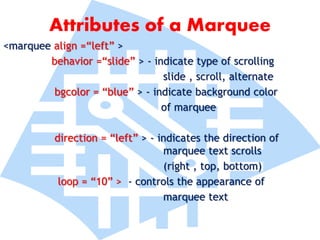
Attributes of a Marquee 
<marquee align =“left” > 
behavior =“slide” > - indicate type of scrolling 
slide , scroll, alternate 
bgcolor = “blue” > - indicate background color 
of marquee 
direction = “left” > - indicates the direction of 
marquee text scrolls 
(right , top, bottom) 
loop = “10” > - controls the appearance of 
marquee text
Sample of a Marquee 
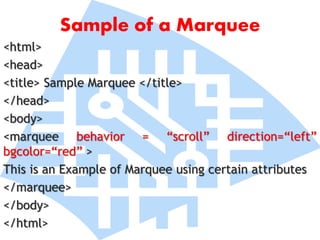
<html> 
<head> 
<title> Sample Marquee </title> 
</head> 
<body> 
<marquee behavior = “scroll” direction=“left” 
bgcolor=“red” > 
This is an Example of Marquee using certain attributes 
</marquee> 
</body> 
</html>

Html1

  • 1.
    HTML Definition andStructure of Html Basic Html Tags Formatting Tags Body and Font Tag Using Marquee Hyperlinks
  • 2.
    HTML File Standsfor Hyper Text Markup Language An HTML file is a text file containing small markup tags A markup tags tell the web browser how to display the page An HTML file must have an htm or html file extension An HTML file can be created using a simple text editor
  • 3.
    HTML A collectionof platform independent styles(indicated by markup tags) that define the various components of a world wide web. It is also the language used to prepare web hypertext documents. It is a structured language that allows certain rules to enforce an overall logical structure upon the document.
  • 4.
    HTML HTML documentsare plain-text files known as ASCII, that can be created by using a text editor. An example is a WordPad or Notepad. Things you need to create a HTML File: Text Editor Web browser Internet Connection
  • 5.
    Creating Html document Click the Window button Go to Programs > Accessories Click Notepad Viewing Html document Open your browser From the file menu click open Click on browse Look for the drive and the name of the html document Click OK
  • 6.
    HTML HTML documentsare plain-text files known as ASCII, that can be created by using a text editor. An example is a WordPad or Notepad. Things you need to create a HTML File: Text Editor Web browser Internet Connection
  • 7.
    Structure of HTML Elements – fundamental components of the structure of a text document. Examples of elements are heads, tables, paragraphs and lists. Tags - refers to the various elements in an HTML document. HTML Tags consist of a left angle bracket <a tag name and a right angle>. Tags are usually paired <html> </html>. Tags without pairs are called empty tags.
  • 8.
    Structure of HTML Element Attributes – Additional information included inside the start tag. Examples are text alignments (right, left).
  • 9.
    Basic HTML Tags <html> - tag that creates the html document closed with </html> tag. <head> - tag that set off info that is not displayed on the web page itself, closed with the </head> tag. <title> - tag within the <head> tag that created the name of the document in the title bar.
  • 10.
    Basic HTML Tags <body> - tag that set off the visible portion of the document, contains all readable text in your web page. <!comments> - tag that allows the author to write comments which will not be displayed on the web page.
  • 11.
    A sample exampleto use basic HTML tags <html> <! Start of the document> <head> <title> My Home Page </title> </head> <body> text text text </body> </html>
  • 12.
    Saving your HTMLFile Click File > Save As Type a Filename for your HTML document and type the extension name .html .
  • 13.
    Formatting Tags <b>- gives bold format to text with closed </b> tag <i> - gives italic format to text with closed </i> tag <u> - gives underlined format to text with closed </u> tag <tt> - gives teletype format to text with closed </tt> tag <sub> - gives subscript effect with closed </sub> tag <sup> - gives superscript effect with closed </sup> tag <pre> - a tag that created a preformatted text
  • 14.
    Paragraph Tags <p>- creates a new paragraph with closed </p> tag Attributed of P tag <p align= “position” > –aligns the paragraph according to the position you set. - left, center, right. <br> - to break a line <blockquote> - indents your paragraph from both sides
  • 15.
    Paragraph Tag andLine Break <html> <head> <title> Paragraph Tag and Line Break</title> </head> <body> <p> This Paragraph Contains a lot of lines of Code, But browser ignores it. </p> <p> This Paragraph Contains a lot of lines of Code, But browser ignores it. </p> <p> To Break<br>lines<br>in a<br>paragraph, <br>use the br tag </p> </body> </html>
  • 16.
  • 17.
    Creating a CenteredAlign heading <html> <head> <title> Paragraph Tag and Line Break</title> </head> <body> <h1 align=“center”> This is the Heading</h1> <p> The Heading above is aligned Centered on the page. The Heading above is aligned Centered on the page. The Heading above is aligned Centered on the page. </p> </body> </html>
  • 18.
    Creating a CenteredAlign heading
  • 19.
    Using Heading inHtml Document Headings are use to differentiate certain sections of a html document from other sections. As their name implies , they create an impression of using headlines in your html document.
  • 20.
    Using Heading inHtml Document <html> <head> <title> Different sizes of Heading </title> </head> <body> <h1> This is an example of Heading 1 </h1> <h2> This is an example of Heading 2 </h2> <h3> This is an example of Heading 3 </h3> <h4> This is an example of Heading 4 </h4> <h5> This is an example of Heading 5 </h5> <h6> This is an example of Heading 6 </h6> </body> </html>
  • 21.
    Using Heading inHtml Document
  • 22.
    Working with Body and Font Attributes Using the body tag enables the user to manipulate the background colors and text for a HTML documents and using the font you can override the text color in body tag.
  • 23.
    Working with Body and Font Attributes <body> specifies that your in the body part of the document <body text = “blue” > - color of normal text within document background = “url”> - indicates the location of the file of an image to tile across the document background. bgcolor =“blue”> indicates the color of the document background <font> specifies the appearance of text of the body <font color = “blue”> - indicates the color of the browser uses to display text. face = “arial”> - specifies the font face to be use in the document size = “10”> - specifies the size of text affected by the font tag
  • 24.
    Working with Hyperlinks  A hyperlink is an underlined text or image that lets you jump from one webpage to another. Types of Text link in HTML: 1. Relative links – creates the link to the other page of the site. 2. Absolute links – uses URL to create a link to the address of that particular web page.
  • 25.
    Working with Absolutelink <html> <head> <title> My Favorite links </title> </head> <body> <h1> My Favorite Links </h1> <a href = “http://www.yahoo.com”> www.yahoo.com </a> <br> <a href = “http://www.google.com”> www.google.com </a> <br> <a href = “http://www.msn.com”> www.msn.com </a> <br> <a href = “http://www.wikipedia.com”> www.wikipedia.com </a> <br> </body> </html>
  • 26.
    Working with Relativelink <html> <head> <title> My Favorite links </title> </head> <body> <h1> My Local Links </h1> <a href = “a:index.html”> Click to go to Homepage </a> <br> <a href = “a:links.html”> Click to go to favorite link page </a> <br> <a href = “a:about.html”> Click to go to about me page</a> <br> </body> </html>
  • 27.
    Using Marquee Tag Animation is very easy in creating HTML documents using the marquee tag where in you convert a simple text into a moving set of characters from left to right or even from top to bottom.
  • 28.
    Attributes of aMarquee <marquee align =“left” > behavior =“slide” > - indicate type of scrolling slide , scroll, alternate bgcolor = “blue” > - indicate background color of marquee direction = “left” > - indicates the direction of marquee text scrolls (right , top, bottom) loop = “10” > - controls the appearance of marquee text
  • 29.
    Sample of aMarquee <html> <head> <title> Sample Marquee </title> </head> <body> <marquee behavior = “scroll” direction=“left” bgcolor=“red” > This is an Example of Marquee using certain attributes </marquee> </body> </html>

Editor's Notes

  • #29 Quiz and Lists Create an activities in hands-on: Font and bg attributes Marquee List: ordered and unordered
  • #30 Quiz and Lists Create an activities in hands-on: Font and bg attributes Marquee List: ordered and unordered