HTML Standard format/language for Web documents: h yper t ext  m arkup  l anguage Markup language: Comprises normal text of document together with  tags   Tags provide format, structure and references to other files, eg. multimedia, other web documents
Examining the HTML You can look at the HTML of a Web page by selecting View->Source in Internet Explorer Try it! As you will see, HTML is not a very easy language to read (or write) You can directly edit HTML using a text editor such as Notepad
Learning HTML You are not expected to be an HTML expert! A lot of web designers use WYSIWYG editors such as FrontPage Learn enough of the basic tags to produce simple web pages or make minor changes to a web page Refer to this useful HTML Tutorial http://www. sci . usq .edu.au/courses/csc1402/semester3/ coursematerial /media/resources/html_tutorial/index.html
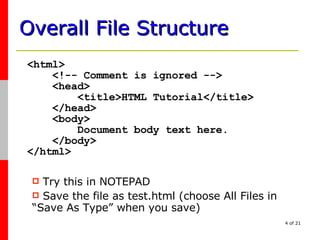
Overall File Structure <html>   <!-- Comment is ignored -->   <head>   <title>HTML Tutorial</title>   </head>   <body>   Document body text here.   </body> </html> Try this in NOTEPAD  Save the file as test.html (choose All Files in “Save As Type” when you save)
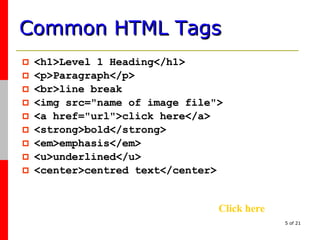
Common HTML Tags <h1>Level 1 Heading</h1> <p>Paragraph</p> <br>line break <img src=&quot;name of image file&quot;> <a href=&quot;url&quot;>click here</a> <strong>bold</strong> <em>emphasis</em> <u>underlined</u> <center>centred text</center> Click here
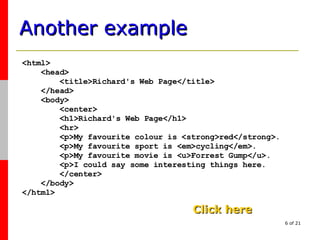
Another example <html> <head> <title>Richard's Web Page</title> </head> <body> <center> <h1>Richard's Web Page</h1> <hr> <p>My favourite colour is <strong>red</strong>. <p>My favourite sport is <em>cycling</em>. <p>My favourite movie is <u>Forrest Gump</u>. <p>I could say some interesting things here. </center> </body> </html> Click here
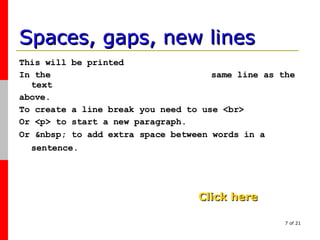
Spaces, gaps, new lines This will be printed In the  same line as the text  above.  To create a line break you need to use <br> Or <p> to start a new paragraph.  Or &nbsp; to add extra space between words in a sentence. Click here
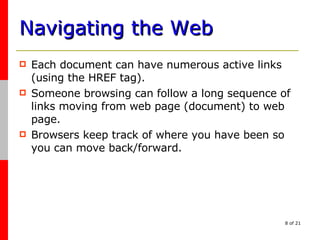
Navigating the Web Each document can have numerous active links (using the HREF tag). Someone browsing can follow a long sequence of links moving from web page (document) to web page. Browsers keep track of where you have been so you can move back/forward.
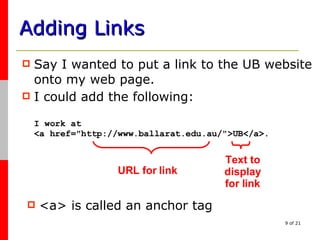
Adding Links Say I wanted to put a link to the UB website onto my web page. I could add the following: I work at <a href=&quot;http://www.ballarat.edu.au/&quot;>UB</a>. URL for link Text to display for link <a> is called an anchor tag
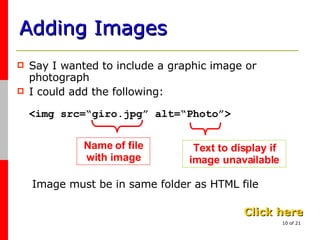
Adding Images Say I wanted to include a graphic image or photograph I could add the following: <img src=“giro.jpg” alt=“Photo”> Name of file with image Text to display if image unavailable Click here Image must be in same folder as HTML file
Writing code In future, you may use Dreamweaver editor to write HTML code
Web Page Design Issues Page will not appear exactly the same everywhere Different computer screens, fonts etc. Different browsers (eg PDA) Default settings (eg font size) Size and download time

Html

  • 1.
    HTML Standard format/languagefor Web documents: h yper t ext m arkup l anguage Markup language: Comprises normal text of document together with tags Tags provide format, structure and references to other files, eg. multimedia, other web documents
  • 2.
    Examining the HTMLYou can look at the HTML of a Web page by selecting View->Source in Internet Explorer Try it! As you will see, HTML is not a very easy language to read (or write) You can directly edit HTML using a text editor such as Notepad
  • 3.
    Learning HTML Youare not expected to be an HTML expert! A lot of web designers use WYSIWYG editors such as FrontPage Learn enough of the basic tags to produce simple web pages or make minor changes to a web page Refer to this useful HTML Tutorial http://www. sci . usq .edu.au/courses/csc1402/semester3/ coursematerial /media/resources/html_tutorial/index.html
  • 4.
    Overall File Structure<html> <!-- Comment is ignored --> <head> <title>HTML Tutorial</title> </head> <body> Document body text here. </body> </html> Try this in NOTEPAD Save the file as test.html (choose All Files in “Save As Type” when you save)
  • 5.
    Common HTML Tags<h1>Level 1 Heading</h1> <p>Paragraph</p> <br>line break <img src=&quot;name of image file&quot;> <a href=&quot;url&quot;>click here</a> <strong>bold</strong> <em>emphasis</em> <u>underlined</u> <center>centred text</center> Click here
  • 6.
    Another example <html><head> <title>Richard's Web Page</title> </head> <body> <center> <h1>Richard's Web Page</h1> <hr> <p>My favourite colour is <strong>red</strong>. <p>My favourite sport is <em>cycling</em>. <p>My favourite movie is <u>Forrest Gump</u>. <p>I could say some interesting things here. </center> </body> </html> Click here
  • 7.
    Spaces, gaps, newlines This will be printed In the same line as the text above. To create a line break you need to use <br> Or <p> to start a new paragraph. Or &nbsp; to add extra space between words in a sentence. Click here
  • 8.
    Navigating the WebEach document can have numerous active links (using the HREF tag). Someone browsing can follow a long sequence of links moving from web page (document) to web page. Browsers keep track of where you have been so you can move back/forward.
  • 9.
    Adding Links SayI wanted to put a link to the UB website onto my web page. I could add the following: I work at <a href=&quot;http://www.ballarat.edu.au/&quot;>UB</a>. URL for link Text to display for link <a> is called an anchor tag
  • 10.
    Adding Images SayI wanted to include a graphic image or photograph I could add the following: <img src=“giro.jpg” alt=“Photo”> Name of file with image Text to display if image unavailable Click here Image must be in same folder as HTML file
  • 11.
    Writing code Infuture, you may use Dreamweaver editor to write HTML code
  • 12.
    Web Page DesignIssues Page will not appear exactly the same everywhere Different computer screens, fonts etc. Different browsers (eg PDA) Default settings (eg font size) Size and download time