HTML A Crash Course
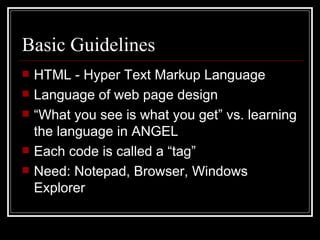
Basic Guidelines HTML - Hyper Text Markup Language Language of web page design “ What you see is what you get” vs. learning the language in ANGEL Each code is called a “tag” Need: Notepad, Browser, Windows Explorer
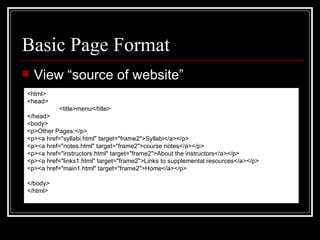
Basic Page Format View “source of website” <html> <head> <title>menu</title> </head> <body> <p>Other Pages:</p> <p><a href=&quot;syllabi.html&quot; target=&quot;frame2&quot;>Syllabi</a></p> <p><a href=&quot;notes.html&quot; target=&quot;frame2&quot;>course notes</a></p> <p><a href=&quot;instructors.html&quot; target=&quot;frame2&quot;>About the instructors</a></p> <p><a href=&quot;links1.html&quot; target=&quot;frame2&quot;>Links to supplemental resources</a></p> <p><a href=&quot;main1.html&quot; target=&quot;frame2&quot;>Home</a></p> </body> </html>
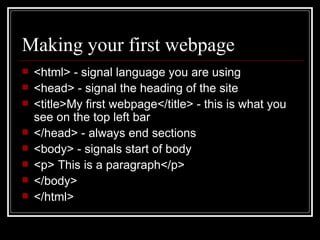
Making your first webpage <html> - signal language you are using <head> - signal the heading of the site <title>My first webpage</title> - this is what you see on the top left bar </head> - always end sections <body> - signals start of body <p> This is a paragraph</p> </body> </html>
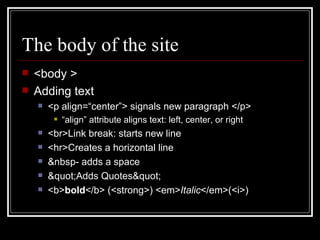
The body of the site <body > Adding text <p align=“center”> signals new paragraph </p> “ align” attribute aligns text: left, center, or right <br>Link break: starts new line <hr>Creates a horizontal line &nbsp- adds a space &quot;Adds Quotes&quot; <b> bold </b> (<strong>) <em> Italic </em>(<i>)
Headings and Links <h1> Biggest </h1> <h2> Bigger </h2> <h3> Big </h3> Links: To a website <a href= http://www.google.com >Google</a> To email: <a href=“mailto:  [email_address] ”> Email me!</a> To a file: <a href=“chapter16.ppt”>Chapter 16 Powerpoint</a>
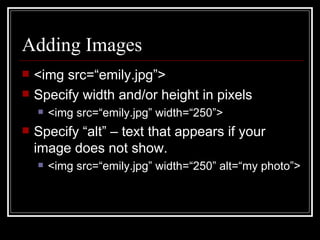
Adding Images <img src=“emily.jpg”> Specify width and/or height in pixels <img src=“emily.jpg” width=“250”> Specify “alt” – text that appears if your image does not show. <img src=“emily.jpg” width=“250” alt=“my photo”>
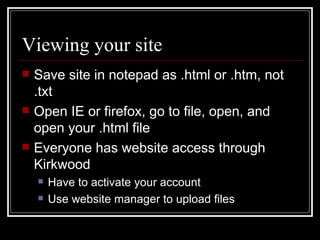
Viewing your site  Save site in notepad as .html or .htm, not .txt Open IE or firefox, go to file, open, and open your .html file Everyone has website access through Kirkwood Have to activate your account Use website manager to upload files
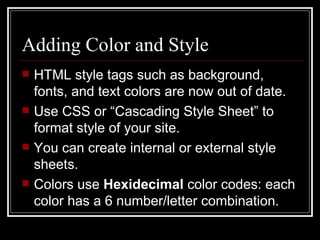
Adding Color and Style HTML style tags such as background, fonts, and text colors are now out of date. Use CSS or “Cascading Style Sheet” to format style of your site. You can create internal or external style sheets. Colors use  Hexidecimal  color codes: each color has a 6 number/letter combination.
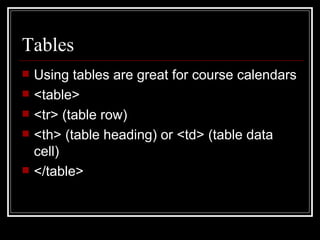
Tables Using tables are great for course calendars <table>  <tr> (table row) <th> (table heading) or <td> (table data cell) </table>
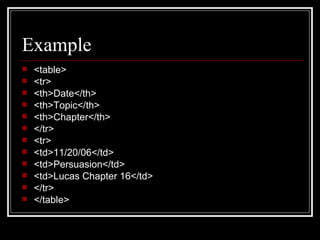
Example <table> <tr> <th>Date</th> <th>Topic</th> <th>Chapter</th> </tr> <tr> <td>11/20/06</td> <td>Persuasion</td> <td>Lucas Chapter 16</td> </tr> </table>
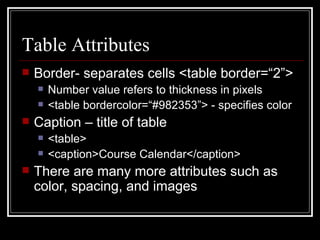
Table Attributes Border- separates cells <table border=“2”> Number value refers to thickness in pixels <table bordercolor=“#982353”> - specifies color Caption – title of table  <table> <caption>Course Calendar</caption> There are many more attributes such as color, spacing, and images
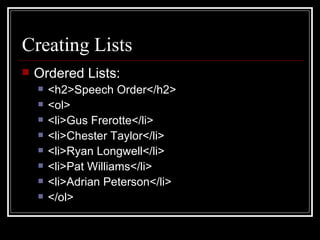
Creating Lists Ordered Lists: <h2>Speech Order</h2> <ol> <li>Gus Frerotte</li> <li>Chester Taylor</li> <li>Ryan Longwell</li> <li>Pat Williams</li> <li>Adrian Peterson</li> </ol>
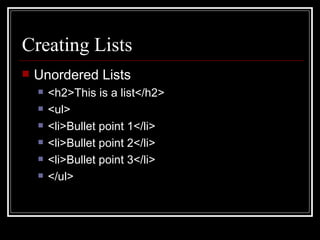
Creating Lists Unordered Lists <h2>This is a list</h2> <ul> <li>Bullet point 1</li> <li>Bullet point 2</li> <li>Bullet point 3</li> </ul>

Html1

  • 1.
  • 2.
    Basic Guidelines HTML- Hyper Text Markup Language Language of web page design “ What you see is what you get” vs. learning the language in ANGEL Each code is called a “tag” Need: Notepad, Browser, Windows Explorer
  • 3.
    Basic Page FormatView “source of website” <html> <head> <title>menu</title> </head> <body> <p>Other Pages:</p> <p><a href=&quot;syllabi.html&quot; target=&quot;frame2&quot;>Syllabi</a></p> <p><a href=&quot;notes.html&quot; target=&quot;frame2&quot;>course notes</a></p> <p><a href=&quot;instructors.html&quot; target=&quot;frame2&quot;>About the instructors</a></p> <p><a href=&quot;links1.html&quot; target=&quot;frame2&quot;>Links to supplemental resources</a></p> <p><a href=&quot;main1.html&quot; target=&quot;frame2&quot;>Home</a></p> </body> </html>
  • 4.
    Making your firstwebpage <html> - signal language you are using <head> - signal the heading of the site <title>My first webpage</title> - this is what you see on the top left bar </head> - always end sections <body> - signals start of body <p> This is a paragraph</p> </body> </html>
  • 5.
    The body ofthe site <body > Adding text <p align=“center”> signals new paragraph </p> “ align” attribute aligns text: left, center, or right <br>Link break: starts new line <hr>Creates a horizontal line &nbsp- adds a space &quot;Adds Quotes&quot; <b> bold </b> (<strong>) <em> Italic </em>(<i>)
  • 6.
    Headings and Links<h1> Biggest </h1> <h2> Bigger </h2> <h3> Big </h3> Links: To a website <a href= http://www.google.com >Google</a> To email: <a href=“mailto: [email_address] ”> Email me!</a> To a file: <a href=“chapter16.ppt”>Chapter 16 Powerpoint</a>
  • 7.
    Adding Images <imgsrc=“emily.jpg”> Specify width and/or height in pixels <img src=“emily.jpg” width=“250”> Specify “alt” – text that appears if your image does not show. <img src=“emily.jpg” width=“250” alt=“my photo”>
  • 8.
    Viewing your site Save site in notepad as .html or .htm, not .txt Open IE or firefox, go to file, open, and open your .html file Everyone has website access through Kirkwood Have to activate your account Use website manager to upload files
  • 9.
    Adding Color andStyle HTML style tags such as background, fonts, and text colors are now out of date. Use CSS or “Cascading Style Sheet” to format style of your site. You can create internal or external style sheets. Colors use Hexidecimal color codes: each color has a 6 number/letter combination.
  • 10.
    Tables Using tablesare great for course calendars <table> <tr> (table row) <th> (table heading) or <td> (table data cell) </table>
  • 11.
    Example <table> <tr><th>Date</th> <th>Topic</th> <th>Chapter</th> </tr> <tr> <td>11/20/06</td> <td>Persuasion</td> <td>Lucas Chapter 16</td> </tr> </table>
  • 12.
    Table Attributes Border-separates cells <table border=“2”> Number value refers to thickness in pixels <table bordercolor=“#982353”> - specifies color Caption – title of table <table> <caption>Course Calendar</caption> There are many more attributes such as color, spacing, and images
  • 13.
    Creating Lists OrderedLists: <h2>Speech Order</h2> <ol> <li>Gus Frerotte</li> <li>Chester Taylor</li> <li>Ryan Longwell</li> <li>Pat Williams</li> <li>Adrian Peterson</li> </ol>
  • 14.
    Creating Lists UnorderedLists <h2>This is a list</h2> <ul> <li>Bullet point 1</li> <li>Bullet point 2</li> <li>Bullet point 3</li> </ul>