Using OS Building Height Attribute data
from Digimap in ArcGIS Pro
Guy McGarva
Ian Holmes
EDINA Geosupport
Contents
- What is Digimap?
- What are BHA data from Ordnance Survey?
- How can you access it through Digimap?
- What have we done to it?
- How can I use it in ArcGIS Pro?
- 3D visualisation in ArcGIS Pro
Who is EDINA?
delivers online services and
tools to UK Higher and
Further Education
Based at Supported by
“enhance the productivity of research,
learning and teaching in UK higher and
further education”
We aim to
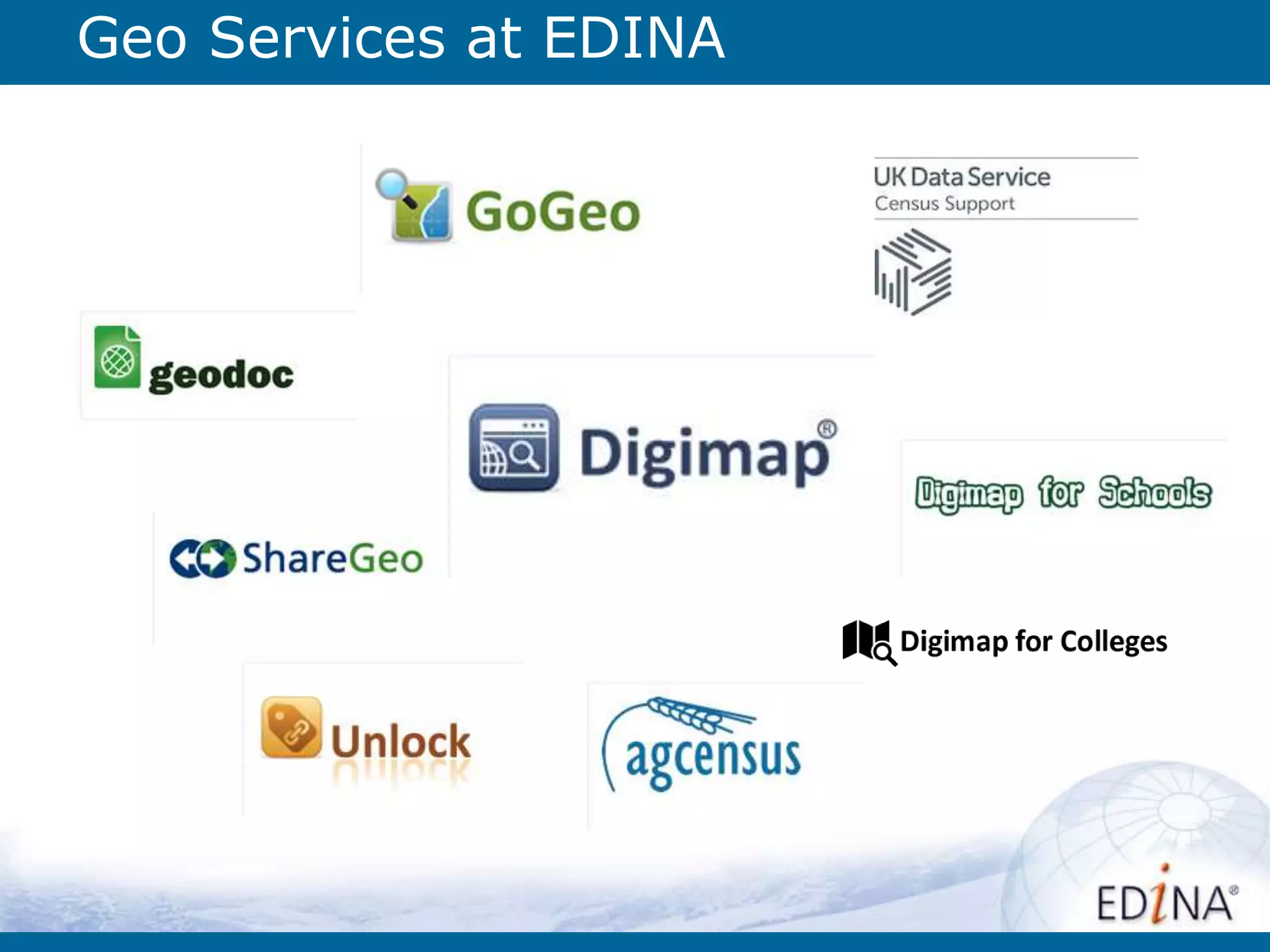
Geo Services at EDINA
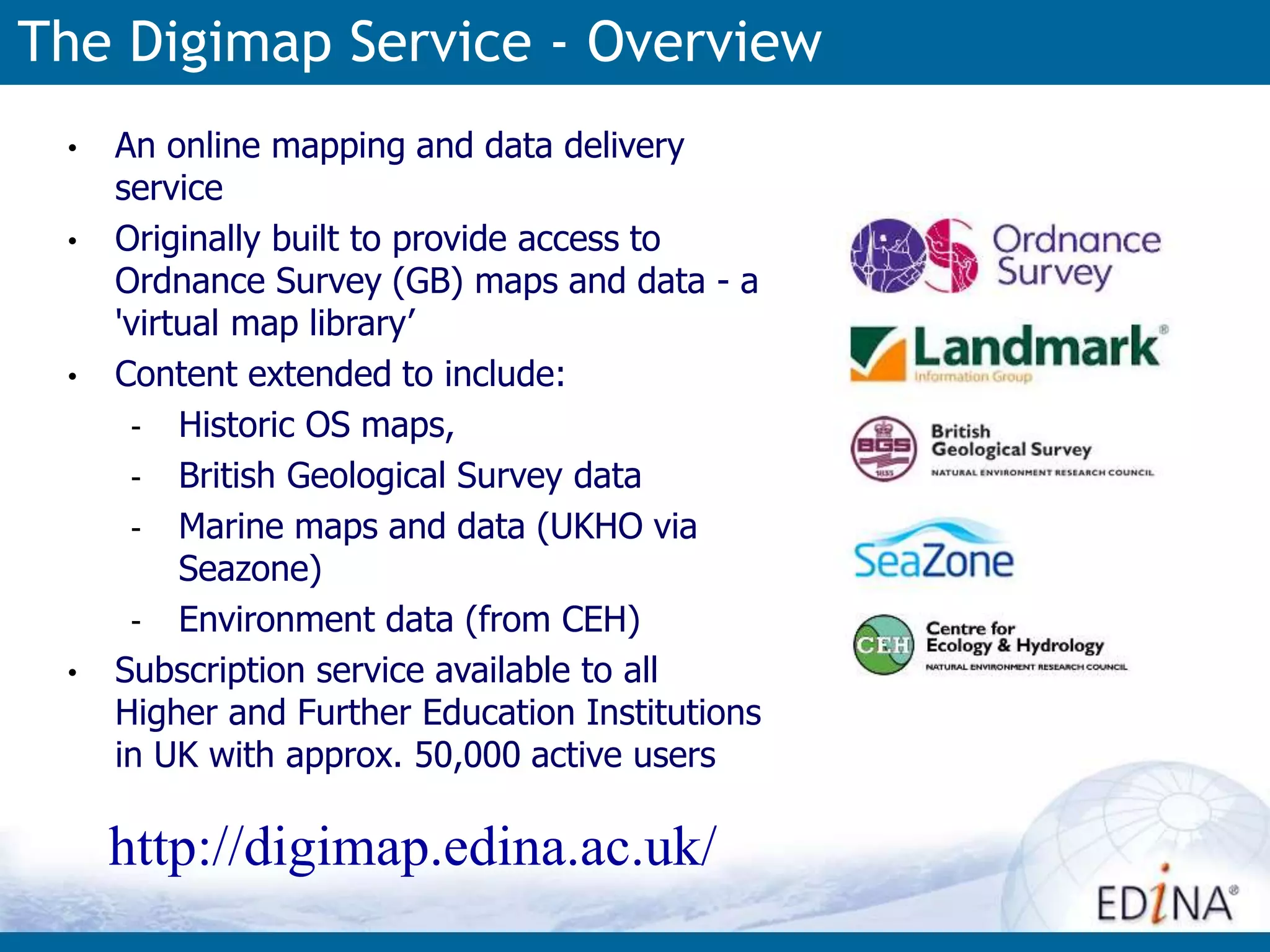
The Digimap Service - Overview
• An online mapping and data delivery
service
• Originally built to provide access to
Ordnance Survey (GB) maps and data - a
'virtual map library’
• Content extended to include:
- Historic OS maps,
- British Geological Survey data
- Marine maps and data (UKHO via
Seazone)
- Environment data (from CEH)
• Subscription service available to all
Higher and Further Education Institutions
in UK with approx. 50,000 active users
http://digimap.edina.ac.uk/
Digimap – Accessing the data
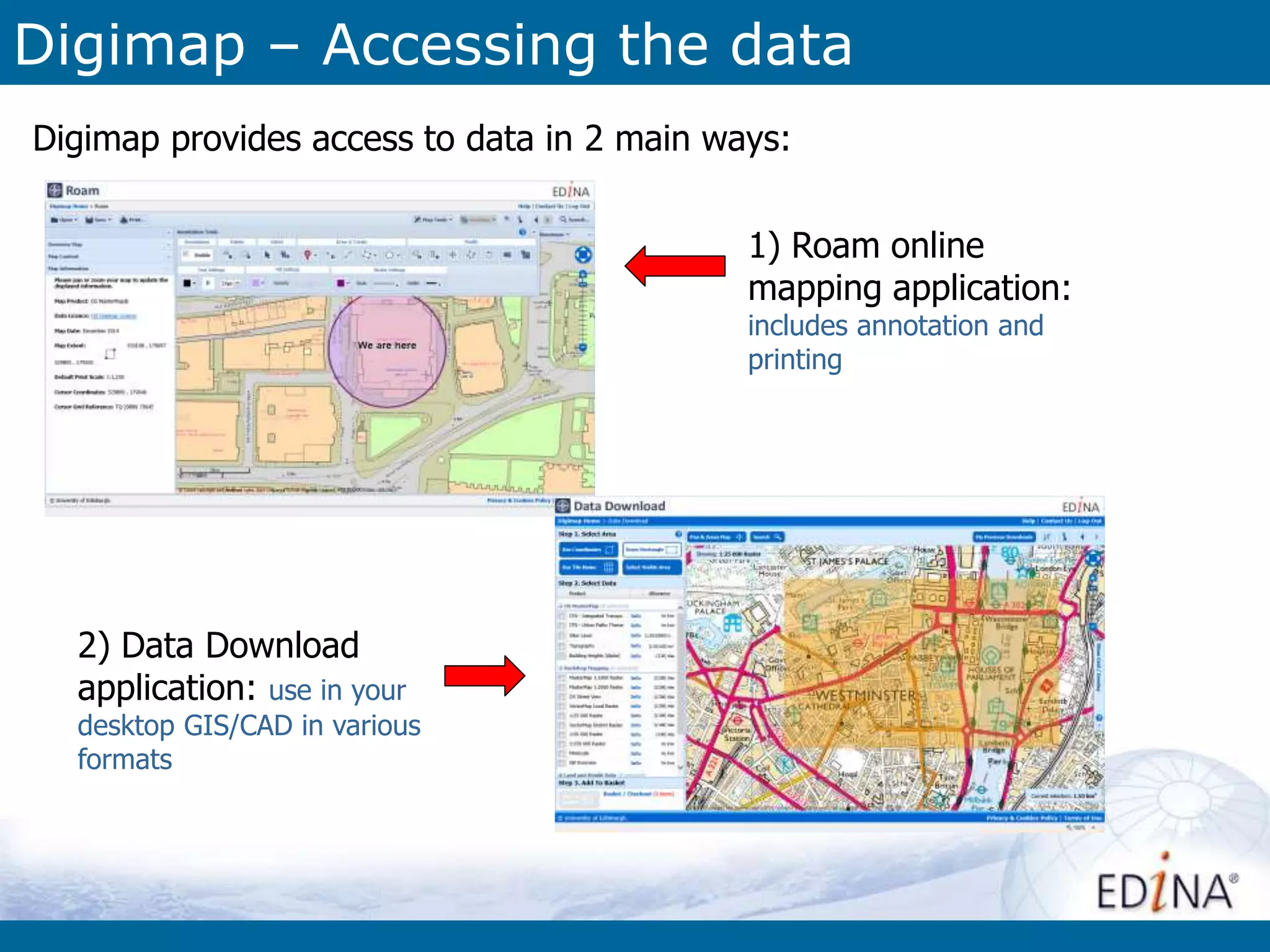
Digimap provides access to data in 2 main ways:
1) Roam online
mapping application:
includes annotation and
printing
2) Data Download
application: use in your
desktop GIS/CAD in various
formats
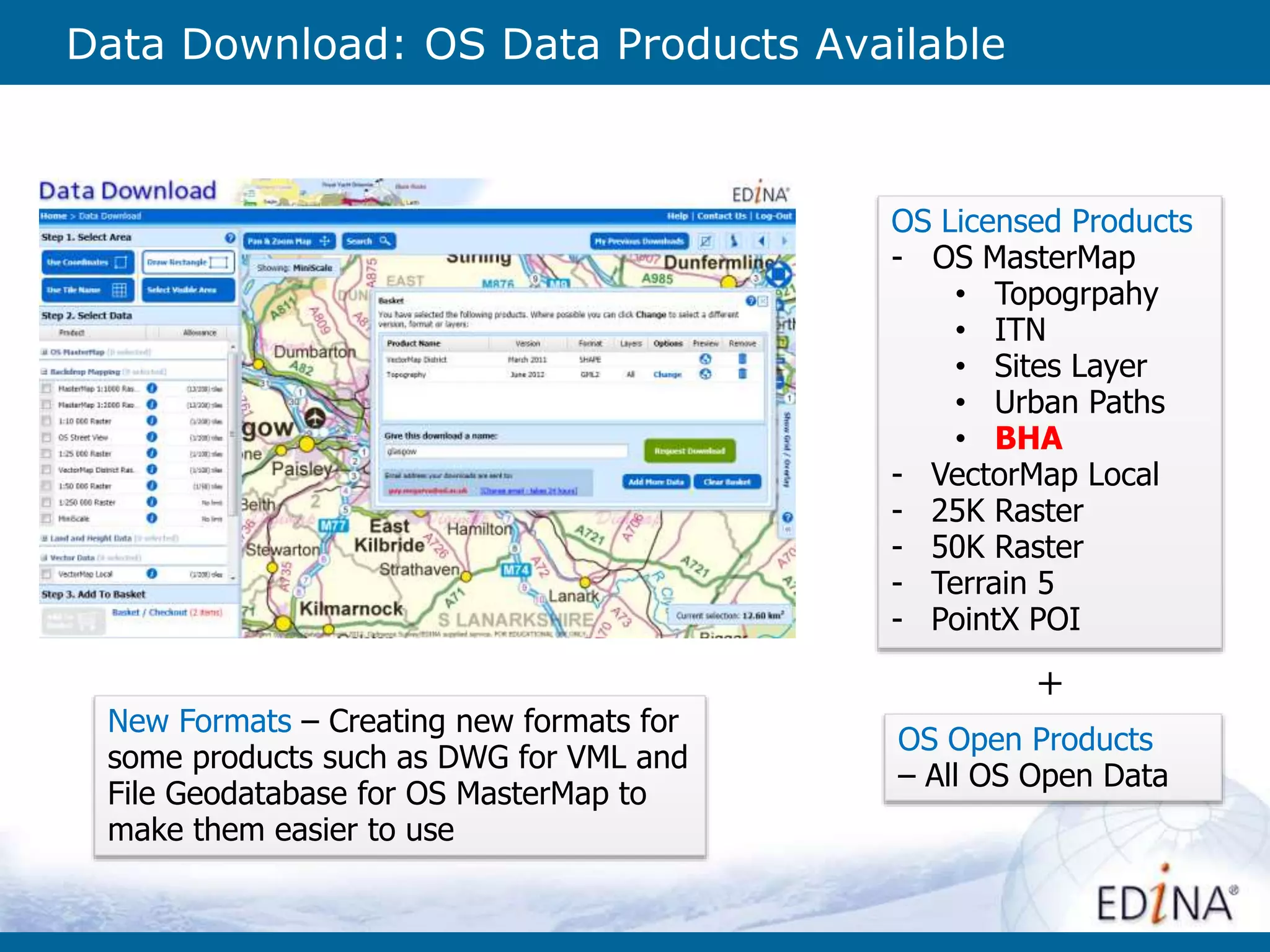
Data Download: OS Data Products Available
OS Licensed Products
- OS MasterMap
• Topogrpahy
• ITN
• Sites Layer
• Urban Paths
• BHA
- VectorMap Local
- 25K Raster
- 50K Raster
- Terrain 5
- PointX POI
OS Open Products
– All OS Open Data
New Formats – Creating new formats for
some products such as DWG for VML and
File Geodatabase for OS MasterMap to
make them easier to use
+
What are BHA?
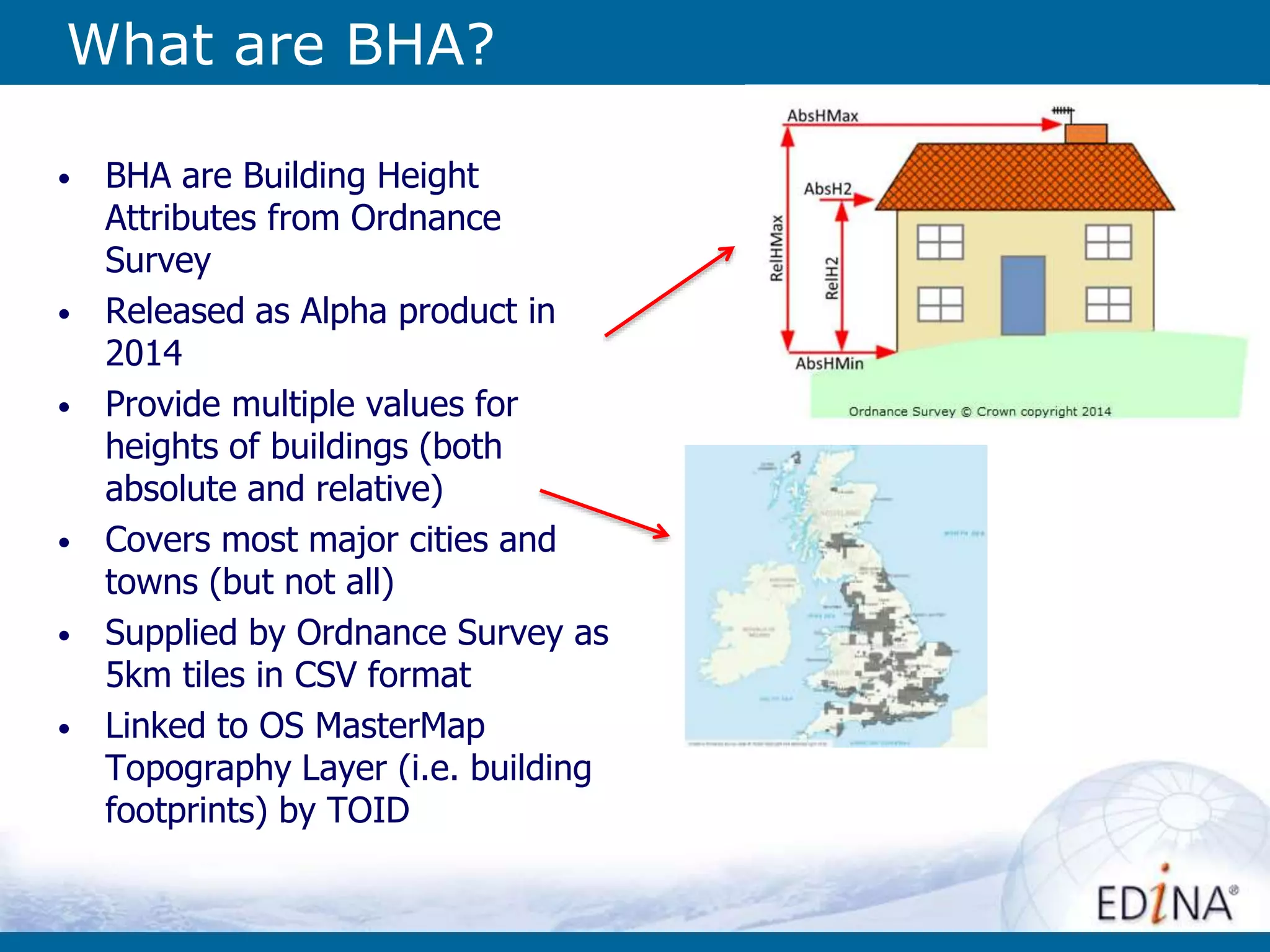
• BHA are Building Height
Attributes from Ordnance
Survey
• Released as Alpha product in
2014
• Provide multiple values for
heights of buildings (both
absolute and relative)
• Covers most major cities and
towns (but not all)
• Supplied by Ordnance Survey as
5km tiles in CSV format
• Linked to OS MasterMap
Topography Layer (i.e. building
footprints) by TOID
Using BHA CSV and OS MasterMap
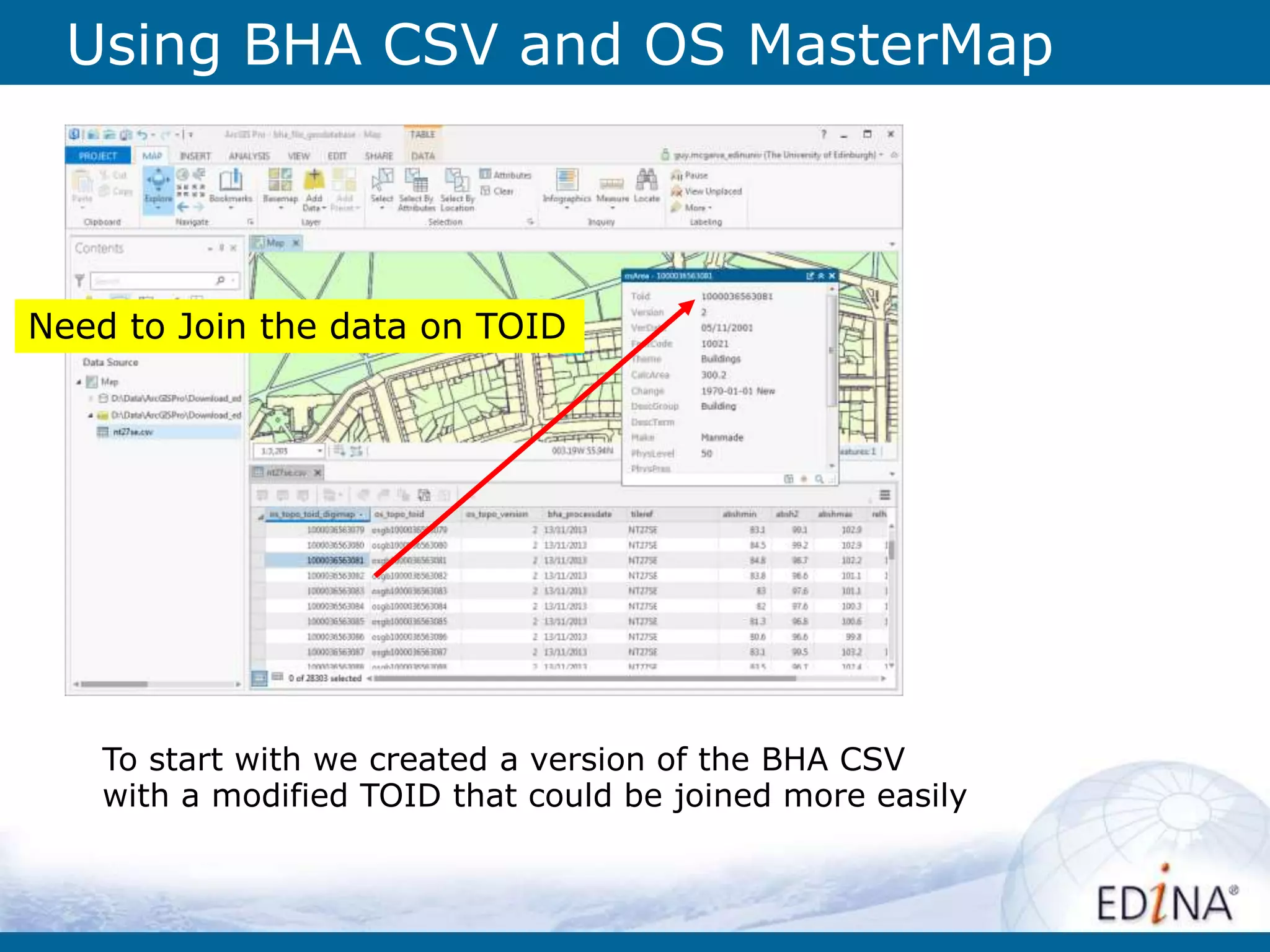
To start with we created a version of the BHA CSV
with a modified TOID that could be joined more easily
Need to Join the data on TOID
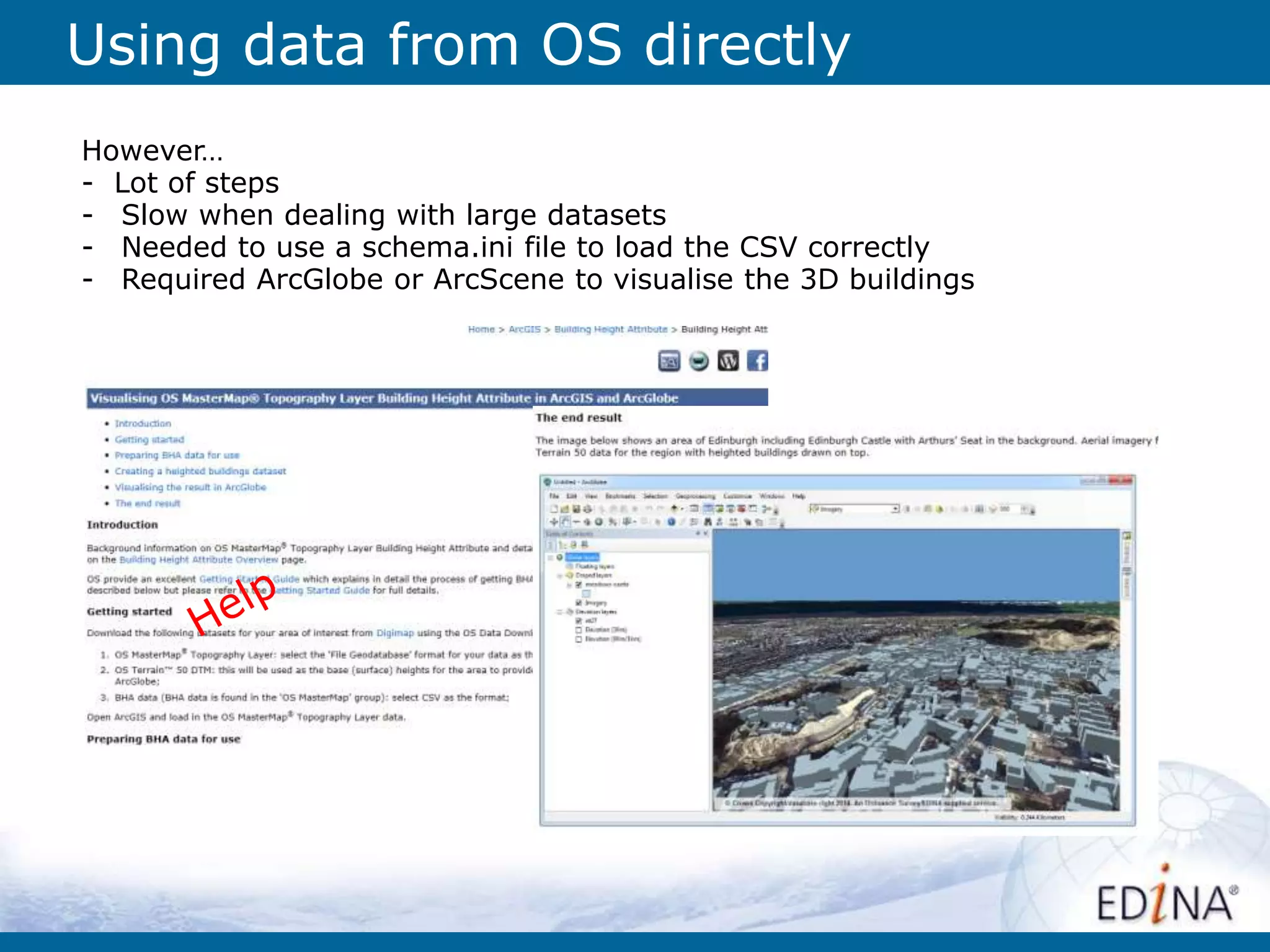
Using data from OS directly
However…
- Lot of steps
- Slow when dealing with large datasets
- Needed to use a schema.ini file to load the CSV correctly
- Required ArcGlobe or ArcScene to visualise the 3D buildings
So what have we done?
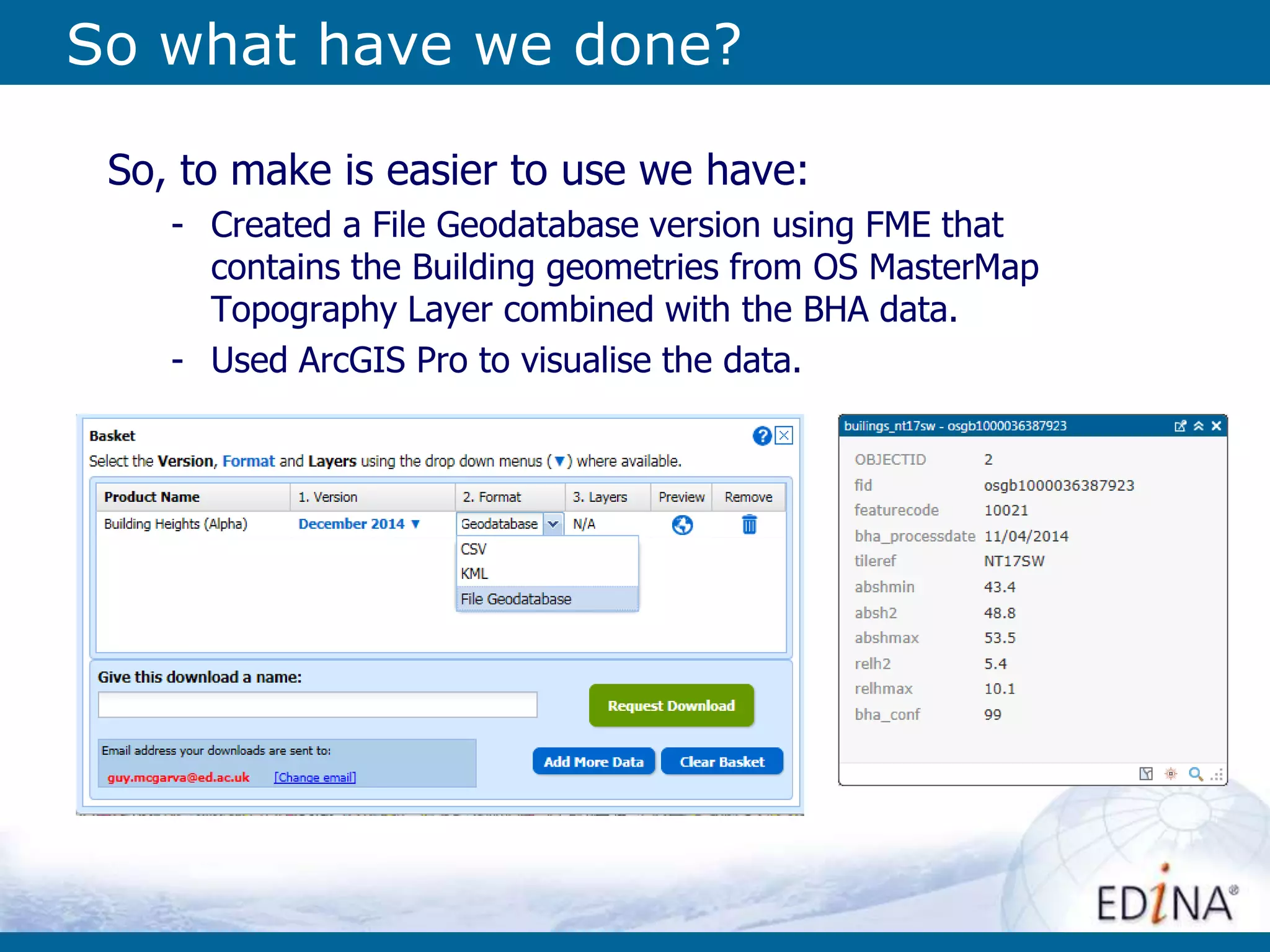
So, to make is easier to use we have:
- Created a File Geodatabase version using FME that
contains the Building geometries from OS MasterMap
Topography Layer combined with the BHA data.
- Used ArcGIS Pro to visualise the data.
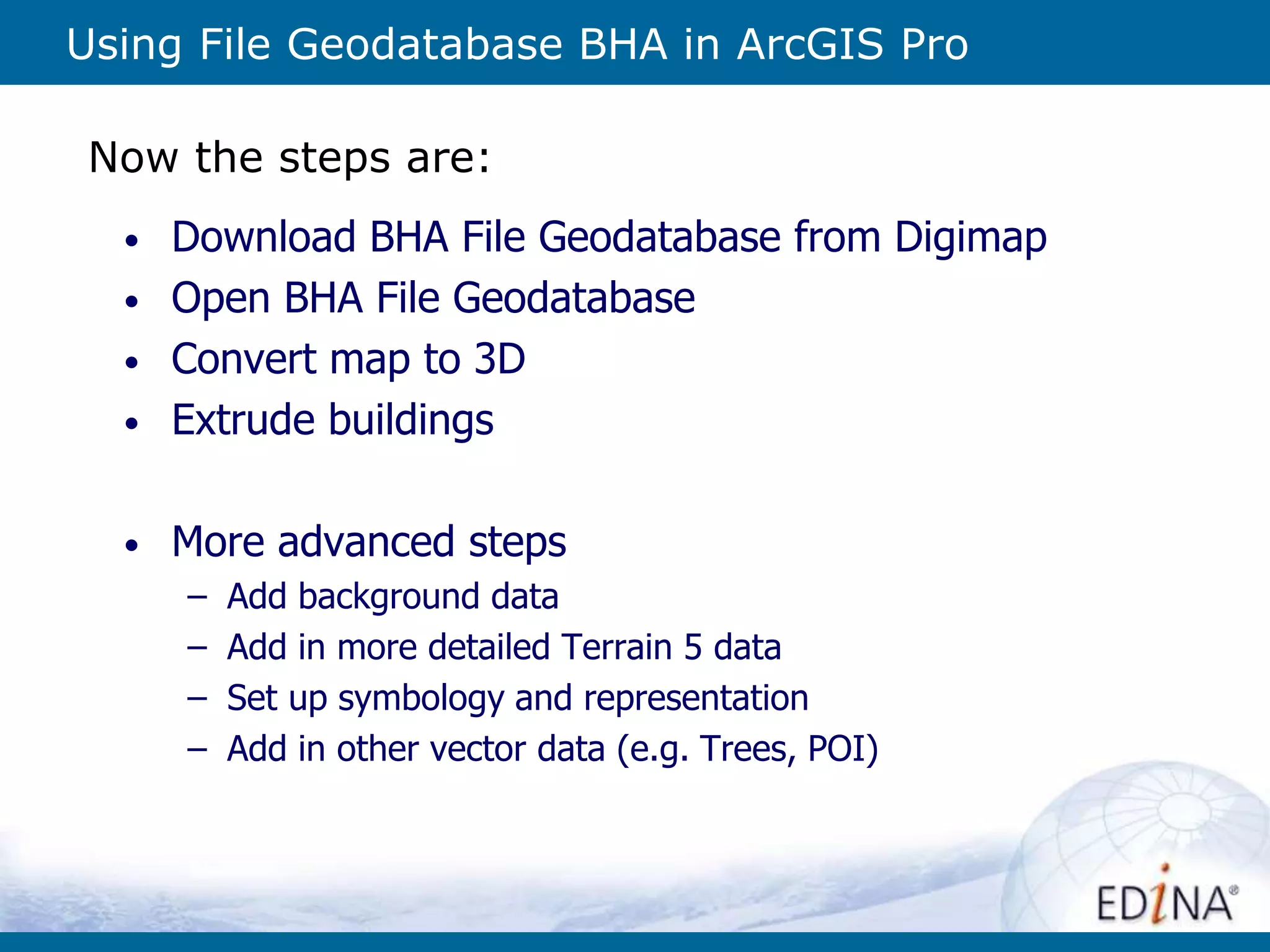
Using File Geodatabase BHA in ArcGIS Pro
• Download BHA File Geodatabase from Digimap
• Open BHA File Geodatabase
• Convert map to 3D
• Extrude buildings
• More advanced steps
– Add background data
– Add in more detailed Terrain 5 data
– Set up symbology and representation
– Add in other vector data (e.g. Trees, POI)
Now the steps are:
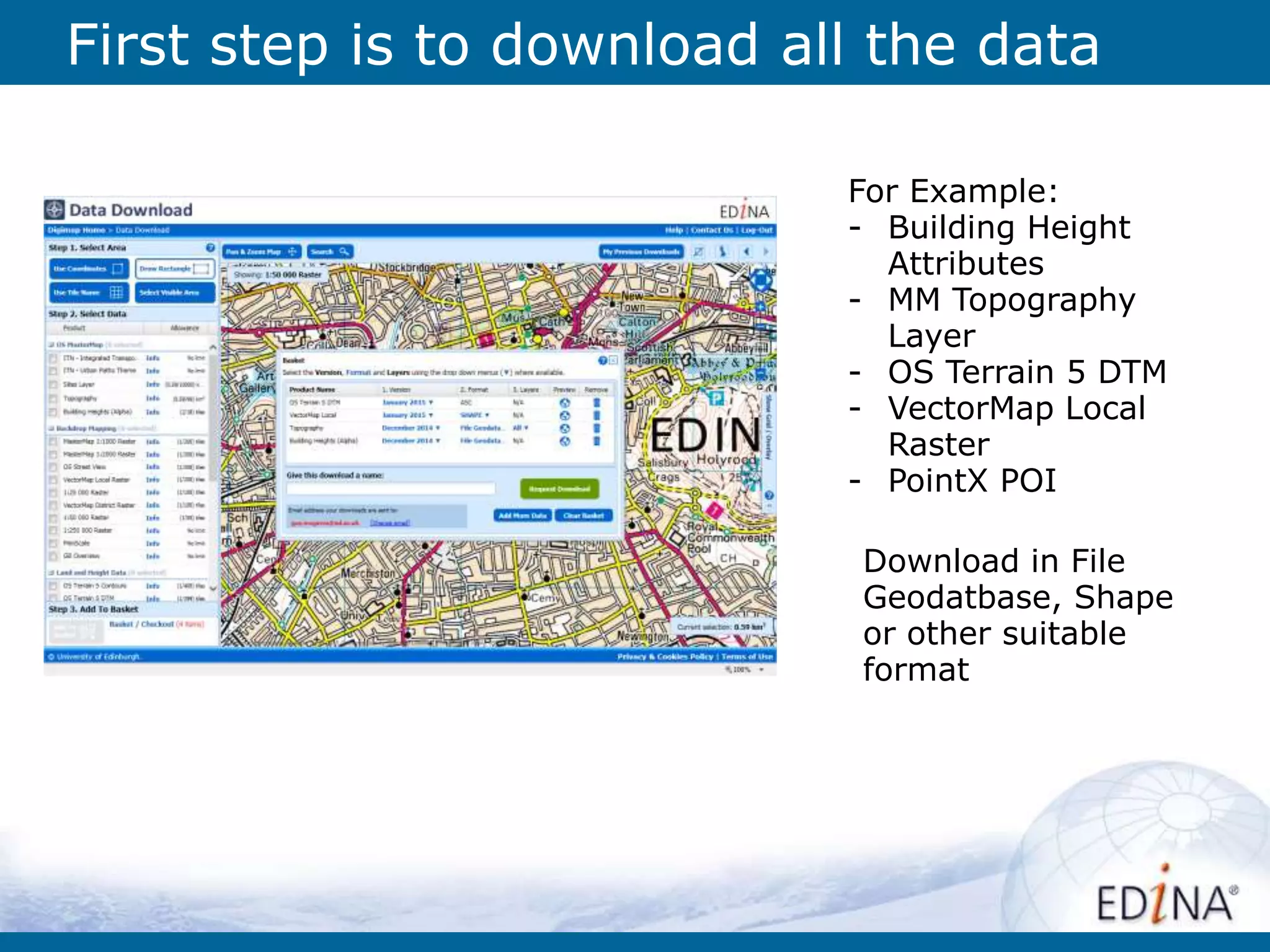
First step is to download all the data
For Example:
- Building Height
Attributes
- MM Topography
Layer
- OS Terrain 5 DTM
- VectorMap Local
Raster
- PointX POI
Download in File
Geodatbase, Shape
or other suitable
format
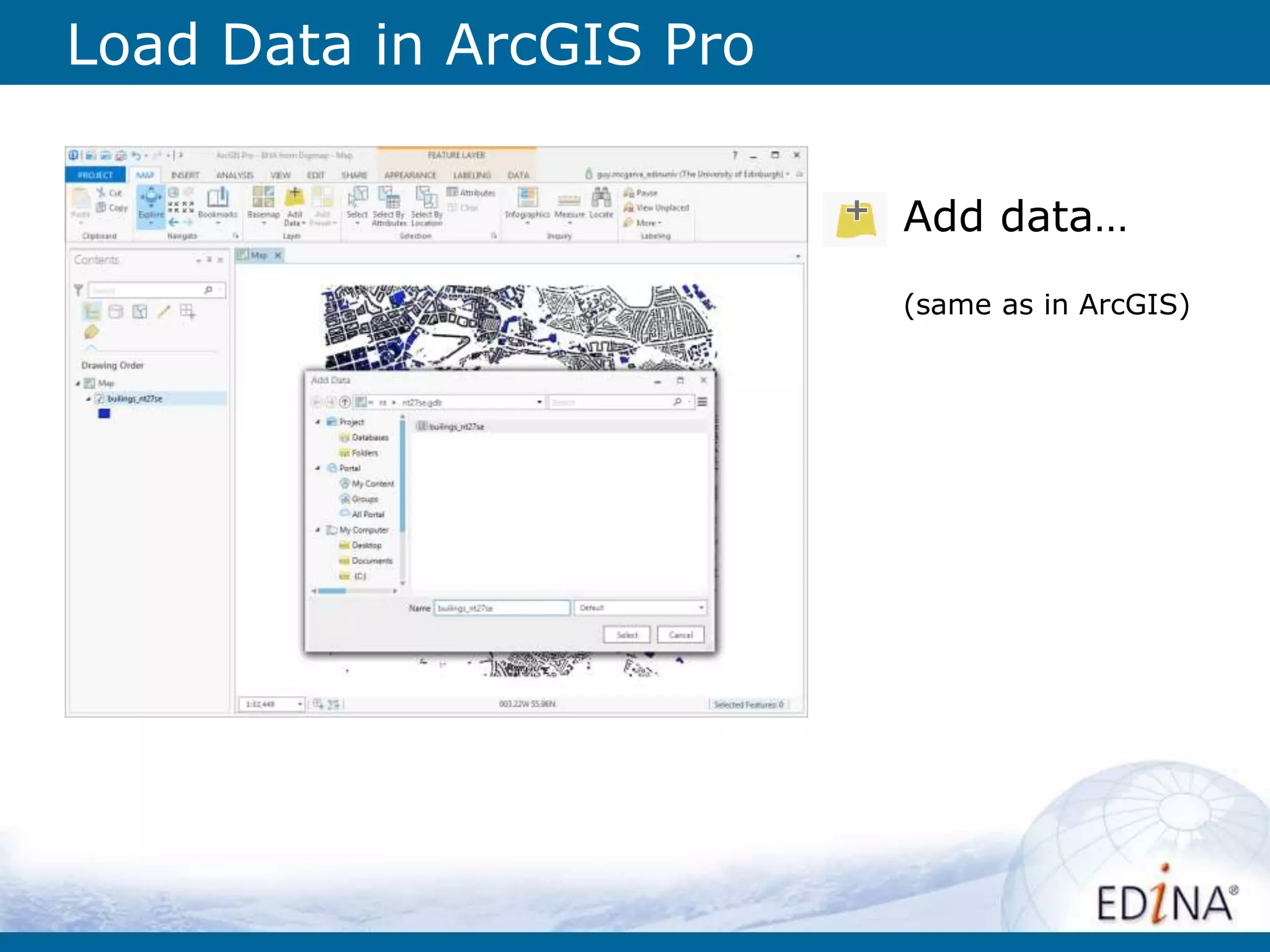
Load Data in ArcGIS Pro
Add data…
(same as in ArcGIS)
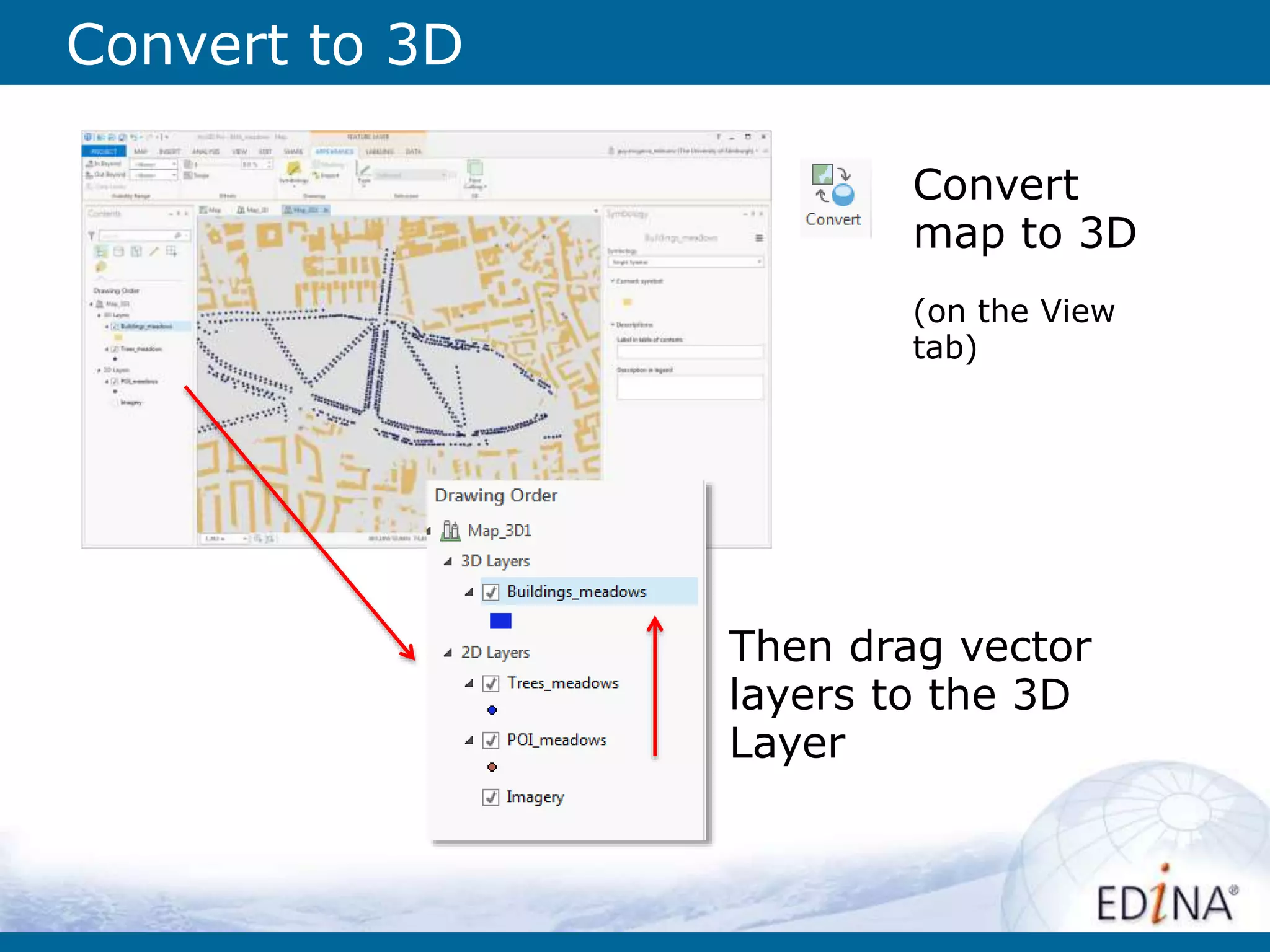
Convert to 3D
Convert
map to 3D
(on the View
tab)
Then drag vector
layers to the 3D
Layer
Extrude to 3D
1. Set the Ground
Extrude the building to Max Height using attribute [relhmax]
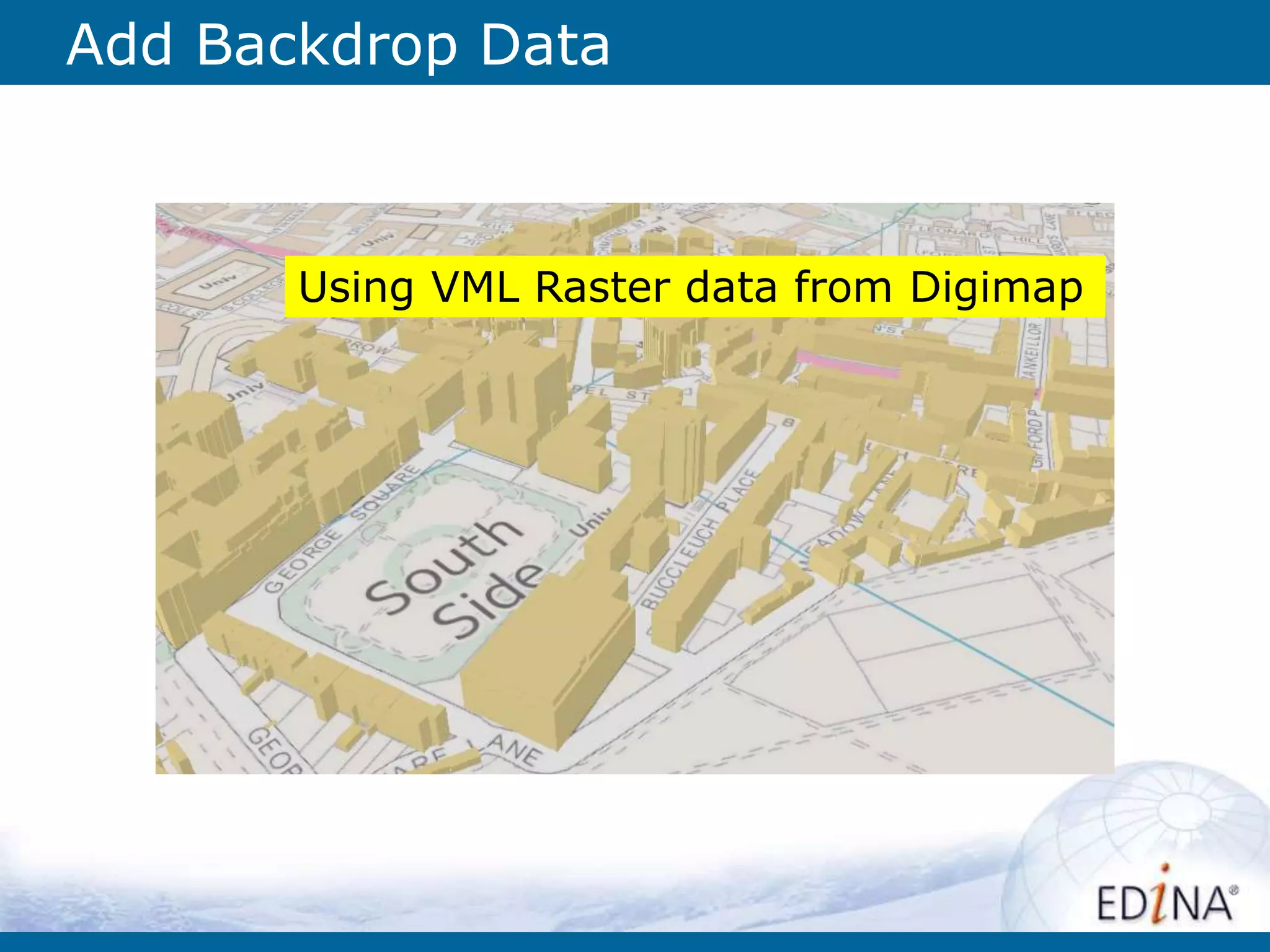
Add Backdrop Data
Using VML Raster data from Digimap
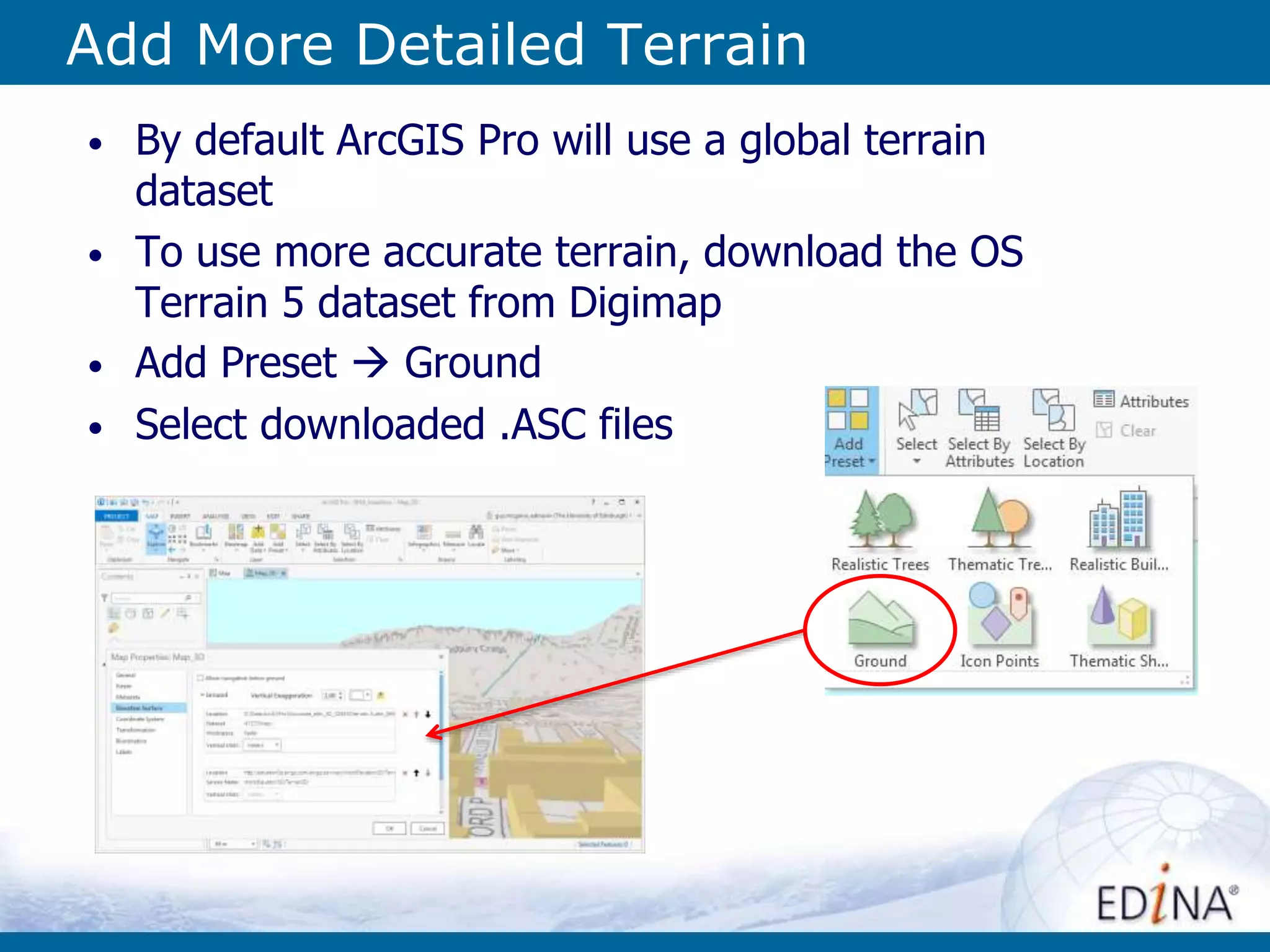
Add More Detailed Terrain
• By default ArcGIS Pro will use a global terrain
dataset
• To use more accurate terrain, download the OS
Terrain 5 dataset from Digimap
• Add Preset  Ground
• Select downloaded .ASC files
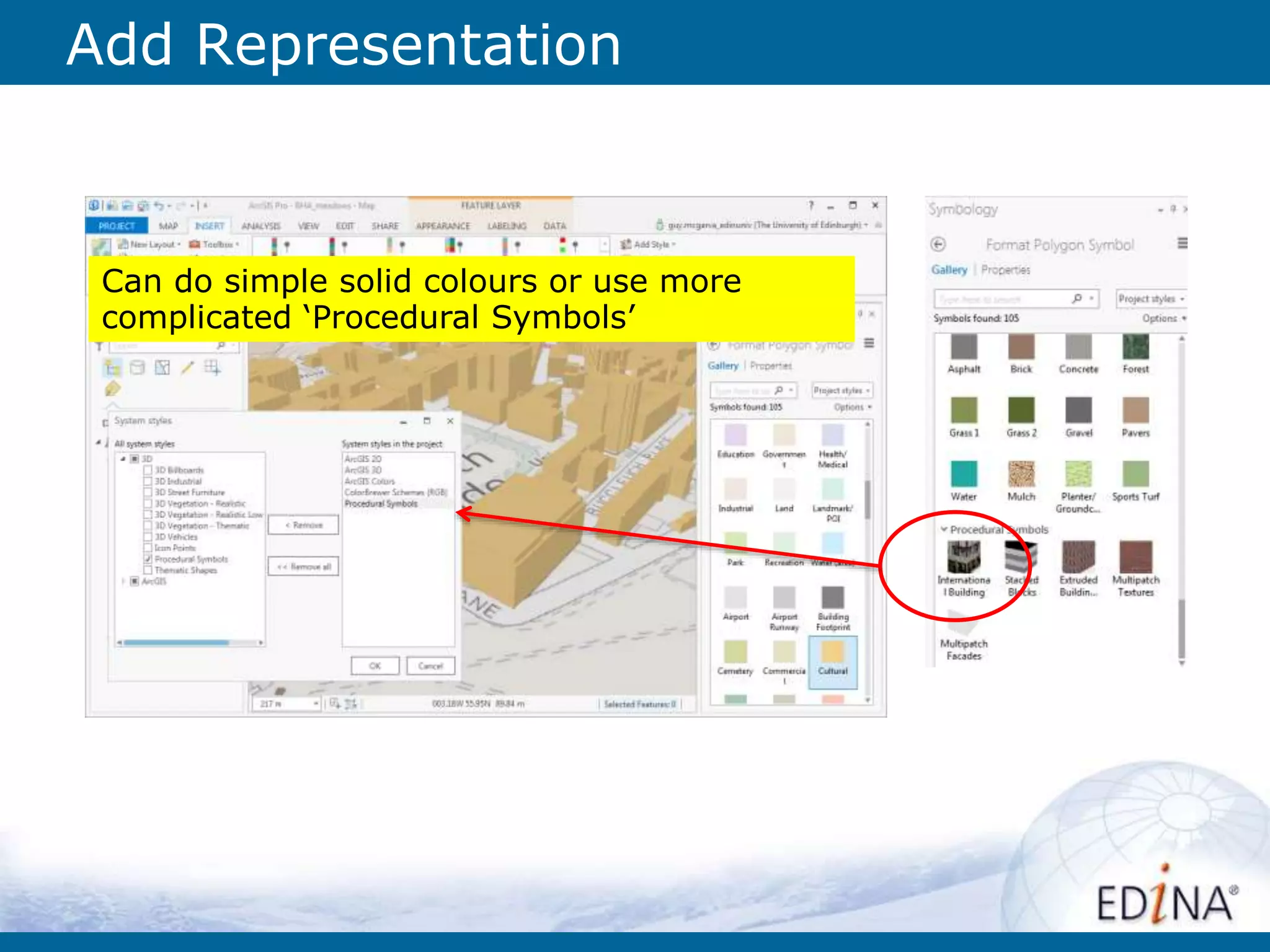
Add Representation
Can do simple solid colours or use more
complicated ‘Procedural Symbols’
Use Procedural Rules
Can either use ones that come with ArcGIS Pro
or import ones from City Engine
• Using built in
“International
Building”
Procedural
Rule
• Set
[TotalHeight]
to be
calculated
from the
[relhmax]
attribute
• Building
type set to
“Office”
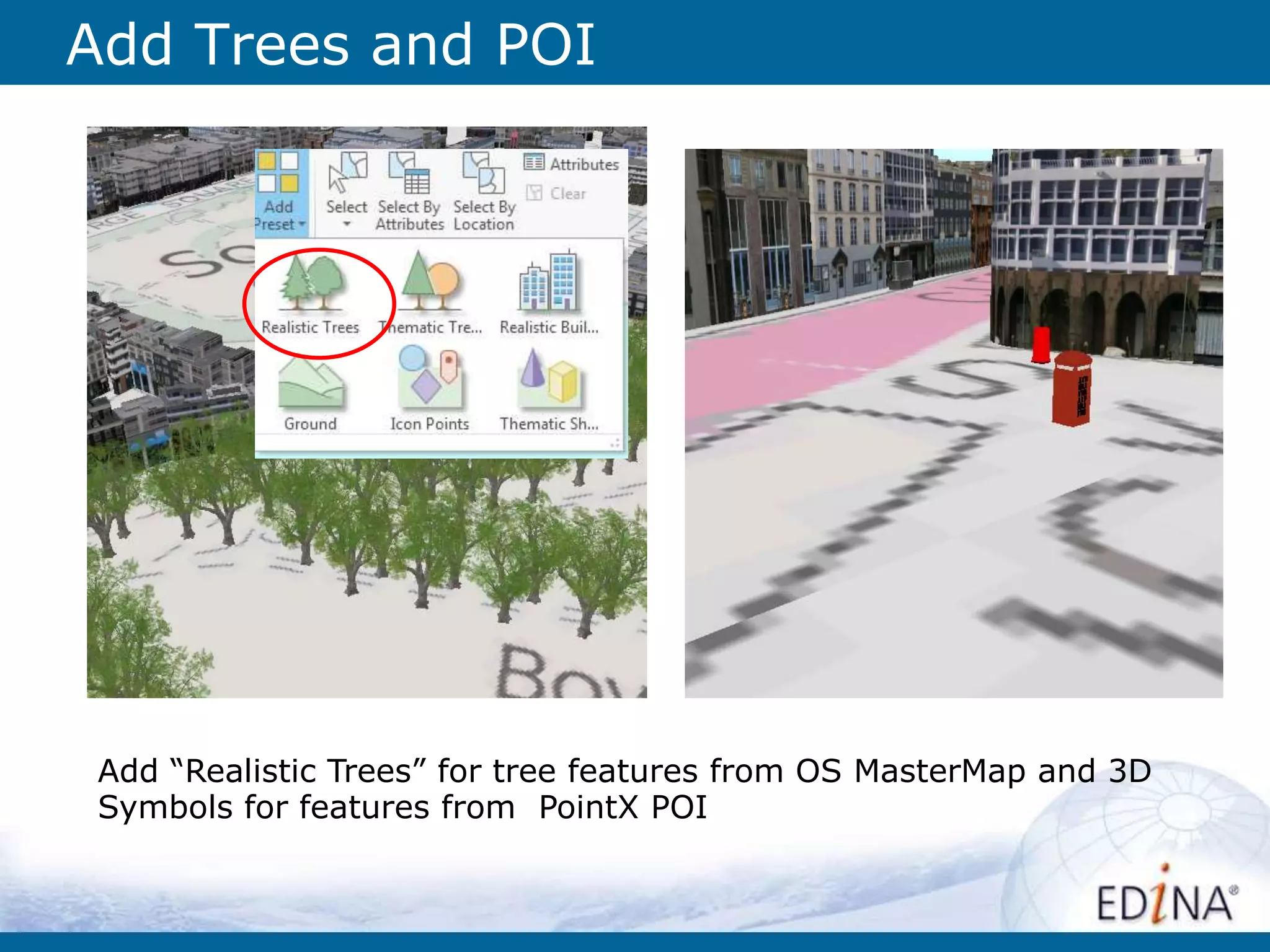
Add Trees and POI
Add “Realistic Trees” for tree features from OS MasterMap and 3D
Symbols for features from PointX POI
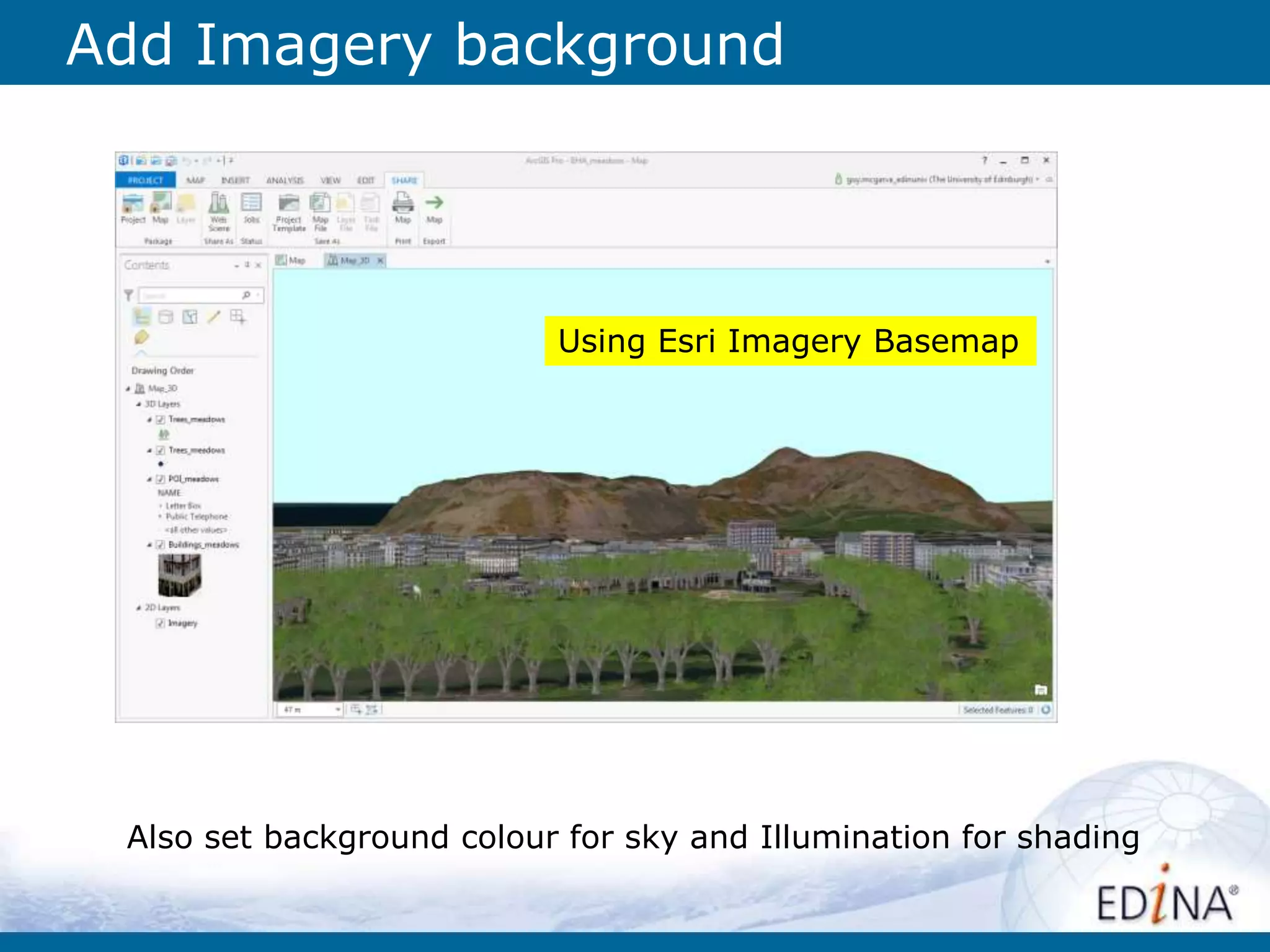
Add Imagery background
Using Esri Imagery Basemap
Also set background colour for sky and Illumination for shading
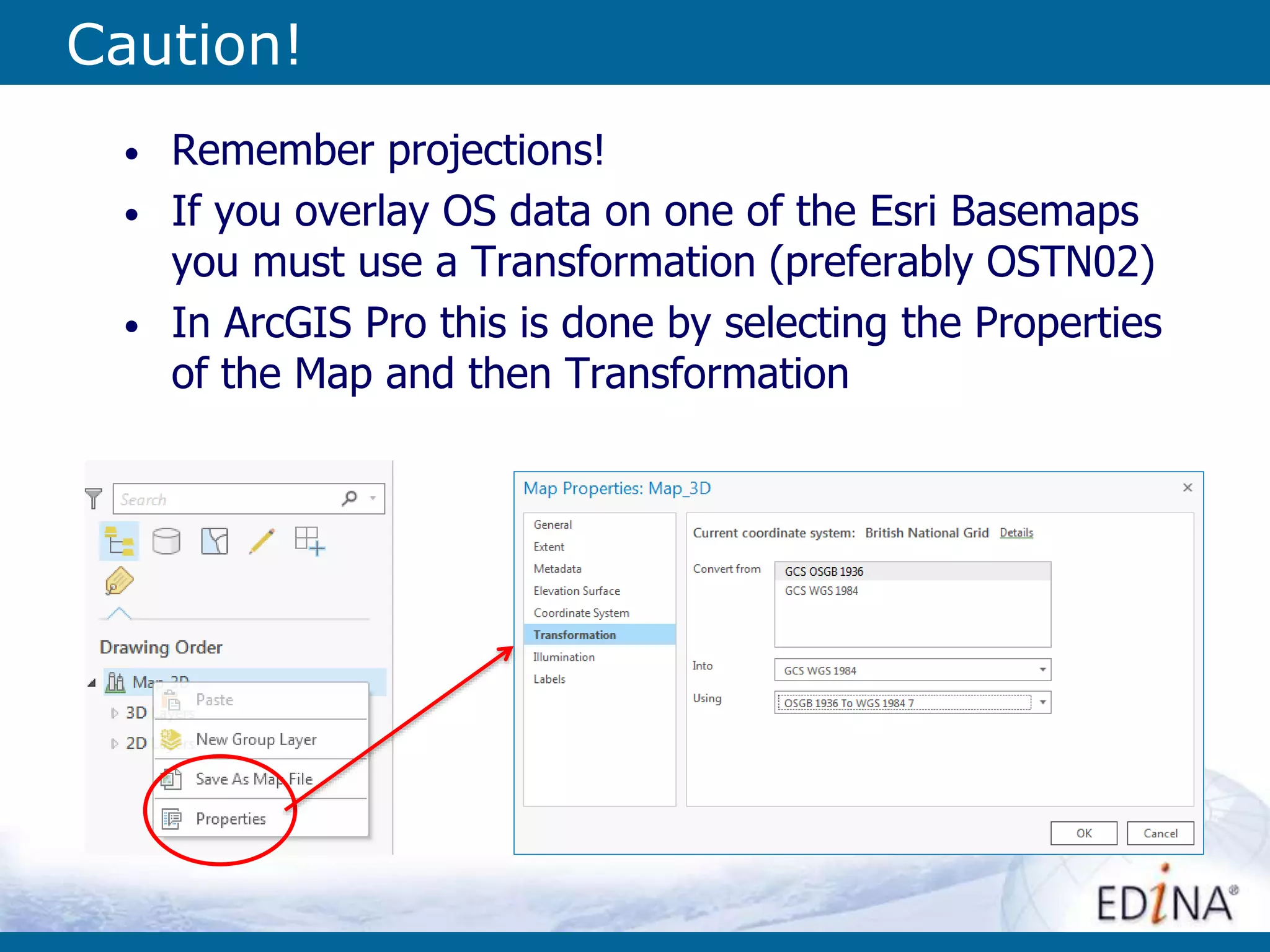
Caution!
• Remember projections!
• If you overlay OS data on one of the Esri Basemaps
you must use a Transformation (preferably OSTN02)
• In ArcGIS Pro this is done by selecting the Properties
of the Map and then Transformation
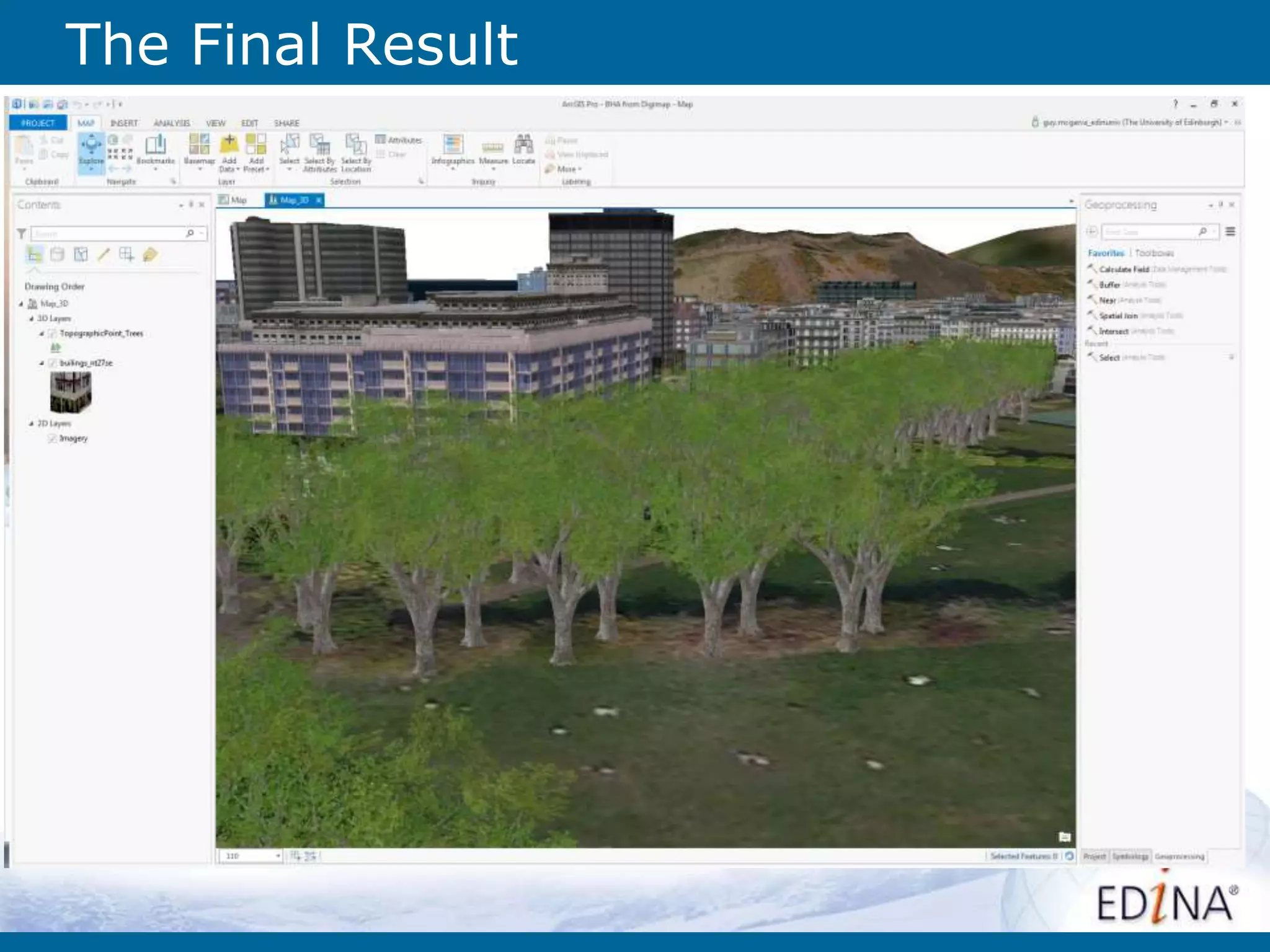
The Final Result
Support
If you need any help with Digimap or using data
from Digimap get in touch with EDINA Geosupport.
on the stand outside
edina@ed.ac.uk
0131 650 3302
EDINA Digimap

Using OS Building Height Attribute data from Digimap in ArcGIS Pro

  • 1.
    Using OS BuildingHeight Attribute data from Digimap in ArcGIS Pro Guy McGarva Ian Holmes EDINA Geosupport
  • 2.
    Contents - What isDigimap? - What are BHA data from Ordnance Survey? - How can you access it through Digimap? - What have we done to it? - How can I use it in ArcGIS Pro? - 3D visualisation in ArcGIS Pro
  • 3.
    Who is EDINA? deliversonline services and tools to UK Higher and Further Education Based at Supported by “enhance the productivity of research, learning and teaching in UK higher and further education” We aim to
  • 4.
  • 5.
    The Digimap Service- Overview • An online mapping and data delivery service • Originally built to provide access to Ordnance Survey (GB) maps and data - a 'virtual map library’ • Content extended to include: - Historic OS maps, - British Geological Survey data - Marine maps and data (UKHO via Seazone) - Environment data (from CEH) • Subscription service available to all Higher and Further Education Institutions in UK with approx. 50,000 active users http://digimap.edina.ac.uk/
  • 6.
    Digimap – Accessingthe data Digimap provides access to data in 2 main ways: 1) Roam online mapping application: includes annotation and printing 2) Data Download application: use in your desktop GIS/CAD in various formats
  • 7.
    Data Download: OSData Products Available OS Licensed Products - OS MasterMap • Topogrpahy • ITN • Sites Layer • Urban Paths • BHA - VectorMap Local - 25K Raster - 50K Raster - Terrain 5 - PointX POI OS Open Products – All OS Open Data New Formats – Creating new formats for some products such as DWG for VML and File Geodatabase for OS MasterMap to make them easier to use +
  • 8.
    What are BHA? •BHA are Building Height Attributes from Ordnance Survey • Released as Alpha product in 2014 • Provide multiple values for heights of buildings (both absolute and relative) • Covers most major cities and towns (but not all) • Supplied by Ordnance Survey as 5km tiles in CSV format • Linked to OS MasterMap Topography Layer (i.e. building footprints) by TOID
  • 9.
    Using BHA CSVand OS MasterMap To start with we created a version of the BHA CSV with a modified TOID that could be joined more easily Need to Join the data on TOID
  • 10.
    Using data fromOS directly However… - Lot of steps - Slow when dealing with large datasets - Needed to use a schema.ini file to load the CSV correctly - Required ArcGlobe or ArcScene to visualise the 3D buildings
  • 11.
    So what havewe done? So, to make is easier to use we have: - Created a File Geodatabase version using FME that contains the Building geometries from OS MasterMap Topography Layer combined with the BHA data. - Used ArcGIS Pro to visualise the data.
  • 12.
    Using File GeodatabaseBHA in ArcGIS Pro • Download BHA File Geodatabase from Digimap • Open BHA File Geodatabase • Convert map to 3D • Extrude buildings • More advanced steps – Add background data – Add in more detailed Terrain 5 data – Set up symbology and representation – Add in other vector data (e.g. Trees, POI) Now the steps are:
  • 13.
    First step isto download all the data For Example: - Building Height Attributes - MM Topography Layer - OS Terrain 5 DTM - VectorMap Local Raster - PointX POI Download in File Geodatbase, Shape or other suitable format
  • 14.
    Load Data inArcGIS Pro Add data… (same as in ArcGIS)
  • 15.
    Convert to 3D Convert mapto 3D (on the View tab) Then drag vector layers to the 3D Layer
  • 16.
    Extrude to 3D 1.Set the Ground Extrude the building to Max Height using attribute [relhmax]
  • 17.
    Add Backdrop Data UsingVML Raster data from Digimap
  • 18.
    Add More DetailedTerrain • By default ArcGIS Pro will use a global terrain dataset • To use more accurate terrain, download the OS Terrain 5 dataset from Digimap • Add Preset  Ground • Select downloaded .ASC files
  • 19.
    Add Representation Can dosimple solid colours or use more complicated ‘Procedural Symbols’
  • 20.
    Use Procedural Rules Caneither use ones that come with ArcGIS Pro or import ones from City Engine • Using built in “International Building” Procedural Rule • Set [TotalHeight] to be calculated from the [relhmax] attribute • Building type set to “Office”
  • 21.
    Add Trees andPOI Add “Realistic Trees” for tree features from OS MasterMap and 3D Symbols for features from PointX POI
  • 22.
    Add Imagery background UsingEsri Imagery Basemap Also set background colour for sky and Illumination for shading
  • 23.
    Caution! • Remember projections! •If you overlay OS data on one of the Esri Basemaps you must use a Transformation (preferably OSTN02) • In ArcGIS Pro this is done by selecting the Properties of the Map and then Transformation
  • 24.
  • 25.
    Support If you needany help with Digimap or using data from Digimap get in touch with EDINA Geosupport. on the stand outside edina@ed.ac.uk 0131 650 3302 EDINA Digimap

Editor's Notes

  • #4 A bit about who EDINA are
  • #5 Some of the geo services we run
  • #7 How to access data through Digimap. We will concentrate of Data Download here.
  • #8 Data Download lets you select an area and product to download and for some products we have created alternative formats that makes them easier to use in GIS.
  • #9 Definition of BHA and a hint at the problems using it in ArcGIS in its original format.
  • #10 Joining the data in ArcGIS Pro – easy but the result is very slow when dealing with large areas.
  • #11 The problems with using the raw data from OS
  • #12 The features now have the height attributes on them
  • #23 We’l do a demo or have some pre-prepared screen shots of the data in ArcGIS Pro
  • #24 A note about projections