Steps of map design by ArcGIS program
- Arcgis introduction
-High resolution from Google earth
-Rectify
-Digitizing
-Map design
Brief Overview of ArcGIS
ArcGIS is a software program, used to create, display and analyze geospatial
data. ArcGIS consists of three components: ArcCatalog, ArcMap and
ArcToolbox. ArcCatalog is used for browsing for maps and spatial data,
exploring spatial data, viewing and creating metadata, and managing spatial
data. ArcMap is used for visualizing spatial data, performing spatial
analysis, and creating maps to show the results of your work. ArcToolbox is
an interface for accessing the data conversion and analysis function that
come with ArcGIS. ArcGIS comes in three variants: ArcView, ArcEditor, or
ArcInfo, which are the low end, middle and fully configured versions of the
software. Any of these versions can be used for this exercise
This exercise introduces you to ArcMap and ArcCatalog. You use these
applications to create a map. The relationship between ArcGIS and MS
Word and Excel is demonstrated so that you can create graphs in Excel,
maps in ArcGIS and place the result in a Word file as a report for this
homework. You use ArcCatalog to create a new personal geodatabase and
import shapefiles to a feature dataset.
Data Requirements
To carry out this exercise, we need to a following programs:
Google earth
Snipping tool
Autostetsh program
Arcgis program
-Get High Resolution Images from Google Earth:
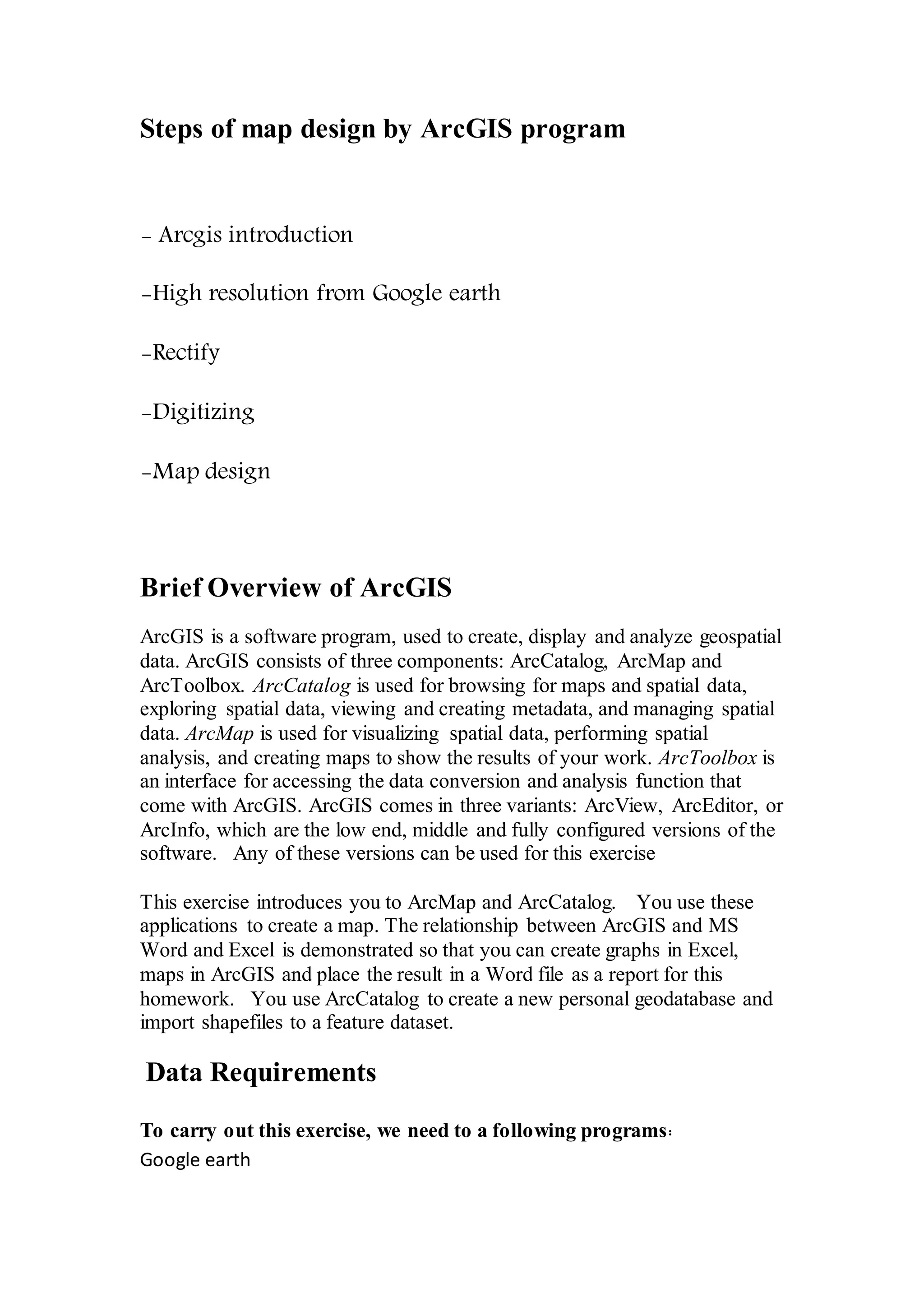
I’ve drawn a reed rectangle outlining the general area I want to capture,
which is shown below. This will serve as a guide in lining up our view. It’s
not absolutely necessary, but it helps
This next step involves saving the view fromEarth. Figure out the
resolution of your screen, and divide that by the total resolution of the
desired image, to determine how many separate shots you need to take,
and then merge them together
Now zoom in until the top of the left column fills the screen, as you can
see below
You now need to move the view over to the down to capture the next
column. Make sure there is some overlap when you move the view around
or else there will be no reference to line up the images. In the image below
After that row has been exported as images (it actually took me 6 shots to
get the whole width)
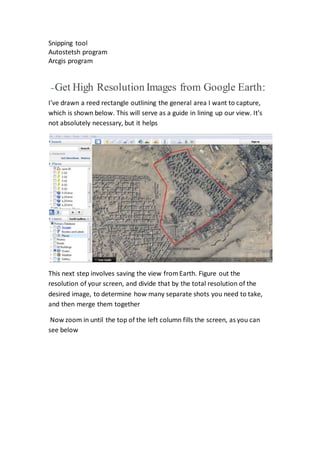
This step is where we merge the photos together by Autostitch as you can
see below
-RECTIFY
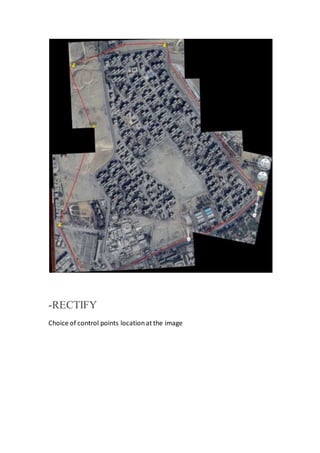
Choice of control points locationat the image
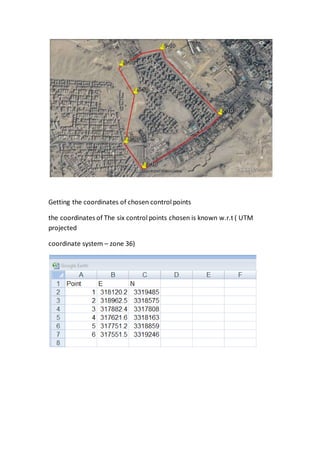
Getting the coordinates of chosen control points
the coordinates of The six control points chosen is known w.r.t ( UTM
projected
coordinate system – zone 36)
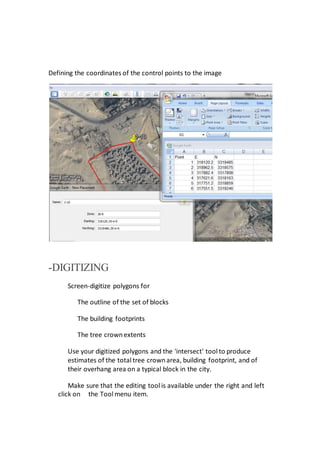
Defining the coordinates of the control points to the image
-DIGITIZING
Screen-digitize polygons for
The outline of the set of blocks
The building footprints
The tree crownextents
Use your digitized polygons and the 'intersect' tool to produce
estimates of the total tree crownarea, building footprint, and of
their overhang area on a typical block in the city.
Make sure that the editing tool is available under the right and left
click on the Tool menu item.
In ArcCatalog, create a new shapefiles of the appropriate type,
(point, arc/line, polygon) with the appropriate coordinate system. In
ArcCatalog, connnect to your U: directory, Then use File->New-
>Shapefile. Name the file, select the type of features it will contain,
edit/select/copy a spatial reference system for the file (import the
one for the allroad3 data).
Back in ArcMap, add the empty shapefiles to your display
You need the editing toolbar panel, so click the editor button (pencil
with four nodes and three line segments) if you don't see the panel.
Editor -> start editing. Select which layer to edit (your new
shapefile). Select the task to perform (Create New Feature).
Select the editing pencil tool and click on, along, or around the things
you want to digitize. You canzoom and pan to make this easier.
Turn editing "off" and save your work when you are done or need to
take a break.
With editing "off" you canadd fields to the tables as you did in
previous labs with the options button on the table display
assumes that the data or the display frame are in projected
coordinates WGS84
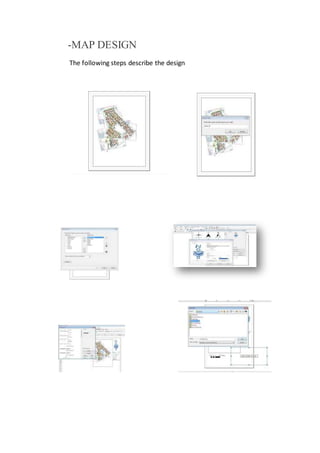
-MAP DESIGN
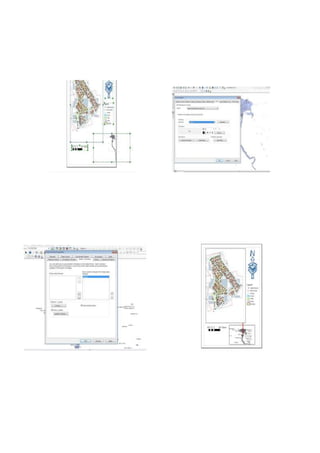
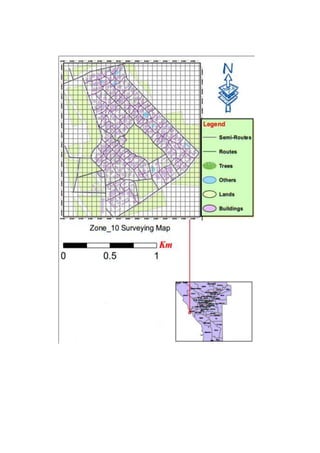
The following steps describe the design
map design by ArcGIS program

map design by ArcGIS program

  • 1.
    Steps of mapdesign by ArcGIS program - Arcgis introduction -High resolution from Google earth -Rectify -Digitizing -Map design Brief Overview of ArcGIS ArcGIS is a software program, used to create, display and analyze geospatial data. ArcGIS consists of three components: ArcCatalog, ArcMap and ArcToolbox. ArcCatalog is used for browsing for maps and spatial data, exploring spatial data, viewing and creating metadata, and managing spatial data. ArcMap is used for visualizing spatial data, performing spatial analysis, and creating maps to show the results of your work. ArcToolbox is an interface for accessing the data conversion and analysis function that come with ArcGIS. ArcGIS comes in three variants: ArcView, ArcEditor, or ArcInfo, which are the low end, middle and fully configured versions of the software. Any of these versions can be used for this exercise This exercise introduces you to ArcMap and ArcCatalog. You use these applications to create a map. The relationship between ArcGIS and MS Word and Excel is demonstrated so that you can create graphs in Excel, maps in ArcGIS and place the result in a Word file as a report for this homework. You use ArcCatalog to create a new personal geodatabase and import shapefiles to a feature dataset. Data Requirements To carry out this exercise, we need to a following programs: Google earth
  • 2.
    Snipping tool Autostetsh program Arcgisprogram -Get High Resolution Images from Google Earth: I’ve drawn a reed rectangle outlining the general area I want to capture, which is shown below. This will serve as a guide in lining up our view. It’s not absolutely necessary, but it helps This next step involves saving the view fromEarth. Figure out the resolution of your screen, and divide that by the total resolution of the desired image, to determine how many separate shots you need to take, and then merge them together Now zoom in until the top of the left column fills the screen, as you can see below
  • 3.
    You now needto move the view over to the down to capture the next column. Make sure there is some overlap when you move the view around or else there will be no reference to line up the images. In the image below After that row has been exported as images (it actually took me 6 shots to get the whole width) This step is where we merge the photos together by Autostitch as you can see below
  • 4.
    -RECTIFY Choice of controlpoints locationat the image
  • 5.
    Getting the coordinatesof chosen control points the coordinates of The six control points chosen is known w.r.t ( UTM projected coordinate system – zone 36)
  • 6.
    Defining the coordinatesof the control points to the image -DIGITIZING Screen-digitize polygons for The outline of the set of blocks The building footprints The tree crownextents Use your digitized polygons and the 'intersect' tool to produce estimates of the total tree crownarea, building footprint, and of their overhang area on a typical block in the city. Make sure that the editing tool is available under the right and left click on the Tool menu item.
  • 7.
    In ArcCatalog, createa new shapefiles of the appropriate type, (point, arc/line, polygon) with the appropriate coordinate system. In ArcCatalog, connnect to your U: directory, Then use File->New- >Shapefile. Name the file, select the type of features it will contain, edit/select/copy a spatial reference system for the file (import the one for the allroad3 data). Back in ArcMap, add the empty shapefiles to your display You need the editing toolbar panel, so click the editor button (pencil with four nodes and three line segments) if you don't see the panel. Editor -> start editing. Select which layer to edit (your new shapefile). Select the task to perform (Create New Feature). Select the editing pencil tool and click on, along, or around the things you want to digitize. You canzoom and pan to make this easier. Turn editing "off" and save your work when you are done or need to take a break. With editing "off" you canadd fields to the tables as you did in previous labs with the options button on the table display assumes that the data or the display frame are in projected coordinates WGS84
  • 8.
    -MAP DESIGN The followingsteps describe the design