General Care
• Keepfood or liquids away from your
laptop/computer to prevent
unnecessary damage.
• Plug into a surge protector
• When not in use turn off or sleep your
computer.
Computer Longevity
4.
Battery Care
• Don’tkeep a laptop plugged in all the time
• Don’t expose to extreme temperatures
• Avoid charging before 10% or less battery life
• Avoid fully draining the battery.
Computer Longevity (Laptop)
5.
Temperature
• Operate yourcomputer in a cool,
dry and well ventilated area
• Cooling pads will extend the life
of your laptop
• Do not place a laptop on…
• Bed
• Blanket
• Unstable furniture
• Near the edge of anything
• Anything that will block the fans
Computer Longevity (Laptop)
6.
Desktop placement
• Operateyour computer in a well ventilated, cool and
dry area
• Do not cover up fans with books, papers, etc.
• Do not place where it can easily fall or be hit
Locations to avoid
• Under your desk
• Near a window
• Near a heat vent
Computer Longevity (Desktop)
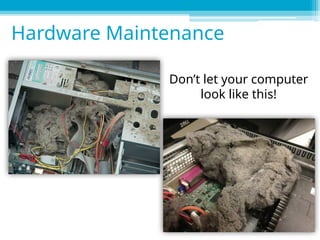
Don’t let yourcomputer
look like this!
Hardware Maintenance
9.
• Warning! Beforedoing any
cleaning or work turn off and
unplug your computer.
• Use an air compressor or
compressed air canisters to
remove dust.
• Remove the side panel and
blow dust off components.
Hardware Maintenance
10.
Screen Cleaning
• Cleanyour screen with a microfiber cloth and screen
cleaning solution. Apply solution to your cloth and
gently wipe.
• Use electronics cleaning solution or make your own
• You can make your own solution with one part 70%
isopropyl alcohol and one part water.
Hardware Maintenance
11.
• In extremecases, components can be washed with
soap and water, a gentle dish washer, or isopropyl
alcohol 70% or greater.
• Do not wash!
• Laptops
• Monitors
• Power supplies
• Hard drives
• Batteries
• Let your components dry 100% before using them to
avoid damage.
Hardware Maintenance
12.
Traveling with alaptop
• Purchase a laptop bag or cover
• Properly pack the laptop safely before travel
• Keep the laptop secure while traveling
• Keep in the climate controlled cabin
Laptop Protection
13.
Windows XP andVista are no longer supported with
any security updates!
• If possible purchase a new computer or upgrade to
a newer version of Windows
• If not possible only use the computer offline, or be
very careful about safe internet usage
Software
14.
Best Internet browsersfor security and speed
• Firefox, Chrome, Opera, or Edge
Updates
• Set all of your updates to automatic to avoid forgetting to
update them.
• Windows
• Web browsers
• Antivirus software
• Java
Internet Browsers
15.
A Virus isa malicious set of code meant to harm you
and/or your computer
Preventing viruses
• Windows Defender
Comes with free with Windows 8 and higher
• Paid antiviruses
Kaspersky
Bit Defender Plus
Norton
McAfee
What is a Virus?
16.
Clearing History -Chrome
Click on 3 lines in top right corner
and choose History. (Chrome)
• iCloud
• GoogleDrive
• One Drive
• Drop Box
• Amazon cloud drive
Cloud Storage
One Drive
iCloud Google Drive
Drop Box Amazon Cloud Drive
23.
Physical Back up
•Backup up important files to an external Hard drive
or large Flash drive often (manually)
Flash drive 32-128gb
External hard drive 500gb-4tb
Paid backup
• Carbonite (cloud storage)
• Novastor Backup (cloud and/or physical storage)
• Acronis Backup (cloud and/or physical storage)
Alternative Backup Sources
24.
Windows
• Use SystemRestore to periodically make Windows
restore points
• Use a Windows disc or a system restore disc to try to
repair Windows.
• Follow the computer’s instructions to Factory reset
your computer
Programs
• Programs can not be backed up
Keep your discs and codes for easy reinstallation
Backup Windows and Programs
#18 Windows task manager (Windows 8-10); msconfig (Windows 7)
#20 Windows task manager (Windows 8-10); msconfig (Windows 7)
#23 Example
There are several options for those who want a physical backup of their files.
Option one is to purchase a devices—such as an external hard drive or flash drive—and save the files to the device. Pros are that users include only a one-time cost; cons are that if your home computer gets fried, there’s a good likelihood your device may get fried as well.
Option two is to pay for a backup service—such as Nova, Acronis, or Genie—to save your files for you. Pros are that you don’t have to worry about equipment; cons are that it may involve a monthly subscription cost.
#24 Example
There are several options for those who want a physical backup of their files.
Option one is to purchase a devices—such as an external hard drive or flash drive—and save the files to the device. Pros are that users include only a one-time cost; cons are that if your home computer gets fried, there’s a good likelihood your device may get fried as well.
Option two is to pay for a backup service—such as Nova, Acronis, or Genie—to save your files for you. Pros are that you don’t have to worry about equipment; cons are that it may involve a monthly subscription cost.