Libertad, Bunawan, Agusan del Sur
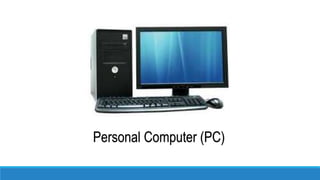
Personal Computer (PC)
A computer is an electronic device that manipulates
information, or data. It has the ability to store, retrieve, and process
data. You may already know that you can use a computer to type
documents, send email, play games, and browse the Web. You can
also use it to edit or create spreadsheets, presentations, and even
videos.
WHAT IS A COMPUTER?
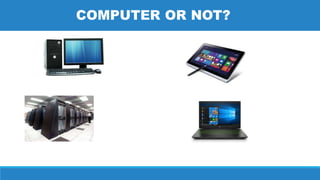
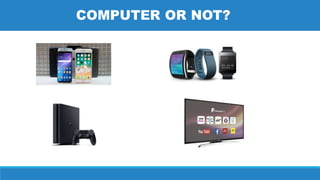
COMPUTER OR NOT?
COMPUTER OR NOT?
When most people hear the word computer, they think of a
personal computer such as a desktop or laptop. However, computers
come in many shapes and sizes, and they perform many different
functions in our daily lives. When you withdraw cash from an ATM, scan
groceries at the store, or use a calculator, you're using a type of computer.
What are the different types of computers?
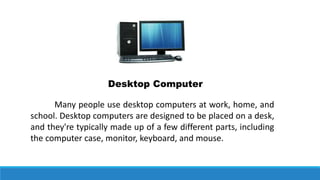
Desktop Computer
Many people use desktop computers at work, home, and
school. Desktop computers are designed to be placed on a desk,
and they're typically made up of a few different parts, including
the computer case, monitor, keyboard, and mouse.
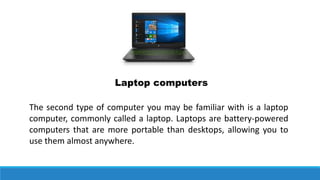
Laptop computers
The second type of computer you may be familiar with is a laptop
computer, commonly called a laptop. Laptops are battery-powered
computers that are more portable than desktops, allowing you to
use them almost anywhere.
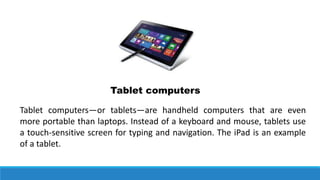
Tablet computers
Tablet computers—or tablets—are handheld computers that are even
more portable than laptops. Instead of a keyboard and mouse, tablets use
a touch-sensitive screen for typing and navigation. The iPad is an example
of a tablet.
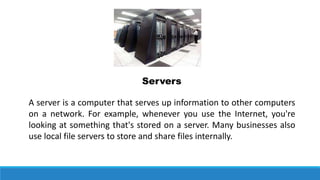
A server is a computer that serves up information to other computers
on a network. For example, whenever you use the Internet, you're
looking at something that's stored on a server. Many businesses also
use local file servers to store and share files internally.
Servers
Many of today's electronics are basically specialized computers, though
we don't always think of them that way. Here are a few common
examples.
Other types of computers
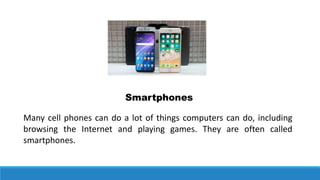
Many cell phones can do a lot of things computers can do, including
browsing the Internet and playing games. They are often called
smartphones.
Smartphones
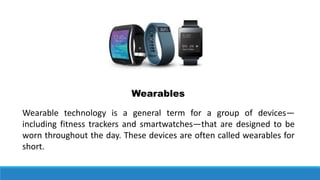
Wearable technology is a general term for a group of devices—
including fitness trackers and smartwatches—that are designed to be
worn throughout the day. These devices are often called wearables for
short.
Wearables
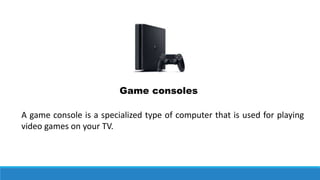
A game console is a specialized type of computer that is used for playing
video games on your TV.
Game consoles
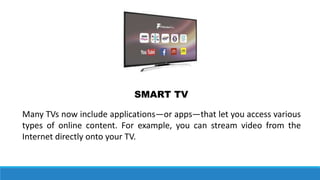
Many TVs now include applications—or apps—that let you access various
types of online content. For example, you can stream video from the
Internet directly onto your TV.
SMART TV
Activity No. 1
Take at least three (3) photos of you
with any type of computers.
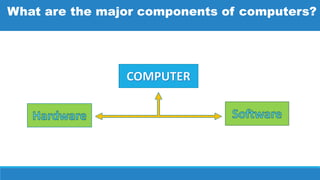
What are the major components of computers?
Hardware is any part of your computer that has a physical
structure, such as the keyboard or mouse. It also includes all of the
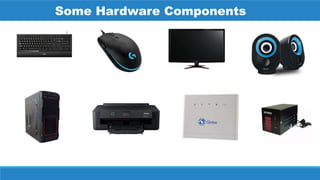
computer's internal parts, which you can see in the image below.
What is hardware component?
Some Hardware Components
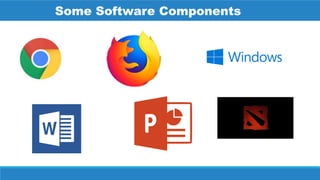
Software is any set of instructions that tells the hardware what to
do and how to do it. Examples of software include web browsers, games,
and word processors. Below, you can see an image of Microsoft
PowerPoint, which is used to create presentations.
What is software component?
Some Software Components
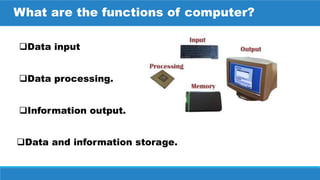
Data and information storage.
What are the functions of computer?
Data input
Data processing.
Information output.
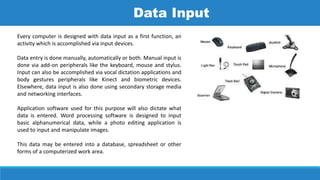
Every computer is designed with data input as a first function, an
activity which is accomplished via input devices.
Data entry is done manually, automatically or both. Manual input is
done via add-on peripherals like the keyboard, mouse and stylus.
Input can also be accomplished via vocal dictation applications and
body gestures peripherals like Kinect and biometric devices.
Elsewhere, data input is also done using secondary storage media
and networking interfaces.
Application software used for this purpose will also dictate what
data is entered. Word processing software is designed to input
basic alphanumerical data, while a photo editing application is
used to input and manipulate images.
This data may be entered into a database, spreadsheet or other
forms of a computerized work area.
Data Input
Data processing is the core function of a computer. Processing
involves manipulation of raw data into before converting it into
meaningful information. Usually, data is in raw form, and will
thus undergo processing before dissemination for user
consumption.
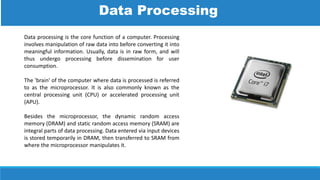
The 'brain' of the computer where data is processed is referred
to as the microprocessor. It is also commonly known as the
central processing unit (CPU) or accelerated processing unit
(APU).
Besides the microprocessor, the dynamic random access
memory (DRAM) and static random access memory (SRAM) are
integral parts of data processing. Data entered via input devices
is stored temporarily in DRAM, then transferred to SRAM from
where the microprocessor manipulates it.
Data Processing
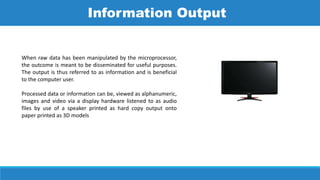
When raw data has been manipulated by the microprocessor,
the outcome is meant to be disseminated for useful purposes.
The output is thus referred to as information and is beneficial
to the computer user.
Processed data or information can be, viewed as alphanumeric,
images and video via a display hardware listened to as audio
files by use of a speaker printed as hard copy output onto
paper printed as 3D models
Information Output
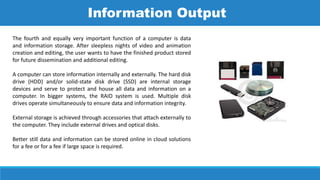
The fourth and equally very important function of a computer is data
and information storage. After sleepless nights of video and animation
creation and editing, the user wants to have the finished product stored
for future dissemination and additional editing.
A computer can store information internally and externally. The hard disk
drive (HDD) and/or solid-state disk drive (SSD) are internal storage
devices and serve to protect and house all data and information on a
computer. In bigger systems, the RAID system is used. Multiple disk
drives operate simultaneously to ensure data and information integrity.
External storage is achieved through accessories that attach externally to
the computer. They include external drives and optical disks.
Better still data and information can be stored online in cloud solutions
for a fee or for a fee if large space is required.
Information Output
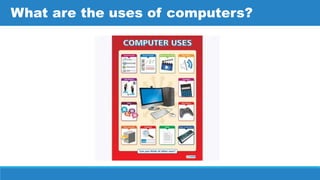
What are the uses of computers?
Activity No. 2
In your own observations, are computers
good or bad to you as student? Cite a
situation that supports your answer.
Thank You!
The basic parts of a desktop computer
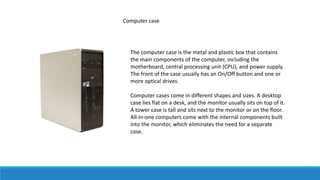
Computer case
The computer case is the metal and plastic box that contains
the main components of the computer, including the
motherboard, central processing unit (CPU), and power supply.
The front of the case usually has an On/Off button and one or
more optical drives.
Computer cases come in different shapes and sizes. A desktop
case lies flat on a desk, and the monitor usually sits on top of it.
A tower case is tall and sits next to the monitor or on the floor.
All-in-one computers come with the internal components built
into the monitor, which eliminates the need for a separate
case.
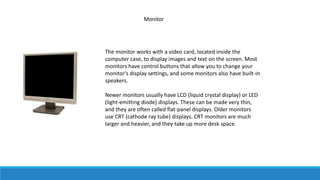
Monitor
The monitor works with a video card, located inside the
computer case, to display images and text on the screen. Most
monitors have control buttons that allow you to change your
monitor's display settings, and some monitors also have built-in
speakers.
Newer monitors usually have LCD (liquid crystal display) or LED
(light-emitting diode) displays. These can be made very thin,
and they are often called flat-panel displays. Older monitors
use CRT (cathode ray tube) displays. CRT monitors are much
larger and heavier, and they take up more desk space.
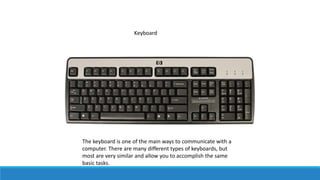
Keyboard
The keyboard is one of the main ways to communicate with a
computer. There are many different types of keyboards, but
most are very similar and allow you to accomplish the same
basic tasks.
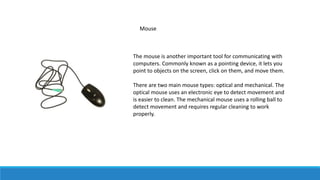
Mouse
The mouse is another important tool for communicating with
computers. Commonly known as a pointing device, it lets you
point to objects on the screen, click on them, and move them.
There are two main mouse types: optical and mechanical. The
optical mouse uses an electronic eye to detect movement and
is easier to clean. The mechanical mouse uses a rolling ball to
detect movement and requires regular cleaning to work
properly.
Peripherals you can use with your computer
The most basic computer setup usually includes the computer
case, monitor, keyboard, and mouse, but you can plug many
different types of devices into the extra ports on your
computer. These devices are called peripherals. Let's take a
look at some of the most common ones.
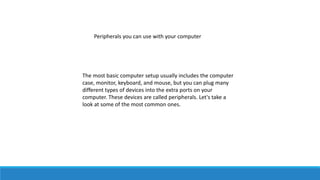
A printer is used to print documents, photos, and anything else
that appears on your screen. There are many types of printers,
including inkjet, laser, and photo printers. There are even all-in-
one printers, which can also scan and copy documents.
Printers:
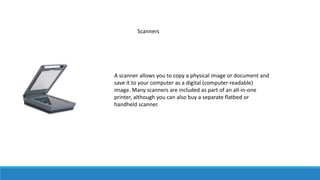
Scanners
A scanner allows you to copy a physical image or document and
save it to your computer as a digital (computer-readable)
image. Many scanners are included as part of an all-in-one
printer, although you can also buy a separate flatbed or
handheld scanner.
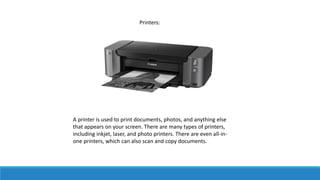
Speakers/headphones
Speakers and headphones are output devices, which means
they send information from the computer to the user—in this
case, they allow you to hear sound and music. Depending on
the model, they may connect to the audio port or the USB port.
Some monitors also have built-in speakers.
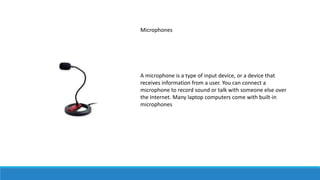
Microphones
A microphone is a type of input device, or a device that
receives information from a user. You can connect a
microphone to record sound or talk with someone else over
the Internet. Many laptop computers come with built-in
microphones
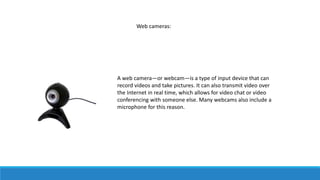
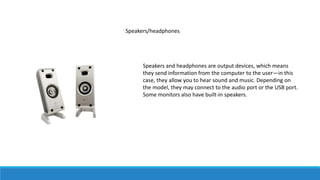
Web cameras:
A web camera—or webcam—is a type of input device that can
record videos and take pictures. It can also transmit video over
the Internet in real time, which allows for video chat or video
conferencing with someone else. Many webcams also include a
microphone for this reason.
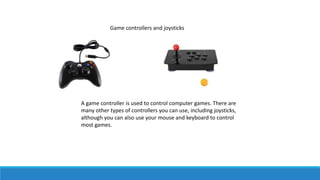
Game controllers and joysticks
A game controller is used to control computer games. There are
many other types of controllers you can use, including joysticks,
although you can also use your mouse and keyboard to control
most games.
Software Types
The term 'software' refers to the set of electronic program
instructions or data a computer processor reads in order to
perform a task or operation. In contrast, the term 'hardware'
refers to the physical components that you can see and touch,
such as the computer hard drive, mouse, and keyboard.
Software can be categorized according to what it is designed to
accomplish. There are two main types of software: systems
software and application software.
Systems Software
Systems software includes the programs that are dedicated to
managing the computer itself, such as the operating system,
file management utilities, and disk operating system (or DOS).
The operating system manages the computer hardware
resources in addition to applications and data. Without systems
software installed in our computers we would have to type the
instructions for everything we wanted the computer to do!
Applications Software
Application software, or simply applications, are often called
productivity programs or end-user programs because they
enable the user to complete tasks, such as creating documents,
spreadsheets, databases and publications, doing online
research, sending email, designing graphics, running
businesses, and even playing games! Application software is
specific to the task it is designed for and can be as simple as a
calculator application or as complex as a word processing
application. When you begin creating a document, the word
processing software has already set the margins, font style and
size, and the line spacing for you. But you can change these
settings, and you have many more formatting options available.
For example, the word processor application makes it easy to
add color, headings, and pictures or delete, copy, move, and
change the document's appearance to suit your needs.
KEYBOARDING AND MOUSE SKILLS
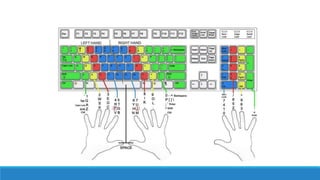
Keyboarding Position
Keeping your hands positioned correctly proves crucial when
typing. When at rest, your hands should be on the home row,
with your left fingers on the "A" through "F" keys and your right
fingers on "J" through the semi-colon. From this position, it is
easiest for your fingers to reach the other keys with a minimum
of movement, and on many keyboards, the "F" and "J" keys
have tiny ridges that you can feel with your fingertips as a
reminder. As you learn the key position, you can focus on
typing without looking at the keys. It may help to quietly say
the name of the key as you type it.
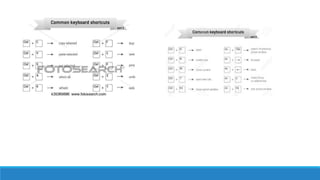
Keyboard Shortcuts
Keyboard shortcuts keep your hands on the keyboard, instead
of reaching for the mouse, saving you time as well as reducing
strain on your hands, fingers and wrist. With keyboard
shortcuts, you can quickly access the "Start" and "Help" menus,
format text, save documents, search, access file menus and
select, cut, copy and paste text. For example, "Ctrl-C" copies
highlighted text and "Ctrl-V" pastes the text.
ICT.pptx

ICT.pptx

  • 1.
  • 2.
  • 3.
    A computer isan electronic device that manipulates information, or data. It has the ability to store, retrieve, and process data. You may already know that you can use a computer to type documents, send email, play games, and browse the Web. You can also use it to edit or create spreadsheets, presentations, and even videos. WHAT IS A COMPUTER?
  • 4.
  • 5.
  • 6.
    When most peoplehear the word computer, they think of a personal computer such as a desktop or laptop. However, computers come in many shapes and sizes, and they perform many different functions in our daily lives. When you withdraw cash from an ATM, scan groceries at the store, or use a calculator, you're using a type of computer. What are the different types of computers?
  • 7.
    Desktop Computer Many peopleuse desktop computers at work, home, and school. Desktop computers are designed to be placed on a desk, and they're typically made up of a few different parts, including the computer case, monitor, keyboard, and mouse.
  • 8.
    Laptop computers The secondtype of computer you may be familiar with is a laptop computer, commonly called a laptop. Laptops are battery-powered computers that are more portable than desktops, allowing you to use them almost anywhere.
  • 9.
    Tablet computers Tablet computers—ortablets—are handheld computers that are even more portable than laptops. Instead of a keyboard and mouse, tablets use a touch-sensitive screen for typing and navigation. The iPad is an example of a tablet.
  • 10.
    A server isa computer that serves up information to other computers on a network. For example, whenever you use the Internet, you're looking at something that's stored on a server. Many businesses also use local file servers to store and share files internally. Servers
  • 11.
    Many of today'selectronics are basically specialized computers, though we don't always think of them that way. Here are a few common examples. Other types of computers
  • 12.
    Many cell phonescan do a lot of things computers can do, including browsing the Internet and playing games. They are often called smartphones. Smartphones
  • 13.
    Wearable technology isa general term for a group of devices— including fitness trackers and smartwatches—that are designed to be worn throughout the day. These devices are often called wearables for short. Wearables
  • 14.
    A game consoleis a specialized type of computer that is used for playing video games on your TV. Game consoles
  • 15.
    Many TVs nowinclude applications—or apps—that let you access various types of online content. For example, you can stream video from the Internet directly onto your TV. SMART TV
  • 16.
    Activity No. 1 Takeat least three (3) photos of you with any type of computers.
  • 17.
    What are themajor components of computers?
  • 18.
    Hardware is anypart of your computer that has a physical structure, such as the keyboard or mouse. It also includes all of the computer's internal parts, which you can see in the image below. What is hardware component?
  • 19.
  • 20.
    Software is anyset of instructions that tells the hardware what to do and how to do it. Examples of software include web browsers, games, and word processors. Below, you can see an image of Microsoft PowerPoint, which is used to create presentations. What is software component?
  • 21.
  • 22.
    Data and informationstorage. What are the functions of computer? Data input Data processing. Information output.
  • 23.
    Every computer isdesigned with data input as a first function, an activity which is accomplished via input devices. Data entry is done manually, automatically or both. Manual input is done via add-on peripherals like the keyboard, mouse and stylus. Input can also be accomplished via vocal dictation applications and body gestures peripherals like Kinect and biometric devices. Elsewhere, data input is also done using secondary storage media and networking interfaces. Application software used for this purpose will also dictate what data is entered. Word processing software is designed to input basic alphanumerical data, while a photo editing application is used to input and manipulate images. This data may be entered into a database, spreadsheet or other forms of a computerized work area. Data Input
  • 24.
    Data processing isthe core function of a computer. Processing involves manipulation of raw data into before converting it into meaningful information. Usually, data is in raw form, and will thus undergo processing before dissemination for user consumption. The 'brain' of the computer where data is processed is referred to as the microprocessor. It is also commonly known as the central processing unit (CPU) or accelerated processing unit (APU). Besides the microprocessor, the dynamic random access memory (DRAM) and static random access memory (SRAM) are integral parts of data processing. Data entered via input devices is stored temporarily in DRAM, then transferred to SRAM from where the microprocessor manipulates it. Data Processing
  • 25.
    When raw datahas been manipulated by the microprocessor, the outcome is meant to be disseminated for useful purposes. The output is thus referred to as information and is beneficial to the computer user. Processed data or information can be, viewed as alphanumeric, images and video via a display hardware listened to as audio files by use of a speaker printed as hard copy output onto paper printed as 3D models Information Output
  • 26.
    The fourth andequally very important function of a computer is data and information storage. After sleepless nights of video and animation creation and editing, the user wants to have the finished product stored for future dissemination and additional editing. A computer can store information internally and externally. The hard disk drive (HDD) and/or solid-state disk drive (SSD) are internal storage devices and serve to protect and house all data and information on a computer. In bigger systems, the RAID system is used. Multiple disk drives operate simultaneously to ensure data and information integrity. External storage is achieved through accessories that attach externally to the computer. They include external drives and optical disks. Better still data and information can be stored online in cloud solutions for a fee or for a fee if large space is required. Information Output
  • 27.
    What are theuses of computers?
  • 28.
    Activity No. 2 Inyour own observations, are computers good or bad to you as student? Cite a situation that supports your answer.
  • 29.
  • 30.
    The basic partsof a desktop computer
  • 31.
    Computer case The computercase is the metal and plastic box that contains the main components of the computer, including the motherboard, central processing unit (CPU), and power supply. The front of the case usually has an On/Off button and one or more optical drives. Computer cases come in different shapes and sizes. A desktop case lies flat on a desk, and the monitor usually sits on top of it. A tower case is tall and sits next to the monitor or on the floor. All-in-one computers come with the internal components built into the monitor, which eliminates the need for a separate case.
  • 32.
    Monitor The monitor workswith a video card, located inside the computer case, to display images and text on the screen. Most monitors have control buttons that allow you to change your monitor's display settings, and some monitors also have built-in speakers. Newer monitors usually have LCD (liquid crystal display) or LED (light-emitting diode) displays. These can be made very thin, and they are often called flat-panel displays. Older monitors use CRT (cathode ray tube) displays. CRT monitors are much larger and heavier, and they take up more desk space.
  • 33.
    Keyboard The keyboard isone of the main ways to communicate with a computer. There are many different types of keyboards, but most are very similar and allow you to accomplish the same basic tasks.
  • 34.
    Mouse The mouse isanother important tool for communicating with computers. Commonly known as a pointing device, it lets you point to objects on the screen, click on them, and move them. There are two main mouse types: optical and mechanical. The optical mouse uses an electronic eye to detect movement and is easier to clean. The mechanical mouse uses a rolling ball to detect movement and requires regular cleaning to work properly.

  • 35.
    Peripherals you canuse with your computer The most basic computer setup usually includes the computer case, monitor, keyboard, and mouse, but you can plug many different types of devices into the extra ports on your computer. These devices are called peripherals. Let's take a look at some of the most common ones.
  • 36.
    A printer isused to print documents, photos, and anything else that appears on your screen. There are many types of printers, including inkjet, laser, and photo printers. There are even all-in- one printers, which can also scan and copy documents. Printers:
  • 37.
    Scanners A scanner allowsyou to copy a physical image or document and save it to your computer as a digital (computer-readable) image. Many scanners are included as part of an all-in-one printer, although you can also buy a separate flatbed or handheld scanner.
  • 38.
    Speakers/headphones Speakers and headphonesare output devices, which means they send information from the computer to the user—in this case, they allow you to hear sound and music. Depending on the model, they may connect to the audio port or the USB port. Some monitors also have built-in speakers.
  • 39.
    Microphones A microphone isa type of input device, or a device that receives information from a user. You can connect a microphone to record sound or talk with someone else over the Internet. Many laptop computers come with built-in microphones
  • 40.
    Web cameras: A webcamera—or webcam—is a type of input device that can record videos and take pictures. It can also transmit video over the Internet in real time, which allows for video chat or video conferencing with someone else. Many webcams also include a microphone for this reason.
  • 41.
    Game controllers andjoysticks A game controller is used to control computer games. There are many other types of controllers you can use, including joysticks, although you can also use your mouse and keyboard to control most games.
  • 42.
    Software Types The term'software' refers to the set of electronic program instructions or data a computer processor reads in order to perform a task or operation. In contrast, the term 'hardware' refers to the physical components that you can see and touch, such as the computer hard drive, mouse, and keyboard. Software can be categorized according to what it is designed to accomplish. There are two main types of software: systems software and application software.
  • 43.
    Systems Software Systems softwareincludes the programs that are dedicated to managing the computer itself, such as the operating system, file management utilities, and disk operating system (or DOS). The operating system manages the computer hardware resources in addition to applications and data. Without systems software installed in our computers we would have to type the instructions for everything we wanted the computer to do!
  • 45.
    Applications Software Application software,or simply applications, are often called productivity programs or end-user programs because they enable the user to complete tasks, such as creating documents, spreadsheets, databases and publications, doing online research, sending email, designing graphics, running businesses, and even playing games! Application software is specific to the task it is designed for and can be as simple as a calculator application or as complex as a word processing application. When you begin creating a document, the word processing software has already set the margins, font style and size, and the line spacing for you. But you can change these settings, and you have many more formatting options available. For example, the word processor application makes it easy to add color, headings, and pictures or delete, copy, move, and change the document's appearance to suit your needs.
  • 47.
  • 48.
    Keyboarding Position Keeping yourhands positioned correctly proves crucial when typing. When at rest, your hands should be on the home row, with your left fingers on the "A" through "F" keys and your right fingers on "J" through the semi-colon. From this position, it is easiest for your fingers to reach the other keys with a minimum of movement, and on many keyboards, the "F" and "J" keys have tiny ridges that you can feel with your fingertips as a reminder. As you learn the key position, you can focus on typing without looking at the keys. It may help to quietly say the name of the key as you type it.
  • 50.
    Keyboard Shortcuts Keyboard shortcutskeep your hands on the keyboard, instead of reaching for the mouse, saving you time as well as reducing strain on your hands, fingers and wrist. With keyboard shortcuts, you can quickly access the "Start" and "Help" menus, format text, save documents, search, access file menus and select, cut, copy and paste text. For example, "Ctrl-C" copies highlighted text and "Ctrl-V" pastes the text.