Royal University of Bhutan
Jigme Namgyel Engineering College
Department of Civil Engineering & Surveying
Resourced By : Phurba Tamang
Designation: Associate lecturer
Department of Civil Engineering and Surveying
Jigme Namgyel Engineering College
Training on Surveying with Applications of Total Station, LISCAD & Autodesk AutoCAD cum Civil 3D
“Computer Aided Drafting using Autodesk AutoCAD”
CONTENT DELIVERY
PRESENTATION
AYOUR CONTENT
s CADD?
ns of CADD
lities of CADD
B
r:
orkspace
commands
operties
rinting
over:
nces
es
g
C
D
%
TEXT
%
TEXT
MID-TERM REVIEW, 2017
• The Word AutoCAD is made up of two words “Auto(logo of company)”and CAD
“(computer aided design)”.
• AutoCAD is 2D and 3D modeling software.
• It is developed by Autodesk company.
• Autodesk is an U.S.A based company.
• It is widely used in industry for 2D drawing and 3D modeling.
• In another way we can say that AutoCAD is a designing course , which is
performed by the help of computer.
Introduction
Resourced By: Phurba Tamang, Associate Lecturer, JNEC
MID-TERM REVIEW, 2017
• AutoCAD software was firstly launched by Autodesk company in Dec. 1982.
• The first version of AutoCAD was R1 after that R2,R3,R4…………… and so on.
• In 2000,Autodesk launched a version of AutoCAD 2000 after that 2001,2002…
• This time, we have the latest version of AutoCAD is 2019.
• Latest version is easy and over come the difficulties of old version.
Versions of AutoCAD
Resourced By: Phurba Tamang, Associate Lecturer, JNEC
MID-TERM REVIEW, 2017
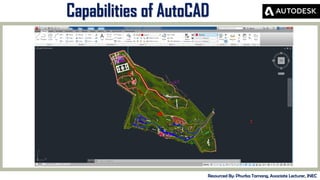
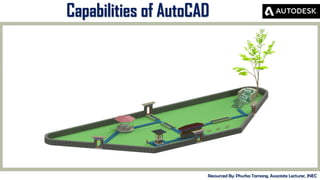
Capabilities of AutoCAD
Resourced By: Phurba Tamang, Associate Lecturer, JNEC
MID-TERM REVIEW, 2017
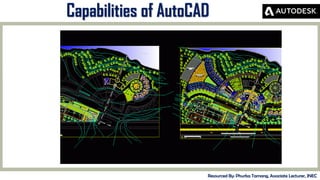
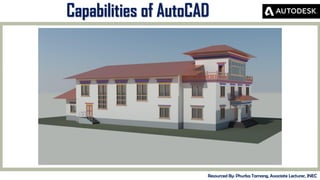
Capabilities of AutoCAD
Resourced By: Phurba Tamang, Associate Lecturer, JNEC
MID-TERM REVIEW, 2017
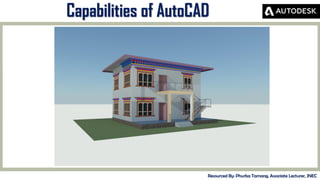
Capabilities of AutoCAD
Resourced By: Phurba Tamang, Associate Lecturer, JNEC
MID-TERM REVIEW, 2017
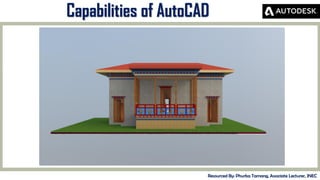
Capabilities of AutoCAD
Resourced By: Phurba Tamang, Associate Lecturer, JNEC
MID-TERM REVIEW, 2017
Capabilities of AutoCAD
Resourced By: Phurba Tamang, Associate Lecturer, JNEC
MID-TERM REVIEW, 2017
Capabilities of AutoCAD
Resourced By: Phurba Tamang, Associate Lecturer, JNEC
MID-TERM REVIEW, 2017
Getting Started
Resourced By: Phurba Tamang, Associate Lecturer, JNEC
• Check whether AutoCAD is installed:
Start> Programs> AutoCAD 2014.
• If yes:
Double-click the software center icon on the desktop to launch the software.
• If not:
• Install the software. (Software shall be distributed to the trainees)
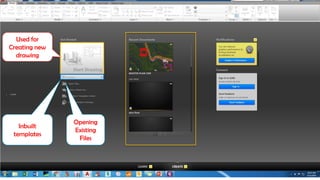
Used for
Creating new
drawing
Inbuilt
templates
Opening
Existing
Files
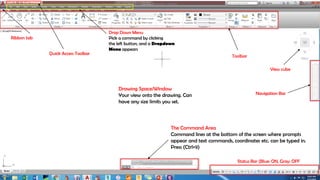
Drop Down Menu
Pick a command by clicking
the left button, and a Dropdown
Menu appears
Drawing Space/Window
Your view onto the drawing. Can
have any size limits you set.
The Command Area
Command lines at the bottom of the screen where prompts
appear and text commands, coordinates etc. can be typed in.
Press (Ctrl+9)
Ribbon tab
Quick Access Toolbar
Toolbar
View cube
Navigation Bar
Status Bar (Blue: ON, Gray: OFF
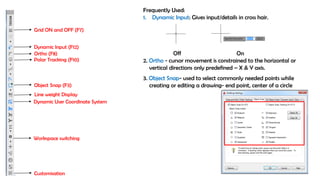
Grid ON and OFF (F7)
Dynamic Input (F12)
Ortho (F8)
Object Snap (F3)
Polar Tracking (F10)
Line weight Display
Dynamic User Coordinate System
Workspace switching
Customisation
Frequently Used:
1. Dynamic Input: Gives input/details in cross hair.
Off On
2. Ortho - cursor movement is constrained to the horizontal or
vertical directions only predefined – X & Y axis.
3. Object Snap- used to select commonly needed points while
creating or editing a drawing- end point, center of a circle
MID-TERM REVIEW, 2017
Special Key Functions
Resourced By: Phurba Tamang, Associate Lecturer, JNEC
• Escape Key (ESC) Cancels the current command, menu or Dialog Box.
• Enter Key ends a command, or will repeat the previous command if the
command line is blank.
• Space Bar Same as the Enter Key, except when entering text.
• Use scroll bar to zoom in and zoom out.
• Press and hold scroll bar to pan the working space.
• Ctl+z to undo or revert the work to previous state
MID-TERM REVIEW, 2017
Drawing Lines
Resourced By: Phurba Tamang, Associate Lecturer, JNEC
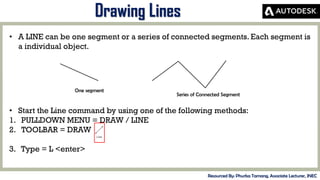
• A LINE can be one segment or a series of connected segments. Each segment is
a individual object.
One segment
Series of Connected Segment
• Start the Line command by using one of the following methods:
1. PULLDOWN MENU = DRAW / LINE
2. TOOLBAR = DRAW
3. Type = L <enter>
MID-TERM REVIEW, 2017
Drawing Lines
Resourced By: Phurba Tamang, Associate Lecturer, JNEC
Lines are drawn by specifying the locations for the endpoints.
• Move the cursor to the location of the “first” endpoint then press the left mouse
button.
• Move the cursor again to the “next” endpoint and press the left mouse button.
Continue locating “next” endpoints until you want to stop.
(OSNAP should be ON)
NOTE:
To draw perfectly Horizontal or Vertical lines select the ORTHO mode by clicking
on the ORTHO button on the Status Bar or pressing F8.
MID-TERM REVIEW, 2017
Drawing Lines
Resourced By: Phurba Tamang, Associate Lecturer, JNEC
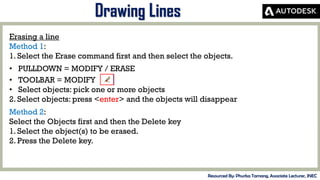
Erasing a line
Method 1:
1. Select the Erase command first and then select the objects.
• PULLDOWN = MODIFY / ERASE
• TOOLBAR = MODIFY
• Select objects: pick one or more objects
2. Select objects: press <enter> and the objects will disappear
Method 2:
Select the Objects first and then the Delete key
1. Select the object(s) to be erased.
2. Press the Delete key.
MID-TERM REVIEW, 2017
Practice
Resourced By: Phurba Tamang, Associate Lecturer, JNEC
1. Practice drawing lines using the command from the toolbar and from
command line.
2. Learn to erase the lines using the command from the toolbar and the command
line.
3. Draw straight lines turning the ORTHO mode on.
4. Save the drawing using Quick Access tool in a desired folder or a disk.
Guide:
Shortcut key for Line: <L>
Shortcut key for Eraser <E>
MID-TERM REVIEW, 2017
Drawing Circle, Polylines, Rectangles, Polygon
Resourced By: Phurba Tamang, Associate Lecturer, JNEC
1. Draw circles,
2. Draw rectangles,
3. Polygons
4. Polylines, etc.
Practice:
1. Create a folder in the Desktop and name it as AutoCAD.
2. Open the AutoCAD file and save the AutoCAD file as “practice” in the
Desktop>AutoCAD.
3. Open practice.dwg from the Autocad folder and practice drawings.
MID-TERM REVIEW, 2017
Exercise
Resourced By: Phurba Tamang, Associate Lecturer, JNEC
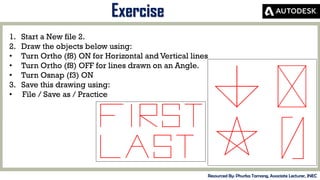
1. Start a New file 2.
2. Draw the objects below using:
• Turn Ortho (f8) ON for Horizontal and Vertical lines
• Turn Ortho (f8) OFF for lines drawn on an Angle.
• Turn Osnap (f3) ON
3. Save this drawing using:
• File / Save as / Practice
MID-TERM REVIEW, 2017
Editing Objects
Resourced By: Phurba Tamang, Associate Lecturer, JNEC
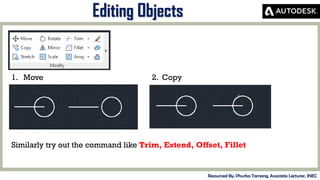
1. Move 2. Copy
Similarly try out the command like Trim, Extend, Offset, Fillet
MID-TERM REVIEW, 2017
Tips for Editing Commands
Resourced By: Phurba Tamang, Associate Lecturer, JNEC
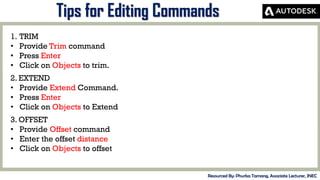
1. TRIM
• Provide Trim command
• Press Enter
• Click on Objects to trim.
2. EXTEND
• Provide Extend Command.
• Press Enter
• Click on Objects to Extend
3. OFFSET
• Provide Offset command
• Enter the offset distance
• Click on Objects to offset
MID-TERM REVIEW, 2017
Drawing Setup
Resourced By: Phurba Tamang, Associate Lecturer, JNEC
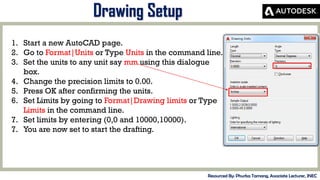
1. Start a new AutoCAD page.
2. Go to Format|Units or Type Units in the command line.
3. Set the units to any unit say mm using this dialogue
box.
4. Change the precision limits to 0.00.
5. Press OK after confirming the units.
6. Set Limits by going to Format|Drawing limits or Type
Limits in the command line.
7. Set limits by entering (0,0 and 10000,10000).
7. You are now set to start the drafting.
MID-TERM REVIEW, 2017
Drawing Setup
Resourced By: Phurba Tamang, Associate Lecturer, JNEC
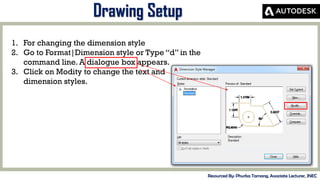
1. For changing the dimension style
2. Go to Format|Dimension style or Type “d” in the
command line. A dialogue box appears.
3. Click on Modity to change the text and
dimension styles.
MID-TERM REVIEW, 2017
Drawing Setup
Resourced By: Phurba Tamang, Associate Lecturer, JNEC
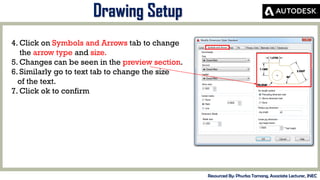
4. Click on Symbols and Arrows tab to change
the arrow type and size.
5. Changes can be seen in the preview section.
6. Similarly go to text tab to change the size
of the text.
7. Click ok to confirm
MID-TERM REVIEW, 2017
Simple Exercise
Resourced By: Phurba Tamang, Associate Lecturer, JNEC
1. Set up the AutoCAD file.
2. Set up the page units to meters.
3. Draw a line of 20 meters
4. Draw a rectangle of (20x10)m.
5. Provide dimensions to the drawn line and rectange.
6. Try saving the file.
Hints:
For setting units Go to Format|Units or Type “units” and enter in command line.
For dimension style Go to Format|Dimension style and make changes.
MID-TERM REVIEW, 2017
Introduction to object properties
Resourced By: Phurba Tamang, Associate Lecturer, JNEC
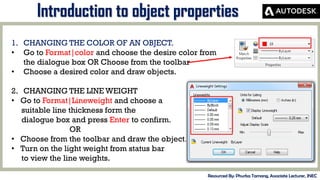
1. CHANGING THE COLOR OF AN OBJECT.
• Go to Format|color and choose the desire color from
the dialogue box OR Choose from the toolbar
• Choose a desired color and draw objects.
2. CHANGING THE LINE WEIGHT
• Go to Format|Lineweight and choose a
suitable line thickness form the
dialogue box and press Enter to confirm.
OR
• Choose from the toolbar and draw the object.
• Turn on the light weight from status bar
to view the line weights.
MID-TERM REVIEW, 2017
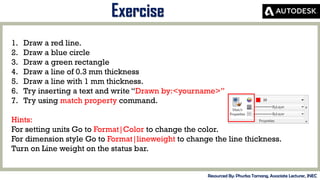
Exercise
Resourced By: Phurba Tamang, Associate Lecturer, JNEC
1. Draw a red line.
2. Draw a blue circle
3. Draw a green rectangle
4. Draw a line of 0.3 mm thickness
5. Draw a line with 1 mm thickness.
6. Try inserting a text and write “Drawn by:<yourname>”
7. Try using match property command.
Hints:
For setting units Go to Format|Color to change the color.
For dimension style Go to Format|lineweight to change the line thickness.
Turn on Line weight on the status bar.
MID-TERM REVIEW, 2017
Working with layers
Resourced By: Phurba Tamang, Associate Lecturer, JNEC
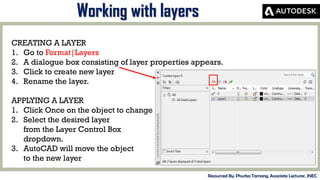
CREATING A LAYER
1. Go to Format|Layers
2. A dialogue box consisting of layer properties appears.
3. Click to create new layer
4. Rename the layer.
APPLYING A LAYER
1. Click Once on the object to change.
2. Select the desired layer
from the Layer Control Box
dropdown.
3. AutoCAD will move the object
to the new layer
EXERCISE
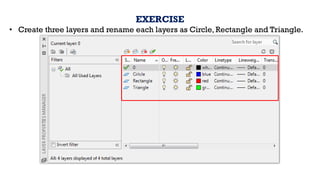
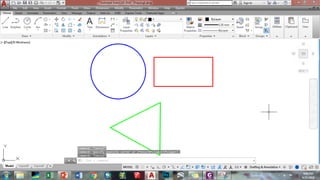
• Create three layers and rename each layers as Circle, Rectangle and Triangle.
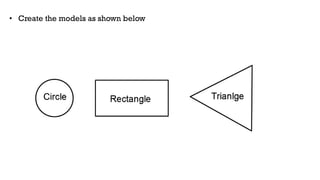
• Create the models as shown below
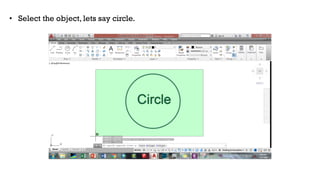
• Select the object, lets say circle.
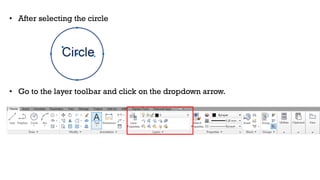
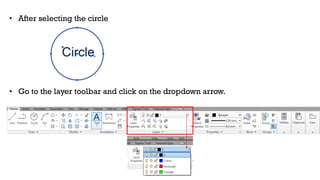
• After selecting the circle
• Go to the layer toolbar and click on the dropdown arrow.
• After selecting the circle
• Go to the layer toolbar and click on the dropdown arrow.
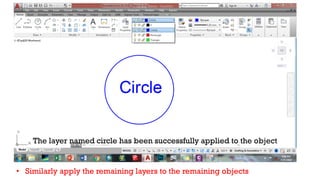
The layer named circle has been successfully applied to the object
• Similarly apply the remaining layers to the remaining objects
MID-TERM REVIEW, 2017
Exercise
Resourced By: Phurba Tamang, Associate Lecturer, JNEC
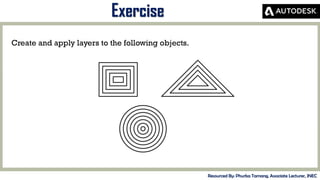
Create and apply layers to the following objects.
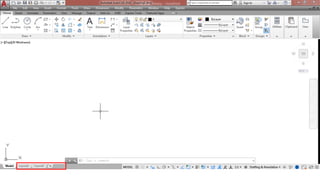
MID-TERM REVIEW, 2017
Creating layout
Resourced By: Phurba Tamang, Associate Lecturer, JNEC
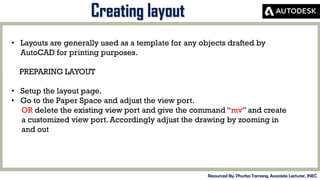
• Layouts are generally used as a template for any objects drafted by
AutoCAD for printing purposes.
PREPARING LAYOUT
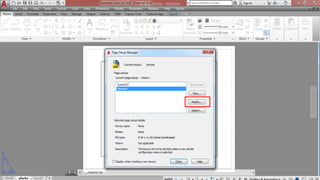
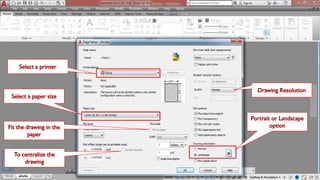
• Setup the layout page.
• Go to the Paper Space and adjust the view port.
OR delete the existing view port and give the command “mv” and create
a customized view port. Accordingly adjust the drawing by zooming in
and out
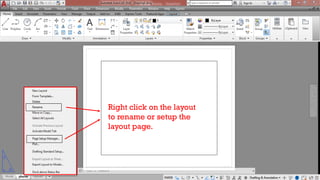
Right click on the layout
to rename or setup the
layout page.
MID-TERM REVIEW, 2017
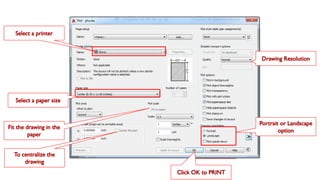
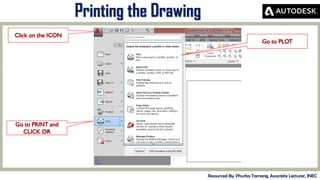
Printing the Drawing
Resourced By: Phurba Tamang, Associate Lecturer, JNEC
THANK YOU
HAVE A CUP OF COFFEE
J I M G E N A M G Y E L E N G I N E E R I N G C O L L E G E
D E P A R T M E N T O F C I V I L E N G I N E E R I N G A N D S U R V E Y I N G
D E W A T H A N G , B H U T A N
P H U R B A T A M A N G . J N E C @ R U B . E D U . B T
1 7 9 5 5 9 5 1
P H U R B A T A M A N G

Autocad training

  • 1.
    Royal University ofBhutan Jigme Namgyel Engineering College Department of Civil Engineering & Surveying Resourced By : Phurba Tamang Designation: Associate lecturer Department of Civil Engineering and Surveying Jigme Namgyel Engineering College Training on Surveying with Applications of Total Station, LISCAD & Autodesk AutoCAD cum Civil 3D “Computer Aided Drafting using Autodesk AutoCAD”
  • 2.
    CONTENT DELIVERY PRESENTATION AYOUR CONTENT sCADD? ns of CADD lities of CADD B r: orkspace commands operties rinting over: nces es g C D % TEXT % TEXT
  • 3.
    MID-TERM REVIEW, 2017 •The Word AutoCAD is made up of two words “Auto(logo of company)”and CAD “(computer aided design)”. • AutoCAD is 2D and 3D modeling software. • It is developed by Autodesk company. • Autodesk is an U.S.A based company. • It is widely used in industry for 2D drawing and 3D modeling. • In another way we can say that AutoCAD is a designing course , which is performed by the help of computer. Introduction Resourced By: Phurba Tamang, Associate Lecturer, JNEC
  • 4.
    MID-TERM REVIEW, 2017 •AutoCAD software was firstly launched by Autodesk company in Dec. 1982. • The first version of AutoCAD was R1 after that R2,R3,R4…………… and so on. • In 2000,Autodesk launched a version of AutoCAD 2000 after that 2001,2002… • This time, we have the latest version of AutoCAD is 2019. • Latest version is easy and over come the difficulties of old version. Versions of AutoCAD Resourced By: Phurba Tamang, Associate Lecturer, JNEC
  • 5.
    MID-TERM REVIEW, 2017 Capabilitiesof AutoCAD Resourced By: Phurba Tamang, Associate Lecturer, JNEC
  • 6.
    MID-TERM REVIEW, 2017 Capabilitiesof AutoCAD Resourced By: Phurba Tamang, Associate Lecturer, JNEC
  • 7.
    MID-TERM REVIEW, 2017 Capabilitiesof AutoCAD Resourced By: Phurba Tamang, Associate Lecturer, JNEC
  • 8.
    MID-TERM REVIEW, 2017 Capabilitiesof AutoCAD Resourced By: Phurba Tamang, Associate Lecturer, JNEC
  • 9.
    MID-TERM REVIEW, 2017 Capabilitiesof AutoCAD Resourced By: Phurba Tamang, Associate Lecturer, JNEC
  • 10.
    MID-TERM REVIEW, 2017 Capabilitiesof AutoCAD Resourced By: Phurba Tamang, Associate Lecturer, JNEC
  • 11.
    MID-TERM REVIEW, 2017 GettingStarted Resourced By: Phurba Tamang, Associate Lecturer, JNEC • Check whether AutoCAD is installed: Start> Programs> AutoCAD 2014. • If yes: Double-click the software center icon on the desktop to launch the software. • If not: • Install the software. (Software shall be distributed to the trainees)
  • 12.
  • 13.
    Drop Down Menu Picka command by clicking the left button, and a Dropdown Menu appears Drawing Space/Window Your view onto the drawing. Can have any size limits you set. The Command Area Command lines at the bottom of the screen where prompts appear and text commands, coordinates etc. can be typed in. Press (Ctrl+9) Ribbon tab Quick Access Toolbar Toolbar View cube Navigation Bar Status Bar (Blue: ON, Gray: OFF
  • 14.
    Grid ON andOFF (F7) Dynamic Input (F12) Ortho (F8) Object Snap (F3) Polar Tracking (F10) Line weight Display Dynamic User Coordinate System Workspace switching Customisation Frequently Used: 1. Dynamic Input: Gives input/details in cross hair. Off On 2. Ortho - cursor movement is constrained to the horizontal or vertical directions only predefined – X & Y axis. 3. Object Snap- used to select commonly needed points while creating or editing a drawing- end point, center of a circle
  • 15.
    MID-TERM REVIEW, 2017 SpecialKey Functions Resourced By: Phurba Tamang, Associate Lecturer, JNEC • Escape Key (ESC) Cancels the current command, menu or Dialog Box. • Enter Key ends a command, or will repeat the previous command if the command line is blank. • Space Bar Same as the Enter Key, except when entering text. • Use scroll bar to zoom in and zoom out. • Press and hold scroll bar to pan the working space. • Ctl+z to undo or revert the work to previous state
  • 16.
    MID-TERM REVIEW, 2017 DrawingLines Resourced By: Phurba Tamang, Associate Lecturer, JNEC • A LINE can be one segment or a series of connected segments. Each segment is a individual object. One segment Series of Connected Segment • Start the Line command by using one of the following methods: 1. PULLDOWN MENU = DRAW / LINE 2. TOOLBAR = DRAW 3. Type = L <enter>
  • 17.
    MID-TERM REVIEW, 2017 DrawingLines Resourced By: Phurba Tamang, Associate Lecturer, JNEC Lines are drawn by specifying the locations for the endpoints. • Move the cursor to the location of the “first” endpoint then press the left mouse button. • Move the cursor again to the “next” endpoint and press the left mouse button. Continue locating “next” endpoints until you want to stop. (OSNAP should be ON) NOTE: To draw perfectly Horizontal or Vertical lines select the ORTHO mode by clicking on the ORTHO button on the Status Bar or pressing F8.
  • 18.
    MID-TERM REVIEW, 2017 DrawingLines Resourced By: Phurba Tamang, Associate Lecturer, JNEC Erasing a line Method 1: 1. Select the Erase command first and then select the objects. • PULLDOWN = MODIFY / ERASE • TOOLBAR = MODIFY • Select objects: pick one or more objects 2. Select objects: press <enter> and the objects will disappear Method 2: Select the Objects first and then the Delete key 1. Select the object(s) to be erased. 2. Press the Delete key.
  • 19.
    MID-TERM REVIEW, 2017 Practice ResourcedBy: Phurba Tamang, Associate Lecturer, JNEC 1. Practice drawing lines using the command from the toolbar and from command line. 2. Learn to erase the lines using the command from the toolbar and the command line. 3. Draw straight lines turning the ORTHO mode on. 4. Save the drawing using Quick Access tool in a desired folder or a disk. Guide: Shortcut key for Line: <L> Shortcut key for Eraser <E>
  • 20.
    MID-TERM REVIEW, 2017 DrawingCircle, Polylines, Rectangles, Polygon Resourced By: Phurba Tamang, Associate Lecturer, JNEC 1. Draw circles, 2. Draw rectangles, 3. Polygons 4. Polylines, etc. Practice: 1. Create a folder in the Desktop and name it as AutoCAD. 2. Open the AutoCAD file and save the AutoCAD file as “practice” in the Desktop>AutoCAD. 3. Open practice.dwg from the Autocad folder and practice drawings.
  • 21.
    MID-TERM REVIEW, 2017 Exercise ResourcedBy: Phurba Tamang, Associate Lecturer, JNEC 1. Start a New file 2. 2. Draw the objects below using: • Turn Ortho (f8) ON for Horizontal and Vertical lines • Turn Ortho (f8) OFF for lines drawn on an Angle. • Turn Osnap (f3) ON 3. Save this drawing using: • File / Save as / Practice
  • 22.
    MID-TERM REVIEW, 2017 EditingObjects Resourced By: Phurba Tamang, Associate Lecturer, JNEC 1. Move 2. Copy Similarly try out the command like Trim, Extend, Offset, Fillet
  • 23.
    MID-TERM REVIEW, 2017 Tipsfor Editing Commands Resourced By: Phurba Tamang, Associate Lecturer, JNEC 1. TRIM • Provide Trim command • Press Enter • Click on Objects to trim. 2. EXTEND • Provide Extend Command. • Press Enter • Click on Objects to Extend 3. OFFSET • Provide Offset command • Enter the offset distance • Click on Objects to offset
  • 24.
    MID-TERM REVIEW, 2017 DrawingSetup Resourced By: Phurba Tamang, Associate Lecturer, JNEC 1. Start a new AutoCAD page. 2. Go to Format|Units or Type Units in the command line. 3. Set the units to any unit say mm using this dialogue box. 4. Change the precision limits to 0.00. 5. Press OK after confirming the units. 6. Set Limits by going to Format|Drawing limits or Type Limits in the command line. 7. Set limits by entering (0,0 and 10000,10000). 7. You are now set to start the drafting.
  • 25.
    MID-TERM REVIEW, 2017 DrawingSetup Resourced By: Phurba Tamang, Associate Lecturer, JNEC 1. For changing the dimension style 2. Go to Format|Dimension style or Type “d” in the command line. A dialogue box appears. 3. Click on Modity to change the text and dimension styles.
  • 26.
    MID-TERM REVIEW, 2017 DrawingSetup Resourced By: Phurba Tamang, Associate Lecturer, JNEC 4. Click on Symbols and Arrows tab to change the arrow type and size. 5. Changes can be seen in the preview section. 6. Similarly go to text tab to change the size of the text. 7. Click ok to confirm
  • 27.
    MID-TERM REVIEW, 2017 SimpleExercise Resourced By: Phurba Tamang, Associate Lecturer, JNEC 1. Set up the AutoCAD file. 2. Set up the page units to meters. 3. Draw a line of 20 meters 4. Draw a rectangle of (20x10)m. 5. Provide dimensions to the drawn line and rectange. 6. Try saving the file. Hints: For setting units Go to Format|Units or Type “units” and enter in command line. For dimension style Go to Format|Dimension style and make changes.
  • 28.
    MID-TERM REVIEW, 2017 Introductionto object properties Resourced By: Phurba Tamang, Associate Lecturer, JNEC 1. CHANGING THE COLOR OF AN OBJECT. • Go to Format|color and choose the desire color from the dialogue box OR Choose from the toolbar • Choose a desired color and draw objects. 2. CHANGING THE LINE WEIGHT • Go to Format|Lineweight and choose a suitable line thickness form the dialogue box and press Enter to confirm. OR • Choose from the toolbar and draw the object. • Turn on the light weight from status bar to view the line weights.
  • 29.
    MID-TERM REVIEW, 2017 Exercise ResourcedBy: Phurba Tamang, Associate Lecturer, JNEC 1. Draw a red line. 2. Draw a blue circle 3. Draw a green rectangle 4. Draw a line of 0.3 mm thickness 5. Draw a line with 1 mm thickness. 6. Try inserting a text and write “Drawn by:<yourname>” 7. Try using match property command. Hints: For setting units Go to Format|Color to change the color. For dimension style Go to Format|lineweight to change the line thickness. Turn on Line weight on the status bar.
  • 30.
    MID-TERM REVIEW, 2017 Workingwith layers Resourced By: Phurba Tamang, Associate Lecturer, JNEC CREATING A LAYER 1. Go to Format|Layers 2. A dialogue box consisting of layer properties appears. 3. Click to create new layer 4. Rename the layer. APPLYING A LAYER 1. Click Once on the object to change. 2. Select the desired layer from the Layer Control Box dropdown. 3. AutoCAD will move the object to the new layer
  • 31.
    EXERCISE • Create threelayers and rename each layers as Circle, Rectangle and Triangle.
  • 32.
    • Create themodels as shown below
  • 33.
    • Select theobject, lets say circle.
  • 34.
    • After selectingthe circle • Go to the layer toolbar and click on the dropdown arrow.
  • 35.
    • After selectingthe circle • Go to the layer toolbar and click on the dropdown arrow.
  • 36.
    The layer namedcircle has been successfully applied to the object • Similarly apply the remaining layers to the remaining objects
  • 38.
    MID-TERM REVIEW, 2017 Exercise ResourcedBy: Phurba Tamang, Associate Lecturer, JNEC Create and apply layers to the following objects.
  • 39.
    MID-TERM REVIEW, 2017 Creatinglayout Resourced By: Phurba Tamang, Associate Lecturer, JNEC • Layouts are generally used as a template for any objects drafted by AutoCAD for printing purposes. PREPARING LAYOUT • Setup the layout page. • Go to the Paper Space and adjust the view port. OR delete the existing view port and give the command “mv” and create a customized view port. Accordingly adjust the drawing by zooming in and out
  • 41.
    Right click onthe layout to rename or setup the layout page.
  • 45.
    MID-TERM REVIEW, 2017 Printingthe Drawing Resourced By: Phurba Tamang, Associate Lecturer, JNEC
  • 46.
    THANK YOU HAVE ACUP OF COFFEE J I M G E N A M G Y E L E N G I N E E R I N G C O L L E G E D E P A R T M E N T O F C I V I L E N G I N E E R I N G A N D S U R V E Y I N G D E W A T H A N G , B H U T A N P H U R B A T A M A N G . J N E C @ R U B . E D U . B T 1 7 9 5 5 9 5 1 P H U R B A T A M A N G