Tips for Creating a Document in MS Word Louise Kelly Saturday 13 th  February 2010
Objective To show how MS Word can be used to efficiently produce a more easily readable document by using the following features: Automatically insert the date; Create a table of contents; Keep paragraphs together; Print report double sided;
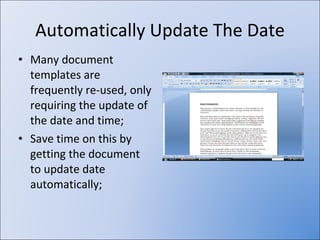
Automatically Update The Date Many document templates are frequently re-used, only requiring the update of the date and time; Save time on this by getting the document to update date automatically;
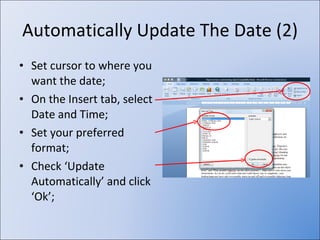
Automatically Update The Date (2) Set cursor to where you want the date; On the Insert tab, select Date and Time; Set your preferred format; Check ‘Update Automatically’ and click ‘Ok’;
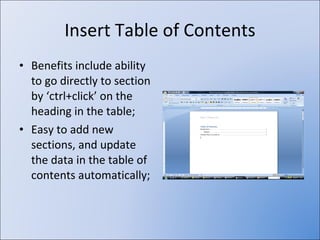
Insert Table of Contents Benefits include ability to go directly to section by ‘ctrl+click’ on the heading in the table; Easy to add new sections, and update the data in the table of contents automatically;
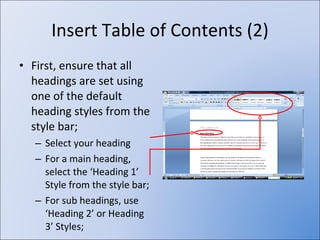
Insert Table of Contents (2) First, ensure that all headings are set using one of the default heading styles from the style bar; Select your heading For a main heading, select the ‘Heading 1’ Style from the style bar; For sub headings, use ‘Heading 2’ or Heading 3’ Styles;
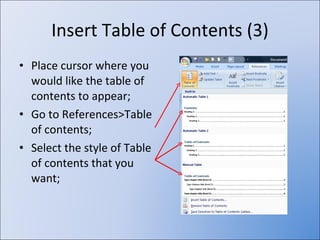
Insert Table of Contents (3) Place cursor where you would like the table of contents to appear; Go to References>Table of contents; Select the style of Table of contents that you want;
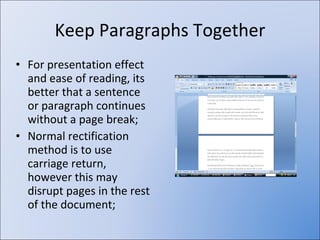
Keep Paragraphs Together For presentation effect and ease of reading, its better that a sentence or paragraph continues without a page break; Normal rectification method is to use carriage return, however this may disrupt pages in the rest of the document;
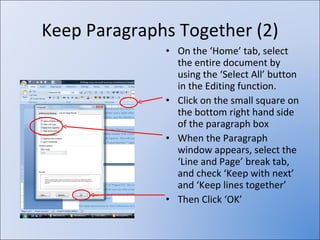
Keep Paragraphs Together (2) On the ‘Home’ tab, select the entire document by using the ‘Select All’ button in the Editing function. Click on the small square on the bottom right hand side of the paragraph box When the Paragraph window appears, select the ‘Line and Page’ break tab, and check ‘Keep with next’ and ‘Keep lines together’ Then Click ‘OK’
Double Sided Printing Print on both sides of the paper, saving the amount of paper you need; No need for a printer with this feature; Use settings in Word to accomplish this; NB: Will require manual flipping of the paper
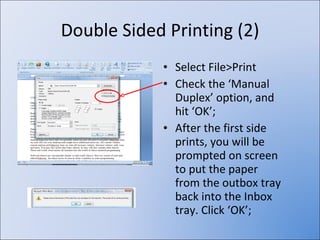
Double Sided Printing (2) Select File>Print Check the ‘Manual Duplex’ option, and hit ‘OK’; After the first side prints, you will be prompted on screen to put the paper from the outbox tray back into the Inbox tray. Click ‘OK’;
Conclusion Using Microsoft Word you can now Update Date Automatically; Insert Automatic Table of contents; Ensure no page breaks in paragraphs or sentences; Print Double sided;

Tips For Ms Word

  • 1.
    Tips for Creatinga Document in MS Word Louise Kelly Saturday 13 th February 2010
  • 2.
    Objective To showhow MS Word can be used to efficiently produce a more easily readable document by using the following features: Automatically insert the date; Create a table of contents; Keep paragraphs together; Print report double sided;
  • 3.
    Automatically Update TheDate Many document templates are frequently re-used, only requiring the update of the date and time; Save time on this by getting the document to update date automatically;
  • 4.
    Automatically Update TheDate (2) Set cursor to where you want the date; On the Insert tab, select Date and Time; Set your preferred format; Check ‘Update Automatically’ and click ‘Ok’;
  • 5.
    Insert Table ofContents Benefits include ability to go directly to section by ‘ctrl+click’ on the heading in the table; Easy to add new sections, and update the data in the table of contents automatically;
  • 6.
    Insert Table ofContents (2) First, ensure that all headings are set using one of the default heading styles from the style bar; Select your heading For a main heading, select the ‘Heading 1’ Style from the style bar; For sub headings, use ‘Heading 2’ or Heading 3’ Styles;
  • 7.
    Insert Table ofContents (3) Place cursor where you would like the table of contents to appear; Go to References>Table of contents; Select the style of Table of contents that you want;
  • 8.
    Keep Paragraphs TogetherFor presentation effect and ease of reading, its better that a sentence or paragraph continues without a page break; Normal rectification method is to use carriage return, however this may disrupt pages in the rest of the document;
  • 9.
    Keep Paragraphs Together(2) On the ‘Home’ tab, select the entire document by using the ‘Select All’ button in the Editing function. Click on the small square on the bottom right hand side of the paragraph box When the Paragraph window appears, select the ‘Line and Page’ break tab, and check ‘Keep with next’ and ‘Keep lines together’ Then Click ‘OK’
  • 10.
    Double Sided PrintingPrint on both sides of the paper, saving the amount of paper you need; No need for a printer with this feature; Use settings in Word to accomplish this; NB: Will require manual flipping of the paper
  • 11.
    Double Sided Printing(2) Select File>Print Check the ‘Manual Duplex’ option, and hit ‘OK’; After the first side prints, you will be prompted on screen to put the paper from the outbox tray back into the Inbox tray. Click ‘OK’;
  • 12.
    Conclusion Using MicrosoftWord you can now Update Date Automatically; Insert Automatic Table of contents; Ensure no page breaks in paragraphs or sentences; Print Double sided;