HOW TO

SLIDESHARE WITH
ANIMATIONS

By Daniel Gomez-Prado, Nov 2012
http://www.dgomezpr.com
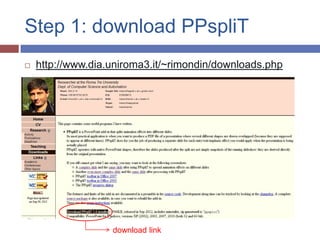
Step 1: download PPspliT
   http://www.dia.uniroma3.it/~rimondin/downloads.php


                   download link
Step 1: explanation


PPspliT will allow you to automatically split
power point animations (with or without clicks)
into their own separate slides
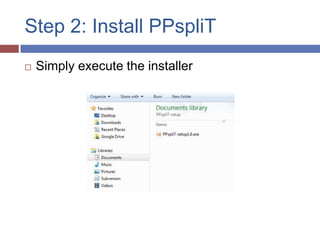
Step 2: Install PPspliT
   Simply execute the installer
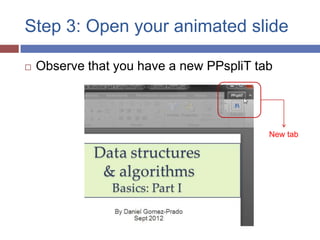
Step 3: Open your animated slide

   Observe that you have a new PPspliT tab


                                          New tab
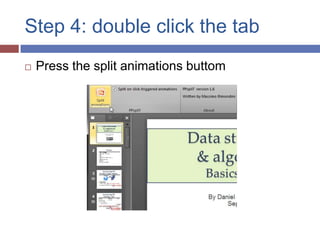
Step 4: double click the tab
   Press the split animations buttom
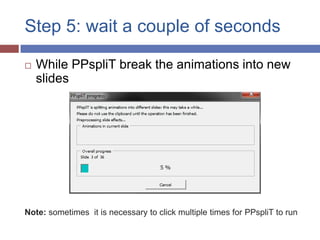
Step 5: wait a couple of seconds

   While PPspliT break the animations into new
    slides


Note: sometimes it is necessary to click multiple times for PPspliT to run
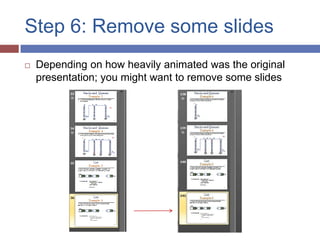
Step 6: Remove some slides
   Depending on how heavily animated was the original
    presentation; you might want to remove some slides
Step 7: upload your slides
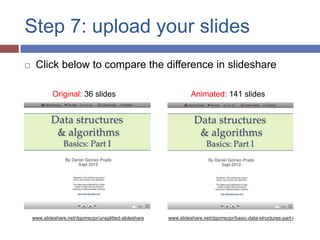
    Click below to compare the difference in slideshare

            Original: 36 slides                                   Animated: 141 slides


    www.slideshare.net/dgomezpr/unsplitted-slideshare   www.slideshare.net/dgomezpr/basic-data-structures-part-i

Slideshare with animations

  • 1.
    HOW TO SLIDESHARE WITH ANIMATIONS ByDaniel Gomez-Prado, Nov 2012 http://www.dgomezpr.com
  • 2.
    Step 1: downloadPPspliT  http://www.dia.uniroma3.it/~rimondin/downloads.php download link
  • 3.
    Step 1: explanation PPspliTwill allow you to automatically split power point animations (with or without clicks) into their own separate slides
  • 4.
    Step 2: InstallPPspliT  Simply execute the installer
  • 5.
    Step 3: Openyour animated slide  Observe that you have a new PPspliT tab New tab
  • 6.
    Step 4: doubleclick the tab  Press the split animations buttom
  • 7.
    Step 5: waita couple of seconds  While PPspliT break the animations into new slides Note: sometimes it is necessary to click multiple times for PPspliT to run
  • 8.
    Step 6: Removesome slides  Depending on how heavily animated was the original presentation; you might want to remove some slides
  • 9.
    Step 7: uploadyour slides  Click below to compare the difference in slideshare Original: 36 slides Animated: 141 slides www.slideshare.net/dgomezpr/unsplitted-slideshare www.slideshare.net/dgomezpr/basic-data-structures-part-i