
Chapter 11Finalizing a Database
What’s Inside and on the CD?In this chapter, you’ll learn how to manipulate a database to:Create formsGenerate reportsPrint reportsConvert reports into Web pages2Practical Microsoft Office 2010
How do I create a form using a Wizard?Data can be displayed as a formA form allows you to view one record at a timeForm Wizard helps you design a form which can be edited on-screen3Practical Microsoft Office 2010
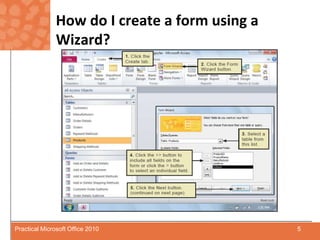
How do I create a form using a Wizard?Form Wizard – Which fields do you want on your form?Usually, you will want to add all fields - Click      button to add all fieldsTo add individual fields, select each and click      buttonRemove individual fields by clicking       button4Practical Microsoft Office 2010
How do I create a form using a Wizard?5Practical Microsoft Office 2010
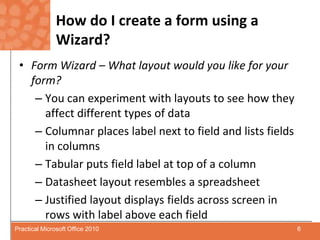
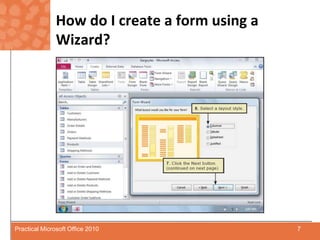
How do I create a form using a Wizard?Form Wizard – What layout would you like for your form?You can experiment with layouts to see how they affect different types of dataColumnar places label next to field and lists fields in columnsTabular puts field label at top of a columnDatasheet layout resembles a spreadsheetJustified layout displays fields across screen in rows with label above each field6Practical Microsoft Office 2010
How do I create a form using a Wizard?7Practical Microsoft Office 2010
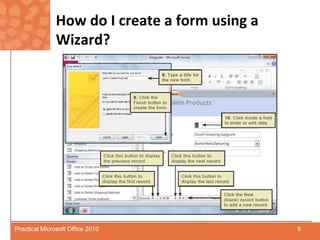
How do I create a form using a Wizard?Form Wizard – What title do you want for your form?Forms you create are automatically savedNow you can use form to view, edit, or add records to tableClick Refresh All to update the corresponding tableUse navigation controls to move from one record to next and to add new records8Practical Microsoft Office 2010
How do I create a form using a Wizard?9Practical Microsoft Office 2010
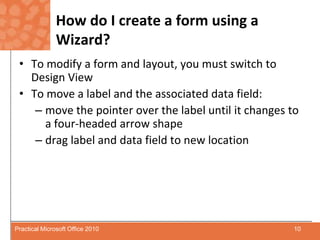
How do I create a form using a Wizard?To modify a form and layout, you must switch to Design ViewTo move a label and the associated data field:move the pointer over the label until it changes to         a four-headed arrowshapedrag label and data field to new location10Practical Microsoft Office 2010
How do I create a report using a Wizard?Create a report to print your dataTo create a report you specify which fields to includeReports often include totals and subtotals and detailed information11Practical Microsoft Office 2010
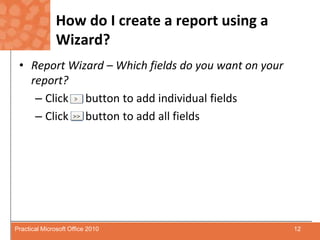
How do I create a report using a Wizard?Report Wizard – Which fields do you want on your report?Click      button to add individual fieldsClick      button to add all fields12Practical Microsoft Office 2010
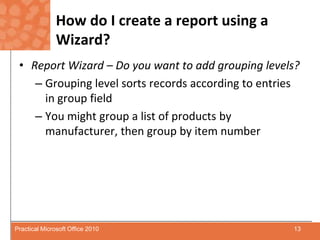
How do I create a report using a Wizard?Report Wizard – Do you want to add grouping levels?Grouping level sorts records according to entries in group fieldYou might group a list of products by manufacturer, then group by item number13Practical Microsoft Office 2010
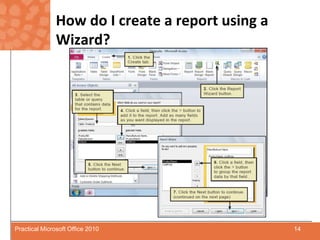
How do I create a report using a Wizard?14Practical Microsoft Office 2010
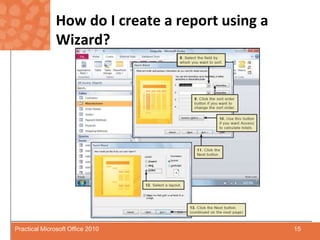
How do I create a report using a Wizard?15Practical Microsoft Office 2010
How do I create a report using a Wizard?Report Wizard – What sort order and summary information do you want for detail records?sort within a group by clicking the down arrow buttonselect field to sortselect Ascending or Descending button to change sort order16Practical Microsoft Office 2010
How do I create a report using a Wizard?Report Wizard – How would you like to lay out your report?Select an option button in the Layout sectionPreview helps to visualize the layout of the completed report17Practical Microsoft Office 2010
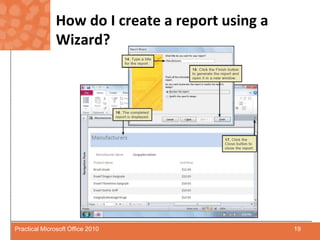
How do I create a report using a Wizard?Report Wizard – What title do you want for your reporttype name of reportReport is automatically savedReport is displayed when you click FinishUse scroll bars to view any pages not showing18Practical Microsoft Office 2010
How do I create a report using a Wizard?19Practical Microsoft Office 2010
How do I create a report using a Wizard?Modify report layout at any time:Right-click report nameClick Design View from shortcut menuUse options on the Report Design Tools tabsUse sizing handles to resize objects on reportTo move object:Position pointer over object until it changes to a four-headed arrowDrag to new location20Practical Microsoft Office 2010
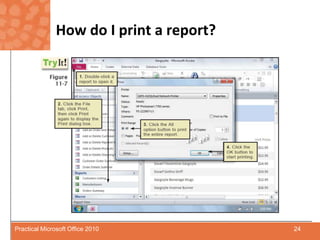
How do I print a report?Contents of report are automatically updated to reflect database contents each time you display or print reportThe printed report is a snapshotInclude date and time report was printed to help determine if data is current21Practical Microsoft Office 2010
How do I print a report?To add date or time as header:Right-click report name in the Navigation PaneClick Design View on the shortcut menuClick the Date & Time button in the Design tabSelect the date and time formatsClick the OK button22Practical Microsoft Office 2010
How do I print a report?Move date and time fields to any location:Select both fields by holding down Shift key while clicking each fieldMove pointer over edge of fields until pointer changes to a four-headed arrowDrag to desired location on report23Practical Microsoft Office 2010
How do I print a report?24Practical Microsoft Office 2010
How do I print a report?25Practical Microsoft Office 2010
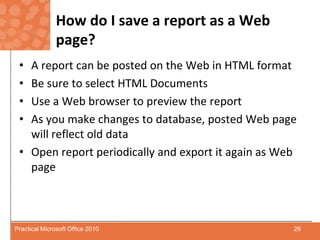
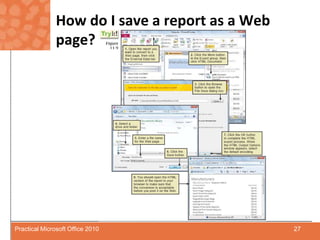
How do I save a report as a Web page?A report can be posted on the Web in HTML formatBe sure to select HTML DocumentsUse a Web browser to preview the reportAs you make changes to database, posted Web page will reflect old dataOpen report periodically and export it again as Web page26Practical Microsoft Office 2010
How do I save a report as a Web page?27Practical Microsoft Office 2010
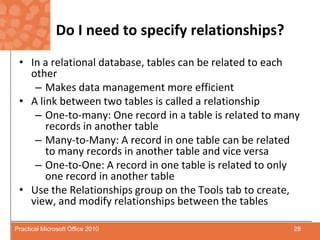
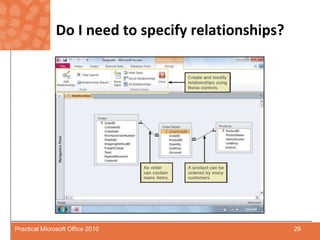
Do I need to specify relationships?In a relational database, tables can be related to each otherMakes data management more efficientA link between two tables is called a relationshipOne-to-many: One record in a table is related to many records in another tableMany-to-Many: A record in one table can be related to many records in another table and vice versaOne-to-One: A record in one table is related to only one record in another tableUse the Relationships group on the Tools tab to create, view, and modify relationships between the tables28Practical Microsoft Office 2010
Do I need to specify relationships?29Practical Microsoft Office 2010

Chapter.11

  • 1.
  • 2.
    What’s Inside andon the CD?In this chapter, you’ll learn how to manipulate a database to:Create formsGenerate reportsPrint reportsConvert reports into Web pages2Practical Microsoft Office 2010
  • 3.
    How do Icreate a form using a Wizard?Data can be displayed as a formA form allows you to view one record at a timeForm Wizard helps you design a form which can be edited on-screen3Practical Microsoft Office 2010
  • 4.
    How do Icreate a form using a Wizard?Form Wizard – Which fields do you want on your form?Usually, you will want to add all fields - Click button to add all fieldsTo add individual fields, select each and click buttonRemove individual fields by clicking button4Practical Microsoft Office 2010
  • 5.
    How do Icreate a form using a Wizard?5Practical Microsoft Office 2010
  • 6.
    How do Icreate a form using a Wizard?Form Wizard – What layout would you like for your form?You can experiment with layouts to see how they affect different types of dataColumnar places label next to field and lists fields in columnsTabular puts field label at top of a columnDatasheet layout resembles a spreadsheetJustified layout displays fields across screen in rows with label above each field6Practical Microsoft Office 2010
  • 7.
    How do Icreate a form using a Wizard?7Practical Microsoft Office 2010
  • 8.
    How do Icreate a form using a Wizard?Form Wizard – What title do you want for your form?Forms you create are automatically savedNow you can use form to view, edit, or add records to tableClick Refresh All to update the corresponding tableUse navigation controls to move from one record to next and to add new records8Practical Microsoft Office 2010
  • 9.
    How do Icreate a form using a Wizard?9Practical Microsoft Office 2010
  • 10.
    How do Icreate a form using a Wizard?To modify a form and layout, you must switch to Design ViewTo move a label and the associated data field:move the pointer over the label until it changes to a four-headed arrowshapedrag label and data field to new location10Practical Microsoft Office 2010
  • 11.
    How do Icreate a report using a Wizard?Create a report to print your dataTo create a report you specify which fields to includeReports often include totals and subtotals and detailed information11Practical Microsoft Office 2010
  • 12.
    How do Icreate a report using a Wizard?Report Wizard – Which fields do you want on your report?Click button to add individual fieldsClick button to add all fields12Practical Microsoft Office 2010
  • 13.
    How do Icreate a report using a Wizard?Report Wizard – Do you want to add grouping levels?Grouping level sorts records according to entries in group fieldYou might group a list of products by manufacturer, then group by item number13Practical Microsoft Office 2010
  • 14.
    How do Icreate a report using a Wizard?14Practical Microsoft Office 2010
  • 15.
    How do Icreate a report using a Wizard?15Practical Microsoft Office 2010
  • 16.
    How do Icreate a report using a Wizard?Report Wizard – What sort order and summary information do you want for detail records?sort within a group by clicking the down arrow buttonselect field to sortselect Ascending or Descending button to change sort order16Practical Microsoft Office 2010
  • 17.
    How do Icreate a report using a Wizard?Report Wizard – How would you like to lay out your report?Select an option button in the Layout sectionPreview helps to visualize the layout of the completed report17Practical Microsoft Office 2010
  • 18.
    How do Icreate a report using a Wizard?Report Wizard – What title do you want for your reporttype name of reportReport is automatically savedReport is displayed when you click FinishUse scroll bars to view any pages not showing18Practical Microsoft Office 2010
  • 19.
    How do Icreate a report using a Wizard?19Practical Microsoft Office 2010
  • 20.
    How do Icreate a report using a Wizard?Modify report layout at any time:Right-click report nameClick Design View from shortcut menuUse options on the Report Design Tools tabsUse sizing handles to resize objects on reportTo move object:Position pointer over object until it changes to a four-headed arrowDrag to new location20Practical Microsoft Office 2010
  • 21.
    How do Iprint a report?Contents of report are automatically updated to reflect database contents each time you display or print reportThe printed report is a snapshotInclude date and time report was printed to help determine if data is current21Practical Microsoft Office 2010
  • 22.
    How do Iprint a report?To add date or time as header:Right-click report name in the Navigation PaneClick Design View on the shortcut menuClick the Date & Time button in the Design tabSelect the date and time formatsClick the OK button22Practical Microsoft Office 2010
  • 23.
    How do Iprint a report?Move date and time fields to any location:Select both fields by holding down Shift key while clicking each fieldMove pointer over edge of fields until pointer changes to a four-headed arrowDrag to desired location on report23Practical Microsoft Office 2010
  • 24.
    How do Iprint a report?24Practical Microsoft Office 2010
  • 25.
    How do Iprint a report?25Practical Microsoft Office 2010
  • 26.
    How do Isave a report as a Web page?A report can be posted on the Web in HTML formatBe sure to select HTML DocumentsUse a Web browser to preview the reportAs you make changes to database, posted Web page will reflect old dataOpen report periodically and export it again as Web page26Practical Microsoft Office 2010
  • 27.
    How do Isave a report as a Web page?27Practical Microsoft Office 2010
  • 28.
    Do I needto specify relationships?In a relational database, tables can be related to each otherMakes data management more efficientA link between two tables is called a relationshipOne-to-many: One record in a table is related to many records in another tableMany-to-Many: A record in one table can be related to many records in another table and vice versaOne-to-One: A record in one table is related to only one record in another tableUse the Relationships group on the Tools tab to create, view, and modify relationships between the tables28Practical Microsoft Office 2010
  • 29.
    Do I needto specify relationships?29Practical Microsoft Office 2010