Kay Cunningham, Library Director Plough Memorial Library Christian Brothers University Fall 2010 Getting Started with  RefWorks at CBU:  Working with Folders in RefWorks 2.0
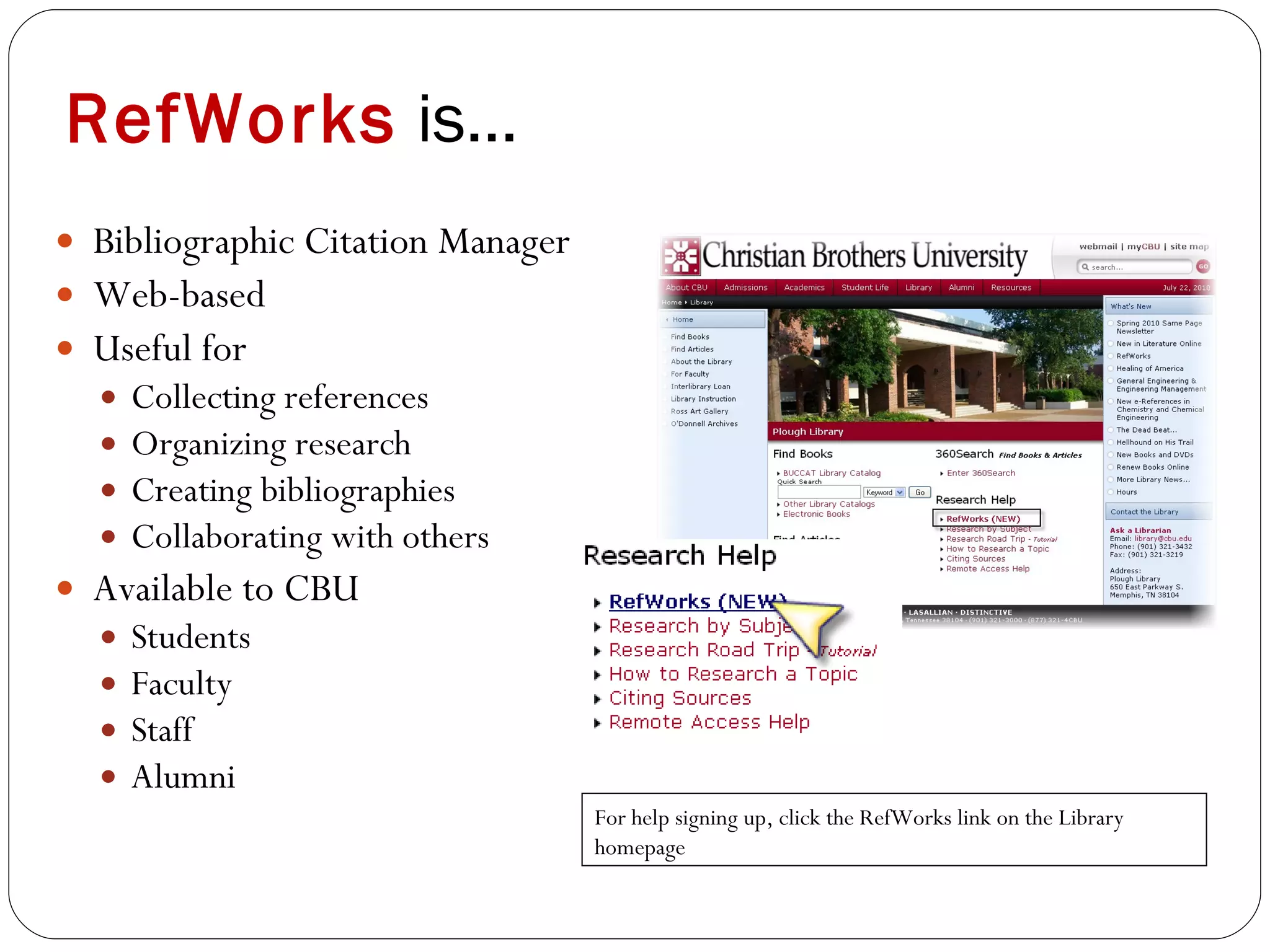
RefWorks   is… Bibliographic Citation Manager Web-based Useful for  Collecting references Organizing research Creating bibliographies Collaborating with others Available to CBU Students Faculty Staff Alumni For help signing up, click the RefWorks link on the Library homepage
Why Use Folders? The greater the number of references you have in your database, the more you will need to create folders Folders enable you to  Work with a selected group of references en masse Share a subset of your database with others Organize (and re-organize) your research in a variety of ways Generate bibliographies on a topic without having to continually select to “My List”
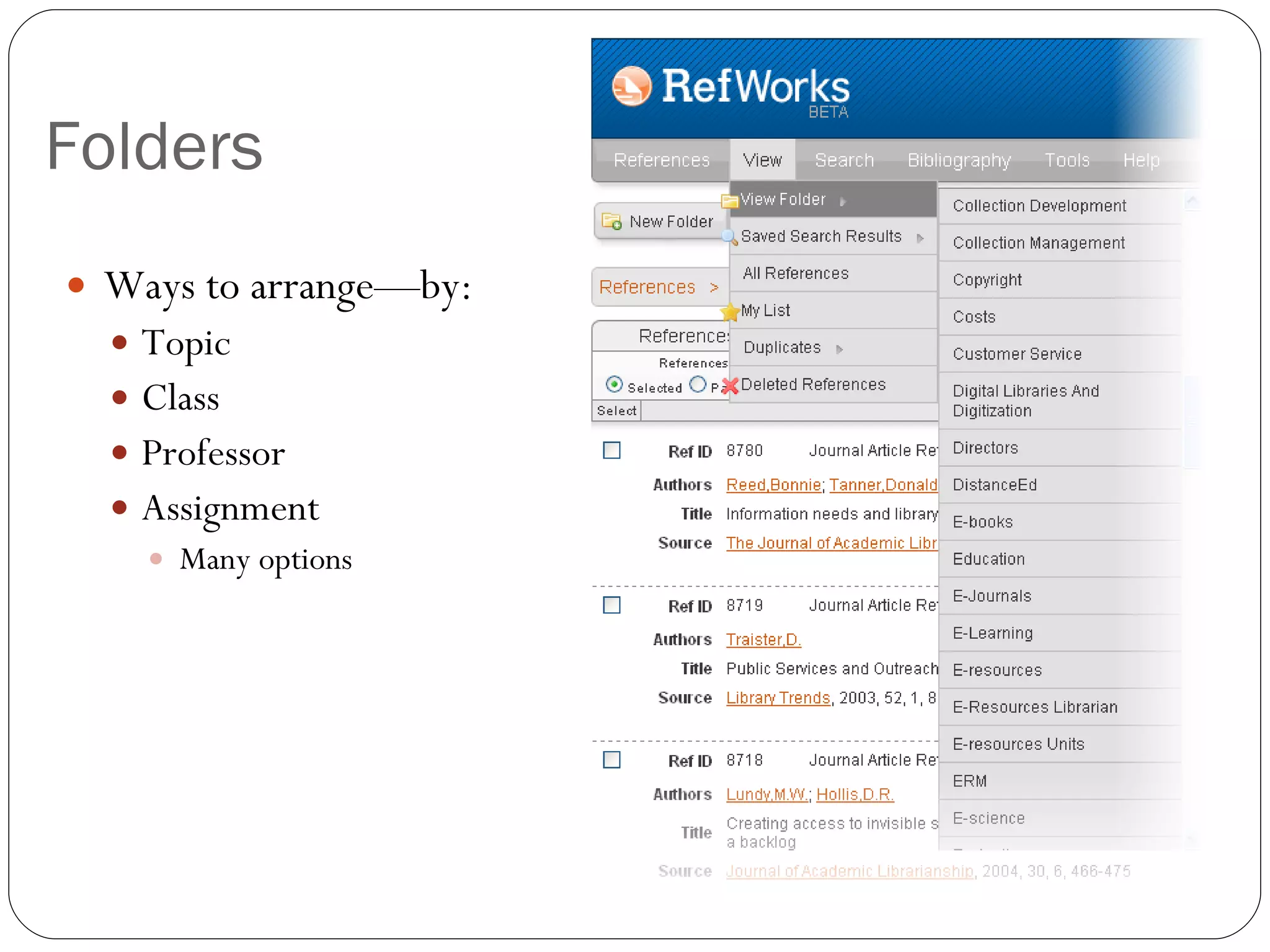
Folders Ways to arrange—by: Topic Class Professor Assignment Many options
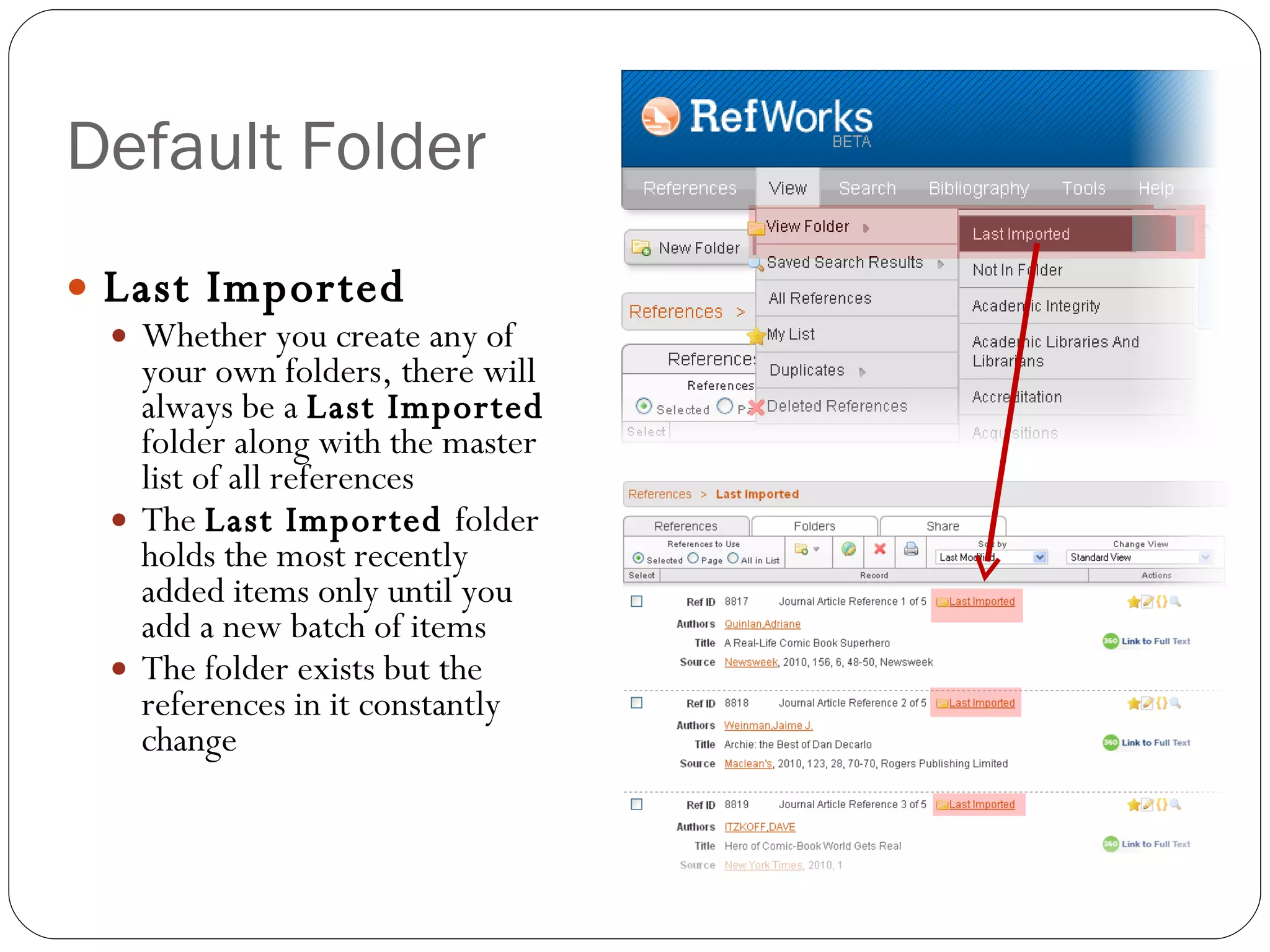
Default Folder Last Imported Whether you create any of your own folders, there will always be a  Last Imported  folder along with the master list of all references The  Last Imported  folder holds the most recently added items only until you add a new batch of items The folder exists but the references in it constantly change
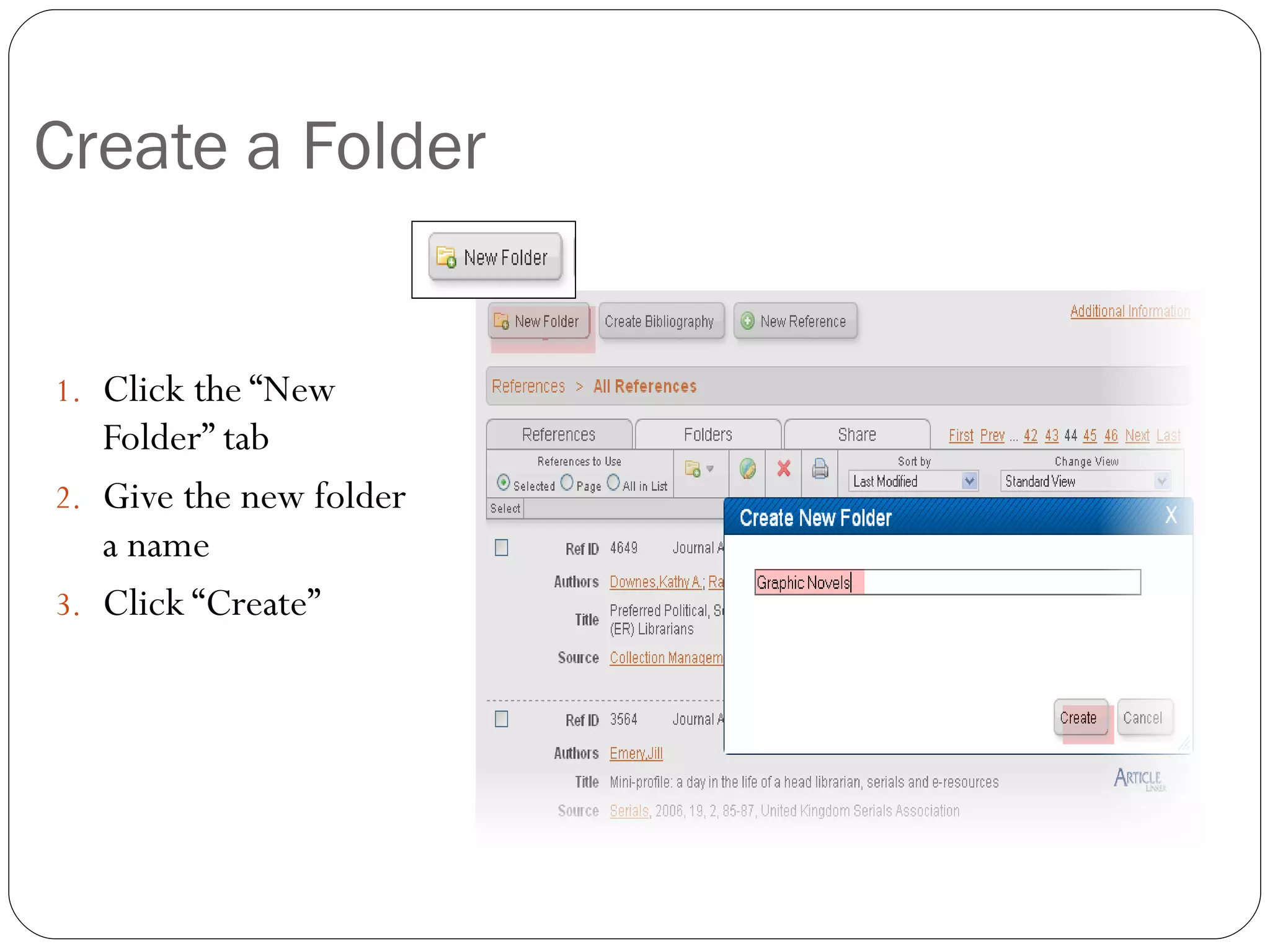
Create a Folder Click the “New Folder” tab Give the new folder a name Click “Create”
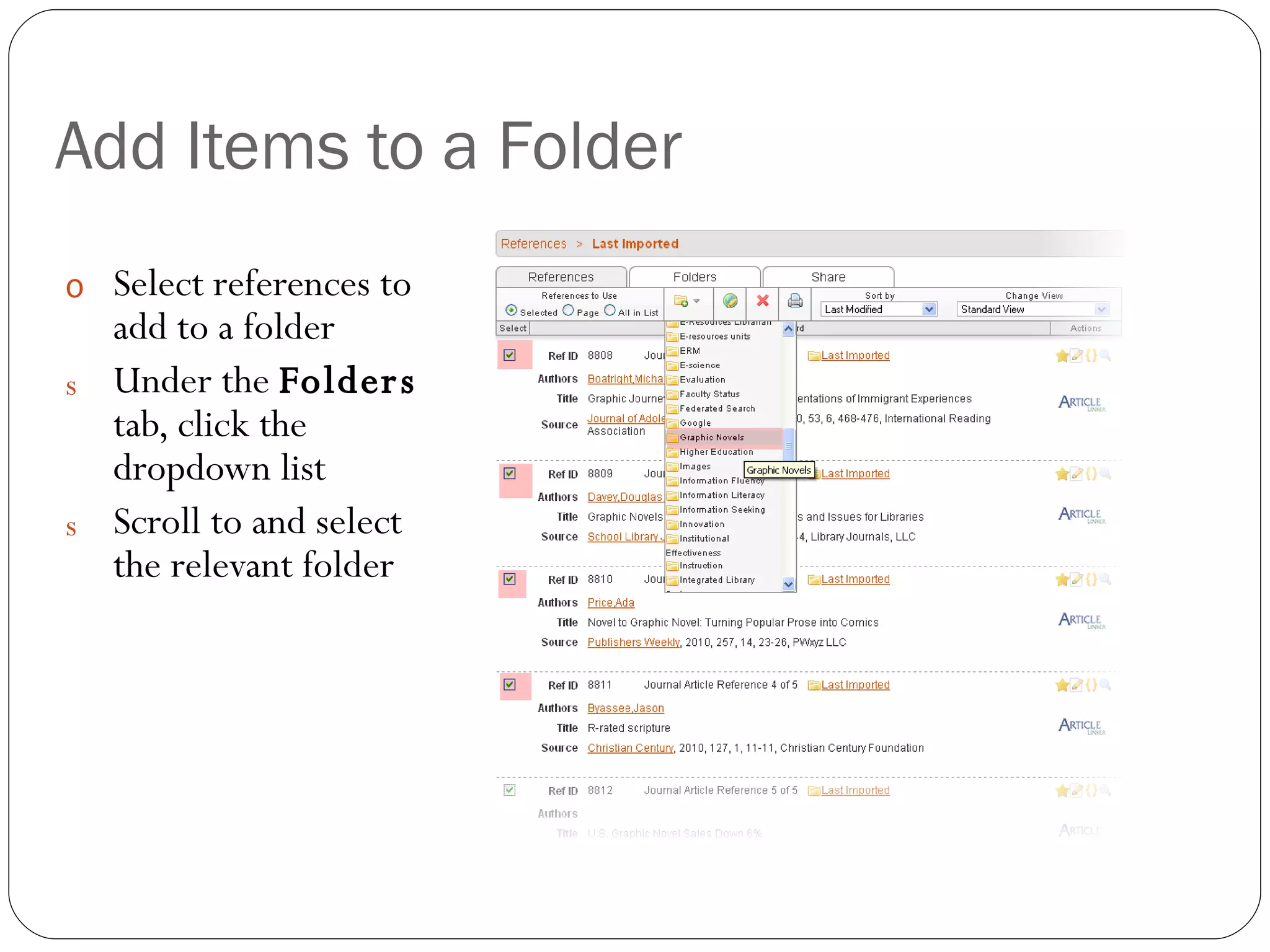
Add Items to a Folder Select references to add to a folder Under the  Folders  tab, click the dropdown list Scroll to and select the relevant folder
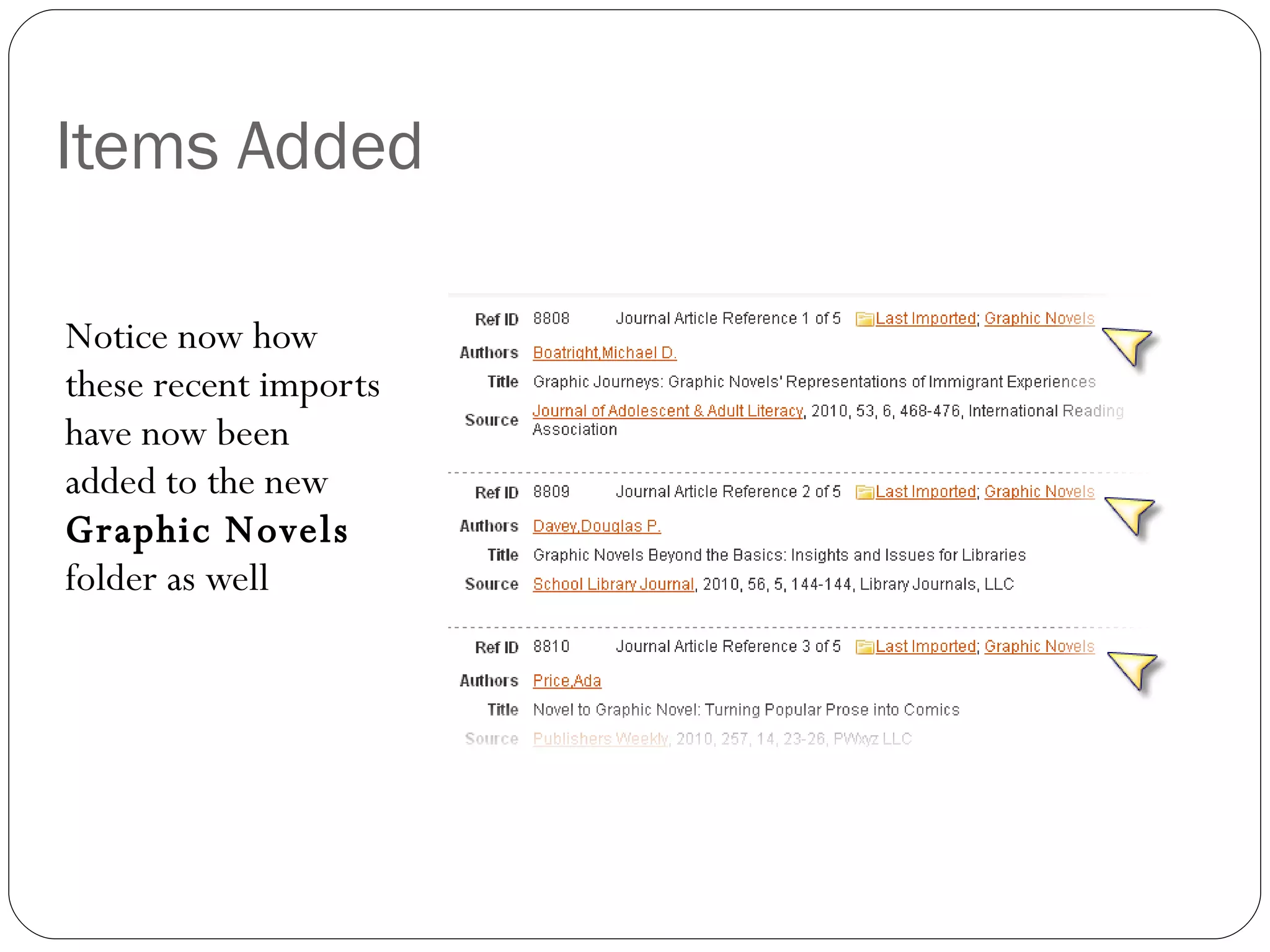
Items Added Notice now how these recent imports have now been added to the new  Graphic Novels  folder as well
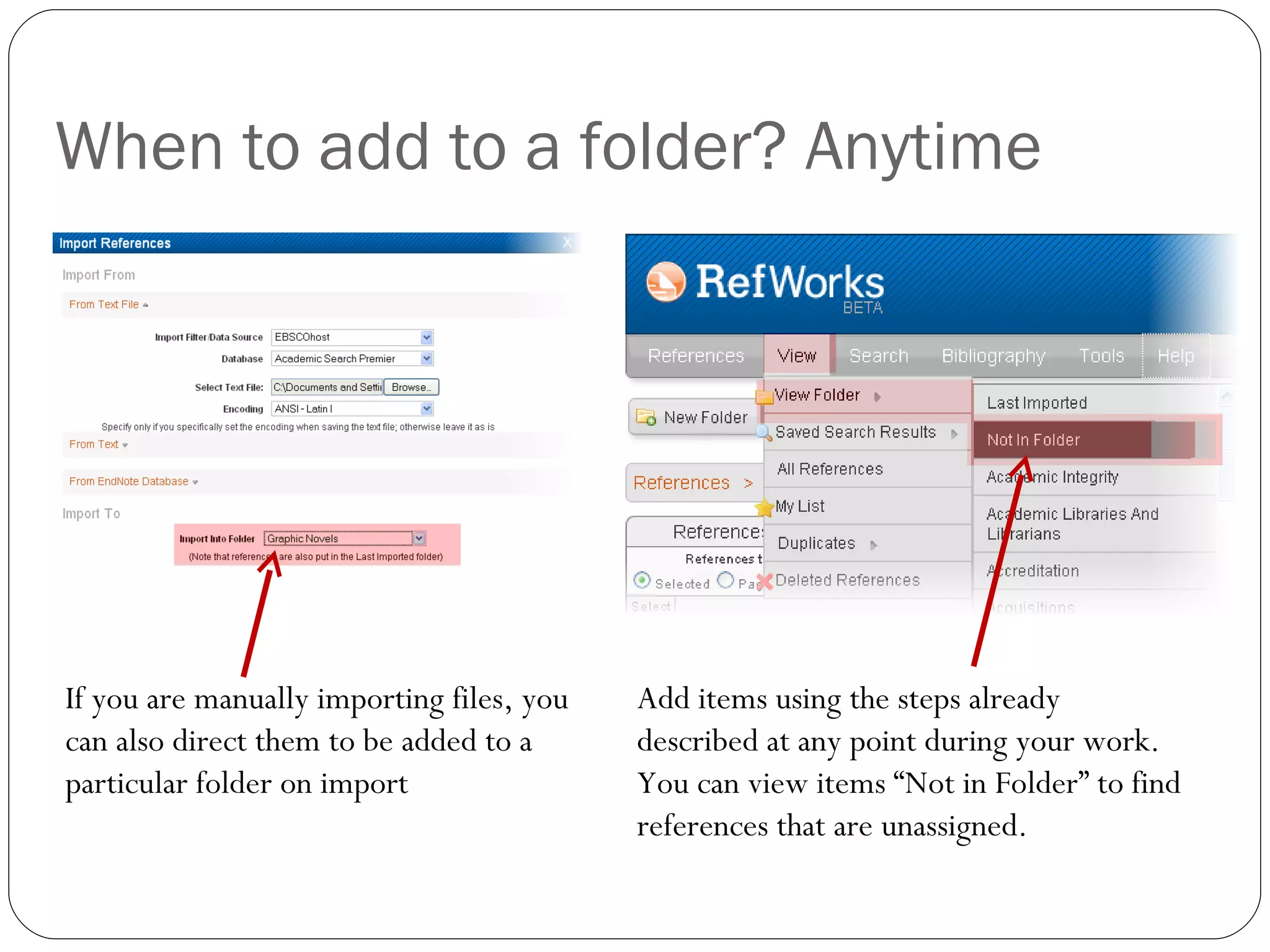
When to add to a folder? Anytime If you are manually importing files, you can also direct them to be added to a particular folder on import Add items using the steps already described at any point during your work. You can view items “Not in Folder” to find references that are unassigned.
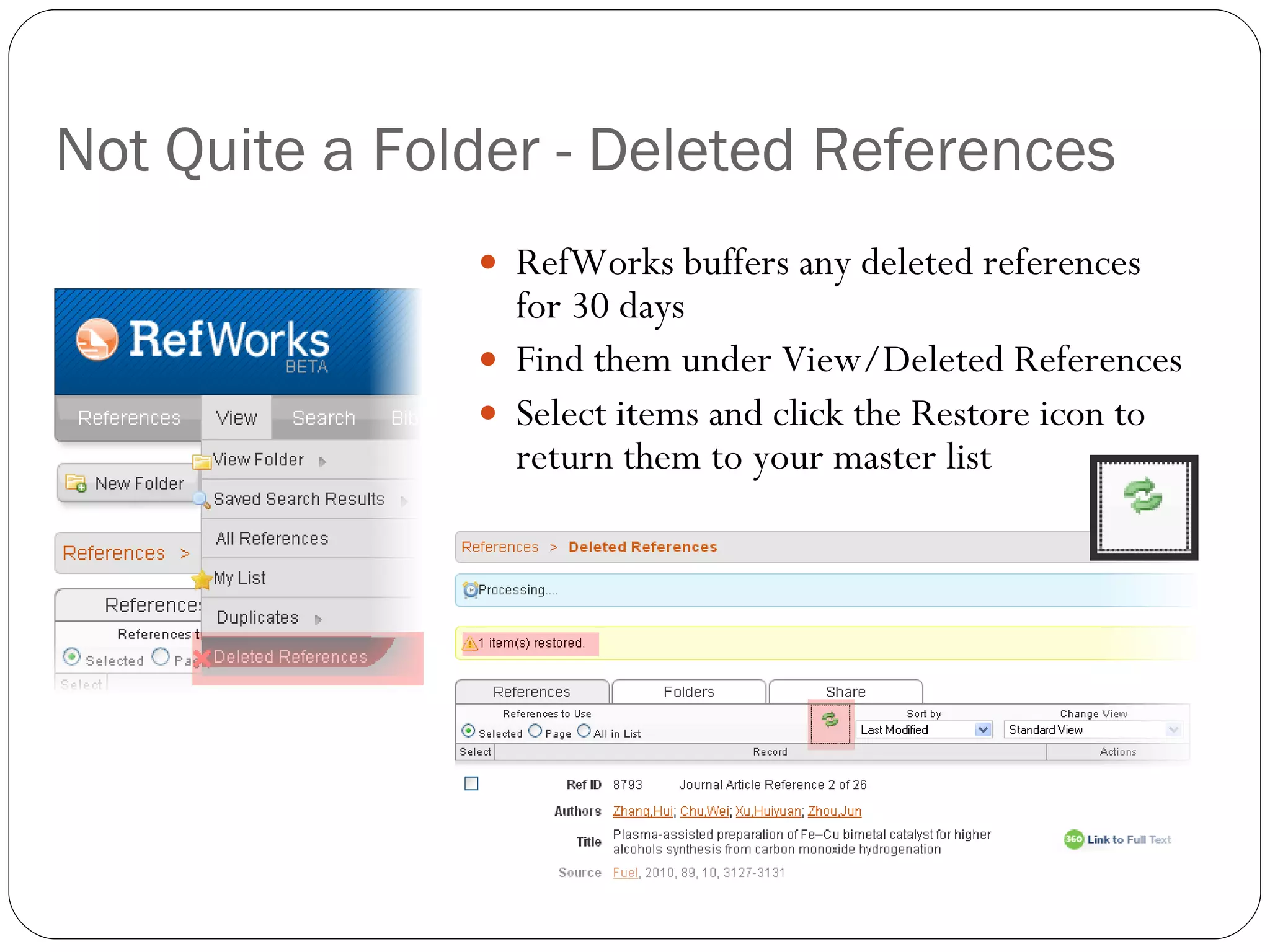
Not Quite a Folder - Deleted References RefWorks buffers any deleted references for 30 days Find them under View/Deleted References Select items and click the Restore icon to return them to your master list
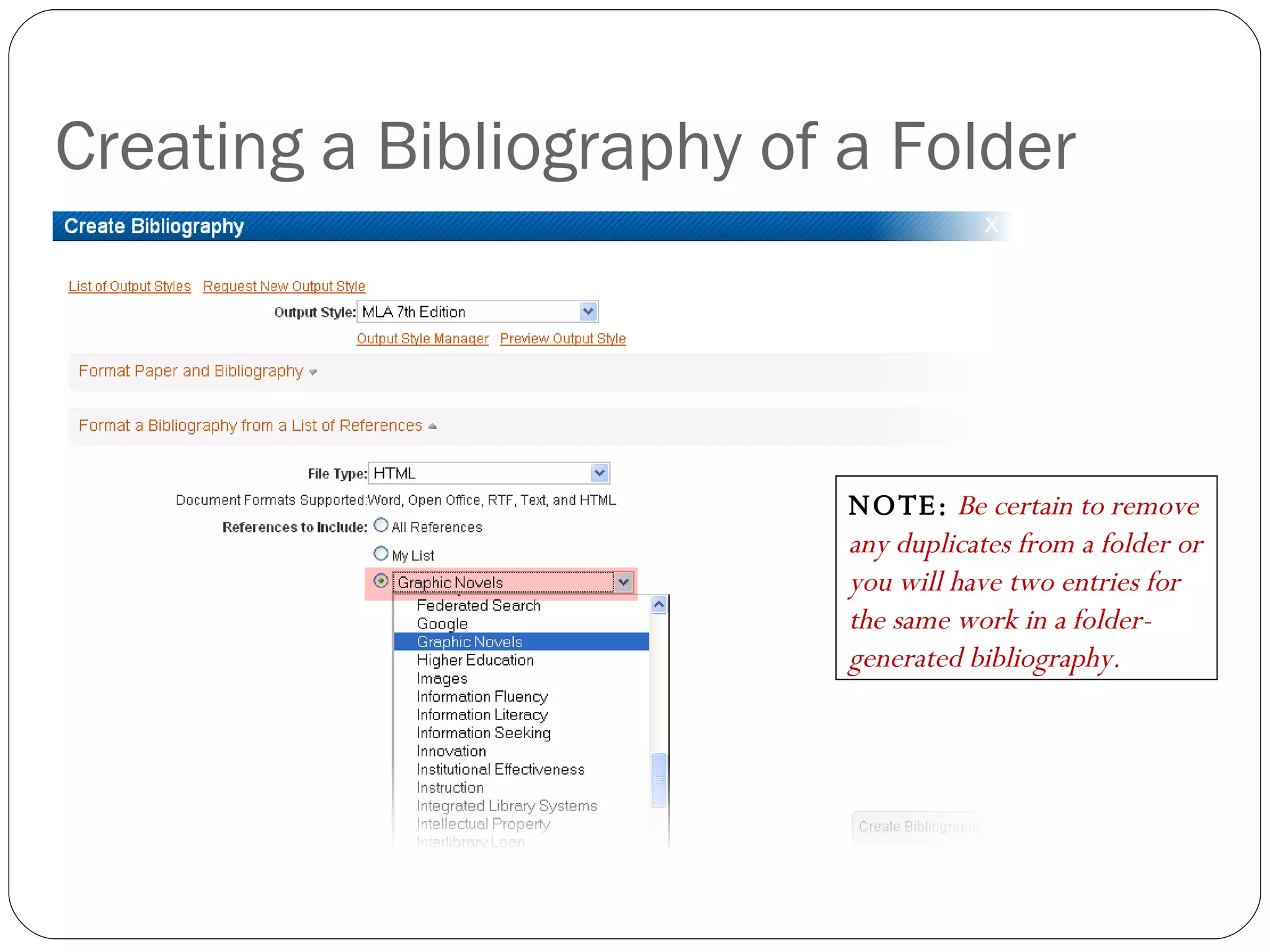
Creating a Bibliography of a Folder NOTE:   Be certain to remove any duplicates from a folder or you will have two entries for the same work in a folder-generated bibliography.
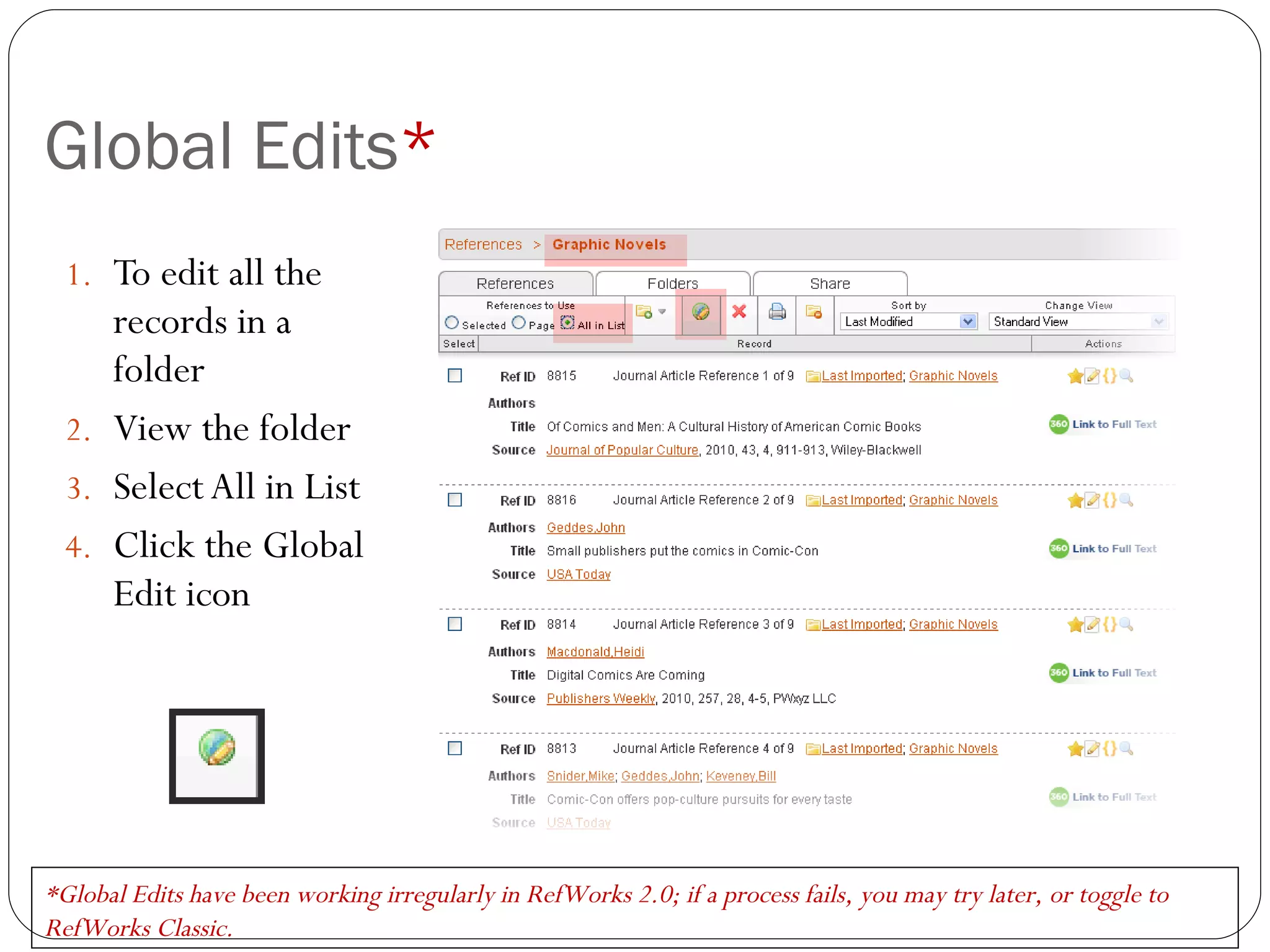
Global Edits * To edit all the records in a folder View the folder Select All in List Click the Global Edit icon *Global Edits have been working irregularly in RefWorks 2.0; if a process fails, you may try later, or toggle to RefWorks Classic.
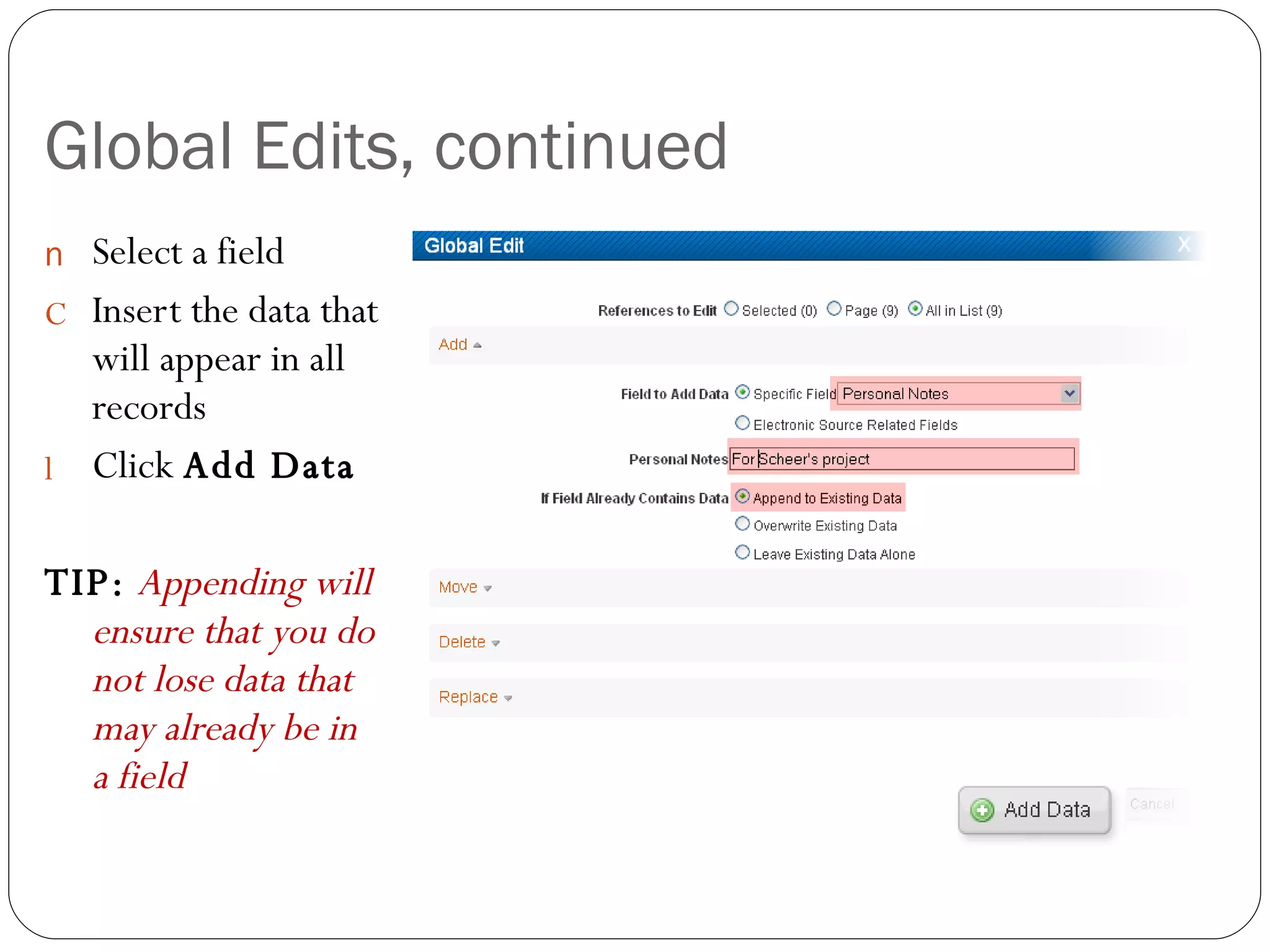
Global Edits, continued Select a field Insert the data that will appear in all records Click  Add Data TIP:   Appending will ensure that you do not lose data that may already be in a field
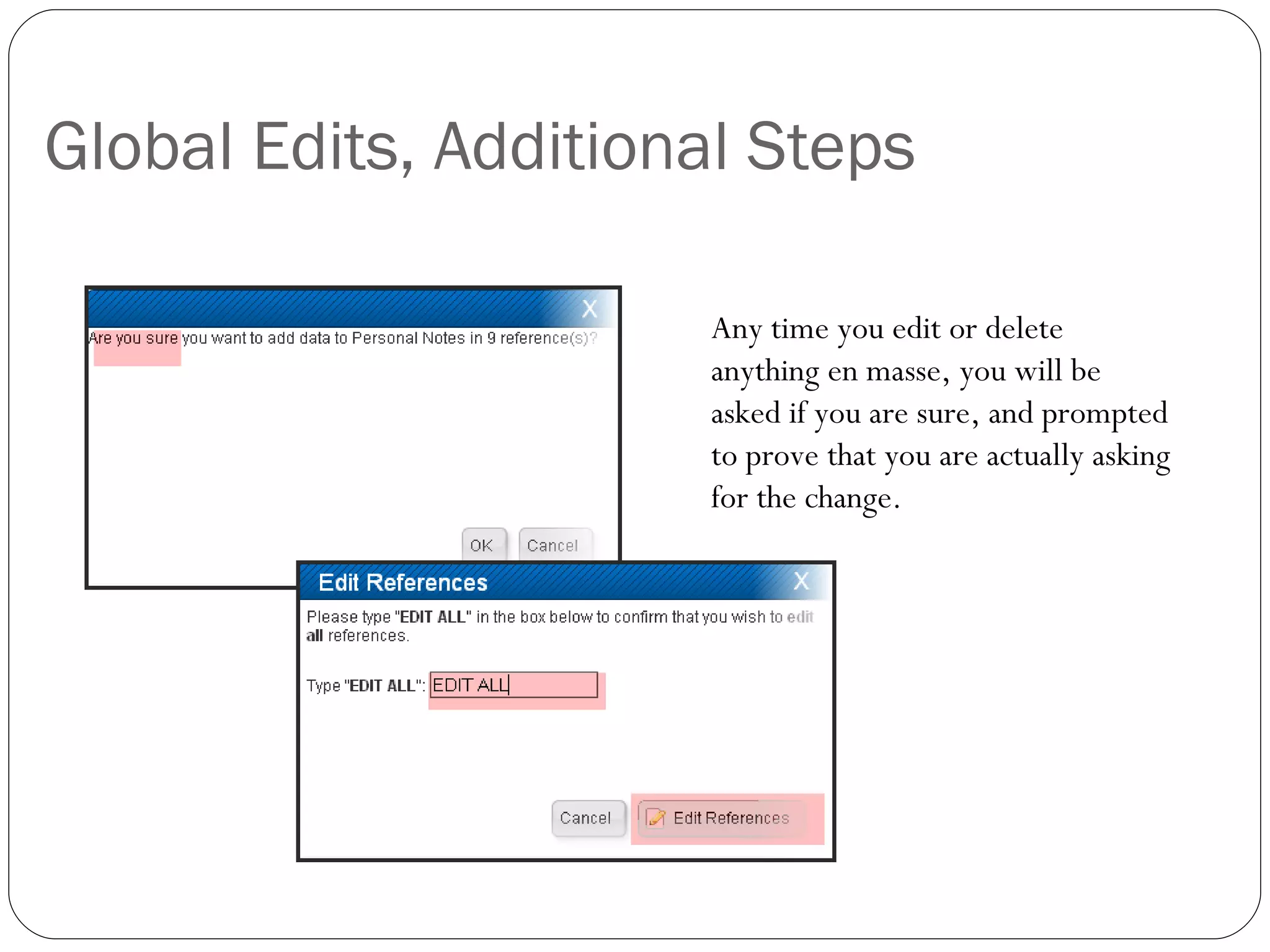
Global Edits, Additional Steps Any time you edit or delete anything en masse, you will be asked if you are sure, and prompted to prove that you are actually asking for the change.
Global Edits - options Add Information common to all records A possibility: insert a person’s name associated with the reason you are collecting the references Move  Data from one field to another A possibility: move existing abstracts to another field so you can annotate an article; then use the MLA or APA annotated bibliography output style to generate an annotated bibliography (The abstract field is where the annotation would have to reside for the bibliography to format properly) Delete  Replace
Getting Started with RefWorks at CBU:  Working with Folders See other handouts on: Collaborating with RefShare Customizing Your Account Making Bibliographies Registering for an Account and Setting Up a Database Searching with RefWorks Write-N-Cite

Working with Folders in RefWorks 2.0

  • 1.
    Kay Cunningham, LibraryDirector Plough Memorial Library Christian Brothers University Fall 2010 Getting Started with RefWorks at CBU: Working with Folders in RefWorks 2.0
  • 2.
    RefWorks is… Bibliographic Citation Manager Web-based Useful for Collecting references Organizing research Creating bibliographies Collaborating with others Available to CBU Students Faculty Staff Alumni For help signing up, click the RefWorks link on the Library homepage
  • 3.
    Why Use Folders?The greater the number of references you have in your database, the more you will need to create folders Folders enable you to Work with a selected group of references en masse Share a subset of your database with others Organize (and re-organize) your research in a variety of ways Generate bibliographies on a topic without having to continually select to “My List”
  • 4.
    Folders Ways toarrange—by: Topic Class Professor Assignment Many options
  • 5.
    Default Folder LastImported Whether you create any of your own folders, there will always be a Last Imported folder along with the master list of all references The Last Imported folder holds the most recently added items only until you add a new batch of items The folder exists but the references in it constantly change
  • 6.
    Create a FolderClick the “New Folder” tab Give the new folder a name Click “Create”
  • 7.
    Add Items toa Folder Select references to add to a folder Under the Folders tab, click the dropdown list Scroll to and select the relevant folder
  • 8.
    Items Added Noticenow how these recent imports have now been added to the new Graphic Novels folder as well
  • 9.
    When to addto a folder? Anytime If you are manually importing files, you can also direct them to be added to a particular folder on import Add items using the steps already described at any point during your work. You can view items “Not in Folder” to find references that are unassigned.
  • 10.
    Not Quite aFolder - Deleted References RefWorks buffers any deleted references for 30 days Find them under View/Deleted References Select items and click the Restore icon to return them to your master list
  • 11.
    Creating a Bibliographyof a Folder NOTE: Be certain to remove any duplicates from a folder or you will have two entries for the same work in a folder-generated bibliography.
  • 12.
    Global Edits *To edit all the records in a folder View the folder Select All in List Click the Global Edit icon *Global Edits have been working irregularly in RefWorks 2.0; if a process fails, you may try later, or toggle to RefWorks Classic.
  • 13.
    Global Edits, continuedSelect a field Insert the data that will appear in all records Click Add Data TIP: Appending will ensure that you do not lose data that may already be in a field
  • 14.
    Global Edits, AdditionalSteps Any time you edit or delete anything en masse, you will be asked if you are sure, and prompted to prove that you are actually asking for the change.
  • 15.
    Global Edits -options Add Information common to all records A possibility: insert a person’s name associated with the reason you are collecting the references Move Data from one field to another A possibility: move existing abstracts to another field so you can annotate an article; then use the MLA or APA annotated bibliography output style to generate an annotated bibliography (The abstract field is where the annotation would have to reside for the bibliography to format properly) Delete Replace
  • 16.
    Getting Started withRefWorks at CBU: Working with Folders See other handouts on: Collaborating with RefShare Customizing Your Account Making Bibliographies Registering for an Account and Setting Up a Database Searching with RefWorks Write-N-Cite