+


    Integrating Citations from RefWorks into MS
    Word without the Write-N-Cite Plugin
                             John Pell
                             Assistant Professor
                             Hunter College Libraries
+
    Write-N-Cite?


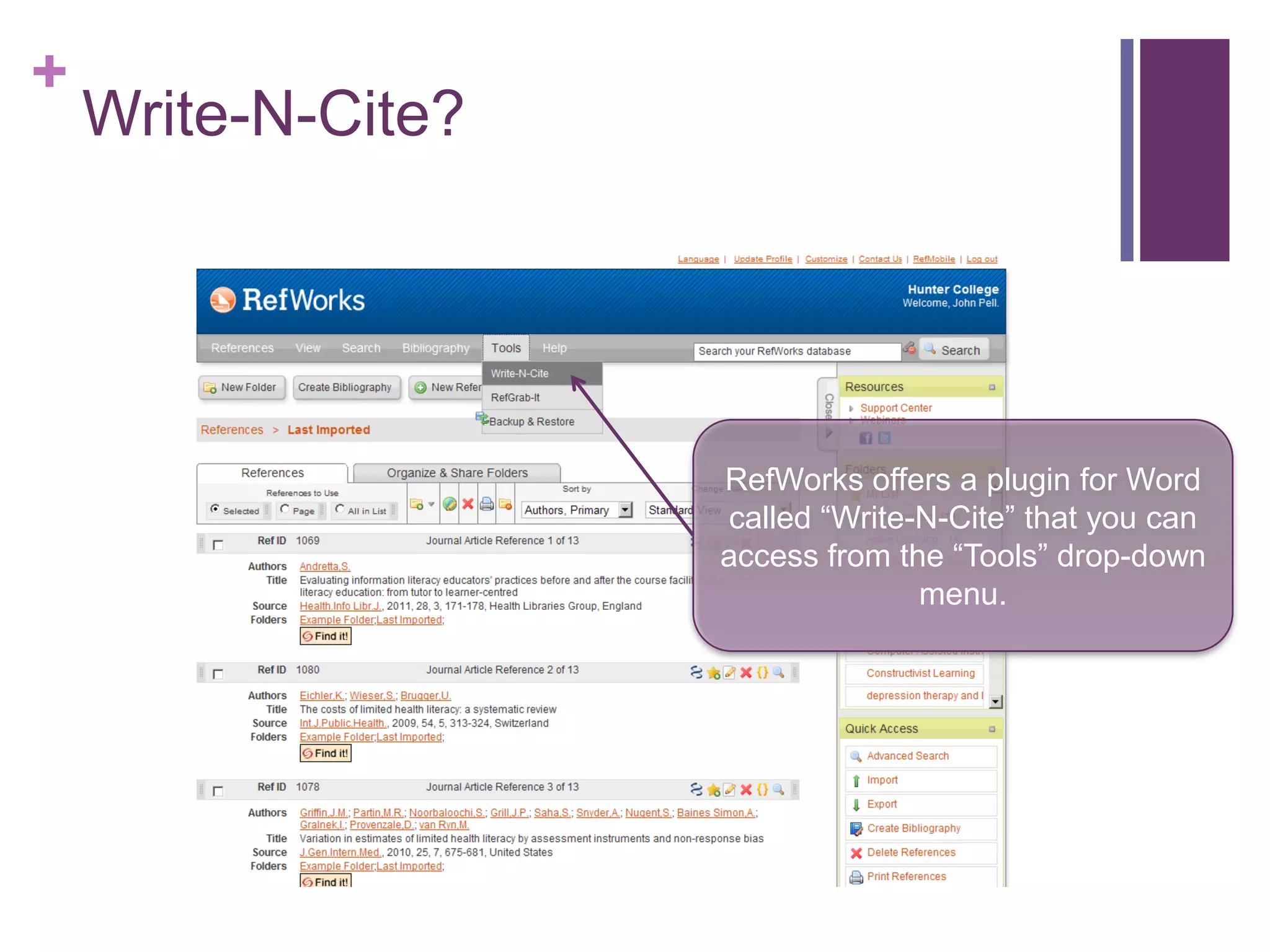
                    RefWorks offers a plugin for Word
                    called “Write-N-Cite” that you can
                    access from the “Tools” drop-down
                                  menu.
+
    No Write-N-Cite?


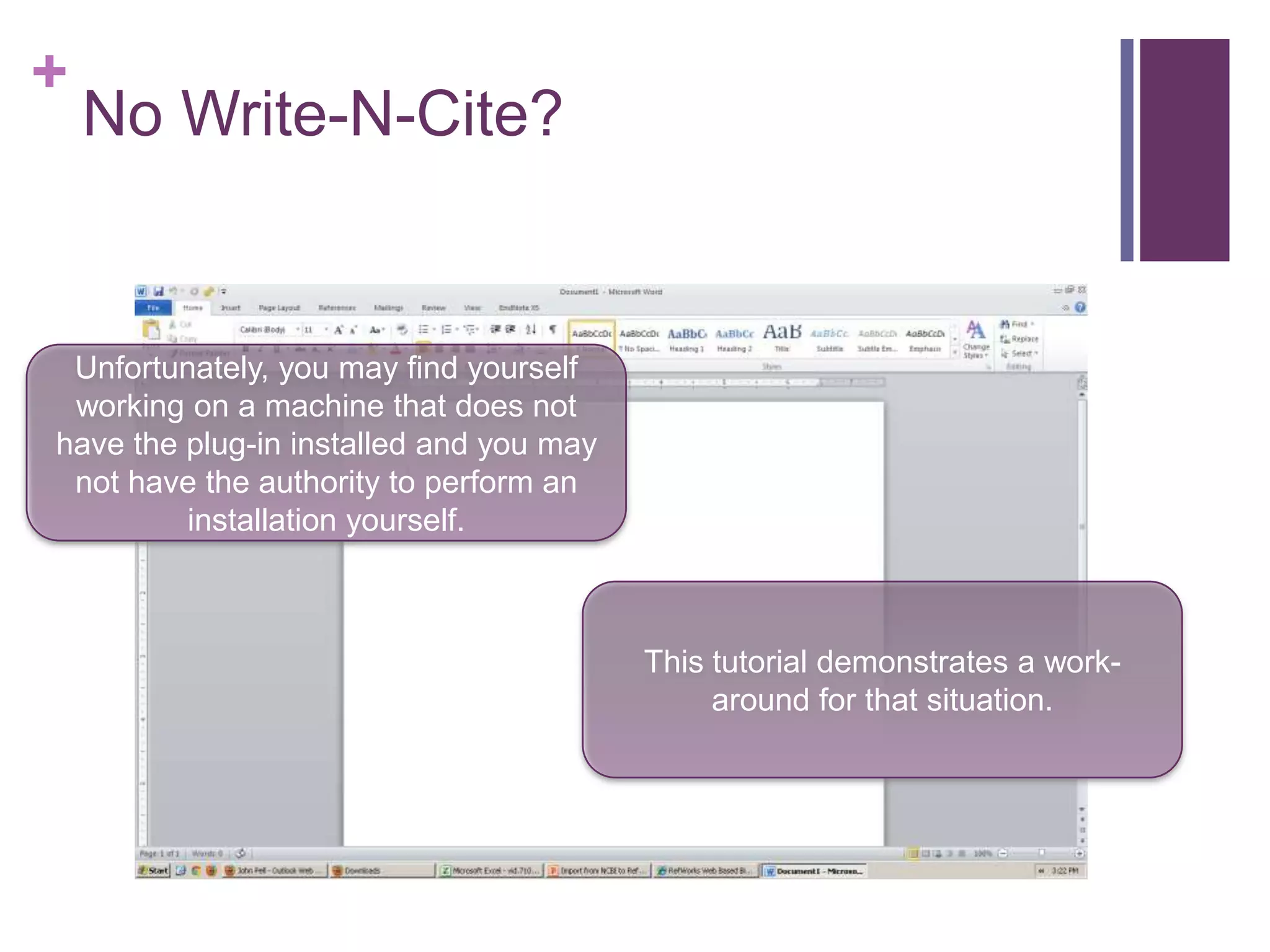
 Unfortunately, you may find yourself
 working on a machine that does not
have the plug-in installed and you may
 not have the authority to perform an
         installation yourself.


                                         This tutorial demonstrates a work-
                                              around for that situation.
+
    Inserting References from
    RefWorks:


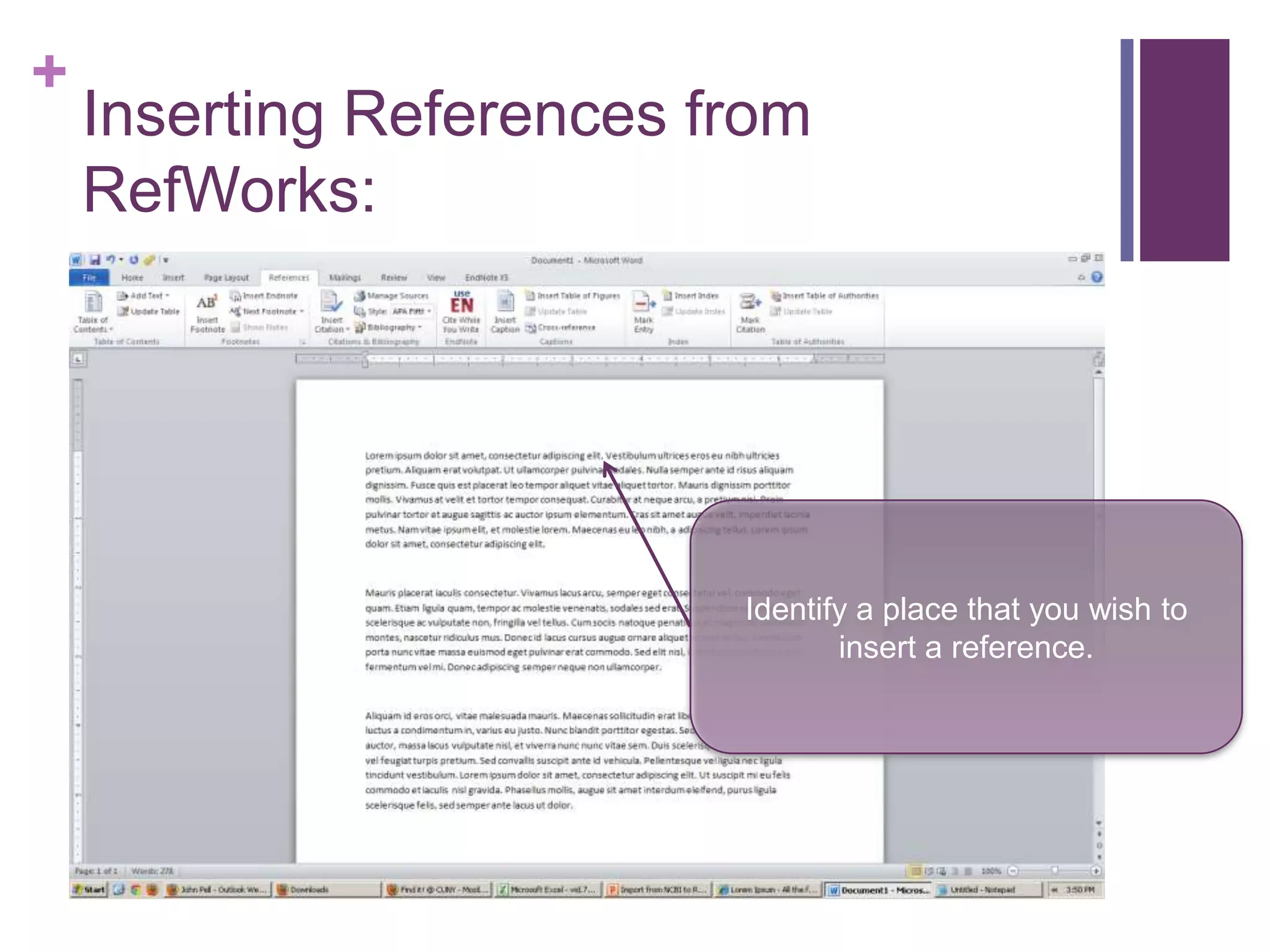
                          Identify a place that you wish to
                                 insert a reference.
+
    Inserting References from
    RefWorks:


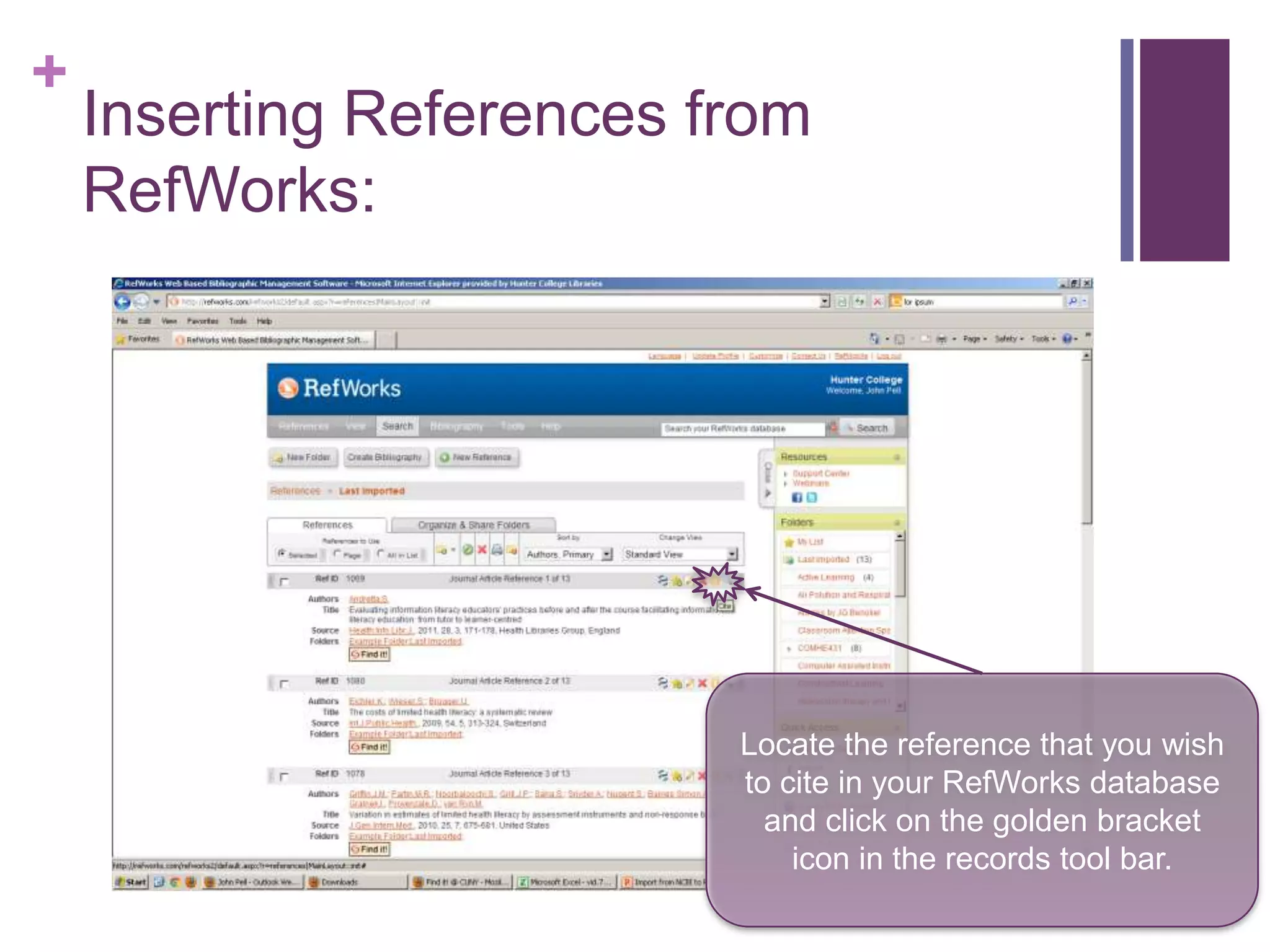
                          Locate the reference that you wish
                          to cite in your RefWorks database
                            and click on the golden bracket
                              icon in the records tool bar.
+
    Inserting References from
    RefWorks:


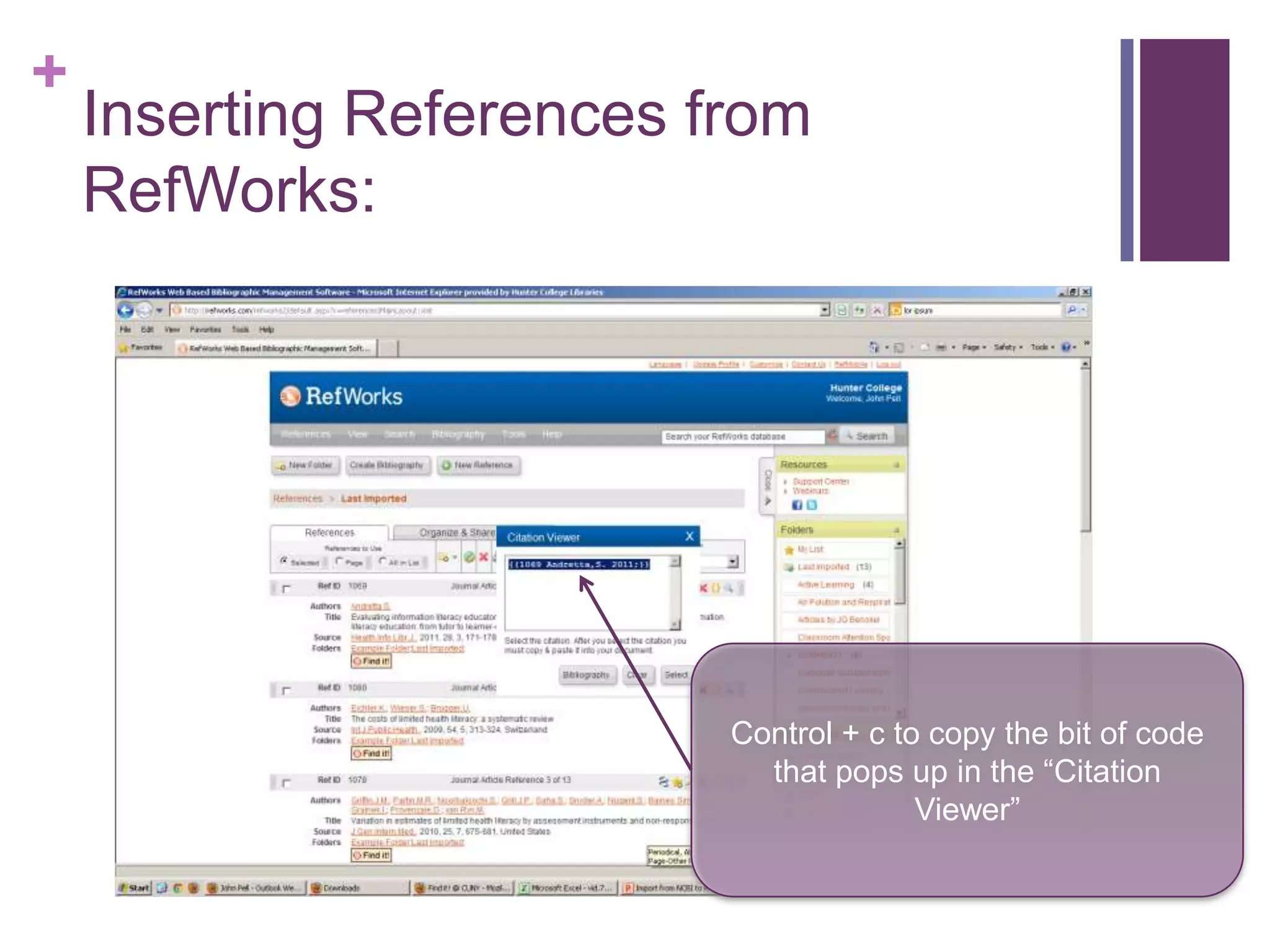
                          Control + c to copy the bit of code
                            that pops up in the “Citation
                                        Viewer”
+
    Inserting References from
    RefWorks:


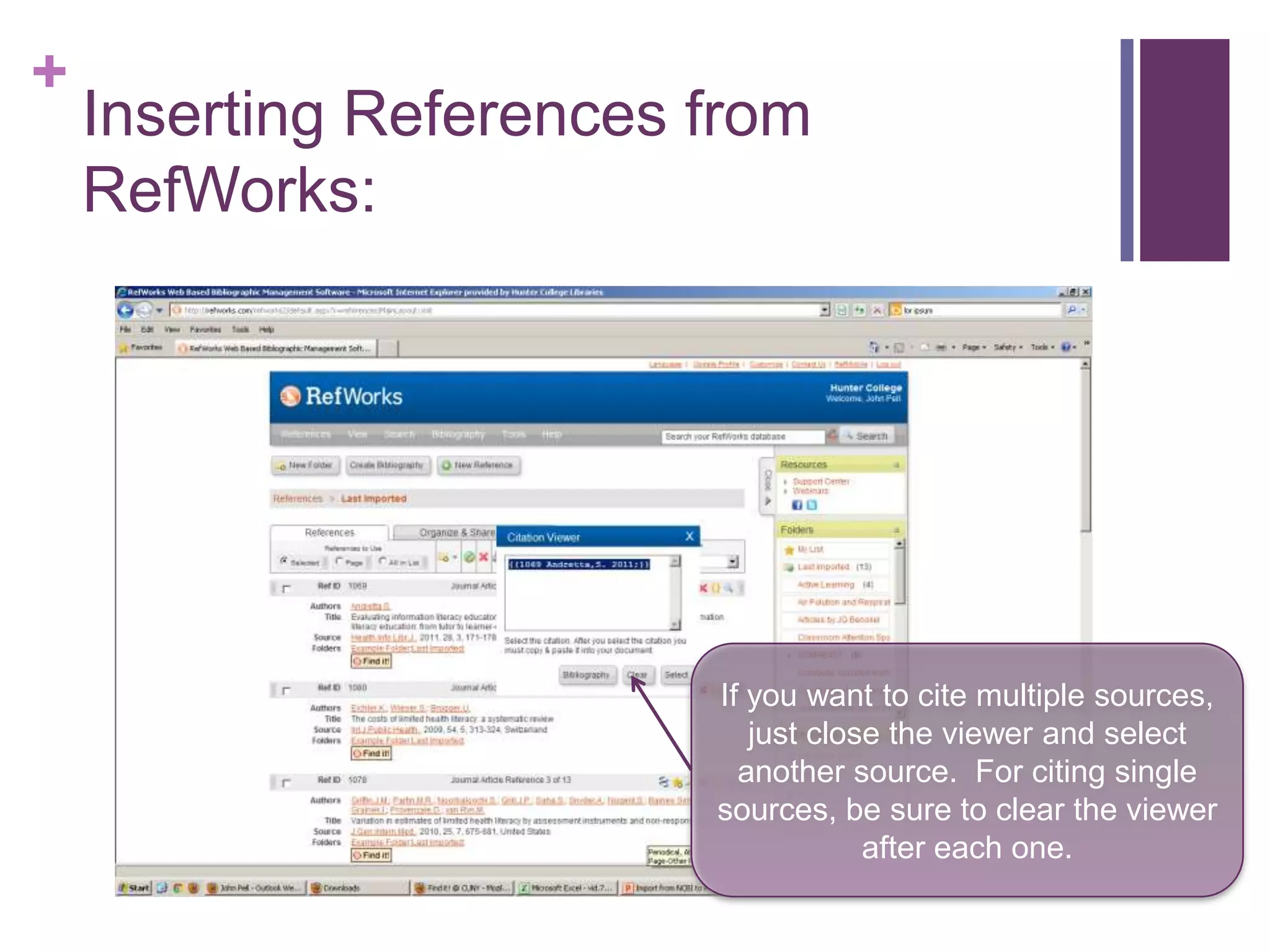
                         If you want to cite multiple sources,
                            just close the viewer and select
                           another source. For citing single
                         sources, be sure to clear the viewer
                                     after each one.
+
    Inserting References from
    RefWorks:


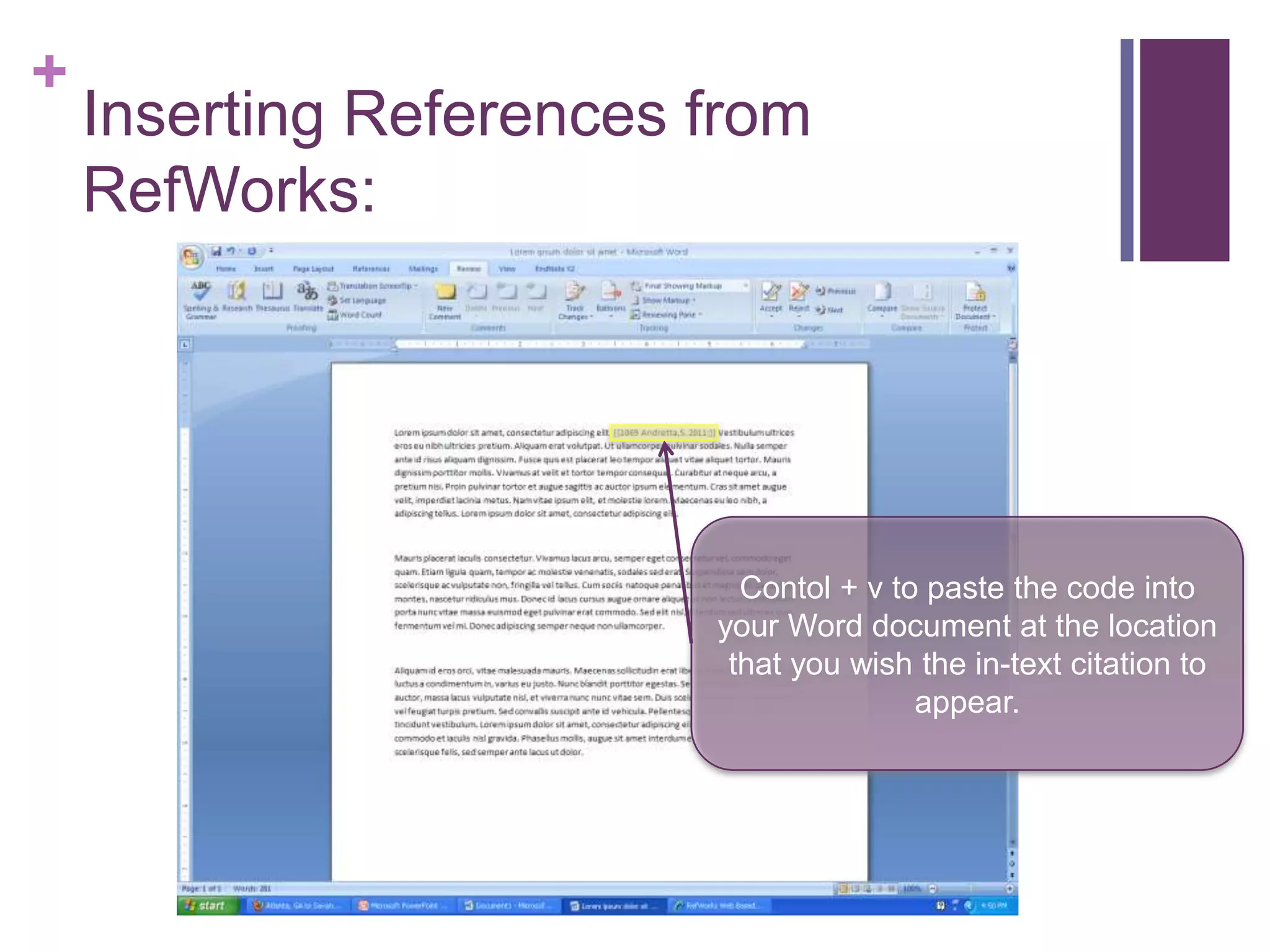
                           Contol + v to paste the code into
                         your Word document at the location
                          that you wish the in-text citation to
                                        appear.
+
    Inserting References from
    RefWorks:


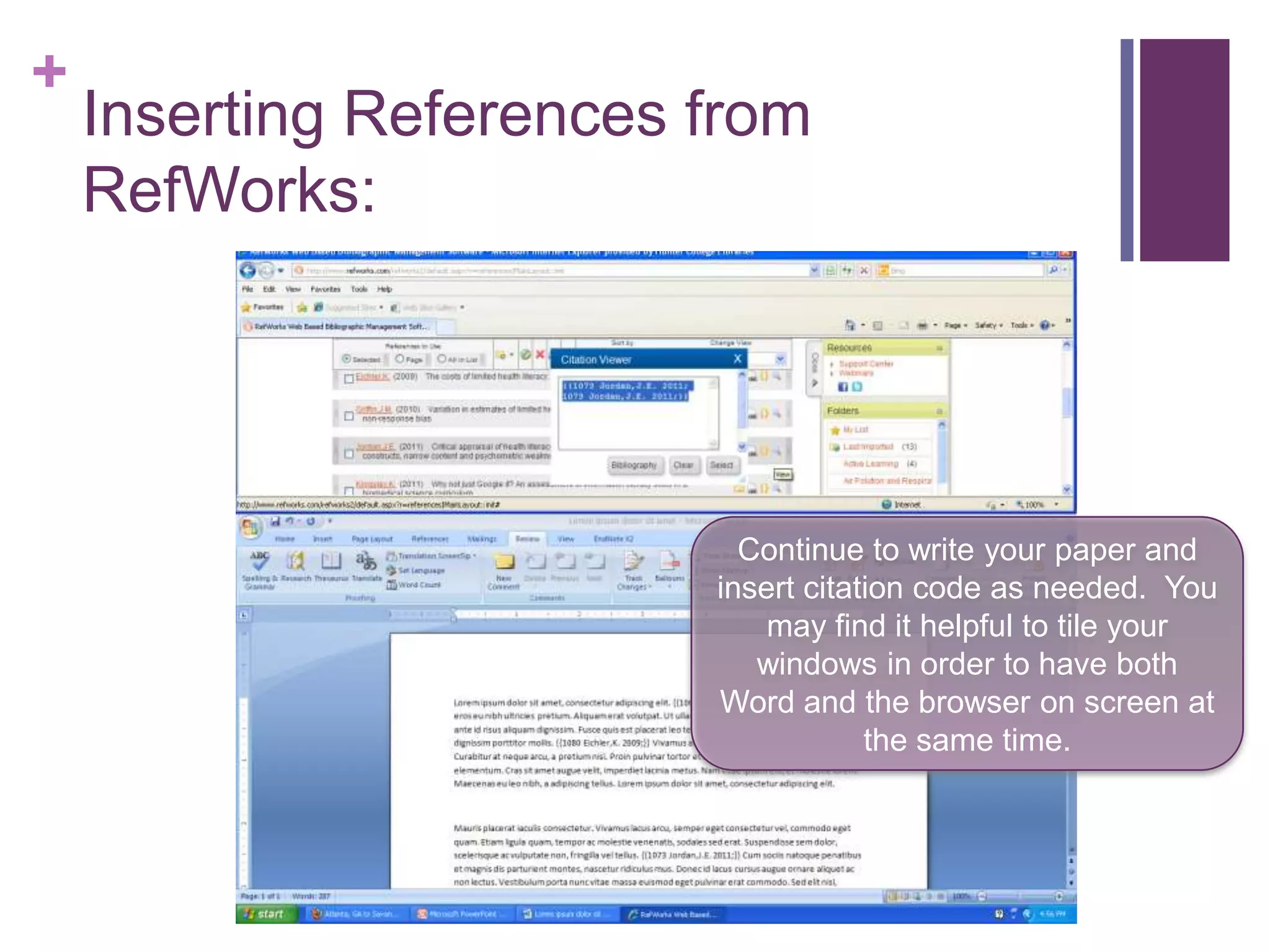
                           Continue to write your paper and
                         insert citation code as needed. You
                             may find it helpful to tile your
                            windows in order to have both
                         Word and the browser on screen at
                                     the same time.
+
    Formatting your Document:


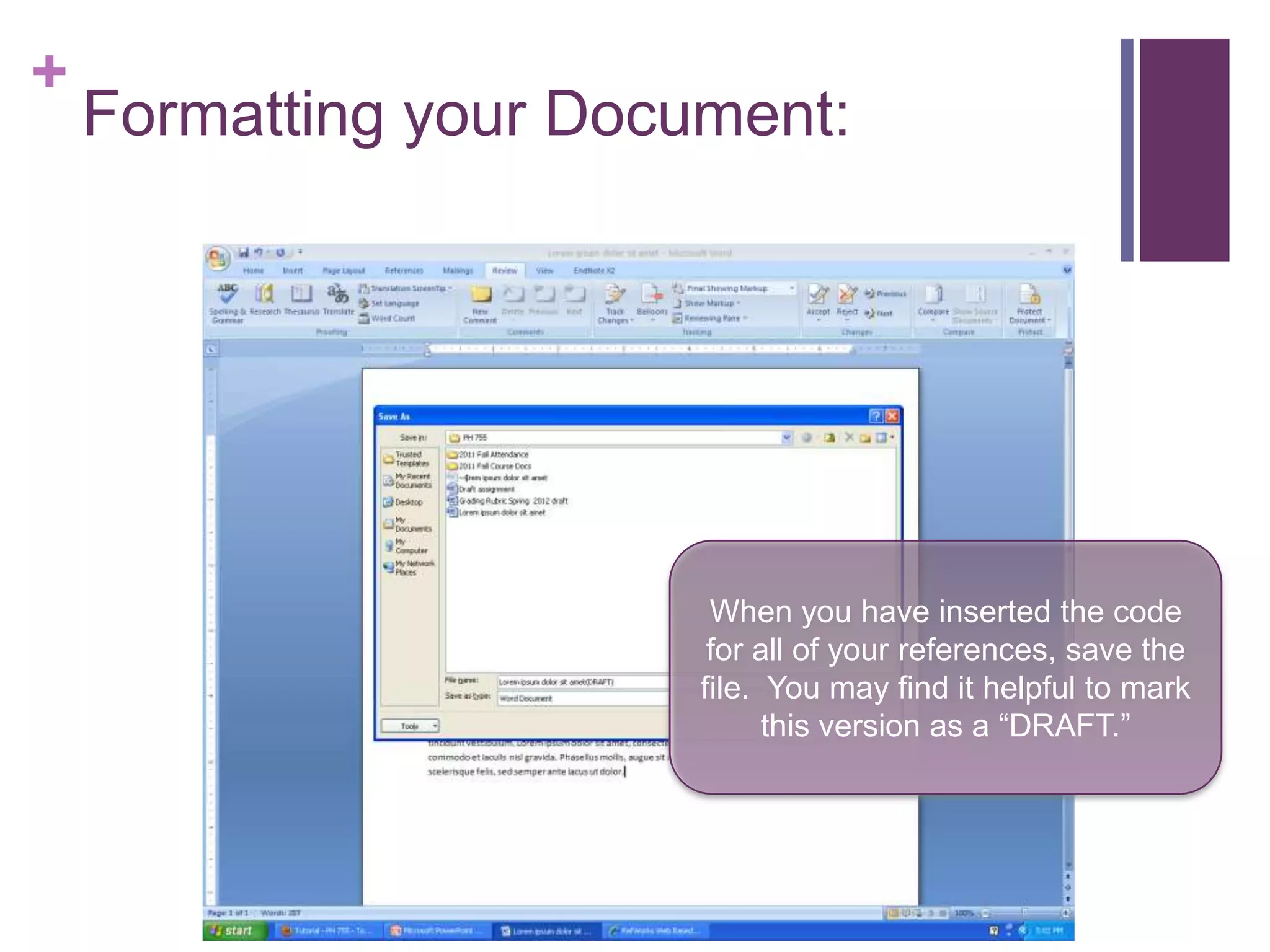
                         When you have inserted the code
                         for all of your references, save the
                        file. You may find it helpful to mark
                              this version as a “DRAFT.”
+
    Formatting your Document:


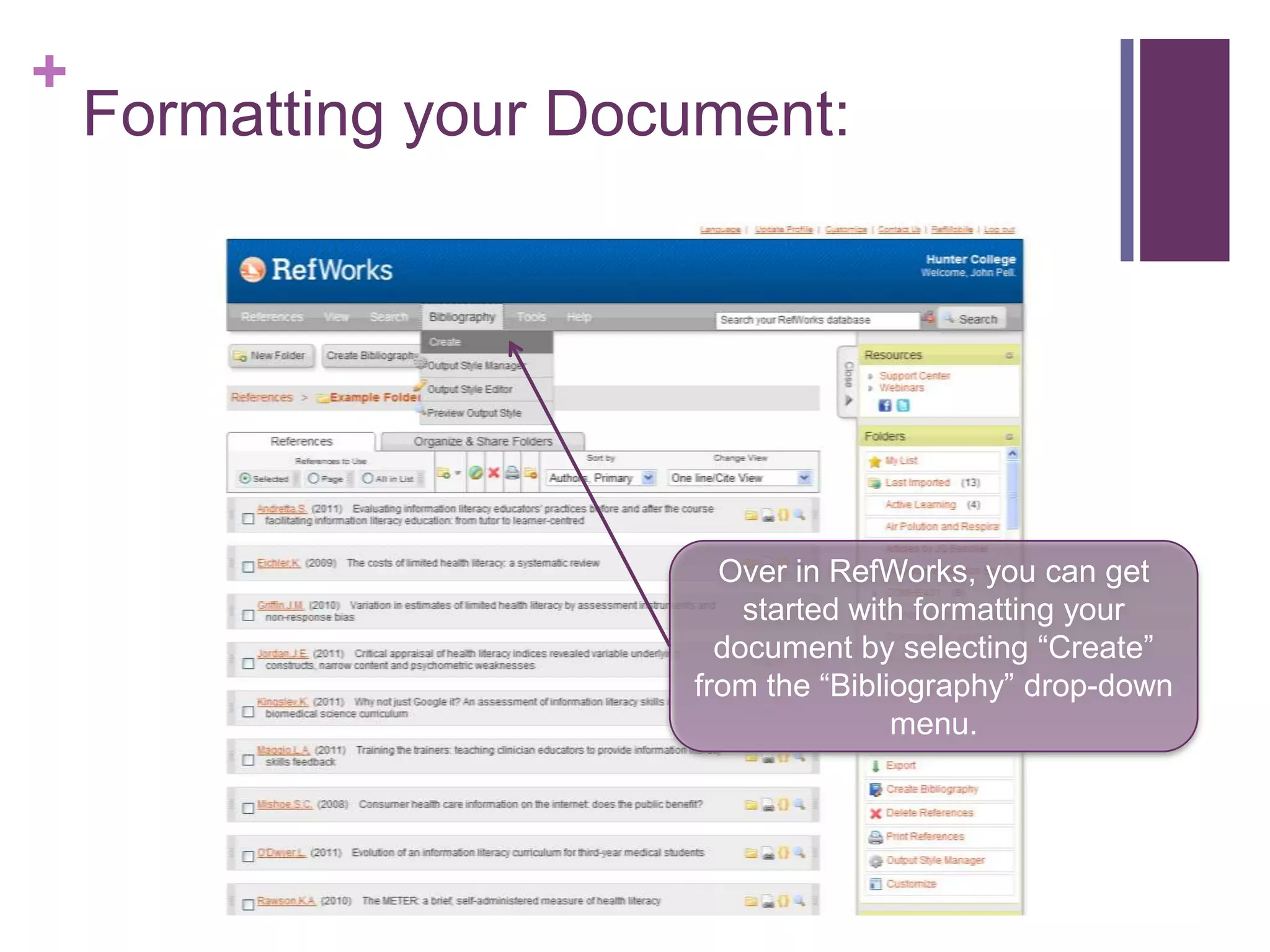
                         Over in RefWorks, you can get
                           started with formatting your
                         document by selecting “Create”
                       from the “Bibliography” drop-down
                                      menu.
+
    Formatting your Document:


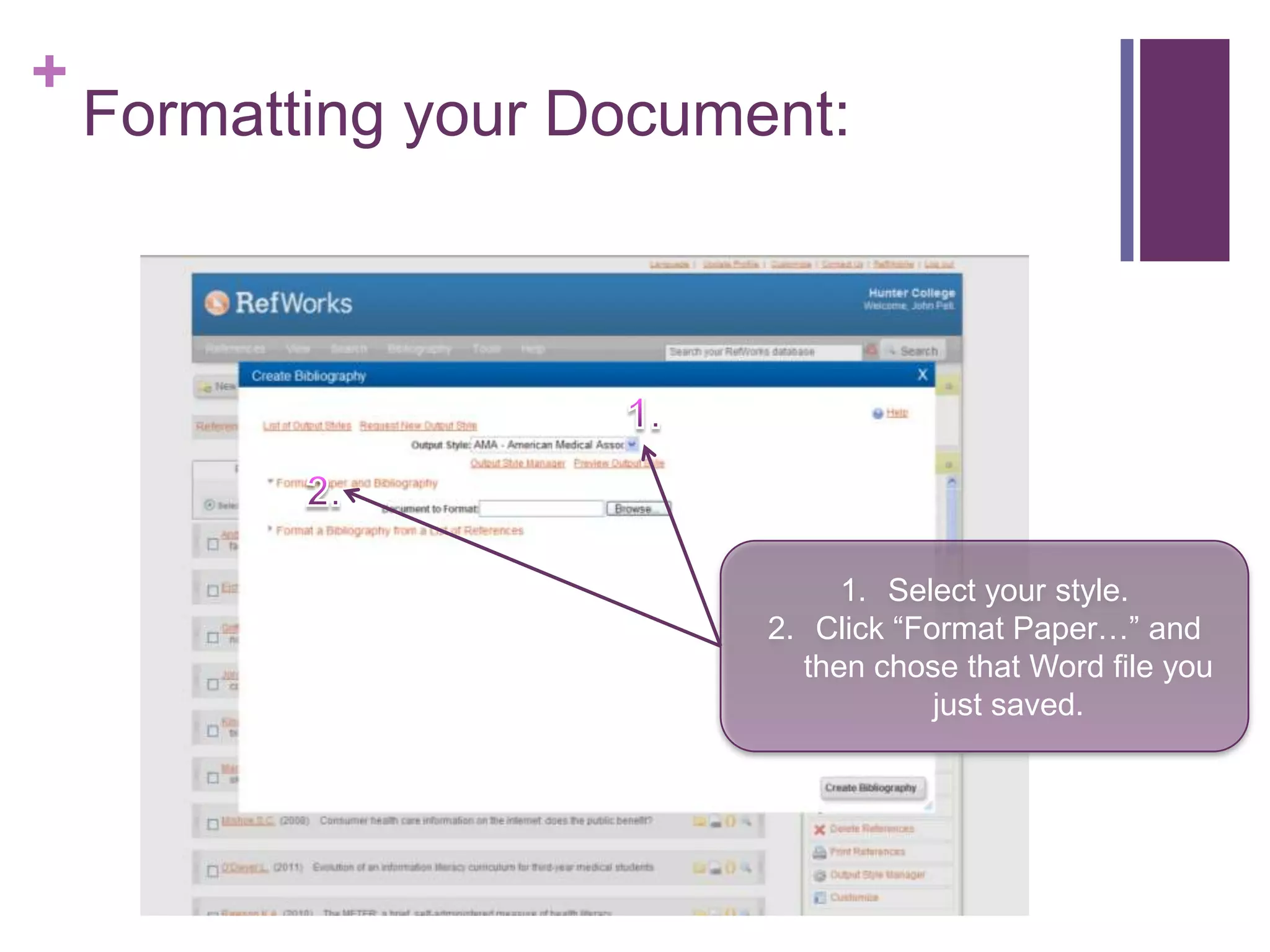
                               1. Select your style.
                          2. Click “Format Paper…” and
                            then chose that Word file you
                                      just saved.
+
    Formatting your Document:


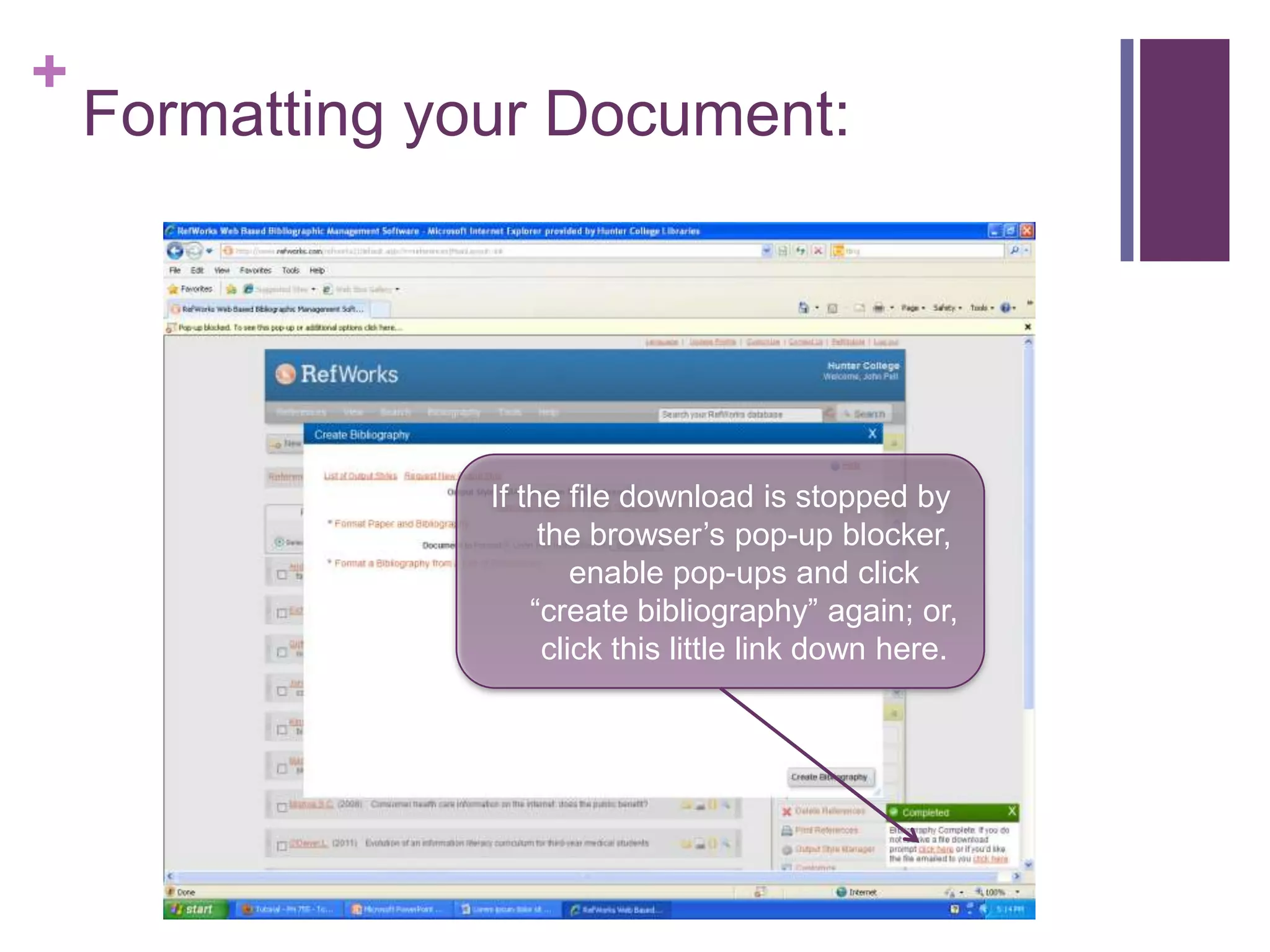
                 If the file download is stopped by
                      the browser’s pop-up blocker,
                         enable pop-ups and click
                     “create bibliography” again; or,
                      click this little link down here.
+
    Formatting your Document:

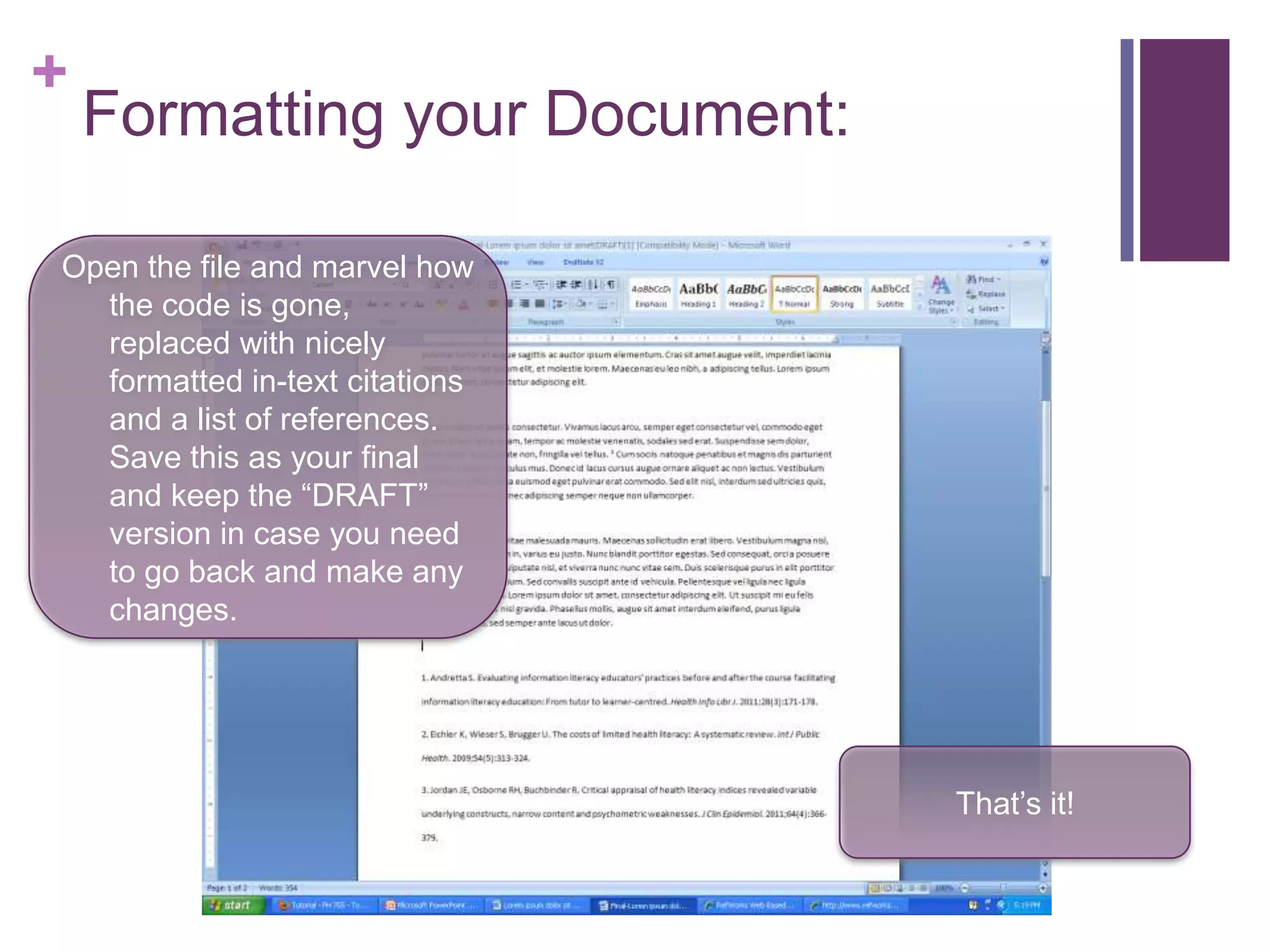
Open the file and marvel how
  the code is gone,
  replaced with nicely
  formatted in-text citations
  and a list of references.
  Save this as your final
  and keep the “DRAFT”
  version in case you need
  to go back and make any
  changes.


                                That’s it!

Integrating citations from RefWorks without Write-N-Cite

  • 1.
    + Integrating Citations from RefWorks into MS Word without the Write-N-Cite Plugin John Pell Assistant Professor Hunter College Libraries
  • 2.
    + Write-N-Cite? RefWorks offers a plugin for Word called “Write-N-Cite” that you can access from the “Tools” drop-down menu.
  • 3.
    + No Write-N-Cite? Unfortunately, you may find yourself working on a machine that does not have the plug-in installed and you may not have the authority to perform an installation yourself. This tutorial demonstrates a work- around for that situation.
  • 4.
    + Inserting References from RefWorks: Identify a place that you wish to insert a reference.
  • 5.
    + Inserting References from RefWorks: Locate the reference that you wish to cite in your RefWorks database and click on the golden bracket icon in the records tool bar.
  • 6.
    + Inserting References from RefWorks: Control + c to copy the bit of code that pops up in the “Citation Viewer”
  • 7.
    + Inserting References from RefWorks: If you want to cite multiple sources, just close the viewer and select another source. For citing single sources, be sure to clear the viewer after each one.
  • 8.
    + Inserting References from RefWorks: Contol + v to paste the code into your Word document at the location that you wish the in-text citation to appear.
  • 9.
    + Inserting References from RefWorks: Continue to write your paper and insert citation code as needed. You may find it helpful to tile your windows in order to have both Word and the browser on screen at the same time.
  • 10.
    + Formatting your Document: When you have inserted the code for all of your references, save the file. You may find it helpful to mark this version as a “DRAFT.”
  • 11.
    + Formatting your Document: Over in RefWorks, you can get started with formatting your document by selecting “Create” from the “Bibliography” drop-down menu.
  • 12.
    + Formatting your Document: 1. Select your style. 2. Click “Format Paper…” and then chose that Word file you just saved.
  • 13.
    + Formatting your Document: If the file download is stopped by the browser’s pop-up blocker, enable pop-ups and click “create bibliography” again; or, click this little link down here.
  • 14.
    + Formatting your Document: Open the file and marvel how the code is gone, replaced with nicely formatted in-text citations and a list of references. Save this as your final and keep the “DRAFT” version in case you need to go back and make any changes. That’s it!