1/37
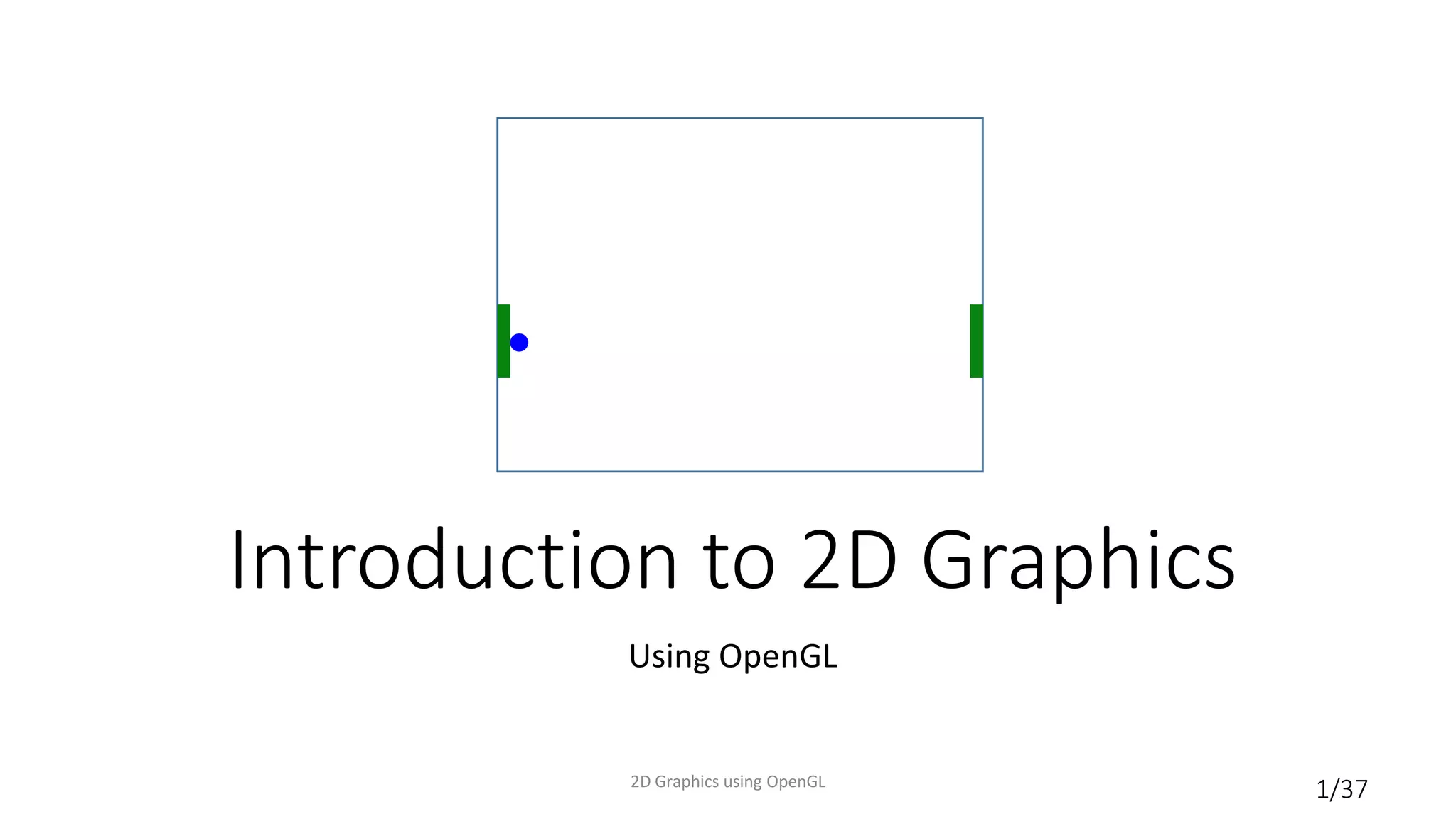
Introduction to 2D Graphics
Using OpenGL
2D Graphics using OpenGL
2/37
Why Learn About OpenGL?
• A well-known industry standard for real-time 2D and 3D computer graphics
• Available on most platforms
• Desktop operating systems, mobile devices (OpenGL ES), browsers (WebGL)
• Older (OpenGL 1.0) API provides features for rapid prototyping; newer API
(OpenGL 2.0 and newer) provides more flexibility and control
• Many old features available in new API as “deprecated” functionality
• This year for the first time we will use the new API exclusively
2D Graphics using OpenGL
3/37
Why Learn 2D first?
• A good stepping stone towards 3D – many issues much easier to
understand in 2D
• no need to simulate lights, cameras, the physics of light interacting with
objects, etc.
• intro to modeling vs. rendering and other notions
• get used to rapid prototyping in OpenGL, both of designs and concepts
• 2D is still really important and the most common use of computer
graphics, e.g. in UI/UX, documents, browsers
2D Graphics using OpenGL
4/37
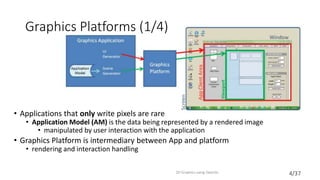
Graphics Platforms (1/4)
• Applications that only write pixels are rare
• Application Model (AM) is the data being represented by a rendered image
• manipulated by user interaction with the application
• Graphics Platform is intermediary between App and platform
• rendering and interaction handling
2D Graphics using OpenGL
5/37
Graphics Platforms (2/4)
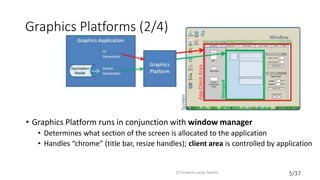
• Graphics Platform runs in conjunction with window manager
• Determines what section of the screen is allocated to the application
• Handles “chrome” (title bar, resize handles); client area is controlled by application
2D Graphics using OpenGL
6/37
Graphics Platforms (3/4)
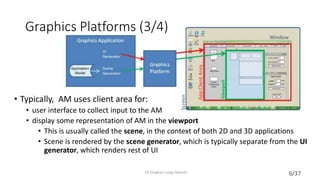
• Typically, AM uses client area for:
• user interface to collect input to the AM
• display some representation of AM in the viewport
• This is usually called the scene, in the context of both 2D and 3D applications
• Scene is rendered by the scene generator, which is typically separate from the UI
generator, which renders rest of UI
2D Graphics using OpenGL
7/37
Graphics Platforms (4/4)
• Early raster graphics packages/libraries/platforms
• RamTek library 1981, Apple QuickDraw 1984
• Microsoft's Graphics Display Interface (GDI 1990, now GDI+), Java.awt.Graphics2D
• Earliest packages usually had these characteristics:
• geometric primitives/shapes, appearance attributes specified in attribute bundles
(a.k.a. ”graphical contexts”/”brushes”),
• applied modally rather than in a parameter list for each primitive (too many parameters for that)
• integer coordinates map directly to screen pixels on output device
• immediate mode (no record kept of display commands)
• no built-in functions for applying transforms to primitives
• no built-in support for component hierarchy (no composite shapes)
• Early packages were little more than assembly languages for display device
2D Graphics using OpenGL
8/37
Problems with Early Graphics Platforms (1/3)
Geometric Scalability
• Integer coordinates mapped to display pixels affects apparent size of
image: large on low-res display & small on high-res display
• Application needs flexible internal coordinate representation
• floating point is essential
• float to fixed conversion required; actually a general mapping
2D Graphics using OpenGL
9/37
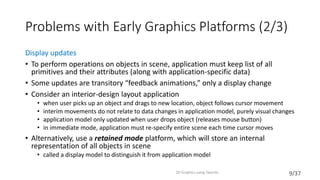
Problems with Early Graphics Platforms (2/3)
Display updates
• To perform operations on objects in scene, application must keep list of all
primitives and their attributes (along with application-specific data)
• Some updates are transitory “feedback animations,” only a display change
• Consider an interior-design layout application
• when user picks up an object and drags to new location, object follows cursor movement
• interim movements do not relate to data changes in application model, purely visual changes
• application model only updated when user drops object (releases mouse button)
• in immediate mode, application must re-specify entire scene each time cursor moves
• Alternatively, use a retained mode platform, which will store an internal
representation of all objects in scene
• called a display model to distinguish it from application model
2D Graphics using OpenGL
10/37
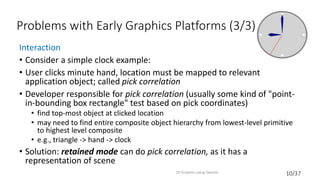
Problems with Early Graphics Platforms (3/3)
Interaction
• Consider a simple clock example:
• User clicks minute hand, location must be mapped to relevant
application object; called pick correlation
• Developer responsible for pick correlation (usually some kind of "point-
in-bounding box rectangle" test based on pick coordinates)
• find top-most object at clicked location
• may need to find entire composite object hierarchy from lowest-level primitive
to highest level composite
• e.g., triangle -> hand -> clock
• Solution: retained mode can do pick correlation, as it has a
representation of scene
2D Graphics using OpenGL
11/37
Modern Graphics Platforms (1/2)
• Device-independent floating point coordinate system
• packages convert “application-space" to "device-space" coordinates
• Specification of hierarchy
• support building scenes as hierarchy of objects, using transforms (scale, rotate,
translate) to place children into parents' coordinate systems
• support manipulating composites as coherent objects
• Smart Objects (Widgets, etc.)
• graphic objects have innate behaviors and interaction responses
• e.g., button that automatically highlights itself when cursor is over it
2D Graphics using OpenGL
12/37
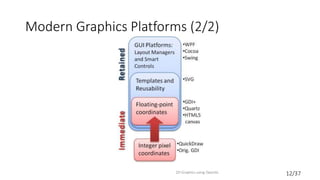
Modern Graphics Platforms (2/2)
2D Graphics using OpenGL
13/37
Immediate Mode Vs Retained Mode
Immediate Mode (OpenGL, DirectX)
• Application model: stores both geometric information and non-geometric
information in Application Database.
• Platform keeps no record of primitives that compose scene
2D Graphics using OpenGL
14/37
Immediate Mode Vs Retained Mode
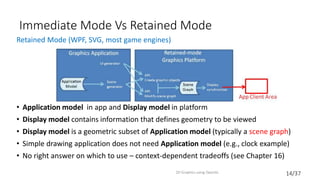
Retained Mode (WPF, SVG, most game engines)
• Application model in app and Display model in platform
• Display model contains information that defines geometry to be viewed
• Display model is a geometric subset of Application model (typically a scene graph)
• Simple drawing application does not need Application model (e.g., clock example)
• No right answer on which to use – context-dependent tradeoffs (see Chapter 16)
2D Graphics using OpenGL
15/37
OpenGL (1/3)
• Immediate-mode graphics API
• No display model, application must direct
OpenGL to draw primitives
• Implemented in C, also works in C++
• Bindings available for many other programming languages
• Cross-platform
• Also available on mobile (OpenGL ES*) and in the browser (WebGL)
• Different platforms provide ‘glue’ code for initializing OpenGL within the desktop
manager (e.g. GLX, WGL)
• Labs and projects use Qt library to abstract this away
2D Graphics using OpenGL
* - ES: “Embedded Systems”
16/37
OpenGL (2/3)
• Created by Silicon Graphics Inc. (SGI, http://sgi.com) in 1992, now managed by the non-
profit Khronos Group (http://khronos.org)
• Originally aimed to allow any OpenGL program to run on a variety of graphics hardware
devices
• Invented when “fixed-function” hardware was the norm
• Techniques were implemented in the hardware; OpenGL calls sent commands to the hardware to
activate / configure different features
• Now supports programmable hardware
• Modern graphics cards are miniature, highly parallel computers themselves, with many-core GPUs, on-
board RAM, etc.
• GPUs are a large collection of highly parallel high speed arithmetic units; several thousand cores!
• GPUs run simple programs (called “shaders”): take in vertices and other data and output a color value
for an individual pixel.
• GLSL, (O)GL Shader Language, is C-like language, control arithmetic pipelines
• Implement new features in shaders instead of waiting for hardware vendors to support them in h/w
• Your final project (typically a team project) will involve writing your choice of shaders
2D Graphics using OpenGL
17/37
OpenGL (3/3)
• Fixed-function API provides features that make it easier to prototype
• e.g., the OGL library implements much of the linear algebra needed to move
objects on the screen
• GL utility library (“GLU”) provides additional high-level utilities
• Programmable API implements most of the fixed-function API for
backwards compatibility, but uses shaders for implementation
• Only true for desktop; must use shaders exclusively to program with OpenGL
ES 2.0+ or WebGL
• We will use GLM (OpenGL Mathematics) to do our linear algebra instead of
using the Fixed-function API
2D Graphics using OpenGL
18/37
Shaders
• In future labs and your final project you will write your own shaders, but for
now we will provide shaders for you.
• Various types of input to shaders
• Attributes are provided per-vertex
• Uniforms are provided per-object; have the same value for a group of vertices
• OpenGL has many built in types including vectors and matrices
• To provide this input you must provide an identifier (“location”) of the
Attribute or Uniform
• glGetAttribLocation for attributes
• glGetUniformLocation for uniforms
• The first lab will go into more detail about how to use these functions
2D Graphics using OpenGL
19/37
Representing Shapes
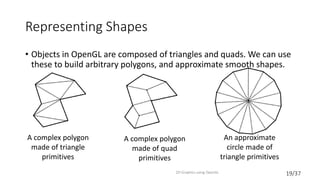
• Objects in OpenGL are composed of triangles and quads. We can use
these to build arbitrary polygons, and approximate smooth shapes.
2D Graphics using OpenGL
A complex polygon
made of triangle
primitives
A complex polygon
made of quad
primitives
An approximate
circle made of
triangle primitives
20/37
Coordinate Systems (1/3)
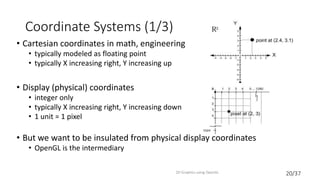
• Cartesian coordinates in math, engineering
• typically modeled as floating point
• typically X increasing right, Y increasing up
• Display (physical) coordinates
• integer only
• typically X increasing right, Y increasing down
• 1 unit = 1 pixel
• But we want to be insulated from physical display coordinates
• OpenGL is the intermediary
2D Graphics using OpenGL
21/37
Coordinate Systems (2/3)
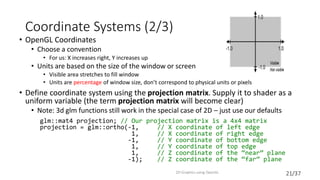
• OpenGL Coordinates
• Choose a convention
• For us: X increases right, Y increases up
• Units are based on the size of the window or screen
• Visible area stretches to fill window
• Units are percentage of window size, don’t correspond to physical units or pixels
• Define coordinate system using the projection matrix. Supply it to shader as a
uniform variable (the term projection matrix will become clear)
• Note: 3d glm functions still work in the special case of 2D – just use our defaults
glm::mat4 projection; // Our projection matrix is a 4x4 matrix
projection = glm::ortho(-1, // X coordinate of left edge
1, // X coordinate of right edge
-1, // Y coordinate of bottom edge
1, // Y coordinate of top edge
1, // Z coordinate of the “near” plane
-1); // Z coordinate of the “far” plane
2D Graphics using OpenGL
22/37
Coordinate Systems (3/3)
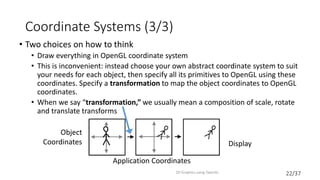
• Two choices on how to think
• Draw everything in OpenGL coordinate system
• This is inconvenient: instead choose your own abstract coordinate system to suit
your needs for each object, then specify all its primitives to OpenGL using these
coordinates. Specify a transformation to map the object coordinates to OpenGL
coordinates.
• When we say “transformation,” we usually mean a composition of scale, rotate
and translate transforms
2D Graphics using OpenGL
Object
Coordinates Display
Application Coordinates
23/37
Transformations (1/3)
• We will use GLM to do linear algebra for us and build the mapping matrix
• In addition to the projection matrix mentioned earlier, also keep track of a
model and a view matrix.
• More about the significance of these matrices in viewing lectures; for now
only modify the model matrix which is used to position objects
• For the following examples assume we are already keeping track of the
model matrix initialized like this:
• glm::mat4 model = glm::mat4(1.0); // Creates an identity matrix
2D Graphics using OpenGL
24/37
Transformations (2/3)
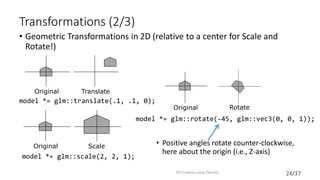
• Geometric Transformations in 2D (relative to a center for Scale and
Rotate!)
• Positive angles rotate counter-clockwise,
here about the origin (i.e., Z-axis)
2D Graphics using OpenGL
Original Translate
model *= glm::translate(.1, .1, 0);
model *= glm::rotate(-45, glm::vec3(0, 0, 1));
Original Rotate
Scale
model *= glm::scale(2, 2, 1);
Original
25/37
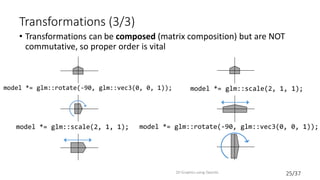
Transformations (3/3)
• Transformations can be composed (matrix composition) but are NOT
commutative, so proper order is vital
2D Graphics using OpenGL
model *= glm::scale(2, 1, 1);
model *= glm::rotate(-90, glm::vec3(0, 0, 1));
model *= glm::scale(2, 1, 1);
26/37
Clock Demo (1/5)
• Illustrate the use of OpenGL by going through step-by-step how to
create a simple clock application. First a bunch of setup before drawing
• Start by specifying vertex data for a square:
• Create a Vertex Buffer Object (VBO). This is essentially an array of data
stored in the GPU; we’ll copy vertex data to a VBO
2D Graphics using OpenGL
GLfloat vertexData[] = {
-.7, -.7, // Vertex 1
.7, -.7, // Vertex 2
.7, .7, // Vertex 3
-.7, .7, // Vertex 4
};
GLuint vboID; // Unsigned Integer
glGenBuffers(1, &vboID); // Generate 1 buffer (array); not initialized
27/37
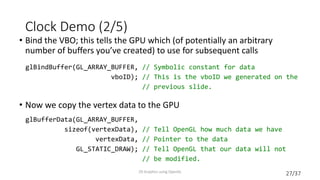
Clock Demo (2/5)
• Bind the VBO; this tells the GPU which (of potentially an arbitrary
number of buffers you’ve created) to use for subsequent calls
• Now we copy the vertex data to the GPU
2D Graphics using OpenGL
glBindBuffer(GL_ARRAY_BUFFER, // Symbolic constant for data
vboID); // This is the vboID we generated on the
// previous slide.
glBufferData(GL_ARRAY_BUFFER,
sizeof(vertexData), // Tell OpenGL how much data we have
vertexData, // Pointer to the data
GL_STATIC_DRAW); // Tell OpenGL that our data will not
// be modified.
28/37
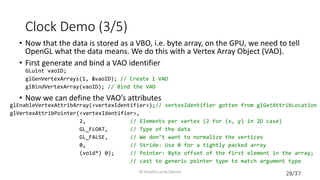
Clock Demo (3/5)
• Now that the data is stored as a VBO, i.e. byte array, on the GPU, we need to tell
OpenGL what the data means. We do this with a Vertex Array Object (VAO).
• First generate and bind a VAO identifier
• Now we can define the VAO’s attributes
2D Graphics using OpenGL
GLuint vaoID;
glGenVertexArrays(1, &vaoID); // Create 1 VAO
glBindVertexArray(vaoID); // Bind the VAO
glEnableVertexAttribArray(<vertexIdentifier>);// vertexIdentifier gotten from glGetAttribLocation
glVertexAttribPointer(<vertexIdentifier>,
2, // Elements per vertex (2 for (x, y) in 2D case)
GL_FLOAT, // Type of the data
GL_FALSE, // We don’t want to normalize the vertices
0, // Stride: Use 0 for a tightly packed array
(void*) 0); // Pointer: Byte offset of the first element in the array;
// cast to generic pointer type to match argument type
29/37
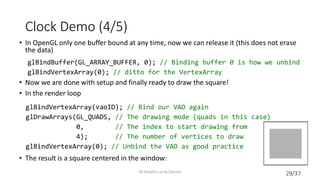
Clock Demo (4/5)
• In OpenGL only one buffer bound at any time, now we can release it (this does not erase
the data)
• Now we are done with setup and finally ready to draw the square!
• In the render loop
• The result is a square centered in the window:
2D Graphics using OpenGL
glBindBuffer(GL_ARRAY_BUFFER, 0); // Binding buffer 0 is how we unbind
glBindVertexArray(0); // ditto for the VertexArray
glBindVertexArray(vaoID); // Bind our VAO again
glDrawArrays(GL_QUADS, // The drawing mode (quads in this case)
0, // The index to start drawing from
4); // The number of vertices to draw
glBindVertexArray(0); // Unbind the VAO as good practice
30/37
NXN✓
Winding Order
• Order is important: vertices must be specified in counter-clockwise order
relative to the viewer. Otherwise nothing shows up!
• Winding order determines the direction of the normal vector used in the “lighting
calculation”; if the normal is pointing the wrong way, we won’t see anything
• Counter-clockwise winding consistent with the “right-hand rule”
2D Graphics using OpenGL
GLfloat vertexData[] = {
-.7, -.7,
.7, -.7,
.7, .7,
-.7, .7, };
GLfloat vertexData[] = {
-.7, -.7,
-.7, .7,
.7, .7,
.7, -.7, };
31/37
Clock Demo (5/5)
• We’ll draw a simplified hour hand using a quad rotated around the origin.
One could do the same thing to draw minute and second hands:
float hourAngle = -45; // Rotate 45 degrees clockwise
float width = .01, height = .4;
// Rotate around the Z axis
model *= glm::rotate(hourAngle, glm::vec3(0, 0, 1));
GLfloat hourVertexData[] = {
-width, 0,
width, 0,
width, height,
-width, height };
// Set up VBOs and VAOs as before
2D Graphics using OpenGL
32/37
Outline of the Clock Example
• See /course/cs123/src/clock_demo for runnable demo and source
code
2D Graphics using OpenGL
33/37
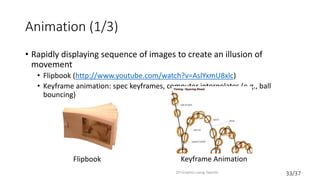
Animation (1/3)
• Rapidly displaying sequence of images to create an illusion of
movement
• Flipbook (http://www.youtube.com/watch?v=AslYxmU8xlc)
• Keyframe animation: spec keyframes, computer interpolates (e.g., ball
bouncing)
2D Graphics using OpenGL
Keyframe AnimationFlipbook
34/37
Animation (2/3)
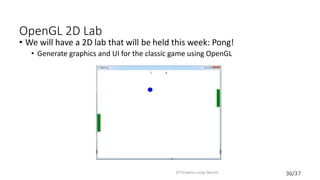
• Idea: Move the seconds hand incrementally every time we render
• Given the number of seconds elapsed, how many degrees should we
rotate the seconds hand?
• need to convert from seconds to degrees
• Idea: Use rotations around the clock as a common conversion factor
• Seconds per revolution: 60
• Degrees per revolution: 360
• Thus,
2D Graphics using OpenGL
35/37
Animation (3/3)
2D Graphics using OpenGL
Clock lablet:
Run /course/cs123/bin/cs123_clock_demo
Source code: /course/cs123/src/clock_demo
float secondsElapsed = ...; // num seconds since last render
const float SECONDS_PER_REVOLUTION = 60;
const float DEGREES_PER_REVOLUTION = 360;
secondsAngle += -1 // Turn clockwise
* secondsElapsed // Δt
* DEGREES_PER_REVOLUTION // Turn 360 degrees ...
/ SECONDS_PER_REVOLUTION; // ... every 60 seconds
36/37
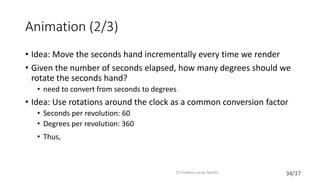
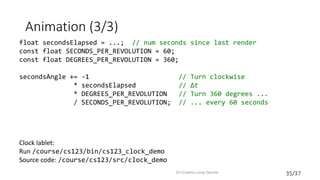
OpenGL 2D Lab
• We will have a 2D lab that will be held this week: Pong!
• Generate graphics and UI for the classic game using OpenGL
2D Graphics using OpenGL
37/37
Book Sections
• Preface, Intro as useful background
• Chapter 2 – while written in terms of MSFT’s WPF, a retained-mode
library, the concepts carry over to OGL. Useful to know about
HTML/XML style syntax, given its prominence, but don’t worry about
the syntactic details
2D Graphics using OpenGL

2D graphics

  • 1.
    1/37 Introduction to 2DGraphics Using OpenGL 2D Graphics using OpenGL
  • 2.
    2/37 Why Learn AboutOpenGL? • A well-known industry standard for real-time 2D and 3D computer graphics • Available on most platforms • Desktop operating systems, mobile devices (OpenGL ES), browsers (WebGL) • Older (OpenGL 1.0) API provides features for rapid prototyping; newer API (OpenGL 2.0 and newer) provides more flexibility and control • Many old features available in new API as “deprecated” functionality • This year for the first time we will use the new API exclusively 2D Graphics using OpenGL
  • 3.
    3/37 Why Learn 2Dfirst? • A good stepping stone towards 3D – many issues much easier to understand in 2D • no need to simulate lights, cameras, the physics of light interacting with objects, etc. • intro to modeling vs. rendering and other notions • get used to rapid prototyping in OpenGL, both of designs and concepts • 2D is still really important and the most common use of computer graphics, e.g. in UI/UX, documents, browsers 2D Graphics using OpenGL
  • 4.
    4/37 Graphics Platforms (1/4) •Applications that only write pixels are rare • Application Model (AM) is the data being represented by a rendered image • manipulated by user interaction with the application • Graphics Platform is intermediary between App and platform • rendering and interaction handling 2D Graphics using OpenGL
  • 5.
    5/37 Graphics Platforms (2/4) •Graphics Platform runs in conjunction with window manager • Determines what section of the screen is allocated to the application • Handles “chrome” (title bar, resize handles); client area is controlled by application 2D Graphics using OpenGL
  • 6.
    6/37 Graphics Platforms (3/4) •Typically, AM uses client area for: • user interface to collect input to the AM • display some representation of AM in the viewport • This is usually called the scene, in the context of both 2D and 3D applications • Scene is rendered by the scene generator, which is typically separate from the UI generator, which renders rest of UI 2D Graphics using OpenGL
  • 7.
    7/37 Graphics Platforms (4/4) •Early raster graphics packages/libraries/platforms • RamTek library 1981, Apple QuickDraw 1984 • Microsoft's Graphics Display Interface (GDI 1990, now GDI+), Java.awt.Graphics2D • Earliest packages usually had these characteristics: • geometric primitives/shapes, appearance attributes specified in attribute bundles (a.k.a. ”graphical contexts”/”brushes”), • applied modally rather than in a parameter list for each primitive (too many parameters for that) • integer coordinates map directly to screen pixels on output device • immediate mode (no record kept of display commands) • no built-in functions for applying transforms to primitives • no built-in support for component hierarchy (no composite shapes) • Early packages were little more than assembly languages for display device 2D Graphics using OpenGL
  • 8.
    8/37 Problems with EarlyGraphics Platforms (1/3) Geometric Scalability • Integer coordinates mapped to display pixels affects apparent size of image: large on low-res display & small on high-res display • Application needs flexible internal coordinate representation • floating point is essential • float to fixed conversion required; actually a general mapping 2D Graphics using OpenGL
  • 9.
    9/37 Problems with EarlyGraphics Platforms (2/3) Display updates • To perform operations on objects in scene, application must keep list of all primitives and their attributes (along with application-specific data) • Some updates are transitory “feedback animations,” only a display change • Consider an interior-design layout application • when user picks up an object and drags to new location, object follows cursor movement • interim movements do not relate to data changes in application model, purely visual changes • application model only updated when user drops object (releases mouse button) • in immediate mode, application must re-specify entire scene each time cursor moves • Alternatively, use a retained mode platform, which will store an internal representation of all objects in scene • called a display model to distinguish it from application model 2D Graphics using OpenGL
  • 10.
    10/37 Problems with EarlyGraphics Platforms (3/3) Interaction • Consider a simple clock example: • User clicks minute hand, location must be mapped to relevant application object; called pick correlation • Developer responsible for pick correlation (usually some kind of "point- in-bounding box rectangle" test based on pick coordinates) • find top-most object at clicked location • may need to find entire composite object hierarchy from lowest-level primitive to highest level composite • e.g., triangle -> hand -> clock • Solution: retained mode can do pick correlation, as it has a representation of scene 2D Graphics using OpenGL
  • 11.
    11/37 Modern Graphics Platforms(1/2) • Device-independent floating point coordinate system • packages convert “application-space" to "device-space" coordinates • Specification of hierarchy • support building scenes as hierarchy of objects, using transforms (scale, rotate, translate) to place children into parents' coordinate systems • support manipulating composites as coherent objects • Smart Objects (Widgets, etc.) • graphic objects have innate behaviors and interaction responses • e.g., button that automatically highlights itself when cursor is over it 2D Graphics using OpenGL
  • 12.
    12/37 Modern Graphics Platforms(2/2) 2D Graphics using OpenGL
  • 13.
    13/37 Immediate Mode VsRetained Mode Immediate Mode (OpenGL, DirectX) • Application model: stores both geometric information and non-geometric information in Application Database. • Platform keeps no record of primitives that compose scene 2D Graphics using OpenGL
  • 14.
    14/37 Immediate Mode VsRetained Mode Retained Mode (WPF, SVG, most game engines) • Application model in app and Display model in platform • Display model contains information that defines geometry to be viewed • Display model is a geometric subset of Application model (typically a scene graph) • Simple drawing application does not need Application model (e.g., clock example) • No right answer on which to use – context-dependent tradeoffs (see Chapter 16) 2D Graphics using OpenGL
  • 15.
    15/37 OpenGL (1/3) • Immediate-modegraphics API • No display model, application must direct OpenGL to draw primitives • Implemented in C, also works in C++ • Bindings available for many other programming languages • Cross-platform • Also available on mobile (OpenGL ES*) and in the browser (WebGL) • Different platforms provide ‘glue’ code for initializing OpenGL within the desktop manager (e.g. GLX, WGL) • Labs and projects use Qt library to abstract this away 2D Graphics using OpenGL * - ES: “Embedded Systems”
  • 16.
    16/37 OpenGL (2/3) • Createdby Silicon Graphics Inc. (SGI, http://sgi.com) in 1992, now managed by the non- profit Khronos Group (http://khronos.org) • Originally aimed to allow any OpenGL program to run on a variety of graphics hardware devices • Invented when “fixed-function” hardware was the norm • Techniques were implemented in the hardware; OpenGL calls sent commands to the hardware to activate / configure different features • Now supports programmable hardware • Modern graphics cards are miniature, highly parallel computers themselves, with many-core GPUs, on- board RAM, etc. • GPUs are a large collection of highly parallel high speed arithmetic units; several thousand cores! • GPUs run simple programs (called “shaders”): take in vertices and other data and output a color value for an individual pixel. • GLSL, (O)GL Shader Language, is C-like language, control arithmetic pipelines • Implement new features in shaders instead of waiting for hardware vendors to support them in h/w • Your final project (typically a team project) will involve writing your choice of shaders 2D Graphics using OpenGL
  • 17.
    17/37 OpenGL (3/3) • Fixed-functionAPI provides features that make it easier to prototype • e.g., the OGL library implements much of the linear algebra needed to move objects on the screen • GL utility library (“GLU”) provides additional high-level utilities • Programmable API implements most of the fixed-function API for backwards compatibility, but uses shaders for implementation • Only true for desktop; must use shaders exclusively to program with OpenGL ES 2.0+ or WebGL • We will use GLM (OpenGL Mathematics) to do our linear algebra instead of using the Fixed-function API 2D Graphics using OpenGL
  • 18.
    18/37 Shaders • In futurelabs and your final project you will write your own shaders, but for now we will provide shaders for you. • Various types of input to shaders • Attributes are provided per-vertex • Uniforms are provided per-object; have the same value for a group of vertices • OpenGL has many built in types including vectors and matrices • To provide this input you must provide an identifier (“location”) of the Attribute or Uniform • glGetAttribLocation for attributes • glGetUniformLocation for uniforms • The first lab will go into more detail about how to use these functions 2D Graphics using OpenGL
  • 19.
    19/37 Representing Shapes • Objectsin OpenGL are composed of triangles and quads. We can use these to build arbitrary polygons, and approximate smooth shapes. 2D Graphics using OpenGL A complex polygon made of triangle primitives A complex polygon made of quad primitives An approximate circle made of triangle primitives
  • 20.
    20/37 Coordinate Systems (1/3) •Cartesian coordinates in math, engineering • typically modeled as floating point • typically X increasing right, Y increasing up • Display (physical) coordinates • integer only • typically X increasing right, Y increasing down • 1 unit = 1 pixel • But we want to be insulated from physical display coordinates • OpenGL is the intermediary 2D Graphics using OpenGL
  • 21.
    21/37 Coordinate Systems (2/3) •OpenGL Coordinates • Choose a convention • For us: X increases right, Y increases up • Units are based on the size of the window or screen • Visible area stretches to fill window • Units are percentage of window size, don’t correspond to physical units or pixels • Define coordinate system using the projection matrix. Supply it to shader as a uniform variable (the term projection matrix will become clear) • Note: 3d glm functions still work in the special case of 2D – just use our defaults glm::mat4 projection; // Our projection matrix is a 4x4 matrix projection = glm::ortho(-1, // X coordinate of left edge 1, // X coordinate of right edge -1, // Y coordinate of bottom edge 1, // Y coordinate of top edge 1, // Z coordinate of the “near” plane -1); // Z coordinate of the “far” plane 2D Graphics using OpenGL
  • 22.
    22/37 Coordinate Systems (3/3) •Two choices on how to think • Draw everything in OpenGL coordinate system • This is inconvenient: instead choose your own abstract coordinate system to suit your needs for each object, then specify all its primitives to OpenGL using these coordinates. Specify a transformation to map the object coordinates to OpenGL coordinates. • When we say “transformation,” we usually mean a composition of scale, rotate and translate transforms 2D Graphics using OpenGL Object Coordinates Display Application Coordinates
  • 23.
    23/37 Transformations (1/3) • Wewill use GLM to do linear algebra for us and build the mapping matrix • In addition to the projection matrix mentioned earlier, also keep track of a model and a view matrix. • More about the significance of these matrices in viewing lectures; for now only modify the model matrix which is used to position objects • For the following examples assume we are already keeping track of the model matrix initialized like this: • glm::mat4 model = glm::mat4(1.0); // Creates an identity matrix 2D Graphics using OpenGL
  • 24.
    24/37 Transformations (2/3) • GeometricTransformations in 2D (relative to a center for Scale and Rotate!) • Positive angles rotate counter-clockwise, here about the origin (i.e., Z-axis) 2D Graphics using OpenGL Original Translate model *= glm::translate(.1, .1, 0); model *= glm::rotate(-45, glm::vec3(0, 0, 1)); Original Rotate Scale model *= glm::scale(2, 2, 1); Original
  • 25.
    25/37 Transformations (3/3) • Transformationscan be composed (matrix composition) but are NOT commutative, so proper order is vital 2D Graphics using OpenGL model *= glm::scale(2, 1, 1); model *= glm::rotate(-90, glm::vec3(0, 0, 1)); model *= glm::rotate(-90, glm::vec3(0, 0, 1)); model *= glm::scale(2, 1, 1);
  • 26.
    26/37 Clock Demo (1/5) •Illustrate the use of OpenGL by going through step-by-step how to create a simple clock application. First a bunch of setup before drawing • Start by specifying vertex data for a square: • Create a Vertex Buffer Object (VBO). This is essentially an array of data stored in the GPU; we’ll copy vertex data to a VBO 2D Graphics using OpenGL GLfloat vertexData[] = { -.7, -.7, // Vertex 1 .7, -.7, // Vertex 2 .7, .7, // Vertex 3 -.7, .7, // Vertex 4 }; GLuint vboID; // Unsigned Integer glGenBuffers(1, &vboID); // Generate 1 buffer (array); not initialized
  • 27.
    27/37 Clock Demo (2/5) •Bind the VBO; this tells the GPU which (of potentially an arbitrary number of buffers you’ve created) to use for subsequent calls • Now we copy the vertex data to the GPU 2D Graphics using OpenGL glBindBuffer(GL_ARRAY_BUFFER, // Symbolic constant for data vboID); // This is the vboID we generated on the // previous slide. glBufferData(GL_ARRAY_BUFFER, sizeof(vertexData), // Tell OpenGL how much data we have vertexData, // Pointer to the data GL_STATIC_DRAW); // Tell OpenGL that our data will not // be modified.
  • 28.
    28/37 Clock Demo (3/5) •Now that the data is stored as a VBO, i.e. byte array, on the GPU, we need to tell OpenGL what the data means. We do this with a Vertex Array Object (VAO). • First generate and bind a VAO identifier • Now we can define the VAO’s attributes 2D Graphics using OpenGL GLuint vaoID; glGenVertexArrays(1, &vaoID); // Create 1 VAO glBindVertexArray(vaoID); // Bind the VAO glEnableVertexAttribArray(<vertexIdentifier>);// vertexIdentifier gotten from glGetAttribLocation glVertexAttribPointer(<vertexIdentifier>, 2, // Elements per vertex (2 for (x, y) in 2D case) GL_FLOAT, // Type of the data GL_FALSE, // We don’t want to normalize the vertices 0, // Stride: Use 0 for a tightly packed array (void*) 0); // Pointer: Byte offset of the first element in the array; // cast to generic pointer type to match argument type
  • 29.
    29/37 Clock Demo (4/5) •In OpenGL only one buffer bound at any time, now we can release it (this does not erase the data) • Now we are done with setup and finally ready to draw the square! • In the render loop • The result is a square centered in the window: 2D Graphics using OpenGL glBindBuffer(GL_ARRAY_BUFFER, 0); // Binding buffer 0 is how we unbind glBindVertexArray(0); // ditto for the VertexArray glBindVertexArray(vaoID); // Bind our VAO again glDrawArrays(GL_QUADS, // The drawing mode (quads in this case) 0, // The index to start drawing from 4); // The number of vertices to draw glBindVertexArray(0); // Unbind the VAO as good practice
  • 30.
    30/37 NXN✓ Winding Order • Orderis important: vertices must be specified in counter-clockwise order relative to the viewer. Otherwise nothing shows up! • Winding order determines the direction of the normal vector used in the “lighting calculation”; if the normal is pointing the wrong way, we won’t see anything • Counter-clockwise winding consistent with the “right-hand rule” 2D Graphics using OpenGL GLfloat vertexData[] = { -.7, -.7, .7, -.7, .7, .7, -.7, .7, }; GLfloat vertexData[] = { -.7, -.7, -.7, .7, .7, .7, .7, -.7, };
  • 31.
    31/37 Clock Demo (5/5) •We’ll draw a simplified hour hand using a quad rotated around the origin. One could do the same thing to draw minute and second hands: float hourAngle = -45; // Rotate 45 degrees clockwise float width = .01, height = .4; // Rotate around the Z axis model *= glm::rotate(hourAngle, glm::vec3(0, 0, 1)); GLfloat hourVertexData[] = { -width, 0, width, 0, width, height, -width, height }; // Set up VBOs and VAOs as before 2D Graphics using OpenGL
  • 32.
    32/37 Outline of theClock Example • See /course/cs123/src/clock_demo for runnable demo and source code 2D Graphics using OpenGL
  • 33.
    33/37 Animation (1/3) • Rapidlydisplaying sequence of images to create an illusion of movement • Flipbook (http://www.youtube.com/watch?v=AslYxmU8xlc) • Keyframe animation: spec keyframes, computer interpolates (e.g., ball bouncing) 2D Graphics using OpenGL Keyframe AnimationFlipbook
  • 34.
    34/37 Animation (2/3) • Idea:Move the seconds hand incrementally every time we render • Given the number of seconds elapsed, how many degrees should we rotate the seconds hand? • need to convert from seconds to degrees • Idea: Use rotations around the clock as a common conversion factor • Seconds per revolution: 60 • Degrees per revolution: 360 • Thus, 2D Graphics using OpenGL
  • 35.
    35/37 Animation (3/3) 2D Graphicsusing OpenGL Clock lablet: Run /course/cs123/bin/cs123_clock_demo Source code: /course/cs123/src/clock_demo float secondsElapsed = ...; // num seconds since last render const float SECONDS_PER_REVOLUTION = 60; const float DEGREES_PER_REVOLUTION = 360; secondsAngle += -1 // Turn clockwise * secondsElapsed // Δt * DEGREES_PER_REVOLUTION // Turn 360 degrees ... / SECONDS_PER_REVOLUTION; // ... every 60 seconds
  • 36.
    36/37 OpenGL 2D Lab •We will have a 2D lab that will be held this week: Pong! • Generate graphics and UI for the classic game using OpenGL 2D Graphics using OpenGL
  • 37.
    37/37 Book Sections • Preface,Intro as useful background • Chapter 2 – while written in terms of MSFT’s WPF, a retained-mode library, the concepts carry over to OGL. Useful to know about HTML/XML style syntax, given its prominence, but don’t worry about the syntactic details 2D Graphics using OpenGL