 Powerful and flexible array of tools for
controlling the layout of the user interface.
 Automate resizing, scaling, and adaptation to
localization
 WPF provides a set of panels to arrange the
elements they contain
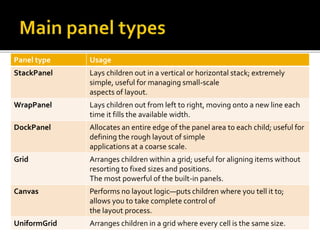
Panel type Usage
StackPanel Lays children out in a vertical or horizontal stack; extremely
simple, useful for managing small-scale
aspects of layout.
WrapPanel Lays children out from left to right, moving onto a new line each
time it fills the available width.
DockPanel Allocates an entire edge of the panel area to each child; useful for
defining the rough layout of simple
applications at a coarse scale.
Grid Arranges children within a grid; useful for aligning items without
resorting to fixed sizes and positions.
The most powerful of the built-in panels.
Canvas Performs no layout logic—puts children where you tell it to;
allows you to take complete control of
the layout process.
UniformGrid Arranges children in a grid where every cell is the same size.
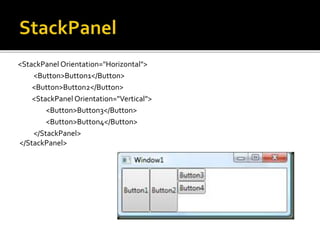
Arranges controls in a line, either horizontally or
vertically
 Note:
 Items are stretched to fit their contents (text) and
to fit the window.
 By default, items will not fill all the available space
(whitespace in screenshot).
 Layouts can be nested within one another.
<StackPanel Orientation="Horizontal">
<Button>Button1</Button>
<Button>Button2</Button>
<StackPanel Orientation="Vertical">
<Button>Button3</Button>
<Button>Button4</Button>
</StackPanel>
</StackPanel>
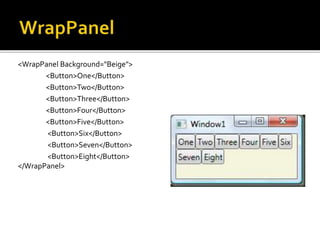
Arranges items in a line until the border is hit,
then wraps to the next line
 Note:
 Items are stretched to fit their contents (text).
 If an item cannot fit entirely in the allotted space,
the entire control is moved to the next line.
<WrapPanel Background="Beige">
<Button>One</Button>
<Button>Two</Button>
<Button>Three</Button>
<Button>Four</Button>
<Button>Five</Button>
<Button>Six</Button>
<Button>Seven</Button>
<Button>Eight</Button>
</WrapPanel>
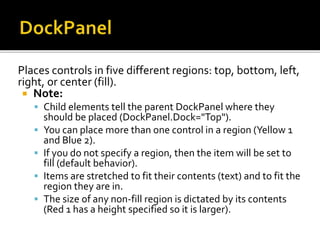
Places controls in five different regions: top, bottom, left,
right, or center (fill).
 Note:
 Child elements tell the parent DockPanel where they
should be placed (DockPanel.Dock="Top").
 You can place more than one control in a region (Yellow 1
and Blue 2).
 If you do not specify a region, then the item will be set to
fill (default behavior).
 Items are stretched to fit their contents (text) and to fit the
region they are in.
 The size of any non-fill region is dictated by its contents
(Red 1 has a height specified so it is larger).
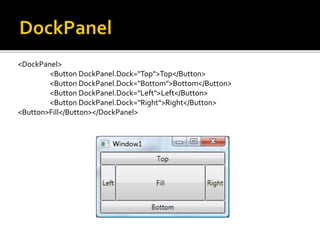
<DockPanel>
<Button DockPanel.Dock="Top">Top</Button>
<Button DockPanel.Dock="Bottom">Bottom</Button>
<Button DockPanel.Dock="Left">Left</Button>
<Button DockPanel.Dock="Right">Right</Button>
<Button>Fill</Button></DockPanel>
 Explicitly position controls based on
coordinates
 Note:
 Child elements tell the parent Canvas where they
should be placed (Canvas.Right="50").
 When no dimensions are specified, the labels are
stretched to fit their contents (text).
 Controls can be placed relative to any side of the
window (Blue 1 vs. Blue 2).
 Top overrides Bottom and Left overrides Right.
<Canvas Background="Yellow" Width="150" Height="100">
<TextBlock Canvas.Left="10" Canvas.Top="20">Hello</TextBlock>
<TextBlock Canvas.Right="10" Canvas.Bottom="20">world!</TextBlock>
</Canvas>
 Maintains a series of grid cells of equal size
 Note:
 Items are stretched to fit the cell.
 The total number of cells increases by square
integers
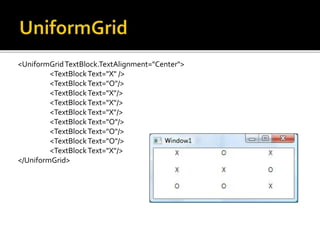
<UniformGridTextBlock.TextAlignment="Center">
<TextBlockText="X" />
<TextBlockText="O"/>
<TextBlockText="X"/>
<TextBlockText="O"/>
<TextBlockText="X"/>
</UniformGrid>
 Defines static columns and rows; like HTML
tables
 Note:
 Child elements tell the parent grid what cell they
should be in.
 Items are stretched to fill the cell.
 Each row or column can be given a specific size
(Height/Width).
 Cell contents can be told to span multiple rows
(RowSpan) or columns (ColumnSpan).
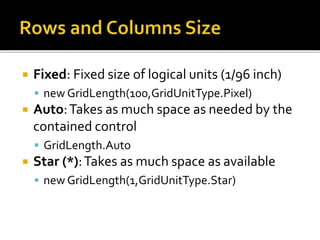
 Fixed: Fixed size of logical units (1/96 inch)
 new GridLength(100,GridUnitType.Pixel)
 Auto:Takes as much space as needed by the
contained control
 GridLength.Auto
 Star (*):Takes as much space as available
 new GridLength(1,GridUnitType.Star)
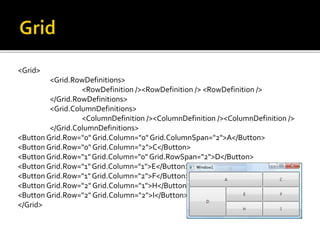
<Grid>
<Grid.RowDefinitions>
<RowDefinition /><RowDefinition /> <RowDefinition />
</Grid.RowDefinitions>
<Grid.ColumnDefinitions>
<ColumnDefinition /><ColumnDefinition /><ColumnDefinition />
</Grid.ColumnDefinitions>
<Button Grid.Row="0" Grid.Column="0" Grid.ColumnSpan="2">A</Button>
<Button Grid.Row="0" Grid.Column="2">C</Button>
<Button Grid.Row="1" Grid.Column="0" Grid.RowSpan="2">D</Button>
<Button Grid.Row="1" Grid.Column="1">E</Button>
<Button Grid.Row="1" Grid.Column="2">F</Button>
<Button Grid.Row="2" Grid.Column="1">H</Button>
<Button Grid.Row="2" Grid.Column="2">I</Button>
</Grid>

Lesson 03 Layouts in WPF

Editor's Notes

  • #5 This is very useful to create any kinds of lists. All WPF ItemsControls like ComboBox, ListBox or Menu use a StackPanel as their internal layout panel.
  • #7 The WrapPanel can be used to arrange tabs of a tab control, menu items in a toolbar or items in an Windows Explorer like list.
  • #11 The panel is typically used to group 2D graphic elements together and not to layout user interface elements. This is important because specifing absolute coordinates brings you in trouble when you begin to resize, scale or localize your application.
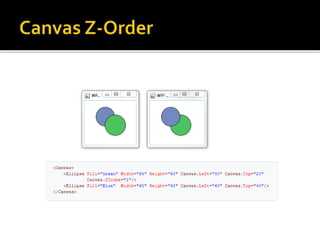
  • #13 Normally the Z-Order of elements inside a canvas is specified by the order in XAML. But you can override the natural Z-Order by explicity defining a Canvas.ZIndex on the element.
  • #17 Star (*): Takes as much space as available (after filling all auto and fixed sized columns), proportionally divided over all star-sized columns. So 3*/5* means the same as 30*/50*. Remember that star-sizing does not work if the grid size is calculated based on its content.