GETTINGSTARTED
WITHGOOGLE
ANALYTICS
An Introduction for Beginners
2Getting Started with Google Analytics
Table of Contents
4 REASONS TO USE GOOGLE ANALYTICS PAGE 3
WHAT INFORMATION DOES GOOGLE ANALYTICS PROVIDE?
WORKING WITH GOOGLE ANALYTICS:
PAGE 4
REAL-LIFE CASES WITH 3 BIG BRANDS
• Audience Overview
PAGE 5
PAGE 15
GETTING READY
• Filters
PAGE 6
PAGE 16
CREATING AN ACCOUNT
TOP 5 GOOGLE ANALYTICS PRO-TIPS
PAGE 7
PAGE 19
TRACKING ID AND DATA SHARING
FURTHER READING
PAGE 8
PAGE 23
TRACKING CODE INSTALLATION
HAVE ANY QUESTIONS LEFT? CONTACT US!
PAGE 9
PAGE 24
HIERARCHY OF ACCOUNTS
SOURCES
PAGE 10
PAGE 25
GOALS SETTING
IMAGES
PAGE 12
PAGE 25
• Creating a New Goal PAGE 13
SETTING UP ON-SITE SEARCH PAGE 14
3Getting Started with Google Analytics
4 Reasons
to Use Google Analytics
There are two kinds of site owners: the ones using Google Analytics and the ones who don’t
know what they’re doing with their websites. If you’re reading this, you’ve made your first
step toward becoming one of the former.
Now, website analytics may seem daunting, but fear not, the tool that you’ll learn about is
beginner-friendly. While it is definitely not the only analytics tool out there, Google Analytics has
several advantages over similar platforms:
Your Competitors Use It
Most probably, the businesses you compete with are among the 54% of the websites
that use Google Analytics. This tool is a must-have for any serious digital project,
be it a blog, an e-store, or any other type of a website.
It’s from Google (aka the World’s Largest Data Collector)
Think about it, Google is famous – if not notorious – for spying on every aspect of our
online lives. Google Analytics lets you harness Google’s tracking power and use it
for a good purpose.
It is Free. Well, Mostly Free
Google Analytics is a freemium service. All of the important stuff comes at no cost, and
the paid version mainly caters to really large corporate websites. In a nutshell,
the service is free to use for anyone.
It Gives You Tons of Insights
Google Analytics monitors every on-site action performed by your visitors and tells you
almost everything you’d want to know about them (provided that you can interpret the data).
1
2
3
4
4 Reasons to Use Google Analytics
4Getting Started with Google Analytics
What Information Does
Google Analytics Provide?
 How many new and returning visitors
did your site attract today (... this week,
month, etc.)?
 How many pages did they view?
 For how long did they stay on every
page?
 Did they find what they were
looking for?
 What website did they come from?
 What browser and operating system
do they use?
 Where do they live, how old are they,
and what is their gender?
 How many people subscribed to your
content or purchased your products?
 What types or content or products get
more attention from your audience?
 Are there any speed issues with your site?
We’ve talked about the “tons of insights” before, but let’s be more specific. What kind of
information does Google Analytics provide and how can you use it? Below are some of the
questions that you can have answered thanks to Google Analytics:
What Information Does Google Analytics Provide?
5Getting Started with Google Analytics
Google Analytics keeps you informed about the key stats related to your site, your audience,
and your customers. Here are several cases of big brands using these insights to boost their
marketing and sales:
Real-Life Cases With 3 Big Brands
Real-Life Cases
With 3 Big Brands
Puma
Data from Google Analytics
helped the sportswear
giant optimize its website,
attract 47% more visitors
from growing markets, and
increase order rates by 7.1%.
Nissan Motor
The automobile
manufacturer uses Google
Analytics to analyze the
global demand for its
products.
BT Financial Group
Google Analytics enabled BT
Financial Group to develop
a new, efficient online
application form which
outperformed the old one
by more than 61.7%.
6Getting Started with Google Analytics
Getting Ready
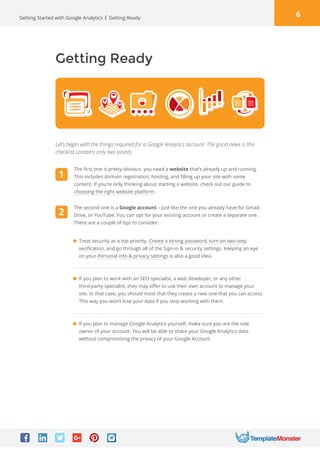
Let’s begin with the things required for a Google Analytics account. The good news is this
checklist contains only two points:

Treat security as a top priority. Create a strong password, turn on two-step
verification, and go through all of the Sign-in  security settings. Keeping an eye
on your Personal info  privacy settings is also a good idea. 
If you plan to work with an SEO specialist, a web developer, or any other
third-party specialist, they may offer to use their own account to manage your
site. In that case, you should insist that they create a new one that you can access.
This way you won’t lose your data if you stop working with them. 
If you plan to manage Google Analytics yourself, make sure you are the sole
owner of your account. You will be able to share your Google Analytics data
without compromising the privacy of your Google Account.
Getting Ready
The second one is a Google account – just like the one you already have for Gmail,
Drive, or YouTube. You can opt for your existing account or create a separate one.
There are a couple of tips to consider:
1
2
The first one is pretty obvious: you need a website that’s already up and running.
This includes domain registration, hosting, and filling up your site with some
content. If you’re only thinking about starting a website, check out our guide to
choosing the right website platform.
7Getting Started with Google Analytics
Creating an Account
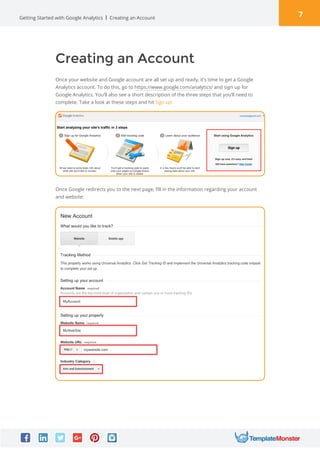
Once your website and Google account are all set up and ready, it’s time to get a Google
Analytics account. To do this, go to https://www.google.com/analytics/ and sign up for
Google Analytics. You’ll also see a short description of the three steps that you’ll need to
complete. Take a look at these steps and hit Sign up:
Creating an Account
Once Google redirects you to the next page, fill in the information regarding your account
and website:
8Getting Started with Google Analytics Tracking ID and Data Sharing
Tracking ID and Data Sharing
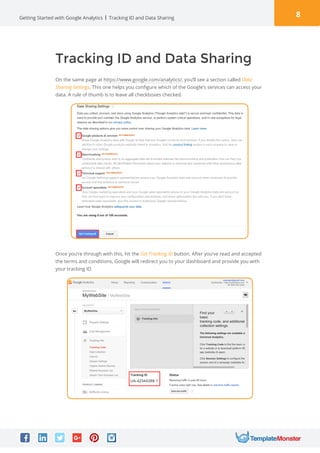
Once you’re through with this, hit the Get Tracking ID button. After you’ve read and accepted
the terms and conditions, Google will redirect you to your dashboard and provide you with
your tracking ID.
On the same page at https://www.google.com/analytics/, you’ll see a section called Data
Sharing Settings. This one helps you configure which of the Google’s services can access your
data. A rule of thumb is to leave all checkboxes checked.
9Getting Started with Google Analytics Tracking Code Installation
Tracking Code Installation
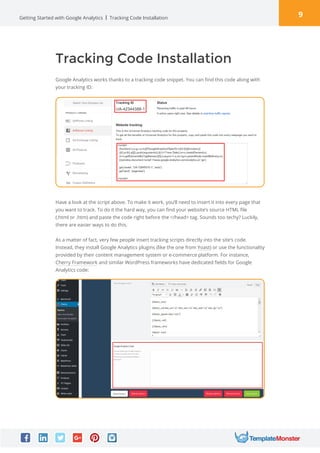
Have a look at the script above. To make it work, you’ll need to insert it into every page that
you want to track. To do it the hard way, you can find your website’s source HTML file
(.html or .htm) and paste the code right before the /head tag. Sounds too techy? Luckily,
there are easier ways to do this.
As a matter of fact, very few people insert tracking scripts directly into the site’s code.
Instead, they install Google Analytics plugins (like the one from Yoast) or use the functionality
provided by their content management system or e-commerce platform. For instance,
Cherry Framework and similar WordPress frameworks have dedicated fields for Google
Analytics code:
Google Analytics works thanks to a tracking code snippet. You can find this code along with
your tracking ID:
10Getting Started with Google Analytics
Hierarchy of Accounts
With a 99% probability, you have one website at the moment. But what if there are two,
three, or, say, 50 websites? Google’s hierarchy of accounts helps you handle situations of this
kind. Besides, it enables you to organize the collected data.
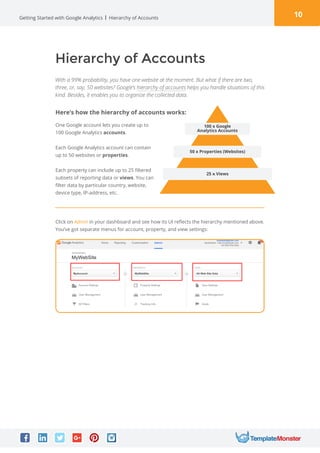
One Google account lets you create up to
100 Google Analytics accounts.
Each Google Analytics account can contain
up to 50 websites or properties.
Each property can include up to 25 filtered
subsets of reporting data or views. You can
filter data by particular country, website,
device type, IP-address, etc.
Click on Admin in your dashboard and see how its UI reflects the hierarchy mentioned above.
You’ve got separate menus for account, property, and view settings:
Here’s how the hierarchy of accounts works:
Hierarchy of Accounts
100 x Google
Analytics Accounts
50 x Properties (Websites)
25 x Views
11Getting Started with Google Analytics
Users and Permissions
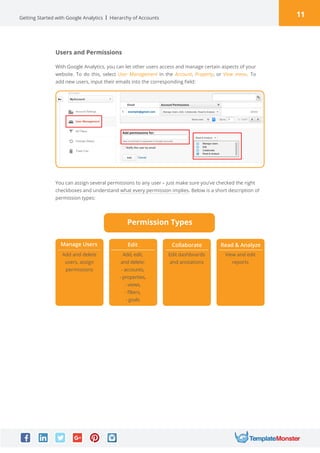
With Google Analytics, you can let other users access and manage certain aspects of your
website. To do this, select User Management in the Account, Property, or View menu. To
add new users, input their emails into the corresponding field:
Hierarchy of Accounts
You can assign several permissions to any user – just make sure you’ve checked the right
checkboxes and understand what every permission implies. Below is a short description of
permission types:
Manage Users Edit Collaborate Read  Analyze
Add and delete
users, assign
permissions
Add, edit,
and delete:
- accounts,
- properties,
- views,
- filters,
- goals
Edit dashboards
and anotations
View and edit
reports
Permission Types
12Getting Started with Google Analytics Goals Setting
Goals Setting
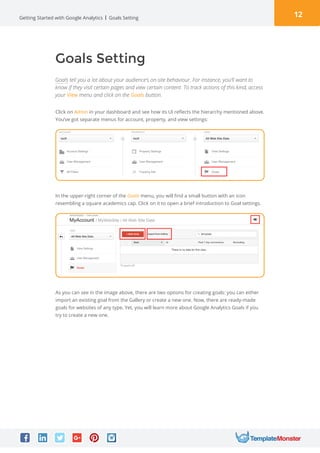
Goals tell you a lot about your audience’s on-site behaviour. For instance, you’ll want to
know if they visit certain pages and view certain content. To track actions of this kind, access
your View menu and click on the Goals button.
Click on Admin in your dashboard and see how its UI reflects the hierarchy mentioned above.
You’ve got separate menus for account, property, and view settings:
In the upper-right corner of the Goals menu, you will find a small button with an icon
resembling a square academics cap. Click on it to open a brief introduction to Goal settings.
As you can see in the image above, there are two options for creating goals: you can either
import an existing goal from the Gallery or create a new one. Now, there are ready-made
goals for websites of any type. Yet, you will learn more about Google Analytics Goals if you
try to create a new one.
13Getting Started with Google Analytics Goals Setting
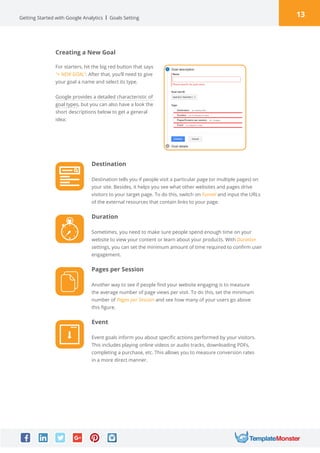
Creating a New Goal
For starters, hit the big red button that says
“+ NEW GOAL“. After that, you’ll need to give
your goal a name and select its type.
Google provides a detailed characteristic of
goal types, but you can also have a look the
short descriptions below to get a general
idea:
Destination
Destination tells you if people visit a particular page (or multiple pages) on
your site. Besides, it helps you see what other websites and pages drive
visitors to your target page. To do this, switch on Funnel and input the URLs
of the external resources that contain links to your page.
Duration
Sometimes, you need to make sure people spend enough time on your
website to view your content or learn about your products. With Duration
settings, you can set the minimum amount of time required to confirm user
engagement.
Pages per Session
Another way to see if people find your website engaging is to measure
the average number of page views per visit. To do this, set the minimum
number of Pages per Session and see how many of your users go above
this figure.
Event
Event goals inform you about specific actions performed by your visitors.
This includes playing online videos or audio tracks, downloading PDFs,
completing a purchase, etc. This allows you to measure conversion rates
in a more direct manner.
14Getting Started with Google Analytics
Setting Up On-Site Search
On-site search helps you optimize your content and user experience so make sure your
website has it. In a nutshell, internal search queries tell you what people look for on your
website. To track queries of this kind, you’ll need to set up on-site search in your Google
Analytics account.
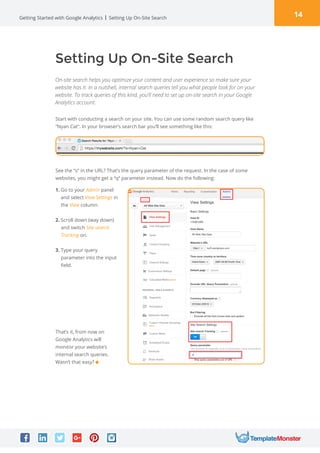
Start with conducting a search on your site. You can use some random search query like
“Nyan Cat“. In your browser’s search bar you’ll see something like this:
See the “s“ in the URL? That’s the query parameter of the request. In the case of some
websites, you might get a “q“ parameter instead. Now do the following:
1. Go to your Admin panel
and select View Settings in
the View column.
2. Scroll down (way down)
and switch Site search
Tracking on.
3. Type your query
parameter into the input
field.
That’s it, from now on
Google Analytics will
monitor your website’s
internal search queries.
Wasn’t that easy?
Setting Up On-Site Search
15Getting Started with Google Analytics
Working with Google Analytics:
Audience Overview
Now that we’re through with the basics, let’s get down to working with data. Press the Google
Analytics logo in the upper left corner and see where it takes you. If you’ve got one website,
you’ll find yourself in the Reporting menu. Otherwise, you’ll start with the Home menu where
you’ll need to choose the property (website) that you’d like to view.
Working with Google Analytics: Audience Overview
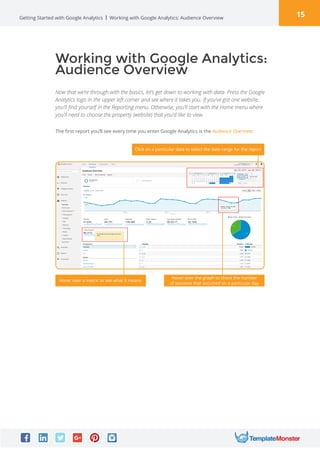
The first report you’ll see every time you enter Google Analytics is the Audience Overview:
Click on a particular date to select the date range for the report
Hover over a metric to see what it means
Hover over the graph to check the number
of sessions that occurred on a particular day
16Getting Started with Google Analytics
Working with Google Analytics:
Filters
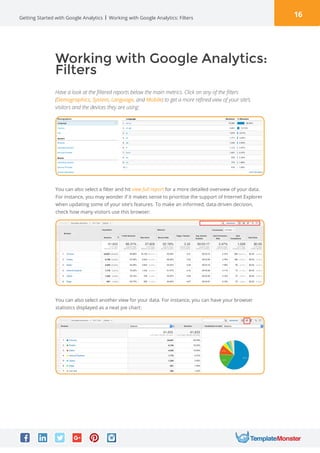
Have a look at the filtered reports below the main metrics. Click on any of the filters
(Demographics, System, Language, and Mobile) to get a more refined view of your site’s
visitors and the devices they are using:
Working with Google Analytics: Filters
You can also select a filter and hit view full report for a more detailed overview of your data.
For instance, you may wonder if it makes sense to prioritise the support of Internet Explorer
when updating some of your site’s features. To make an informed, data-driven decision,
check how many visitors use this browser:
You can also select another view for your data. For instance, you can have your browser
statistics displayed as a neat pie chart:
17Getting Started with Google Analytics
Working with Google Analytics:
Types of Reports
Google Analytics uses the information collected by the brainiacs at Google. The service
curates data and provides you with reports of four types: Audience, Acquisition, Behaviour,
and Conversions. Let’s have a closer look at these reports:
Working with Google Analytics: Types of Reports
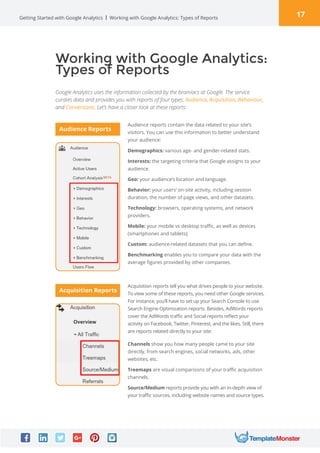
Audience reports contain the data related to your site’s
visitors. You can use this information to better understand
your audience:
Acquisition reports tell you what drives people to your website.
To view some of these reports, you need other Google services.
For instance, you’ll have to set up your Search Console to use
Search Engine Optimization reports. Besides, AdWords reports
cover the AdWords traffic and Social reports reflect your
activity on Facebook, Twitter, Pinterest, and the likes. Still, there
are reports related directly to your site:
Demographics: various age- and gender-related stats.
Interests: the targeting criteria that Google assigns to your
audience.
Geo: your audience’s location and language.
Behavior: your users’ on-site activity, including session
duration, the number of page views, and other datasets.
Technology: browsers, operating systems, and network
providers.
Mobile: your mobile vs desktop traffic, as well as devices
(smartphones and tablets);
Custom: audience-related datasets that you can define.
Benchmarking enables you to compare your data with the
average figures provided by other companies.
Channels show you how many people came to your site
directly, from search engines, social networks, ads, other
websites, etc.
Treemaps are visual comparisons of your traffic acquisition
channels.
Source/Medium reports provide you with an in-depth view of
your traffic sources, including website names and source types.
Audience Reports
Acquisition Reports
18Getting Started with Google Analytics Working with Google Analytics: Types of Reports
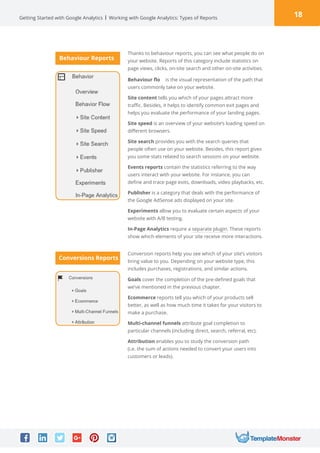
Thanks to behaviour reports, you can see what people do on
your website. Reports of this category include statistics on
page views, clicks, on-site search and other on-site activities.
Conversion reports help you see which of your site’s visitors
bring value to you. Depending on your website type, this
includes purchases, registrations, and similar actions.
Behaviour flo is the visual representation of the path that
users commonly take on your website.
Site content tells you which of your pages attract more
traffic. Besides, it helps to identify common exit pages and
helps you evaluate the performance of your landing pages.
Site speed is an overview of your website’s loading speed on
different browsers.
Site search provides you with the search queries that
people often use on your website. Besides, this report gives
you some stats related to search sessions on your website.
Events reports contain the statistics referring to the way
users interact with your website. For instance, you can
define and trace page exits, downloads, video playbacks, etc.
Publisher is a category that deals with the performance of
the Google AdSense ads displayed on your site.
Experiments allow you to evaluate certain aspects of your
website with A/B testing.
In-Page Analytics require a separate plugin. These reports
show which elements of your site receive more interactions.
Goals cover the completion of the pre-defined goals that
we’ve mentioned in the previous chapter.
Ecommerce reports tell you which of your products sell
better, as well as how much time it takes for your visitors to
make a purchase.
Multi-channel funnels attribute goal completion to
particular channels (including direct, search, referral, etc).
Attribution enables you to study the conversion path
(i.e. the sum of actions needed to convert your users into
customers or leads).
Behaviour Reports
Conversions Reports
19Getting Started with Google Analytics Top 5 Google Analytics Pro-Tips
Top 5 Google Analytics Pro-Tips
What we’ve mentioned so far should be enough to get you started with Google Analytics.
At this point, you can imagine how immensely flexible and multifaceted this tool can be.
To make the most of your first experience with Google Analytics, follow the pro-tips listed below.
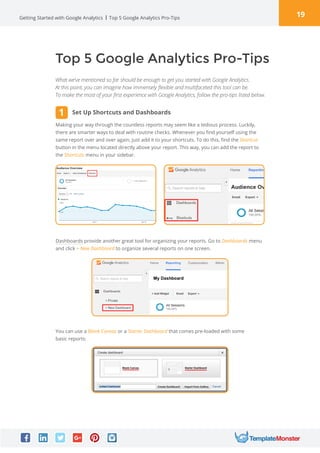
Making your way through the countless reports may seem like a tedious process. Luckily,
there are smarter ways to deal with routine checks. Whenever you find yourself using the
same report over and over again, just add it to your shortcuts. To do this, find the Shortcut
button in the menu located directly above your report. This way, you can add the report to
the Shortcuts menu in your sidebar.
Dashboards provide another great tool for organizing your reports. Go to Dashboards menu
and click + New Dashboard to organize several reports on one screen.
You can use a Blank Canvas or a Starter Dashboard that comes pre-loaded with some
basic reports:
Set Up Shortcuts and Dashboards1
20Getting Started with Google Analytics Top 5 Google Analytics Pro-Tips
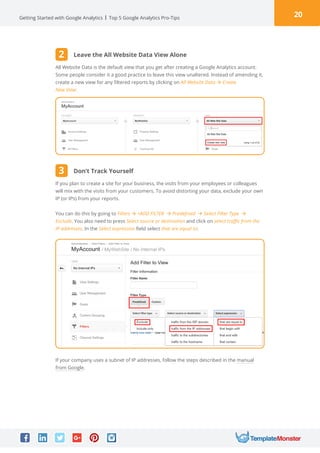
All Website Data is the default view that you get after creating a Google Analytics account.
Some people consider it a good practice to leave this view unaltered. Instead of amending it,
create a new view for any filtered reports by clicking on All Website Data à Create
New View:
If you plan to create a site for your business, the visits from your employees or colleagues
will mix with the visits from your customers. To avoid distorting your data, exclude your own
IP (or IPs) from your reports.
You can do this by going to Filters à +ADD FILTER à Predefined à Select Filter Type à
Exclude. You also need to press Select source or destination and click on select traffic from the
IP addresses. In the Select expression field select that are equal to:
If your company uses a subnet of IP addresses, follow the steps described in the manual
from Google.
Leave the All Website Data View Alone
Don’t Track Yourself
2
3
21Getting Started with Google Analytics Top 5 Google Analytics Pro-Tips
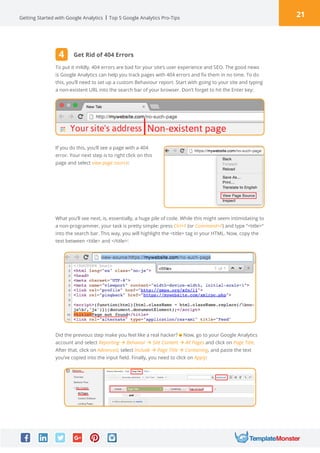
To put it mildly, 404 errors are bad for your site’s user experience and SEO. The good news
is Google Analytics can help you track pages with 404 errors and fix them in no time. To do
this, you’ll need to set up a custom Behaviour report. Start with going to your site and typing
a non-existent URL into the search bar of your browser. Don’t forget to hit the Enter key:
If you do this, you’ll see a page with a 404
error. Your next step is to right click on this
page and select view page source:
What you’ll see next, is, essentially, a huge pile of code. While this might seem intimidating to
a non-programmer, your task is pretty simple: press Ctrl+F (or Command+F) and type “title“
into the search bar. This way, you will highlight the title tag in your HTML. Now, copy the
text between title and /title:
Did the previous step make you feel like a real hacker? Now, go to your Google Analytics
account and select Reporting à Behavior à Site Content à All Pages and click on Page Title.
After that, click on Advanced, select Include à Page Title à Containing, and paste the text
you’ve copied into the input field. Finally, you need to click on Apply:
Get Rid of 404 Errors4
22Getting Started with Google Analytics Top 5 Google Analytics Pro-Tips
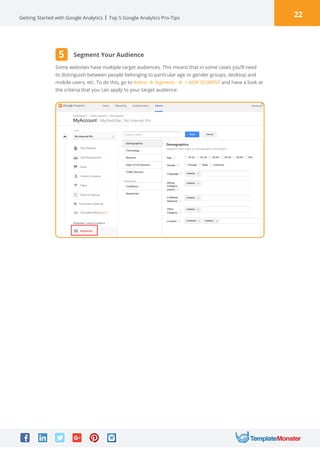
Some websites have multiple target audiences. This means that in some cases you’ll need
to distinguish between people belonging to particular age or gender groups, desktop and
mobile users, etc. To do this, go to Admin à Segments à + NEW SEGMENT and have a look at
the criteria that you can apply to your target audience:
Segment Your Audience5
23Getting Started with Google Analytics Further Reading
Here are a couple of resources that can help you expand your knowledge of Google
Analytics:
Further Reading
As Forbes contributor Jayson DeMers once pointed out, “Google Analytics can be as simple or
as complicated as you want it to be“. Google Analytics is a great instrument that allows you
to keep things simple when it comes to the basic needs of a medium-sized website. However,
you’ll need to invest time and delve into the details of Google Analytics if you are working on
a complex project.
•	 Google’s Analytics Academy and a video introduction to Google Analytics
•	 Google’s Analytics Help Center
•	 Google Analytics YouTube Channel
•	 A free Google Analytics course from Udemy
•	 A great post on SitePoint on using Google Analytics to improve your UX
24Getting Started with Google Analytics Have Any Questions Left? Contact Us!
Have Any Questions Left?
Contact Us!
Hey, thanks for reading this book! My name is
Eli Davis, and I am the author. I hope this will
help you get started with Google Analytics.
I wouldn’t have written this tutorial without
the help of the marketers and analytics
specialists from Startup Hub.
Feel free to contact them if you have any
questions:
TemplateMonster is the world’s biggest online supermarket of readymade websites. As of
today, the company offers more than 26,000 templates designed by professionals, so I’m
sure you’ll find the perfect solution for your website. If you’re about to launch your first site,
check out templatemonster.com:
Need a Theme for Your Website?
Get One from TemplateMonster
GET IN TOUCH!
Sources
Images
• 15 Google Analytics Tricks To Maximize Your Marketing Campaign (forbes.com)
• 2 Google Analytics Tips for Managing Page Errors (hallme.com)
• 35 Ways To Make Your Site Search Friendly Before You Hire An SEO (searchengineland.com)
• How to Use Google Analytics Behavior Reports to Optimize Your Content
(socialmediaexaminer.com)
• The 8 Google Analytics Features Every Site MUST Have Enabled (blog.kissmetrics.com)
• The Absolute Beginner's Guide to Google Analytics (moz.com)
• The Beginner’s Guide To Google Analytics: Finding Your Way Around
(http://www.business2community.com/)
• https://support.google.com/analytics/
• Freepik.com
• Vecteezy.com

02 google-analytics

  • 1.
  • 2.
    2Getting Started withGoogle Analytics Table of Contents 4 REASONS TO USE GOOGLE ANALYTICS PAGE 3 WHAT INFORMATION DOES GOOGLE ANALYTICS PROVIDE? WORKING WITH GOOGLE ANALYTICS: PAGE 4 REAL-LIFE CASES WITH 3 BIG BRANDS • Audience Overview PAGE 5 PAGE 15 GETTING READY • Filters PAGE 6 PAGE 16 CREATING AN ACCOUNT TOP 5 GOOGLE ANALYTICS PRO-TIPS PAGE 7 PAGE 19 TRACKING ID AND DATA SHARING FURTHER READING PAGE 8 PAGE 23 TRACKING CODE INSTALLATION HAVE ANY QUESTIONS LEFT? CONTACT US! PAGE 9 PAGE 24 HIERARCHY OF ACCOUNTS SOURCES PAGE 10 PAGE 25 GOALS SETTING IMAGES PAGE 12 PAGE 25 • Creating a New Goal PAGE 13 SETTING UP ON-SITE SEARCH PAGE 14
  • 3.
    3Getting Started withGoogle Analytics 4 Reasons to Use Google Analytics There are two kinds of site owners: the ones using Google Analytics and the ones who don’t know what they’re doing with their websites. If you’re reading this, you’ve made your first step toward becoming one of the former. Now, website analytics may seem daunting, but fear not, the tool that you’ll learn about is beginner-friendly. While it is definitely not the only analytics tool out there, Google Analytics has several advantages over similar platforms: Your Competitors Use It Most probably, the businesses you compete with are among the 54% of the websites that use Google Analytics. This tool is a must-have for any serious digital project, be it a blog, an e-store, or any other type of a website. It’s from Google (aka the World’s Largest Data Collector) Think about it, Google is famous – if not notorious – for spying on every aspect of our online lives. Google Analytics lets you harness Google’s tracking power and use it for a good purpose. It is Free. Well, Mostly Free Google Analytics is a freemium service. All of the important stuff comes at no cost, and the paid version mainly caters to really large corporate websites. In a nutshell, the service is free to use for anyone. It Gives You Tons of Insights Google Analytics monitors every on-site action performed by your visitors and tells you almost everything you’d want to know about them (provided that you can interpret the data). 1 2 3 4 4 Reasons to Use Google Analytics
  • 4.
    4Getting Started withGoogle Analytics What Information Does Google Analytics Provide? How many new and returning visitors did your site attract today (... this week, month, etc.)? How many pages did they view? For how long did they stay on every page? Did they find what they were looking for? What website did they come from? What browser and operating system do they use? Where do they live, how old are they, and what is their gender? How many people subscribed to your content or purchased your products? What types or content or products get more attention from your audience? Are there any speed issues with your site? We’ve talked about the “tons of insights” before, but let’s be more specific. What kind of information does Google Analytics provide and how can you use it? Below are some of the questions that you can have answered thanks to Google Analytics: What Information Does Google Analytics Provide?
  • 5.
    5Getting Started withGoogle Analytics Google Analytics keeps you informed about the key stats related to your site, your audience, and your customers. Here are several cases of big brands using these insights to boost their marketing and sales: Real-Life Cases With 3 Big Brands Real-Life Cases With 3 Big Brands Puma Data from Google Analytics helped the sportswear giant optimize its website, attract 47% more visitors from growing markets, and increase order rates by 7.1%. Nissan Motor The automobile manufacturer uses Google Analytics to analyze the global demand for its products. BT Financial Group Google Analytics enabled BT Financial Group to develop a new, efficient online application form which outperformed the old one by more than 61.7%.
  • 6.
    6Getting Started withGoogle Analytics Getting Ready Let’s begin with the things required for a Google Analytics account. The good news is this checklist contains only two points: Treat security as a top priority. Create a strong password, turn on two-step verification, and go through all of the Sign-in security settings. Keeping an eye on your Personal info privacy settings is also a good idea. If you plan to work with an SEO specialist, a web developer, or any other third-party specialist, they may offer to use their own account to manage your site. In that case, you should insist that they create a new one that you can access. This way you won’t lose your data if you stop working with them. If you plan to manage Google Analytics yourself, make sure you are the sole owner of your account. You will be able to share your Google Analytics data without compromising the privacy of your Google Account. Getting Ready The second one is a Google account – just like the one you already have for Gmail, Drive, or YouTube. You can opt for your existing account or create a separate one. There are a couple of tips to consider: 1 2 The first one is pretty obvious: you need a website that’s already up and running. This includes domain registration, hosting, and filling up your site with some content. If you’re only thinking about starting a website, check out our guide to choosing the right website platform.
  • 7.
    7Getting Started withGoogle Analytics Creating an Account Once your website and Google account are all set up and ready, it’s time to get a Google Analytics account. To do this, go to https://www.google.com/analytics/ and sign up for Google Analytics. You’ll also see a short description of the three steps that you’ll need to complete. Take a look at these steps and hit Sign up: Creating an Account Once Google redirects you to the next page, fill in the information regarding your account and website:
  • 8.
    8Getting Started withGoogle Analytics Tracking ID and Data Sharing Tracking ID and Data Sharing Once you’re through with this, hit the Get Tracking ID button. After you’ve read and accepted the terms and conditions, Google will redirect you to your dashboard and provide you with your tracking ID. On the same page at https://www.google.com/analytics/, you’ll see a section called Data Sharing Settings. This one helps you configure which of the Google’s services can access your data. A rule of thumb is to leave all checkboxes checked.
  • 9.
    9Getting Started withGoogle Analytics Tracking Code Installation Tracking Code Installation Have a look at the script above. To make it work, you’ll need to insert it into every page that you want to track. To do it the hard way, you can find your website’s source HTML file (.html or .htm) and paste the code right before the /head tag. Sounds too techy? Luckily, there are easier ways to do this. As a matter of fact, very few people insert tracking scripts directly into the site’s code. Instead, they install Google Analytics plugins (like the one from Yoast) or use the functionality provided by their content management system or e-commerce platform. For instance, Cherry Framework and similar WordPress frameworks have dedicated fields for Google Analytics code: Google Analytics works thanks to a tracking code snippet. You can find this code along with your tracking ID:
  • 10.
    10Getting Started withGoogle Analytics Hierarchy of Accounts With a 99% probability, you have one website at the moment. But what if there are two, three, or, say, 50 websites? Google’s hierarchy of accounts helps you handle situations of this kind. Besides, it enables you to organize the collected data. One Google account lets you create up to 100 Google Analytics accounts. Each Google Analytics account can contain up to 50 websites or properties. Each property can include up to 25 filtered subsets of reporting data or views. You can filter data by particular country, website, device type, IP-address, etc. Click on Admin in your dashboard and see how its UI reflects the hierarchy mentioned above. You’ve got separate menus for account, property, and view settings: Here’s how the hierarchy of accounts works: Hierarchy of Accounts 100 x Google Analytics Accounts 50 x Properties (Websites) 25 x Views
  • 11.
    11Getting Started withGoogle Analytics Users and Permissions With Google Analytics, you can let other users access and manage certain aspects of your website. To do this, select User Management in the Account, Property, or View menu. To add new users, input their emails into the corresponding field: Hierarchy of Accounts You can assign several permissions to any user – just make sure you’ve checked the right checkboxes and understand what every permission implies. Below is a short description of permission types: Manage Users Edit Collaborate Read Analyze Add and delete users, assign permissions Add, edit, and delete: - accounts, - properties, - views, - filters, - goals Edit dashboards and anotations View and edit reports Permission Types
  • 12.
    12Getting Started withGoogle Analytics Goals Setting Goals Setting Goals tell you a lot about your audience’s on-site behaviour. For instance, you’ll want to know if they visit certain pages and view certain content. To track actions of this kind, access your View menu and click on the Goals button. Click on Admin in your dashboard and see how its UI reflects the hierarchy mentioned above. You’ve got separate menus for account, property, and view settings: In the upper-right corner of the Goals menu, you will find a small button with an icon resembling a square academics cap. Click on it to open a brief introduction to Goal settings. As you can see in the image above, there are two options for creating goals: you can either import an existing goal from the Gallery or create a new one. Now, there are ready-made goals for websites of any type. Yet, you will learn more about Google Analytics Goals if you try to create a new one.
  • 13.
    13Getting Started withGoogle Analytics Goals Setting Creating a New Goal For starters, hit the big red button that says “+ NEW GOAL“. After that, you’ll need to give your goal a name and select its type. Google provides a detailed characteristic of goal types, but you can also have a look the short descriptions below to get a general idea: Destination Destination tells you if people visit a particular page (or multiple pages) on your site. Besides, it helps you see what other websites and pages drive visitors to your target page. To do this, switch on Funnel and input the URLs of the external resources that contain links to your page. Duration Sometimes, you need to make sure people spend enough time on your website to view your content or learn about your products. With Duration settings, you can set the minimum amount of time required to confirm user engagement. Pages per Session Another way to see if people find your website engaging is to measure the average number of page views per visit. To do this, set the minimum number of Pages per Session and see how many of your users go above this figure. Event Event goals inform you about specific actions performed by your visitors. This includes playing online videos or audio tracks, downloading PDFs, completing a purchase, etc. This allows you to measure conversion rates in a more direct manner.
  • 14.
    14Getting Started withGoogle Analytics Setting Up On-Site Search On-site search helps you optimize your content and user experience so make sure your website has it. In a nutshell, internal search queries tell you what people look for on your website. To track queries of this kind, you’ll need to set up on-site search in your Google Analytics account. Start with conducting a search on your site. You can use some random search query like “Nyan Cat“. In your browser’s search bar you’ll see something like this: See the “s“ in the URL? That’s the query parameter of the request. In the case of some websites, you might get a “q“ parameter instead. Now do the following: 1. Go to your Admin panel and select View Settings in the View column. 2. Scroll down (way down) and switch Site search Tracking on. 3. Type your query parameter into the input field. That’s it, from now on Google Analytics will monitor your website’s internal search queries. Wasn’t that easy? Setting Up On-Site Search
  • 15.
    15Getting Started withGoogle Analytics Working with Google Analytics: Audience Overview Now that we’re through with the basics, let’s get down to working with data. Press the Google Analytics logo in the upper left corner and see where it takes you. If you’ve got one website, you’ll find yourself in the Reporting menu. Otherwise, you’ll start with the Home menu where you’ll need to choose the property (website) that you’d like to view. Working with Google Analytics: Audience Overview The first report you’ll see every time you enter Google Analytics is the Audience Overview: Click on a particular date to select the date range for the report Hover over a metric to see what it means Hover over the graph to check the number of sessions that occurred on a particular day
  • 16.
    16Getting Started withGoogle Analytics Working with Google Analytics: Filters Have a look at the filtered reports below the main metrics. Click on any of the filters (Demographics, System, Language, and Mobile) to get a more refined view of your site’s visitors and the devices they are using: Working with Google Analytics: Filters You can also select a filter and hit view full report for a more detailed overview of your data. For instance, you may wonder if it makes sense to prioritise the support of Internet Explorer when updating some of your site’s features. To make an informed, data-driven decision, check how many visitors use this browser: You can also select another view for your data. For instance, you can have your browser statistics displayed as a neat pie chart:
  • 17.
    17Getting Started withGoogle Analytics Working with Google Analytics: Types of Reports Google Analytics uses the information collected by the brainiacs at Google. The service curates data and provides you with reports of four types: Audience, Acquisition, Behaviour, and Conversions. Let’s have a closer look at these reports: Working with Google Analytics: Types of Reports Audience reports contain the data related to your site’s visitors. You can use this information to better understand your audience: Acquisition reports tell you what drives people to your website. To view some of these reports, you need other Google services. For instance, you’ll have to set up your Search Console to use Search Engine Optimization reports. Besides, AdWords reports cover the AdWords traffic and Social reports reflect your activity on Facebook, Twitter, Pinterest, and the likes. Still, there are reports related directly to your site: Demographics: various age- and gender-related stats. Interests: the targeting criteria that Google assigns to your audience. Geo: your audience’s location and language. Behavior: your users’ on-site activity, including session duration, the number of page views, and other datasets. Technology: browsers, operating systems, and network providers. Mobile: your mobile vs desktop traffic, as well as devices (smartphones and tablets); Custom: audience-related datasets that you can define. Benchmarking enables you to compare your data with the average figures provided by other companies. Channels show you how many people came to your site directly, from search engines, social networks, ads, other websites, etc. Treemaps are visual comparisons of your traffic acquisition channels. Source/Medium reports provide you with an in-depth view of your traffic sources, including website names and source types. Audience Reports Acquisition Reports
  • 18.
    18Getting Started withGoogle Analytics Working with Google Analytics: Types of Reports Thanks to behaviour reports, you can see what people do on your website. Reports of this category include statistics on page views, clicks, on-site search and other on-site activities. Conversion reports help you see which of your site’s visitors bring value to you. Depending on your website type, this includes purchases, registrations, and similar actions. Behaviour flo is the visual representation of the path that users commonly take on your website. Site content tells you which of your pages attract more traffic. Besides, it helps to identify common exit pages and helps you evaluate the performance of your landing pages. Site speed is an overview of your website’s loading speed on different browsers. Site search provides you with the search queries that people often use on your website. Besides, this report gives you some stats related to search sessions on your website. Events reports contain the statistics referring to the way users interact with your website. For instance, you can define and trace page exits, downloads, video playbacks, etc. Publisher is a category that deals with the performance of the Google AdSense ads displayed on your site. Experiments allow you to evaluate certain aspects of your website with A/B testing. In-Page Analytics require a separate plugin. These reports show which elements of your site receive more interactions. Goals cover the completion of the pre-defined goals that we’ve mentioned in the previous chapter. Ecommerce reports tell you which of your products sell better, as well as how much time it takes for your visitors to make a purchase. Multi-channel funnels attribute goal completion to particular channels (including direct, search, referral, etc). Attribution enables you to study the conversion path (i.e. the sum of actions needed to convert your users into customers or leads). Behaviour Reports Conversions Reports
  • 19.
    19Getting Started withGoogle Analytics Top 5 Google Analytics Pro-Tips Top 5 Google Analytics Pro-Tips What we’ve mentioned so far should be enough to get you started with Google Analytics. At this point, you can imagine how immensely flexible and multifaceted this tool can be. To make the most of your first experience with Google Analytics, follow the pro-tips listed below. Making your way through the countless reports may seem like a tedious process. Luckily, there are smarter ways to deal with routine checks. Whenever you find yourself using the same report over and over again, just add it to your shortcuts. To do this, find the Shortcut button in the menu located directly above your report. This way, you can add the report to the Shortcuts menu in your sidebar. Dashboards provide another great tool for organizing your reports. Go to Dashboards menu and click + New Dashboard to organize several reports on one screen. You can use a Blank Canvas or a Starter Dashboard that comes pre-loaded with some basic reports: Set Up Shortcuts and Dashboards1
  • 20.
    20Getting Started withGoogle Analytics Top 5 Google Analytics Pro-Tips All Website Data is the default view that you get after creating a Google Analytics account. Some people consider it a good practice to leave this view unaltered. Instead of amending it, create a new view for any filtered reports by clicking on All Website Data à Create New View: If you plan to create a site for your business, the visits from your employees or colleagues will mix with the visits from your customers. To avoid distorting your data, exclude your own IP (or IPs) from your reports. You can do this by going to Filters à +ADD FILTER à Predefined à Select Filter Type à Exclude. You also need to press Select source or destination and click on select traffic from the IP addresses. In the Select expression field select that are equal to: If your company uses a subnet of IP addresses, follow the steps described in the manual from Google. Leave the All Website Data View Alone Don’t Track Yourself 2 3
  • 21.
    21Getting Started withGoogle Analytics Top 5 Google Analytics Pro-Tips To put it mildly, 404 errors are bad for your site’s user experience and SEO. The good news is Google Analytics can help you track pages with 404 errors and fix them in no time. To do this, you’ll need to set up a custom Behaviour report. Start with going to your site and typing a non-existent URL into the search bar of your browser. Don’t forget to hit the Enter key: If you do this, you’ll see a page with a 404 error. Your next step is to right click on this page and select view page source: What you’ll see next, is, essentially, a huge pile of code. While this might seem intimidating to a non-programmer, your task is pretty simple: press Ctrl+F (or Command+F) and type “title“ into the search bar. This way, you will highlight the title tag in your HTML. Now, copy the text between title and /title: Did the previous step make you feel like a real hacker? Now, go to your Google Analytics account and select Reporting à Behavior à Site Content à All Pages and click on Page Title. After that, click on Advanced, select Include à Page Title à Containing, and paste the text you’ve copied into the input field. Finally, you need to click on Apply: Get Rid of 404 Errors4
  • 22.
    22Getting Started withGoogle Analytics Top 5 Google Analytics Pro-Tips Some websites have multiple target audiences. This means that in some cases you’ll need to distinguish between people belonging to particular age or gender groups, desktop and mobile users, etc. To do this, go to Admin à Segments à + NEW SEGMENT and have a look at the criteria that you can apply to your target audience: Segment Your Audience5
  • 23.
    23Getting Started withGoogle Analytics Further Reading Here are a couple of resources that can help you expand your knowledge of Google Analytics: Further Reading As Forbes contributor Jayson DeMers once pointed out, “Google Analytics can be as simple or as complicated as you want it to be“. Google Analytics is a great instrument that allows you to keep things simple when it comes to the basic needs of a medium-sized website. However, you’ll need to invest time and delve into the details of Google Analytics if you are working on a complex project. • Google’s Analytics Academy and a video introduction to Google Analytics • Google’s Analytics Help Center • Google Analytics YouTube Channel • A free Google Analytics course from Udemy • A great post on SitePoint on using Google Analytics to improve your UX
  • 24.
    24Getting Started withGoogle Analytics Have Any Questions Left? Contact Us! Have Any Questions Left? Contact Us! Hey, thanks for reading this book! My name is Eli Davis, and I am the author. I hope this will help you get started with Google Analytics. I wouldn’t have written this tutorial without the help of the marketers and analytics specialists from Startup Hub. Feel free to contact them if you have any questions: TemplateMonster is the world’s biggest online supermarket of readymade websites. As of today, the company offers more than 26,000 templates designed by professionals, so I’m sure you’ll find the perfect solution for your website. If you’re about to launch your first site, check out templatemonster.com: Need a Theme for Your Website? Get One from TemplateMonster GET IN TOUCH!
  • 25.
    Sources Images • 15 GoogleAnalytics Tricks To Maximize Your Marketing Campaign (forbes.com) • 2 Google Analytics Tips for Managing Page Errors (hallme.com) • 35 Ways To Make Your Site Search Friendly Before You Hire An SEO (searchengineland.com) • How to Use Google Analytics Behavior Reports to Optimize Your Content (socialmediaexaminer.com) • The 8 Google Analytics Features Every Site MUST Have Enabled (blog.kissmetrics.com) • The Absolute Beginner's Guide to Google Analytics (moz.com) • The Beginner’s Guide To Google Analytics: Finding Your Way Around (http://www.business2community.com/) • https://support.google.com/analytics/ • Freepik.com • Vecteezy.com