Adobe Illustrator
6 Essential Tips And Tools
Le Do Nguyet Minh | Graphic Designer | minh.le@iconnect360.com
Appearance
Graphic Style
Transform
WINDOWS
Align
Pathfinder
Blend
TOOLS
APPEARANCE
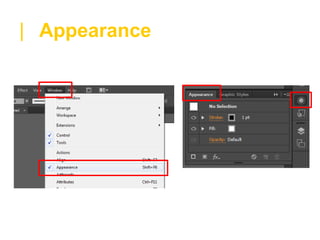
Window / Appearance or Shift + F6
| Appearance
| Appearance
| Appearance
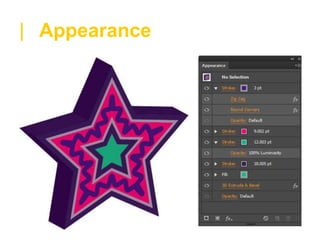
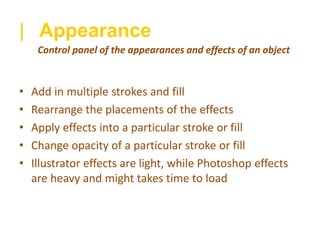
• Add in multiple strokes and fill
• Rearrange the placements of the effects
• Apply effects into a particular stroke or fill
• Change opacity of a particular stroke or fill
• Illustrator effects are light, while Photoshop effects
are heavy and might takes time to load
Control panel of the appearances and effects of an object
GRAPHIC STYLES
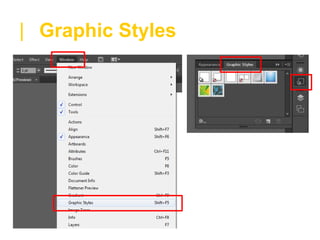
Window / Graphic Styles or Shift + F5
| Graphic Styles
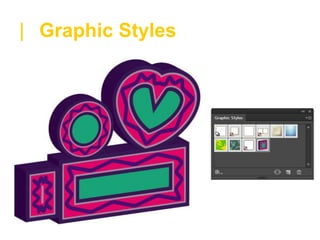
| Graphic Styles
| Graphic Styles
• Similar to Copy Layer Style in Photoshop
• Save your appearance setting for future uses or for
consistent design
• Graphic Style can be saved and shared
A collection of your pre-made appearance settings
TRANSFORM
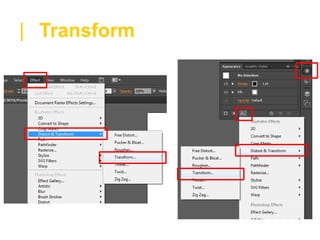
Effect / Distort & Transform / Transform or Appearance Window / fx
| Transform
| Transform
| Transform
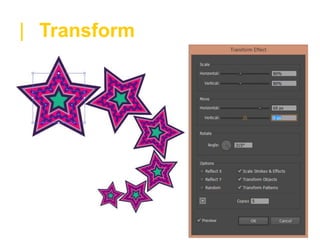
• Transform your object using an effect instead of an
action
• Non destructive design – easy to refer back and
makes changes
• Make floating copies that are all linked to the original
object
One of the effect from the Appearance Setting
ALIGN
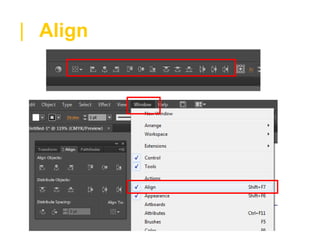
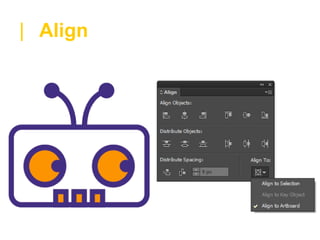
Top Bar (when you select 1 or more objects) or Window / Align
| Align
| Align
| Align
• Similar to the Arrange / Align in Powerpoint
• Default alignment is to Artboard
• Align to a Key Object by:
Select all objects > click on the key object > align
• Distribution Spacing
Control board for a perfect alignment
PATHFINDER
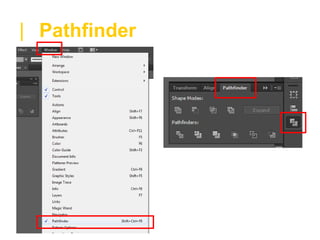
Window / Pathfinder or Shift + Ctrl + F9
| Pathfinder
| Pathfinder
| Pathfinder
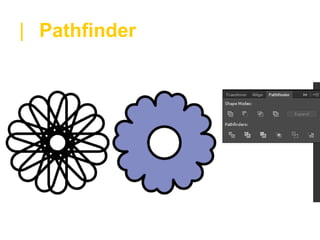
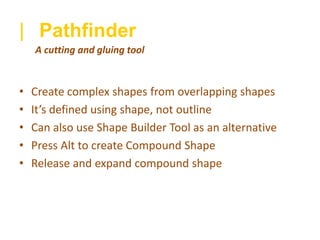
• Create complex shapes from overlapping shapes
• It’s defined using shape, not outline
• Can also use Shape Builder Tool as an alternative
• Press Alt to create Compound Shape
• Release and expand compound shape
A cutting and gluing tool
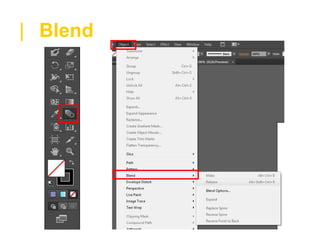
BLEND
Object / Blend or Tools / Blend Tool or Alt + Ctrl + B
| Blend
| Blend
| Blend
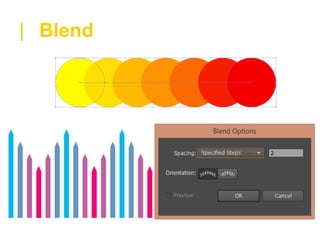
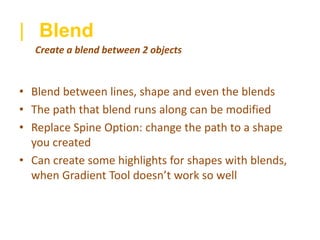
• Blend between lines, shape and even the blends
• The path that blend runs along can be modified
• Replace Spine Option: change the path to a shape
you created
• Can create some highlights for shapes with blends,
when Gradient Tool doesn’t work so well
Create a blend between 2 objects
Appearance
Graphic Style
Transform
WINDOWS
Align
Pathfinder
Blend
TOOLS
PATTERN
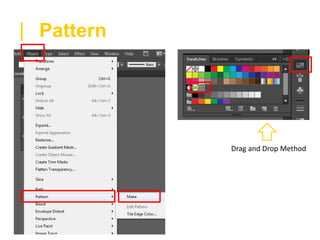
Object / Pattern / Make or Swatches Window
| Pattern
Drag and Drop Method
| Pattern
| Pattern
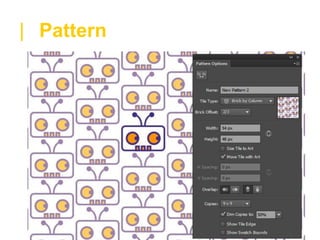
• Decide your tile type, width and height
• Edit while previewing the pattern
• Pattern finished as a swatch: can be used in fill or
stroke
• Save LOTS OF SPACE compare to copy & paste or
transform effect methods
Create your pattern however you wants it

Adobe Illustrator: 6 Essential Tips and Tools

Editor's Notes

  • #6 Control panel of the appearances and effects of an object Window / Appearance Fully control of your object effect, it’s almost like a layer board meant for the effects Add in multiple strokes and fill Rearrange the placements of the effects Apply effects into a particular stroke or fill Change opacity of a particular stroke or fill Illustrator effects are light, while Photoshop effects are heavy and might takes time to load Pattern or gradient can also applied into stroke or fill Some useful effects: Crop Marks Stylize Transform
  • #10 A collection of your pre-made appearance settings Window / Graphic Styles Similar to Copy Layer Style in Photoshop Save your appearance setting for future uses or for consistent design Graphic Style can be saved and shared For example: if all of your buttons will always have the same gradient and rounded corners, you could just save the layer style to apply into any button you make in the future
  • #14 One of the effect from the Appearance Setting Effect / Distort & Transform / Transform or Appearance Window / fx Transform your object using an effect instead of an action Non destructive design – easy to refer back and makes changes Make floating copies that are all linked to the original object
  • #18 Control board for a perfect alignment Top Bar (when you select 1 or more objects) or Window / Align Similar to the Arrange / Align in Powerpoint Default alignment is to Artboard Align to a Key Object by: Select all objects > click on the key object > align Distribution Spacing Use this to save time arranging, and it’s a perfect alignment
  • #22 Window / Pathfinder A cutting and gluing tool Create complex shapes from overlapping shapes It’s defined using shape, not outline Can also use Shape Builder Tool as an alternative Press Alt to create Compound Shape Release and expand compound shape
  • #26 Create a blend between 2 objects Object / Blend or Tools / Blend Tool Blend between lines, shape and even the blends The path that blend runs along can be modified Replace Spine Option: change the path to a shape you created Can create some highlights for shapes with blends, when Gradient Tool doesn’t work so well 3 settings you can applied When applying, you can click the middle of the shape, or the corner points of the shape to morph differently
  • #31 Create your pattern however you wants it Object / Pattern / Make or Swatches Window Decide your tile type, width and height Edit while previewing the pattern Pattern finished as a swatch: can be used in fill or stroke Save LOTS OF SPACE compare to copy & paste or transform effect methods