Organizing webinars
I. Tips to run Adobe Connect events
II. Organizing Partner Finding events
Petros Michailidis
GrNSS
Organizing webinars
I. Tips to run Adobe Connect events
II. Organizing Partner Finding events
Petros Michailidis
GrNSS
3
Event Life Cycle
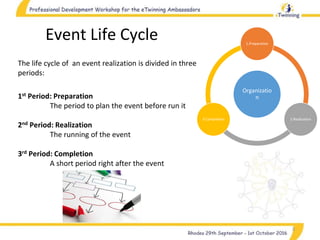
The life cycle of an event realization is divided in three
periods:
1st Period: Preparation
The period to plan the event before run it
2nd Period: Realization
The running of the event
3rd Period: Completion
A short period right after the event
Organizatio
n
1.Preparation
2.Realization3.Completion
4
Preparation
Before the event day
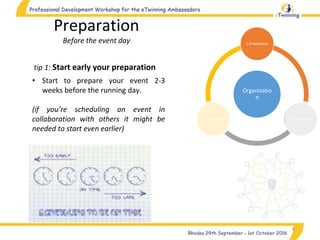
tip 1: Start early your preparation
• Start to prepare your event 2-3
weeks before the running day.
(if you’re scheduling an event in
collaboration with others it might be
needed to start even earlier)
Organizatio
n
1.Preparation
2.Realization3.Completion
5
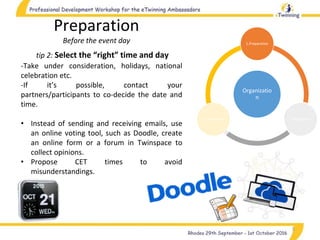
tip 2: Select the “right” time and day
-Take under consideration, holidays, national
celebration etc.
-If it’s possible, contact your
partners/participants to co-decide the date and
time.
• Instead of sending and receiving emails, use
an online voting tool, such as Doodle, create
an online form or a forum in Twinspace to
collect opinions.
• Propose CET times to avoid
misunderstandings.
Preparation
Before the event day
Organizatio
n
1.Preparation
2.Realization3.Completion
Organizatio
n
1.Preparation
2.Realization3.Completion
6
tip 3: Create an event timetable
Preparation
Before the event day
A timetable is the “lesson plan” of the event and
is necessary so as to:
• Define and adjust the needed time
• To organize presentations, activities,
interaction etc.
• Be sure that you’ll cover all aspects of your
topic
• Don’t get “lost” during the event etc.
(if you’re preparing a collaborative event, create
a forum or an online document to work on
timetable with your partner/s)
Find a suggested timetable document, following this hyperlink
7
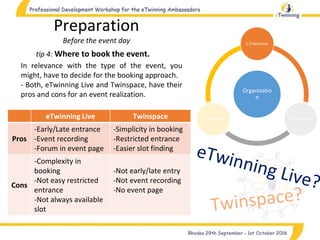
tip 4: Where to book the event.
Preparation
Before the event day
In relevance with the type of the event, you
might, have to decide for the booking approach.
- Both, eTwinning Live and Twinspace, have their
pros and cons for an event realization.
eTwinning Live Twinspace
Pros
-Early/Late entrance
-Event recording
-Forum in event page
-Simplicity in booking
-Restricted entrance
-Easier slot finding
Cons
-Complexity in
booking
-Not easy restricted
entrance
-Not always available
slot
-Not early/late entry
-Not event recording
-No event page
Organizatio
n
1.Preparation
2.Realization3.Completion
Organizatio
n
1.Preparation
2.Realization3.Completion
8
tip 5: Train & prepare event participants
Preparation
Before the event day
Send to participants an email with instructions
on:
• How to connect to the event
• How to set up sound, microphones and
cameras
• How to interact with you with icons
You can also:
• Present them an abstract of the event subject
• Inform them about the timetable of the event
• Send them a questionnaire about the event
subject to explore their knowledge about it
9
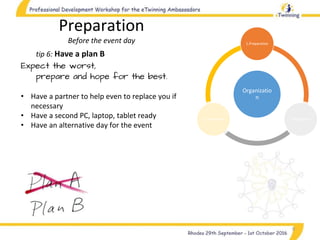
tip 6: Have a plan B
Preparation
Before the event day
Expect the worst,
prepare and hope for the best.
• Have a partner to help even to replace you if
necessary
• Have a second PC, laptop, tablet ready
• Have an alternative day for the event
Organizatio
n
1.Preparation
2.Realization3.Completion
Organizatio
n
1.Preparation
2.Realization3.Completion
10
tip 1: Enter the room early
Preparation
The event day
The event day enter the room earlier in order to
have the necessary time to be prepared
• If you booked the event via eTwinning Live
you can enter 24h earlier
• If you booked it via Twinspace you can’t enter
earlier however, you can create a longer time
event so as to take advantage of the extra
time
Early
bird
Organizatio
n
1.Preparation
2.Realization3.Completion
11
tip 2: Take care to event settings
Preparation
The event day
For the best event organization, there are several
technical setting to be done which are relative
to:
• Participants' rights (entrance, interactivity,
chat, sound, video etc.)
• Quality of communication (sound, video)
• Several other settings
Pay particular attention to those settings in order
to avoid delays and glitches when partners /
participants enter the event.
Organizatio
n
1.Preparation
2.Realization3.Completion
Preparation
The event day
12
tip 3: Organize the room
Adobe Connect offers three pre-organized room
layouts with their relevant tools, in order to
serve the needs of different types of events.
Also, there is an option for custom layout
creation, accordingly to the event needs.
• Decide about the layout and the necessary
tools for the event and make the relative
settings.
Organizatio
n
1.Preparation
2.Realization3.Completion
13
tip 4: Organize your files
Preparation
The event day
• Upload to the event all of your files
(presentations, documents, images etc.)
• Open them in separate tabs in order of
appearance
• Test your timetable making a demo
presentation before participants' entrance
14
tip 1: Start the recording
Realization
The event time
When participants have entered and you're
ready to begin…
• Start the recording
1. If you created the event via eTwinning Live,
click on the “Record” button
2. If you created the event via Twinspace, start
your screen recording program (you can try
this one FlashBack Express Recorder)
Organizatio
n
1.Preparation
2.Realization3.Completion
15
tip 2: Train participants
Realization
The event time
Inform/remind participant about:
• Their sound settings
• How to start and close their mics and cameras
• How to interact with you during the event.
If it’s necessary show a relative presentation
tip 3: Put some rules
Put some rules to participants such as:
• Where and when can make questions
• When they can talk
• When they can make a presentation etc.
Organizatio
n
1.Preparation
2.Realization3.Completion
16
tip 4: Make event interactive
Realization
The event time
Don’t keep participants as passive listeners, give
them the opportunity, in accordance to event, to
be active by:
• Reacting to challenges, completing quizzes
and quests, playing games.
• Answering to polls and questions relative to
topic.
• Giving them the floor to describe experiences,
expectations, worries etc.
Organizatio
n
1.Preparation
2.Realization3.Completion
Organizatio
n
1.Preparation
2.Realization3.Completion
17
tip 1: Share the record
Completion
After the event
If you created the event via eTwinning Live
two days after the event a link will appear in
event page
• Download the record, edit the video and
share it to participants.
If you created the event via Twinspace and used
a screen recording tool,
• If you have the skills, create a short video (2-3
min.) with some of the event moments
• Upload the short video and the event
recording on your Twinspace, your group,
your social media page etc. so as to share it
with the others
Organizatio
n
1.Preparation
2.Realization3.Completion
18
tip 2: Share the knowledge
Completion
After the event
Send to participants an after event mail with:
• A summary of the topic/s presented during
the event
• Presentations, documents, links etc. used
during the event so as to study them in their
own time
• A thank you message for their participation
Organizatio
n
1.Preparation
2.Realization3.Completion
19
tip 3: Feedback/Evaluation
Completion
After the event
• Send to participants a feedback/evaluation
questionnaire
• Watch the recorded video and notice the
positive and negative points of the event so as
to understand the reasons and to schedule
your next event accordingly
Create a checklist with the necessary for
organizing the event, steps in order to not
forget anything
tip 4: Create a checklist
Organizing webinars
I. Tips to run Adobe Connect events
II. Organizing Partner Finding events
Petros Michailidis
GrNSS
21
Partners’ Finding
Ambassadors’ collaborative webinar
Goals
It’s not that simple as to “Connect teachers
to find Partner”. You have to take under
consideration a range of factor as ...
22
Partners’ Finding
Ambassadors’ collaborative webinar
Experience of the participants
1. Inexperienced (totally newers in eTwinning, not any project)
2. More experienced (with one or two projects as partners, they might awarded or not with quality labels)
3. Advanced (founders of projects, National and European Quality Labels, maybe awarded with National or European Award)
4. “Gurus”
23
Partners’ Finding
Ambassadors’ collaborative webinar
Curriculum in relevance with experience
1. Inexperienced – eTwinning Live sections, Project creation, Basic Twinspace’s tools
2. Medium experienced –Collaborative activities creation, web 2,0 tools embedding
etc.
24
Partners’ Finding
Ambassadors’ collaborative webinar
Number of webinars
Prepare for a number of webinars according to participant’s needs
25
Partners’ Finding
Ambassadors’ collaborative webinar
Webinar/s Date/s
Collaborate to decide about webinars dates
26
Partners’ Finding
Ambassadors’ collaborative webinar
Topic?
Should be proposed some topics or not?
27
Partners’ Finding
Ambassadors’ collaborative webinar
Target group (you must decide about it)
● Elementary teachers
● Primary teachers
● Secondary teachers
● Vocational teachers
● Special education teachers etc.
28
Partners’ Finding
Ambassadors’ collaborative webinar
Number of participants
In relevance with their experience, educational grade etc.
29
Partners’ Finding
Ambassadors’ collaborative webinar
Promotion have a strategy about:
• How to promote the event
• How to find participants
30
Partners’ Finding
Ambassadors’ collaborative webinar
Ambassador/s Where can you find co-organizers of a such event?
➢ European Ambassadors Group
➢ Social media Group etc.
31
Partners’ Finding
Ambassadors’ collaborative webinar
Hands on activity
Try to create a Partner finding event using the
relative worksheet

Organizing webinars using Adobe COnnect - Petros Michailidis

  • 1.
    Organizing webinars I. Tipsto run Adobe Connect events II. Organizing Partner Finding events Petros Michailidis GrNSS
  • 2.
    Organizing webinars I. Tipsto run Adobe Connect events II. Organizing Partner Finding events Petros Michailidis GrNSS
  • 3.
    3 Event Life Cycle Thelife cycle of an event realization is divided in three periods: 1st Period: Preparation The period to plan the event before run it 2nd Period: Realization The running of the event 3rd Period: Completion A short period right after the event Organizatio n 1.Preparation 2.Realization3.Completion
  • 4.
    4 Preparation Before the eventday tip 1: Start early your preparation • Start to prepare your event 2-3 weeks before the running day. (if you’re scheduling an event in collaboration with others it might be needed to start even earlier) Organizatio n 1.Preparation 2.Realization3.Completion
  • 5.
    5 tip 2: Selectthe “right” time and day -Take under consideration, holidays, national celebration etc. -If it’s possible, contact your partners/participants to co-decide the date and time. • Instead of sending and receiving emails, use an online voting tool, such as Doodle, create an online form or a forum in Twinspace to collect opinions. • Propose CET times to avoid misunderstandings. Preparation Before the event day Organizatio n 1.Preparation 2.Realization3.Completion
  • 6.
    Organizatio n 1.Preparation 2.Realization3.Completion 6 tip 3: Createan event timetable Preparation Before the event day A timetable is the “lesson plan” of the event and is necessary so as to: • Define and adjust the needed time • To organize presentations, activities, interaction etc. • Be sure that you’ll cover all aspects of your topic • Don’t get “lost” during the event etc. (if you’re preparing a collaborative event, create a forum or an online document to work on timetable with your partner/s) Find a suggested timetable document, following this hyperlink
  • 7.
    7 tip 4: Whereto book the event. Preparation Before the event day In relevance with the type of the event, you might, have to decide for the booking approach. - Both, eTwinning Live and Twinspace, have their pros and cons for an event realization. eTwinning Live Twinspace Pros -Early/Late entrance -Event recording -Forum in event page -Simplicity in booking -Restricted entrance -Easier slot finding Cons -Complexity in booking -Not easy restricted entrance -Not always available slot -Not early/late entry -Not event recording -No event page Organizatio n 1.Preparation 2.Realization3.Completion
  • 8.
    Organizatio n 1.Preparation 2.Realization3.Completion 8 tip 5: Train& prepare event participants Preparation Before the event day Send to participants an email with instructions on: • How to connect to the event • How to set up sound, microphones and cameras • How to interact with you with icons You can also: • Present them an abstract of the event subject • Inform them about the timetable of the event • Send them a questionnaire about the event subject to explore their knowledge about it
  • 9.
    9 tip 6: Havea plan B Preparation Before the event day Expect the worst, prepare and hope for the best. • Have a partner to help even to replace you if necessary • Have a second PC, laptop, tablet ready • Have an alternative day for the event Organizatio n 1.Preparation 2.Realization3.Completion
  • 10.
    Organizatio n 1.Preparation 2.Realization3.Completion 10 tip 1: Enterthe room early Preparation The event day The event day enter the room earlier in order to have the necessary time to be prepared • If you booked the event via eTwinning Live you can enter 24h earlier • If you booked it via Twinspace you can’t enter earlier however, you can create a longer time event so as to take advantage of the extra time Early bird
  • 11.
    Organizatio n 1.Preparation 2.Realization3.Completion 11 tip 2: Takecare to event settings Preparation The event day For the best event organization, there are several technical setting to be done which are relative to: • Participants' rights (entrance, interactivity, chat, sound, video etc.) • Quality of communication (sound, video) • Several other settings Pay particular attention to those settings in order to avoid delays and glitches when partners / participants enter the event.
  • 12.
    Organizatio n 1.Preparation 2.Realization3.Completion Preparation The event day 12 tip3: Organize the room Adobe Connect offers three pre-organized room layouts with their relevant tools, in order to serve the needs of different types of events. Also, there is an option for custom layout creation, accordingly to the event needs. • Decide about the layout and the necessary tools for the event and make the relative settings.
  • 13.
    Organizatio n 1.Preparation 2.Realization3.Completion 13 tip 4: Organizeyour files Preparation The event day • Upload to the event all of your files (presentations, documents, images etc.) • Open them in separate tabs in order of appearance • Test your timetable making a demo presentation before participants' entrance
  • 14.
    14 tip 1: Startthe recording Realization The event time When participants have entered and you're ready to begin… • Start the recording 1. If you created the event via eTwinning Live, click on the “Record” button 2. If you created the event via Twinspace, start your screen recording program (you can try this one FlashBack Express Recorder) Organizatio n 1.Preparation 2.Realization3.Completion
  • 15.
    15 tip 2: Trainparticipants Realization The event time Inform/remind participant about: • Their sound settings • How to start and close their mics and cameras • How to interact with you during the event. If it’s necessary show a relative presentation tip 3: Put some rules Put some rules to participants such as: • Where and when can make questions • When they can talk • When they can make a presentation etc. Organizatio n 1.Preparation 2.Realization3.Completion
  • 16.
    16 tip 4: Makeevent interactive Realization The event time Don’t keep participants as passive listeners, give them the opportunity, in accordance to event, to be active by: • Reacting to challenges, completing quizzes and quests, playing games. • Answering to polls and questions relative to topic. • Giving them the floor to describe experiences, expectations, worries etc. Organizatio n 1.Preparation 2.Realization3.Completion
  • 17.
    Organizatio n 1.Preparation 2.Realization3.Completion 17 tip 1: Sharethe record Completion After the event If you created the event via eTwinning Live two days after the event a link will appear in event page • Download the record, edit the video and share it to participants. If you created the event via Twinspace and used a screen recording tool, • If you have the skills, create a short video (2-3 min.) with some of the event moments • Upload the short video and the event recording on your Twinspace, your group, your social media page etc. so as to share it with the others
  • 18.
    Organizatio n 1.Preparation 2.Realization3.Completion 18 tip 2: Sharethe knowledge Completion After the event Send to participants an after event mail with: • A summary of the topic/s presented during the event • Presentations, documents, links etc. used during the event so as to study them in their own time • A thank you message for their participation
  • 19.
    Organizatio n 1.Preparation 2.Realization3.Completion 19 tip 3: Feedback/Evaluation Completion Afterthe event • Send to participants a feedback/evaluation questionnaire • Watch the recorded video and notice the positive and negative points of the event so as to understand the reasons and to schedule your next event accordingly Create a checklist with the necessary for organizing the event, steps in order to not forget anything tip 4: Create a checklist
  • 20.
    Organizing webinars I. Tipsto run Adobe Connect events II. Organizing Partner Finding events Petros Michailidis GrNSS
  • 21.
    21 Partners’ Finding Ambassadors’ collaborativewebinar Goals It’s not that simple as to “Connect teachers to find Partner”. You have to take under consideration a range of factor as ...
  • 22.
    22 Partners’ Finding Ambassadors’ collaborativewebinar Experience of the participants 1. Inexperienced (totally newers in eTwinning, not any project) 2. More experienced (with one or two projects as partners, they might awarded or not with quality labels) 3. Advanced (founders of projects, National and European Quality Labels, maybe awarded with National or European Award) 4. “Gurus”
  • 23.
    23 Partners’ Finding Ambassadors’ collaborativewebinar Curriculum in relevance with experience 1. Inexperienced – eTwinning Live sections, Project creation, Basic Twinspace’s tools 2. Medium experienced –Collaborative activities creation, web 2,0 tools embedding etc.
  • 24.
    24 Partners’ Finding Ambassadors’ collaborativewebinar Number of webinars Prepare for a number of webinars according to participant’s needs
  • 25.
    25 Partners’ Finding Ambassadors’ collaborativewebinar Webinar/s Date/s Collaborate to decide about webinars dates
  • 26.
    26 Partners’ Finding Ambassadors’ collaborativewebinar Topic? Should be proposed some topics or not?
  • 27.
    27 Partners’ Finding Ambassadors’ collaborativewebinar Target group (you must decide about it) ● Elementary teachers ● Primary teachers ● Secondary teachers ● Vocational teachers ● Special education teachers etc.
  • 28.
    28 Partners’ Finding Ambassadors’ collaborativewebinar Number of participants In relevance with their experience, educational grade etc.
  • 29.
    29 Partners’ Finding Ambassadors’ collaborativewebinar Promotion have a strategy about: • How to promote the event • How to find participants
  • 30.
    30 Partners’ Finding Ambassadors’ collaborativewebinar Ambassador/s Where can you find co-organizers of a such event? ➢ European Ambassadors Group ➢ Social media Group etc.
  • 31.
    31 Partners’ Finding Ambassadors’ collaborativewebinar Hands on activity Try to create a Partner finding event using the relative worksheet