1


                         ACCESS LESSON
Access – Lesson 1


                         1
                         ACCESS BASICS
                                 Microsoft Office 2007:
                    Pasewark &
                     Pasewark    Introductory
Objectives
      2


                       Understand databases and database
                        terminology.
                       Start Access, open a database and open an
                        object.
                       Identify the parts of the Access screen.
Access – Lesson 1


                       Navigate a datasheet.
                       Edit a record and undo a change.


                                    Microsoft Office 2007: Introductory   Pasewark & Pasewark
Objectives (continued)
      3


                       Select records and fields.
                       Delete a record.
                       Cut, copy, and paste data.
                       Change the appearance of a datasheet.
Access – Lesson 1


                       Preview and print a table
                       Close an object and exit Access.


                                    Microsoft Office 2007: Introductory   Pasewark & Pasewark
Vocabulary
      4


                       Best fit
                       Compacting
                        Database
Access – Lesson 1


                    

                       Database management system (DBMS)
                       Datasheet


                                 Microsoft Office 2007: Introductory   Pasewark & Pasewark
Vocabulary (continued)
      5


                       Datasheet selector                   Field value
                       Datasheet view                       Navigation Pane
                       Field                                Record
                       Field name                           Record selector
Access – Lesson 1


                       Field selector


                                    Microsoft Office 2007: Introductory   Pasewark & Pasewark
Database Basics
      6


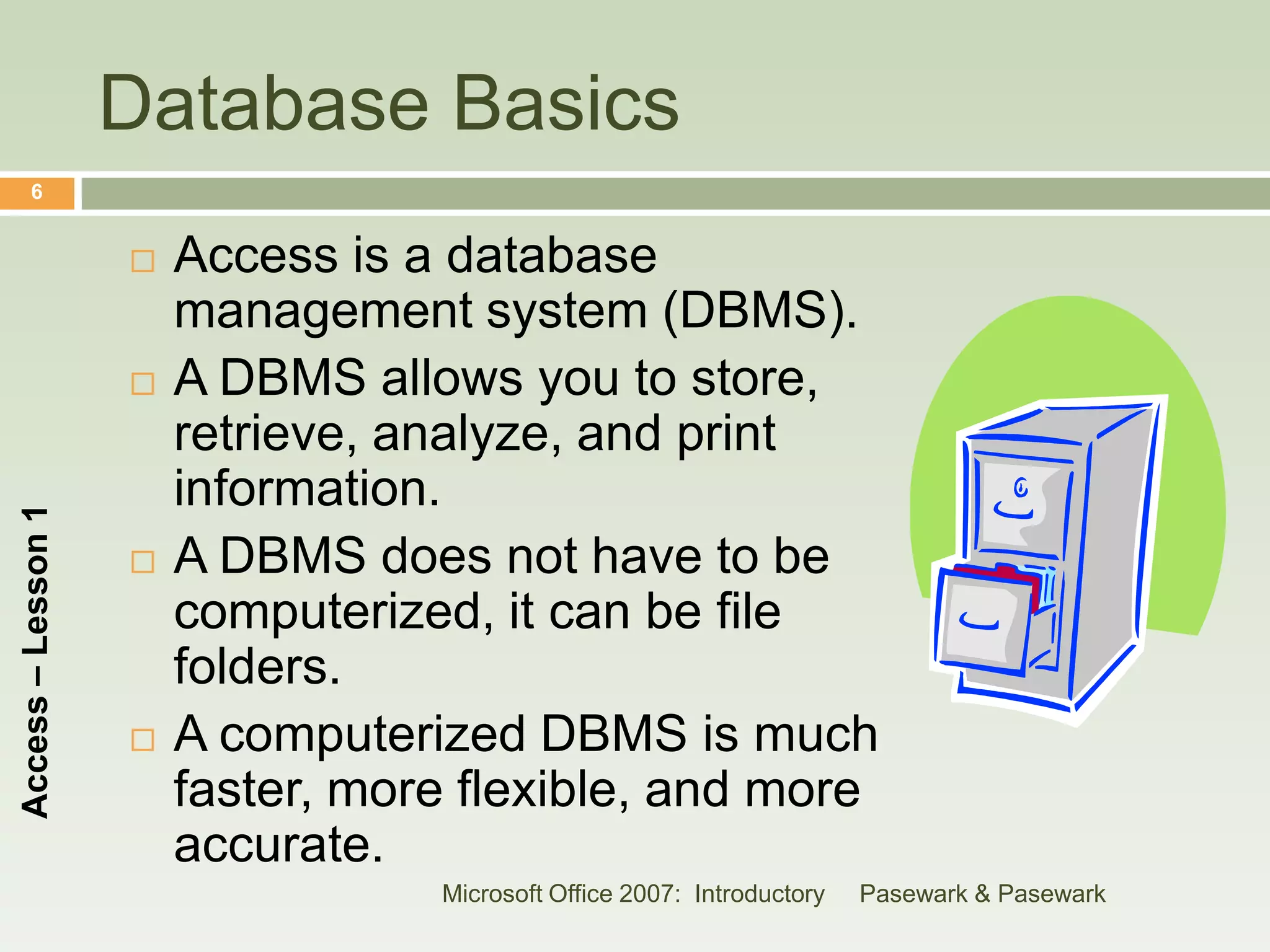
                       Access is a database
                        management system (DBMS).
                       A DBMS allows you to store,
                        retrieve, analyze, and print
                        information.
Access – Lesson 1


                       A DBMS does not have to be
                        computerized, it can be file
                        folders.
                       A computerized DBMS is much
                        faster, more flexible, and more
                        accurate.
                                   Microsoft Office 2007: Introductory   Pasewark & Pasewark
Starting Access
      7


                       Click the Start button.
                       Point to All Programs.
                       Click Microsoft Office.
                       Click Microsoft Office Access 2007.
Access – Lesson 1


                                     Microsoft Office 2007: Introductory   Pasewark & Pasewark
8
Access – Lesson 1


                    Microsoft Office 2007: Introductory   Pasewark & Pasewark
Opening a Database
      9


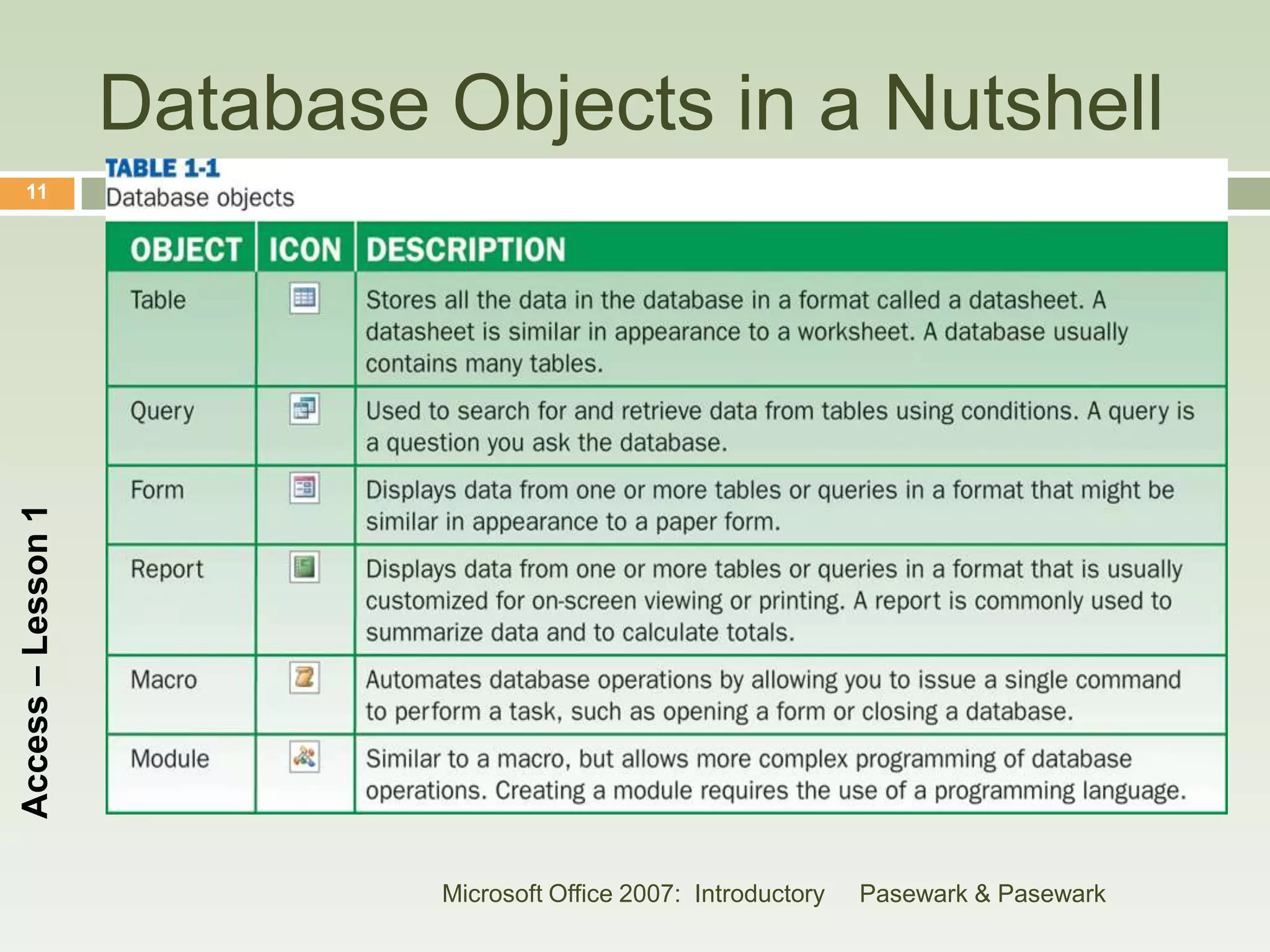
                       A database is a collection of objects.
                       The objects work together to store, retrieve,
                        display and summarize data.
                       The object types are tables, queries, forms,
                        reports, macros and modules.
Access – Lesson 1


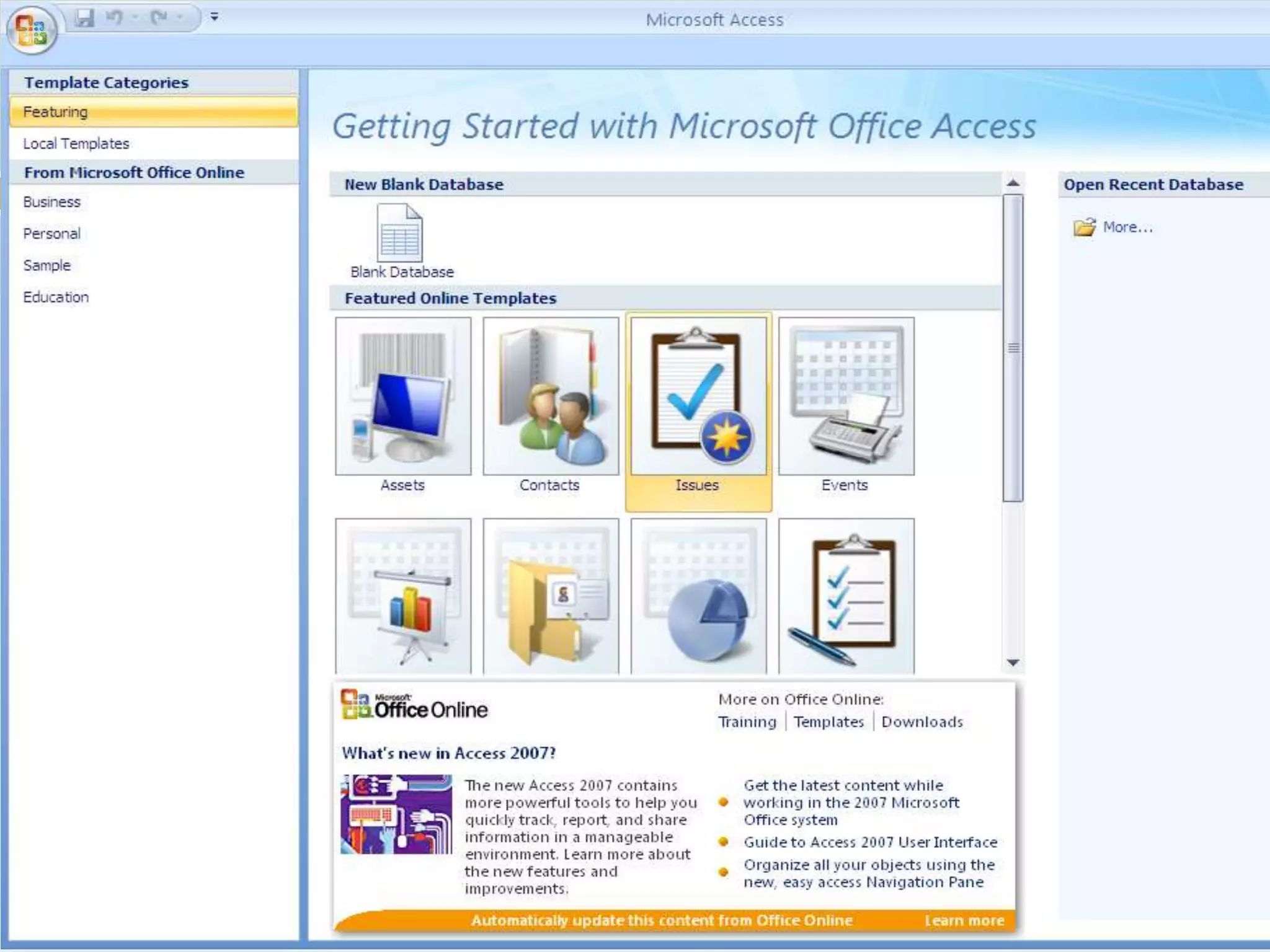
                       When you open an existing database from the
                        Open Recent Database pane, the Navigation
                        Pane opens.


                                    Microsoft Office 2007: Introductory   Pasewark & Pasewark
Identify database elements
    10

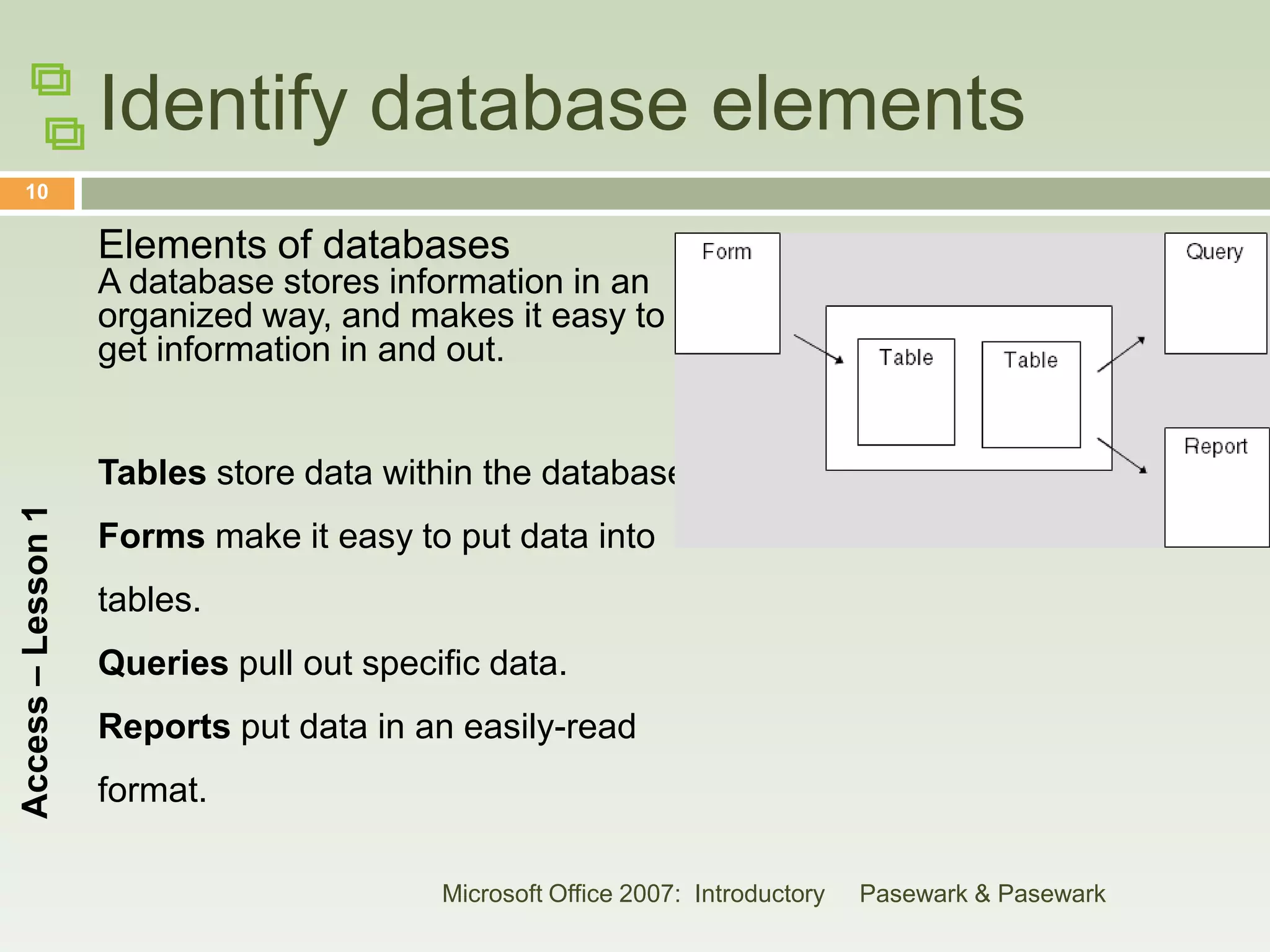
                    Elements of databases
                    A database stores information in an
                    organized way, and makes it easy to
                    get information in and out.


                    Tables store data within the database.
Access – Lesson 1


                    Forms make it easy to put data into
                    tables.
                    Queries pull out specific data.
                    Reports put data in an easily-read
                    format.

                                          Microsoft Office 2007: Introductory   Pasewark & Pasewark
Database Objects in a Nutshell
    11
Access – Lesson 1


                             Microsoft Office 2007: Introductory   Pasewark & Pasewark
12
Access – Lesson 1


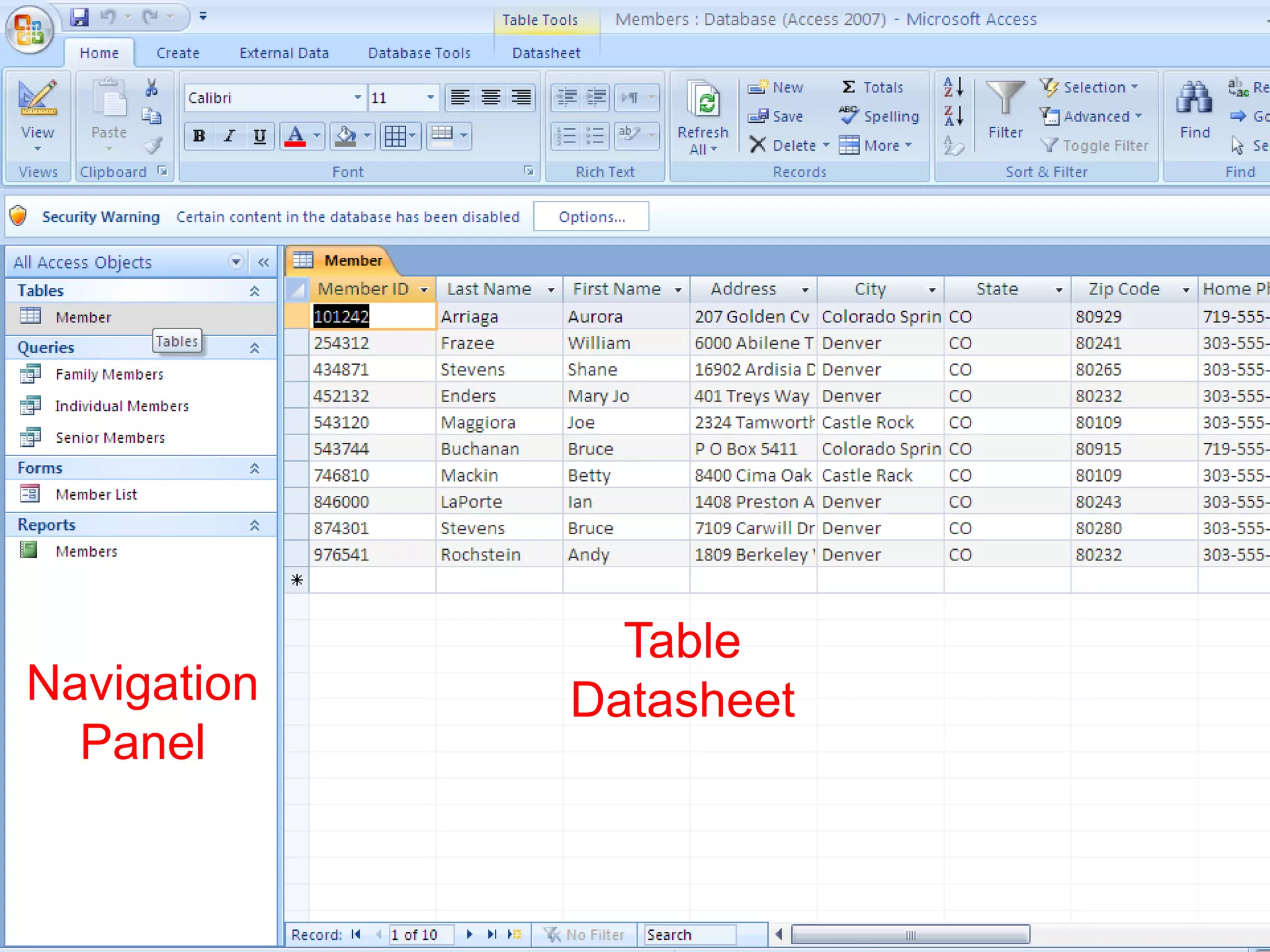
                                 Table
    Navigation                 Datasheet
      Panel

                    Microsoft Office 2007: Introductory   Pasewark & Pasewark
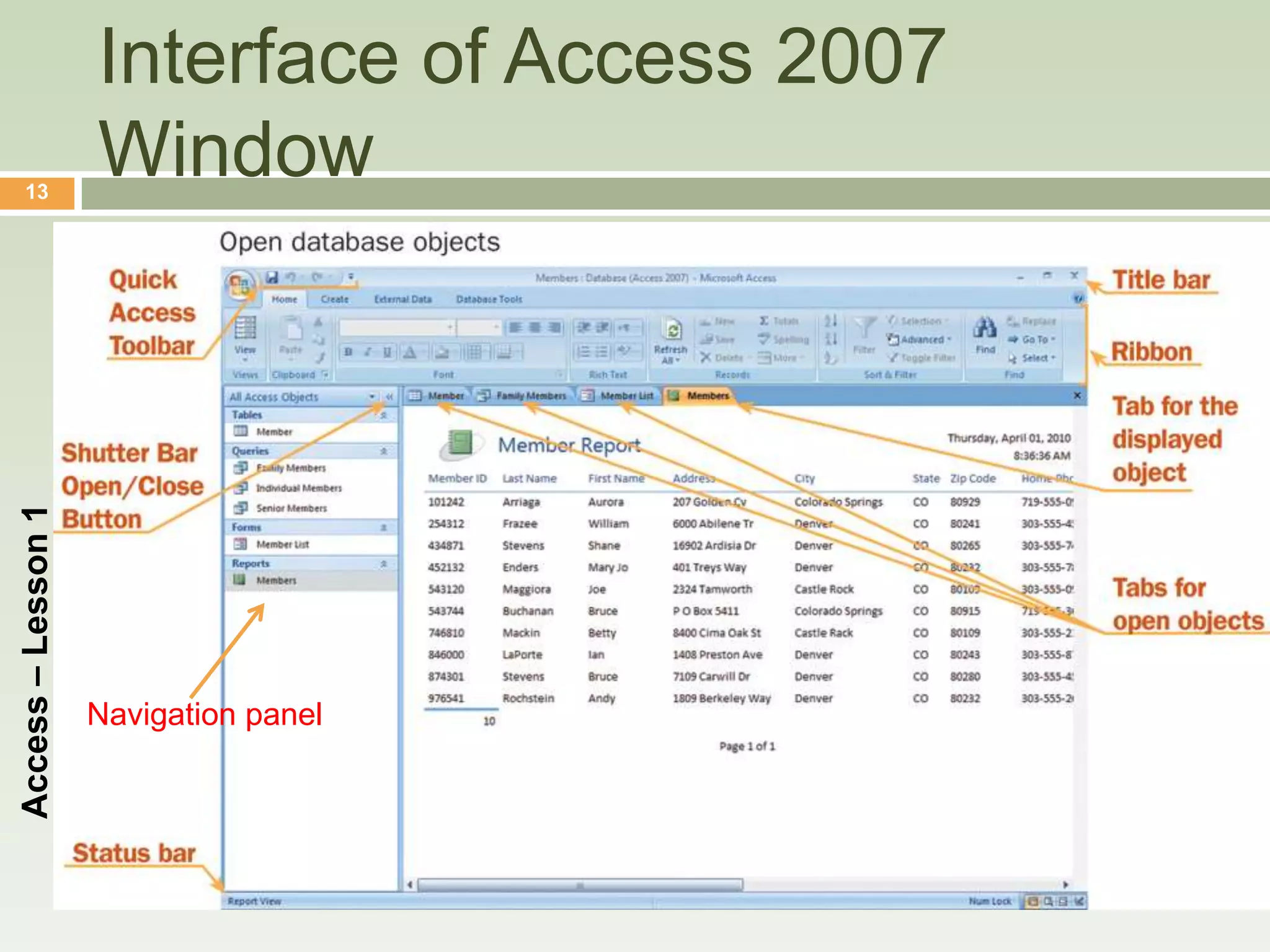
Interface of Access 2007
    13
                    Window
Access – Lesson 1


                    Navigation panel


                                       Microsoft Office 2007: Introductory   Pasewark & Pasewark
Opening a Database
    14
                    (continued)

                       Access Screen: Has a title bar, Quick
                        Access toolbar, Ribbon, status bar.
                       Database Objects: The database file stores
Access – Lesson 1


                        the database objects.
                       Navigation Pane: Displays the objects
                        contained in a database. When you
                        double-click an object, it opens in the main
                        part of the Access screen.
                                    Microsoft Office 2007: Introductory   Pasewark & Pasewark
Opening a Database
    15
                    (continued)

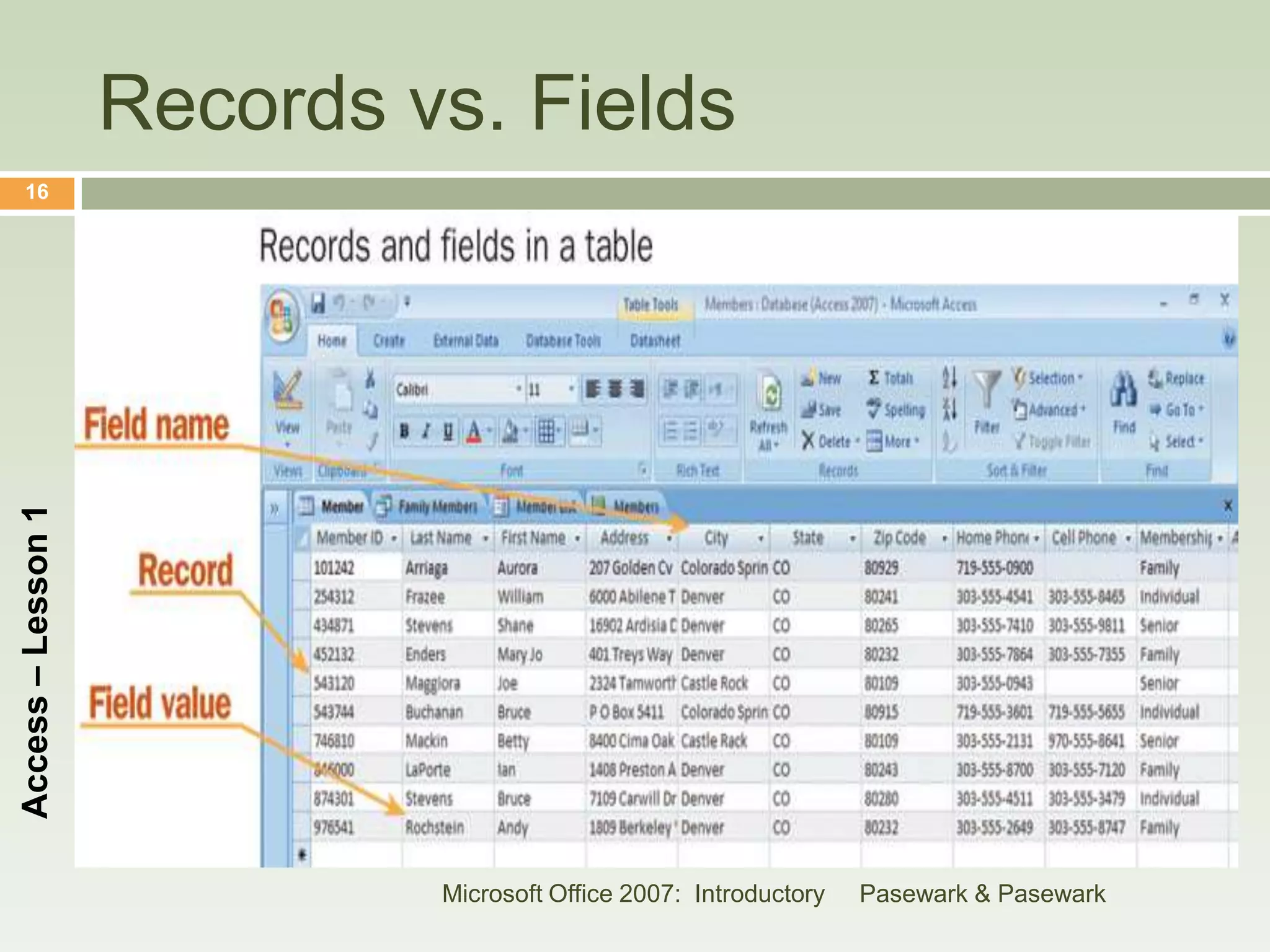
                       Working with Records
                        A  record is a complete set of data.
                         Each record is made up one or more fields.
                         Each field has a field name.
Access – Lesson 1


                         The data in the field is the field value.
                         In Datasheet view, the table displays data in
                          rows and columns in a datasheet.
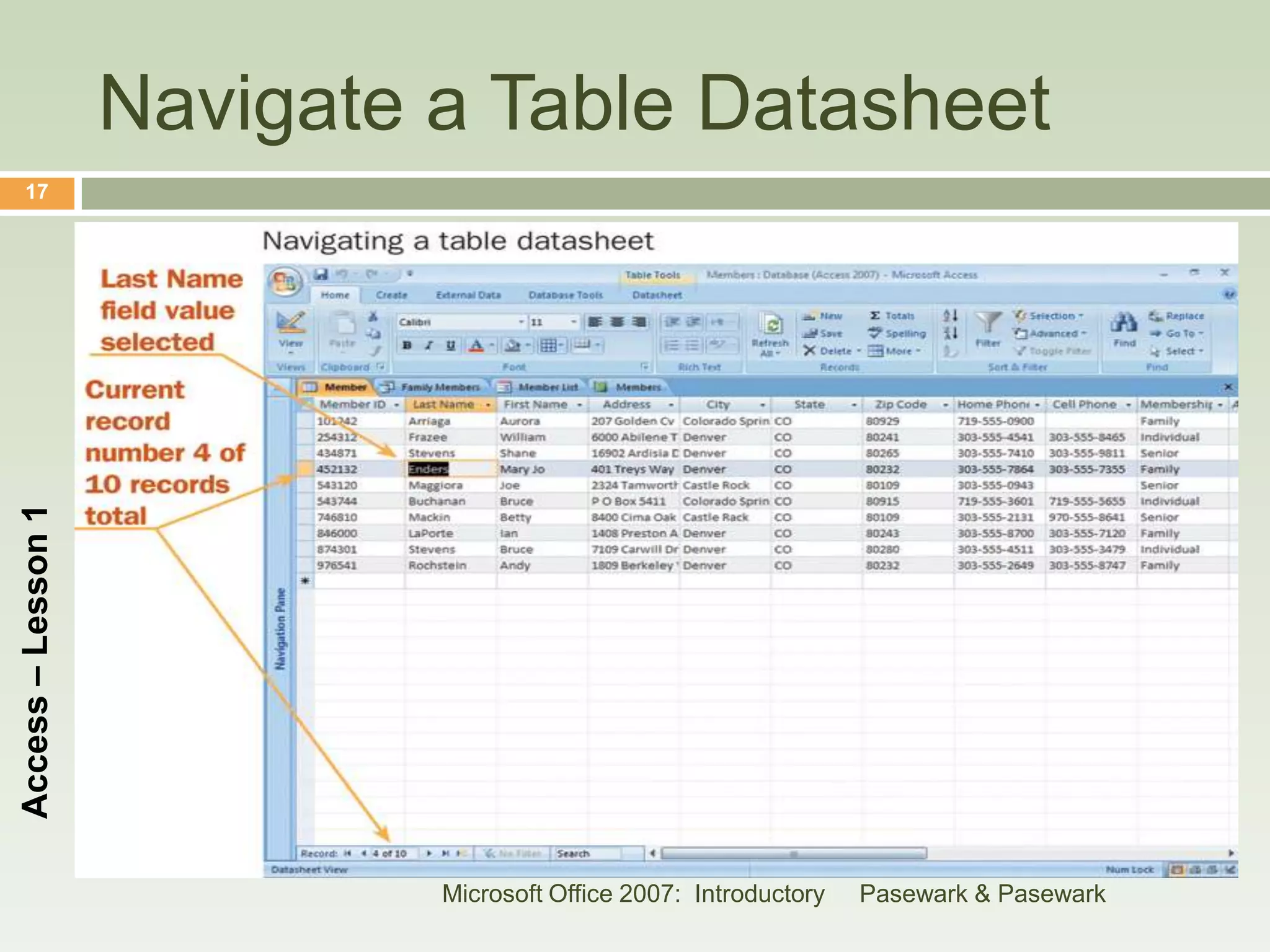
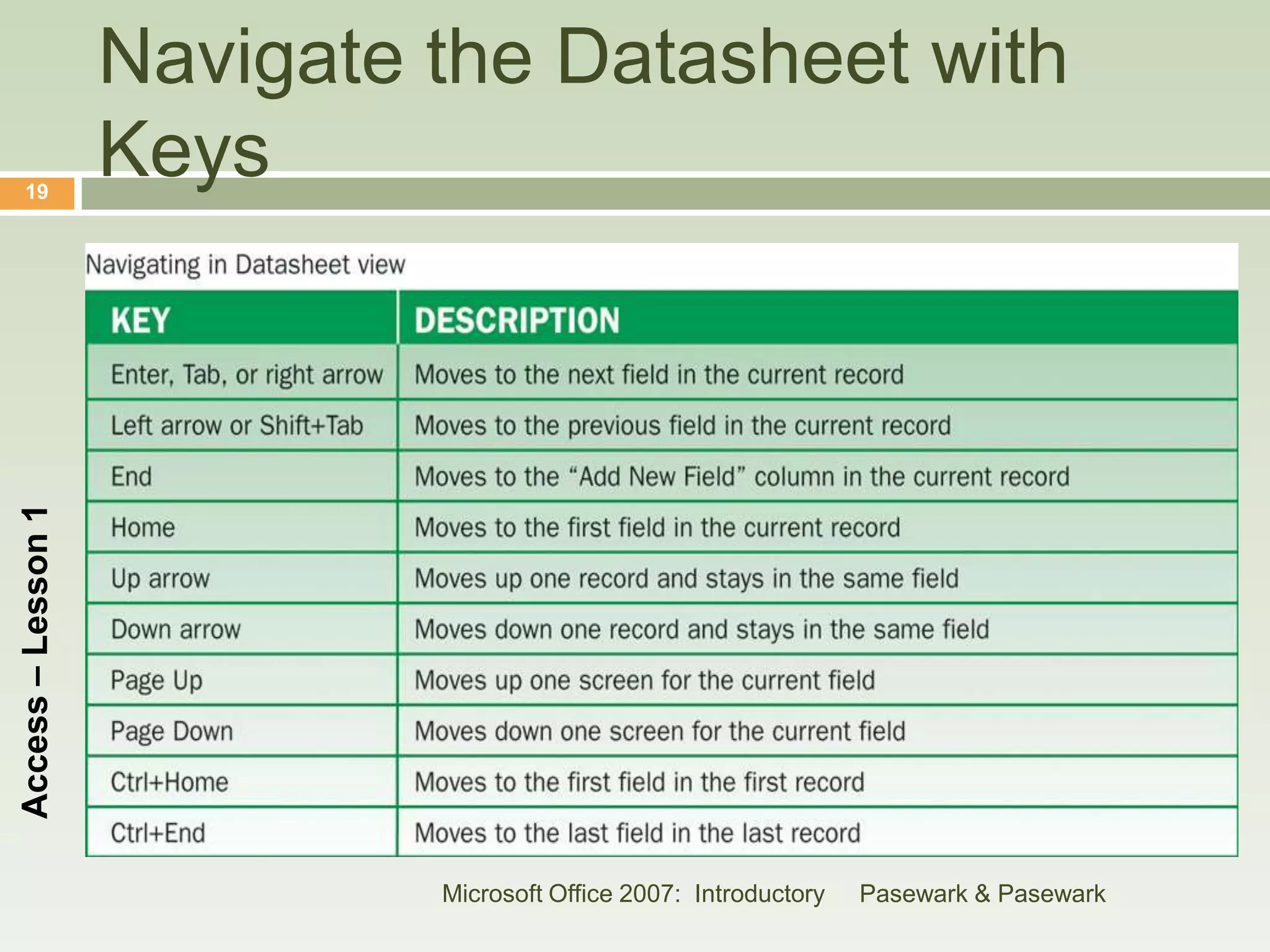
                       You can use the pointer or keys to navigate
                        to fields.
                                     Microsoft Office 2007: Introductory   Pasewark & Pasewark
Records vs. Fields
    16
Access – Lesson 1


                             Microsoft Office 2007: Introductory   Pasewark & Pasewark
Navigate a Table Datasheet
    17
Access – Lesson 1


                             Microsoft Office 2007: Introductory   Pasewark & Pasewark
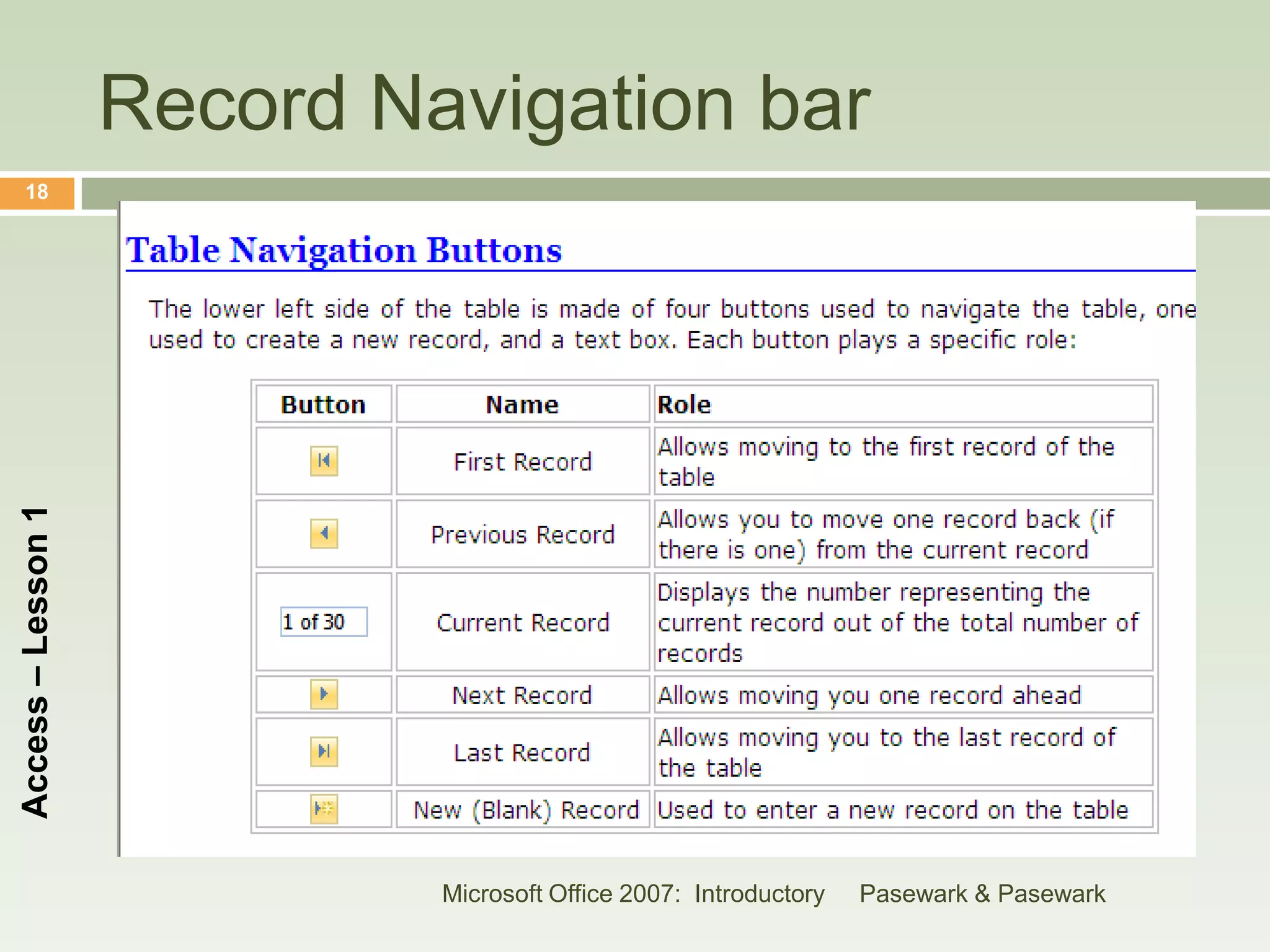
Record Navigation bar
    18
Access – Lesson 1


                             Microsoft Office 2007: Introductory   Pasewark & Pasewark
Navigate the Datasheet with
    19
                    Keys
Access – Lesson 1


                             Microsoft Office 2007: Introductory   Pasewark & Pasewark
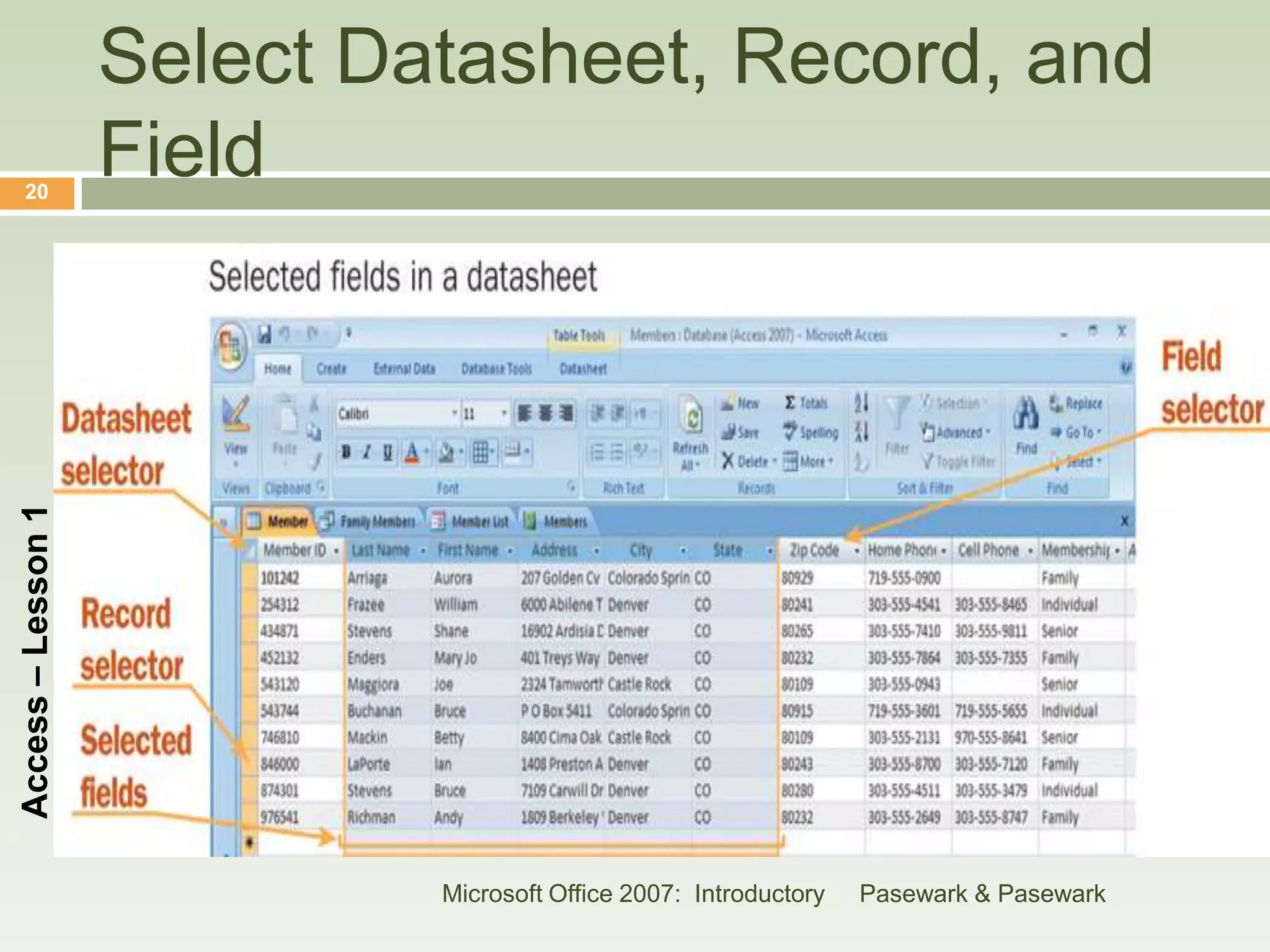
Select Datasheet, Record, and
    20
                    Field
Access – Lesson 1


                             Microsoft Office 2007: Introductory   Pasewark & Pasewark
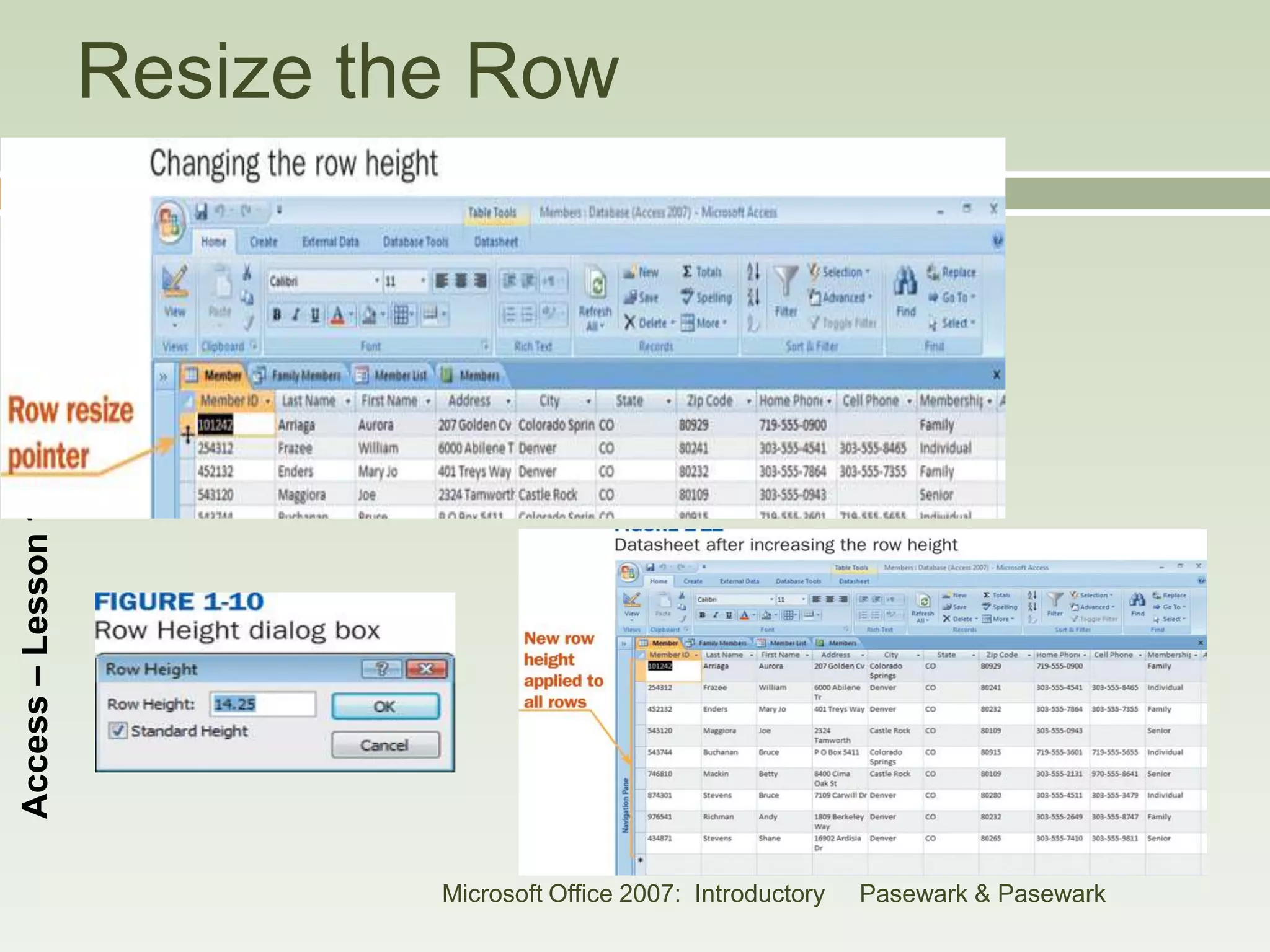
Resize the Row
    21
Access – Lesson 1


                             Microsoft Office 2007: Introductory   Pasewark & Pasewark
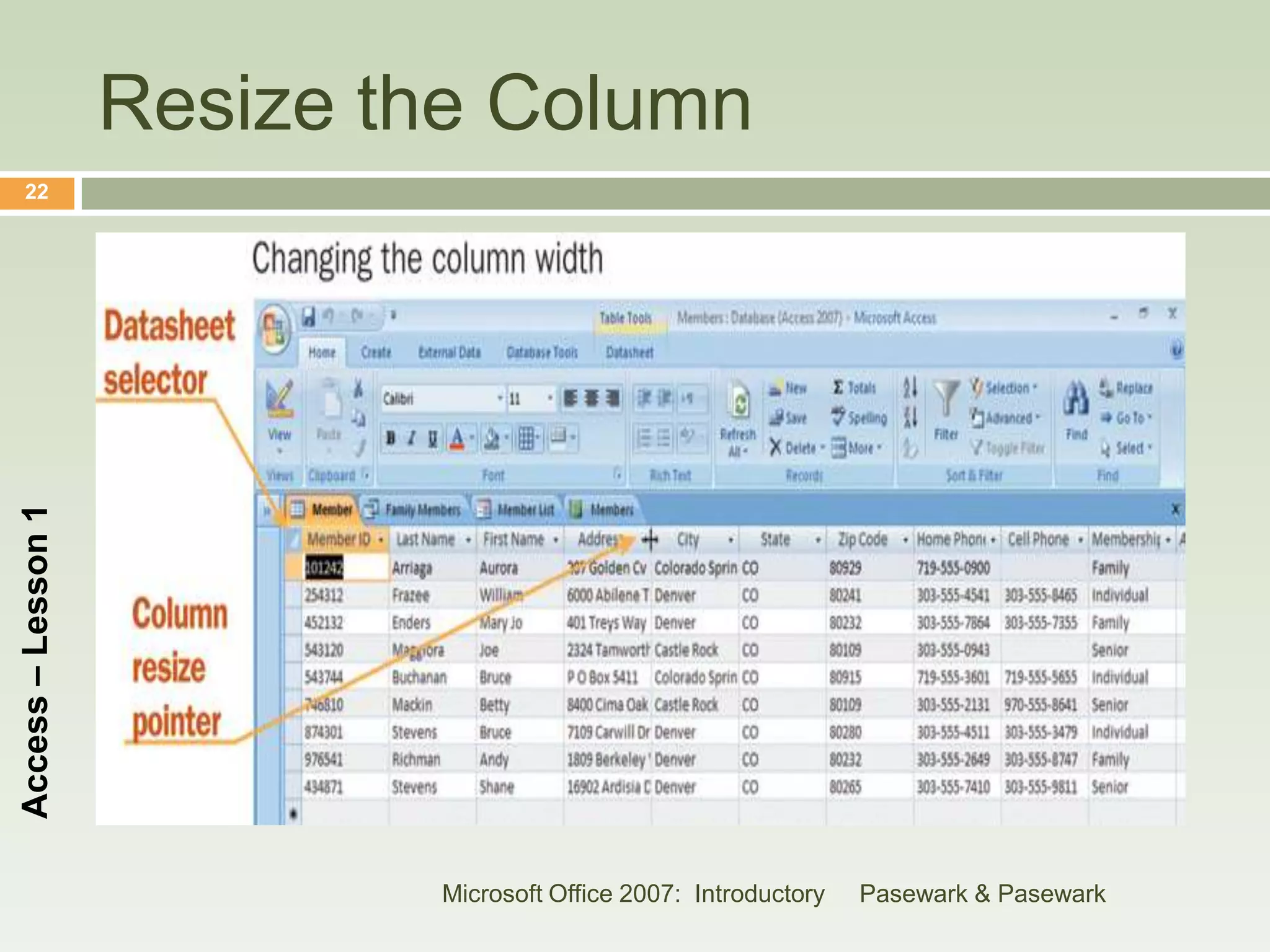
Resize the Column
    22
Access – Lesson 1


                            Microsoft Office 2007: Introductory   Pasewark & Pasewark
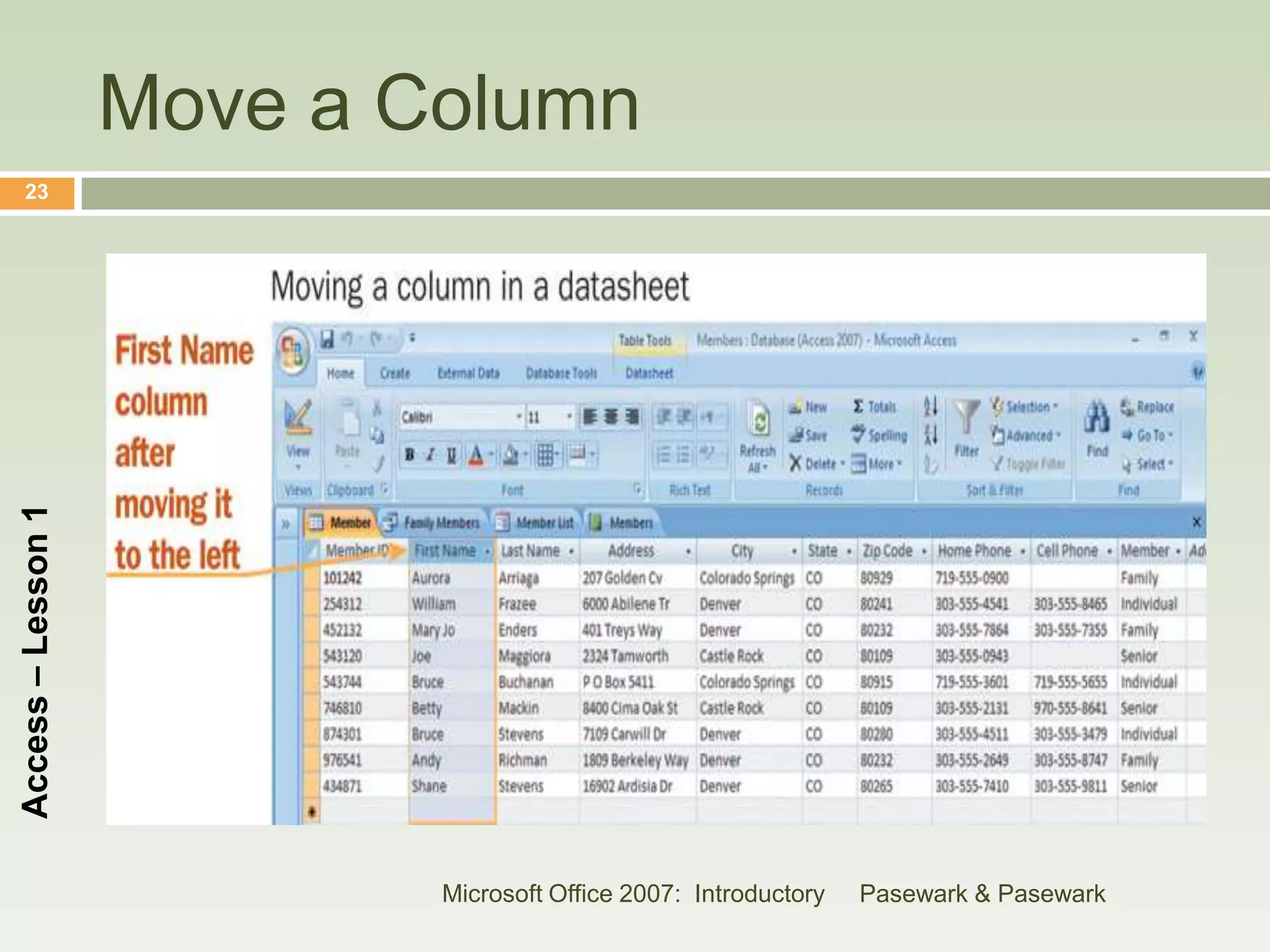
Move a Column
    23
Access – Lesson 1


                            Microsoft Office 2007: Introductory   Pasewark & Pasewark
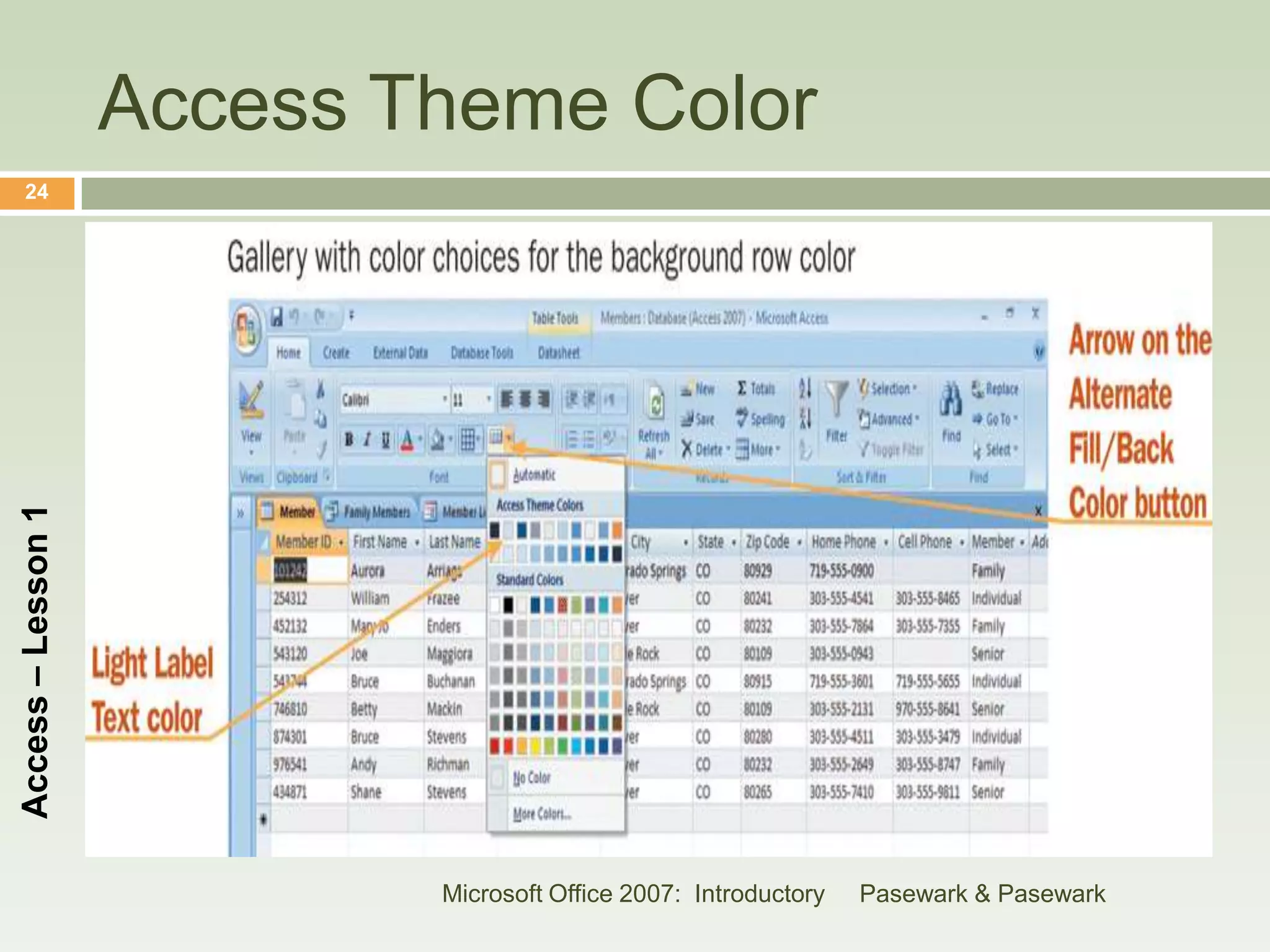
Access Theme Color
    24
Access – Lesson 1


                            Microsoft Office 2007: Introductory   Pasewark & Pasewark
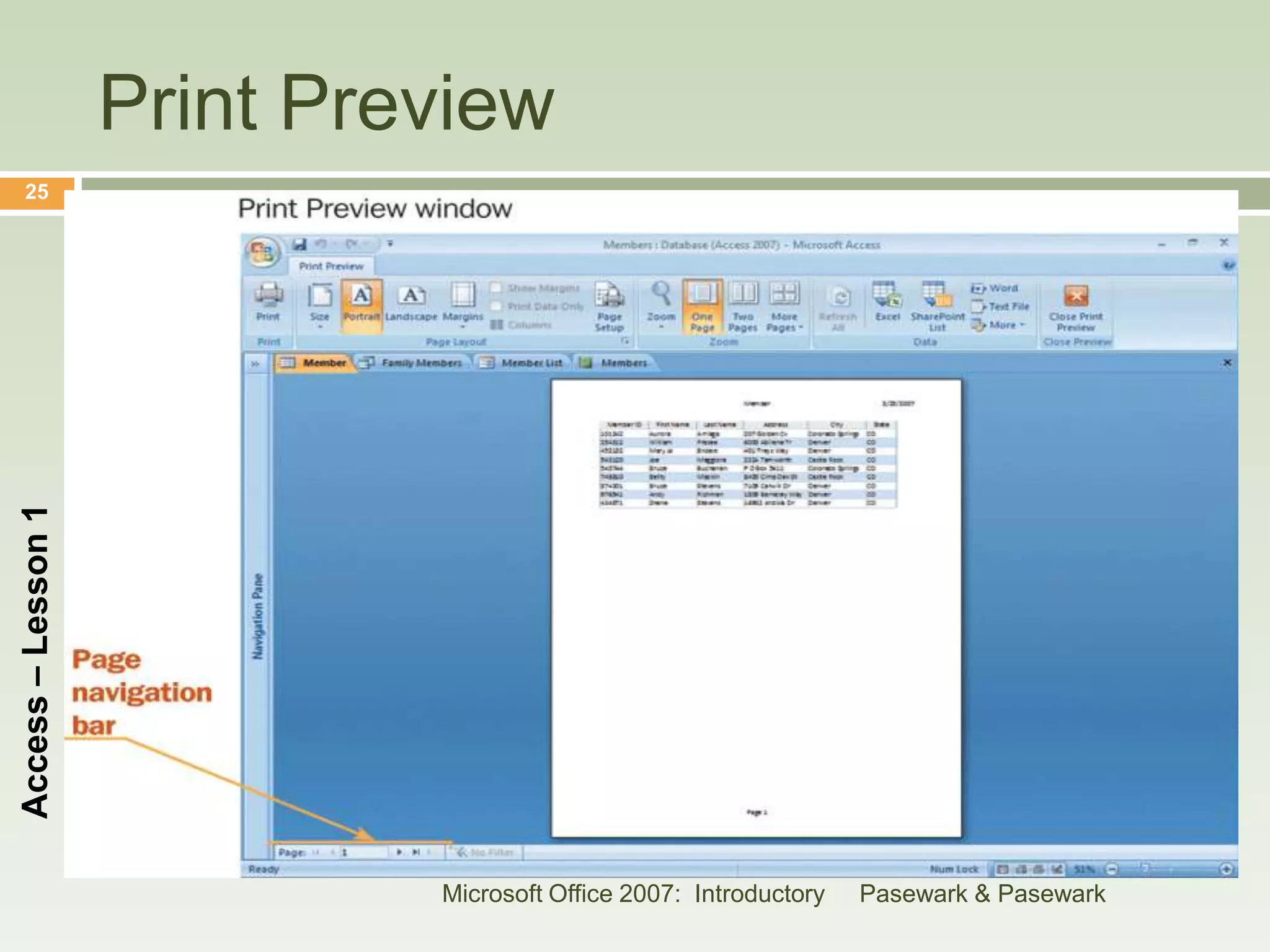
Print Preview
    25
Access – Lesson 1


                             Microsoft Office 2007: Introductory   Pasewark & Pasewark
Editing Records
    26


                       To make editing easier, use the record
                        navigation bar.
                       If you make a mistake, you can click the Undo
                        button on the Quick Access Toolbar.
                       Field selector selects the column.
Access – Lesson 1


                       Record selector selects the row.
                       Datasheet selector selects the entire
                        datasheet.


                                    Microsoft Office 2007: Introductory   Pasewark & Pasewark
Editing Records (continued)
    27


                       To delete a record, select the record and press
                        Delete.
                       Deleting a record is permanent and cannot be
                        restored with the Undo command.
                       The Cut, Copy, and Paste commands work the
Access – Lesson 1


                        same way as in other Office programs.
                       Be careful not to paste data over existing data
                        you want to keep.


                                     Microsoft Office 2007: Introductory   Pasewark & Pasewark
Changing Datasheet Layout
    28


                       Changing Row Height: Drag the row border up
                        or down, or specify an exact height.
                       Changing Column Width: Drag the column
                        border or specify best fit for automatic
                        adjustment to best column width.
Access – Lesson 1


                       Rearranging Columns: Select field selector for
                        column and drag to new location.


                                     Microsoft Office 2007: Introductory   Pasewark & Pasewark
Changing Datasheet Layout (continued)
    29


                       Freezing Columns: Use Freeze command on
                        Home tab.
                       Changing the Background Row Color: Use
                        Alternate Fill/Back Color on Home tab.
Access – Lesson 1


                                   Microsoft Office 2007: Introductory   Pasewark & Pasewark
Previewing and Printing a Table
    30


                       Before printing, view datasheet in Print
                        Preview.
                       Print a datasheet by clicking the Office Button
                        and pointing to Print.
                       The dialog box allows you to choose your
Access – Lesson 1


                        printer and number of copies.
                       Click the Quick Print command to print
                        datasheet without changing printer settings.


                                     Microsoft Office 2007: Introductory   Pasewark & Pasewark
Saving and Closing Objects
    31


                       When you change data, Access saves your
                        changes automatically.
                       When you change format, you need to save
                        your work by clicking the Save button on the
                        Quick Access toolbar.
Access – Lesson 1


                       You can close an object by clicking the Close
                        button on the object window.


                                     Microsoft Office 2007: Introductory   Pasewark & Pasewark
Compacting and Repairing a Database
    32


                        Compacting a database rearranges how the
                         data is stored to optimize performance.
                        Access combines compacting and repairing
Access – Lesson 1


                         into one process.


                                   Microsoft Office 2007: Introductory   Pasewark & Pasewark
Closing a Database and Exiting Access
    33


                       Close the database by clicking the Office
                        Button, and then clicking Close Database.
                       Exit Access by clicking the Office Button and
                        then clicking Exit Access.
Access – Lesson 1


                       You can also close Access by clicking the
                        Close button on the title bar.


                                     Microsoft Office 2007: Introductory   Pasewark & Pasewark
Summary
    34


                       Access is a database management system (DBMS).
                       A computerized DBMS allows you to store, retrieve,
                        analyze and print information.
Access – Lesson 1


                       A database is a collection of objects: tables, queries,
                        forms, reports, macros and modules.
                       You can open an existing database from the Open
                        Recent Database pane or by clicking the Office
                        Button, then the Open command.
                       Access screen has a title bar, Quick Access Toolbar
                        and Ribbon. Microsoft Office 2007: Introductory Pasewark & Pasewark
Summary (continued)
    35


                       A record is a complete set of data. Each record is made
                        up of fields. Each field has a field name. The data in
                        the field is a field value.
                       Use your keyboard or the record navigation bar to
                        navigate through a datasheet.
                       To select a row, click the record selector for the row.
Access – Lesson 1


                       To select a field, click the field selector for the column.
                       To select all fields and rows, click the datasheet selector.


                                        Microsoft Office 2007: Introductory   Pasewark & Pasewark
Summary (continued)
    36


                       To delete a record, select the record and press the
                        Delete key.
                       Use Cut, Copy and Paste buttons to move and copy
                        data.
                       You can make many layout changes, such as row
Access – Lesson 1


                        height, column width and background color.
                       Before printing, use Print Preview to check settings.
                       To exit Access, click the Close button on the title bar.


                                         Microsoft Office 2007: Introductory   Pasewark & Pasewark

Access 2007 lesson1

  • 1.
    1 ACCESS LESSON Access – Lesson 1 1 ACCESS BASICS Microsoft Office 2007: Pasewark & Pasewark Introductory
  • 2.
    Objectives 2  Understand databases and database terminology.  Start Access, open a database and open an object.  Identify the parts of the Access screen. Access – Lesson 1  Navigate a datasheet.  Edit a record and undo a change. Microsoft Office 2007: Introductory Pasewark & Pasewark
  • 3.
    Objectives (continued) 3  Select records and fields.  Delete a record.  Cut, copy, and paste data.  Change the appearance of a datasheet. Access – Lesson 1  Preview and print a table  Close an object and exit Access. Microsoft Office 2007: Introductory Pasewark & Pasewark
  • 4.
    Vocabulary 4  Best fit  Compacting Database Access – Lesson 1   Database management system (DBMS)  Datasheet Microsoft Office 2007: Introductory Pasewark & Pasewark
  • 5.
    Vocabulary (continued) 5  Datasheet selector  Field value  Datasheet view  Navigation Pane  Field  Record  Field name  Record selector Access – Lesson 1  Field selector Microsoft Office 2007: Introductory Pasewark & Pasewark
  • 6.
    Database Basics 6  Access is a database management system (DBMS).  A DBMS allows you to store, retrieve, analyze, and print information. Access – Lesson 1  A DBMS does not have to be computerized, it can be file folders.  A computerized DBMS is much faster, more flexible, and more accurate. Microsoft Office 2007: Introductory Pasewark & Pasewark
  • 7.
    Starting Access 7  Click the Start button.  Point to All Programs.  Click Microsoft Office.  Click Microsoft Office Access 2007. Access – Lesson 1 Microsoft Office 2007: Introductory Pasewark & Pasewark
  • 8.
    8 Access – Lesson1 Microsoft Office 2007: Introductory Pasewark & Pasewark
  • 9.
    Opening a Database 9  A database is a collection of objects.  The objects work together to store, retrieve, display and summarize data.  The object types are tables, queries, forms, reports, macros and modules. Access – Lesson 1  When you open an existing database from the Open Recent Database pane, the Navigation Pane opens. Microsoft Office 2007: Introductory Pasewark & Pasewark
  • 10.
    Identify database elements 10 Elements of databases A database stores information in an organized way, and makes it easy to get information in and out. Tables store data within the database. Access – Lesson 1 Forms make it easy to put data into tables. Queries pull out specific data. Reports put data in an easily-read format. Microsoft Office 2007: Introductory Pasewark & Pasewark
  • 11.
    Database Objects ina Nutshell 11 Access – Lesson 1 Microsoft Office 2007: Introductory Pasewark & Pasewark
  • 12.
    12 Access – Lesson1 Table Navigation Datasheet Panel Microsoft Office 2007: Introductory Pasewark & Pasewark
  • 13.
    Interface of Access2007 13 Window Access – Lesson 1 Navigation panel Microsoft Office 2007: Introductory Pasewark & Pasewark
  • 14.
    Opening a Database 14 (continued)  Access Screen: Has a title bar, Quick Access toolbar, Ribbon, status bar.  Database Objects: The database file stores Access – Lesson 1 the database objects.  Navigation Pane: Displays the objects contained in a database. When you double-click an object, it opens in the main part of the Access screen. Microsoft Office 2007: Introductory Pasewark & Pasewark
  • 15.
    Opening a Database 15 (continued)  Working with Records A record is a complete set of data.  Each record is made up one or more fields.  Each field has a field name. Access – Lesson 1  The data in the field is the field value.  In Datasheet view, the table displays data in rows and columns in a datasheet.  You can use the pointer or keys to navigate to fields. Microsoft Office 2007: Introductory Pasewark & Pasewark
  • 16.
    Records vs. Fields 16 Access – Lesson 1 Microsoft Office 2007: Introductory Pasewark & Pasewark
  • 17.
    Navigate a TableDatasheet 17 Access – Lesson 1 Microsoft Office 2007: Introductory Pasewark & Pasewark
  • 18.
    Record Navigation bar 18 Access – Lesson 1 Microsoft Office 2007: Introductory Pasewark & Pasewark
  • 19.
    Navigate the Datasheetwith 19 Keys Access – Lesson 1 Microsoft Office 2007: Introductory Pasewark & Pasewark
  • 20.
    Select Datasheet, Record,and 20 Field Access – Lesson 1 Microsoft Office 2007: Introductory Pasewark & Pasewark
  • 21.
    Resize the Row 21 Access – Lesson 1 Microsoft Office 2007: Introductory Pasewark & Pasewark
  • 22.
    Resize the Column 22 Access – Lesson 1 Microsoft Office 2007: Introductory Pasewark & Pasewark
  • 23.
    Move a Column 23 Access – Lesson 1 Microsoft Office 2007: Introductory Pasewark & Pasewark
  • 24.
    Access Theme Color 24 Access – Lesson 1 Microsoft Office 2007: Introductory Pasewark & Pasewark
  • 25.
    Print Preview 25 Access – Lesson 1 Microsoft Office 2007: Introductory Pasewark & Pasewark
  • 26.
    Editing Records 26  To make editing easier, use the record navigation bar.  If you make a mistake, you can click the Undo button on the Quick Access Toolbar.  Field selector selects the column. Access – Lesson 1  Record selector selects the row.  Datasheet selector selects the entire datasheet. Microsoft Office 2007: Introductory Pasewark & Pasewark
  • 27.
    Editing Records (continued) 27  To delete a record, select the record and press Delete.  Deleting a record is permanent and cannot be restored with the Undo command.  The Cut, Copy, and Paste commands work the Access – Lesson 1 same way as in other Office programs.  Be careful not to paste data over existing data you want to keep. Microsoft Office 2007: Introductory Pasewark & Pasewark
  • 28.
    Changing Datasheet Layout 28  Changing Row Height: Drag the row border up or down, or specify an exact height.  Changing Column Width: Drag the column border or specify best fit for automatic adjustment to best column width. Access – Lesson 1  Rearranging Columns: Select field selector for column and drag to new location. Microsoft Office 2007: Introductory Pasewark & Pasewark
  • 29.
    Changing Datasheet Layout(continued) 29  Freezing Columns: Use Freeze command on Home tab.  Changing the Background Row Color: Use Alternate Fill/Back Color on Home tab. Access – Lesson 1 Microsoft Office 2007: Introductory Pasewark & Pasewark
  • 30.
    Previewing and Printinga Table 30  Before printing, view datasheet in Print Preview.  Print a datasheet by clicking the Office Button and pointing to Print.  The dialog box allows you to choose your Access – Lesson 1 printer and number of copies.  Click the Quick Print command to print datasheet without changing printer settings. Microsoft Office 2007: Introductory Pasewark & Pasewark
  • 31.
    Saving and ClosingObjects 31  When you change data, Access saves your changes automatically.  When you change format, you need to save your work by clicking the Save button on the Quick Access toolbar. Access – Lesson 1  You can close an object by clicking the Close button on the object window. Microsoft Office 2007: Introductory Pasewark & Pasewark
  • 32.
    Compacting and Repairinga Database 32  Compacting a database rearranges how the data is stored to optimize performance.  Access combines compacting and repairing Access – Lesson 1 into one process. Microsoft Office 2007: Introductory Pasewark & Pasewark
  • 33.
    Closing a Databaseand Exiting Access 33  Close the database by clicking the Office Button, and then clicking Close Database.  Exit Access by clicking the Office Button and then clicking Exit Access. Access – Lesson 1  You can also close Access by clicking the Close button on the title bar. Microsoft Office 2007: Introductory Pasewark & Pasewark
  • 34.
    Summary 34  Access is a database management system (DBMS).  A computerized DBMS allows you to store, retrieve, analyze and print information. Access – Lesson 1  A database is a collection of objects: tables, queries, forms, reports, macros and modules.  You can open an existing database from the Open Recent Database pane or by clicking the Office Button, then the Open command.  Access screen has a title bar, Quick Access Toolbar and Ribbon. Microsoft Office 2007: Introductory Pasewark & Pasewark
  • 35.
    Summary (continued) 35  A record is a complete set of data. Each record is made up of fields. Each field has a field name. The data in the field is a field value.  Use your keyboard or the record navigation bar to navigate through a datasheet.  To select a row, click the record selector for the row. Access – Lesson 1  To select a field, click the field selector for the column.  To select all fields and rows, click the datasheet selector. Microsoft Office 2007: Introductory Pasewark & Pasewark
  • 36.
    Summary (continued) 36  To delete a record, select the record and press the Delete key.  Use Cut, Copy and Paste buttons to move and copy data.  You can make many layout changes, such as row Access – Lesson 1 height, column width and background color.  Before printing, use Print Preview to check settings.  To exit Access, click the Close button on the title bar. Microsoft Office 2007: Introductory Pasewark & Pasewark