

Lesson 4 Excel Formula

    Very Important!!
Excel Formula-Solve problem w/
numbers
              •Psychology
              •Sociology
              •Baseball Statistics
              •Game analysis
              •Accounting
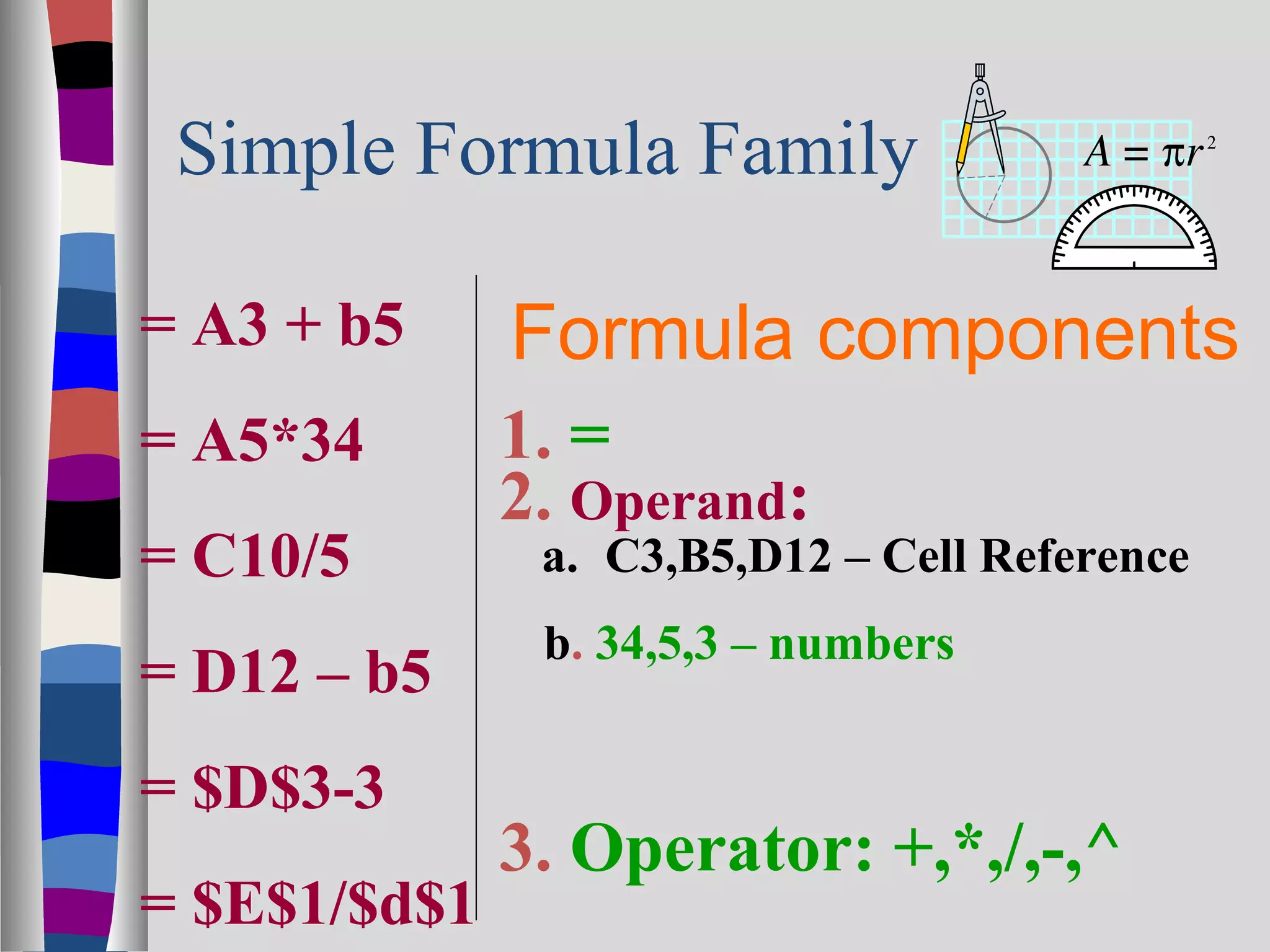
Simple Formula Family

= A3 + b5     Formula components
= A5*34       1. =
              2. Operand:
= C10/5        a. C3,B5,D12 – Cell Reference
               b. 34,5,3 – numbers
= D12 – b5
= $D$3-3
              3. Operator: +,*,/,-,^
= $E$1/$d$1
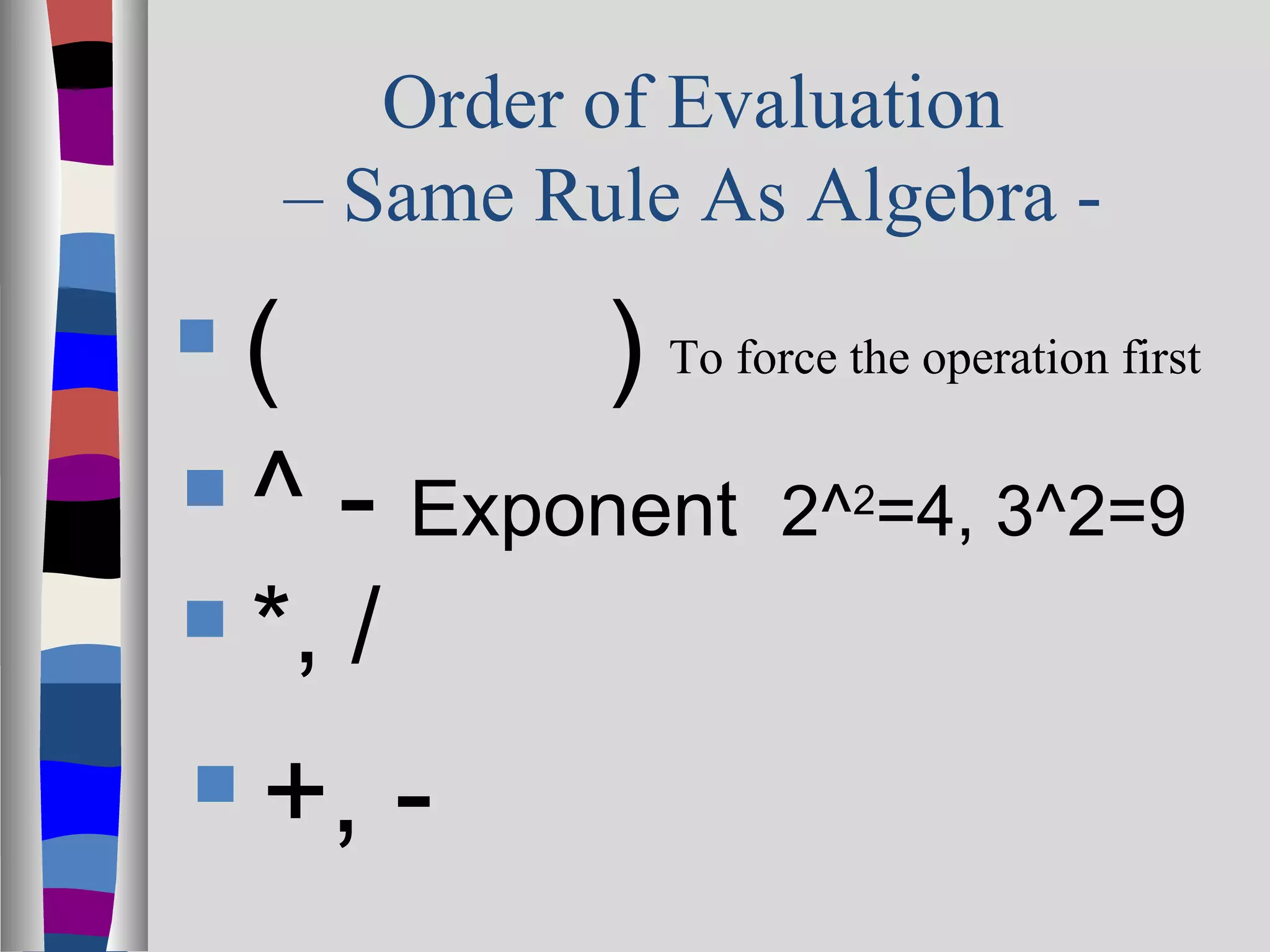
Order of Evaluation
     – Same Rule As Algebra -
 (       ) To force the operation first
 ^ - Exponent 2^ =4, 3^2=9
                          2


   *, /
   +, -
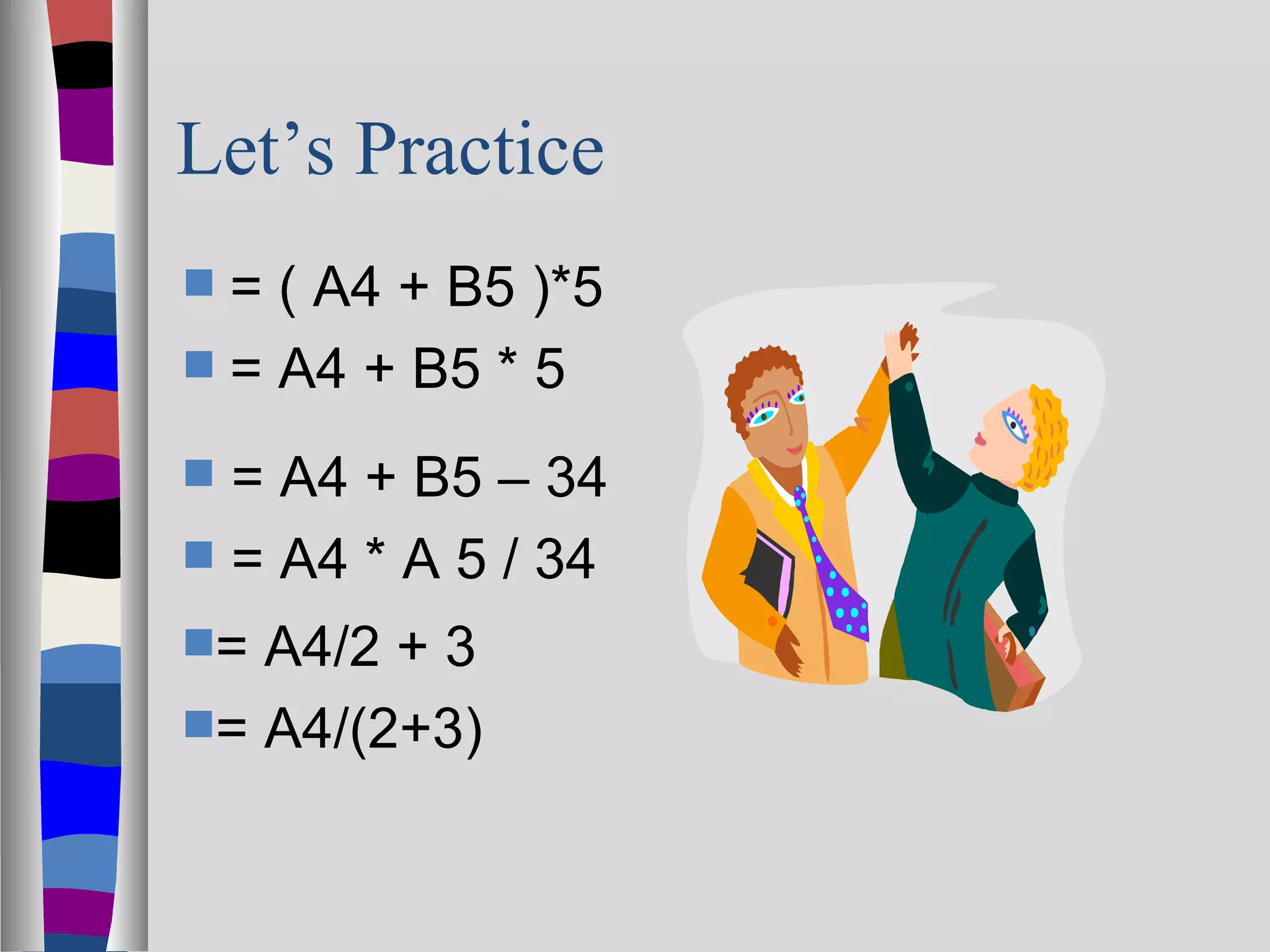
Let’s Practice
 = ( A4 + B5 )*5
 = A4 + B5 * 5

 = A4 + B5 – 34
 = A4 * A 5 / 34
= A4/2 + 3
= A4/(2+3)
3 Kinds of Cell Reference – You
  Need to Know …………………
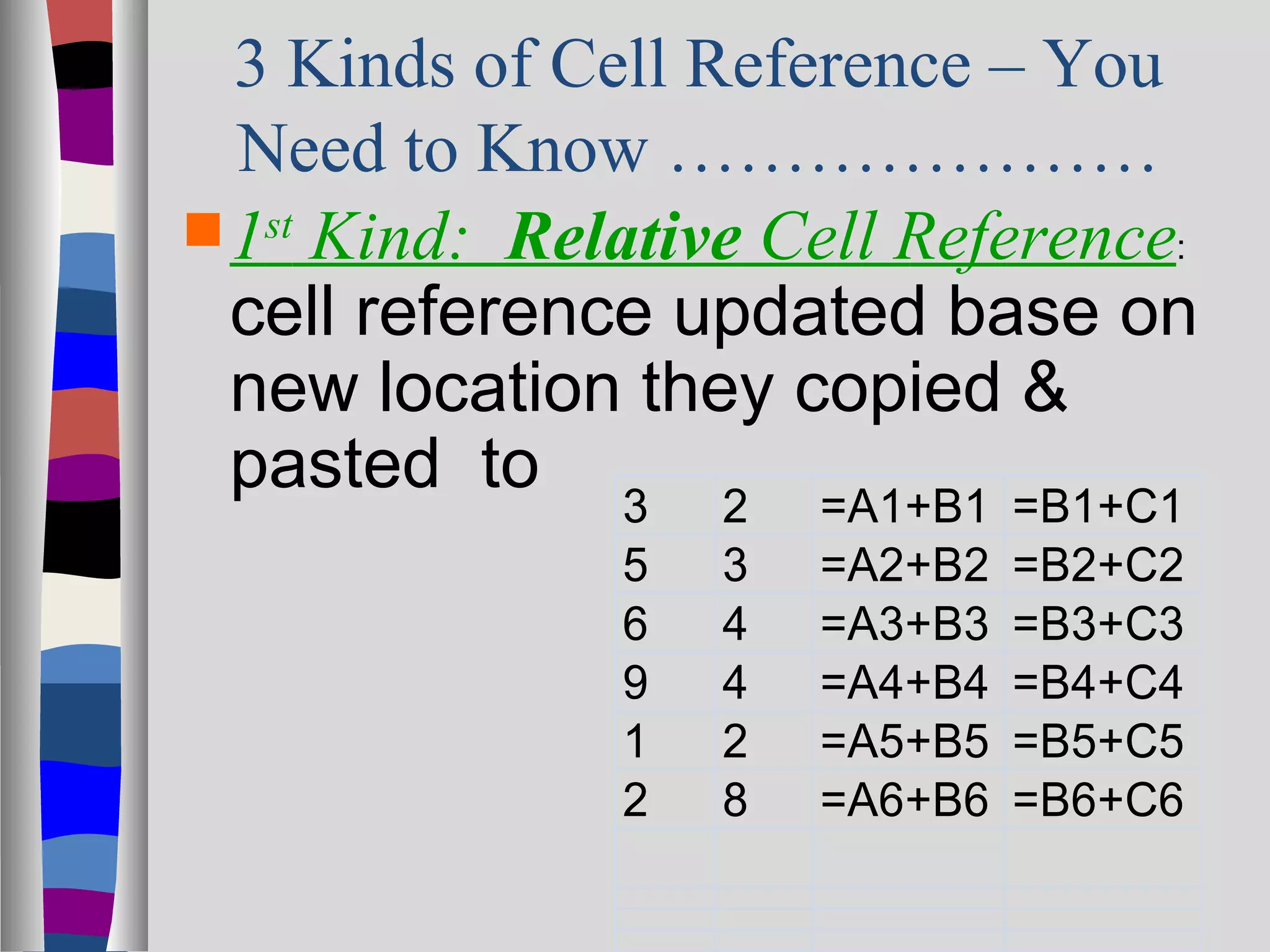
 1st Kind: Relative Cell Reference:
  cell reference updated base on
  new location they copied &
  pasted to 3 2 =A1+B1 =B1+C1
               5   3   =A2+B2   =B2+C2
               6   4   =A3+B3   =B3+C3
               9   4   =A4+B4   =B4+C4
               1   2   =A5+B5   =B5+C5
               2   8   =A6+B6   =B6+C6
2    ND
            Kind of Cell Reference:
          Absolute Cell Reference
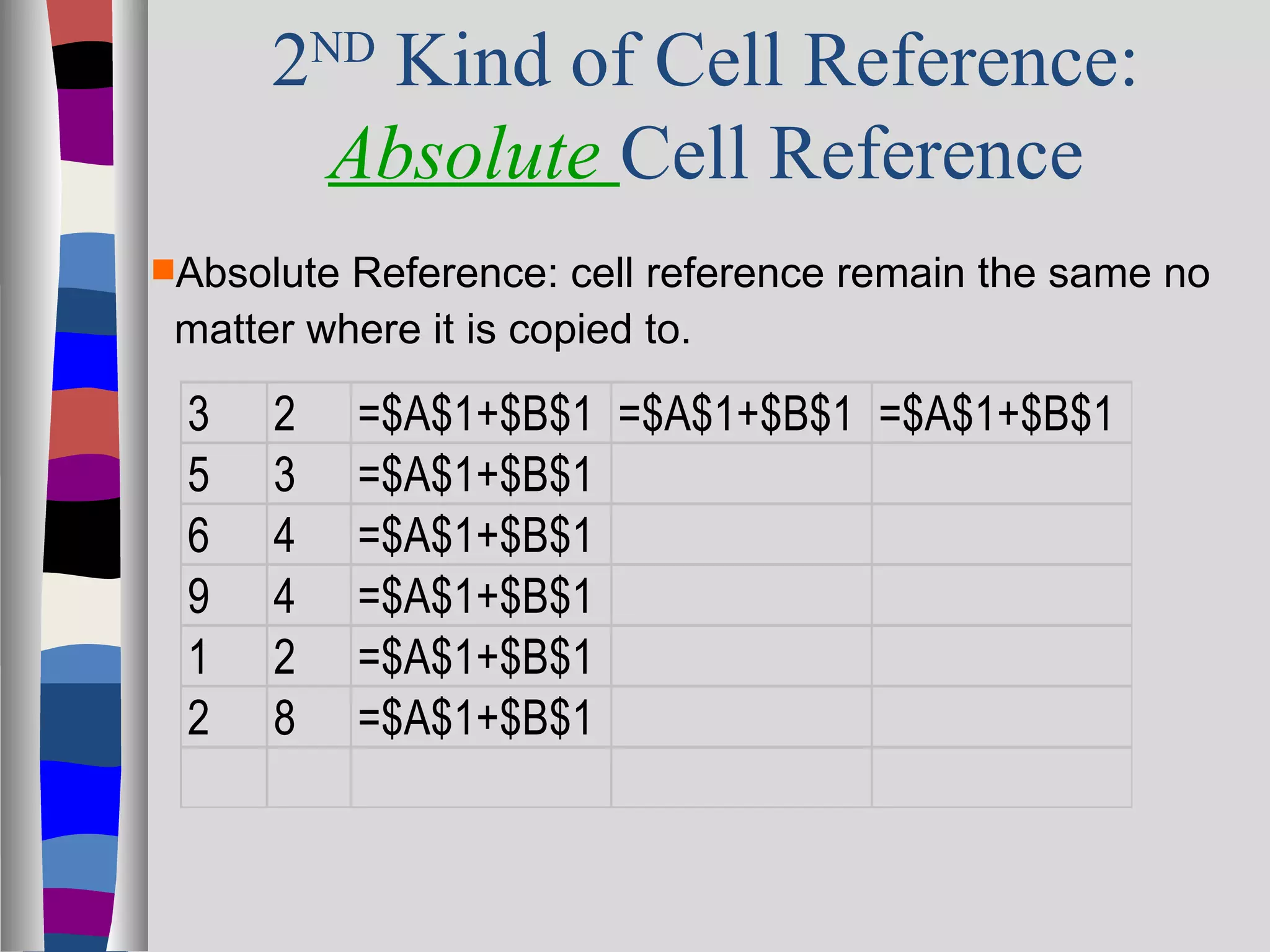
Absolute Reference: cell reference remain the same no
 matter where it is copied to.

 3    2     =$A$1+$B$1 =$A$1+$B$1 =$A$1+$B$1
 5    3     =$A$1+$B$1
 6    4     =$A$1+$B$1
 9    4     =$A$1+$B$1
 1    2     =$A$1+$B$1
 2    8     =$A$1+$B$1
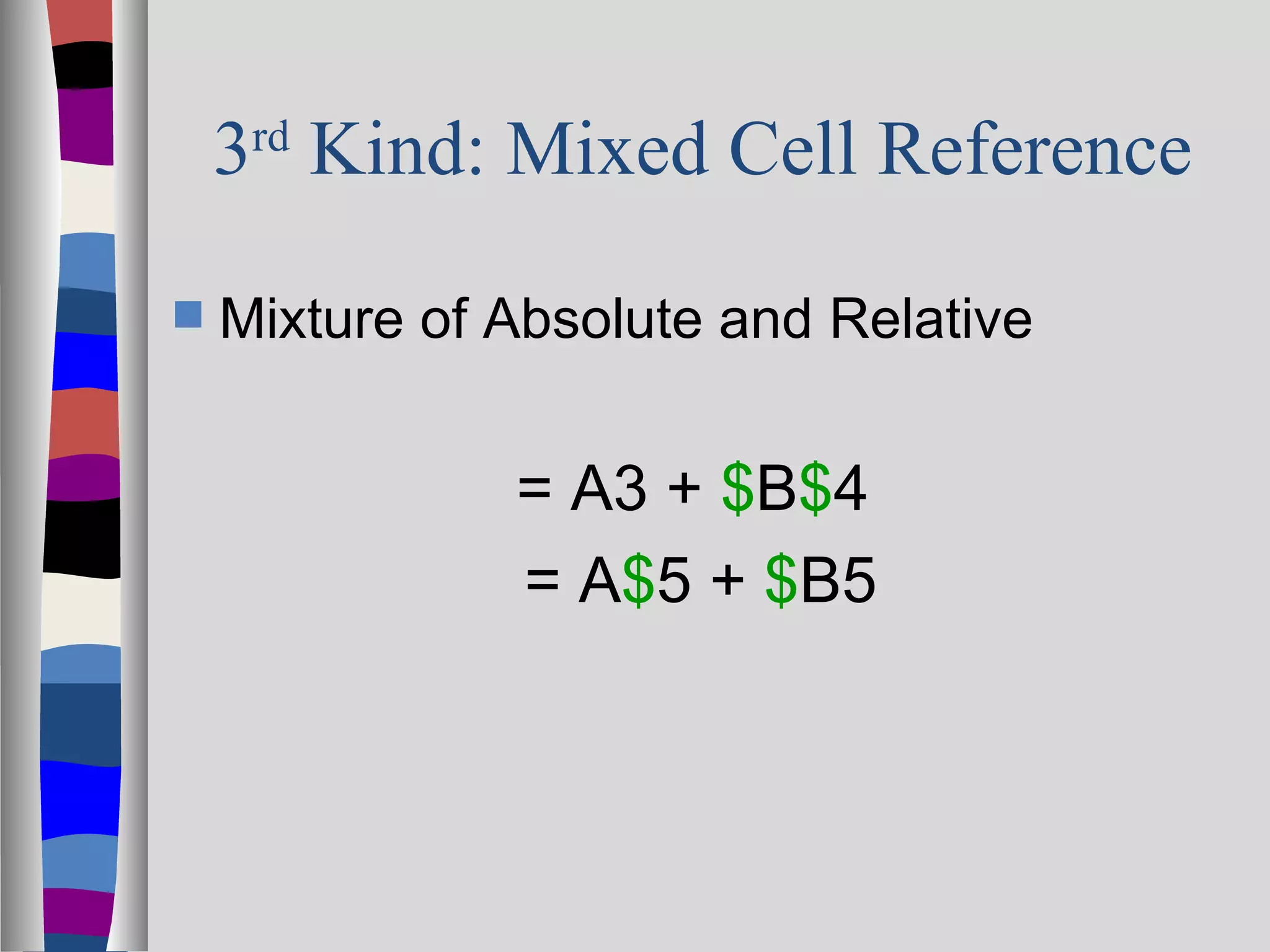
3rd Kind: Mixed Cell Reference

   Mixture of Absolute and Relative


               = A3 + $B$4
               = A$5 + $B5
To Sum Up…………….
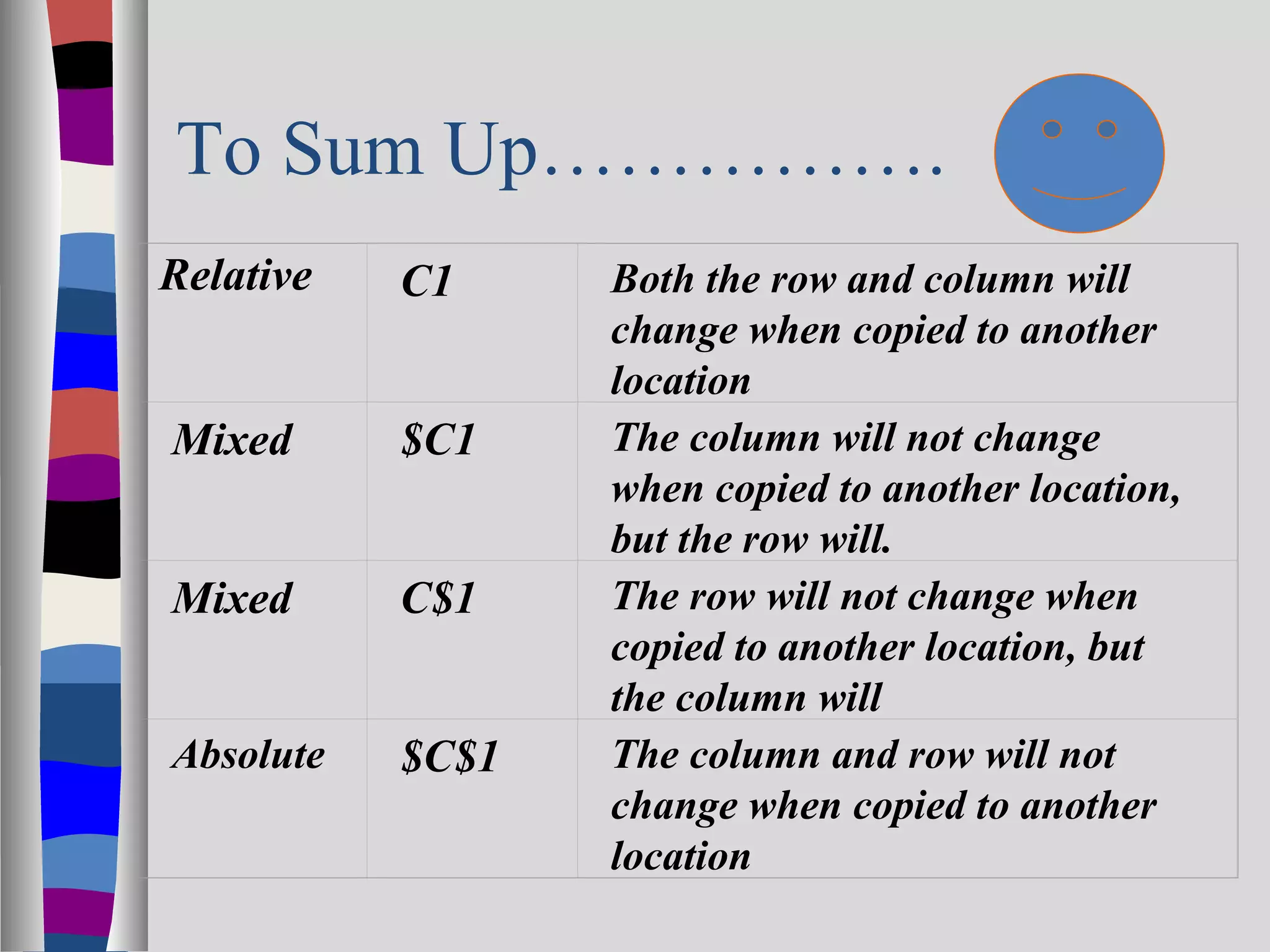
Relative   C1     Both the row and column will
                  change when copied to another
                  location
Mixed      $C1    The column will not change
                  when copied to another location,
                  but the row will.
Mixed      C$1    The row will not change when
                  copied to another location, but
                  the column will
Absolute   $C$1   The column and row will not
                  change when copied to another
                  location
Here Comes the Review
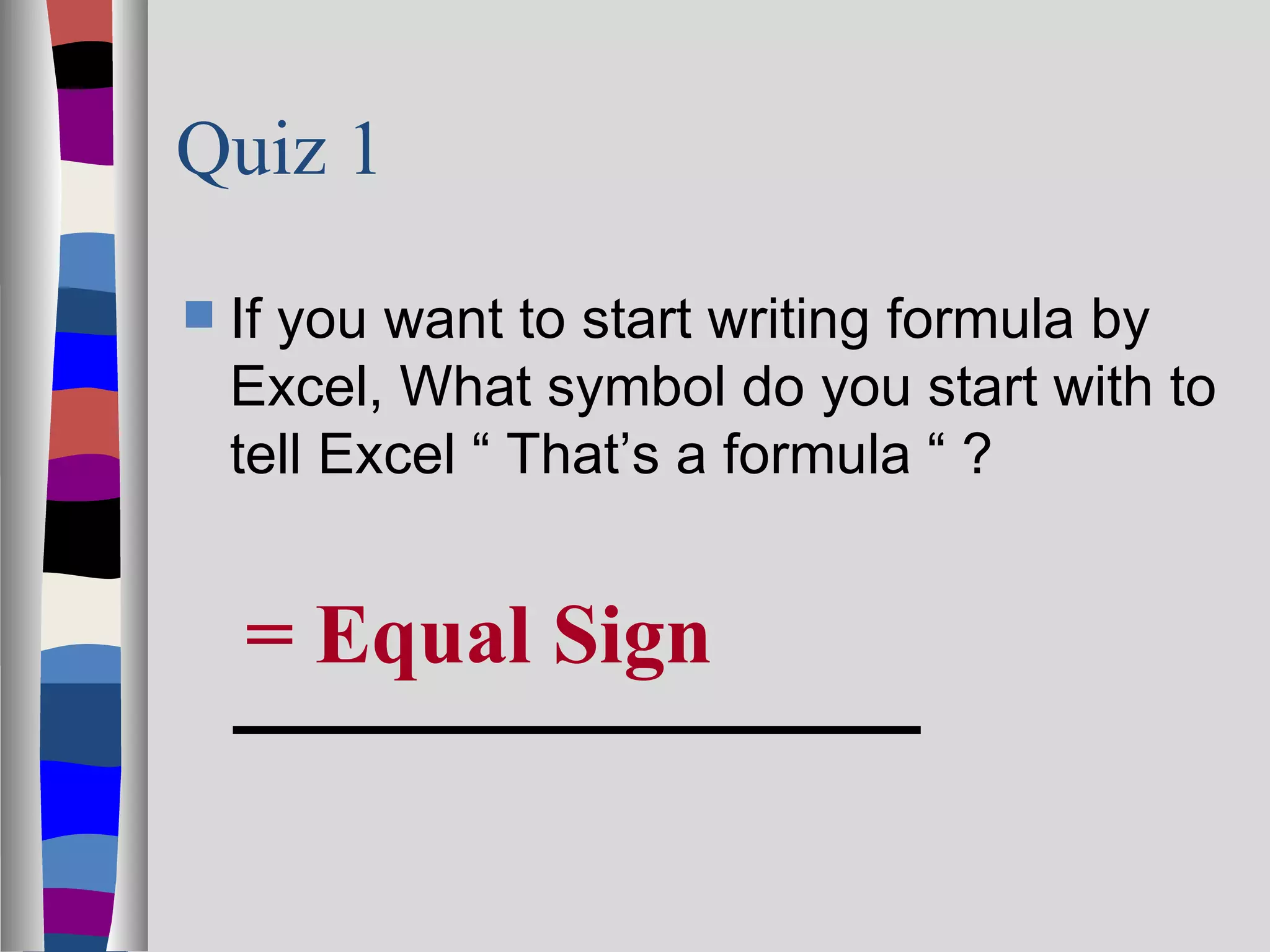
Quiz 1

   If you want to start writing formula by
    Excel, What symbol do you start with to
    tell Excel “ That’s a formula “ ?


    = Equal Sign
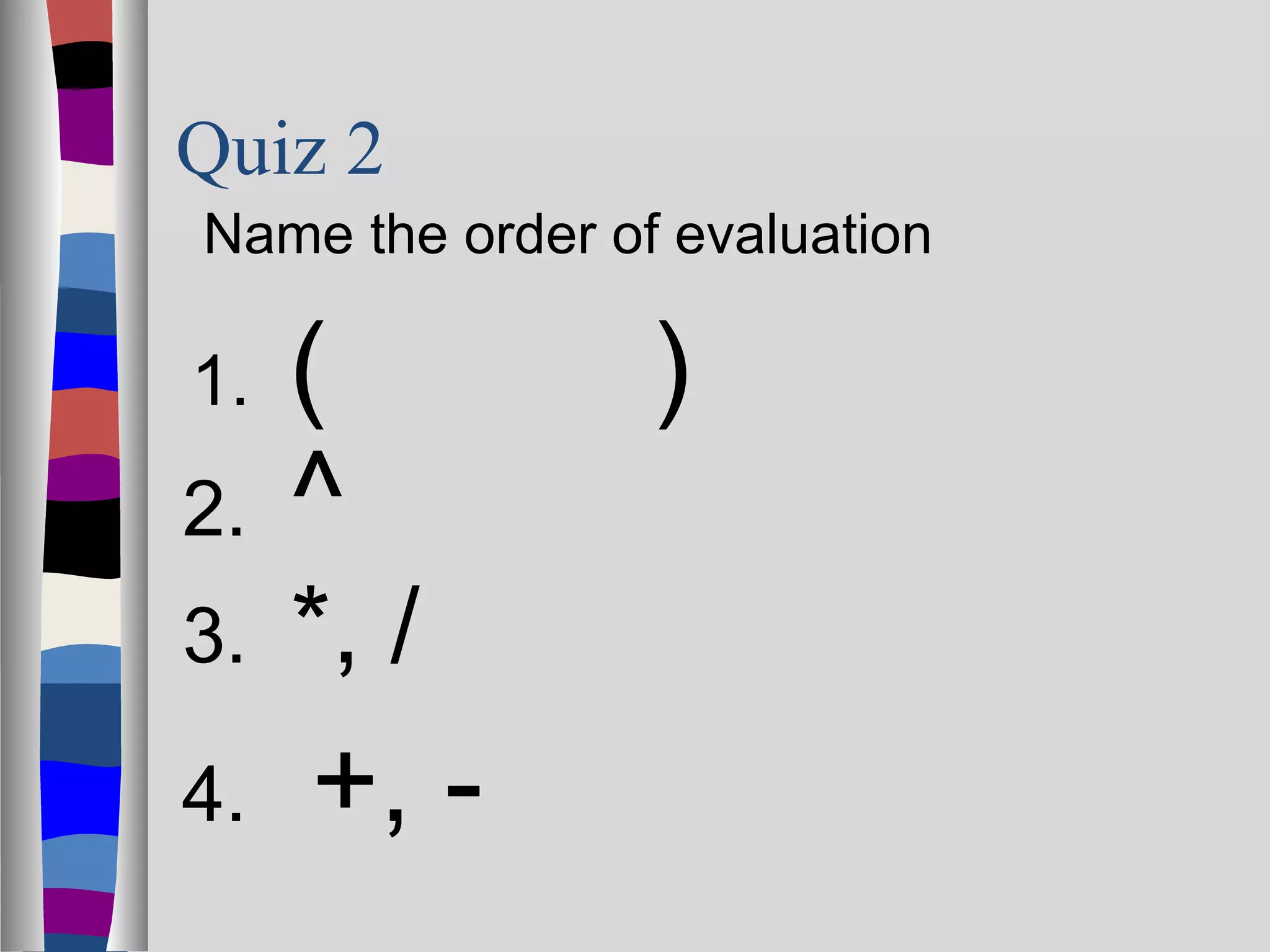
Quiz 2
Name the order of evaluation

1.   (           )
2.   ^
3.   *, /
4.   +, -
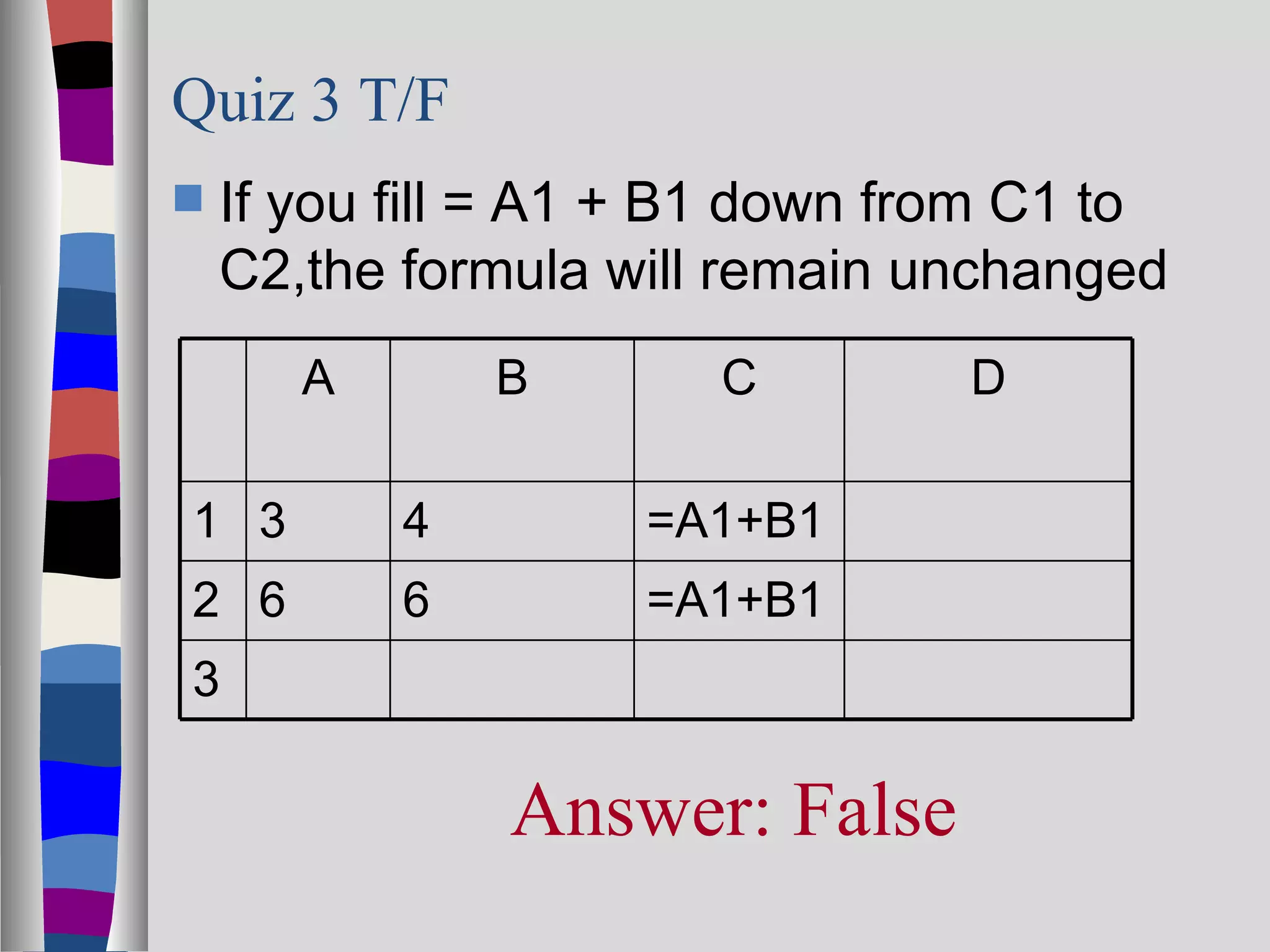
Quiz 3 T/F
   If you fill = A1 + B1 down from C1 to
    C2,the formula will remain unchanged
       A       B       C         D

1 3        4        =A1+B1
2 6        6        =A1+B1
3

               Answer: False
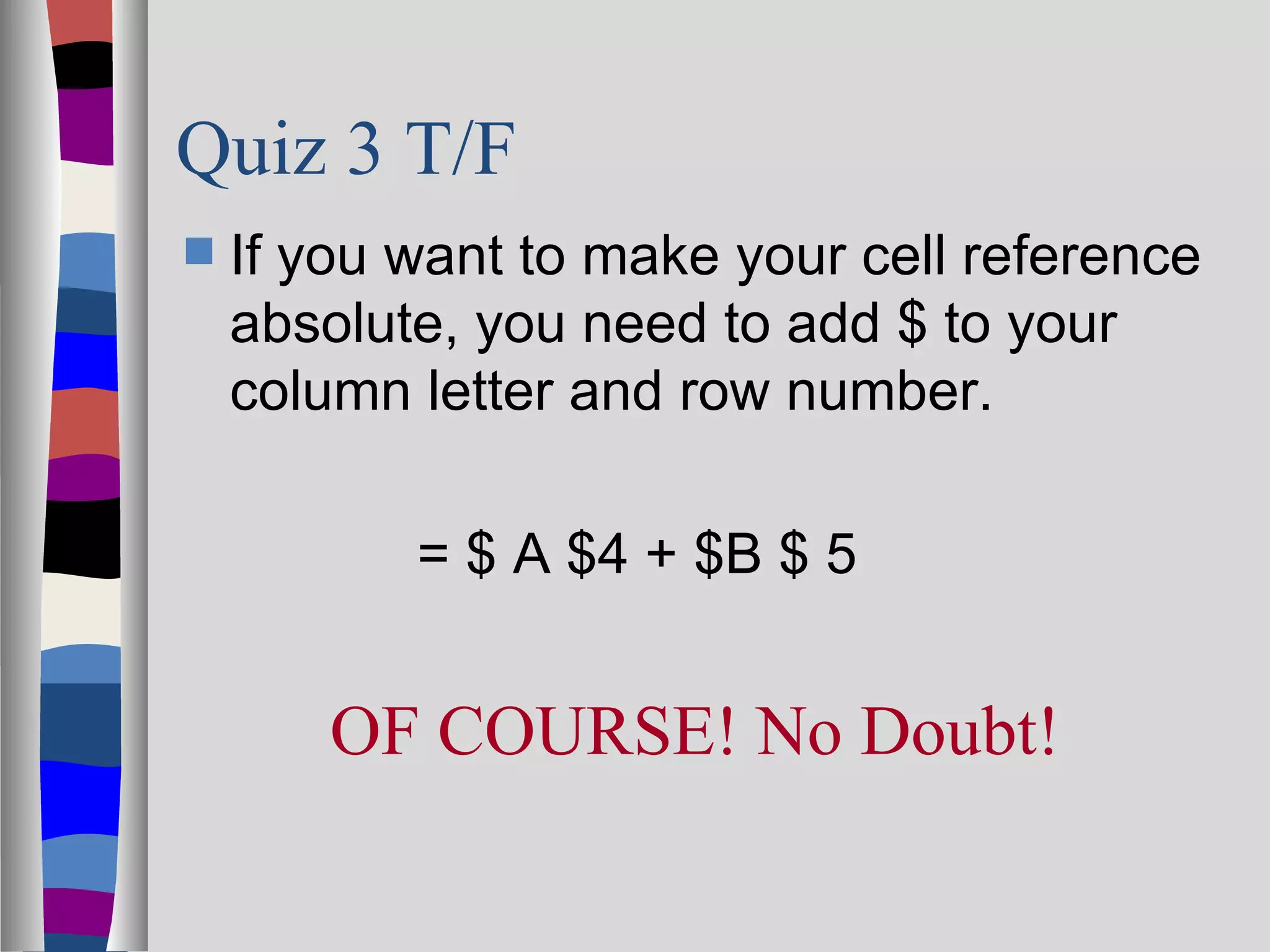
Quiz 3 T/F
   If you want to make your cell reference
    absolute, you need to add $ to your
    column letter and row number.

           = $ A $4 + $B $ 5


        OF COURSE! No Doubt!
Quiz 4 T/F

Relative      Cell Reference: cell
 reference updated base on new
 location they copied to in the worksheet


     Hope you get it right!
     Answer is YYYYYes!

Lesson 4 excel formula

  • 1.
    Lesson 4 ExcelFormula Very Important!!
  • 2.
    Excel Formula-Solve problemw/ numbers •Psychology •Sociology •Baseball Statistics •Game analysis •Accounting
  • 3.
    Simple Formula Family =A3 + b5 Formula components = A5*34 1. = 2. Operand: = C10/5 a. C3,B5,D12 – Cell Reference b. 34,5,3 – numbers = D12 – b5 = $D$3-3 3. Operator: +,*,/,-,^ = $E$1/$d$1
  • 4.
    Order of Evaluation – Same Rule As Algebra -  ( ) To force the operation first  ^ - Exponent 2^ =4, 3^2=9 2  *, /  +, -
  • 5.
    Let’s Practice  =( A4 + B5 )*5  = A4 + B5 * 5  = A4 + B5 – 34  = A4 * A 5 / 34 = A4/2 + 3 = A4/(2+3)
  • 6.
    3 Kinds ofCell Reference – You Need to Know …………………  1st Kind: Relative Cell Reference: cell reference updated base on new location they copied & pasted to 3 2 =A1+B1 =B1+C1 5 3 =A2+B2 =B2+C2 6 4 =A3+B3 =B3+C3 9 4 =A4+B4 =B4+C4 1 2 =A5+B5 =B5+C5 2 8 =A6+B6 =B6+C6
  • 7.
    2 ND Kind of Cell Reference: Absolute Cell Reference Absolute Reference: cell reference remain the same no matter where it is copied to. 3 2 =$A$1+$B$1 =$A$1+$B$1 =$A$1+$B$1 5 3 =$A$1+$B$1 6 4 =$A$1+$B$1 9 4 =$A$1+$B$1 1 2 =$A$1+$B$1 2 8 =$A$1+$B$1
  • 8.
    3rd Kind: MixedCell Reference  Mixture of Absolute and Relative = A3 + $B$4 = A$5 + $B5
  • 9.
    To Sum Up……………. Relative C1 Both the row and column will change when copied to another location Mixed $C1 The column will not change when copied to another location, but the row will. Mixed C$1 The row will not change when copied to another location, but the column will Absolute $C$1 The column and row will not change when copied to another location
  • 10.
  • 11.
    Quiz 1  If you want to start writing formula by Excel, What symbol do you start with to tell Excel “ That’s a formula “ ? = Equal Sign
  • 12.
    Quiz 2 Name theorder of evaluation 1. ( ) 2. ^ 3. *, / 4. +, -
  • 13.
    Quiz 3 T/F  If you fill = A1 + B1 down from C1 to C2,the formula will remain unchanged A B C D 1 3 4 =A1+B1 2 6 6 =A1+B1 3 Answer: False
  • 14.
    Quiz 3 T/F  If you want to make your cell reference absolute, you need to add $ to your column letter and row number. = $ A $4 + $B $ 5 OF COURSE! No Doubt!
  • 15.
    Quiz 4 T/F Relative Cell Reference: cell reference updated base on new location they copied to in the worksheet Hope you get it right! Answer is YYYYYes!

Editor's Notes

  • #2 Formula is the heart of Excel. No formula, Excel loses the meaning of existence.
  • #3 Researcher love to use Excel formula to solve problem involving. Why? It’s a calculator which can store your operations and you can use it again and again as long as you don’t lose the file…..Baseball coach Mr. K use Excel to keep track of players’ performance.
  • #4 The formula is the equation and you can see the resemblance between Excel formula and algebra. To make sure it is user friendly, Excel apply the same rule as our algebra except but = in the front. The rule of thumb: start your formula with =. No =, Excel won’t know that’s a formula.
  • #5 Do you remember the evaluation order in Algebra class? You apply the same rule here in Excel.
  • #6 Let’s practice and bring you back the old good memory. Two pairs to make a comparison.
  • #7 For the purpose of copy to speed up your process.
  • #8 Open the excel Absolute and relative cell Excel worksheet for this presentation.