Zoom Security & Meeting
Participant Management
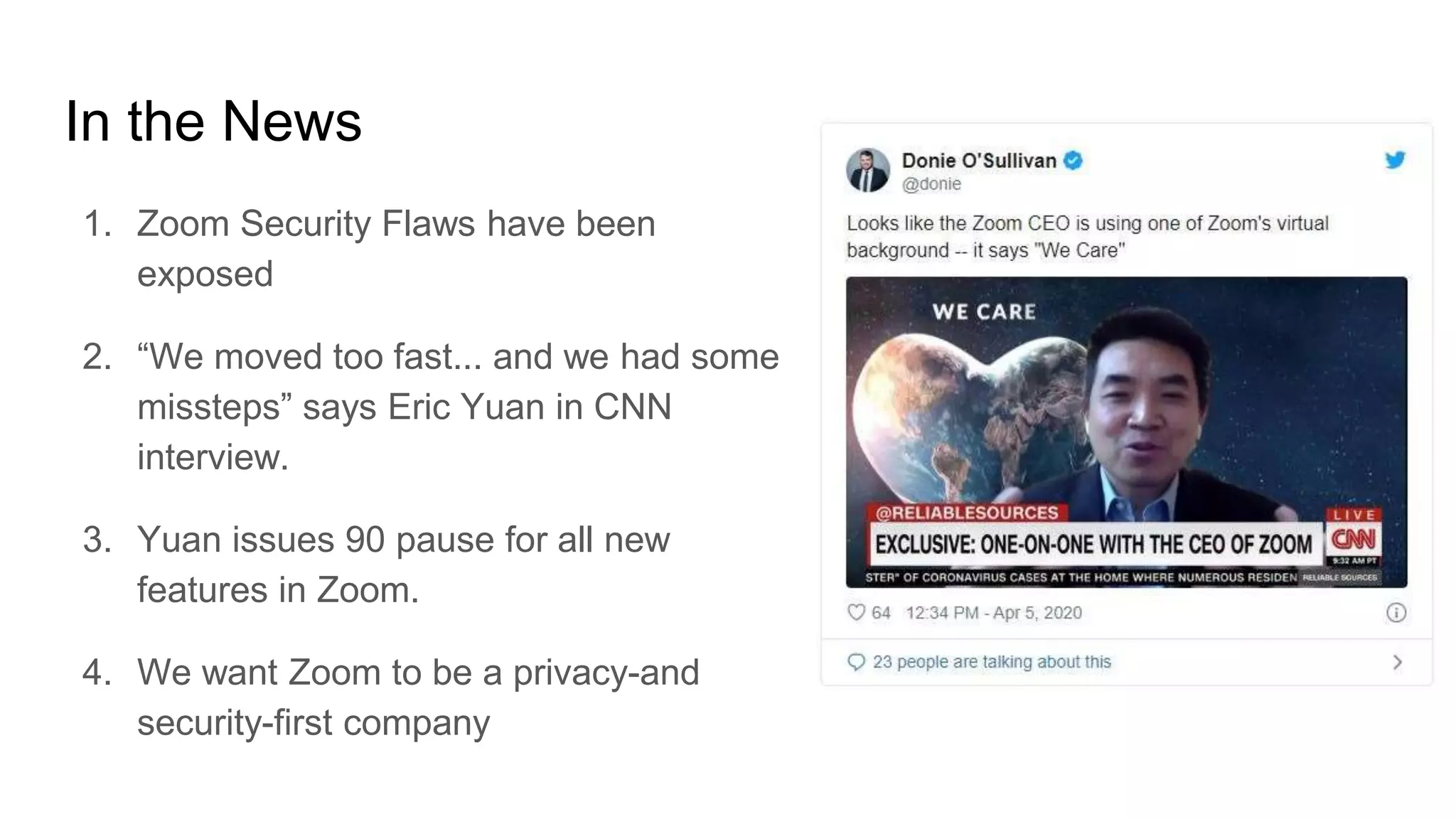
In the News
1. Zoom Security Flaws have been
exposed
2. “We moved too fast... and we had some
missteps” says Eric Yuan in CNN
interview.
3. Yuan issues 90 pause for all new
features in Zoom.
4. We want Zoom to be a privacy-and
security-first company
Zoom Security Measures
Zoom is taking security very seriously.
You can learn all about the advanced
security measures in place at
zoom.us/security.
This tutorial is about securing Zoom
Meetings from an end user perspective.
Zoom administrators should visit
Zoom.us/security and enable Zoom security
features in management dashboard.
Learning with the StreamGeeks
Upcoming Tutorial Video
How to control a PTZOptics or
HuddleCamHD camera with the
new Zoom PTZ camera control
feature
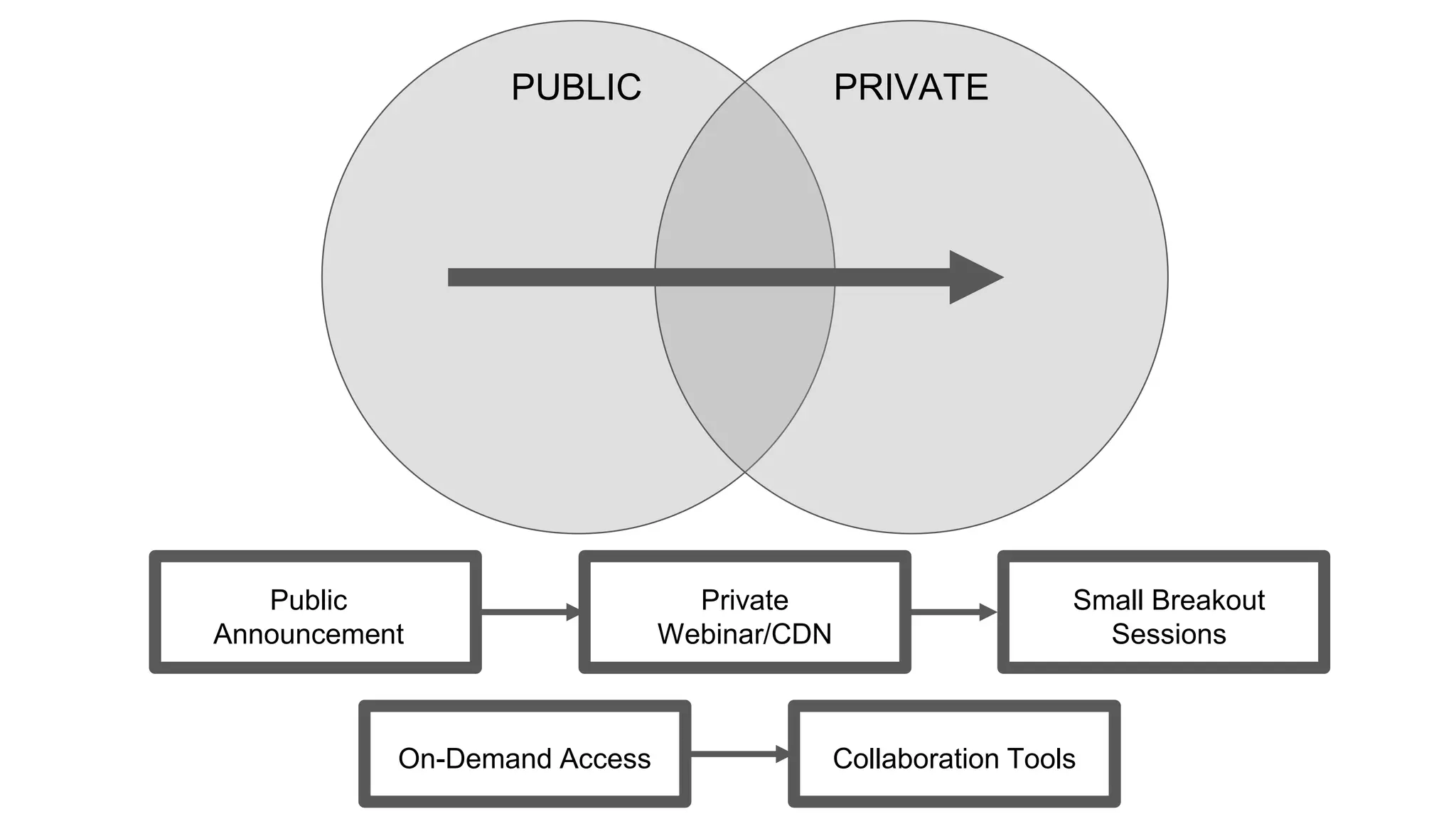
PUBLIC PRIVATE
Public
Announcement
Private
Webinar/CDN
Small Breakout
Sessions
On-Demand Access Collaboration Tools
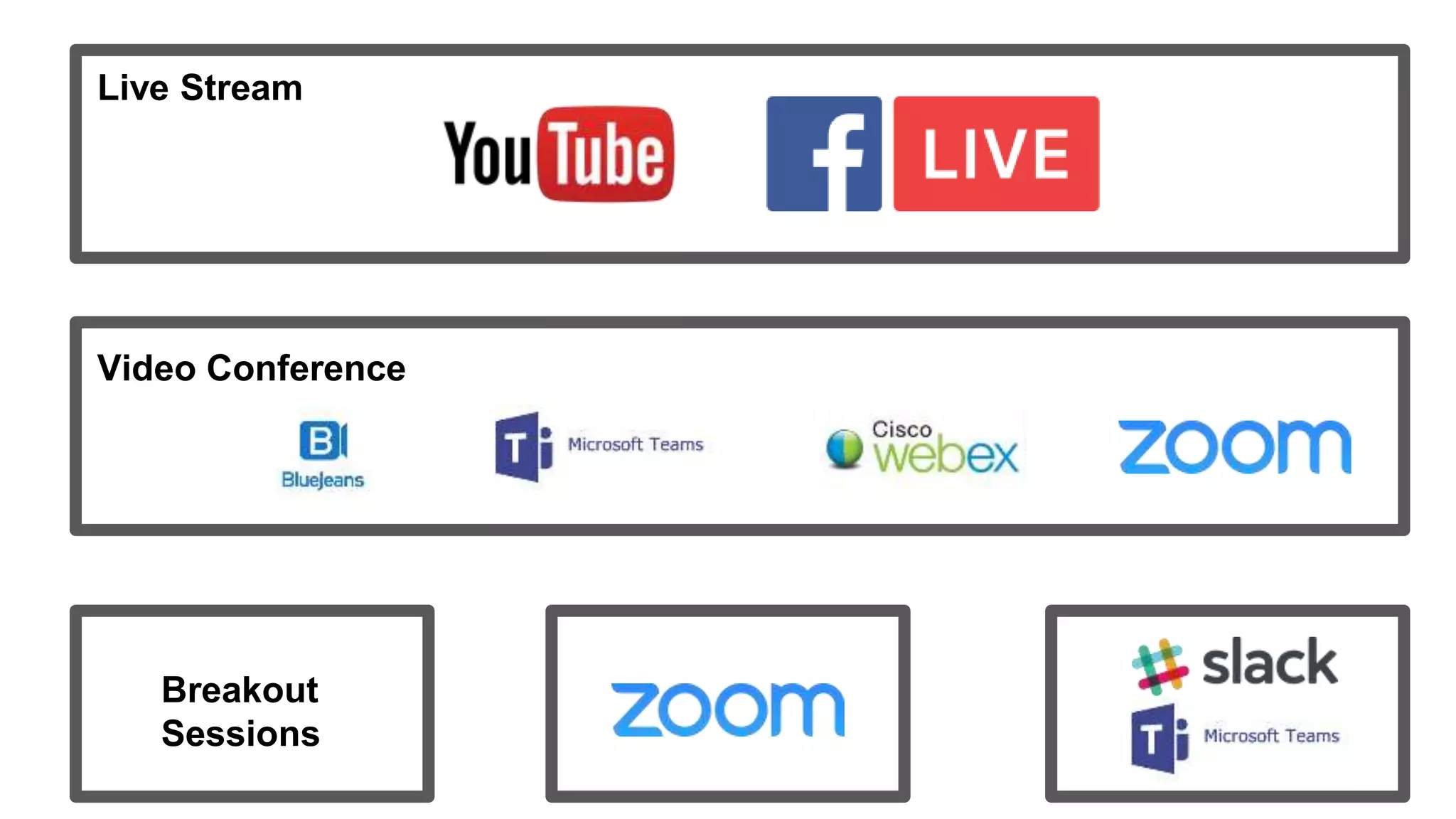
Public Broadcasts: Private Meetings:
Live Stream
Video Conference
Breakout
Sessions
How to Keep the Party Crashers from Crashing Your Zoom Event
Scheduling a Secure
Zoom Meeting
When scheduling your meeting.
Select the “Require Meeting
Password” option.
This may not be selected by
default.
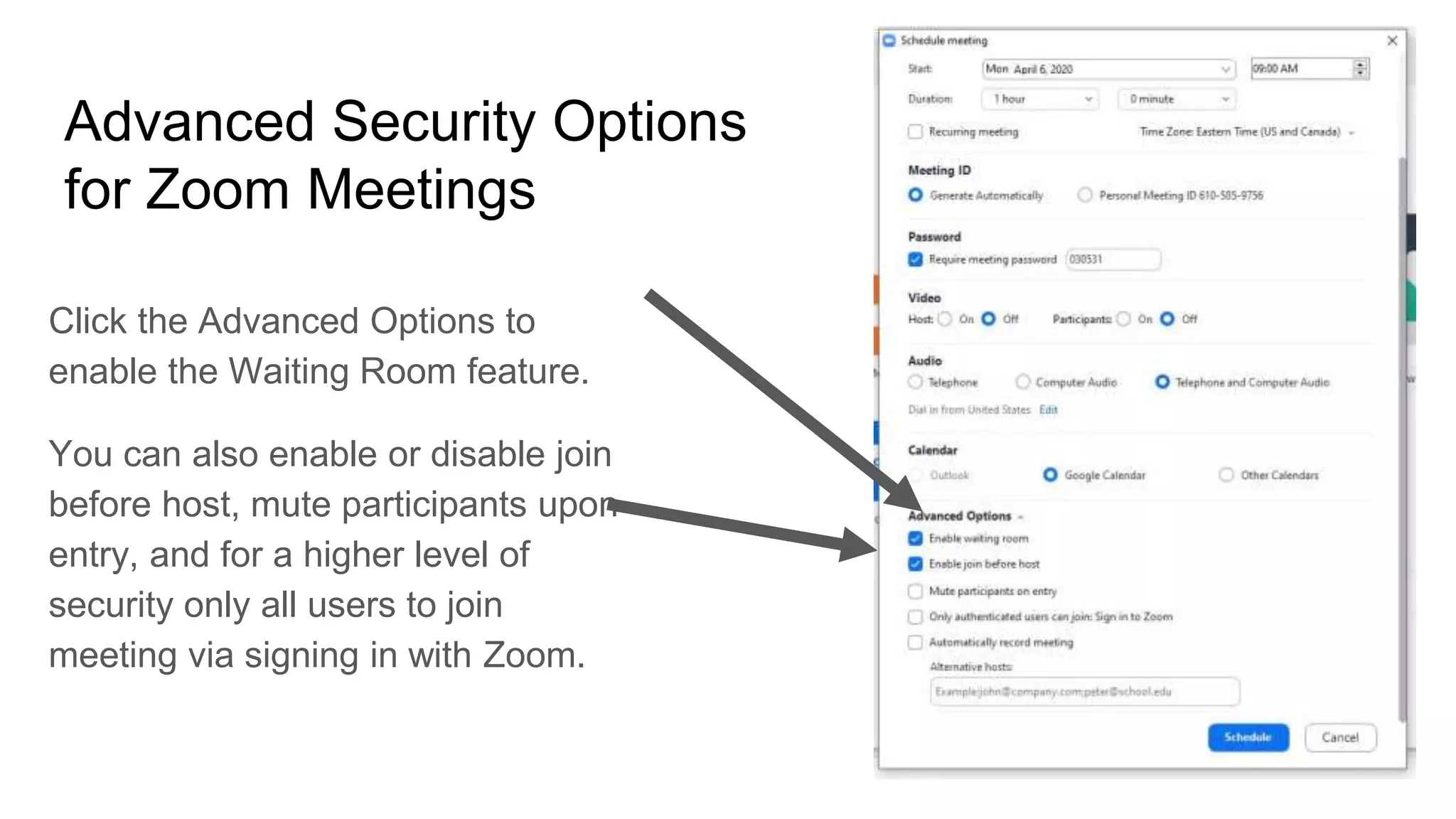
Advanced Security Options
for Zoom Meetings
Click the Advanced Options to
enable the Waiting Room feature.
You can also enable or disable join
before host, mute participants upon
entry, and for a higher level of
security only all users to join
meeting via signing in with Zoom.
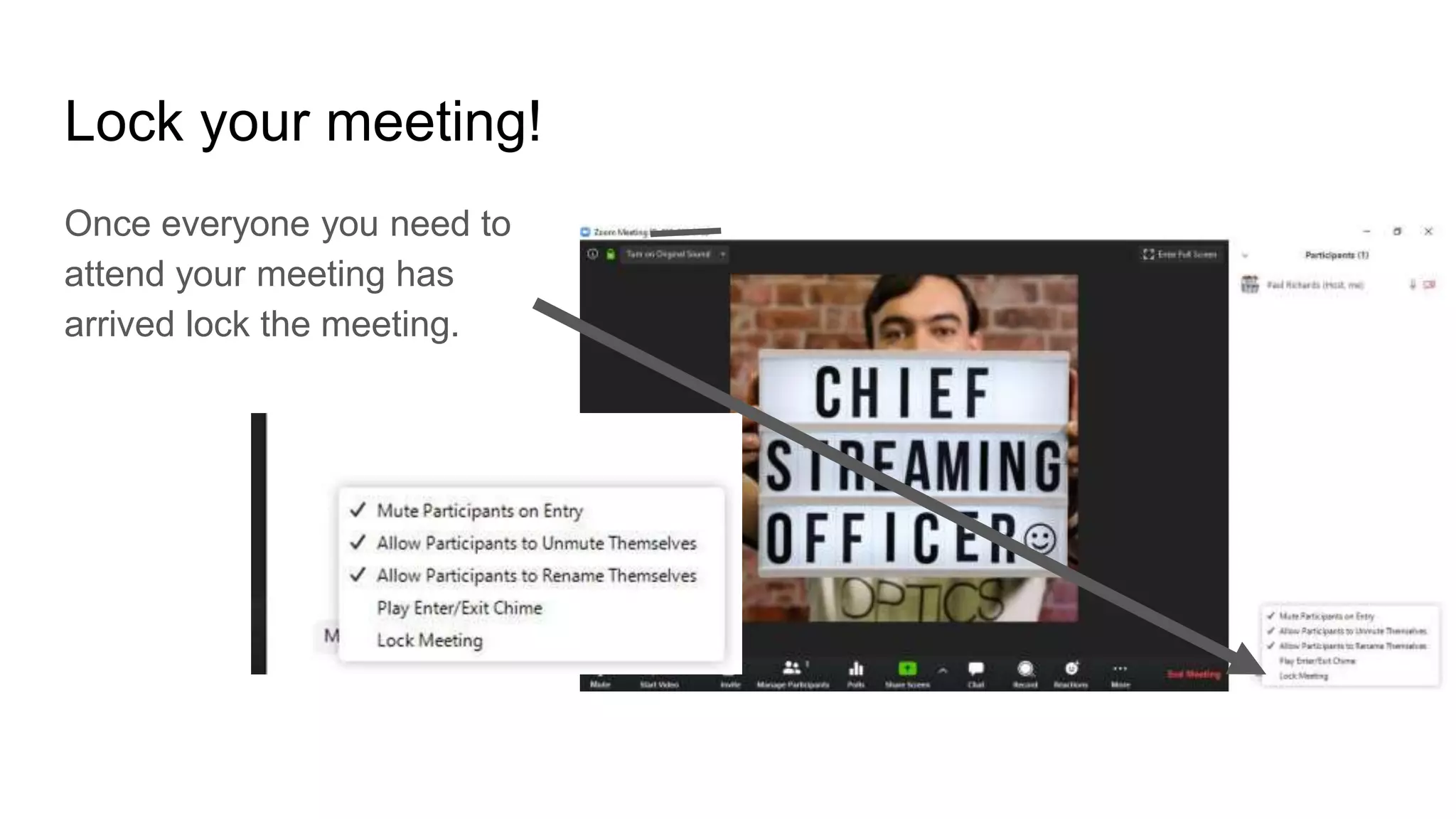
Lock your meeting!
Once everyone you need to
attend your meeting has
arrived lock the meeting.
Advanced Admin
Zoom Security
Login to your dashboard and select
the security option.
This area is for admins only.
This mainly covers user
management and user
authentication.
Personal Zoom Meeting
Setting Defaults
Click Setting in your Zoom Dashboard.
This will open up all of your personal
Zoom meeting settings.
Review how you want to password
protect your zoom meetings by default.
Participant Controls
Participant Management Control Defaults.
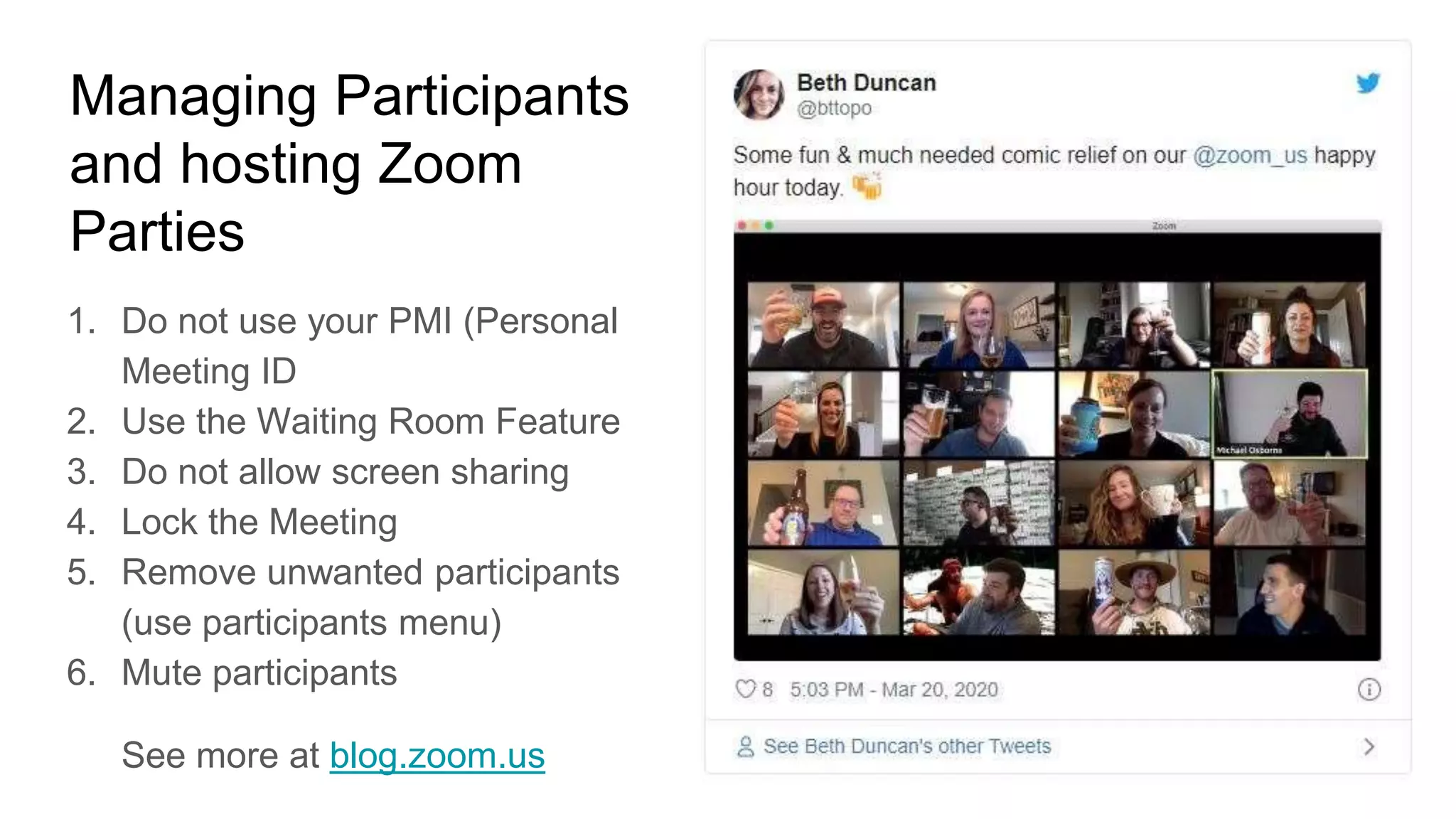
Managing Participants
and hosting Zoom
Parties
1. Do not use your PMI (Personal
Meeting ID
2. Use the Waiting Room Feature
3. Do not allow screen sharing
4. Lock the Meeting
5. Remove unwanted participants
(use participants menu)
6. Mute participants
See more at blog.zoom.us
Restrict who can share
If you do not plan on having
other people share content,
do not allow it to happen by
mistake.
Select “Only Host” can
share.
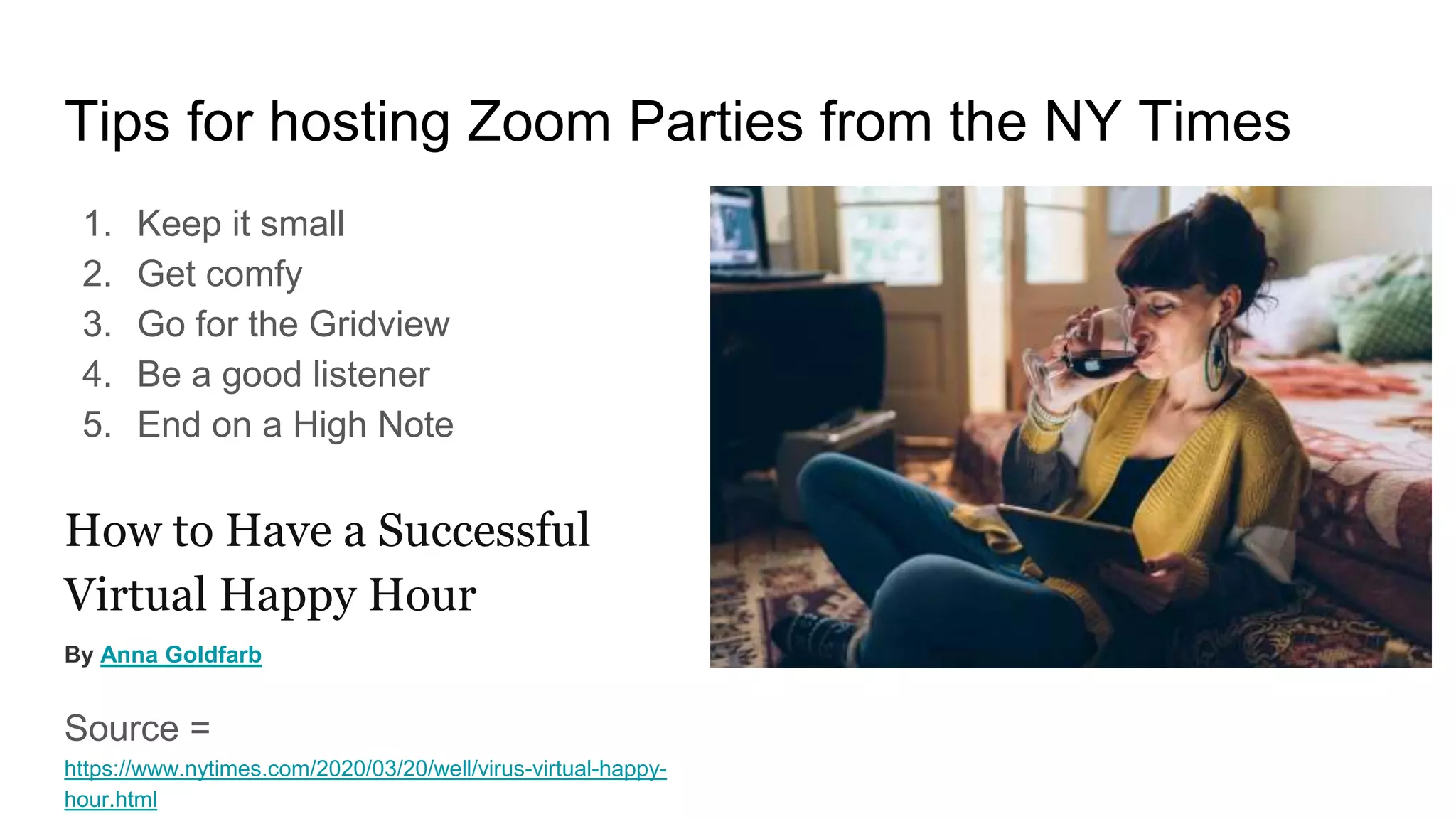
Tips for hosting Zoom Parties from the NY Times
1. Keep it small
2. Get comfy
3. Go for the Gridview
4. Be a good listener
5. End on a High Note
How to Have a Successful
Virtual Happy Hour
By Anna Goldfarb
Source =
https://www.nytimes.com/2020/03/20/well/virus-virtual-happy-
hour.html

Zoom security and meeting participant management

  • 1.
    Zoom Security &Meeting Participant Management
  • 2.
    In the News 1.Zoom Security Flaws have been exposed 2. “We moved too fast... and we had some missteps” says Eric Yuan in CNN interview. 3. Yuan issues 90 pause for all new features in Zoom. 4. We want Zoom to be a privacy-and security-first company
  • 3.
    Zoom Security Measures Zoomis taking security very seriously. You can learn all about the advanced security measures in place at zoom.us/security. This tutorial is about securing Zoom Meetings from an end user perspective. Zoom administrators should visit Zoom.us/security and enable Zoom security features in management dashboard.
  • 4.
    Learning with theStreamGeeks
  • 5.
    Upcoming Tutorial Video Howto control a PTZOptics or HuddleCamHD camera with the new Zoom PTZ camera control feature
  • 6.
  • 7.
  • 8.
  • 9.
    How to Keepthe Party Crashers from Crashing Your Zoom Event
  • 10.
    Scheduling a Secure ZoomMeeting When scheduling your meeting. Select the “Require Meeting Password” option. This may not be selected by default.
  • 11.
    Advanced Security Options forZoom Meetings Click the Advanced Options to enable the Waiting Room feature. You can also enable or disable join before host, mute participants upon entry, and for a higher level of security only all users to join meeting via signing in with Zoom.
  • 12.
    Lock your meeting! Onceeveryone you need to attend your meeting has arrived lock the meeting.
  • 13.
    Advanced Admin Zoom Security Loginto your dashboard and select the security option. This area is for admins only. This mainly covers user management and user authentication.
  • 14.
    Personal Zoom Meeting SettingDefaults Click Setting in your Zoom Dashboard. This will open up all of your personal Zoom meeting settings. Review how you want to password protect your zoom meetings by default.
  • 16.
  • 17.
    Managing Participants and hostingZoom Parties 1. Do not use your PMI (Personal Meeting ID 2. Use the Waiting Room Feature 3. Do not allow screen sharing 4. Lock the Meeting 5. Remove unwanted participants (use participants menu) 6. Mute participants See more at blog.zoom.us
  • 18.
    Restrict who canshare If you do not plan on having other people share content, do not allow it to happen by mistake. Select “Only Host” can share.
  • 19.
    Tips for hostingZoom Parties from the NY Times 1. Keep it small 2. Get comfy 3. Go for the Gridview 4. Be a good listener 5. End on a High Note How to Have a Successful Virtual Happy Hour By Anna Goldfarb Source = https://www.nytimes.com/2020/03/20/well/virus-virtual-happy- hour.html