Producing Live Events


on Zoom
Essential production advice
Description
Are you in charge of running webinars or virtual meetings?
Do you need to switch your in-person event to an online
one? This class is perfect and
fi
lled with practical advice.
Zoom has quickly become a popular tool for both
businesses and consumers, but there’s more you can do to
up your game.
Agenda
• How to choose between meetings and webinars


• Using breakout rooms for interactivity


• Extending the power of Zoom with essential apps


• How to con
fi
gure preferences for optimum video quality


• How to connect professional audio and video devices


• Engage your audience with Q&A, Chat, Polls, and Surveys


• How to generate reports when the events are done
Two questions to answer in chat
1. What is your role as it relates to events or webinars?


2. What is your goal in a
tt
ending this session?
Richard


Harrington
I'm a visual storyteller exploring


the fusion of photography and video.


I empower creatives with AI.


I'm also a husband & father.
Vital Statistics
• Author 40+ Books


• Author 200+ Video Courses


• Publisher of Photofocus & ThinkTAP Learn


• Conference Speaker


• Consultant


• Photographer


• Director
Past Projects
• America Online


• American Diabetes
Association


• American Israel Public
A
ff
airs Commi
tt
ee


• American Red Cross


• Apple


• Children's National
Medical Center


• Department of Veterans
Administration


• Drobo


• Federal
Communications
Commission


• Google


• lynda.com


• Microso
ft


• Skylum


• Smithsonian Institute


• Under Armour


• US Air Force
Advisory and Consultant Projects
• Television Networks


• ABC News


• CNN


• Discovery Channel


• Major League Baseball
Network


• NASCAR


• Turner Networks


• Technology


• Adobe Creative Cloud


Advisory Board


• Apple


• Athentech


• Pearson Education


• Skylum So
ft
ware
linkedin.com/in/richardharrington
Why I choose to use
the Zoom platform
A few key things to note
Why Zoom?
• Relatively easy to use


• Stable platform


• Numerous safety controls


• Reasonable record quality


• Scalable pricing models
Key Features | Before the Meeting
• Signup pages


• Social promotion


• Reminders & noti
fi
cations


• Lead capture


• End-user tech support
Key Features | During the Meeting
• Slide-sharing


• Screen-sharing


• Polls & surveys


• Video streaming


• Ability to add panelists


• Multiple platform support
Key Features | A
ft
er the Meeting
• Recordings made available


• Ability to repeat session


• Option to contact registrants


• Downloadable leads


• Downloadable viewing and survey data
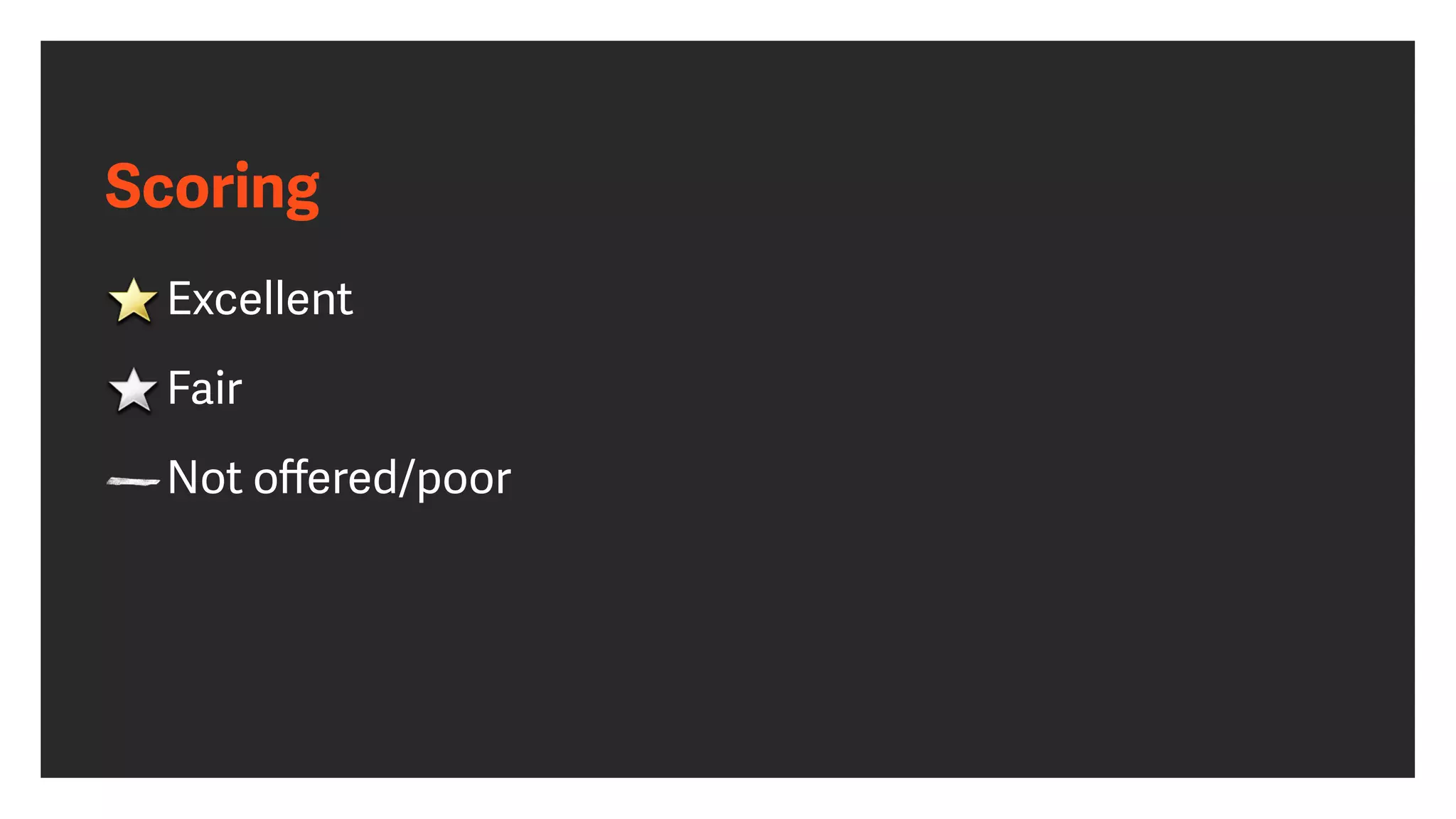
Scoring
Excellent


Fair


Not o
ff
ered/poor
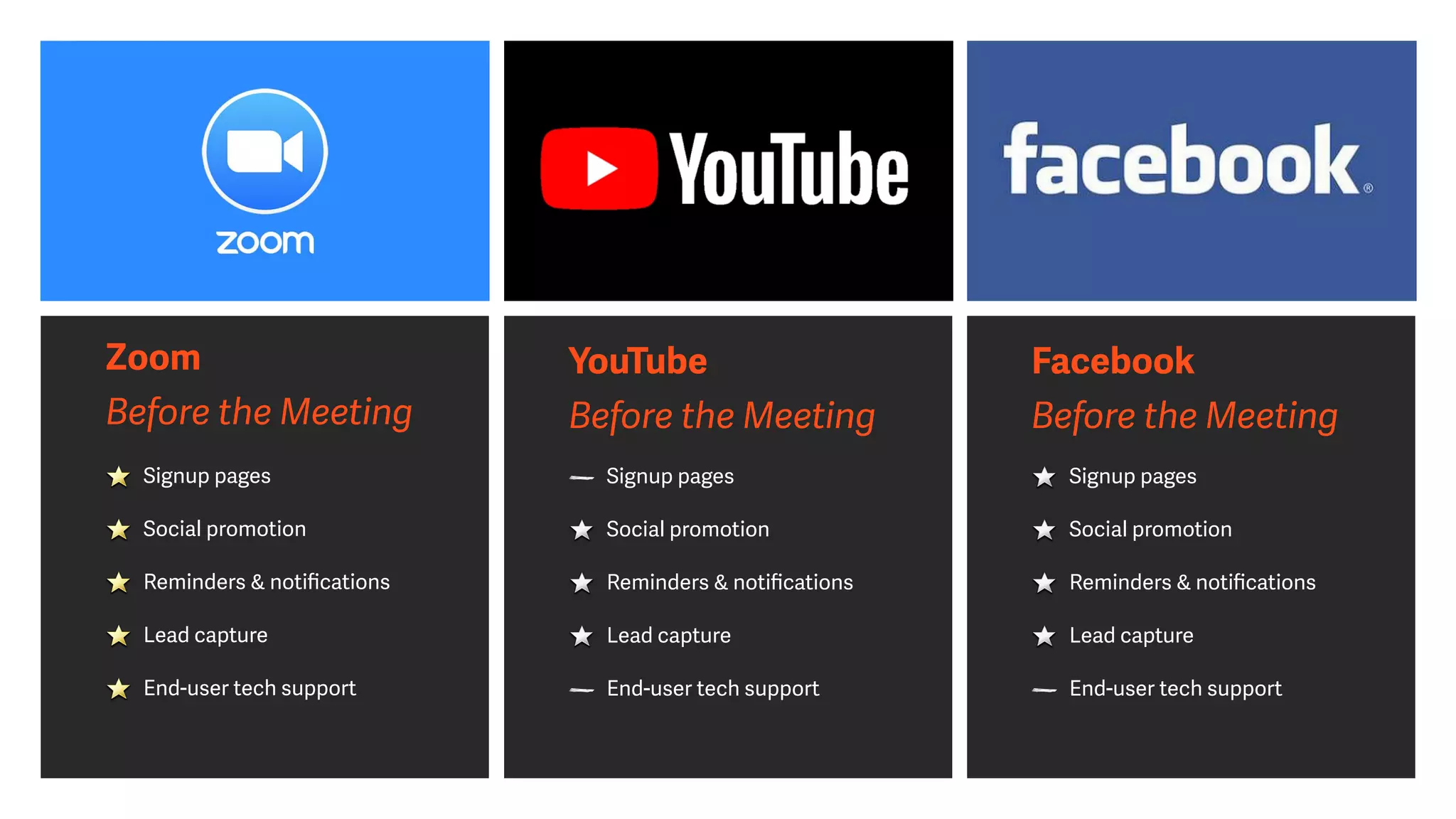
Zoom


Before the Meeting
Signup pages


Social promotion


Reminders & noti
fi
cations


Lead capture


End-user tech support
YouTube


Before the Meeting
Signup pages


Social promotion


Reminders & noti
fi
cations


Lead capture


End-user tech support
Facebook


Before the Meeting
Signup pages


Social promotion


Reminders & noti
fi
cations


Lead capture


End-user tech support
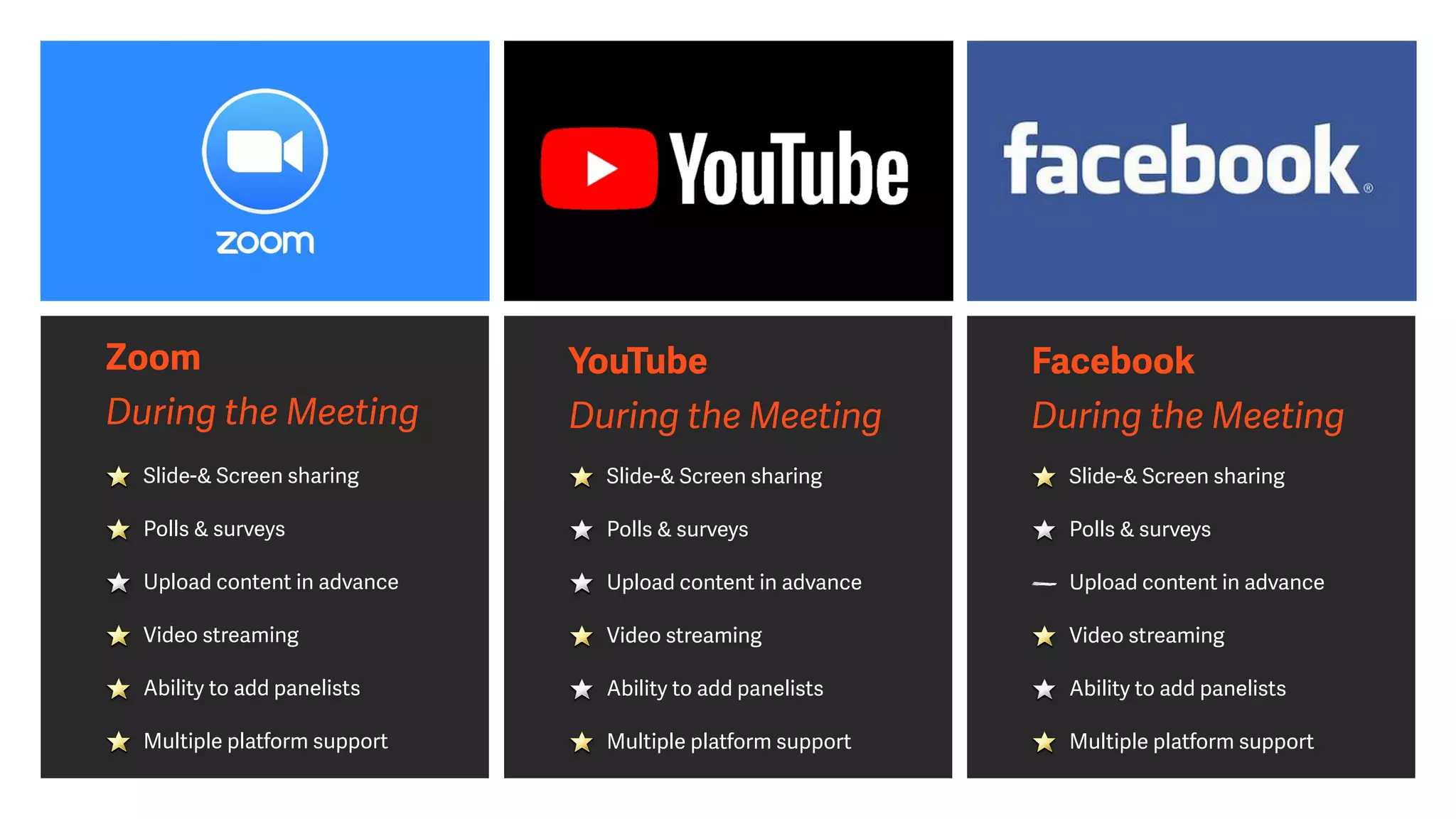
Zoom


During the Meeting
Slide-& Screen sharing


Polls & surveys


Upload content in advance


Video streaming


Ability to add panelists


Multiple platform support
YouTube


During the Meeting
Slide-& Screen sharing


Polls & surveys


Upload content in advance


Video streaming


Ability to add panelists


Multiple platform support
Facebook


During the Meeting
Slide-& Screen sharing


Polls & surveys


Upload content in advance


Video streaming


Ability to add panelists


Multiple platform support
Zoom


A
ft
er the Meeting
Recordings made available


Ability to repeat session


Option to contact registrants


Downloadable leads


Downloadable viewing and
survey data
YouTube


A
ft
er the Meeting
Recordings made available


Ability to repeat session


Option to contact registrants


Downloadable leads


Downloadable viewing and
survey data
Facebook


A
ft
er the Meeting
Recordings made available


Ability to repeat session


Option to contact registrants


Downloadable leads


Downloadable viewing and
survey data
Choosing between
meetings and
webinars
Pros and cons of each
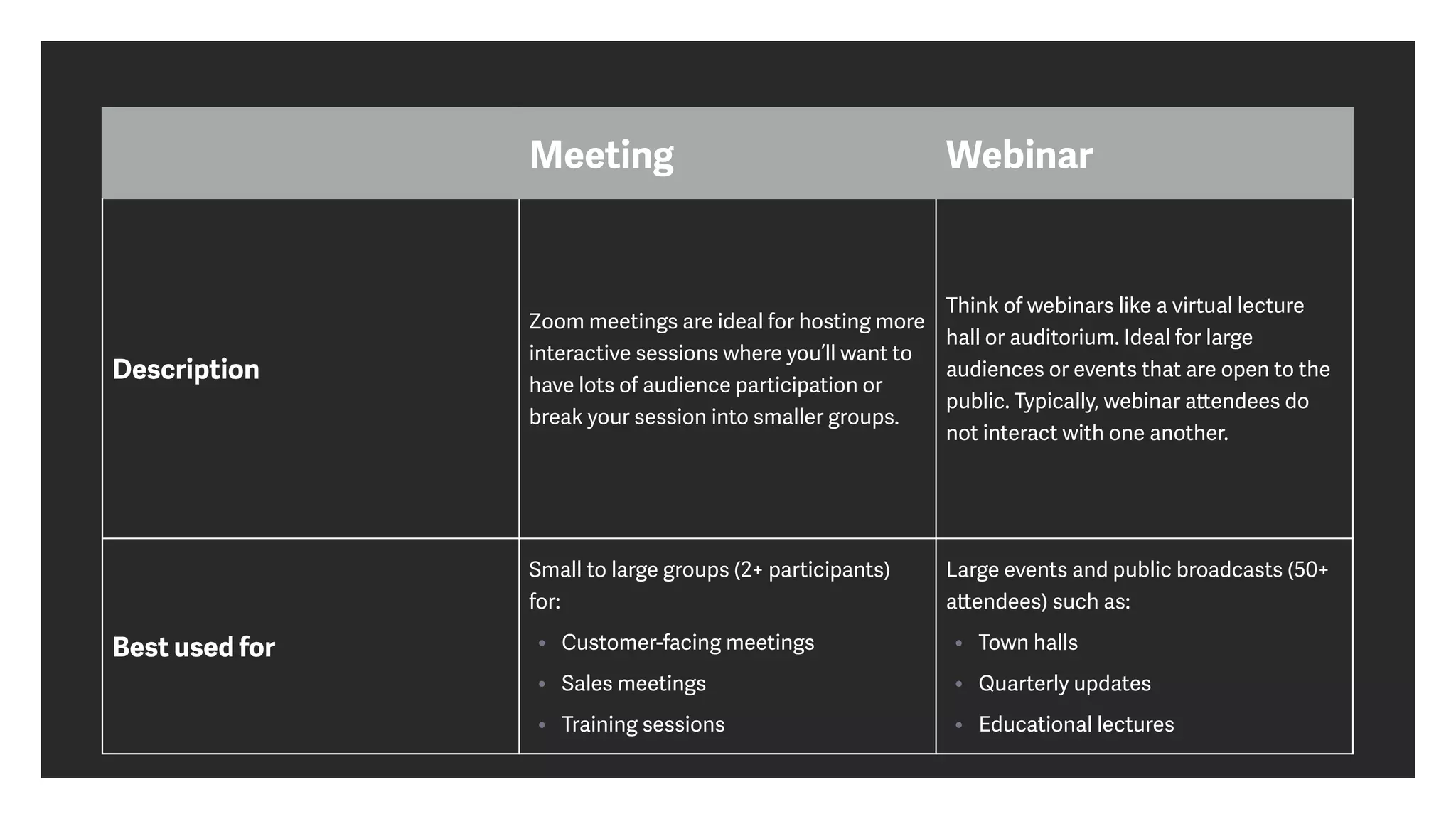
Meeting Webinar
Description
Zoom meetings are ideal for hosting more
interactive sessions where you’ll want to
have lots of audience participation or
break your session into smaller groups.
Think of webinars like a virtual lecture
hall or auditorium. Ideal for large
audiences or events that are open to the
public. Typically, webinar a
tt
endees do
not interact with one another.
Best used for
Small to large groups (2+ participants)
for:


• Customer-facing meetings


• Sales meetings


• Training sessions
Large events and public broadcasts (50+
a
tt
endees) such as:


• Town halls


• Quarterly updates


• Educational lectures
Meeting Webinar
Typically used by
• General employees


• Training groups


• Small groups with interactivity or
breakouts
• Event hosts


• SVPs and C-Suite


• Larger groups where greater
moderation needed


• When you need to hide a
tt
endees or
size of group
Cost
Free and Paid subscription options
available.
Paid Add-on, available to Pro or higher
subscriptions.
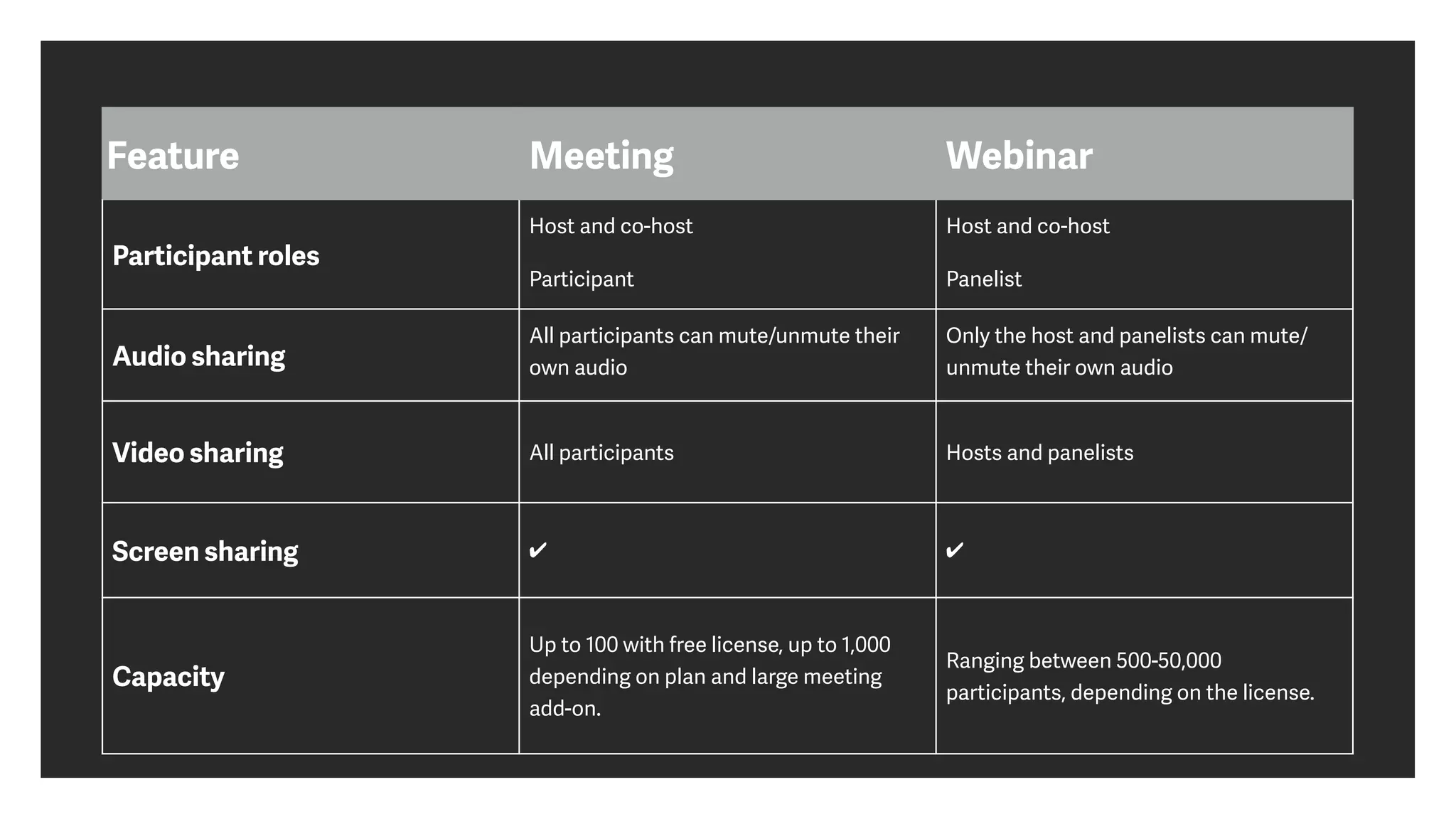
Feature Meeting Webinar
Participant roles
Host and co-host


Participant


Host and co-host


Panelist


A
tt
endee


Audio sharing
All participants can mute/unmute their
own audio


Host can mute/request to unmute
Only the host and panelists can mute/
unmute their own audio


A
tt
endees join in listen-only mode*


Video sharing All participants Hosts and panelists
Screen sharing ✔ ✔
Capacity
Up to 100 with free license, up to 1,000
depending on plan and large meeting
add-on.
Ranging between 500-50,000
participants, depending on the license.
Feature Meeting Webinar
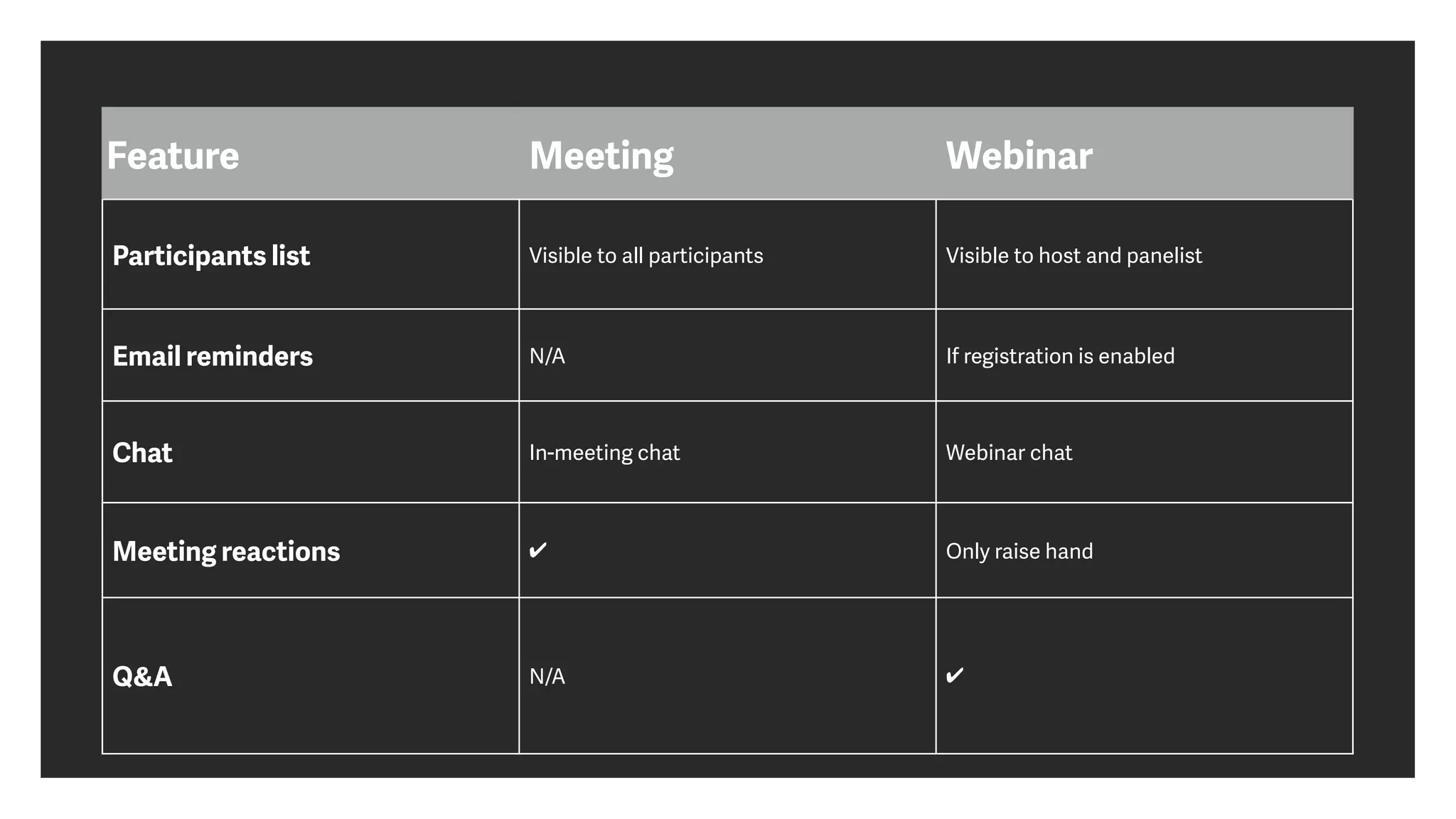
Participants list Visible to all participants Visible to host and panelist
Email reminders N/A If registration is enabled
Chat In-meeting chat Webinar chat
Meeting reactions ✔ Only raise hand
Q&A N/A ✔
Feature Meeting Webinar
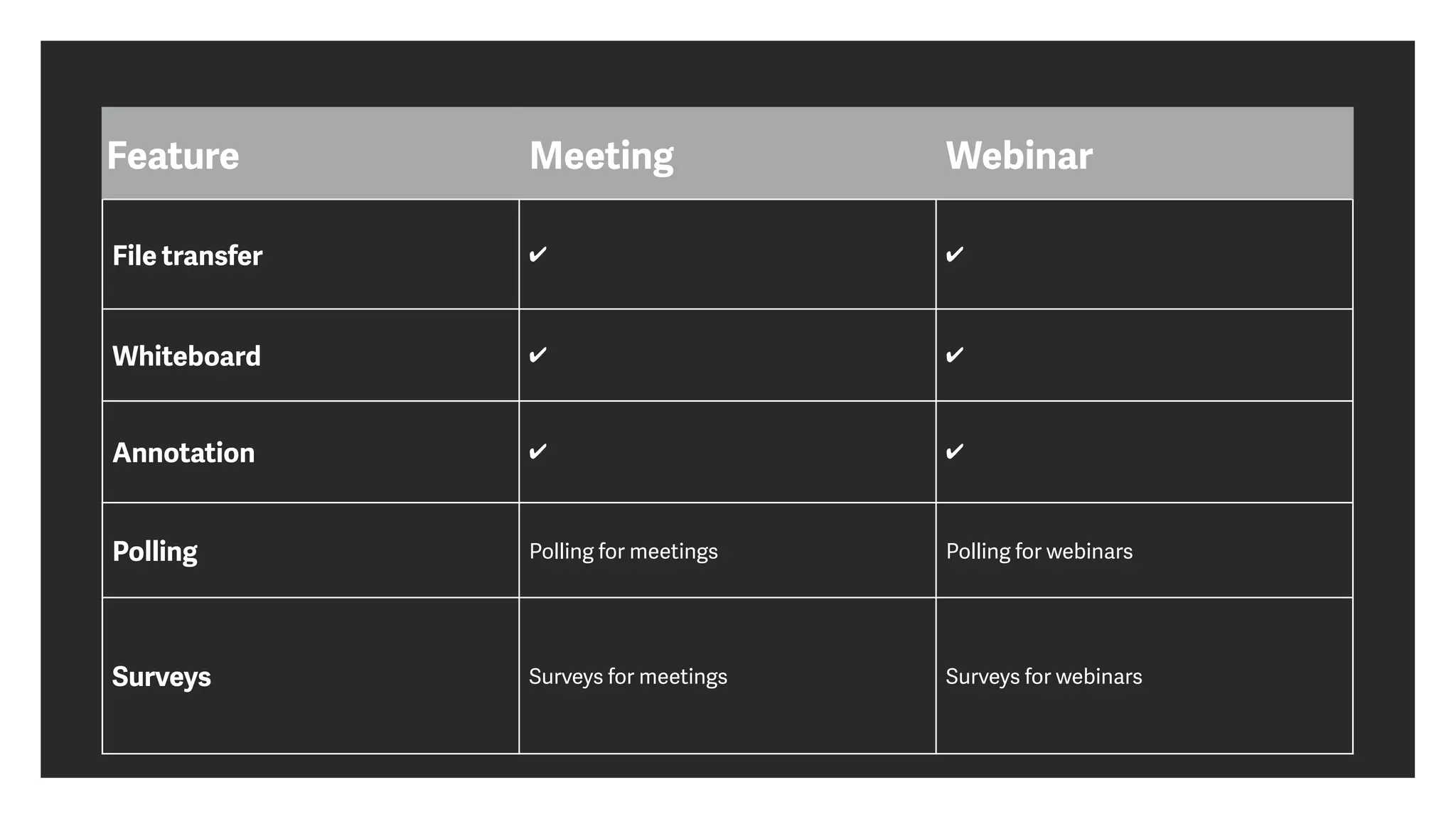
File transfer ✔ ✔
Whiteboard ✔ ✔
Annotation ✔ ✔
Polling Polling for meetings Polling for webinars
Surveys Surveys for meetings Surveys for webinars
Feature Meeting Webinar
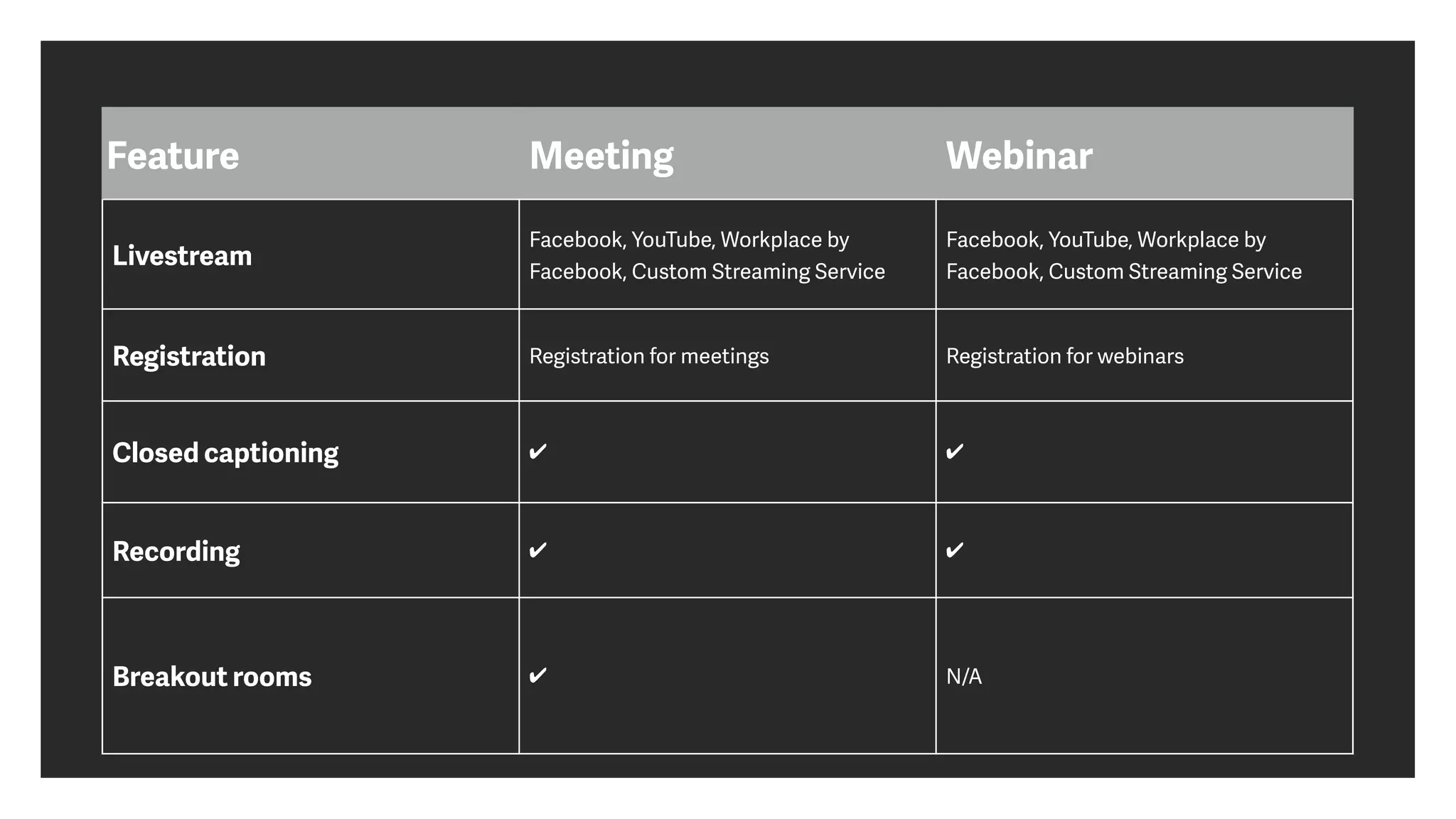
Livestream
Facebook, YouTube, Workplace by
Facebook, Custom Streaming Service
Facebook, YouTube, Workplace by
Facebook, Custom Streaming Service
Registration Registration for meetings Registration for webinars
Closed captioning ✔ ✔
Recording ✔ ✔
Breakout rooms ✔ N/A
Feature Meeting Webinar
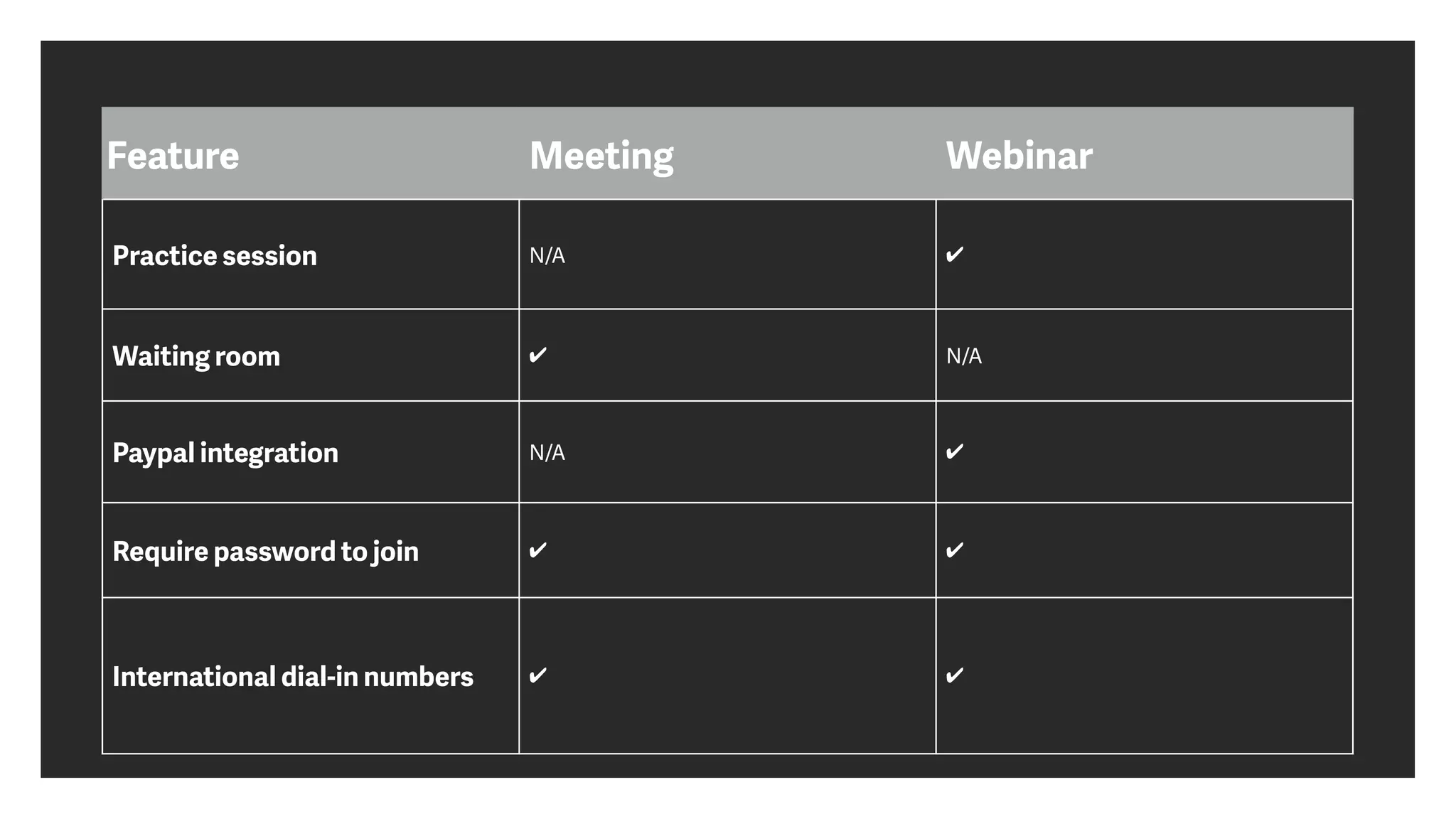
Practice session N/A ✔
Waiting room ✔ N/A
Paypal integration N/A ✔
Require password to join ✔ ✔
International dial-in numbers ✔ ✔
Bene
fi
ts of a
webinar
Why this method o
ft
en works well
Educating an Audience
• Webinars establish credibility quickly due to the ability
for live interaction


• It is possible to share nuanced experiences with an
audience as the feedback loop increases e
ffi
cacy


• The goal is to focus on education and not salesmanship…
con
fi
dent audience members will further engage
Educating an Audience
• Interactivity is key in learning


• Ensure that the content is well-paced and avoid
cramming the information


• Identify the objective for the webinar and ensure that
the content is in support of that goal


• Remove distractions and excess content so that the
message is streamlined
What Makes a Good Host?
• Credible about subject


• Relatable and approachable


• Clear-speaking


• Organized and detailed


• Able to adjust style or presentation in real-time based
upon the reaction of the audience


• Concerned about the success of others
Creating Action or Conversion
• Give people time to interact


• Reduce the duration of the webinar


• Insert call-to-actions into presentation


• O
ff
er take-aways


• Capture leads


• Send follow-up communication
Using breakout
rooms
Allow for small group interactivity
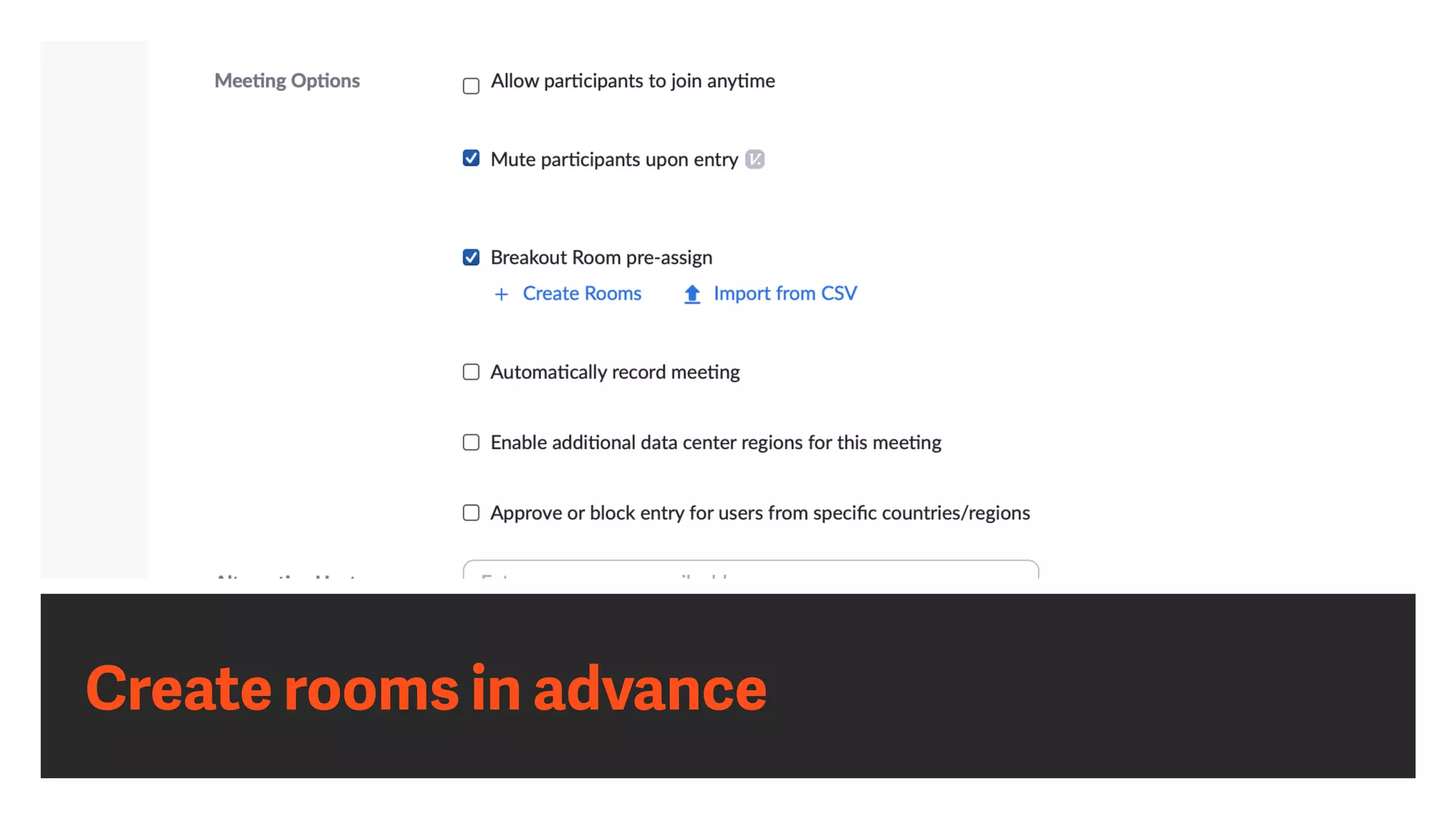
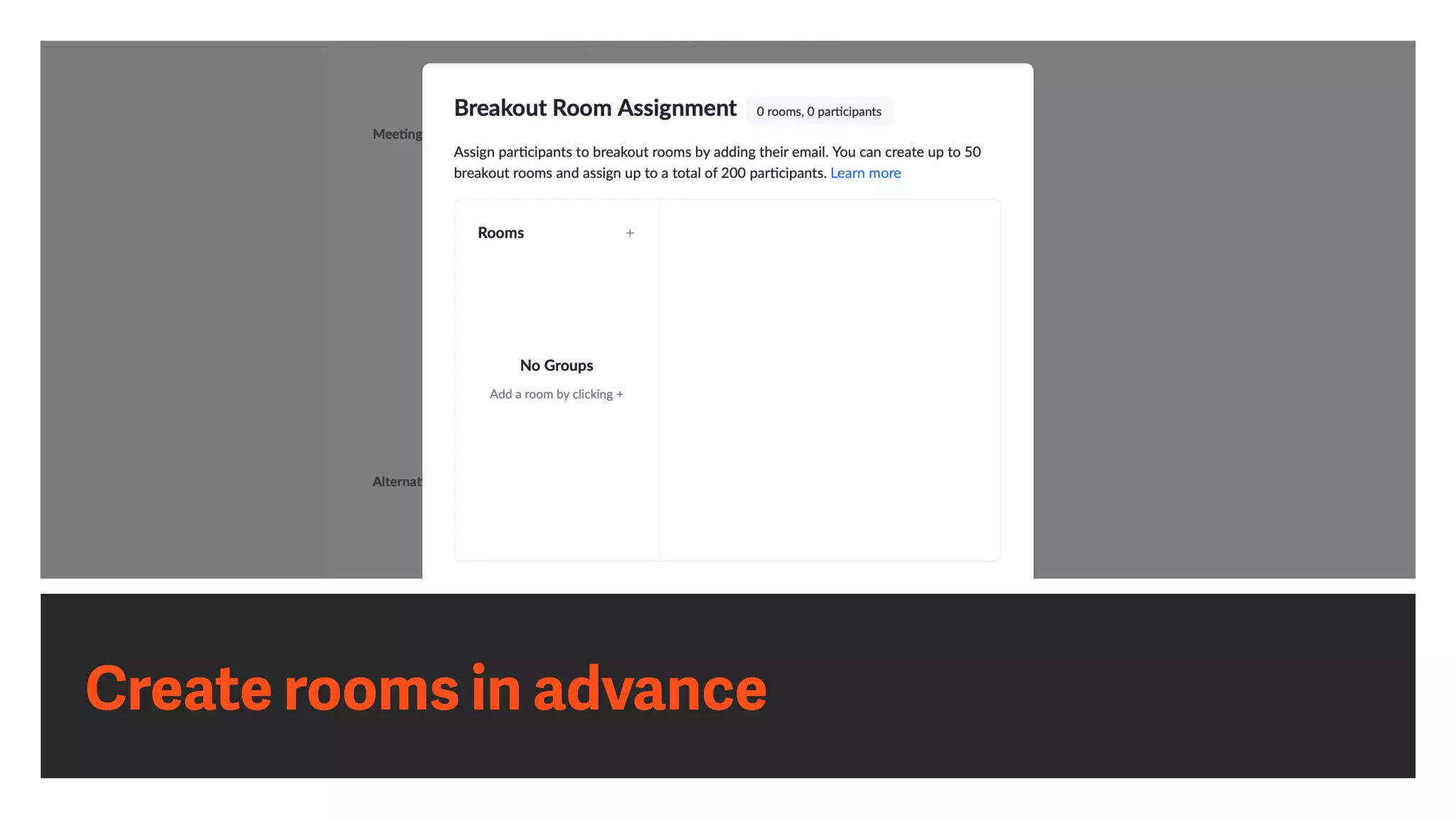
Create rooms in advance
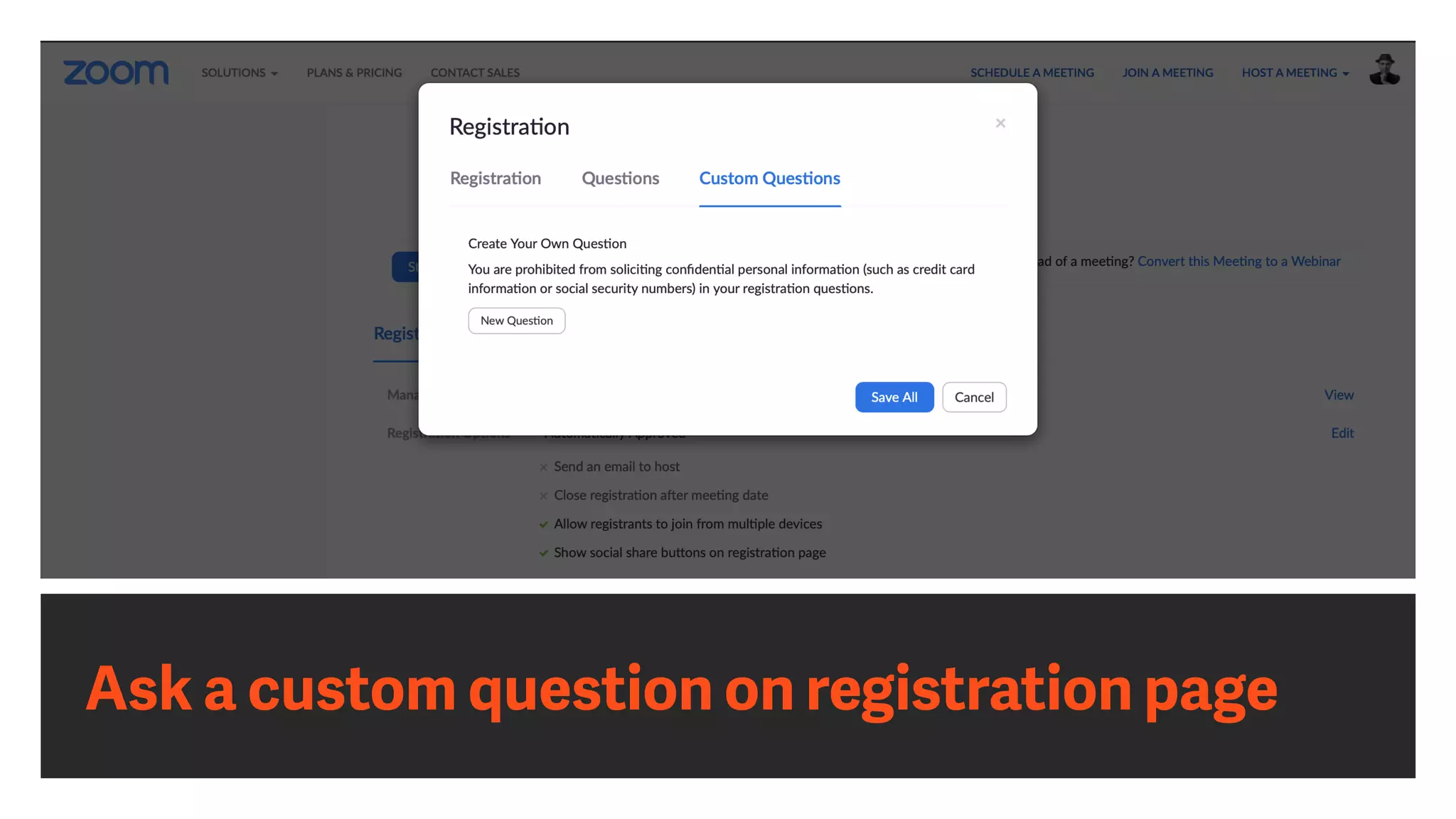
Ask a custom question on registration page
Can move people between rooms
Be sure to promote cohosts ahead of time
Extending the power
of Zoom with


essential apps
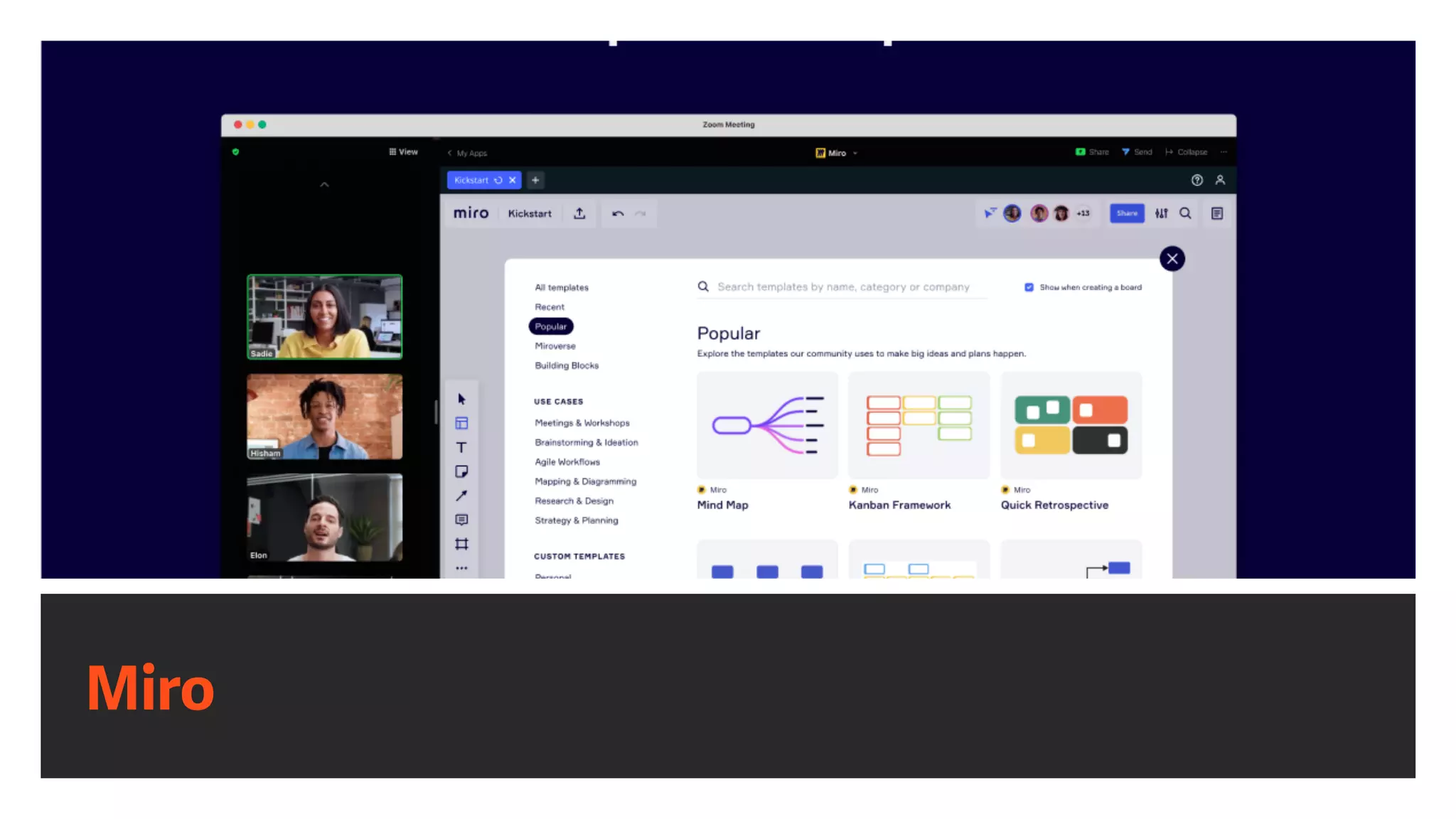
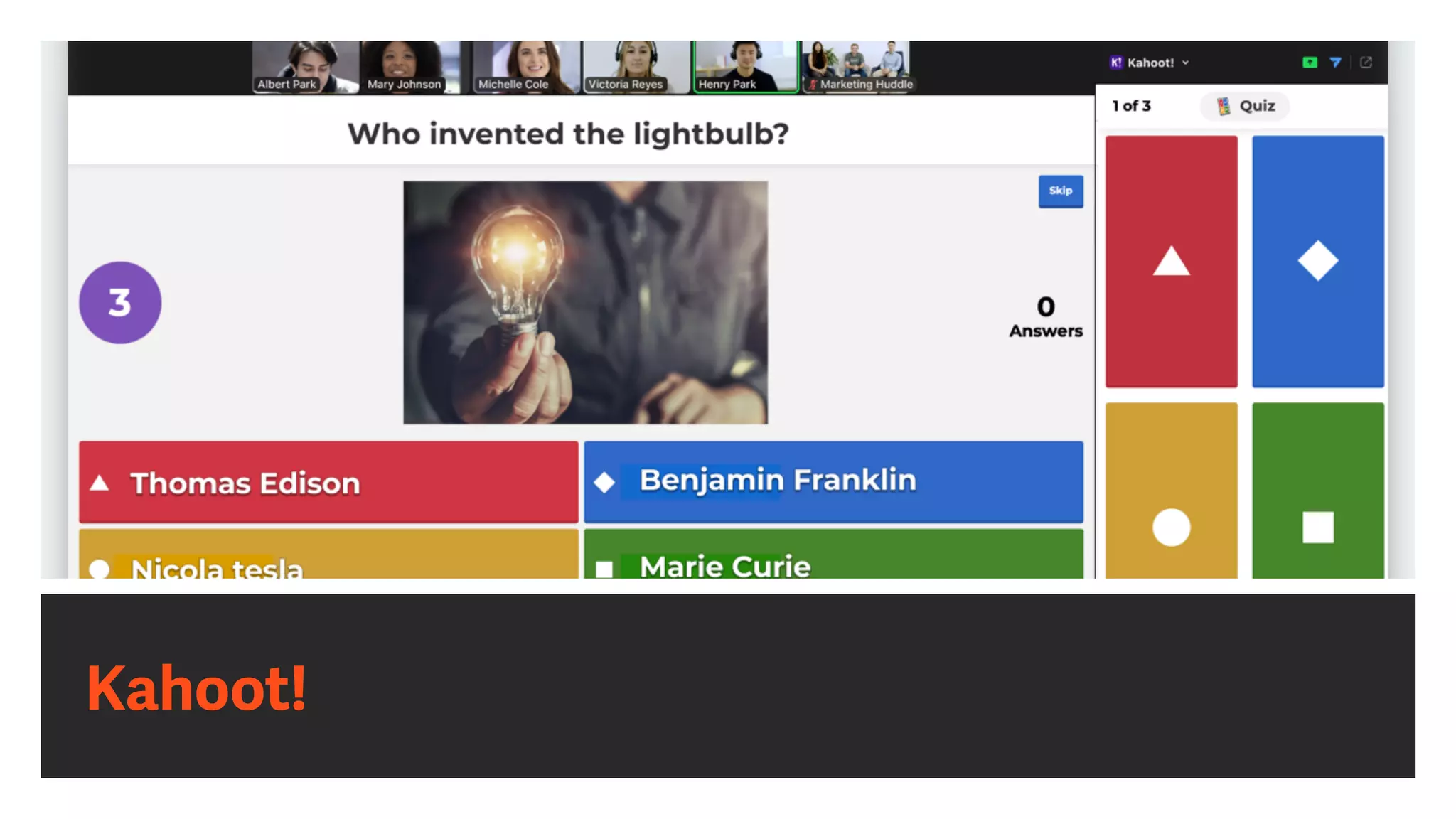
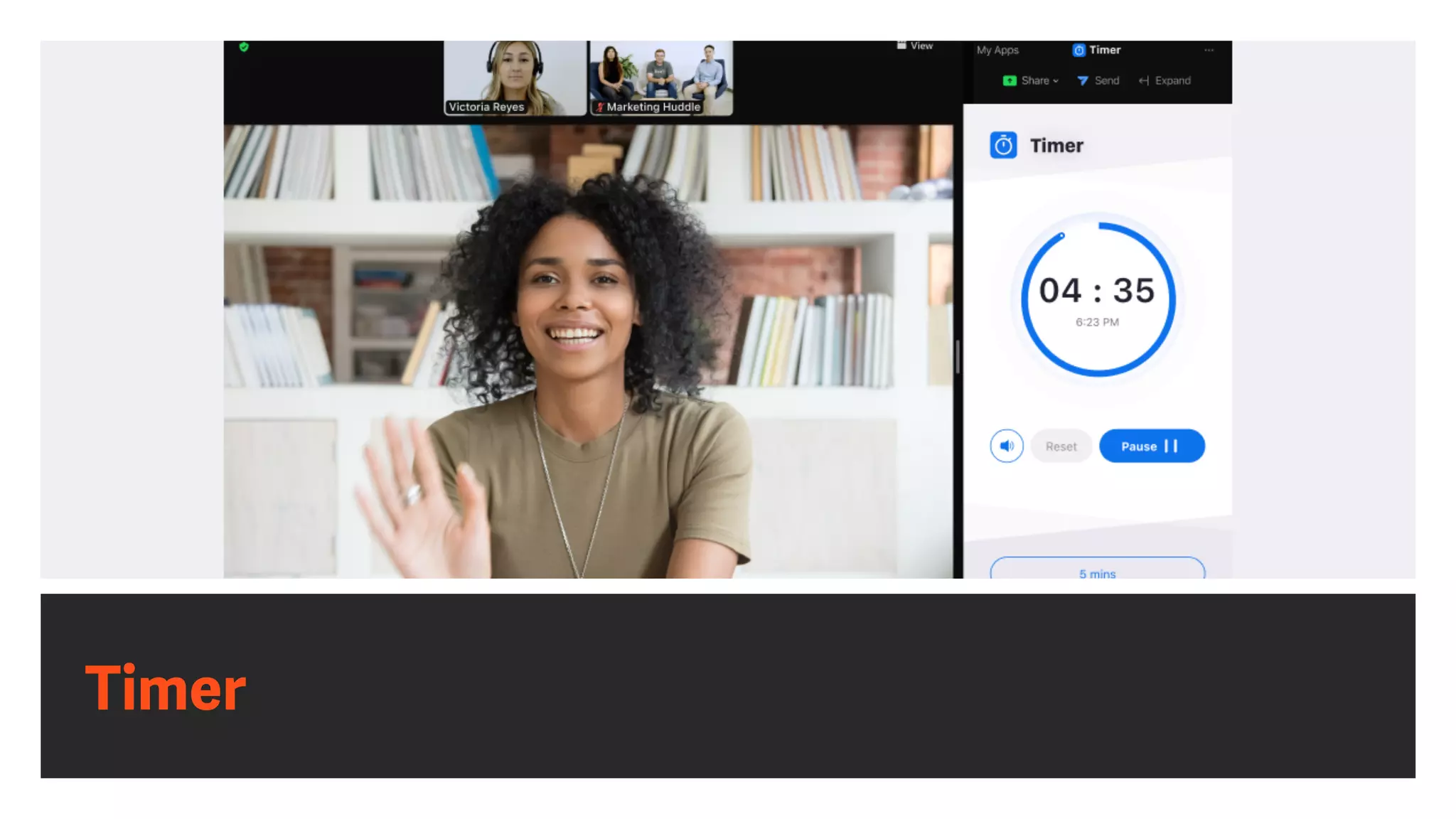
Useful add-ons
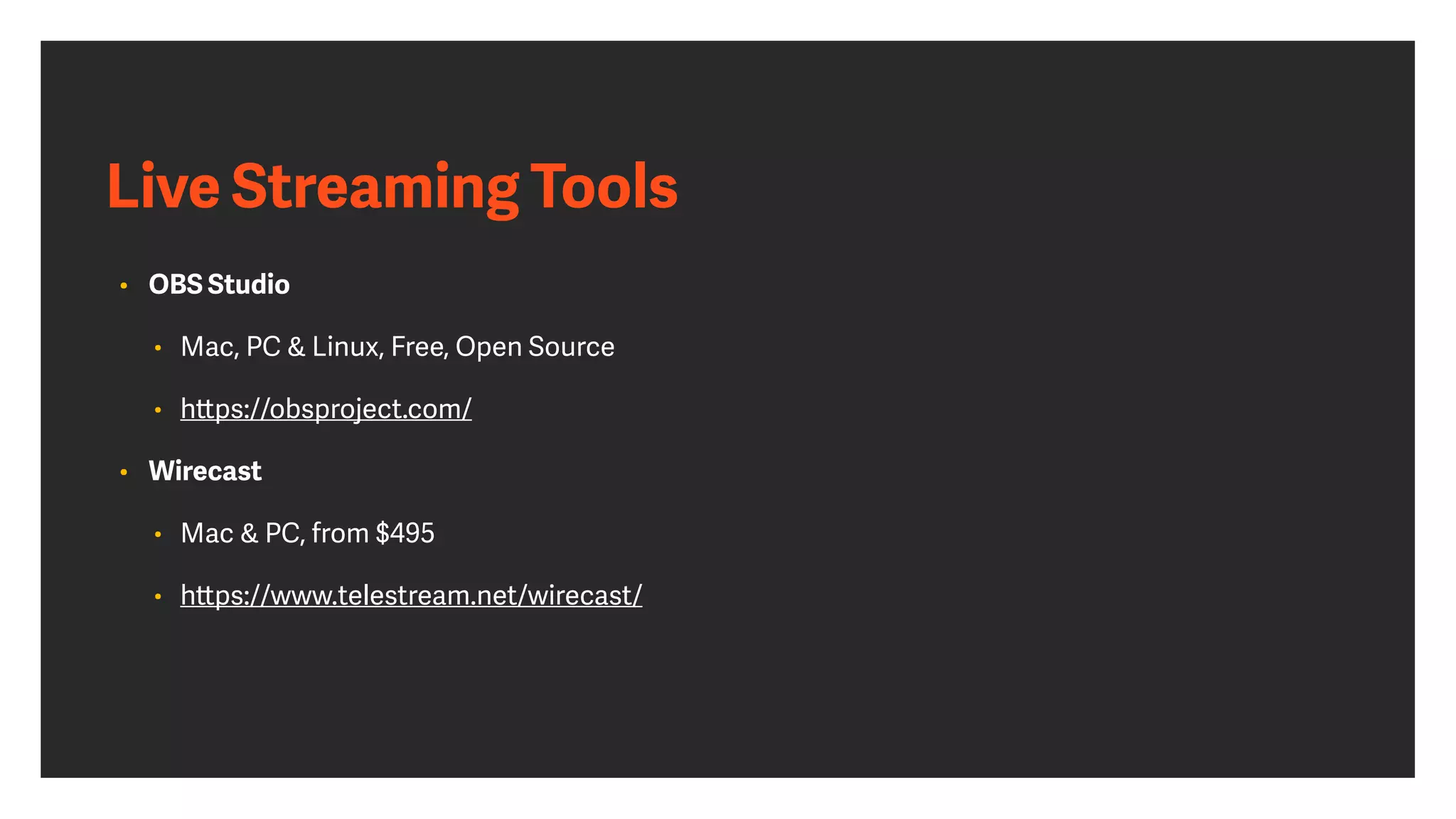
Live Streaming Tools
• OBS Studio 


• Mac, PC & Linux, Free, Open Source


• h
tt
ps://obsproject.com/


• Wirecast 


• Mac & PC, from $495


• h
tt
ps://www.telestream.net/wirecast/
Live Streaming Tools
• Ecamm Live


• Mac only, Standard: $16/mo or Pro: $32/mo


• h
tt
p://www.ecamm.com/mac/ecammlive


• ManyCam 


• Mac, Windows, from $20


• h
tt
ps://www.manycam.com
Controlling the Webcam
• iGlasses 


• Mac, $19


• h
tt
p://www.ecamm.com/mac/
iglasses


• Webcamoid 


• Mac & PC, open source


• h
tt
ps://webcamoid.github.io


• Logitech Capture


• Logitech camera owners


• h
tt
ps://support.logi.com/
h
tt
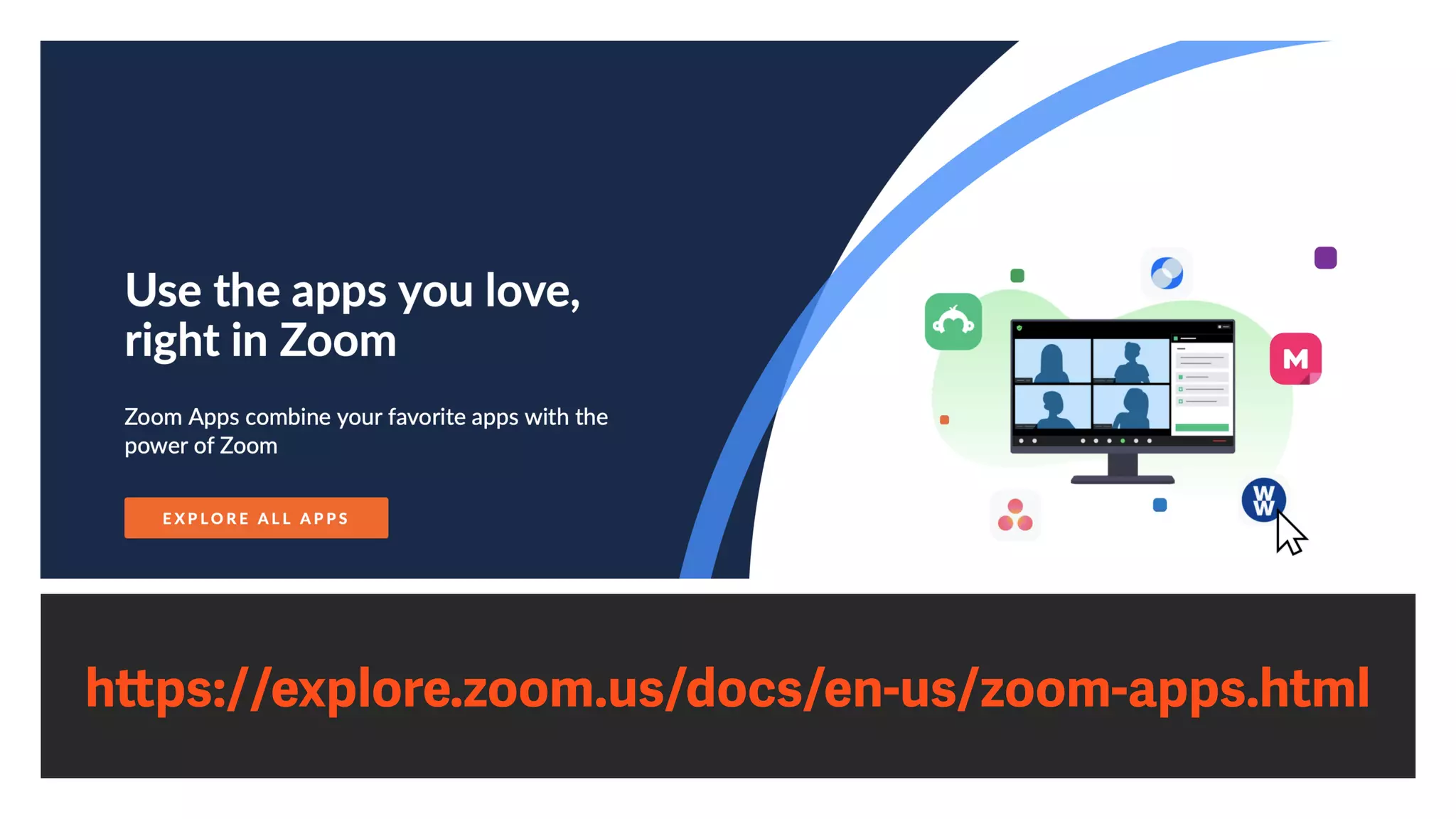
ps://explore.zoom.us/docs/en-us/zoom-apps.html
Virtual Backgrounds
Miro
Kahoot!
Timer
AI Notetaker by Fathom
How to con
fi
gure
preferences for
optimum video quality
Ge
tt
ing the best video
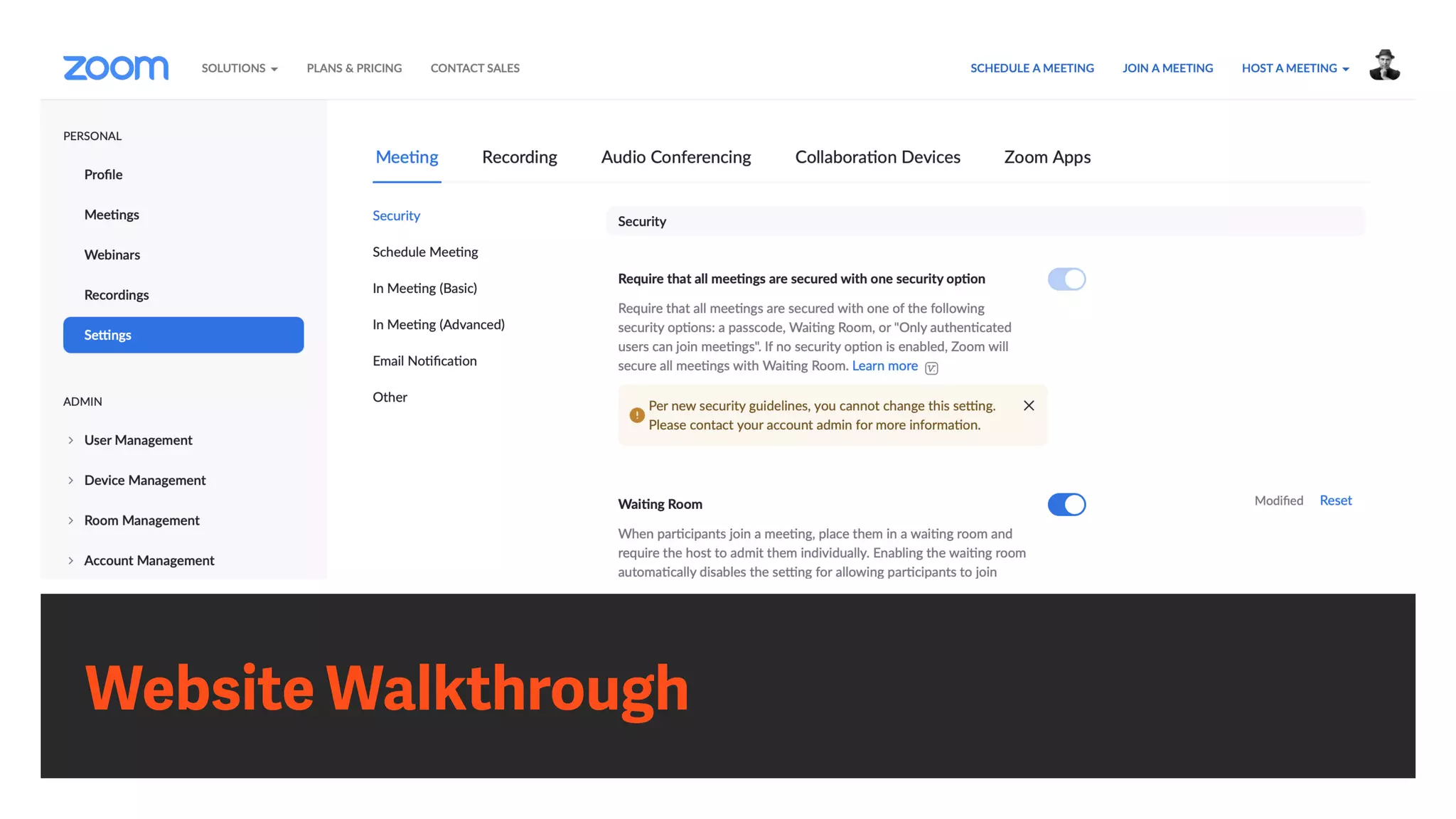
Website Walkthrough
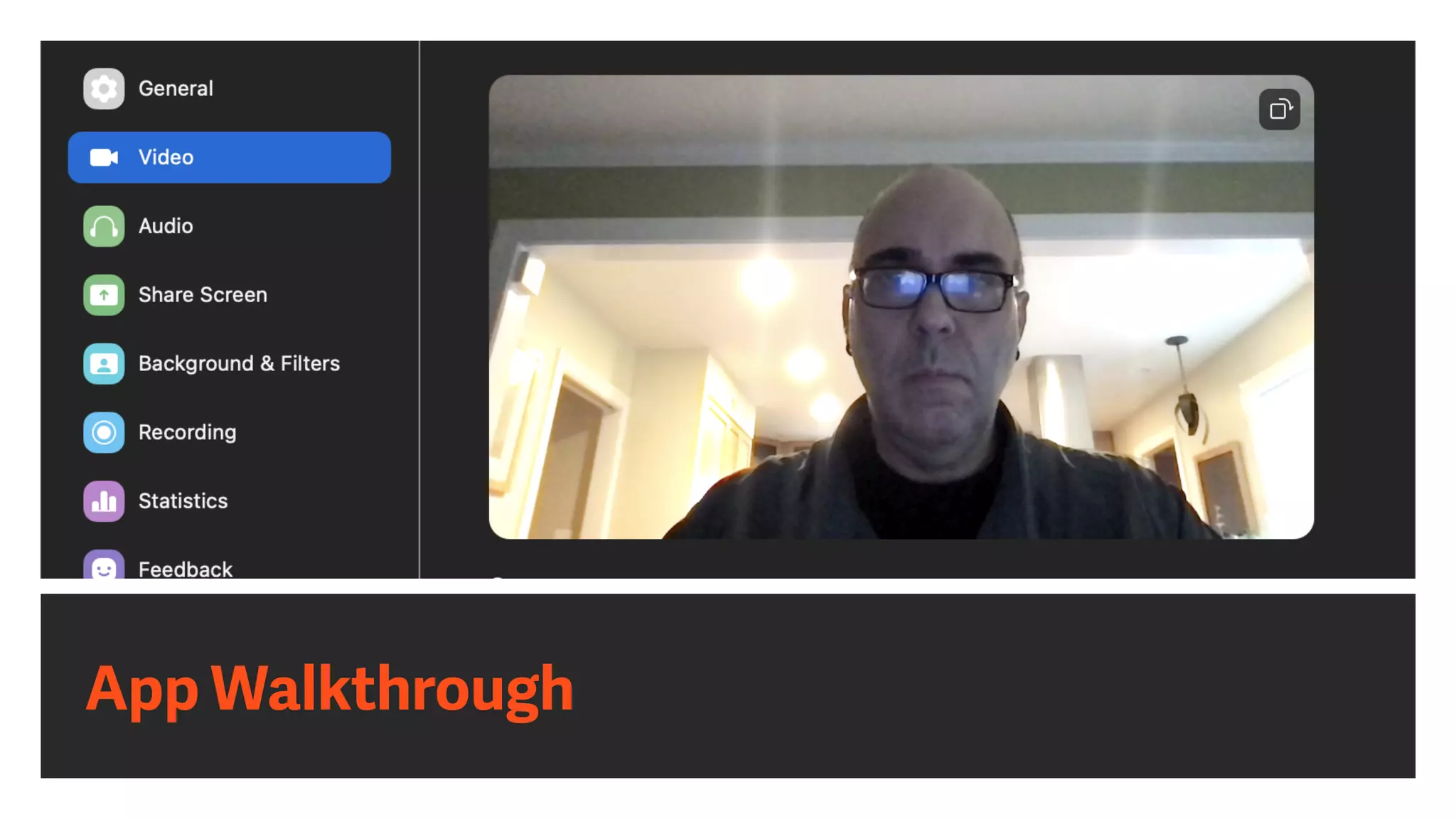
App Walkthrough
Internet Connection Options
• Ethernet


• Generally the fastest connection


• Less prone to interference


• Wi-Fi


• Ubiquitous, but has many potential issues


• Cellular


• Should be seen as a backup
Screen Resolution Choices
• 1920x1080


• SwitchResX for macOS

• CRITICAL
Minimizing Data Transfer
• Turn o
ff
syncing so
ft
ware


• Cloud storage


• Photo streams


• Turn o
ff
data transfers


• Network copies


• Stop downloads/uploads
Minimizing Data Transfer
• Check for activity on network


• Is a dedicated line an option?


• Reduce number of connected devices


• Check Activity Monitor on a Mac


• Check Resource Monitor and Task Manager on a PC
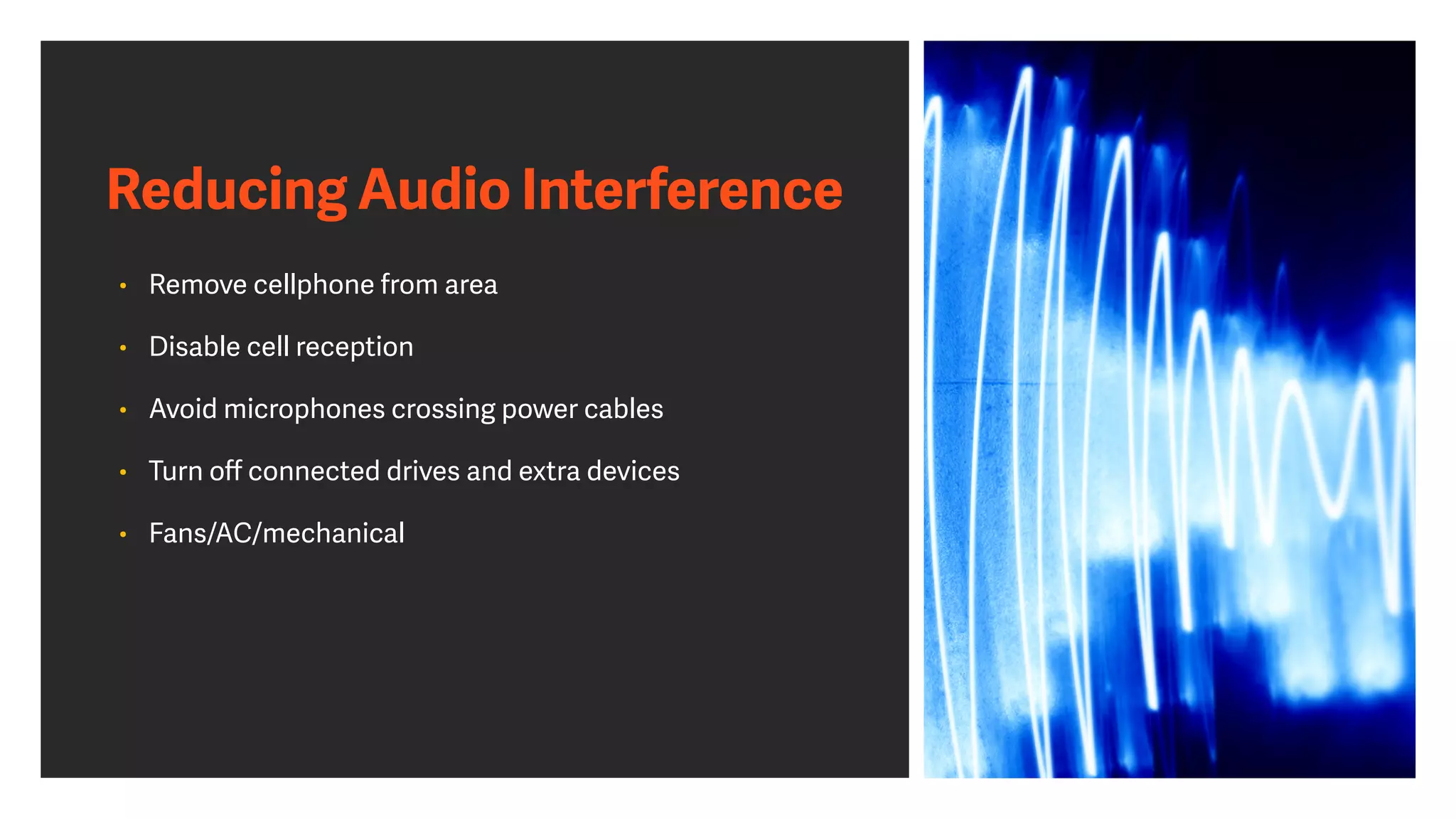
Reducing Audio Interference
• Remove cellphone from area


• Disable cell reception


• Avoid microphones crossing power cables


• Turn o
ff
connected drives and extra devices


• Fans/AC/mechanical
How to connect
professional audio and
video devices
Improve the quality
ATEM Mini Series
ATEM Mini Series
Monitoring
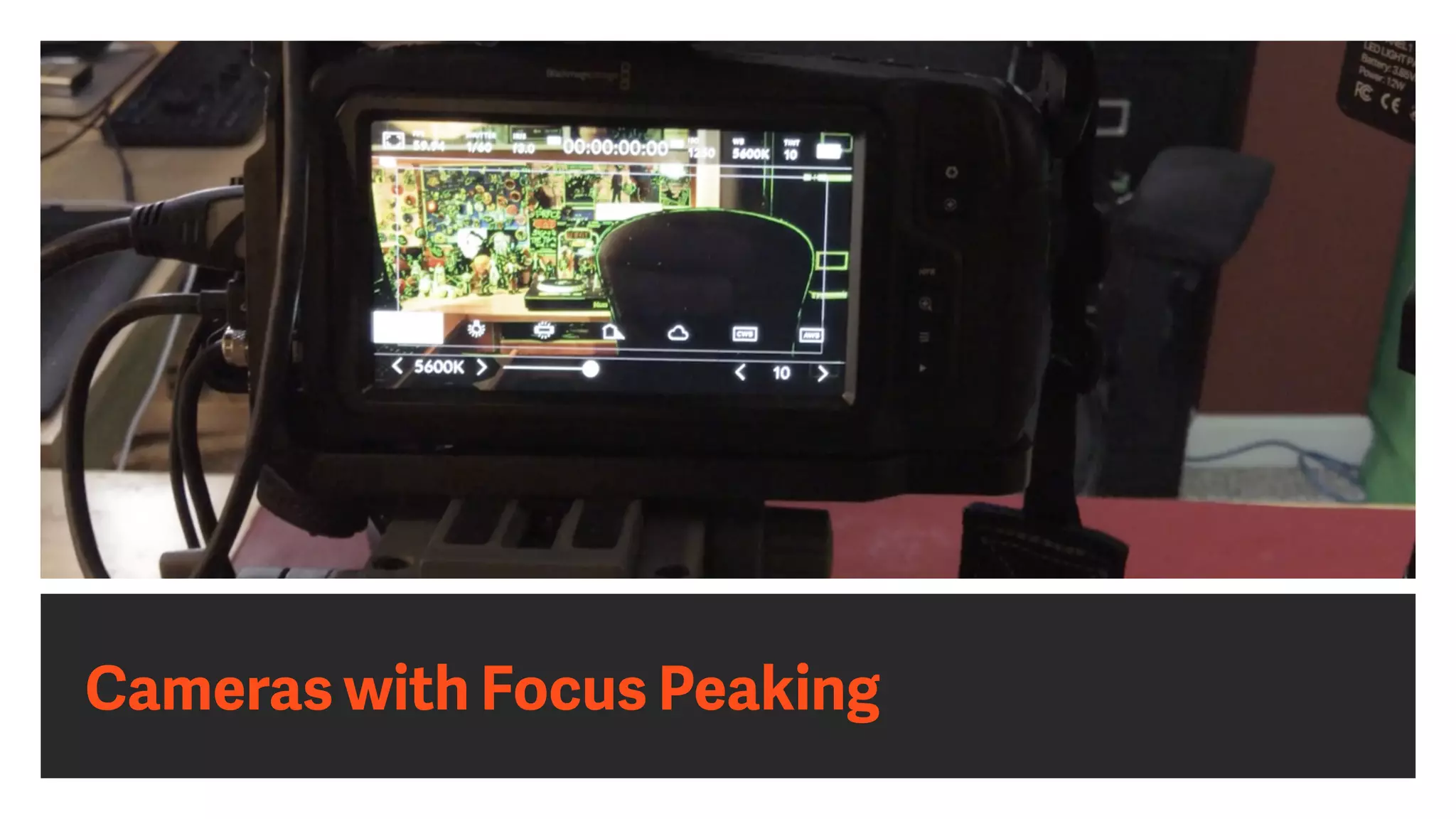
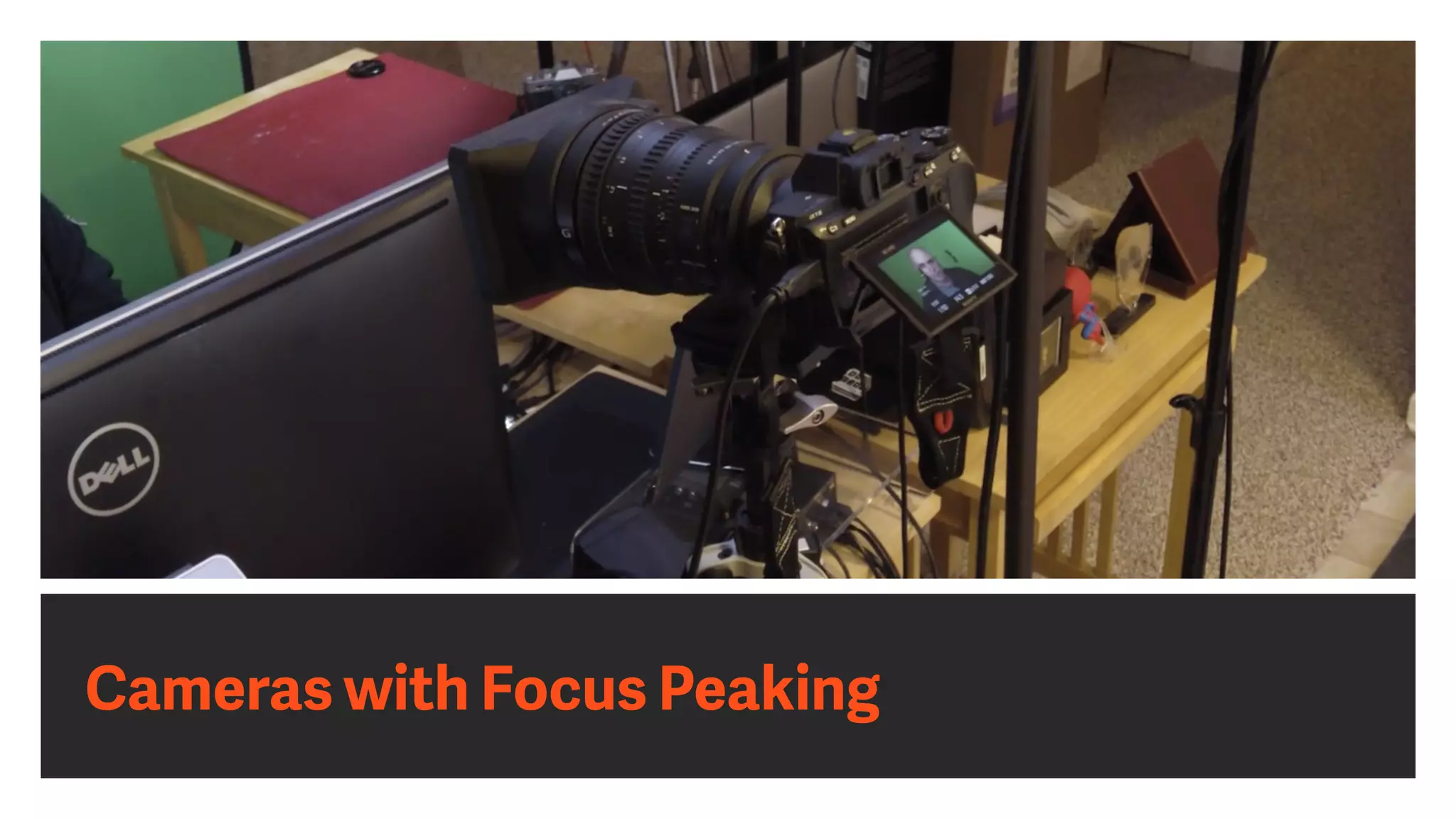
Cameras with Focus Peaking
Testing Picture and Sound
• Check all cables


• Ensure adequate lighting


• Do a test recording


• Perform a test stream


• Watch test on a second computer


• Watch test on a mobile device
Monitoring on a Second Computer
• Never watch on same computer as presenting


• Load a stream to see what audience sees


• Be sure to mute the volume to avoid an echo loop


• Have headphones plugged in so you can do a test listen
Engage your audience
with Q&A, Chat, Polls,
and Surveys
Increase interactivity
Planning for Audience Participation
• Social media pre-conversations


• Live polls & surveys


• Chat pod


• Q&A
Set up Polls
Set up Polls
Use Exit Surveys
Use Exit Surveys
Use Q&A
Affiliate Briefing #2
Richard Harrington, Juliana Chyzhova, and Dmitry Sytnik


with CEO Ivan Kutanin
17.09.2021
Q&A
POLL
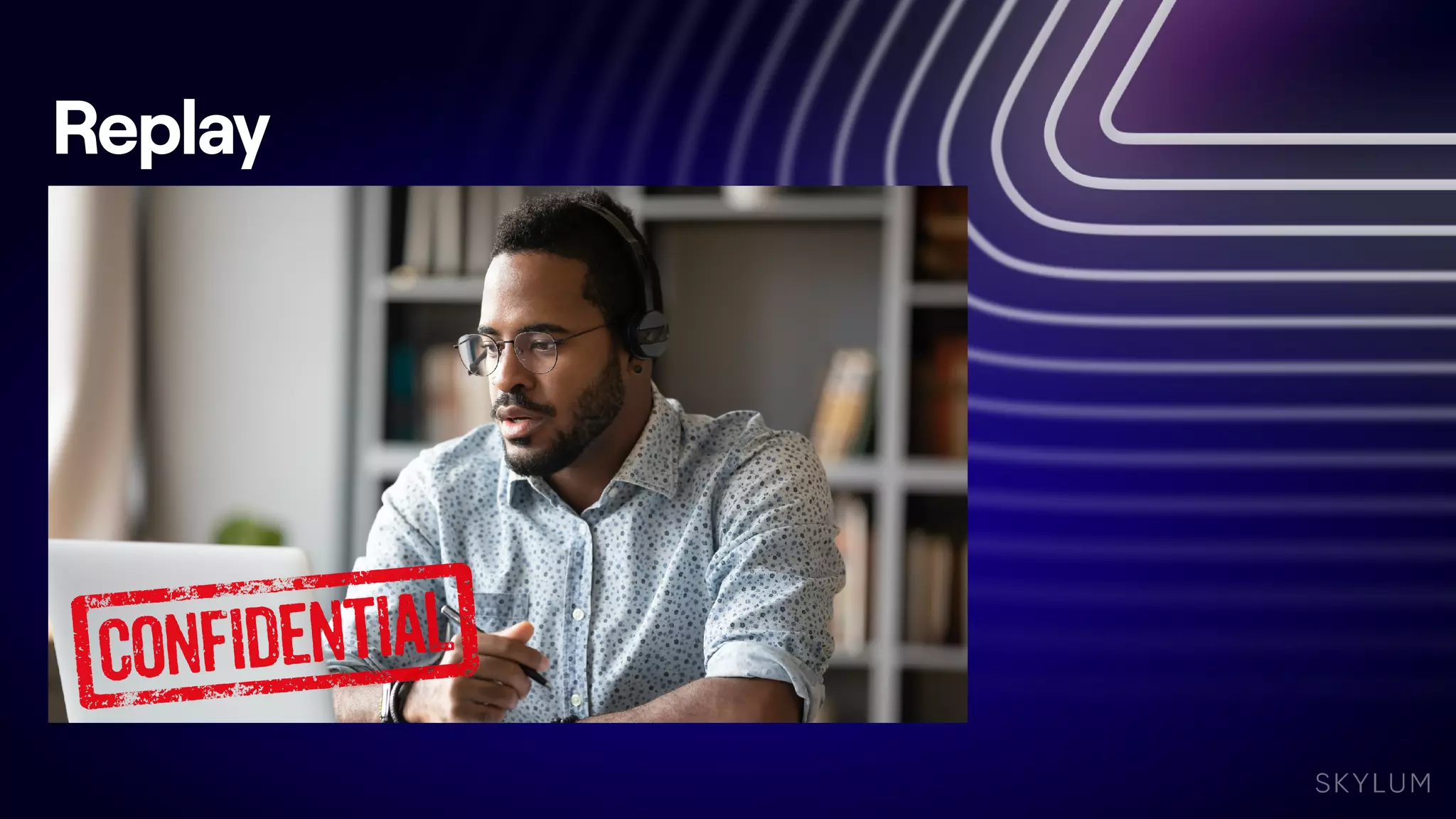
Replay
skylum.com/luminar-faq/neo/
general
insiders.skylum.com
How to generate
reports when the
events are done
How to track your performance
Reports
GETTING IN TOUCH
twi
tt
er.com/rhedpixel
facebook.com/
RichHarringtonStu
f
linkedin.com/in/
richardharrington
Photofocus.com
vimeo.com/rhedpixel
instagram.com/thinktap/
www.Photofocus.com
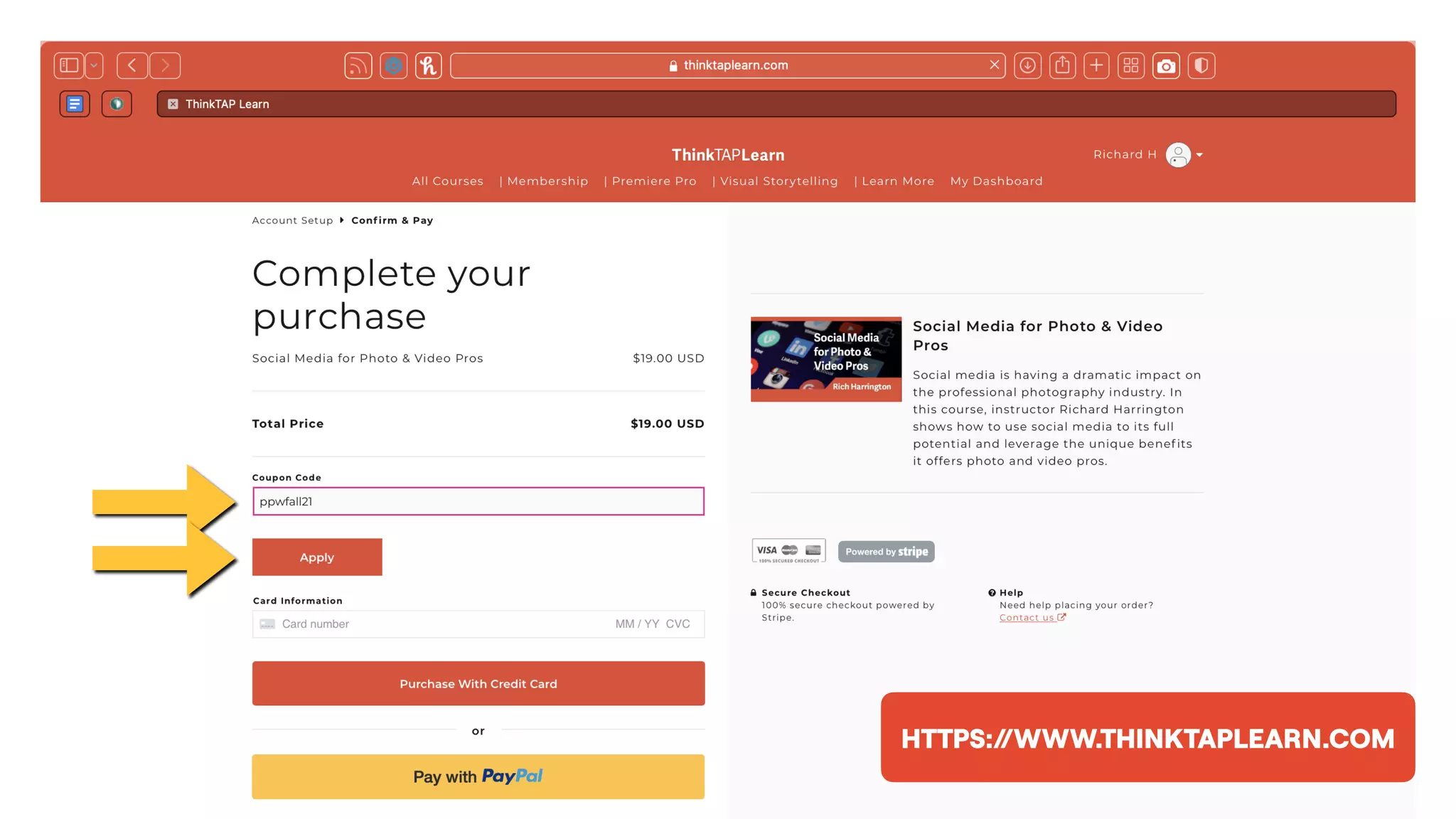
Choose a free class | Code = ppwfall21
HTTPS:/
/WWW.THINKTAPLEARN.COM
HTTPS:/
/WWW.THINKTAPLEARN.COM
HTTPS:/
/WWW.THINKTAPLEARN.COM
HTTPS:/
/WWW.THINKTAPLEARN.COM
EXPIRES 12.31.2021


LIMITED TO 1,000 USES
Choose a free class | Code = ppwfall21
BONUS
Removing Distractions
Removing Distractions and
Embarrassment
• Computer


• Hide clock


• Clear desktop


• Minimize desktop pa
tt
ern


• Hide dock/taskbar


• Cleanup shortcuts


• Dedicated user
Removing Distractions and
Embarrassment
• Web Browser


• Clear history


• Remove cache


• Hide unused tabs


• Hide favorites/bookmarks
Removing Distractions and
Embarrassment
• Physical location


• Remove distractions on desk/walls


• Consider privacy screen


• Simplify wardrobe


• Alert others to recording/broadcasting status
A Checklist Before Going Live
• Make sure content is organized


• Send out last-minute reminders and social media posts


• Check your Internet connection


• Verify a Plan B connection


• Remove any distractions
A Checklist Before Going Live
• Check your cables


• Clean lens of camera


• Run through slides and demo assets


• Setup a monitoring station


• Create a document with all links needed


• Have a backup computer standing by
A Checklist Before Going Live
• Have a glass of water nearby


• Eat a small meal


• Take any bio steps needed


• Relax for 15 minutes before starting


• Login 15-30 minutes early


• Start a backup recording

Producing Live Events 
on Zoom

  • 1.
    Producing Live Events 
 onZoom Essential production advice
  • 2.
    Description Are you incharge of running webinars or virtual meetings? Do you need to switch your in-person event to an online one? This class is perfect and fi lled with practical advice. Zoom has quickly become a popular tool for both businesses and consumers, but there’s more you can do to up your game.
  • 3.
    Agenda • How tochoose between meetings and webinars • Using breakout rooms for interactivity • Extending the power of Zoom with essential apps • How to con fi gure preferences for optimum video quality • How to connect professional audio and video devices • Engage your audience with Q&A, Chat, Polls, and Surveys • How to generate reports when the events are done
  • 4.
    Two questions toanswer in chat 1. What is your role as it relates to events or webinars? 2. What is your goal in a tt ending this session?
  • 5.
    Richard 
 Harrington I'm a visualstoryteller exploring 
 the fusion of photography and video. 
 I empower creatives with AI. 
 I'm also a husband & father.
  • 9.
    Vital Statistics • Author40+ Books • Author 200+ Video Courses • Publisher of Photofocus & ThinkTAP Learn • Conference Speaker • Consultant • Photographer • Director
  • 10.
    Past Projects • AmericaOnline • American Diabetes Association • American Israel Public A ff airs Commi tt ee • American Red Cross • Apple • Children's National Medical Center • Department of Veterans Administration • Drobo • Federal Communications Commission • Google • lynda.com • Microso ft • Skylum • Smithsonian Institute • Under Armour • US Air Force
  • 11.
    Advisory and ConsultantProjects • Television Networks • ABC News • CNN • Discovery Channel • Major League Baseball Network • NASCAR • Turner Networks 
 • Technology • Adobe Creative Cloud 
 Advisory Board • Apple • Athentech • Pearson Education • Skylum So ft ware
  • 13.
  • 14.
    Why I chooseto use the Zoom platform A few key things to note
  • 15.
    Why Zoom? • Relativelyeasy to use • Stable platform • Numerous safety controls • Reasonable record quality • Scalable pricing models
  • 16.
    Key Features |Before the Meeting • Signup pages • Social promotion • Reminders & noti fi cations • Lead capture • End-user tech support
  • 17.
    Key Features |During the Meeting • Slide-sharing • Screen-sharing • Polls & surveys • Video streaming • Ability to add panelists • Multiple platform support
  • 18.
    Key Features |A ft er the Meeting • Recordings made available • Ability to repeat session • Option to contact registrants • Downloadable leads • Downloadable viewing and survey data
  • 20.
  • 21.
    Zoom 
 Before the Meeting Signuppages Social promotion Reminders & noti fi cations Lead capture End-user tech support YouTube Before the Meeting Signup pages Social promotion Reminders & noti fi cations Lead capture End-user tech support Facebook Before the Meeting Signup pages Social promotion Reminders & noti fi cations Lead capture End-user tech support
  • 22.
    Zoom 
 During the Meeting Slide-&Screen sharing Polls & surveys Upload content in advance Video streaming Ability to add panelists Multiple platform support YouTube During the Meeting Slide-& Screen sharing Polls & surveys Upload content in advance Video streaming Ability to add panelists Multiple platform support Facebook During the Meeting Slide-& Screen sharing Polls & surveys Upload content in advance Video streaming Ability to add panelists Multiple platform support
  • 23.
    Zoom 
 A ft er the Meeting Recordingsmade available Ability to repeat session Option to contact registrants Downloadable leads Downloadable viewing and survey data YouTube A ft er the Meeting Recordings made available Ability to repeat session Option to contact registrants Downloadable leads Downloadable viewing and survey data Facebook A ft er the Meeting Recordings made available Ability to repeat session Option to contact registrants Downloadable leads Downloadable viewing and survey data
  • 24.
  • 25.
    Meeting Webinar Description Zoom meetingsare ideal for hosting more interactive sessions where you’ll want to have lots of audience participation or break your session into smaller groups. Think of webinars like a virtual lecture hall or auditorium. Ideal for large audiences or events that are open to the public. Typically, webinar a tt endees do not interact with one another. Best used for Small to large groups (2+ participants) for: • Customer-facing meetings • Sales meetings • Training sessions Large events and public broadcasts (50+ a tt endees) such as: • Town halls • Quarterly updates • Educational lectures
  • 26.
    Meeting Webinar Typically usedby • General employees • Training groups • Small groups with interactivity or breakouts • Event hosts • SVPs and C-Suite • Larger groups where greater moderation needed • When you need to hide a tt endees or size of group Cost Free and Paid subscription options available. Paid Add-on, available to Pro or higher subscriptions.
  • 27.
    Feature Meeting Webinar Participantroles Host and co-host Participant 
 Host and co-host Panelist A tt endee Audio sharing All participants can mute/unmute their own audio Host can mute/request to unmute Only the host and panelists can mute/ unmute their own audio A tt endees join in listen-only mode* Video sharing All participants Hosts and panelists Screen sharing ✔ ✔ Capacity Up to 100 with free license, up to 1,000 depending on plan and large meeting add-on. Ranging between 500-50,000 participants, depending on the license.
  • 28.
    Feature Meeting Webinar Participantslist Visible to all participants Visible to host and panelist Email reminders N/A If registration is enabled Chat In-meeting chat Webinar chat Meeting reactions ✔ Only raise hand Q&A N/A ✔
  • 29.
    Feature Meeting Webinar Filetransfer ✔ ✔ Whiteboard ✔ ✔ Annotation ✔ ✔ Polling Polling for meetings Polling for webinars Surveys Surveys for meetings Surveys for webinars
  • 30.
    Feature Meeting Webinar Livestream Facebook,YouTube, Workplace by Facebook, Custom Streaming Service Facebook, YouTube, Workplace by Facebook, Custom Streaming Service Registration Registration for meetings Registration for webinars Closed captioning ✔ ✔ Recording ✔ ✔ Breakout rooms ✔ N/A
  • 31.
    Feature Meeting Webinar Practicesession N/A ✔ Waiting room ✔ N/A Paypal integration N/A ✔ Require password to join ✔ ✔ International dial-in numbers ✔ ✔
  • 32.
    Bene fi ts of a webinar Whythis method o ft en works well
  • 33.
    Educating an Audience •Webinars establish credibility quickly due to the ability for live interaction • It is possible to share nuanced experiences with an audience as the feedback loop increases e ffi cacy • The goal is to focus on education and not salesmanship… con fi dent audience members will further engage
  • 34.
    Educating an Audience •Interactivity is key in learning • Ensure that the content is well-paced and avoid cramming the information • Identify the objective for the webinar and ensure that the content is in support of that goal • Remove distractions and excess content so that the message is streamlined
  • 35.
    What Makes aGood Host? • Credible about subject • Relatable and approachable • Clear-speaking • Organized and detailed • Able to adjust style or presentation in real-time based upon the reaction of the audience • Concerned about the success of others
  • 36.
    Creating Action orConversion • Give people time to interact • Reduce the duration of the webinar • Insert call-to-actions into presentation • O ff er take-aways • Capture leads • Send follow-up communication
  • 37.
    Using breakout rooms Allow forsmall group interactivity
  • 38.
  • 39.
  • 40.
    Ask a customquestion on registration page
  • 41.
    Can move peoplebetween rooms
  • 42.
    Be sure topromote cohosts ahead of time
  • 43.
    Extending the power ofZoom with 
 essential apps Useful add-ons
  • 44.
    Live Streaming Tools •OBS Studio  • Mac, PC & Linux, Free, Open Source • h tt ps://obsproject.com/ • Wirecast  • Mac & PC, from $495 • h tt ps://www.telestream.net/wirecast/
  • 45.
    Live Streaming Tools •Ecamm Live • Mac only, Standard: $16/mo or Pro: $32/mo • h tt p://www.ecamm.com/mac/ecammlive • ManyCam  • Mac, Windows, from $20 • h tt ps://www.manycam.com
  • 46.
    Controlling the Webcam •iGlasses  • Mac, $19 • h tt p://www.ecamm.com/mac/ iglasses • Webcamoid  • Mac & PC, open source • h tt ps://webcamoid.github.io • Logitech Capture • Logitech camera owners • h tt ps://support.logi.com/
  • 47.
  • 48.
  • 49.
  • 50.
  • 51.
  • 52.
  • 54.
    How to con fi gure preferencesfor optimum video quality Ge tt ing the best video
  • 55.
  • 56.
  • 57.
    Internet Connection Options •Ethernet • Generally the fastest connection • Less prone to interference • Wi-Fi • Ubiquitous, but has many potential issues • Cellular • Should be seen as a backup
  • 59.
    Screen Resolution Choices •1920x1080 • SwitchResX for macOS • CRITICAL
  • 60.
    Minimizing Data Transfer •Turn o ff syncing so ft ware • Cloud storage • Photo streams • Turn o ff data transfers • Network copies • Stop downloads/uploads
  • 61.
    Minimizing Data Transfer •Check for activity on network • Is a dedicated line an option? • Reduce number of connected devices • Check Activity Monitor on a Mac • Check Resource Monitor and Task Manager on a PC
  • 62.
    Reducing Audio Interference •Remove cellphone from area • Disable cell reception • Avoid microphones crossing power cables • Turn o ff connected drives and extra devices • Fans/AC/mechanical
  • 63.
    How to connect professionalaudio and video devices Improve the quality
  • 64.
  • 65.
  • 66.
  • 67.
  • 68.
  • 69.
    Testing Picture andSound • Check all cables • Ensure adequate lighting • Do a test recording • Perform a test stream • Watch test on a second computer • Watch test on a mobile device
  • 70.
    Monitoring on aSecond Computer • Never watch on same computer as presenting • Load a stream to see what audience sees • Be sure to mute the volume to avoid an echo loop • Have headphones plugged in so you can do a test listen
  • 71.
    Engage your audience withQ&A, Chat, Polls, and Surveys Increase interactivity
  • 72.
    Planning for AudienceParticipation • Social media pre-conversations • Live polls & surveys • Chat pod • Q&A
  • 73.
  • 74.
  • 75.
  • 76.
  • 77.
  • 78.
    Affiliate Briefing #2 RichardHarrington, Juliana Chyzhova, and Dmitry Sytnik with CEO Ivan Kutanin 17.09.2021
  • 79.
  • 80.
  • 82.
  • 83.
  • 84.
  • 85.
    How to generate reportswhen the events are done How to track your performance
  • 86.
  • 88.
  • 92.
  • 94.
    Choose a freeclass | Code = ppwfall21
  • 95.
  • 96.
  • 97.
  • 98.
  • 99.
    Choose a freeclass | Code = ppwfall21
  • 100.
  • 101.
  • 102.
    Removing Distractions and Embarrassment •Computer • Hide clock • Clear desktop • Minimize desktop pa tt ern • Hide dock/taskbar • Cleanup shortcuts • Dedicated user
  • 103.
    Removing Distractions and Embarrassment •Web Browser • Clear history • Remove cache • Hide unused tabs • Hide favorites/bookmarks
  • 104.
    Removing Distractions and Embarrassment •Physical location • Remove distractions on desk/walls • Consider privacy screen • Simplify wardrobe • Alert others to recording/broadcasting status
  • 105.
  • 106.
    A Checklist BeforeGoing Live • Make sure content is organized • Send out last-minute reminders and social media posts • Check your Internet connection • Verify a Plan B connection • Remove any distractions
  • 107.
    A Checklist BeforeGoing Live • Check your cables • Clean lens of camera • Run through slides and demo assets • Setup a monitoring station • Create a document with all links needed • Have a backup computer standing by
  • 108.
    A Checklist BeforeGoing Live • Have a glass of water nearby • Eat a small meal • Take any bio steps needed • Relax for 15 minutes before starting • Login 15-30 minutes early • Start a backup recording