ZOOM meeting App: User Manual
(For Android & Windows)
By
Abdul Rehman
Introduction: ZOOM Video Communications
• Zoom provides the first Unified Meeting Experience platform
that brings HD video conferencing, mobility and web
meetings.
• Easy to use video conferencing program that allows for
multiple participants, audio and video sharing, screen sharing,
working on a whiteboard and recording, with up to 100
people or rooms.
• It is available for Windows, Mac, iOS as well as Android
platform.
Working with Zoom: Windows
I. Setting up an Account & Downloading the Meeting Client
A. Setting up an Account:
• You will need to set up a free account to use Zoom if you do not
already have one.
• To set up free account, go to https://zoom.us. Click on the Sign Up,
It’s Free button in the upper righthand corner of the screen.
• Follow the on screen instructions. A free trial allows you to host
meetings that last up to 40 minutes
I. Setting up an Account & Downloading the Meeting Client (in contd).
B. Downloading the Meetings Client:
• You will need to download the Zoom Meetings Client from
https://zoom.us.
• Scroll to the bottom of the page. Click on the Meetings Client link
under the Downloads section of the menu.
II. Logging In
III. Starting our meeting
III.
III. A.
*Onlyavailableonprofessionalpaidlicenses
IV. Inviting the Participants
IV.A.
IV.B.
IV.C.
V. Chatting with participants
V.A.
V.B.
V.C.
V.D.
VI. Screen Sharing
Screen Sharing (in contd).
VII.A.
VII.C.
VII.D.
VII.B.
VII.E. VII.F. VII.G.
Screen Sharing (in contd).: Toolbar
Screen Sharing (in contd).: Annotations Toolbar
Annotations
allows to
provide online
drawings, text
insertion, as
well as, calling
out attention
to specific
information
with a
spotlight tool.
ZOOM Video Communications: Androids
Working with Zoom: Android platform
• Using Zoom with
android platform
is easy-to-do
with features to
join new HD
video
conferencing.
• App can be
downloaded
from Google play
store
Open the app
and click sign in
I. Zoom app Android home page
II. Schedule a meeting
•Click on
schedule a
meeting .
•Enter the
time and
date.
III. Joining a meeting
• Once you know the
meeting ID or
personal link name,
you can join the
meeting without any
difficulty.
• Choose name you’d
like to use in the
meeting and if you’d
like to connect your
audio or video
IV. Our meetings
• Tapping on Meeting icon
will display any upcoming
meetings and will allow to
start any from mobile
device.
• We can also start our
personal room and share
the details via email or text
message/whatsapp.
V. Contacts
Clicking on the star will add
them as favourite
Contacts tab will allow us to search users who have a zoom account within our connections.
VI. Starting our Personal Meeting ID (PMI)
• Clicking on new meeting
will start our personal
room.
• Before joining we can
decide if we’d like to join
with video on/off.
VII. Participants and chat
• Clicking on
“Participates” will
allow us to see all
members of the
meeting and will have
ability to see text chat.
• As host we can be
able to remove users
and mute by selecting
their names
Selecting chat will allow
to Instant message (IM)
everyone or selected
people from drop down
list
VIII. Meeting settings
• Selecting more
will bring up
additional
options.
• One of these is
meeting seeting.
• This enables to
modify our on-
going meeting
being the host.
• Lock the
meeting and
restrict
participant chat
are also
available options
IX. Sharing Content
Selecting “Share content”
will allow us to share our
phone screen, photos or
web browser contents.
Limitations: Zoom meetings
Basic Plan includes:
• Unlimited number of meetings (one meeting at a time)
• No expiration date
• No time limit for 1-on-1 meetings
• 40 minute limit on meetings with 3-100 people.
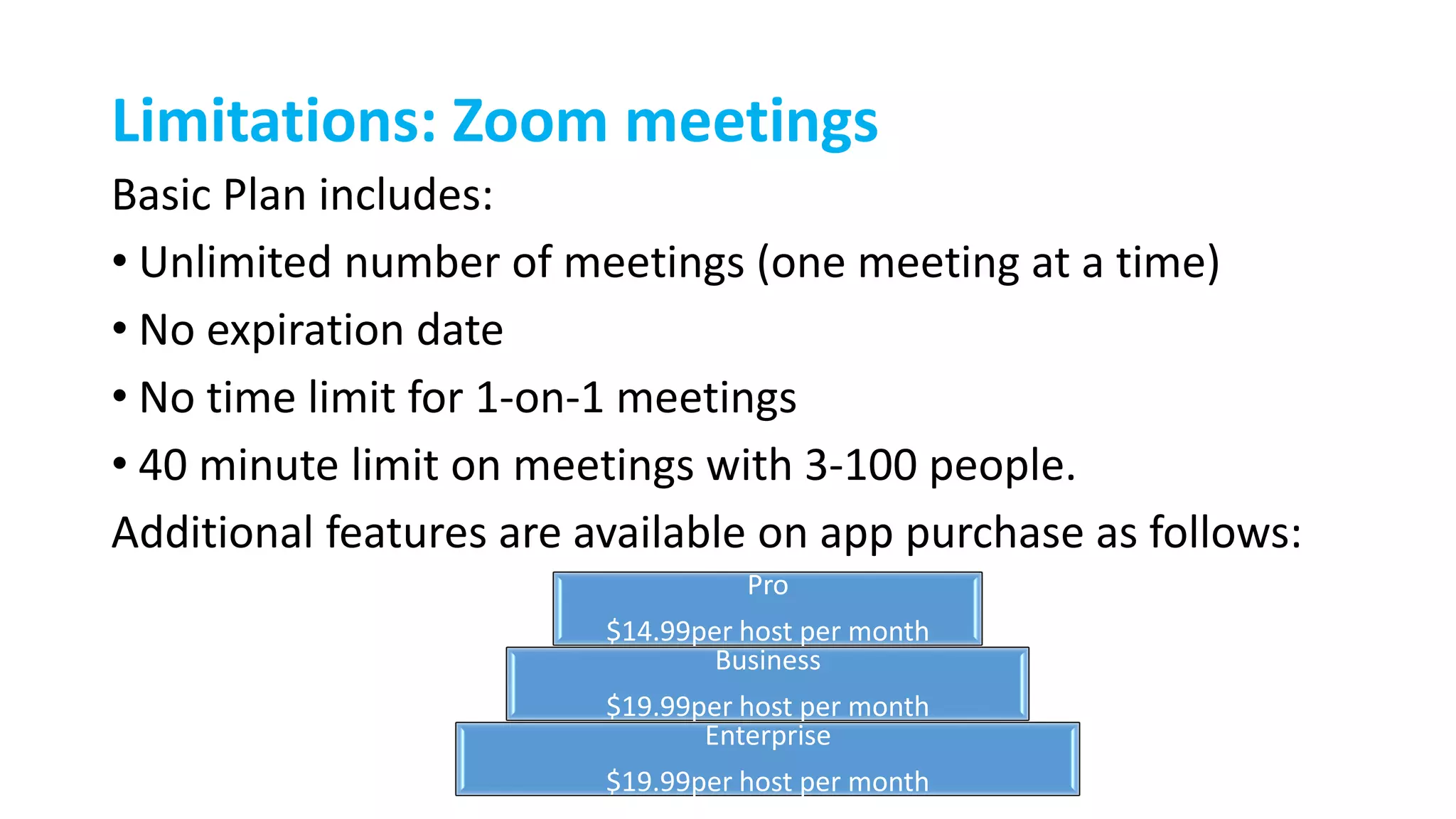
Additional features are available on app purchase as follows:
Pro
$14.99per host per month
Business
$19.99per host per month
Enterprise
$19.99per host per month
Zoom app

Zoom app

  • 1.
    ZOOM meeting App:User Manual (For Android & Windows) By Abdul Rehman
  • 2.
    Introduction: ZOOM VideoCommunications • Zoom provides the first Unified Meeting Experience platform that brings HD video conferencing, mobility and web meetings. • Easy to use video conferencing program that allows for multiple participants, audio and video sharing, screen sharing, working on a whiteboard and recording, with up to 100 people or rooms. • It is available for Windows, Mac, iOS as well as Android platform.
  • 3.
    Working with Zoom:Windows I. Setting up an Account & Downloading the Meeting Client A. Setting up an Account: • You will need to set up a free account to use Zoom if you do not already have one. • To set up free account, go to https://zoom.us. Click on the Sign Up, It’s Free button in the upper righthand corner of the screen. • Follow the on screen instructions. A free trial allows you to host meetings that last up to 40 minutes
  • 4.
    I. Setting upan Account & Downloading the Meeting Client (in contd). B. Downloading the Meetings Client: • You will need to download the Zoom Meetings Client from https://zoom.us. • Scroll to the bottom of the page. Click on the Meetings Client link under the Downloads section of the menu.
  • 5.
  • 6.
    III. Starting ourmeeting III. III. A.
  • 7.
  • 8.
    IV. Inviting theParticipants IV.A. IV.B. IV.C.
  • 9.
    V. Chatting withparticipants V.A. V.B. V.C. V.D.
  • 10.
  • 11.
    Screen Sharing (incontd). VII.A. VII.C. VII.D. VII.B. VII.E. VII.F. VII.G.
  • 12.
    Screen Sharing (incontd).: Toolbar
  • 13.
    Screen Sharing (incontd).: Annotations Toolbar Annotations allows to provide online drawings, text insertion, as well as, calling out attention to specific information with a spotlight tool.
  • 14.
  • 15.
    Working with Zoom:Android platform • Using Zoom with android platform is easy-to-do with features to join new HD video conferencing. • App can be downloaded from Google play store Open the app and click sign in
  • 16.
    I. Zoom appAndroid home page
  • 17.
    II. Schedule ameeting •Click on schedule a meeting . •Enter the time and date.
  • 18.
    III. Joining ameeting • Once you know the meeting ID or personal link name, you can join the meeting without any difficulty. • Choose name you’d like to use in the meeting and if you’d like to connect your audio or video
  • 19.
    IV. Our meetings •Tapping on Meeting icon will display any upcoming meetings and will allow to start any from mobile device. • We can also start our personal room and share the details via email or text message/whatsapp.
  • 20.
    V. Contacts Clicking onthe star will add them as favourite Contacts tab will allow us to search users who have a zoom account within our connections.
  • 21.
    VI. Starting ourPersonal Meeting ID (PMI) • Clicking on new meeting will start our personal room. • Before joining we can decide if we’d like to join with video on/off.
  • 22.
    VII. Participants andchat • Clicking on “Participates” will allow us to see all members of the meeting and will have ability to see text chat. • As host we can be able to remove users and mute by selecting their names Selecting chat will allow to Instant message (IM) everyone or selected people from drop down list
  • 23.
    VIII. Meeting settings •Selecting more will bring up additional options. • One of these is meeting seeting. • This enables to modify our on- going meeting being the host. • Lock the meeting and restrict participant chat are also available options
  • 24.
    IX. Sharing Content Selecting“Share content” will allow us to share our phone screen, photos or web browser contents.
  • 25.
    Limitations: Zoom meetings BasicPlan includes: • Unlimited number of meetings (one meeting at a time) • No expiration date • No time limit for 1-on-1 meetings • 40 minute limit on meetings with 3-100 people. Additional features are available on app purchase as follows: Pro $14.99per host per month Business $19.99per host per month Enterprise $19.99per host per month