Using Zoom at your Church
Mondays at 2PM EST 11AM PST
Topic: Church Communications Era of
Mixed (Local + Remote)
The New Normal?
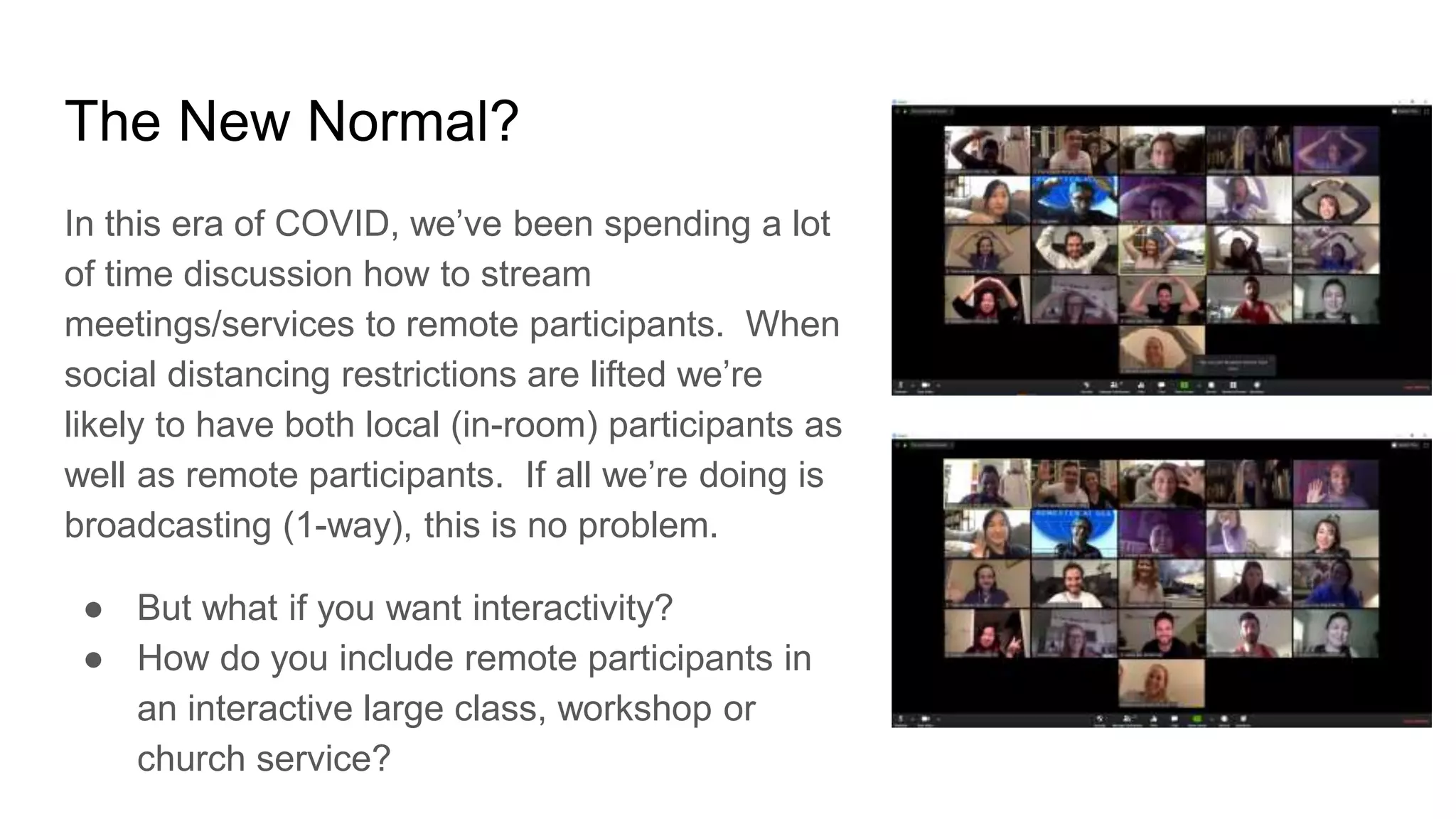
In this era of COVID, we’ve been spending a lot
of time discussion how to stream
meetings/services to remote participants. When
social distancing restrictions are lifted we’re
likely to have both local (in-room) participants as
well as remote participants. If all we’re doing is
broadcasting (1-way), this is no problem.
● But what if you want interactivity?
● How do you include remote participants in
an interactive large class, workshop or
church service?
The New Normal?
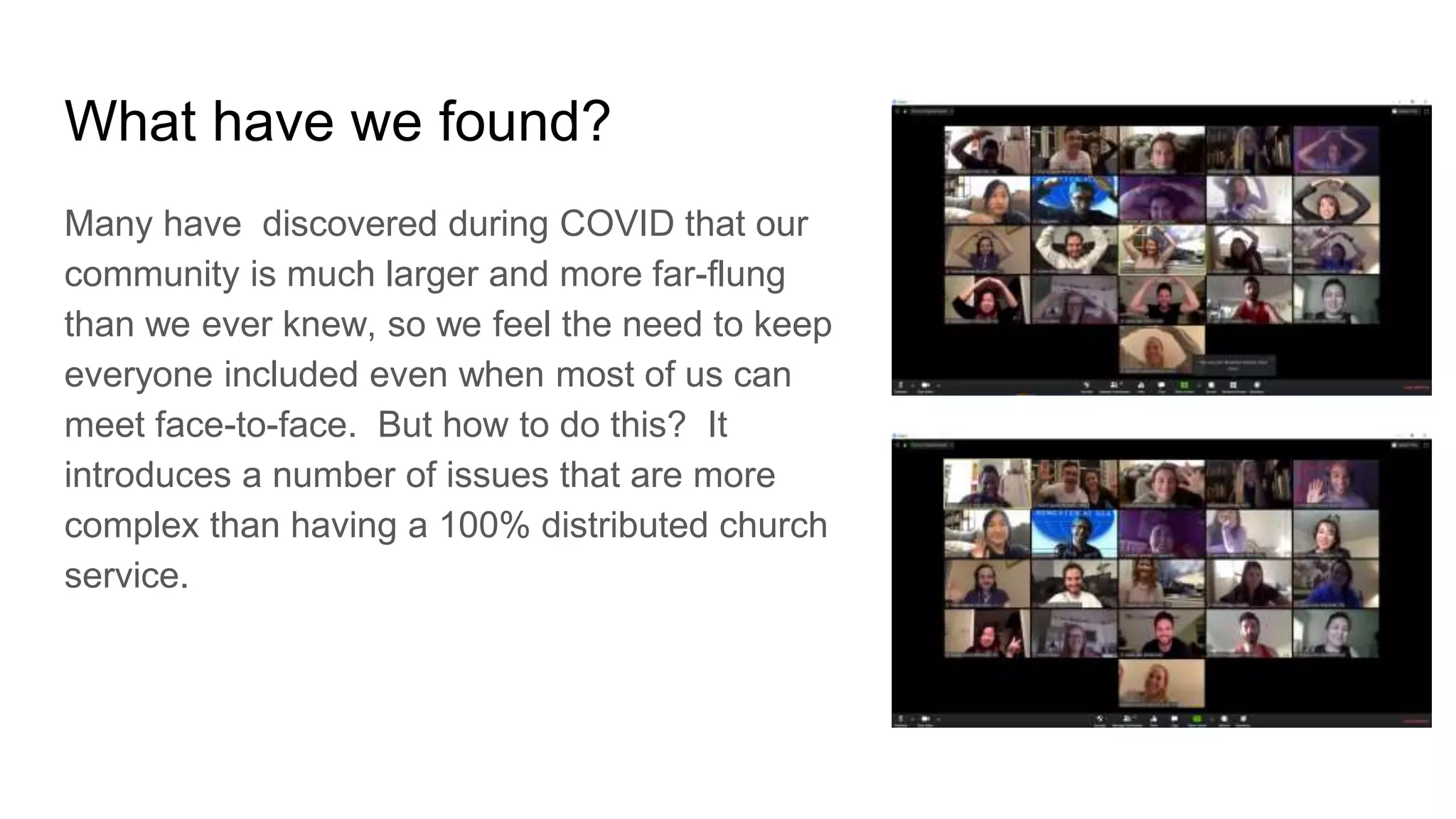
Many have discovered during COVID that our
community is much larger and more far-flung
than we ever knew, so we feel the need to keep
everyone included even when most of us can
meet face-to-face. But how to do this? It
introduces a number of issues that are more
complex than having a 100% distributed church
service.
What have we found?
Many have discovered during COVID that our
community is much larger and more far-flung
than we ever knew, so we feel the need to keep
everyone included even when most of us can
meet face-to-face. But how to do this? It
introduces a number of issues that are more
complex than having a 100% distributed church
service.
Zoom Start up
Launch
Meeting
Main
Modes
Start Screen
Share
Join Existing
Meeting
Schedule
Meeting
Webinar vs a Meeting?
For large meetings, we have settings set to (1) mute
participants on entry; (2) disallow participants unmuting
themselves; (3) Screen sharing = Host only; (4)
disabling Annotation, Whiteboard, Chat, Participant
Renaming and Nonverbal feedback. This has been a
good middle-ground for us that keeps a lot of distraction
down and helps keep events from being Zoom-bombed.
And during the ‘teaching’ component of classes or
services, a Zoom moderator uses ‘spotlight video’ to
control what the remote participants see.
Zoom Start up
Chat
Audio/Video
Section
End Meeting
Screen Share
Record Meeting
Manage
Participants
How should people share?
● Someone (Zoom moderator) watching the participant list to see raised hands
● A way to feed the raised-hand list to the leader
● When the leader calls on a remote participant, the Zoom moderator unmutes them
● Their audio gets fed into the sound board so people in the room can hear (but need to
do this w/out creating a feedback loop since room audio is going out to Zoom
participants)
● Would be nice if the class leader can see the remote person who is sharing. (Not a
requirement that local class participants see the remote person, just hearing them is ok)
How should people share?
Zoom ChatAnd Zoom Participants
1. Participants allowed to talk.
2. Participants with their hand raised. Participants that
raised their hand first are displayed at the top.
3. Participants without their hand raised.
Having a Meeting Moderator
Moderator: could be a tech-savvy leader (unlikely in our case) or someone else –
probably need a dedicated Zoom moderator just like you need a dedicated audio
and video person in the back of the room, i.e., a new role in the production team
Sharing Raised Hands with Leaders
A way to feed the raised hand list to leader: Leader could have a tablet; could use
a confidence monitor (although the Zoom participant list is pretty tiny to see from a
distance); feeding the leader a list of names via audio probably not practical, but
you could talk about how a D:Link monitor like you wear could be used. If so, how
is this configured? i.e., how does Tess or your producer communicate with you ‘off
the air’? What else?
Zoom Security & Meeting
Participant Management
How to Keep the Party Crashers from Crashing Your Zoom Event
Scheduling a Secure
Zoom Meeting
When scheduling your meeting.
Select the “Require Meeting
Password” option.
This may not be selected by
default.
Advanced Security Options
for Zoom Meetings
Click the Advanced Options to
enable the Waiting Room feature.
You can also enable or disable join
before host, mute participants upon
entry, and for a higher level of
security only all users to join
meeting via signing in with Zoom.
Lock your meeting!
Once everyone you need to
attend your meeting has
arrived lock the meeting.
Advanced Admin
Zoom Security
Login to your dashboard and select
the security option.
This area is for admins only.
This mainly covers user
management and user
authentication.
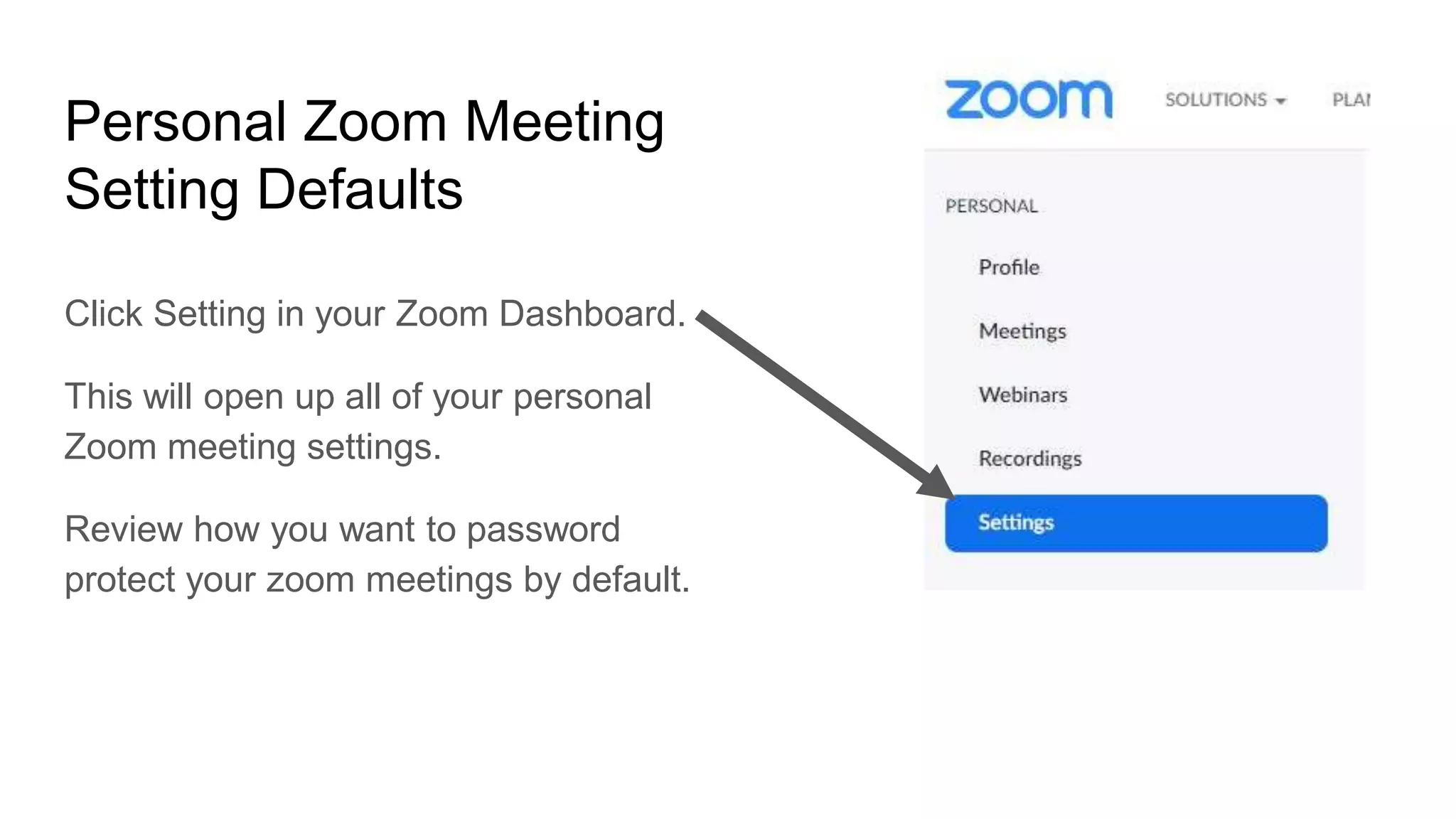
Personal Zoom Meeting
Setting Defaults
Click Setting in your Zoom Dashboard.
This will open up all of your personal
Zoom meeting settings.
Review how you want to password
protect your zoom meetings by default.
Participant Controls
Participant Management Control Defaults.
Managing Participants
and hosting Zoom
Parties
1. Do not use your PMI (Personal
Meeting ID
2. Use the Waiting Room Feature
3. Do not allow screen sharing
4. Lock the Meeting
5. Remove unwanted participants
(use participants menu)
6. Mute participants
See more at blog.zoom.us
Restrict who can share
If you do not plan on having
other people share content,
do not allow it to happen by
mistake.
Select “Only Host” can
share.
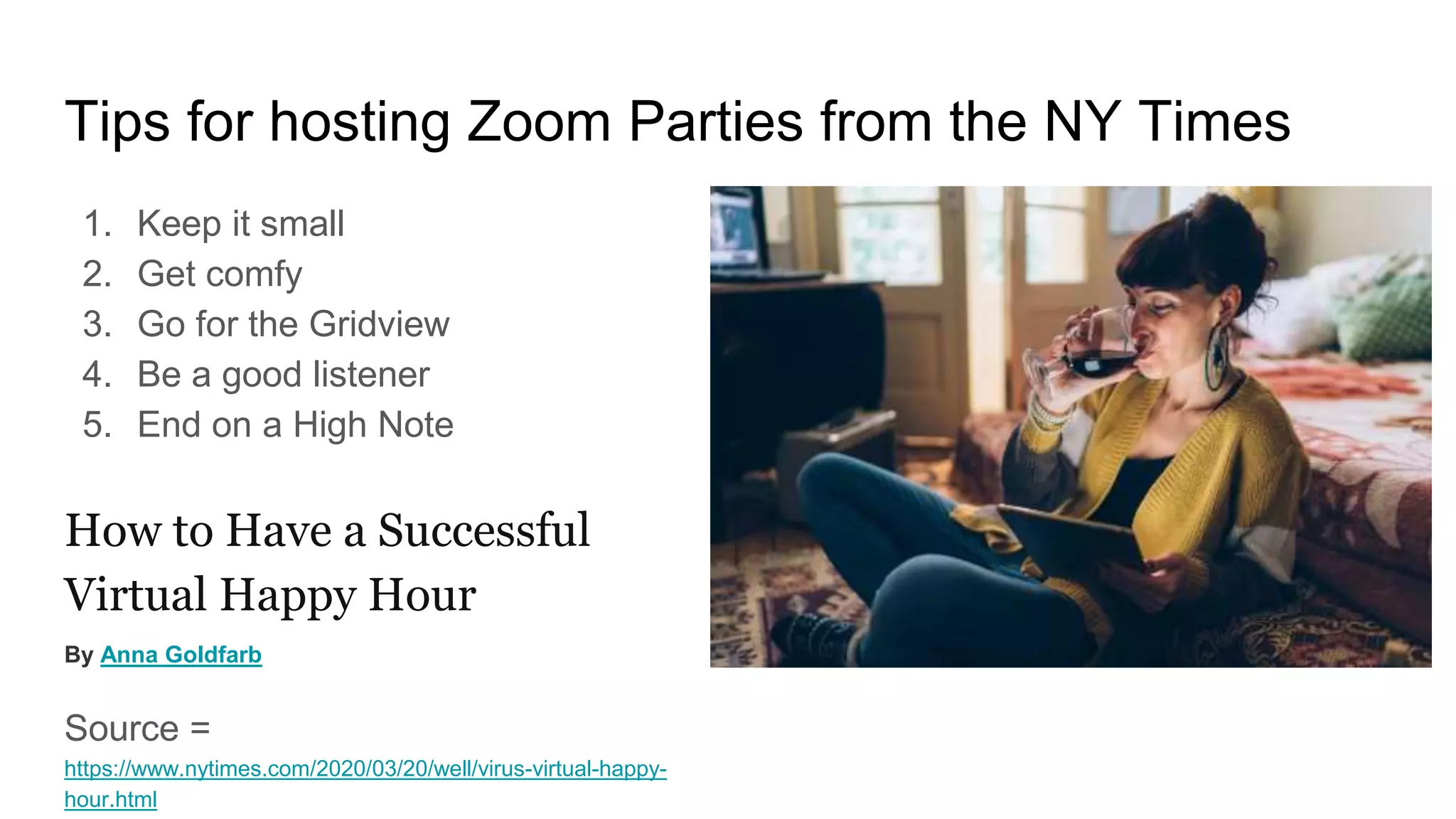
Tips for hosting Zoom Parties from the NY Times
1. Keep it small
2. Get comfy
3. Go for the Gridview
4. Be a good listener
5. End on a High Note
How to Have a Successful
Virtual Happy Hour
By Anna Goldfarb
Source =
https://www.nytimes.com/2020/03/20/well/virus-virtual-happy-
hour.html
Audio Routing
Audio routing. Zoom to sound board for in-room amplification, easy. But I think
we’ll need it coming into the sound board on a dedicated input channel that *is*
routed to local amplification, but is *not* routed to the board’s mix-out that’s going
to Zoom’s audio input. It seems this is how we’d avoid a feedback loop, though I
haven’t tried it yet.
Confidence Monitors
Monitor so leader sees remote people who are sharing – what are the options for
this? Could be a tablet running Zoom so the leader simply sees what all other
remote people see. Could be a confidence monitor or something duplicating the
Zoom moderator’s screen. How to get fancy and do this with NDI (I haven’t a clue
– yet!). What other options are there?
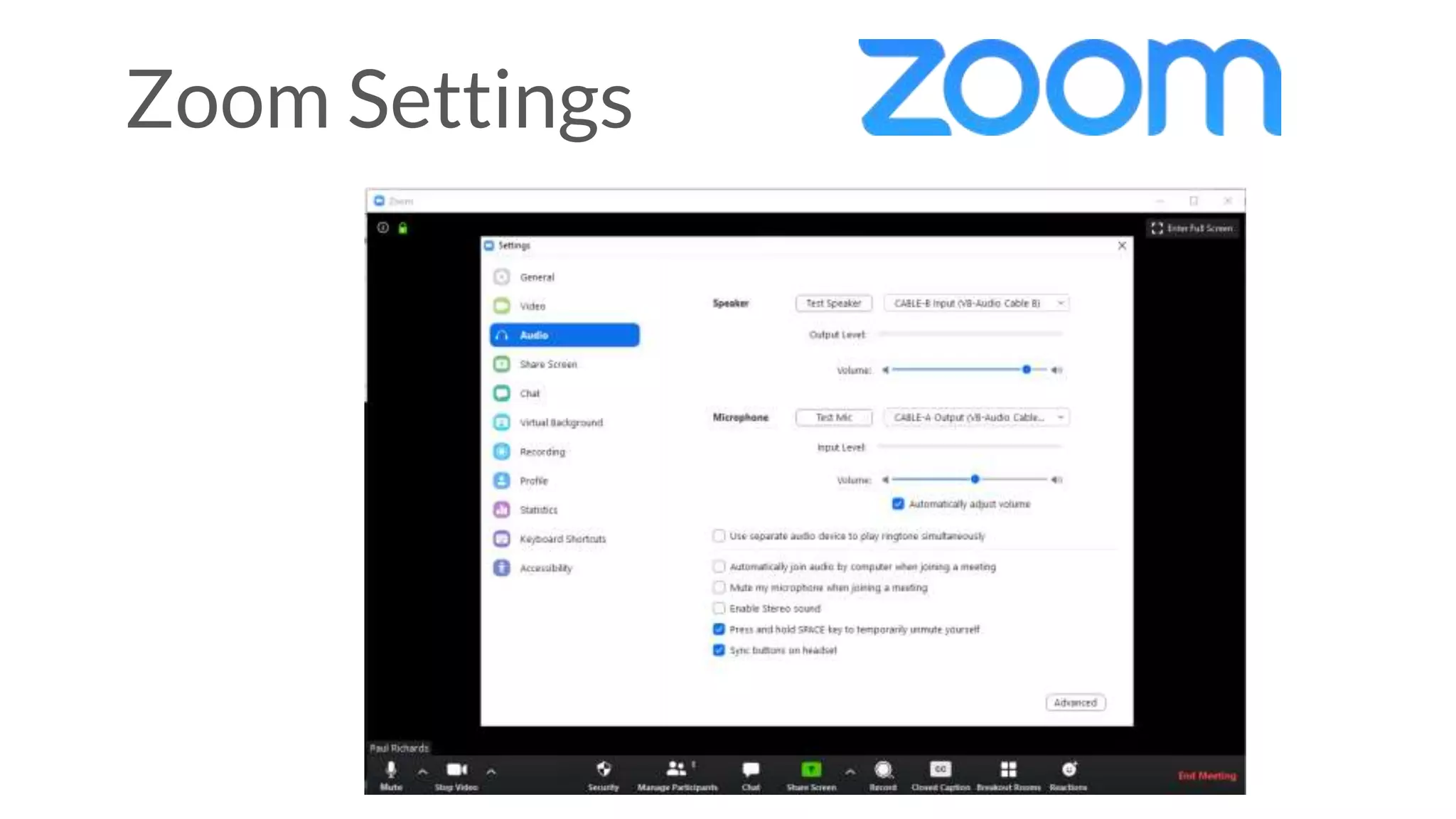
Zoom Settings
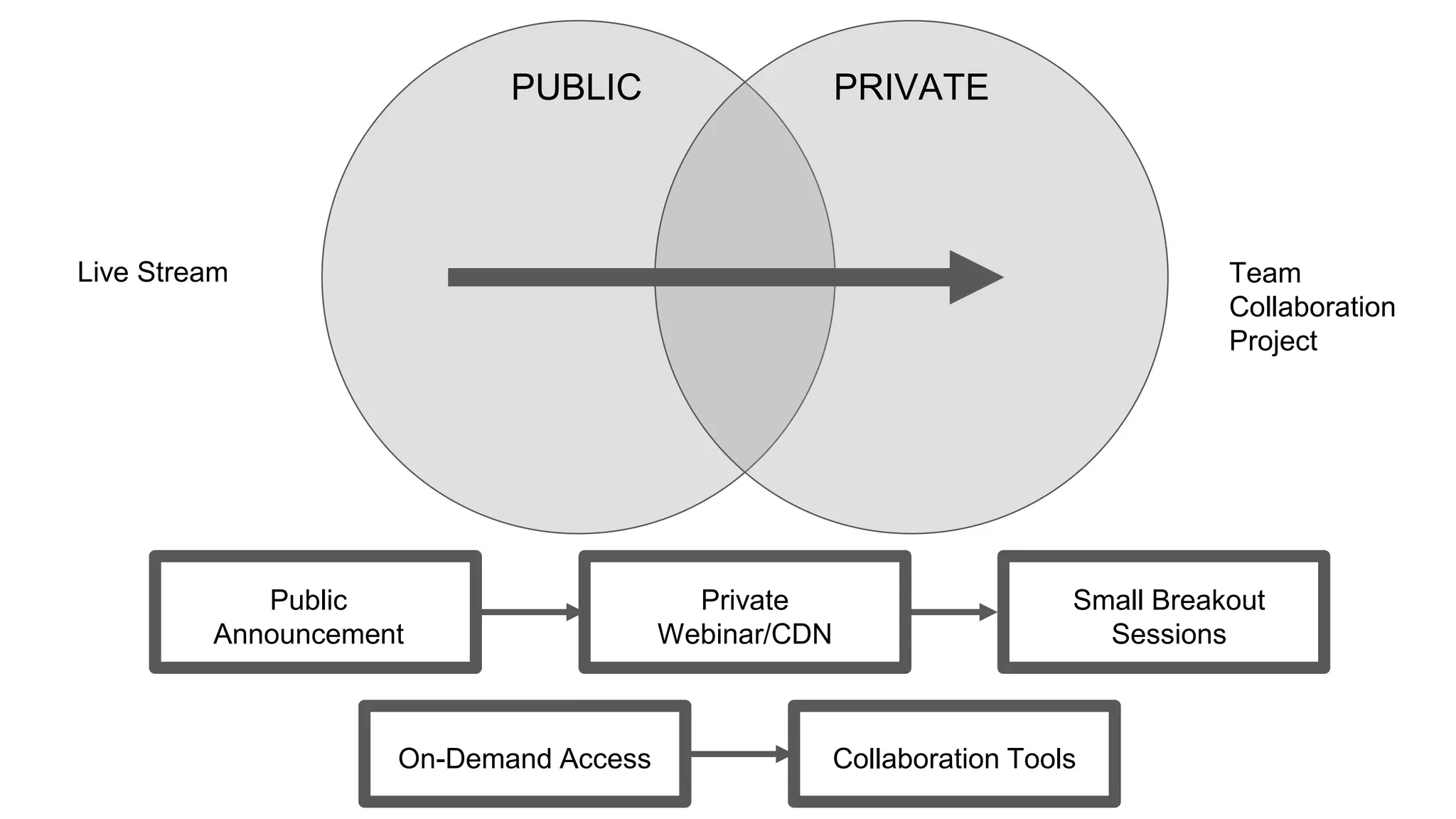
PUBLIC PRIVATE
Public
Announcement
Private
Webinar/CDN
Small Breakout
Sessions
On-Demand Access Collaboration Tools
Live Stream Team
Collaboration
Project
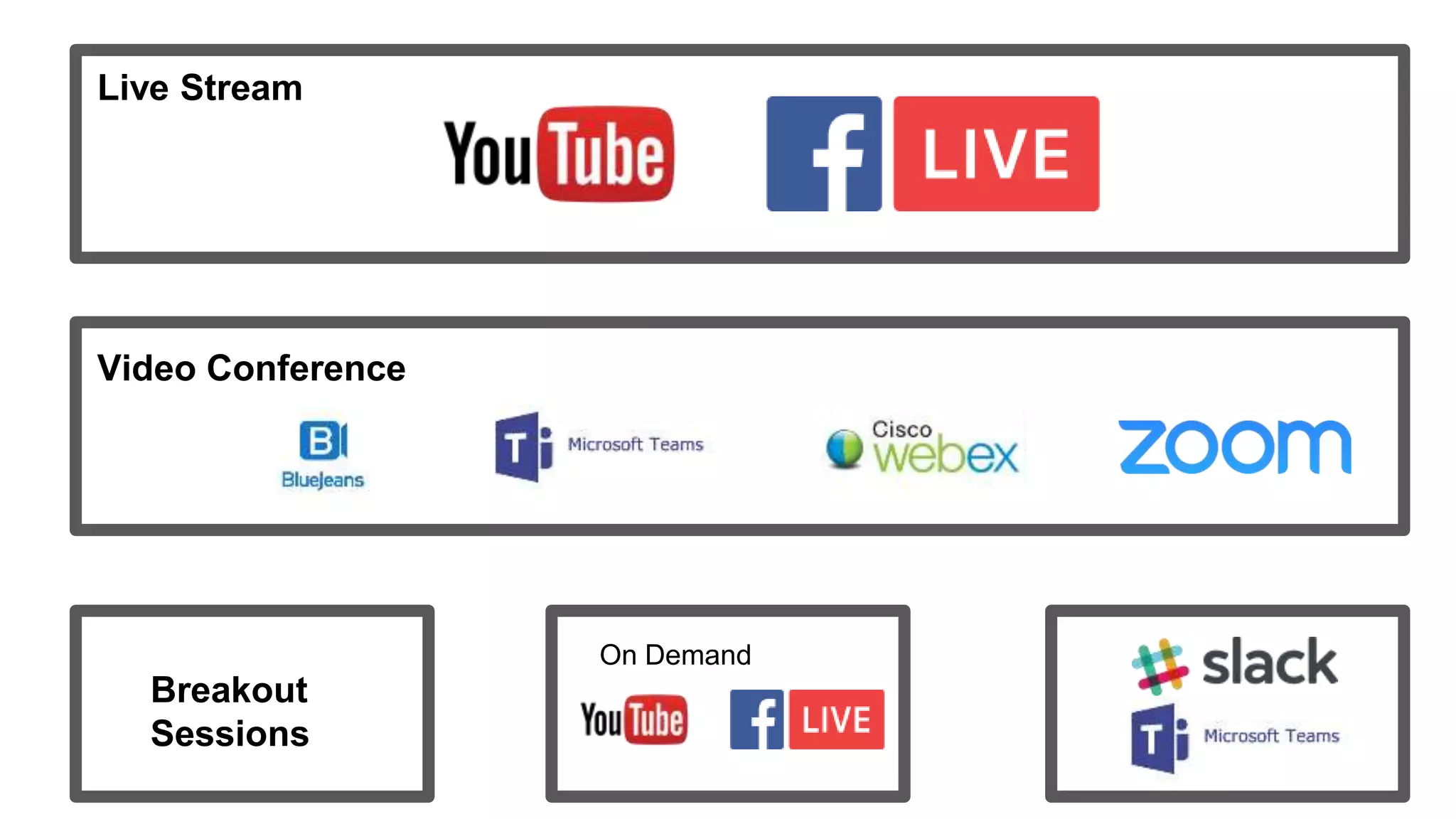
Live Stream
Video Conference
Breakout
Sessions
On Demand
From our FB Group
https://www.facebook.com
/groups/churchstreamers/

Using zoom at your church

  • 1.
    Using Zoom atyour Church Mondays at 2PM EST 11AM PST Topic: Church Communications Era of Mixed (Local + Remote)
  • 2.
    The New Normal? Inthis era of COVID, we’ve been spending a lot of time discussion how to stream meetings/services to remote participants. When social distancing restrictions are lifted we’re likely to have both local (in-room) participants as well as remote participants. If all we’re doing is broadcasting (1-way), this is no problem. ● But what if you want interactivity? ● How do you include remote participants in an interactive large class, workshop or church service?
  • 4.
    The New Normal? Manyhave discovered during COVID that our community is much larger and more far-flung than we ever knew, so we feel the need to keep everyone included even when most of us can meet face-to-face. But how to do this? It introduces a number of issues that are more complex than having a 100% distributed church service.
  • 5.
    What have wefound? Many have discovered during COVID that our community is much larger and more far-flung than we ever knew, so we feel the need to keep everyone included even when most of us can meet face-to-face. But how to do this? It introduces a number of issues that are more complex than having a 100% distributed church service.
  • 6.
    Zoom Start up Launch Meeting Main Modes StartScreen Share Join Existing Meeting Schedule Meeting
  • 7.
    Webinar vs aMeeting? For large meetings, we have settings set to (1) mute participants on entry; (2) disallow participants unmuting themselves; (3) Screen sharing = Host only; (4) disabling Annotation, Whiteboard, Chat, Participant Renaming and Nonverbal feedback. This has been a good middle-ground for us that keeps a lot of distraction down and helps keep events from being Zoom-bombed. And during the ‘teaching’ component of classes or services, a Zoom moderator uses ‘spotlight video’ to control what the remote participants see.
  • 8.
    Zoom Start up Chat Audio/Video Section EndMeeting Screen Share Record Meeting Manage Participants
  • 9.
    How should peopleshare? ● Someone (Zoom moderator) watching the participant list to see raised hands ● A way to feed the raised-hand list to the leader ● When the leader calls on a remote participant, the Zoom moderator unmutes them ● Their audio gets fed into the sound board so people in the room can hear (but need to do this w/out creating a feedback loop since room audio is going out to Zoom participants) ● Would be nice if the class leader can see the remote person who is sharing. (Not a requirement that local class participants see the remote person, just hearing them is ok)
  • 10.
    How should peopleshare? Zoom ChatAnd Zoom Participants 1. Participants allowed to talk. 2. Participants with their hand raised. Participants that raised their hand first are displayed at the top. 3. Participants without their hand raised.
  • 11.
    Having a MeetingModerator Moderator: could be a tech-savvy leader (unlikely in our case) or someone else – probably need a dedicated Zoom moderator just like you need a dedicated audio and video person in the back of the room, i.e., a new role in the production team
  • 12.
    Sharing Raised Handswith Leaders A way to feed the raised hand list to leader: Leader could have a tablet; could use a confidence monitor (although the Zoom participant list is pretty tiny to see from a distance); feeding the leader a list of names via audio probably not practical, but you could talk about how a D:Link monitor like you wear could be used. If so, how is this configured? i.e., how does Tess or your producer communicate with you ‘off the air’? What else?
  • 13.
    Zoom Security &Meeting Participant Management
  • 14.
    How to Keepthe Party Crashers from Crashing Your Zoom Event
  • 15.
    Scheduling a Secure ZoomMeeting When scheduling your meeting. Select the “Require Meeting Password” option. This may not be selected by default.
  • 16.
    Advanced Security Options forZoom Meetings Click the Advanced Options to enable the Waiting Room feature. You can also enable or disable join before host, mute participants upon entry, and for a higher level of security only all users to join meeting via signing in with Zoom.
  • 17.
    Lock your meeting! Onceeveryone you need to attend your meeting has arrived lock the meeting.
  • 18.
    Advanced Admin Zoom Security Loginto your dashboard and select the security option. This area is for admins only. This mainly covers user management and user authentication.
  • 19.
    Personal Zoom Meeting SettingDefaults Click Setting in your Zoom Dashboard. This will open up all of your personal Zoom meeting settings. Review how you want to password protect your zoom meetings by default.
  • 21.
  • 22.
    Managing Participants and hostingZoom Parties 1. Do not use your PMI (Personal Meeting ID 2. Use the Waiting Room Feature 3. Do not allow screen sharing 4. Lock the Meeting 5. Remove unwanted participants (use participants menu) 6. Mute participants See more at blog.zoom.us
  • 23.
    Restrict who canshare If you do not plan on having other people share content, do not allow it to happen by mistake. Select “Only Host” can share.
  • 24.
    Tips for hostingZoom Parties from the NY Times 1. Keep it small 2. Get comfy 3. Go for the Gridview 4. Be a good listener 5. End on a High Note How to Have a Successful Virtual Happy Hour By Anna Goldfarb Source = https://www.nytimes.com/2020/03/20/well/virus-virtual-happy- hour.html
  • 25.
    Audio Routing Audio routing.Zoom to sound board for in-room amplification, easy. But I think we’ll need it coming into the sound board on a dedicated input channel that *is* routed to local amplification, but is *not* routed to the board’s mix-out that’s going to Zoom’s audio input. It seems this is how we’d avoid a feedback loop, though I haven’t tried it yet.
  • 26.
    Confidence Monitors Monitor soleader sees remote people who are sharing – what are the options for this? Could be a tablet running Zoom so the leader simply sees what all other remote people see. Could be a confidence monitor or something duplicating the Zoom moderator’s screen. How to get fancy and do this with NDI (I haven’t a clue – yet!). What other options are there?
  • 27.
  • 28.
    PUBLIC PRIVATE Public Announcement Private Webinar/CDN Small Breakout Sessions On-DemandAccess Collaboration Tools Live Stream Team Collaboration Project
  • 29.
  • 31.
    From our FBGroup https://www.facebook.com /groups/churchstreamers/