Creating Engagement in
Online Meetings Using
Zoom: Beyond the
Basics
Brian Pichman
Evolve Project
Description

By now, we've all heard of Zoom and probably have utilized some version of a
virtual meeting. This presentation will focus on unlocking Zoom's true power
and offering more engaging meetings, presentations, and workshops. We will
be blending some of the more advanced zoom features and combining them
with best practice webinar experiences. Using these methodologies, you will
deliver a more meaningful Zoom call that will leave lasting impressions to all
that participated.
Wonder how to get YouTube's audio to play through Zoom without having to
blast your speakers? What about those fancy "virtual webcams"? How do you
get participants to participate more and multi-task less during meetings? This
and more will be discussed and explored in this webinar.
Agenda
 Zoom Pricing and Differences in Plans
 Cool Zoom Plugins + Tools
 Zoom Like A Pro
 Zoom Etiquette
 Advance Zoom Skills
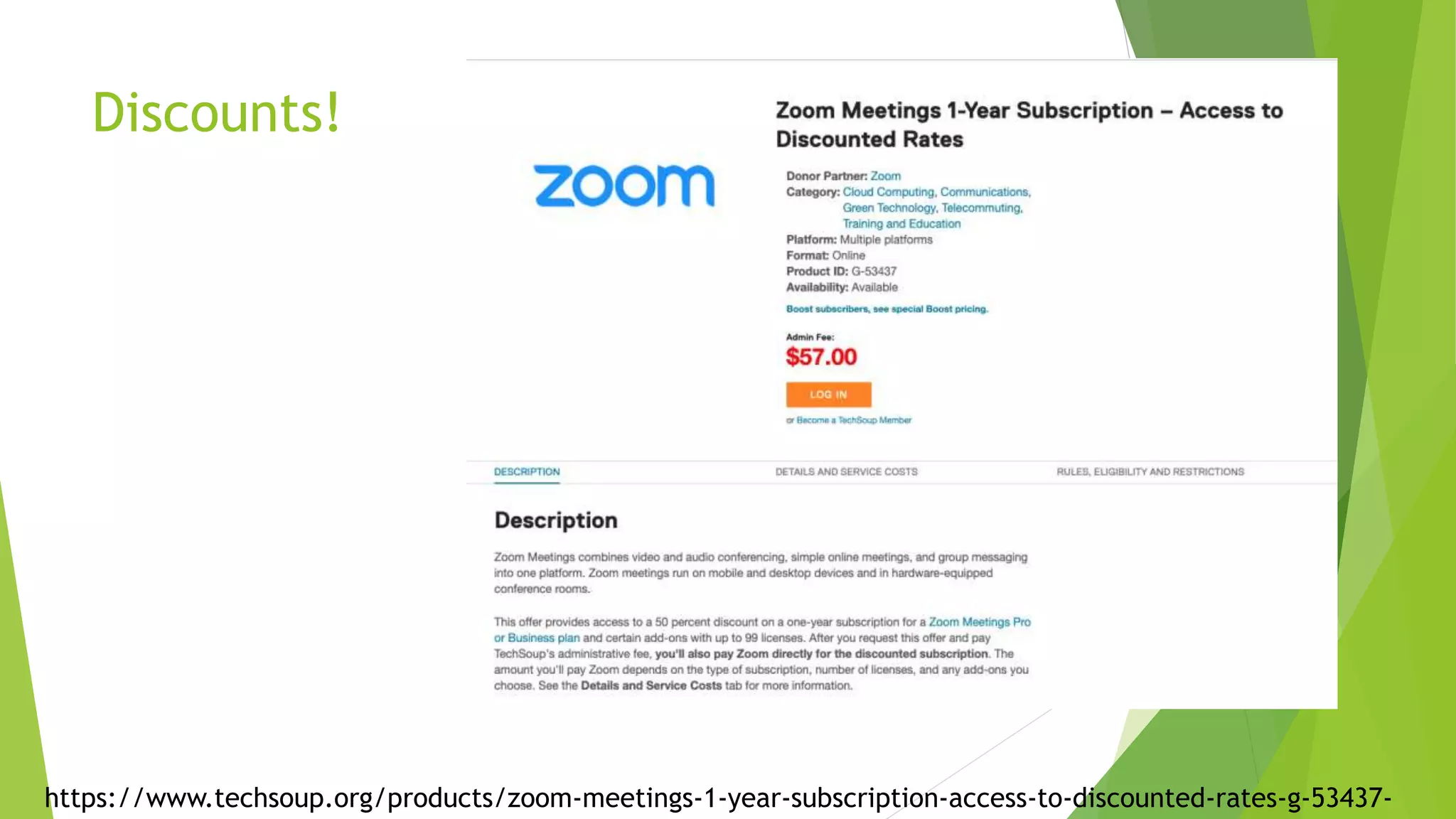
Discounts!
https://www.techsoup.org/products/zoom-meetings-1-year-subscription-access-to-discounted-rates-g-53437-
Common Features
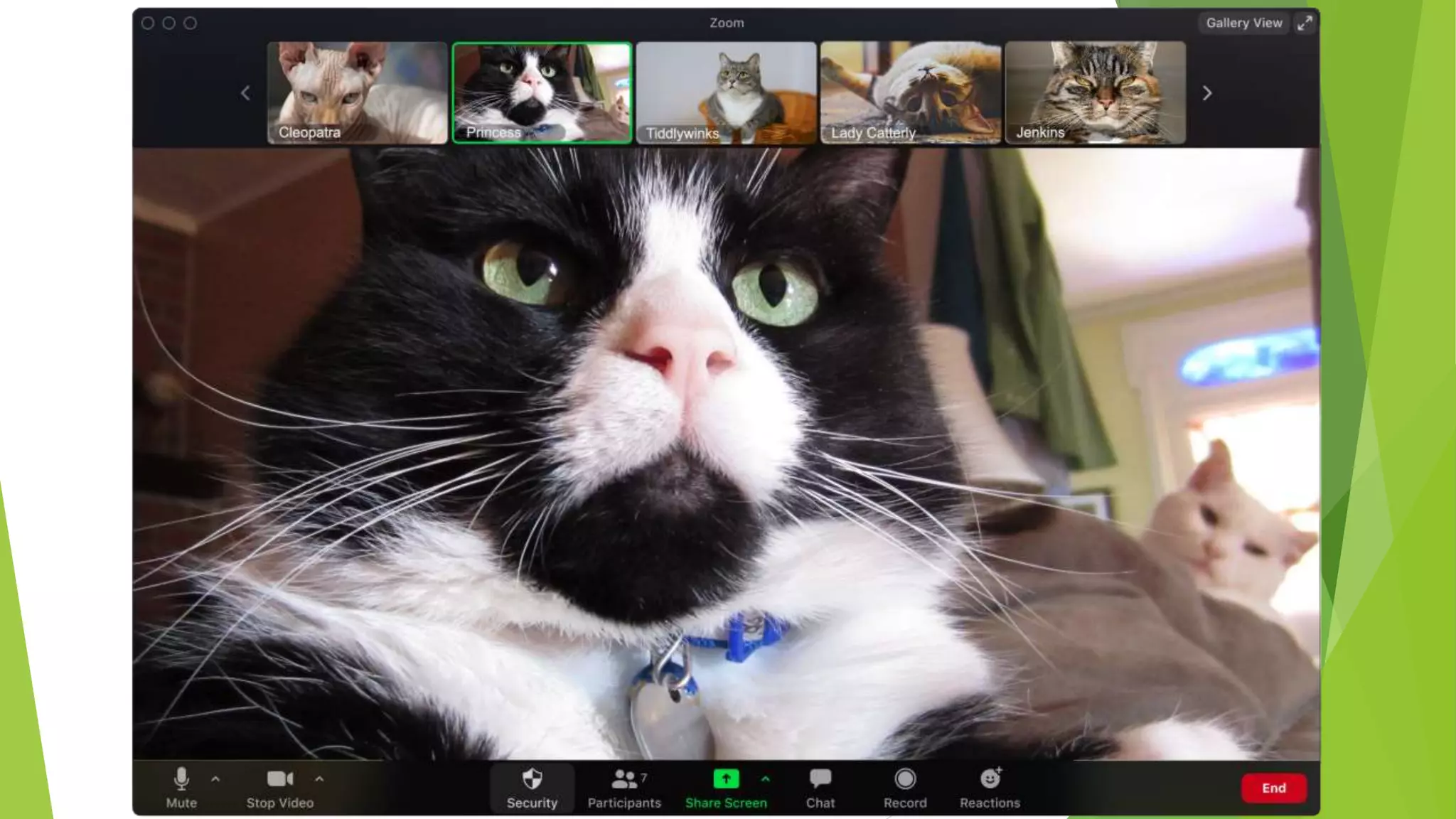
Bring more fun into happy hours, parties and more with fun
color filters or decorative animal stickers.
The host can spotlight up to 9 attendee’s videos, so that no
matter who is speaking the entire meeting sees the spotlighted
videos.
The Waiting Room feature allows the host to control
when a participant joins the meeting. As the meeting
host, you can admit attendees one by one or all at once.
In settings, you can choose who gets put into the Waiting
Room or gets automatically admitted. You can customize
the Waiting Room, if you're on a paid plan.
The host can grant up to 9 people, the ability to pin videos to
create their own custom view. So no matter who is speaking,
the pinned videos stay visible.
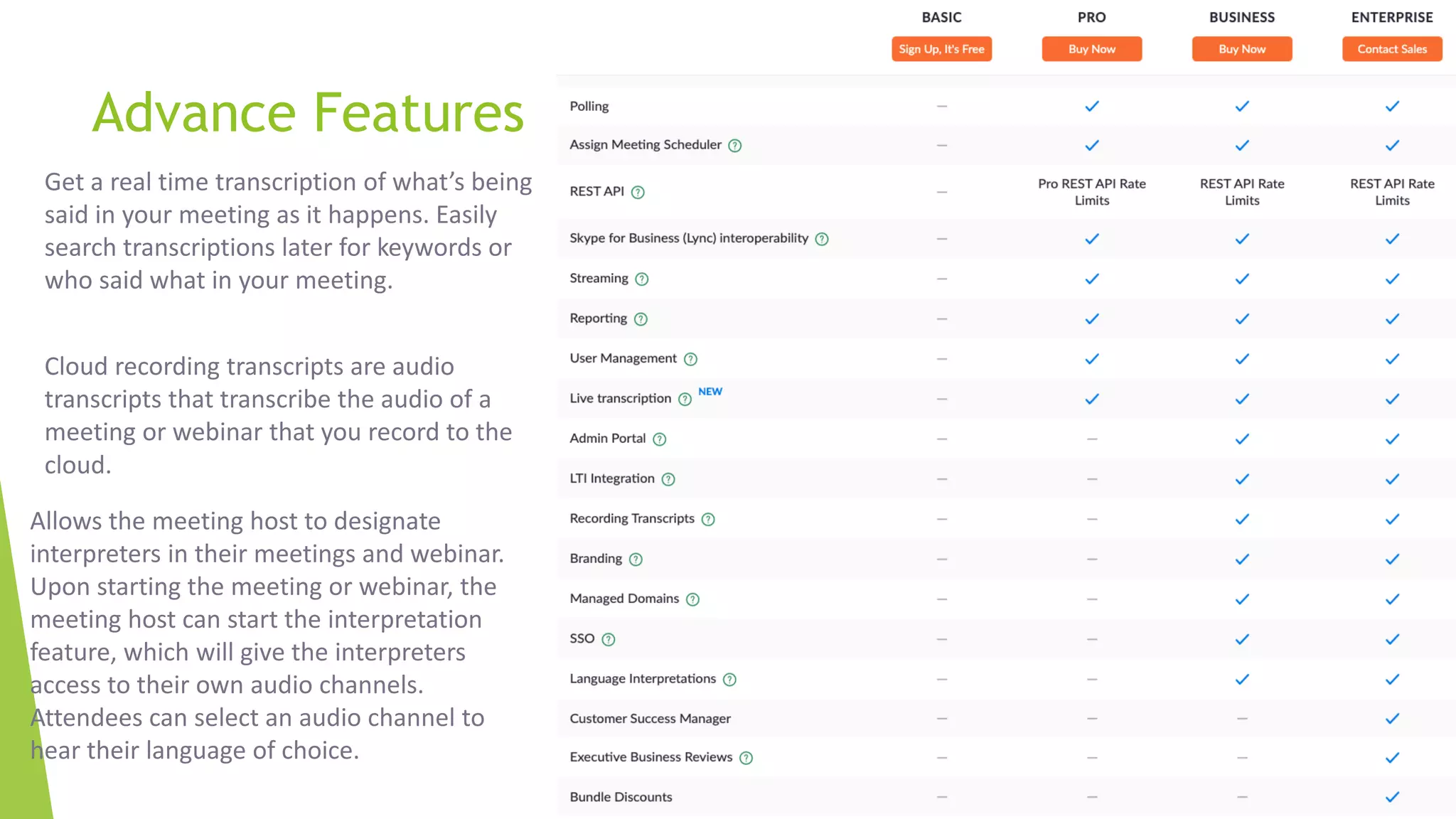
Advance Features
Get a real time transcription of what’s being
said in your meeting as it happens. Easily
search transcriptions later for keywords or
who said what in your meeting.
Cloud recording transcripts are audio
transcripts that transcribe the audio of a
meeting or webinar that you record to the
cloud.
Allows the meeting host to designate
interpreters in their meetings and webinar.
Upon starting the meeting or webinar, the
meeting host can start the interpretation
feature, which will give the interpreters
access to their own audio channels.
Attendees can select an audio channel to
hear their language of choice.
…so you want to set up a Zoom Meeting
 Tool Tips:
 Calendly.Com
 Calendly helps you schedule
meetings without the back-and-
forth emails
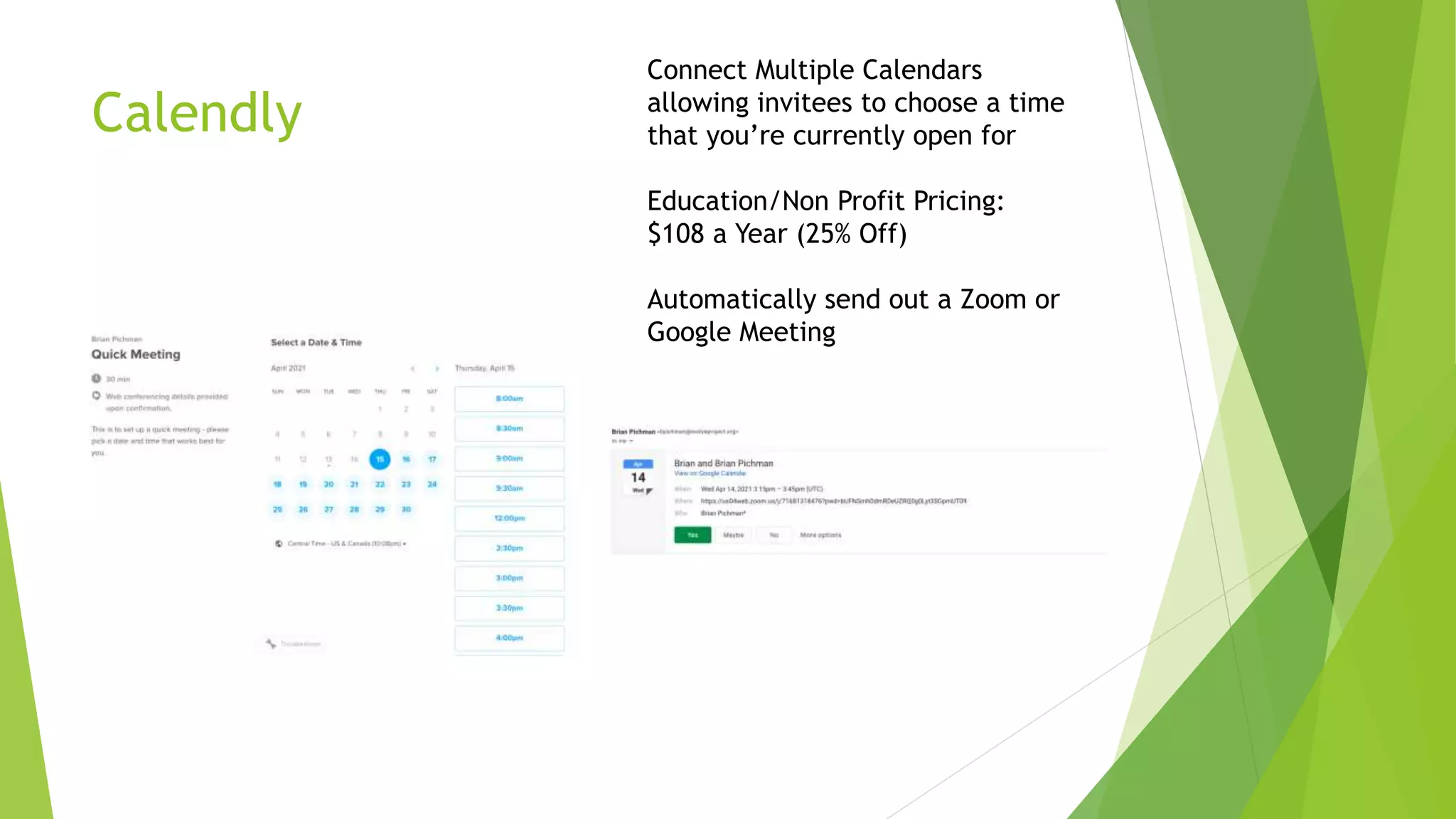
Calendly
Connect Multiple Calendars
allowing invitees to choose a time
that you’re currently open for
Education/Non Profit Pricing:
$108 a Year (25% Off)
Automatically send out a Zoom or
Google Meeting
Anyone actually like taking notes during
calls?
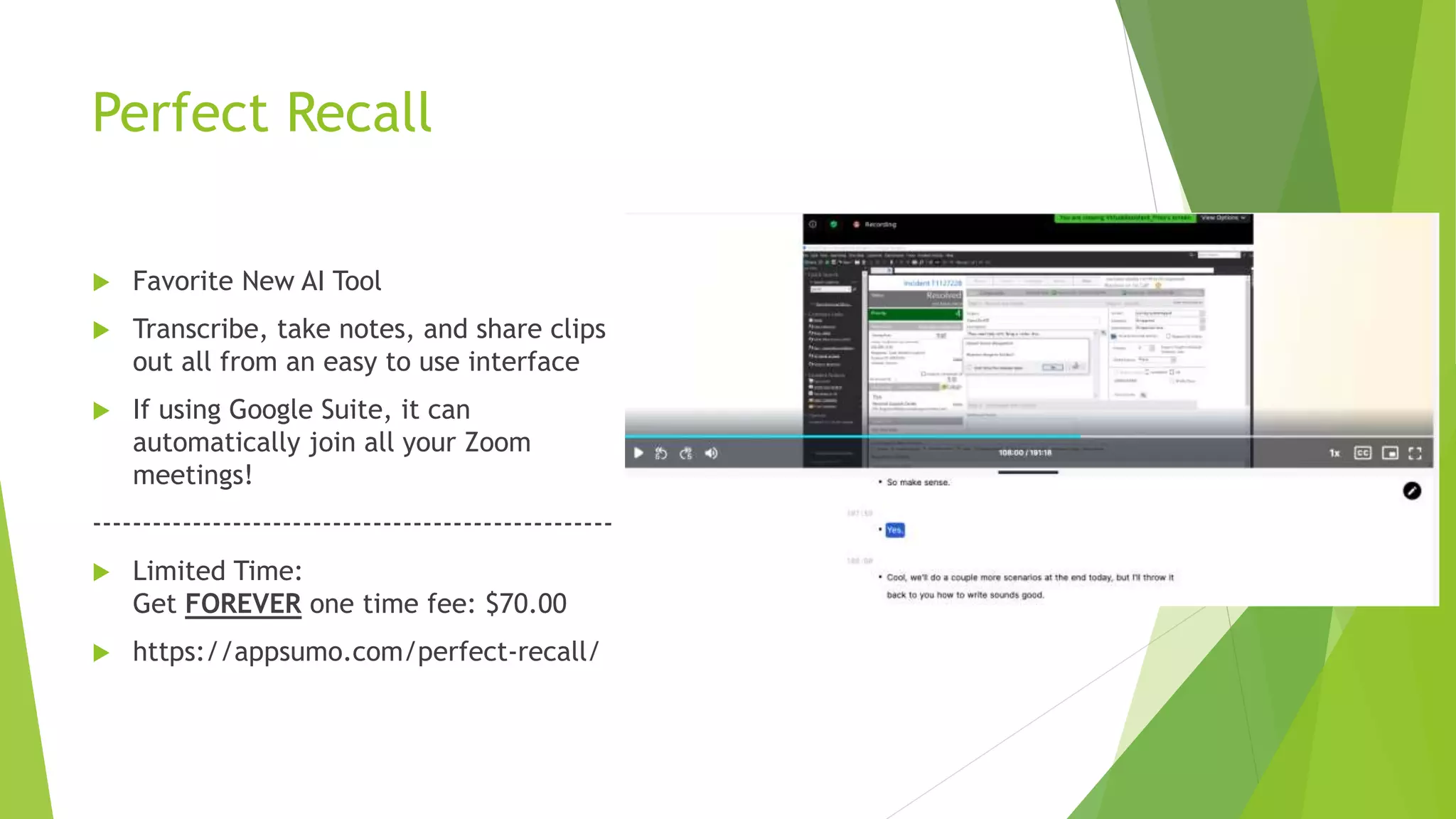
Perfect Recall
 Favorite New AI Tool
 Transcribe, take notes, and share clips
out all from an easy to use interface
 If using Google Suite, it can
automatically join all your Zoom
meetings!
----------------------------------------------------
 Limited Time:
Get FOREVER one time fee: $70.00
 https://appsumo.com/perfect-recall/
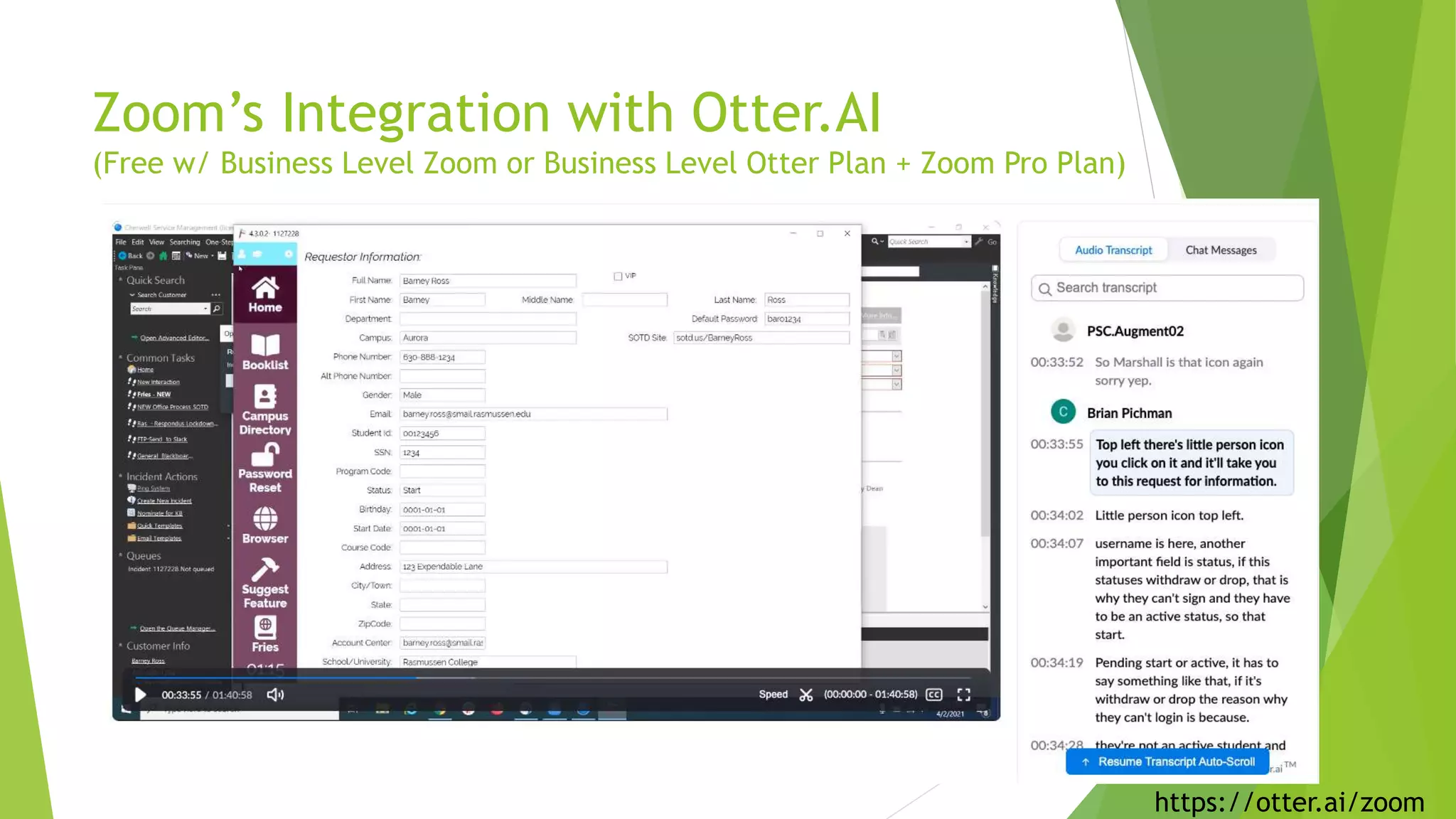
Zoom’s Integration with Otter.AI
(Free w/ Business Level Zoom or Business Level Otter Plan + Zoom Pro Plan)
https://otter.ai/zoom
One Zoom to Rule Them, Streaming
Services to Guide Them
 Sometimes users don’t want to join
your Zoom and/or you want to
record your session and then
upload it to Youtube,
Facebook,Twitch, maybe Myspace…
to reach your audience.
 There’s tools that let you stream
your sessions Live across all those
supported platforms
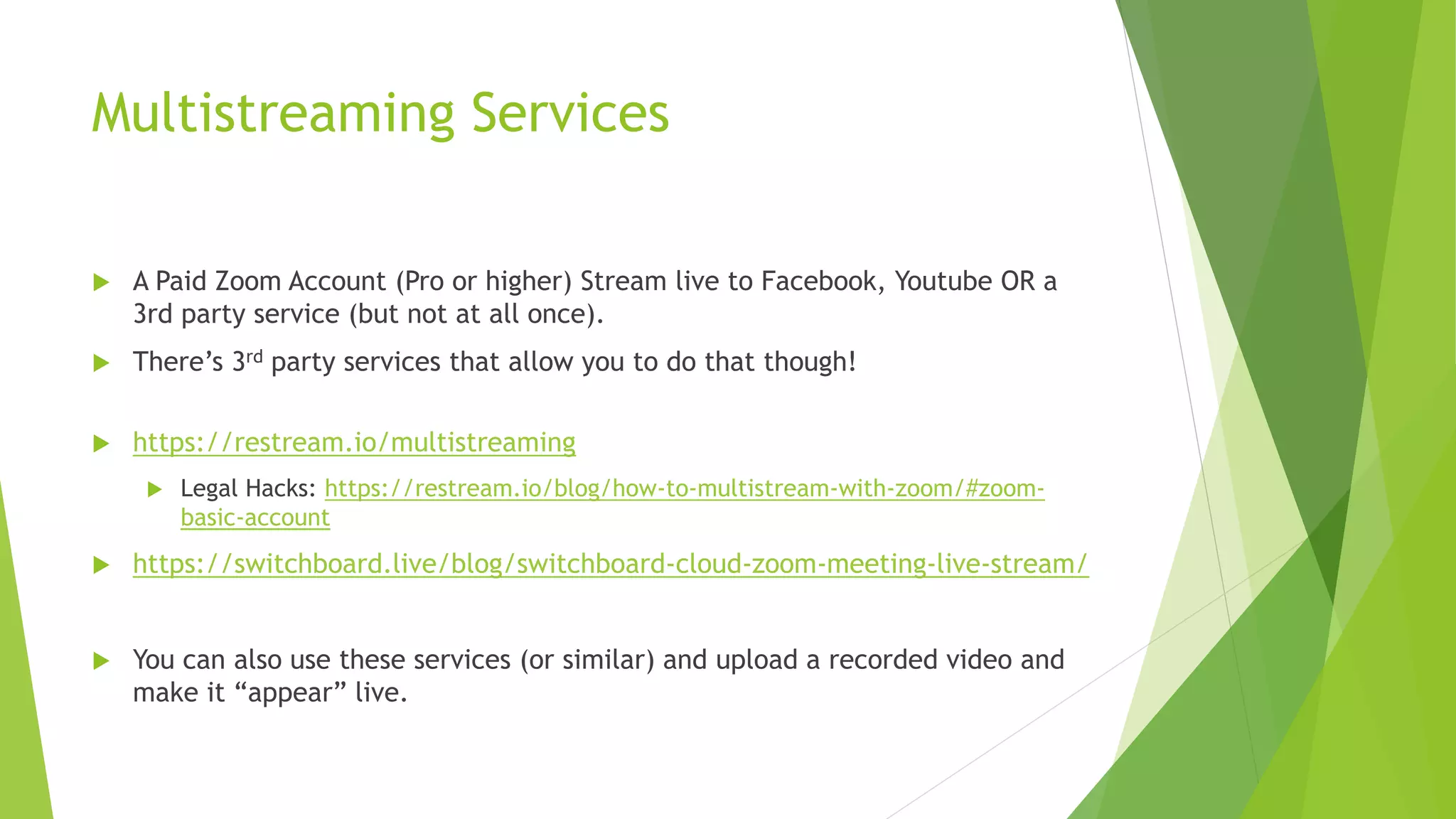
Multistreaming Services
 A Paid Zoom Account (Pro or higher) Stream live to Facebook, Youtube OR a
3rd party service (but not at all once).
 There’s 3rd party services that allow you to do that though!
 https://restream.io/multistreaming
 Legal Hacks: https://restream.io/blog/how-to-multistream-with-zoom/#zoom-
basic-account
 https://switchboard.live/blog/switchboard-cloud-zoom-meeting-live-stream/
 You can also use these services (or similar) and upload a recorded video and
make it “appear” live.
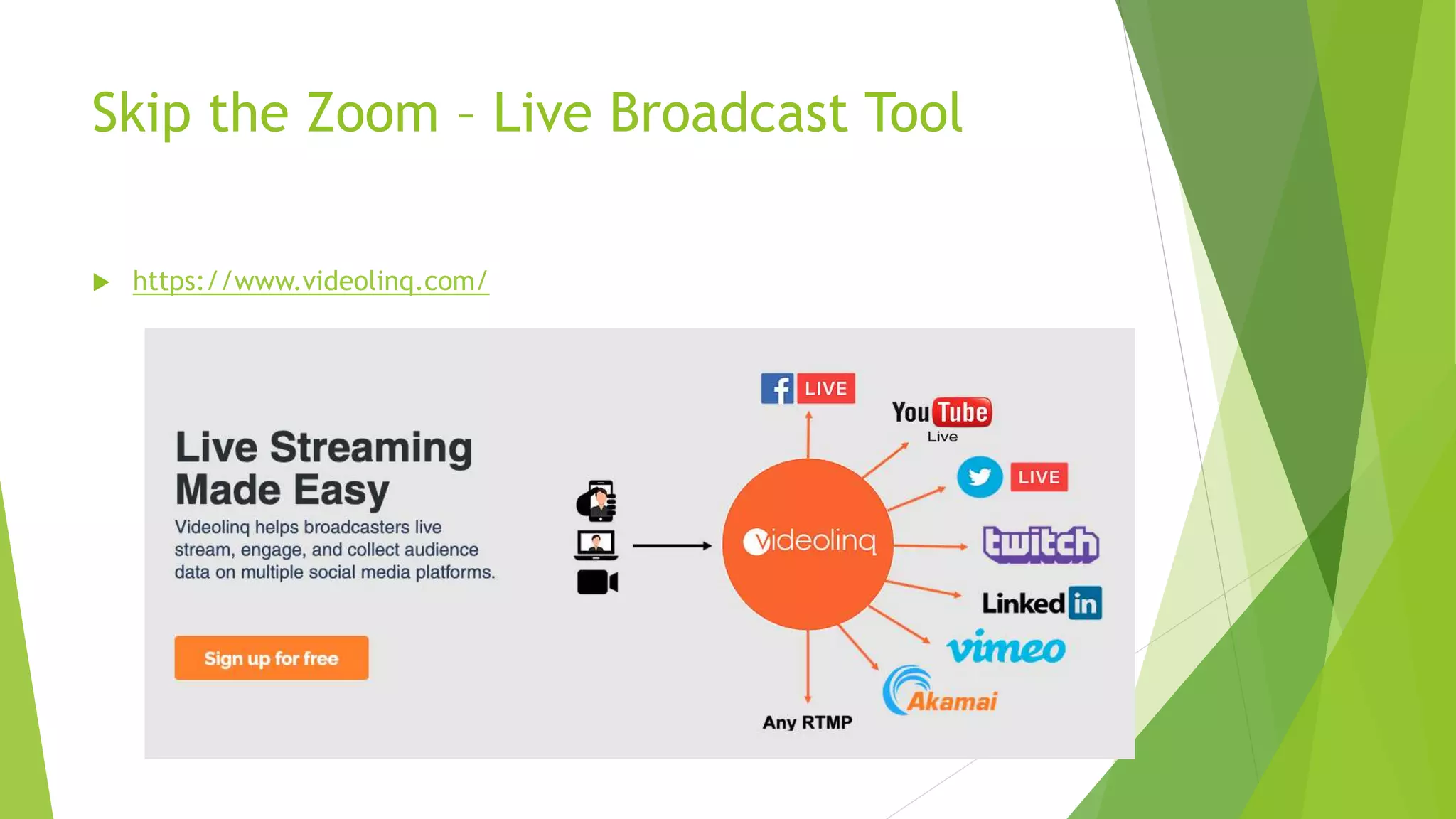
Skip the Zoom – Live Broadcast Tool
 https://www.videolinq.com/
Skip the Zoom – Multilanguage Streaming
 https://vidtoon.com/streamr/
 Streamr uses AI and a UN-style voiceover method. Select the accent, dialect,
and style from 270+ voices available in the software. Google Wavenet Voices
is integrated and gives you a choice of converting your videos in any language
you love and supporting multiple speech voices in one video.
 There is also automated caption creation, translation, and placement, as well
as a built-in live stream to YouTube & Facebook
https://appsumo.com/marketplace-streamr/
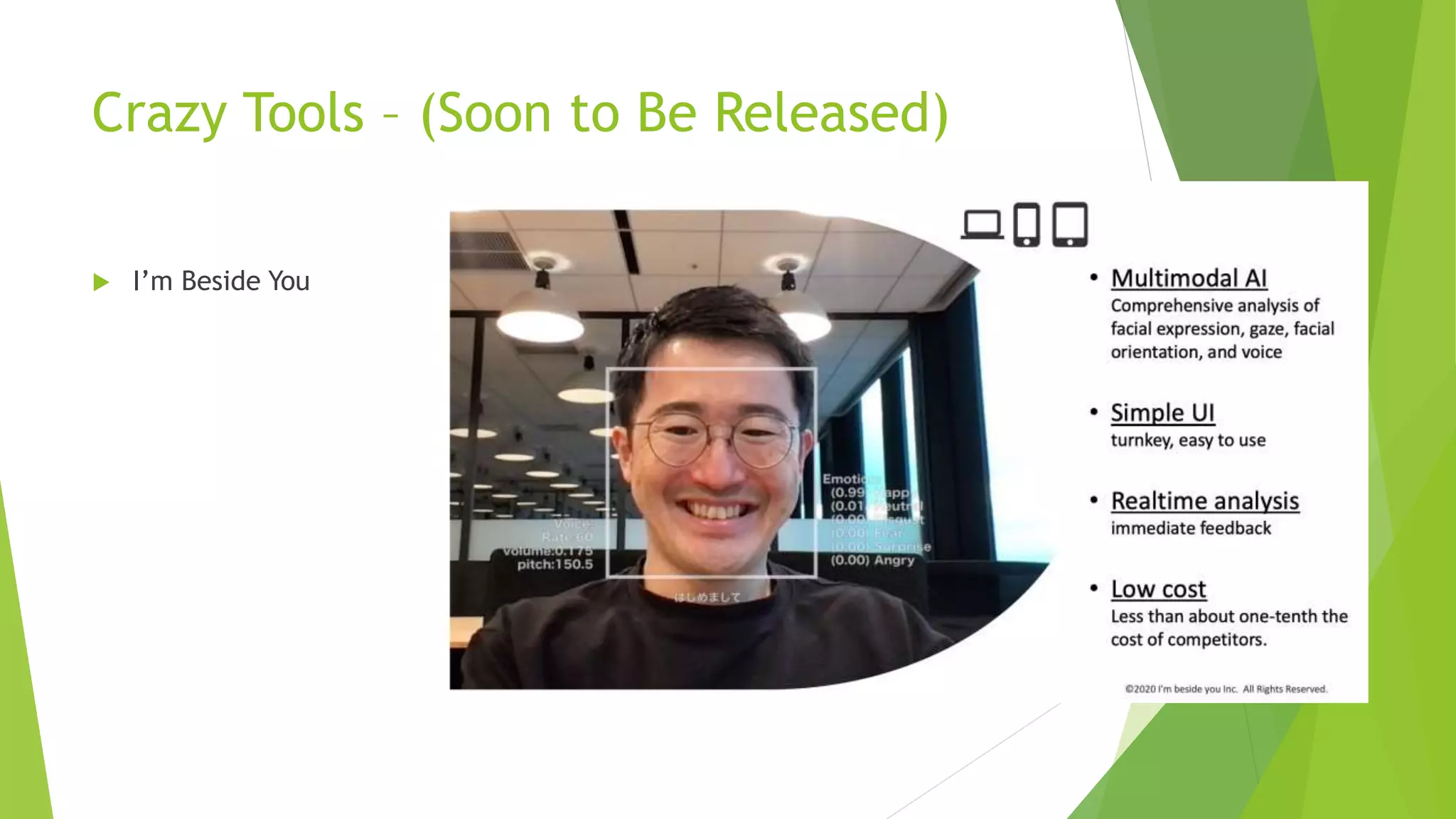
Crazy Tools – (Soon to Be Released)
 I’m Beside You
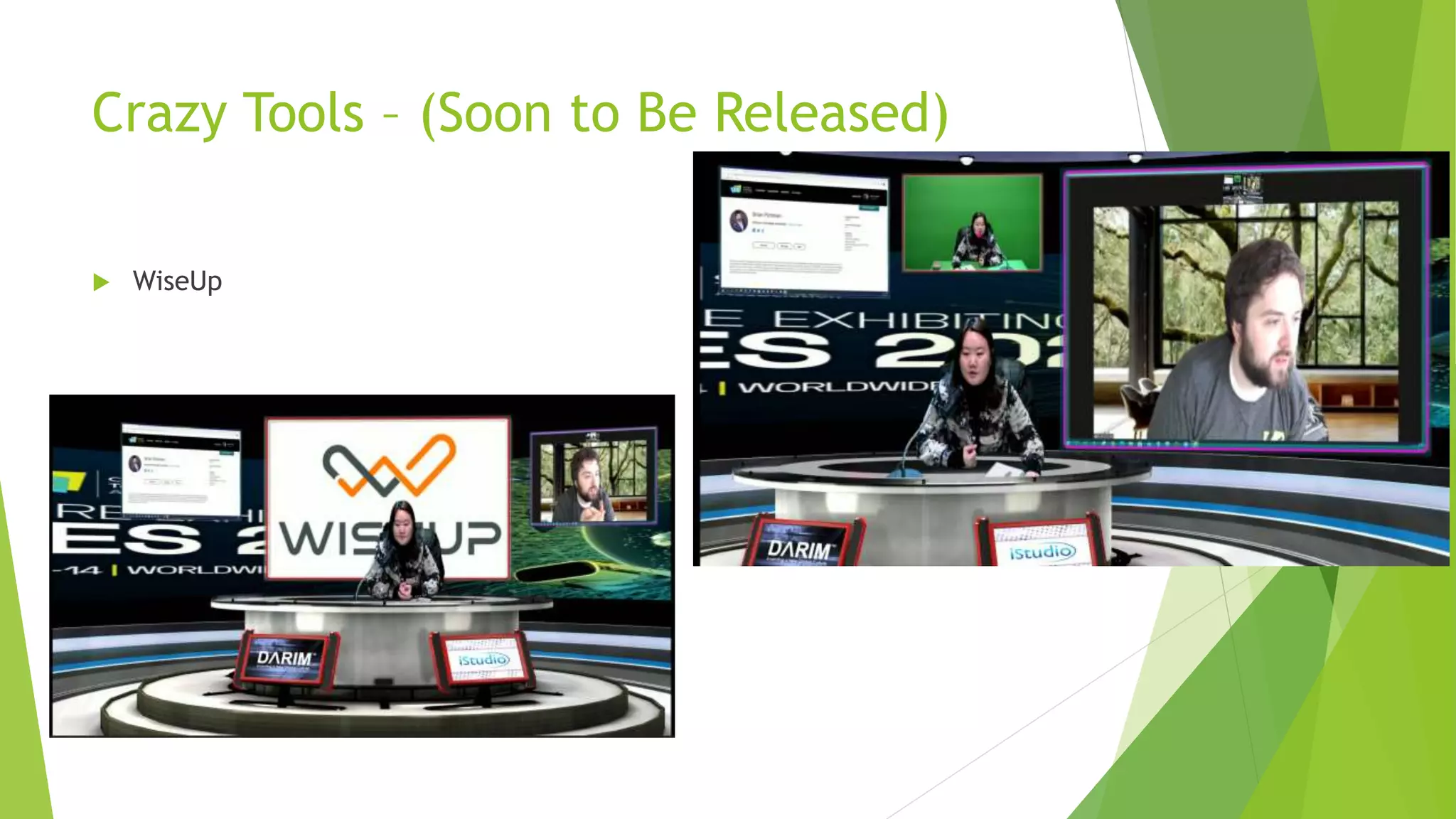
Crazy Tools – (Soon to Be Released)
 WiseUp
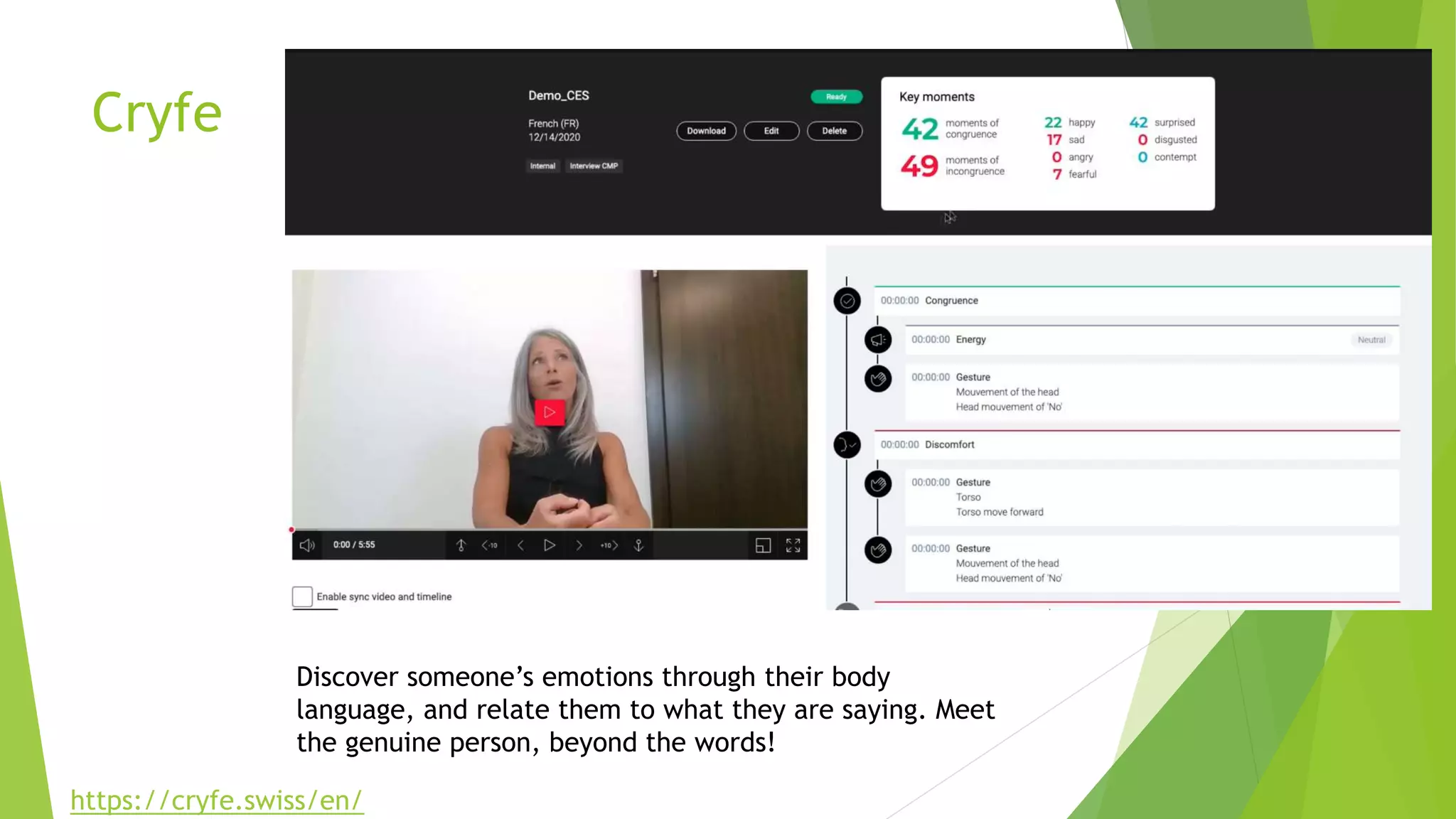
Cryfe
Discover someone’s emotions through their body
language, and relate them to what they are saying. Meet
the genuine person, beyond the words!
https://cryfe.swiss/en/
Engagement Ideas! How About Polls?
 Polls allow for a quick and fun way
to gain engagement with your
audience!
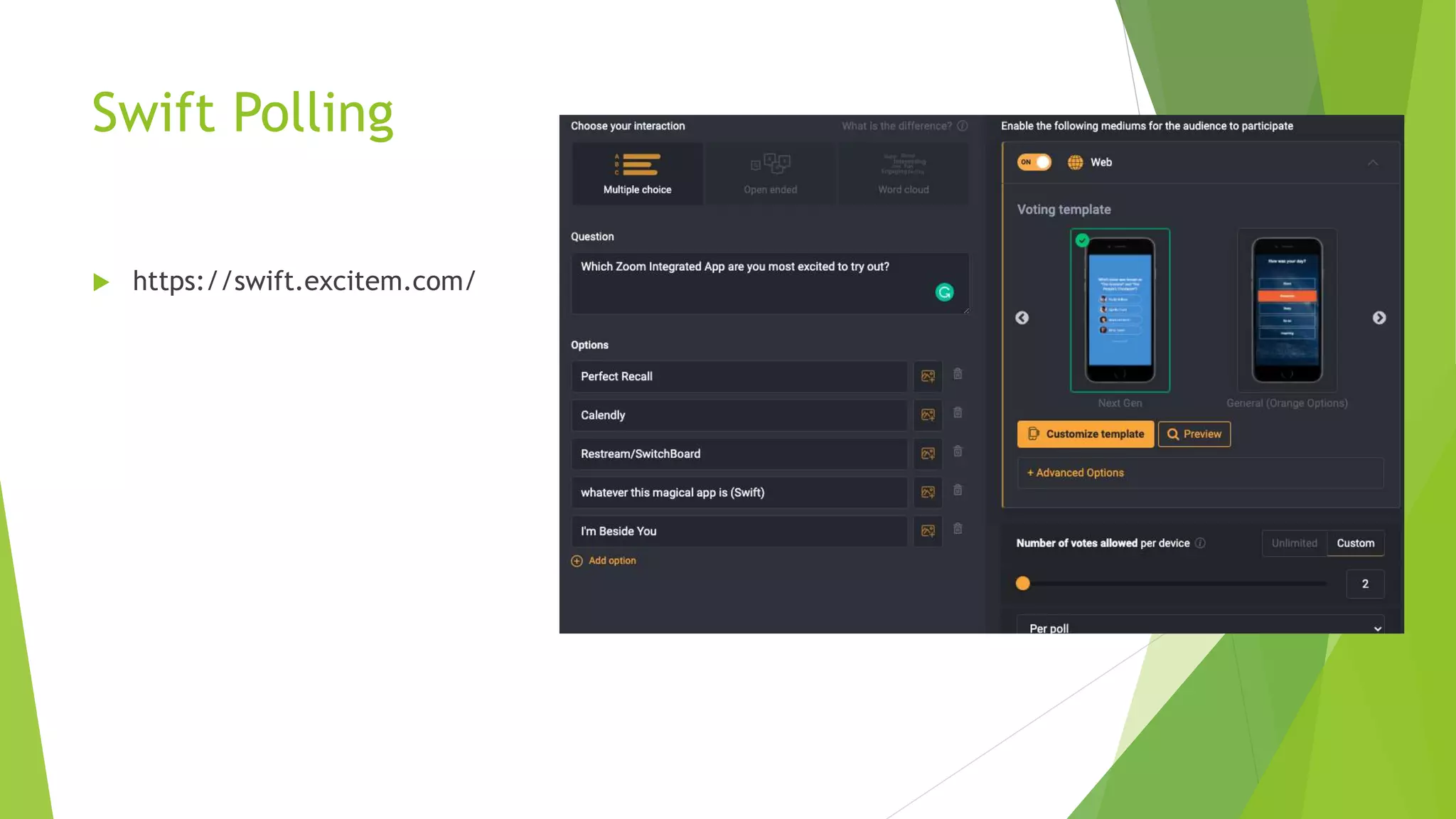
Swift Polling
 https://swift.excitem.com/
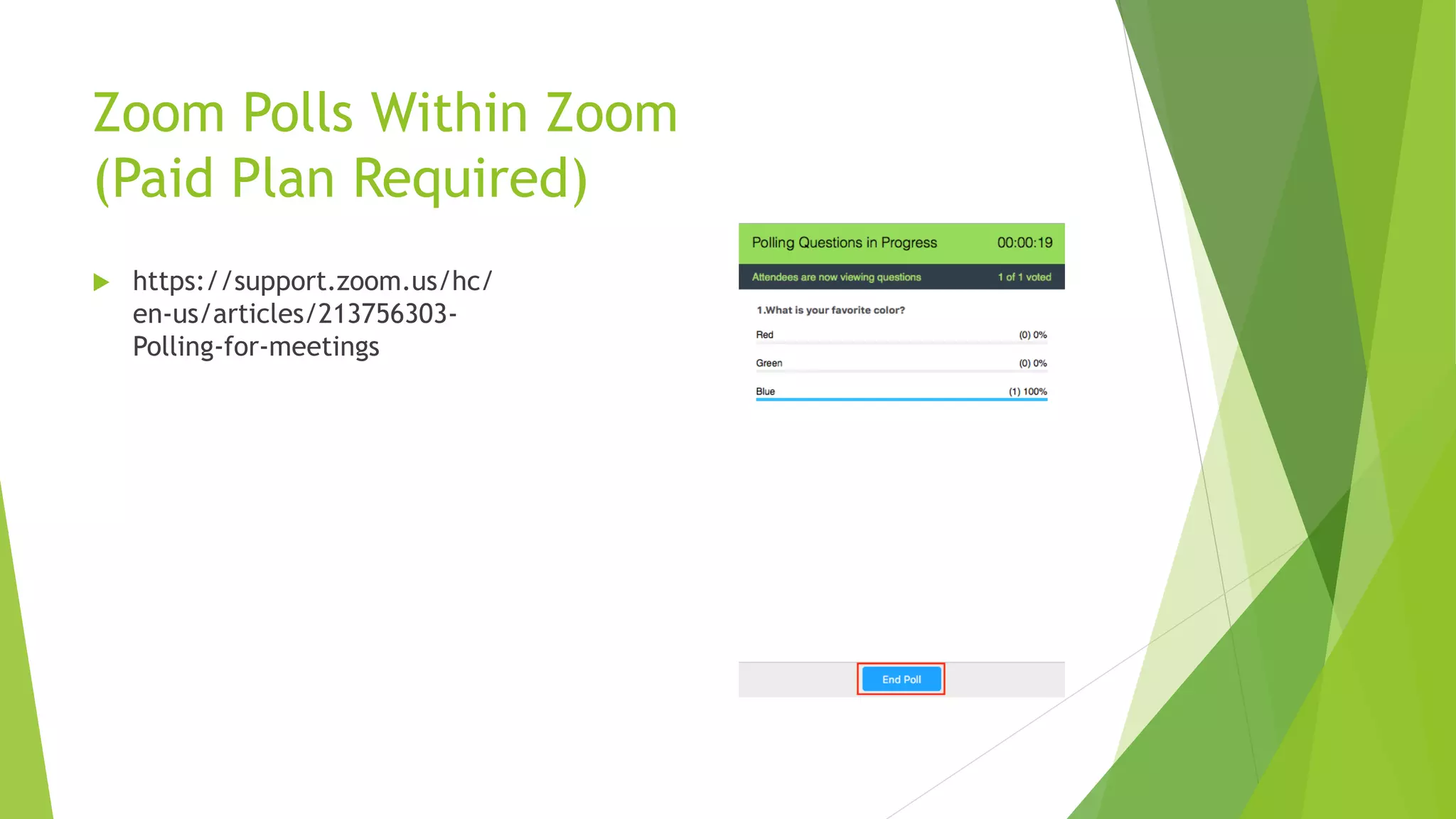
Zoom Polls Within Zoom
(Paid Plan Required)
 https://support.zoom.us/hc/
en-us/articles/213756303-
Polling-for-meetings
Zoom Like A Wizard
 Zoom Short Cut Keys
 Virtual Backgrounds
 Must Have Enabled Features to
 Touch Up Appearance
 Video Surprises
Zoom Shortcuts You Should Know
 When *muted* pressing and holding space bar
you can talk!
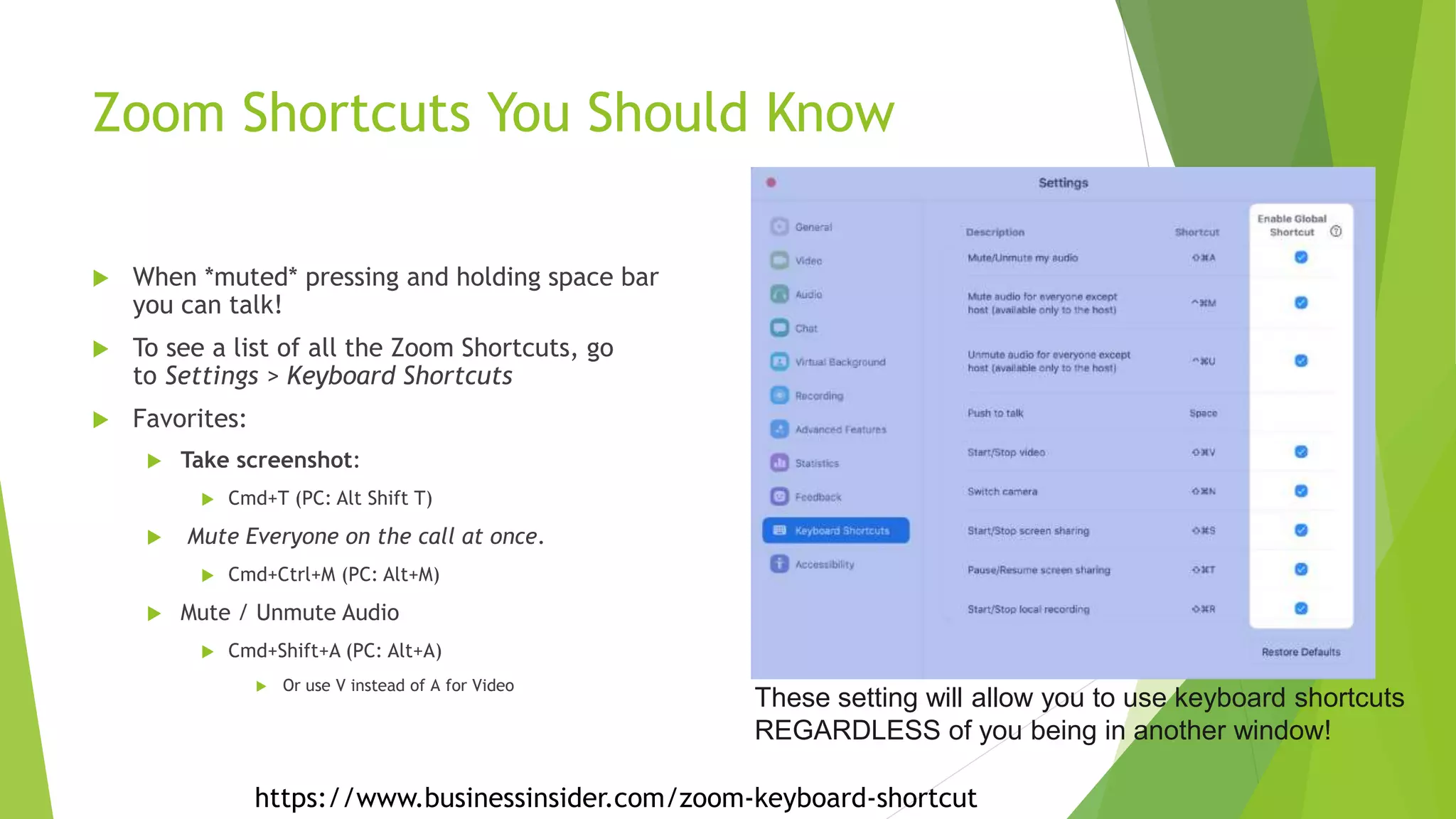
 To see a list of all the Zoom Shortcuts, go
to Settings > Keyboard Shortcuts
 Favorites:
 Take screenshot:
 Cmd+T (PC: Alt Shift T)
 Mute Everyone on the call at once.
 Cmd+Ctrl+M (PC: Alt+M)
 Mute / Unmute Audio
 Cmd+Shift+A (PC: Alt+A)
 Or use V instead of A for Video
These setting will allow you to use keyboard shortcuts
REGARDLESS of you being in another window!
https://www.businessinsider.com/zoom-keyboard-shortcut
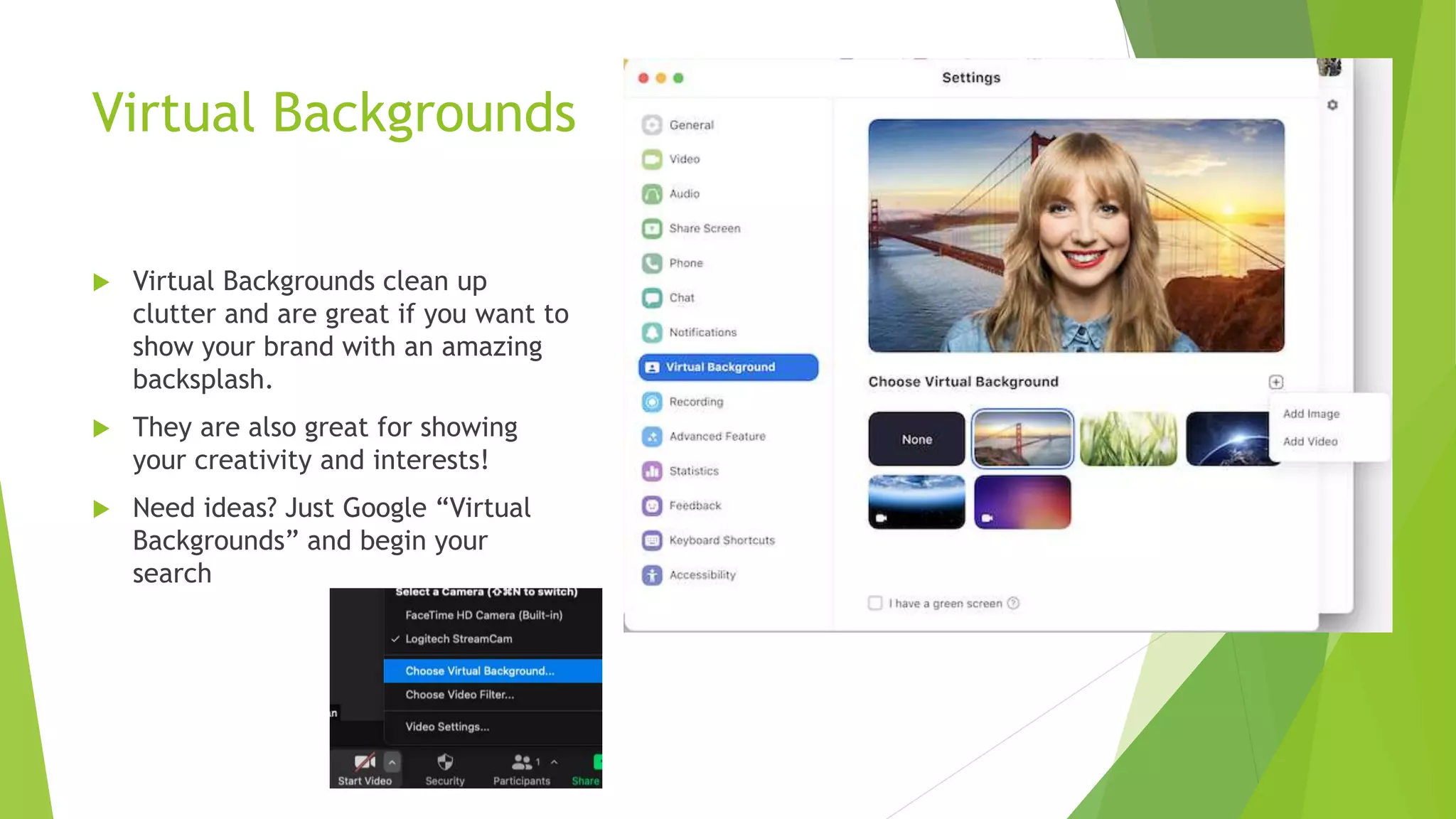
Virtual Backgrounds
 Virtual Backgrounds clean up
clutter and are great if you want to
show your brand with an amazing
backsplash.
 They are also great for showing
your creativity and interests!
 Need ideas? Just Google “Virtual
Backgrounds” and begin your
search
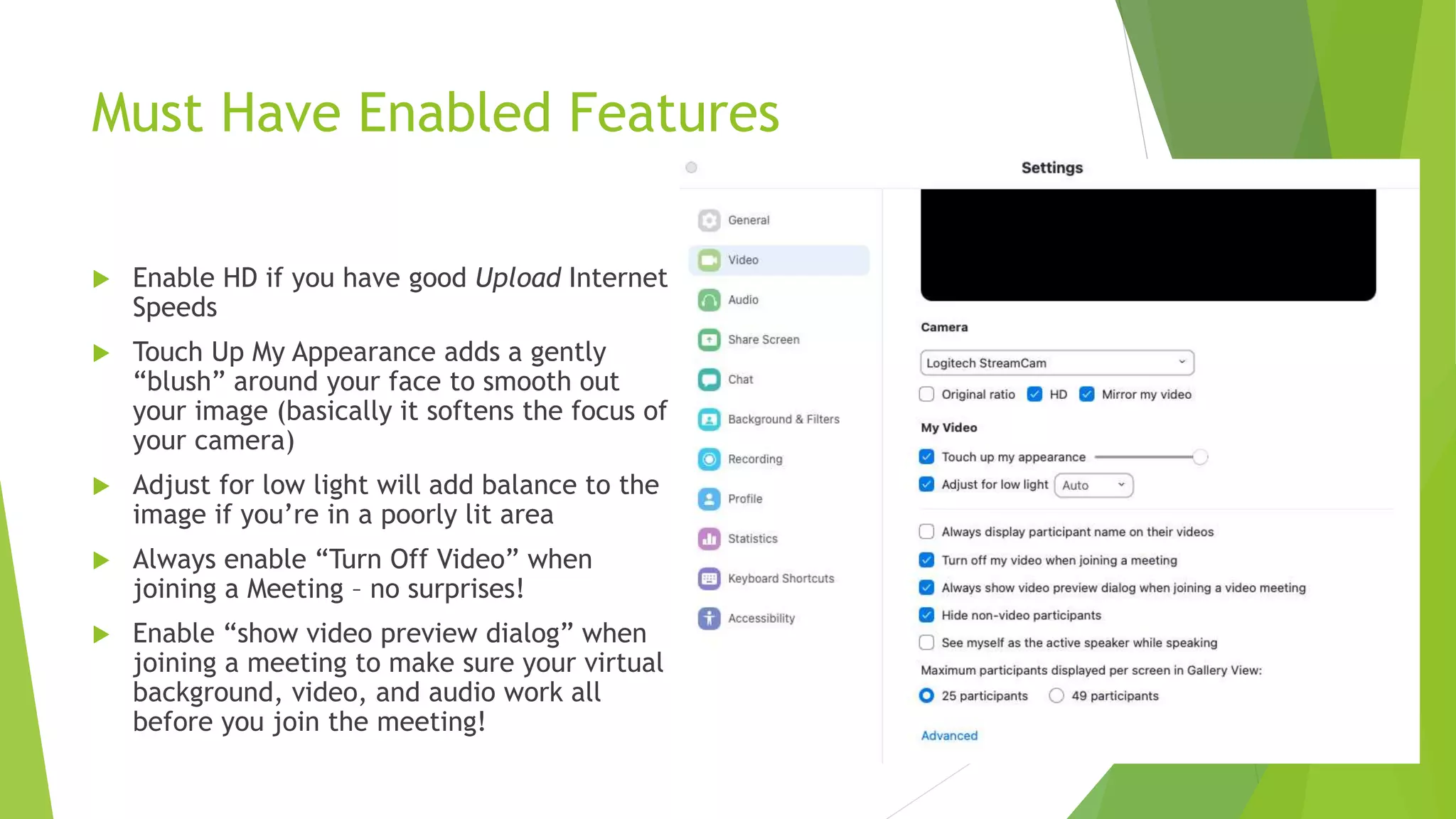
Must Have Enabled Features
 Enable HD if you have good Upload Internet
Speeds
 Touch Up My Appearance adds a gently
“blush” around your face to smooth out
your image (basically it softens the focus of
your camera)
 Adjust for low light will add balance to the
image if you’re in a poorly lit area
 Always enable “Turn Off Video” when
joining a Meeting – no surprises!
 Enable “show video preview dialog” when
joining a meeting to make sure your virtual
background, video, and audio work all
before you join the meeting!
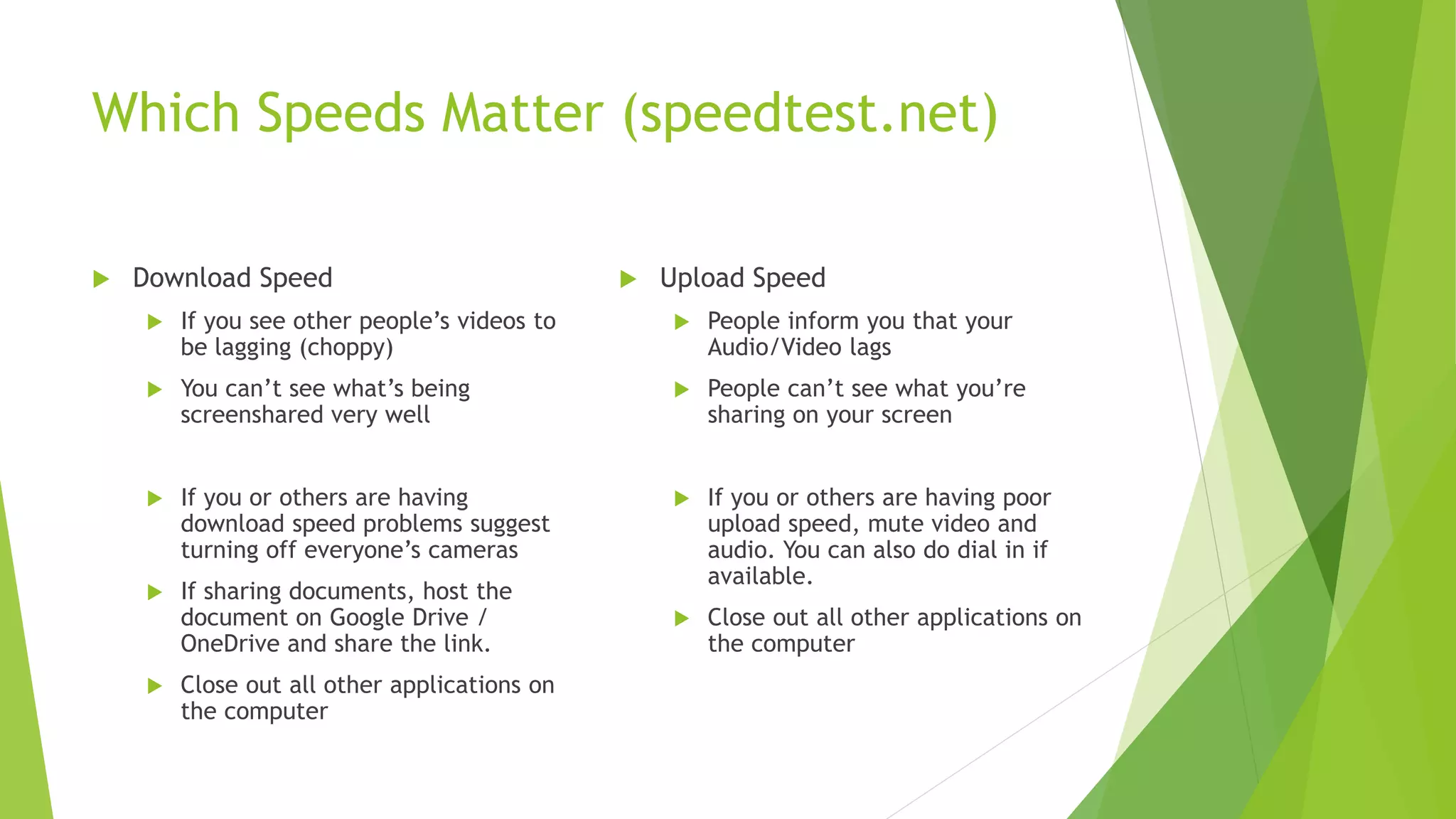
Which Speeds Matter (speedtest.net)
 Download Speed
 If you see other people’s videos to
be lagging (choppy)
 You can’t see what’s being
screenshared very well
 If you or others are having
download speed problems suggest
turning off everyone’s cameras
 If sharing documents, host the
document on Google Drive /
OneDrive and share the link.
 Close out all other applications on
the computer
 Upload Speed
 People inform you that your
Audio/Video lags
 People can’t see what you’re
sharing on your screen
 If you or others are having poor
upload speed, mute video and
audio. You can also do dial in if
available.
 Close out all other applications on
the computer
Sharing Properly #savetheinternetspeed
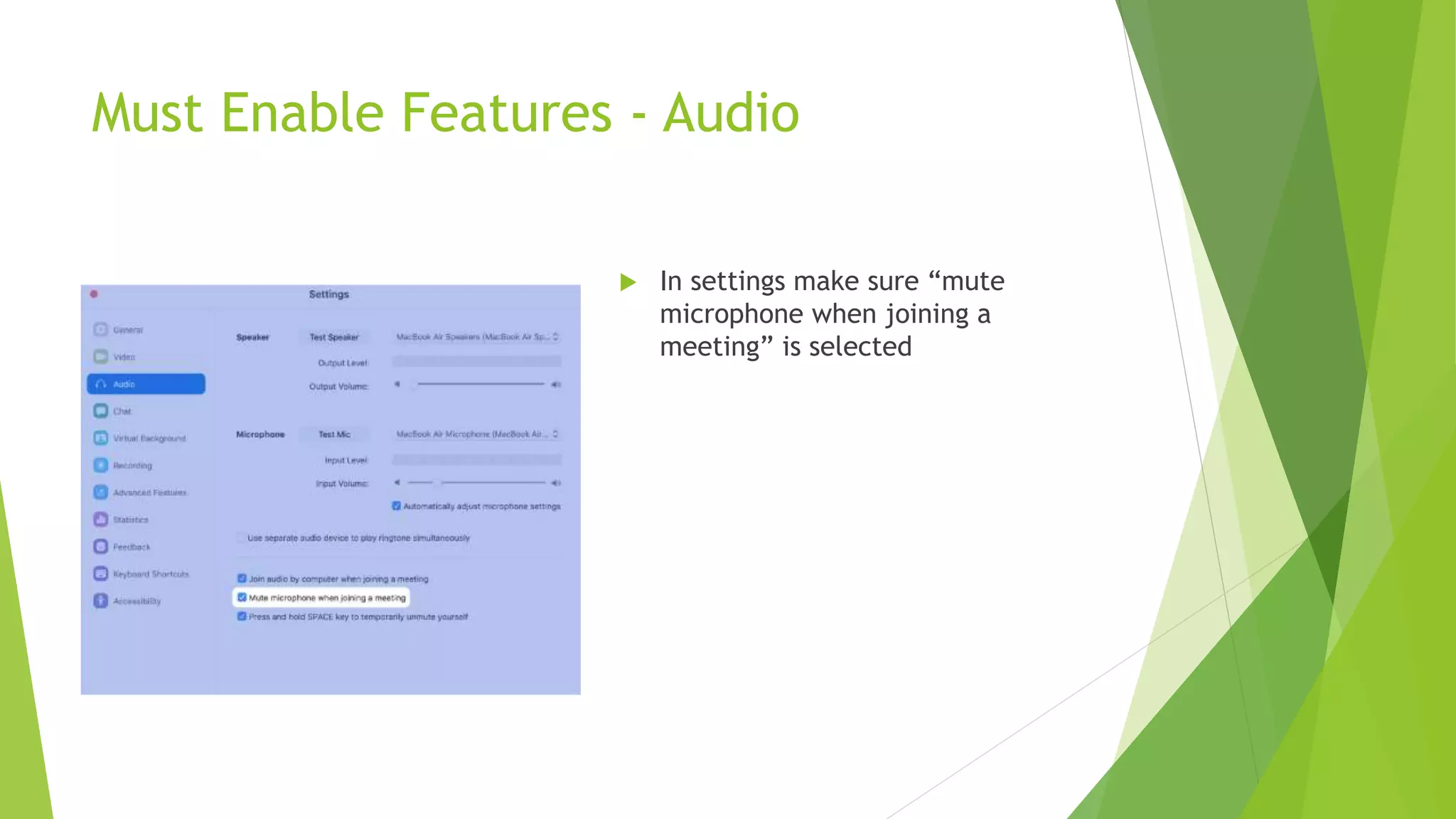
Must Enable Features - Audio
 In settings make sure “mute
microphone when joining a
meeting” is selected
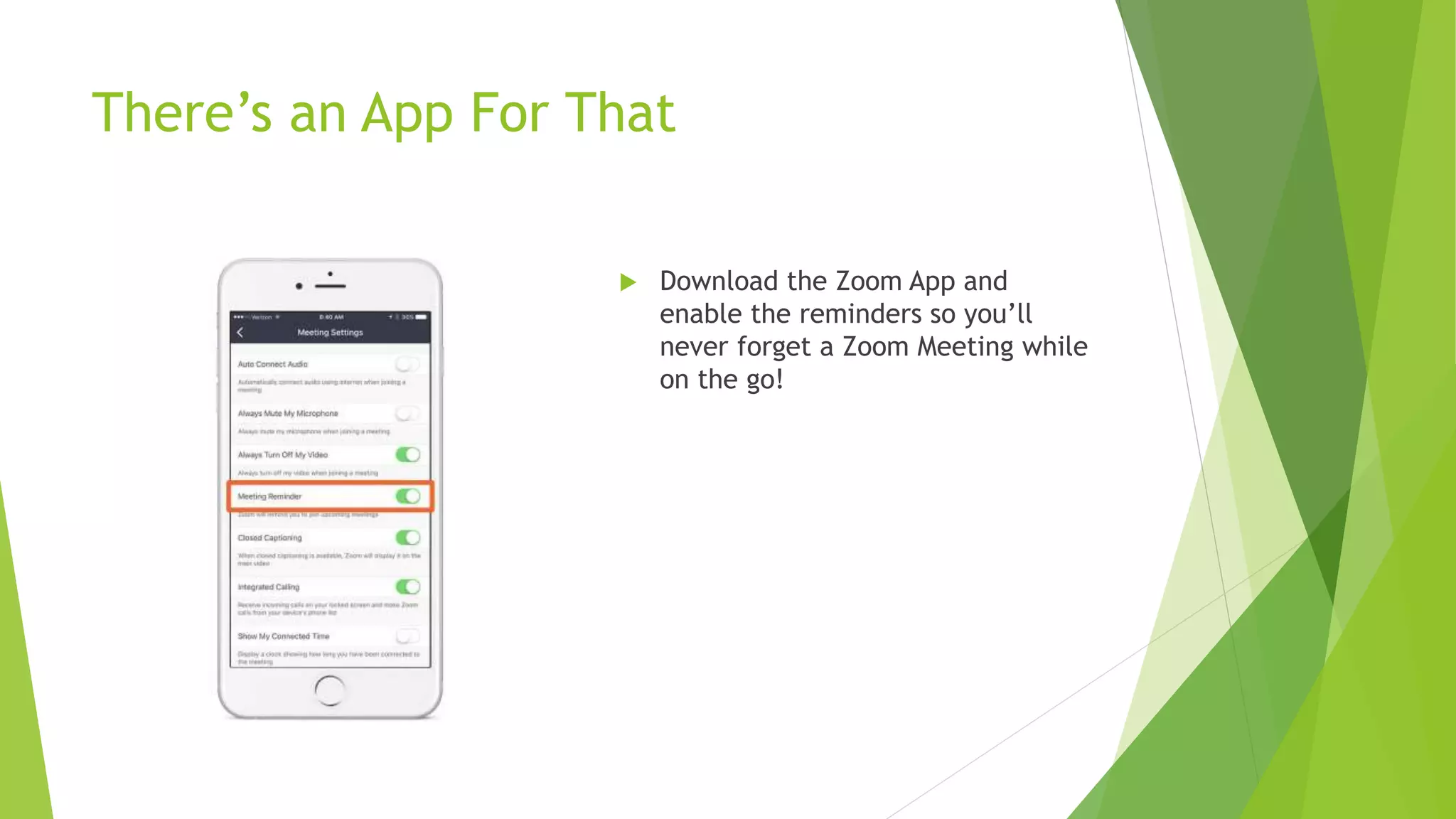
There’s an App For That
 Download the Zoom App and
enable the reminders so you’ll
never forget a Zoom Meeting while
on the go!
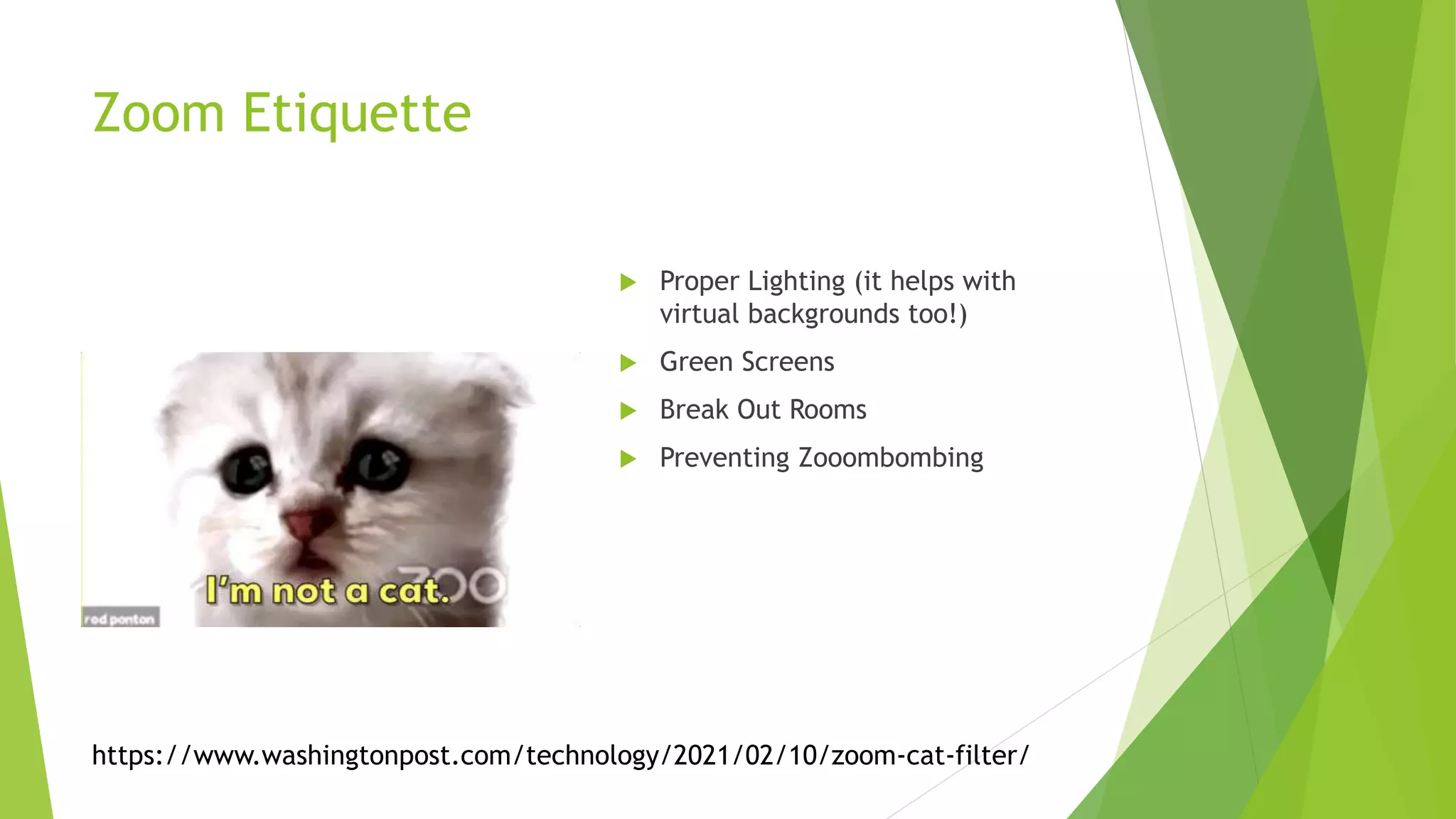
Zoom Etiquette
 Proper Lighting (it helps with
virtual backgrounds too!)
 Green Screens
 Break Out Rooms
 Preventing Zooombombing
https://www.washingtonpost.com/technology/2021/02/10/zoom-cat-filter/
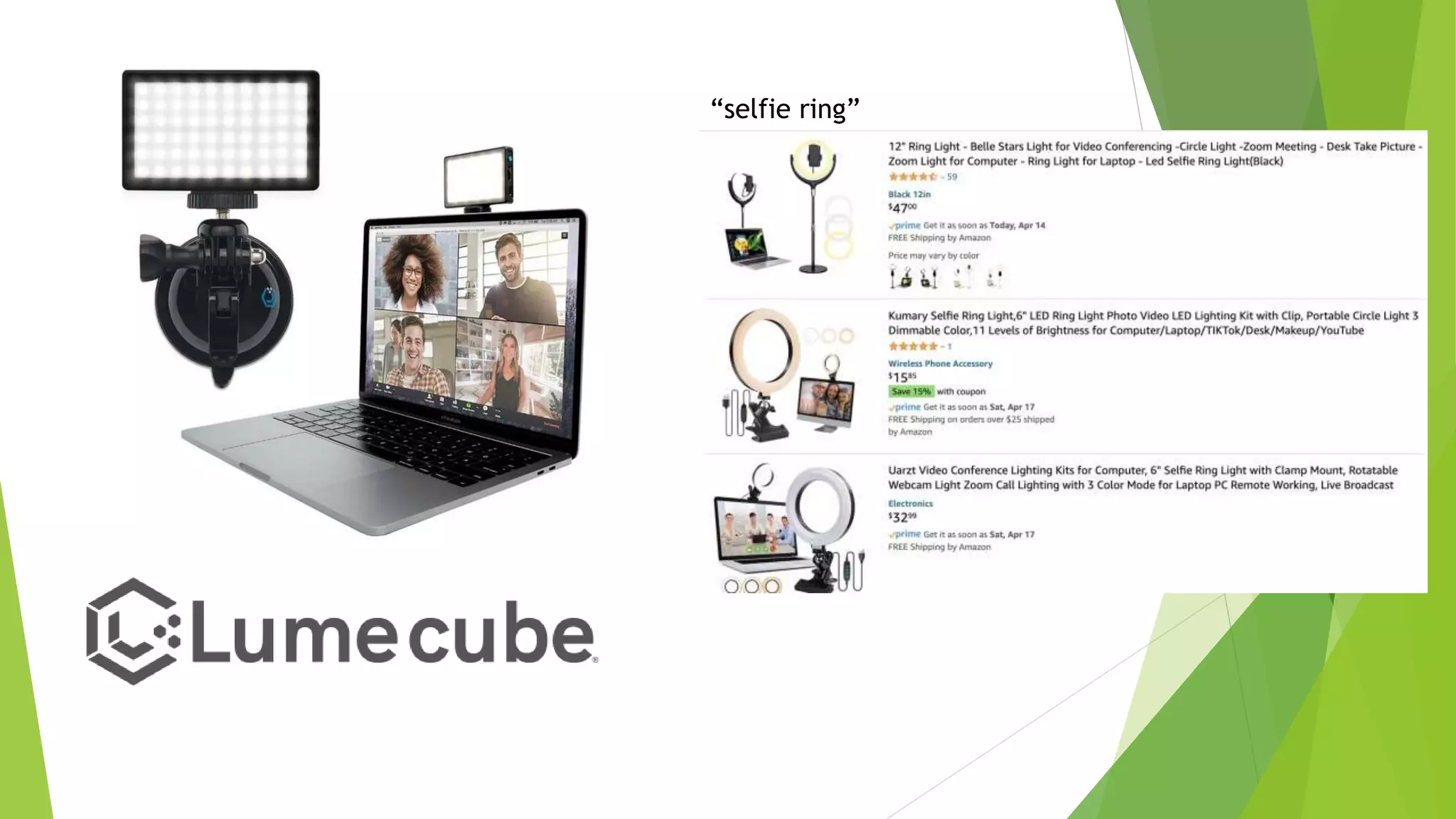
Lighting Tips
 Use a single lamp, directly by your face
 No sidelight or backlight
 Avoid sitting with your back to the window, as the camera make you into a
silhouette.
 Face the window to give you a soft people-pleasing light
“selfie ring”
Green Screens
 TONS of options available – find one that’s suited to fit your space or
background.
 They have options to hang against a wall, a stand to have behind you, even
ones that clip behind your chair.
 https://www.diyvideostudio.com/best-green-screen-for-video-conferencing/
Breakout Rooms
 Breakout Rooms are an underused tool
 Great for mini sessions if you’re running a workshop and want people to
collaborate and do group work
 If you are doing mini sessions to set up the Breakout Rooms to be Random
each time you open them
 Can also be used if you wanted to give the “conference booth” effect
 Set up multiple rooms for each of your presenters / craft specialists
 Use the main room for directions and explain to users how they can go “room
to room” to experience each focused activity/discussion
Zoombombing Protection
 Never use your personal meeting ID – think of it as your Zoom phone
number. It’s safer always generate a random meeting ID
 Always use a meeting password – Zoom sends meeting passwords out to all
invitees when invitations are sent
 Use Zoom’s waiting room feature – This feature enables the host to first
approve an attendee before they can be admitted into the meeting. If a
random Zoombomber comes along, he obviously won’t be approved, and
won’t be able to show his butt during the call.
 Mute audio and disable video for meeting attendees – Disabling video for
everyone but the host will prevent any obscene content from being displayed
on camera by attendees
https://www.techrepublic.com/article/how-to-prevent-zoom-bombing-5-simple-tips/
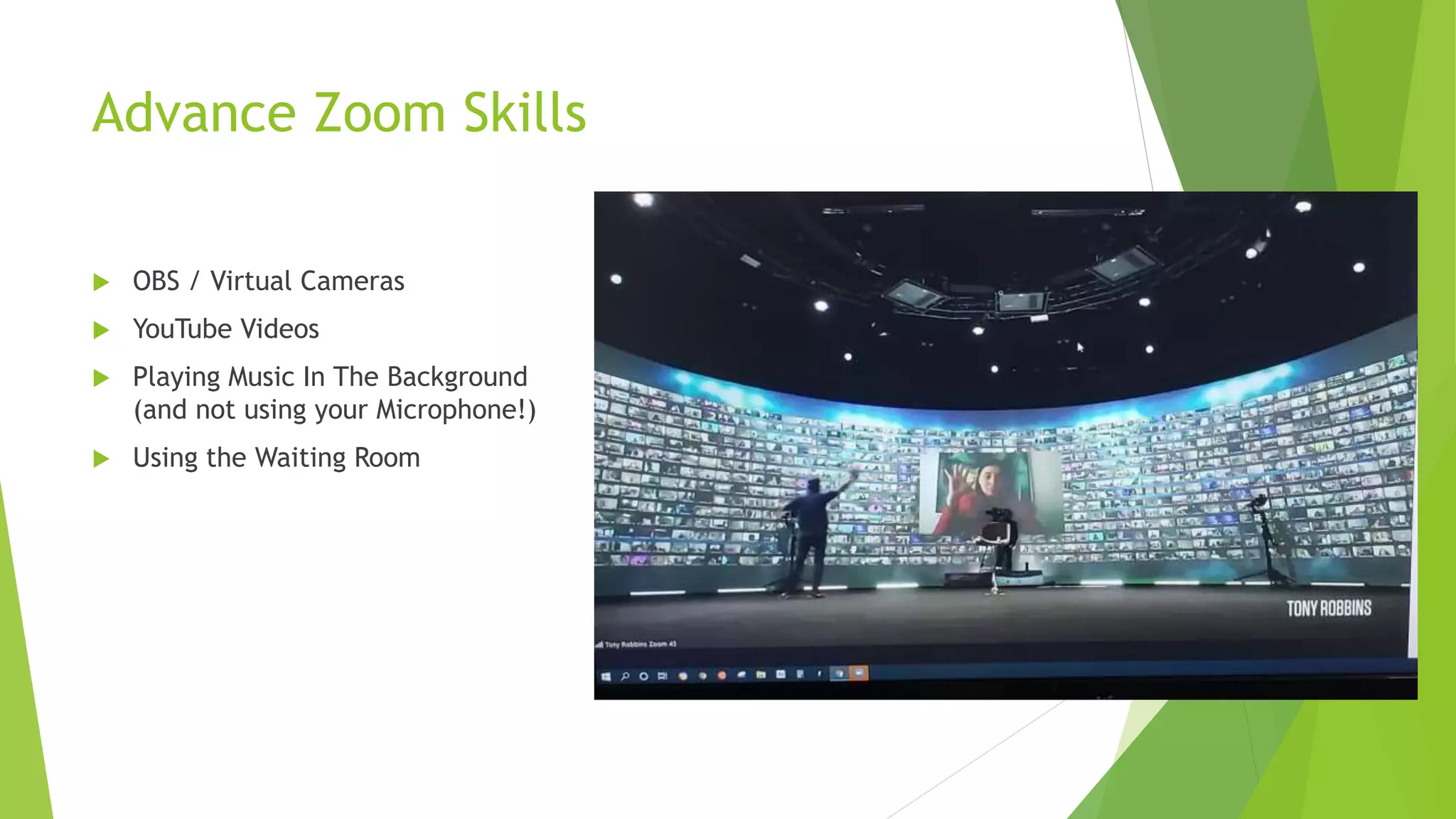
Advance Zoom Skills
 OBS / Virtual Cameras
 YouTube Videos
 Playing Music In The Background
(and not using your Microphone!)
 Using the Waiting Room
What is OBS
 https://obsproject.com/
 Allows you to stream to YouTube and other channels
 Built in “Virtual Camera” where you can make your Zoom video have fancy
banners, play other recorded content through your “camera”
 Open Source and Free
 Does take a little bit of set up
ManyCam
 https://manycam.com/
 60 a Year or 100 LifeTime
 Built in “Virtual Camera” where you can make your Zoom video have fancy
banners, play other recorded content through your “camera”
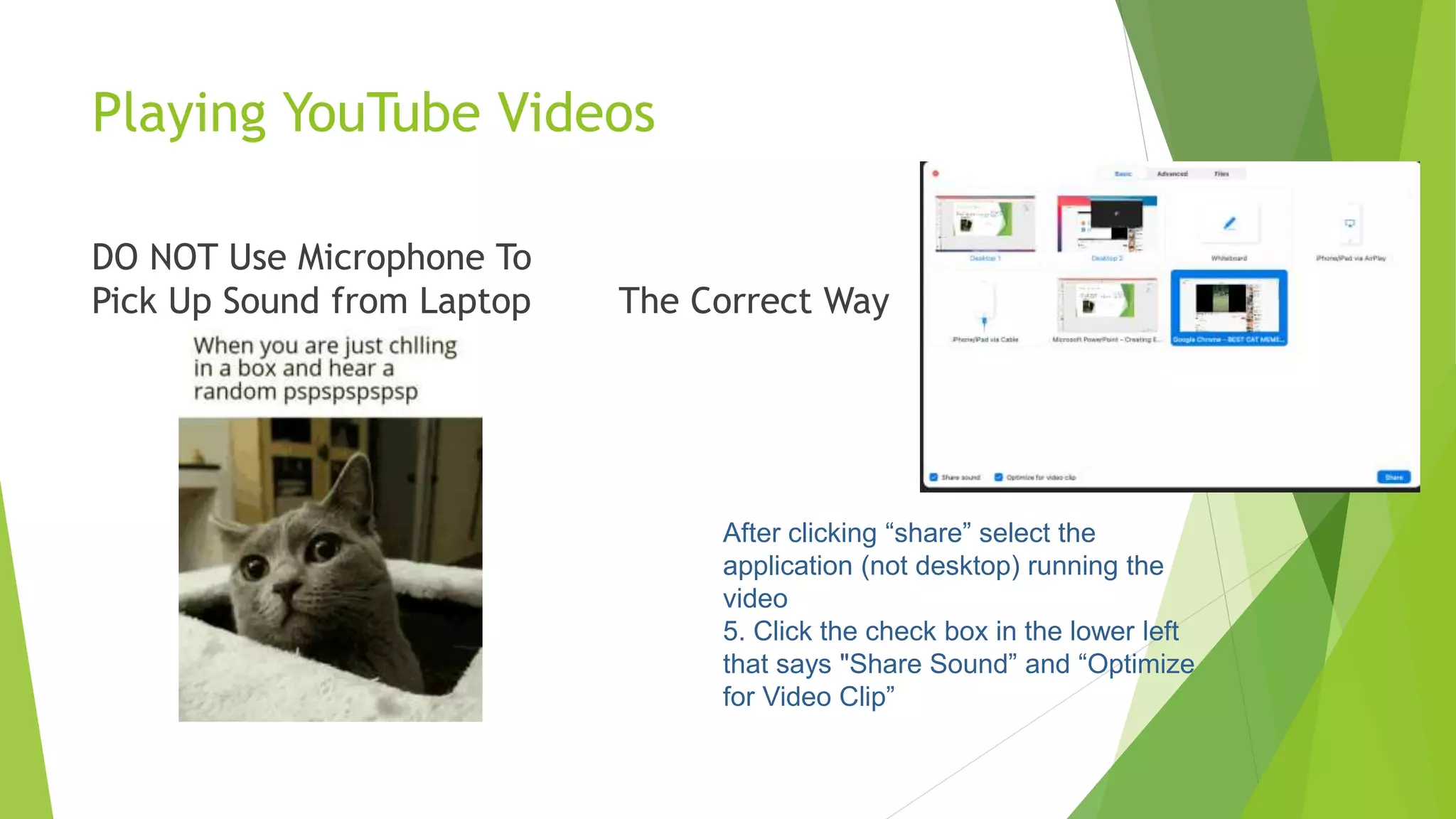
Playing YouTube Videos
DO NOT Use Microphone To
Pick Up Sound from Laptop The Correct Way
After clicking “share” select the
application (not desktop) running the
video
5. Click the check box in the lower left
that says "Share Sound” and “Optimize
for Video Clip”
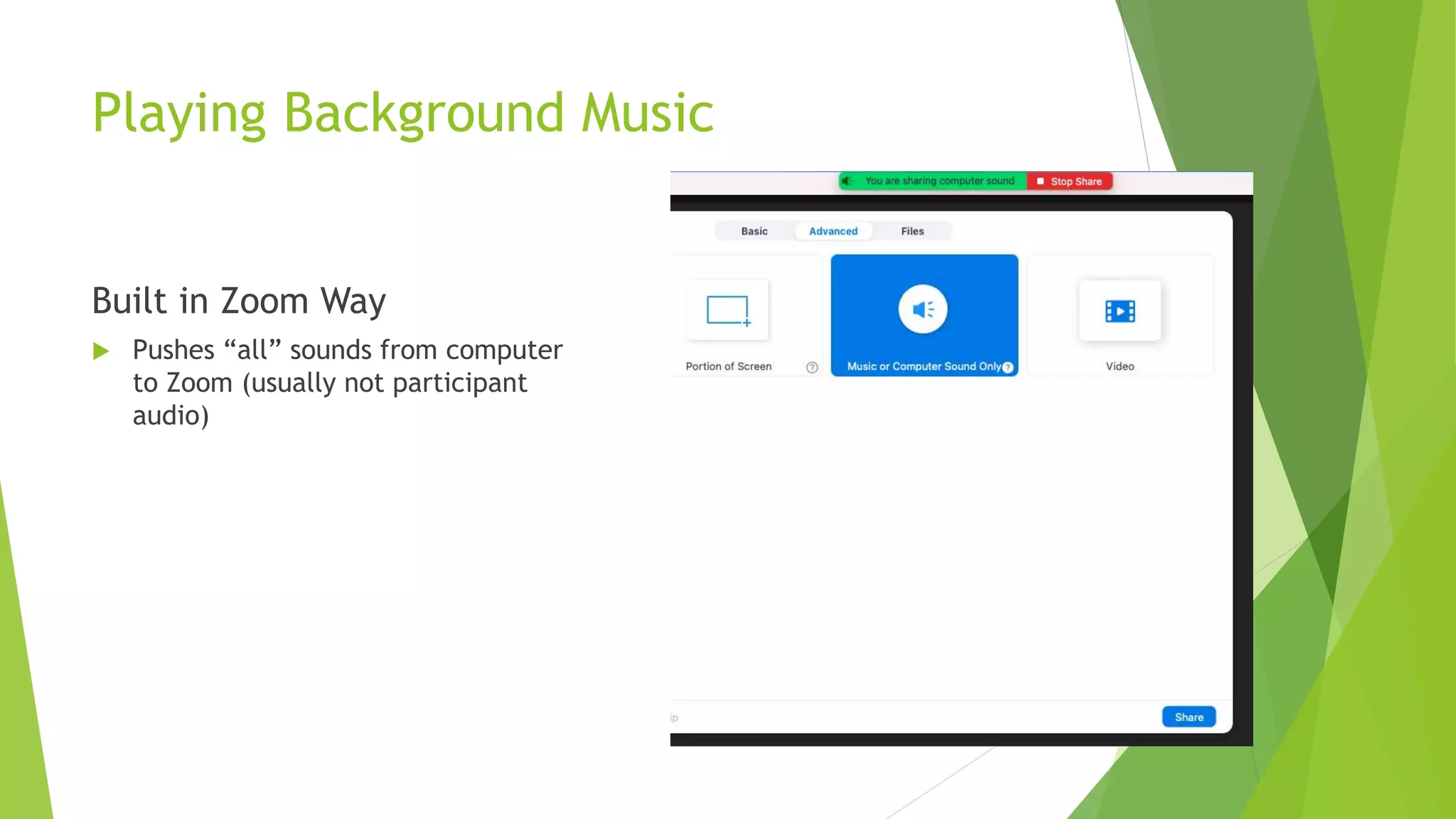
Playing Background Music
Built in Zoom Way
 Pushes “all” sounds from computer
to Zoom (usually not participant
audio)
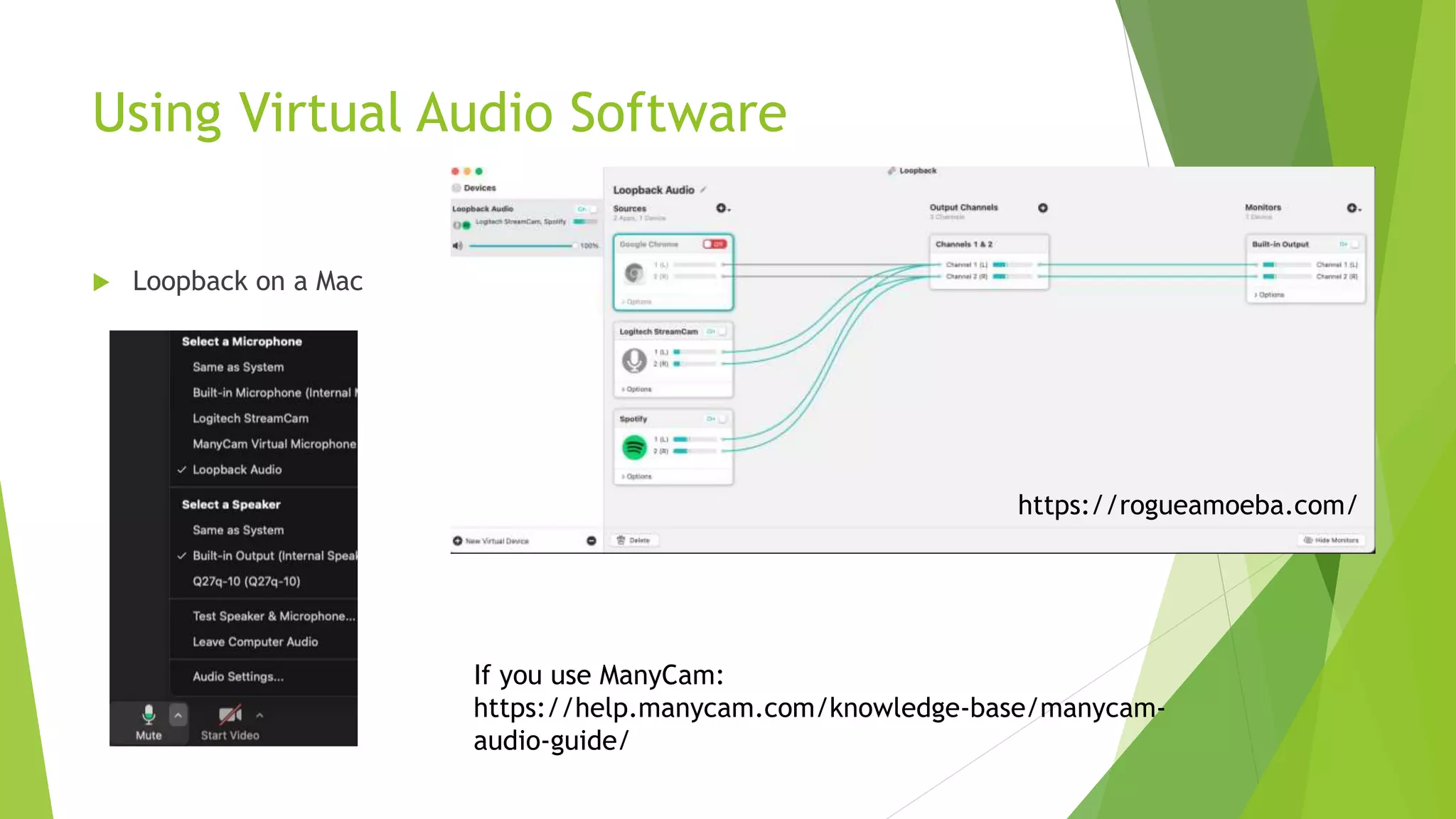
Using Virtual Audio Software
 Loopback on a Mac
If you use ManyCam:
https://help.manycam.com/knowledge-base/manycam-
audio-guide/
https://rogueamoeba.com/
Wait Room (Pro or better) Tips
 https://support.zoom.us/hc/en-us/articles/115000332726-Waiting-Room
 Waiting Room is great for events where you want a “backstage” to organize
with presenters.
 Waiting Room can be customized to include logos, descriptions (or directions),
and more.
Questions?
 Contact me:
 BPichman@evolveproject.org
 Twitter: @BPichman

Creating engagement in online meetings using zoom

  • 1.
    Creating Engagement in OnlineMeetings Using Zoom: Beyond the Basics Brian Pichman Evolve Project
  • 3.
    Description  By now, we'veall heard of Zoom and probably have utilized some version of a virtual meeting. This presentation will focus on unlocking Zoom's true power and offering more engaging meetings, presentations, and workshops. We will be blending some of the more advanced zoom features and combining them with best practice webinar experiences. Using these methodologies, you will deliver a more meaningful Zoom call that will leave lasting impressions to all that participated. Wonder how to get YouTube's audio to play through Zoom without having to blast your speakers? What about those fancy "virtual webcams"? How do you get participants to participate more and multi-task less during meetings? This and more will be discussed and explored in this webinar.
  • 4.
    Agenda  Zoom Pricingand Differences in Plans  Cool Zoom Plugins + Tools  Zoom Like A Pro  Zoom Etiquette  Advance Zoom Skills
  • 5.
  • 6.
    Common Features Bring morefun into happy hours, parties and more with fun color filters or decorative animal stickers. The host can spotlight up to 9 attendee’s videos, so that no matter who is speaking the entire meeting sees the spotlighted videos. The Waiting Room feature allows the host to control when a participant joins the meeting. As the meeting host, you can admit attendees one by one or all at once. In settings, you can choose who gets put into the Waiting Room or gets automatically admitted. You can customize the Waiting Room, if you're on a paid plan. The host can grant up to 9 people, the ability to pin videos to create their own custom view. So no matter who is speaking, the pinned videos stay visible.
  • 7.
    Advance Features Get areal time transcription of what’s being said in your meeting as it happens. Easily search transcriptions later for keywords or who said what in your meeting. Cloud recording transcripts are audio transcripts that transcribe the audio of a meeting or webinar that you record to the cloud. Allows the meeting host to designate interpreters in their meetings and webinar. Upon starting the meeting or webinar, the meeting host can start the interpretation feature, which will give the interpreters access to their own audio channels. Attendees can select an audio channel to hear their language of choice.
  • 8.
    …so you wantto set up a Zoom Meeting  Tool Tips:  Calendly.Com  Calendly helps you schedule meetings without the back-and- forth emails
  • 9.
    Calendly Connect Multiple Calendars allowinginvitees to choose a time that you’re currently open for Education/Non Profit Pricing: $108 a Year (25% Off) Automatically send out a Zoom or Google Meeting
  • 10.
    Anyone actually liketaking notes during calls?
  • 11.
    Perfect Recall  FavoriteNew AI Tool  Transcribe, take notes, and share clips out all from an easy to use interface  If using Google Suite, it can automatically join all your Zoom meetings! ----------------------------------------------------  Limited Time: Get FOREVER one time fee: $70.00  https://appsumo.com/perfect-recall/
  • 12.
    Zoom’s Integration withOtter.AI (Free w/ Business Level Zoom or Business Level Otter Plan + Zoom Pro Plan) https://otter.ai/zoom
  • 13.
    One Zoom toRule Them, Streaming Services to Guide Them  Sometimes users don’t want to join your Zoom and/or you want to record your session and then upload it to Youtube, Facebook,Twitch, maybe Myspace… to reach your audience.  There’s tools that let you stream your sessions Live across all those supported platforms
  • 14.
    Multistreaming Services  APaid Zoom Account (Pro or higher) Stream live to Facebook, Youtube OR a 3rd party service (but not at all once).  There’s 3rd party services that allow you to do that though!  https://restream.io/multistreaming  Legal Hacks: https://restream.io/blog/how-to-multistream-with-zoom/#zoom- basic-account  https://switchboard.live/blog/switchboard-cloud-zoom-meeting-live-stream/  You can also use these services (or similar) and upload a recorded video and make it “appear” live.
  • 15.
    Skip the Zoom– Live Broadcast Tool  https://www.videolinq.com/
  • 16.
    Skip the Zoom– Multilanguage Streaming  https://vidtoon.com/streamr/  Streamr uses AI and a UN-style voiceover method. Select the accent, dialect, and style from 270+ voices available in the software. Google Wavenet Voices is integrated and gives you a choice of converting your videos in any language you love and supporting multiple speech voices in one video.  There is also automated caption creation, translation, and placement, as well as a built-in live stream to YouTube & Facebook https://appsumo.com/marketplace-streamr/
  • 17.
    Crazy Tools –(Soon to Be Released)  I’m Beside You
  • 18.
    Crazy Tools –(Soon to Be Released)  WiseUp
  • 19.
    Cryfe Discover someone’s emotionsthrough their body language, and relate them to what they are saying. Meet the genuine person, beyond the words! https://cryfe.swiss/en/
  • 20.
    Engagement Ideas! HowAbout Polls?  Polls allow for a quick and fun way to gain engagement with your audience!
  • 22.
  • 23.
    Zoom Polls WithinZoom (Paid Plan Required)  https://support.zoom.us/hc/ en-us/articles/213756303- Polling-for-meetings
  • 24.
    Zoom Like AWizard  Zoom Short Cut Keys  Virtual Backgrounds  Must Have Enabled Features to  Touch Up Appearance  Video Surprises
  • 25.
    Zoom Shortcuts YouShould Know  When *muted* pressing and holding space bar you can talk!  To see a list of all the Zoom Shortcuts, go to Settings > Keyboard Shortcuts  Favorites:  Take screenshot:  Cmd+T (PC: Alt Shift T)  Mute Everyone on the call at once.  Cmd+Ctrl+M (PC: Alt+M)  Mute / Unmute Audio  Cmd+Shift+A (PC: Alt+A)  Or use V instead of A for Video These setting will allow you to use keyboard shortcuts REGARDLESS of you being in another window! https://www.businessinsider.com/zoom-keyboard-shortcut
  • 26.
    Virtual Backgrounds  VirtualBackgrounds clean up clutter and are great if you want to show your brand with an amazing backsplash.  They are also great for showing your creativity and interests!  Need ideas? Just Google “Virtual Backgrounds” and begin your search
  • 27.
    Must Have EnabledFeatures  Enable HD if you have good Upload Internet Speeds  Touch Up My Appearance adds a gently “blush” around your face to smooth out your image (basically it softens the focus of your camera)  Adjust for low light will add balance to the image if you’re in a poorly lit area  Always enable “Turn Off Video” when joining a Meeting – no surprises!  Enable “show video preview dialog” when joining a meeting to make sure your virtual background, video, and audio work all before you join the meeting!
  • 28.
    Which Speeds Matter(speedtest.net)  Download Speed  If you see other people’s videos to be lagging (choppy)  You can’t see what’s being screenshared very well  If you or others are having download speed problems suggest turning off everyone’s cameras  If sharing documents, host the document on Google Drive / OneDrive and share the link.  Close out all other applications on the computer  Upload Speed  People inform you that your Audio/Video lags  People can’t see what you’re sharing on your screen  If you or others are having poor upload speed, mute video and audio. You can also do dial in if available.  Close out all other applications on the computer
  • 29.
  • 30.
    Must Enable Features- Audio  In settings make sure “mute microphone when joining a meeting” is selected
  • 31.
    There’s an AppFor That  Download the Zoom App and enable the reminders so you’ll never forget a Zoom Meeting while on the go!
  • 32.
    Zoom Etiquette  ProperLighting (it helps with virtual backgrounds too!)  Green Screens  Break Out Rooms  Preventing Zooombombing https://www.washingtonpost.com/technology/2021/02/10/zoom-cat-filter/
  • 33.
    Lighting Tips  Usea single lamp, directly by your face  No sidelight or backlight  Avoid sitting with your back to the window, as the camera make you into a silhouette.  Face the window to give you a soft people-pleasing light
  • 34.
  • 35.
    Green Screens  TONSof options available – find one that’s suited to fit your space or background.  They have options to hang against a wall, a stand to have behind you, even ones that clip behind your chair.  https://www.diyvideostudio.com/best-green-screen-for-video-conferencing/
  • 36.
    Breakout Rooms  BreakoutRooms are an underused tool  Great for mini sessions if you’re running a workshop and want people to collaborate and do group work  If you are doing mini sessions to set up the Breakout Rooms to be Random each time you open them  Can also be used if you wanted to give the “conference booth” effect  Set up multiple rooms for each of your presenters / craft specialists  Use the main room for directions and explain to users how they can go “room to room” to experience each focused activity/discussion
  • 37.
    Zoombombing Protection  Neveruse your personal meeting ID – think of it as your Zoom phone number. It’s safer always generate a random meeting ID  Always use a meeting password – Zoom sends meeting passwords out to all invitees when invitations are sent  Use Zoom’s waiting room feature – This feature enables the host to first approve an attendee before they can be admitted into the meeting. If a random Zoombomber comes along, he obviously won’t be approved, and won’t be able to show his butt during the call.  Mute audio and disable video for meeting attendees – Disabling video for everyone but the host will prevent any obscene content from being displayed on camera by attendees https://www.techrepublic.com/article/how-to-prevent-zoom-bombing-5-simple-tips/
  • 38.
    Advance Zoom Skills OBS / Virtual Cameras  YouTube Videos  Playing Music In The Background (and not using your Microphone!)  Using the Waiting Room
  • 39.
    What is OBS https://obsproject.com/  Allows you to stream to YouTube and other channels  Built in “Virtual Camera” where you can make your Zoom video have fancy banners, play other recorded content through your “camera”  Open Source and Free  Does take a little bit of set up
  • 40.
    ManyCam  https://manycam.com/  60a Year or 100 LifeTime  Built in “Virtual Camera” where you can make your Zoom video have fancy banners, play other recorded content through your “camera”
  • 41.
    Playing YouTube Videos DONOT Use Microphone To Pick Up Sound from Laptop The Correct Way After clicking “share” select the application (not desktop) running the video 5. Click the check box in the lower left that says "Share Sound” and “Optimize for Video Clip”
  • 42.
    Playing Background Music Builtin Zoom Way  Pushes “all” sounds from computer to Zoom (usually not participant audio)
  • 43.
    Using Virtual AudioSoftware  Loopback on a Mac If you use ManyCam: https://help.manycam.com/knowledge-base/manycam- audio-guide/ https://rogueamoeba.com/
  • 44.
    Wait Room (Proor better) Tips  https://support.zoom.us/hc/en-us/articles/115000332726-Waiting-Room  Waiting Room is great for events where you want a “backstage” to organize with presenters.  Waiting Room can be customized to include logos, descriptions (or directions), and more.
  • 45.
    Questions?  Contact me: BPichman@evolveproject.org  Twitter: @BPichman