
Jeff McNear
plasterdog.com
jeff@plasterdog.com
@plasterdog
847/849-7060
A basic overview of
What you can do with
YouTube tools
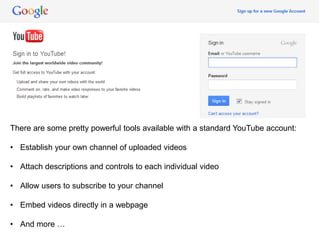
There are some pretty powerful tools available with a standard YouTube account:
• Establish your own channel of uploaded videos
• Attach descriptions and controls to each individual video
• Allow users to subscribe to your channel
• Embed videos directly in a webpage
• And more …
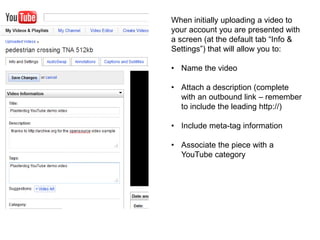
When initially uploading a video to
your account you are presented with
a screen (at the default tab “Info &
Settings”) that will allow you to:
• Name the video
• Attach a description (complete
with an outbound link – remember
to include the leading http://)
• Include meta-tag information
• Associate the piece with a
YouTube category
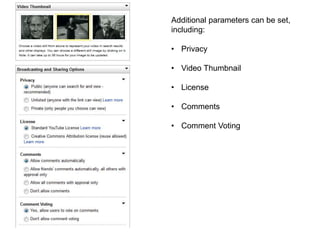
Additional parameters can be set,
including:
• Privacy
• Video Thumbnail
• License
• Comments
• Comment Voting
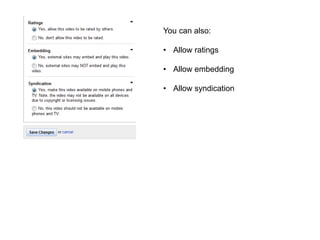
You can also:
• Allow ratings
• Allow embedding
• Allow syndication
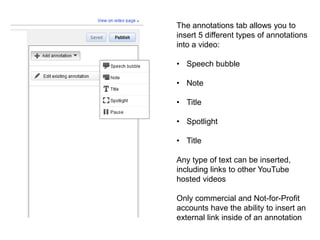
The annotations tab allows you to
insert 5 different types of annotations
into a video:
• Speech bubble
• Note
• Title
• Spotlight
• Title
Any type of text can be inserted,
including links to other YouTube
hosted videos
Only commercial and Not-for-Profit
accounts have the ability to insert an
external link inside of an annotation
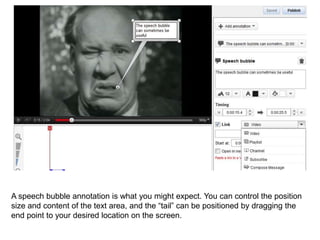
A speech bubble annotation is what you might expect. You can control the position
size and content of the text area, and the “tail” can be positioned by dragging the
end point to your desired location on the screen.
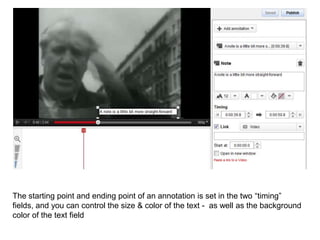
The starting point and ending point of an annotation is set in the two “timing”
fields, and you can control the size & color of the text - as well as the background
color of the text field
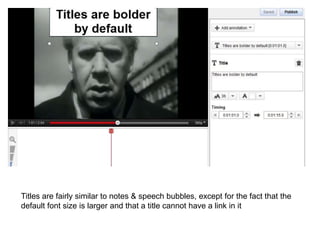
Titles are fairly similar to notes & speech bubbles, except for the fact that the
default font size is larger and that a title cannot have a link in it
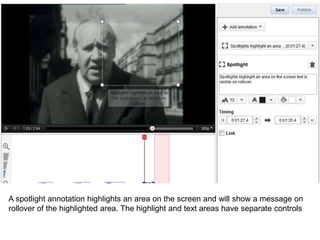
A spotlight annotation highlights an area on the screen and will show a message on
rollover of the highlighted area. The highlight and text areas have separate controls
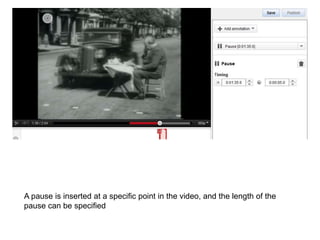
A pause is inserted at a specific point in the video, and the length of the
pause can be specified
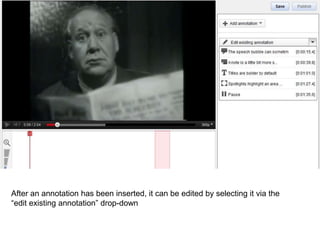
After an annotation has been inserted, it can be edited by selecting it via the
“edit existing annotation” drop-down
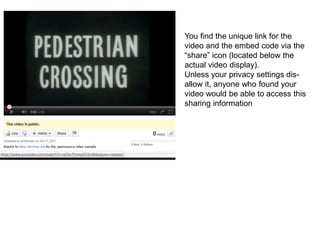
You find the unique link for the
video and the embed code via the
“share” icon (located below the
actual video display).
Unless your privacy settings dis-
allow it, anyone who found your
video would be able to access this
sharing information
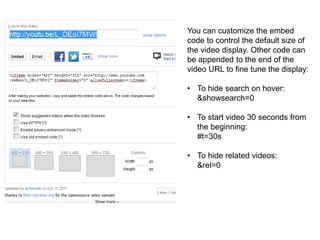
You can customize the embed
code to control the default size of
the video display. Other code can
be appended to the end of the
video URL to fine tune the display:
• To hide search on hover:
&showsearch=0
• To start video 30 seconds from
the beginning:
#t=30s
• To hide related videos:
&rel=0
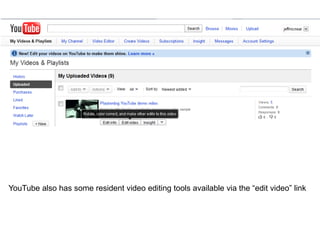
YouTube also has some resident video editing tools available via the “edit video” link
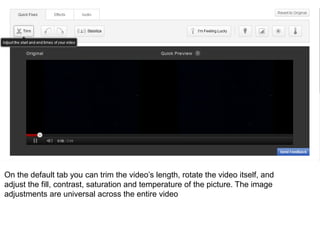
On the default tab you can trim the video’s length, rotate the video itself, and
adjust the fill, contrast, saturation and temperature of the picture. The image
adjustments are universal across the entire video
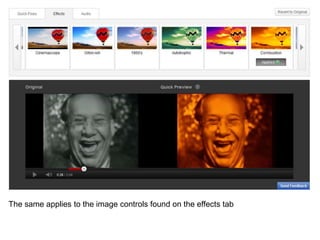
The same applies to the image controls found on the effects tab
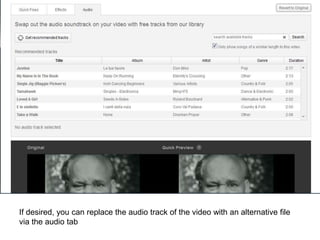
If desired, you can replace the audio track of the video with an alternative file
via the audio tab
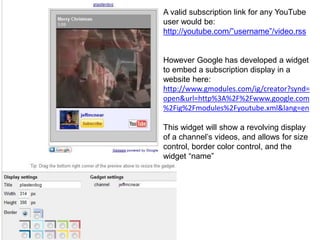
A valid subscription link for any YouTube
user would be:
http://youtube.com/”username”/video.rss
However Google has developed a widget
to embed a subscription display in a
website here:
http://www.gmodules.com/ig/creator?synd=
open&url=http%3A%2F%2Fwww.google.com
%2Fig%2Fmodules%2Fyoutube.xml&lang=en
This widget will show a revolving display
of a channel’s videos, and allows for size
control, border color control, and the
widget “name”
Additional links of note:
• Technically the embed code from YouTube isn’t valid XHTML, go here to get
valid embed coding: http://www.tools4noobs.com/online_tools/youtube_xhtml/
• While you cannot include an external link in an annotation for a video being
played directly playing via YouTube, this site will insert links that will work on
embedded videos: http://www.linkedtube.com/
• If you don’t want to trim your video, but would only like to embed part of that
video on a site follow this link: http://www.tubechop.com/
• YouTube animation tools: http://www.youtube.com/create
• More editing tools: http://www.youtube.com/t/creators_corner
• Downloading YouTube videos (append video identifier to either of the following):
http://www.kickyoutube.com/
http://www.kissyoutube.com
• To download only the audio portion of a video (MP3 format):
http://listentoyoutube.com
Youtube Basics

Youtube Basics

  • 1.
  • 2.
    There are somepretty powerful tools available with a standard YouTube account: • Establish your own channel of uploaded videos • Attach descriptions and controls to each individual video • Allow users to subscribe to your channel • Embed videos directly in a webpage • And more …
  • 3.
    When initially uploadinga video to your account you are presented with a screen (at the default tab “Info & Settings”) that will allow you to: • Name the video • Attach a description (complete with an outbound link – remember to include the leading http://) • Include meta-tag information • Associate the piece with a YouTube category
  • 4.
    Additional parameters canbe set, including: • Privacy • Video Thumbnail • License • Comments • Comment Voting
  • 5.
    You can also: •Allow ratings • Allow embedding • Allow syndication
  • 6.
    The annotations taballows you to insert 5 different types of annotations into a video: • Speech bubble • Note • Title • Spotlight • Title Any type of text can be inserted, including links to other YouTube hosted videos Only commercial and Not-for-Profit accounts have the ability to insert an external link inside of an annotation
  • 7.
    A speech bubbleannotation is what you might expect. You can control the position size and content of the text area, and the “tail” can be positioned by dragging the end point to your desired location on the screen.
  • 8.
    The starting pointand ending point of an annotation is set in the two “timing” fields, and you can control the size & color of the text - as well as the background color of the text field
  • 9.
    Titles are fairlysimilar to notes & speech bubbles, except for the fact that the default font size is larger and that a title cannot have a link in it
  • 10.
    A spotlight annotationhighlights an area on the screen and will show a message on rollover of the highlighted area. The highlight and text areas have separate controls
  • 11.
    A pause isinserted at a specific point in the video, and the length of the pause can be specified
  • 12.
    After an annotationhas been inserted, it can be edited by selecting it via the “edit existing annotation” drop-down
  • 13.
    You find theunique link for the video and the embed code via the “share” icon (located below the actual video display). Unless your privacy settings dis- allow it, anyone who found your video would be able to access this sharing information
  • 14.
    You can customizethe embed code to control the default size of the video display. Other code can be appended to the end of the video URL to fine tune the display: • To hide search on hover: &showsearch=0 • To start video 30 seconds from the beginning: #t=30s • To hide related videos: &rel=0
  • 15.
    YouTube also hassome resident video editing tools available via the “edit video” link
  • 16.
    On the defaulttab you can trim the video’s length, rotate the video itself, and adjust the fill, contrast, saturation and temperature of the picture. The image adjustments are universal across the entire video
  • 17.
    The same appliesto the image controls found on the effects tab
  • 18.
    If desired, youcan replace the audio track of the video with an alternative file via the audio tab
  • 19.
    A valid subscriptionlink for any YouTube user would be: http://youtube.com/”username”/video.rss However Google has developed a widget to embed a subscription display in a website here: http://www.gmodules.com/ig/creator?synd= open&url=http%3A%2F%2Fwww.google.com %2Fig%2Fmodules%2Fyoutube.xml&lang=en This widget will show a revolving display of a channel’s videos, and allows for size control, border color control, and the widget “name”
  • 20.
    Additional links ofnote: • Technically the embed code from YouTube isn’t valid XHTML, go here to get valid embed coding: http://www.tools4noobs.com/online_tools/youtube_xhtml/ • While you cannot include an external link in an annotation for a video being played directly playing via YouTube, this site will insert links that will work on embedded videos: http://www.linkedtube.com/ • If you don’t want to trim your video, but would only like to embed part of that video on a site follow this link: http://www.tubechop.com/ • YouTube animation tools: http://www.youtube.com/create • More editing tools: http://www.youtube.com/t/creators_corner • Downloading YouTube videos (append video identifier to either of the following): http://www.kickyoutube.com/ http://www.kissyoutube.com • To download only the audio portion of a video (MP3 format): http://listentoyoutube.com