
An overview of Pantheon 
managed hosting 
Jeff McNear 
plasterdog.com 
jeffmcnear.com 
847/849-7060 
@plasterdog
The concept of a host that is 
specifically optimized for a 
particular CMS is becoming 
more common. 
Many hosts also offer a tailored 
hosting package for a particular 
CMS. 
Of course if you enjoy sysadmin 
stuff you can tweak your own 
VPS configuration to behave as 
you wish.
Pantheon is a managed hosting platform in that it is optimized to run 
Drupal 6, Drupal 7 and WordPress. The platform is very fast and bills itself 
as the only container based multi-tenant webhost on the market. 
Other container driven examples are Google, Heroku (Sales Force) 
& Red Hat. 
Containers can be deployed and retracted very quickly – 
New Republic recently re-launched their site on Pantheon and the site had 
over 100 million page views in the first day!
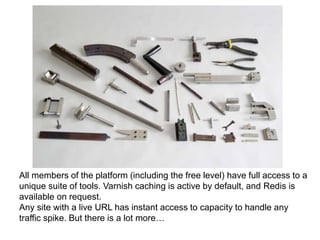
All members of the platform (including the free level) have full access to a 
unique suite of tools. Varnish caching is active by default, and Redis is 
available on request. 
Any site with a live URL has instant access to capacity to handle any 
traffic spike. But there is a lot more…
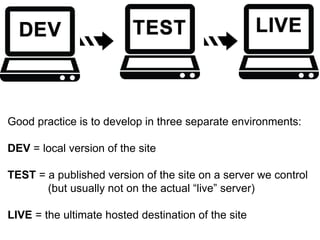
Good practice is to develop in three separate environments: 
DEV = local version of the site 
TEST = a published version of the site on a server we control 
(but usually not on the actual “live” server) 
LIVE = the ultimate hosted destination of the site
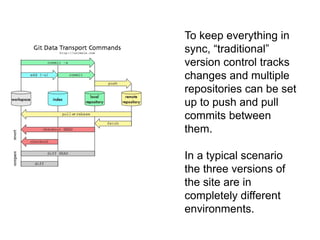
To keep everything in 
sync, “traditional” 
version control tracks 
changes and multiple 
repositories can be set 
up to push and pull 
commits between 
them. 
In a typical scenario 
the three versions of 
the site are in 
completely different 
environments.
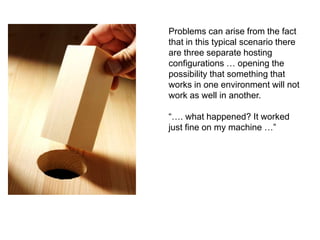
Problems can arise from the fact 
that in this typical scenario there 
are three separate hosting 
configurations … opening the 
possibility that something that 
works in one environment will not 
work as well in another. 
“…. what happened? It worked 
just fine on my machine …”
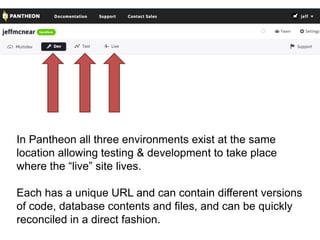
In Pantheon all three environments exist at the same 
location allowing testing & development to take place 
where the “live” site lives. 
Each has a unique URL and can contain different versions 
of code, database contents and files, and can be quickly 
reconciled in a direct fashion.
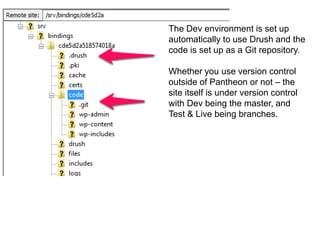
The Dev environment is set up 
automatically to use Drush and the 
code is set up as a Git repository. 
Whether you use version control 
outside of Pantheon or not – the 
site itself is under version control 
with Dev being the master, and 
Test & Live being branches.
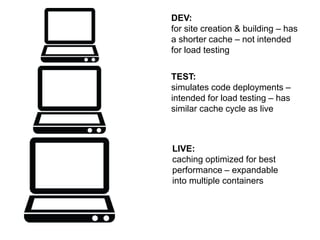
DEV: 
for site creation & building – has 
a shorter cache – not intended 
for load testing 
TEST: 
simulates code deployments – 
intended for load testing – has 
similar cache cycle as live 
LIVE: 
caching optimized for best 
performance – expandable 
into multiple containers
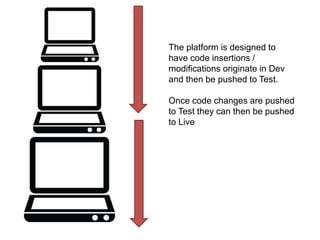
The platform is designed to 
have code insertions / 
modifications originate in Dev 
and then be pushed to Test. 
Once code changes are pushed 
to Test they can then be pushed 
to Live
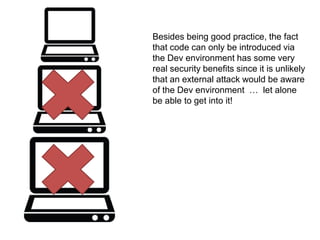
Besides being good practice, the fact 
that code can only be introduced via 
the Dev environment has some very 
real security benefits since it is unlikely 
that an external attack would be aware 
of the Dev environment … let alone 
be able to get into it!
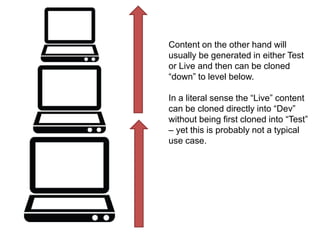
Content on the other hand will 
usually be generated in either Test 
or Live and then can be cloned 
“down” to level below. 
In a literal sense the “Live” content 
can be cloned directly into “Dev” 
without being first cloned into “Test” 
– yet this is probably not a typical 
use case.
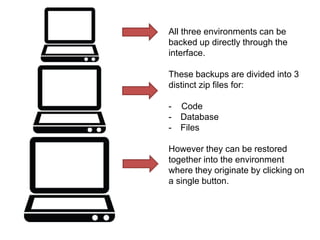
All three environments can be 
backed up directly through the 
interface. 
These backups are divided into 3 
distinct zip files for: 
- Code 
- Database 
- Files 
However they can be restored 
together into the environment 
where they originate by clicking on 
a single button.
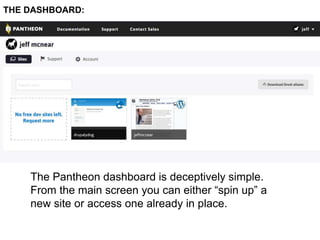
THE DASHBOARD: 
The Pantheon dashboard is deceptively simple. 
From the main screen you can either “spin up” a 
new site or access one already in place.
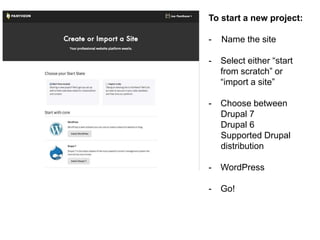
To start a new project: 
- Name the site 
- Select either “start 
from scratch” or 
“import a site” 
- Choose between 
Drupal 7 
Drupal 6 
Supported Drupal 
distribution 
- WordPress 
- Go!
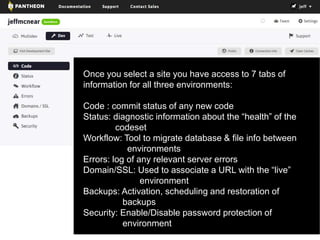
Once you select a site you have access to 7 tabs of 
information for all three environments: 
Code : commit status of any new code 
Status: diagnostic information about the “health” of the 
codeset 
Workflow: Tool to migrate database & file info between 
environments 
Errors: log of any relevant server errors 
Domain/SSL: Used to associate a URL with the “live” 
environment 
Backups: Activation, scheduling and restoration of 
backups 
Security: Enable/Disable password protection of 
environment
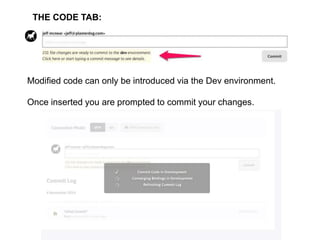
THE CODE TAB: 
Modified code can only be introduced via the Dev environment. 
Once inserted you are prompted to commit your changes.
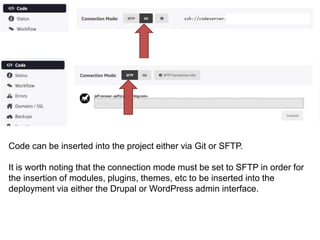
Code can be inserted into the project either via Git or SFTP. 
It is worth noting that the connection mode must be set to SFTP in order for 
the insertion of modules, plugins, themes, etc to be inserted into the 
deployment via either the Drupal or WordPress admin interface.
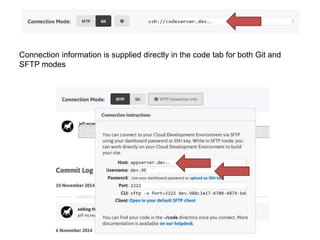
Connection information is supplied directly in the code tab for both Git and 
SFTP modes
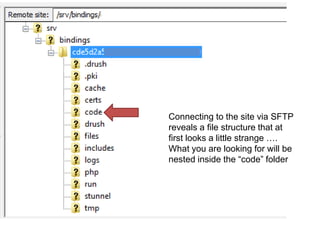
Connecting to the site via SFTP 
reveals a file structure that at 
first looks a little strange …. 
What you are looking for will be 
nested inside the “code” folder
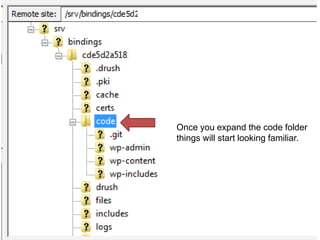
Once you expand the code folder 
things will start looking familiar.
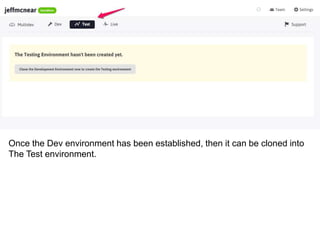
Once the Dev environment has been established, then it can be cloned into 
The Test environment.
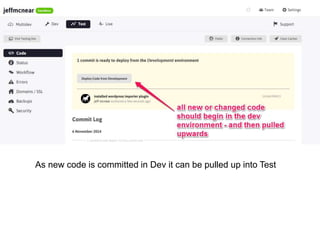
As new code is committed in Dev it can be pulled up into Test
As with Test, the Live version of the site is not automatically populated. 
It needs to be cloned from the Test environment first … once it exists it is a 
fully independent deployment.
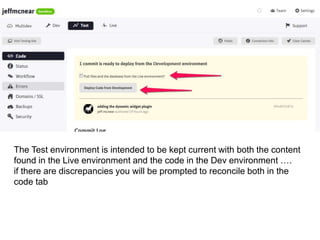
The Test environment is intended to be kept current with both the content 
found in the Live environment and the code in the Dev environment …. 
if there are discrepancies you will be prompted to reconcile both in the 
code tab
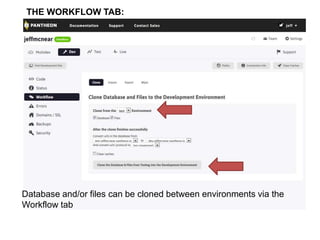
THE WORKFLOW TAB: 
Database and/or files can be cloned between environments via the 
Workflow tab
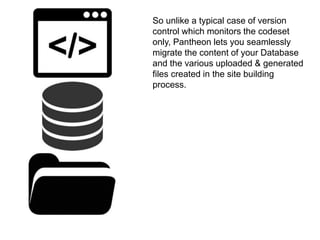
So unlike a typical case of version 
control which monitors the codeset 
only, Pantheon lets you seamlessly 
migrate the content of your Database 
and the various uploaded & generated 
files created in the site building 
process.
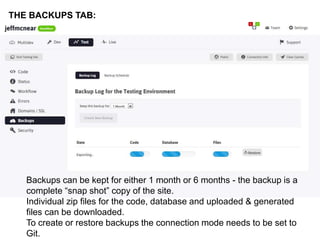
THE BACKUPS TAB: 
Backups can be kept for either 1 month or 6 months - the backup is a 
complete “snap shot” copy of the site. 
Individual zip files for the code, database and uploaded & generated 
files can be downloaded. 
To create or restore backups the connection mode needs to be set to 
Git.
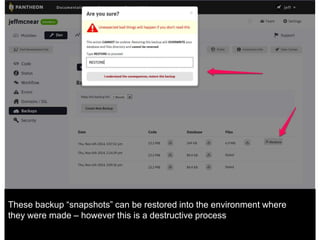
These backup “snapshots” can be restored into the environment where 
they were made – however this is a destructive process
A SIDE NOTE: 
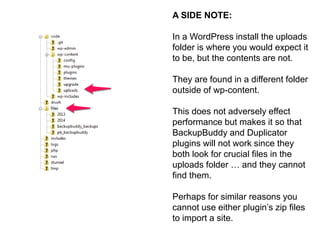
In a WordPress install the uploads 
folder is where you would expect it 
to be, but the contents are not. 
They are found in a different folder 
outside of wp-content. 
This does not adversely effect 
performance but makes it so that 
BackupBuddy and Duplicator 
plugins will not work since they 
both look for crucial files in the 
uploads folder … and they cannot 
find them. 
Perhaps for similar reasons you 
cannot use either plugin’s zip files 
to import a site.
THE SECURITY TAB: 
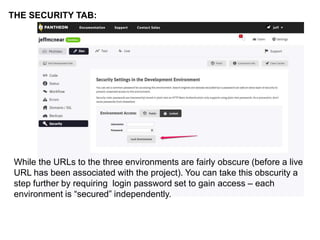
While the URLs to the three environments are fairly obscure (before a live 
URL has been associated with the project). You can take this obscurity a 
step further by requiring login password set to gain access – each 
environment is “secured” independently.
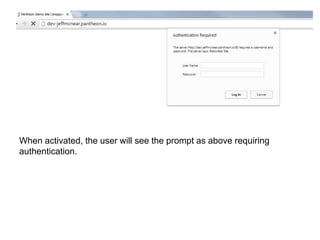
When activated, the user will see the prompt as above requiring 
authentication.
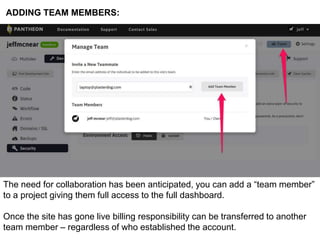
ADDING TEAM MEMBERS: 
The need for collaboration has been anticipated, you can add a “team member” 
to a project giving them full access to the full dashboard. 
Once the site has gone live billing responsibility can be transferred to another 
team member – regardless of who established the account.
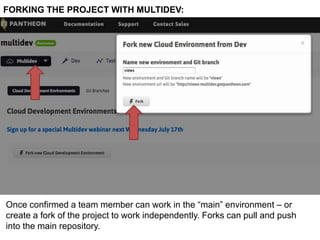
FORKING THE PROJECT WITH MULTIDEV: 
Once confirmed a team member can work in the “main” environment – or 
create a fork of the project to work independently. Forks can pull and push 
into the main repository.
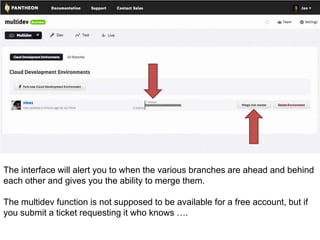
The interface will alert you to when the various branches are ahead and behind 
each other and gives you the ability to merge them. 
The multidev function is not supposed to be available for a free account, but if 
you submit a ticket requesting it who knows ….
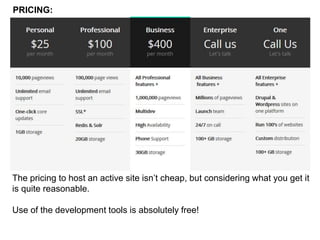
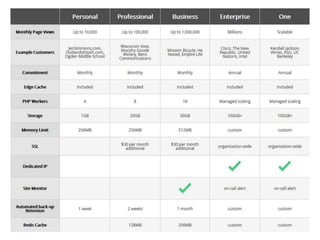
PRICING: 
The pricing to host an active site isn’t cheap, but considering what you get it 
is quite reasonable. 
Use of the development tools is absolutely free!
Pantheon basics

Pantheon basics

  • 1.
    An overview ofPantheon managed hosting Jeff McNear plasterdog.com jeffmcnear.com 847/849-7060 @plasterdog
  • 2.
    The concept ofa host that is specifically optimized for a particular CMS is becoming more common. Many hosts also offer a tailored hosting package for a particular CMS. Of course if you enjoy sysadmin stuff you can tweak your own VPS configuration to behave as you wish.
  • 3.
    Pantheon is amanaged hosting platform in that it is optimized to run Drupal 6, Drupal 7 and WordPress. The platform is very fast and bills itself as the only container based multi-tenant webhost on the market. Other container driven examples are Google, Heroku (Sales Force) & Red Hat. Containers can be deployed and retracted very quickly – New Republic recently re-launched their site on Pantheon and the site had over 100 million page views in the first day!
  • 4.
    All members ofthe platform (including the free level) have full access to a unique suite of tools. Varnish caching is active by default, and Redis is available on request. Any site with a live URL has instant access to capacity to handle any traffic spike. But there is a lot more…
  • 5.
    Good practice isto develop in three separate environments: DEV = local version of the site TEST = a published version of the site on a server we control (but usually not on the actual “live” server) LIVE = the ultimate hosted destination of the site
  • 6.
    To keep everythingin sync, “traditional” version control tracks changes and multiple repositories can be set up to push and pull commits between them. In a typical scenario the three versions of the site are in completely different environments.
  • 7.
    Problems can arisefrom the fact that in this typical scenario there are three separate hosting configurations … opening the possibility that something that works in one environment will not work as well in another. “…. what happened? It worked just fine on my machine …”
  • 8.
    In Pantheon allthree environments exist at the same location allowing testing & development to take place where the “live” site lives. Each has a unique URL and can contain different versions of code, database contents and files, and can be quickly reconciled in a direct fashion.
  • 9.
    The Dev environmentis set up automatically to use Drush and the code is set up as a Git repository. Whether you use version control outside of Pantheon or not – the site itself is under version control with Dev being the master, and Test & Live being branches.
  • 10.
    DEV: for sitecreation & building – has a shorter cache – not intended for load testing TEST: simulates code deployments – intended for load testing – has similar cache cycle as live LIVE: caching optimized for best performance – expandable into multiple containers
  • 11.
    The platform isdesigned to have code insertions / modifications originate in Dev and then be pushed to Test. Once code changes are pushed to Test they can then be pushed to Live
  • 12.
    Besides being goodpractice, the fact that code can only be introduced via the Dev environment has some very real security benefits since it is unlikely that an external attack would be aware of the Dev environment … let alone be able to get into it!
  • 13.
    Content on theother hand will usually be generated in either Test or Live and then can be cloned “down” to level below. In a literal sense the “Live” content can be cloned directly into “Dev” without being first cloned into “Test” – yet this is probably not a typical use case.
  • 14.
    All three environmentscan be backed up directly through the interface. These backups are divided into 3 distinct zip files for: - Code - Database - Files However they can be restored together into the environment where they originate by clicking on a single button.
  • 15.
    THE DASHBOARD: ThePantheon dashboard is deceptively simple. From the main screen you can either “spin up” a new site or access one already in place.
  • 16.
    To start anew project: - Name the site - Select either “start from scratch” or “import a site” - Choose between Drupal 7 Drupal 6 Supported Drupal distribution - WordPress - Go!
  • 17.
    Once you selecta site you have access to 7 tabs of information for all three environments: Code : commit status of any new code Status: diagnostic information about the “health” of the codeset Workflow: Tool to migrate database & file info between environments Errors: log of any relevant server errors Domain/SSL: Used to associate a URL with the “live” environment Backups: Activation, scheduling and restoration of backups Security: Enable/Disable password protection of environment
  • 18.
    THE CODE TAB: Modified code can only be introduced via the Dev environment. Once inserted you are prompted to commit your changes.
  • 19.
    Code can beinserted into the project either via Git or SFTP. It is worth noting that the connection mode must be set to SFTP in order for the insertion of modules, plugins, themes, etc to be inserted into the deployment via either the Drupal or WordPress admin interface.
  • 20.
    Connection information issupplied directly in the code tab for both Git and SFTP modes
  • 21.
    Connecting to thesite via SFTP reveals a file structure that at first looks a little strange …. What you are looking for will be nested inside the “code” folder
  • 22.
    Once you expandthe code folder things will start looking familiar.
  • 23.
    Once the Devenvironment has been established, then it can be cloned into The Test environment.
  • 24.
    As new codeis committed in Dev it can be pulled up into Test
  • 25.
    As with Test,the Live version of the site is not automatically populated. It needs to be cloned from the Test environment first … once it exists it is a fully independent deployment.
  • 26.
    The Test environmentis intended to be kept current with both the content found in the Live environment and the code in the Dev environment …. if there are discrepancies you will be prompted to reconcile both in the code tab
  • 27.
    THE WORKFLOW TAB: Database and/or files can be cloned between environments via the Workflow tab
  • 28.
    So unlike atypical case of version control which monitors the codeset only, Pantheon lets you seamlessly migrate the content of your Database and the various uploaded & generated files created in the site building process.
  • 29.
    THE BACKUPS TAB: Backups can be kept for either 1 month or 6 months - the backup is a complete “snap shot” copy of the site. Individual zip files for the code, database and uploaded & generated files can be downloaded. To create or restore backups the connection mode needs to be set to Git.
  • 30.
    These backup “snapshots”can be restored into the environment where they were made – however this is a destructive process
  • 31.
    A SIDE NOTE: In a WordPress install the uploads folder is where you would expect it to be, but the contents are not. They are found in a different folder outside of wp-content. This does not adversely effect performance but makes it so that BackupBuddy and Duplicator plugins will not work since they both look for crucial files in the uploads folder … and they cannot find them. Perhaps for similar reasons you cannot use either plugin’s zip files to import a site.
  • 32.
    THE SECURITY TAB: While the URLs to the three environments are fairly obscure (before a live URL has been associated with the project). You can take this obscurity a step further by requiring login password set to gain access – each environment is “secured” independently.
  • 33.
    When activated, theuser will see the prompt as above requiring authentication.
  • 34.
    ADDING TEAM MEMBERS: The need for collaboration has been anticipated, you can add a “team member” to a project giving them full access to the full dashboard. Once the site has gone live billing responsibility can be transferred to another team member – regardless of who established the account.
  • 35.
    FORKING THE PROJECTWITH MULTIDEV: Once confirmed a team member can work in the “main” environment – or create a fork of the project to work independently. Forks can pull and push into the main repository.
  • 36.
    The interface willalert you to when the various branches are ahead and behind each other and gives you the ability to merge them. The multidev function is not supposed to be available for a free account, but if you submit a ticket requesting it who knows ….
  • 37.
    PRICING: The pricingto host an active site isn’t cheap, but considering what you get it is quite reasonable. Use of the development tools is absolutely free!