Customizing Your YouTube Channel
My ChannelNow you can begin to customize your channel. You can do this step before you create a playlist and upload videos, but it helps to have some content for this part.1. To get to your channel, click on your account name in the upper right hand corner.2. Select “My Channel” from the dropdown3. Your channel will appear with a selection of tabs above that you will use to customize yourchannel.
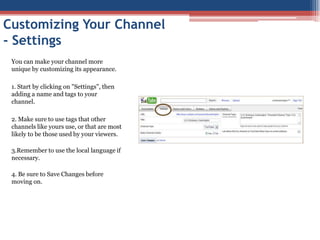
Customizing Your Channel - SettingsYou can make your channel more unique by customizing its appearance.  1. Start by clicking on "Settings", then adding a name and tags to your channel.  2. Make sure to use tags that other channels like yours use, or that are most likely to be those used by your viewers.3.Remember to use the local language if necessary.4. Be sure to Save Changes before moving on.
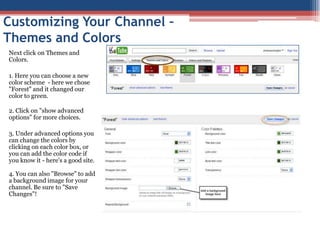
Customizing Your Channel – Themes and ColorsNext click on Themes and Colors.  1. Here you can choose a new color scheme  - here we chose "Forest" and it changed our color to green. 2. Click on "show advanced options" for more choices.3. Under advanced options you can change the colors by clicking on each color box, or you can add the color code if you know it - here's a good site.  4. You can also "Browse" to add a background image for your channel. Be sure to "Save Changes"!
Customizing Your Channel - Modules1. The "Modules" tab allows you to select what sections you would like to show up on the lower half of your channel.2. Simply uncheck those sections that you don't need/want. The most applicable will most likely be Comments, Subscribers and Subscriptions. 3. Remember to click "Save Changes."
Channel Settings – Displayed Content Click on the Video and Playlists tab next to the Player and Grid view symbols. This will bring up more options.
 Which content would you like to display?
If you check the “Playlists” box, your playlists will display on your channel along with the uploaded videos and favorites.
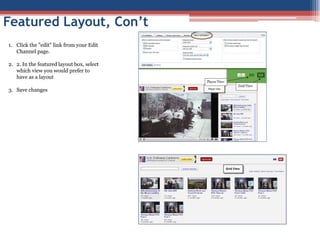
 Featured layout and Featured video section are next.Featured Layout – Player View vs. Grid ViewYou can decide how your videos are displayed on your channel when someone comes to your channel. "Player" view highlights one video of your choice in play mode with other videos listed on the right.
 "Grid" view shows your uploaded videos in a grid.
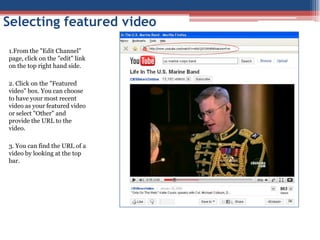
 "Player" view is useful when there is a featured video you want to make sure your users see (we'll show you how next).

Customizing Your YouTube Channel

  • 1.
  • 2.
    My ChannelNow youcan begin to customize your channel. You can do this step before you create a playlist and upload videos, but it helps to have some content for this part.1. To get to your channel, click on your account name in the upper right hand corner.2. Select “My Channel” from the dropdown3. Your channel will appear with a selection of tabs above that you will use to customize yourchannel.
  • 3.
    Customizing Your Channel- SettingsYou can make your channel more unique by customizing its appearance.  1. Start by clicking on "Settings", then adding a name and tags to your channel.  2. Make sure to use tags that other channels like yours use, or that are most likely to be those used by your viewers.3.Remember to use the local language if necessary.4. Be sure to Save Changes before moving on.
  • 4.
    Customizing Your Channel– Themes and ColorsNext click on Themes and Colors.  1. Here you can choose a new color scheme  - here we chose "Forest" and it changed our color to green. 2. Click on "show advanced options" for more choices.3. Under advanced options you can change the colors by clicking on each color box, or you can add the color code if you know it - here's a good site.  4. You can also "Browse" to add a background image for your channel. Be sure to "Save Changes"!
  • 5.
    Customizing Your Channel- Modules1. The "Modules" tab allows you to select what sections you would like to show up on the lower half of your channel.2. Simply uncheck those sections that you don't need/want. The most applicable will most likely be Comments, Subscribers and Subscriptions. 3. Remember to click "Save Changes."
  • 6.
    Channel Settings –Displayed Content Click on the Video and Playlists tab next to the Player and Grid view symbols. This will bring up more options.
  • 7.
    Which contentwould you like to display?
  • 8.
    If you checkthe “Playlists” box, your playlists will display on your channel along with the uploaded videos and favorites.
  • 9.
    Featured layoutand Featured video section are next.Featured Layout – Player View vs. Grid ViewYou can decide how your videos are displayed on your channel when someone comes to your channel. "Player" view highlights one video of your choice in play mode with other videos listed on the right.
  • 10.
    "Grid" viewshows your uploaded videos in a grid.
  • 11.
    "Player" viewis useful when there is a featured video you want to make sure your users see (we'll show you how next).