

Basic Editing of a
WordPress Site


Jeff McNear
plasterdog.com
jeff@plasterdog.com
@plasterdog
847/849-7060
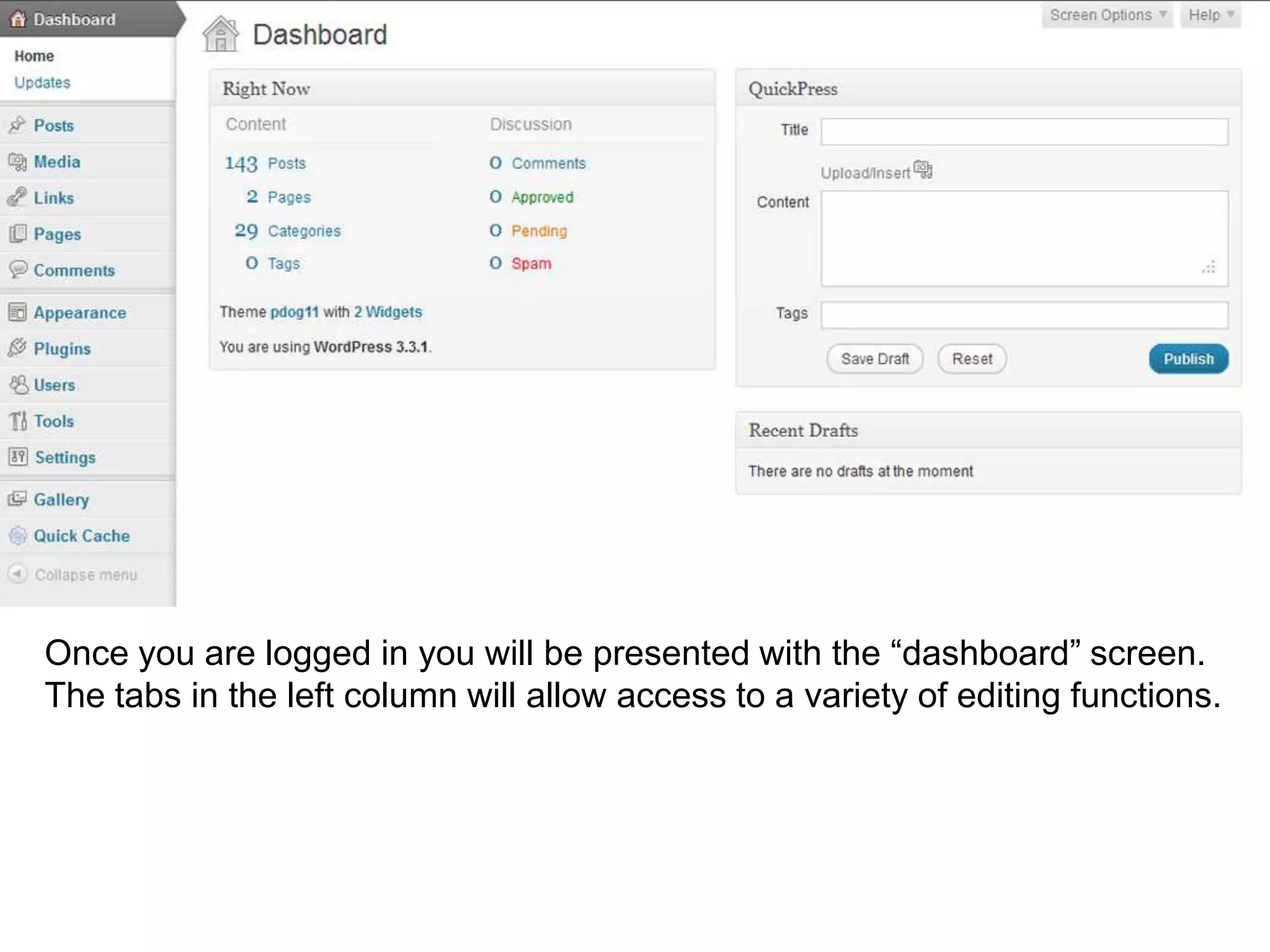
With any WordPress site the most
straight forward way to access the
administration interface is to append
“/wp-admin” to the root URL of the
site.
This address will give you access to
the login screen.

To login you must have a
pre-assigned login name and
password.
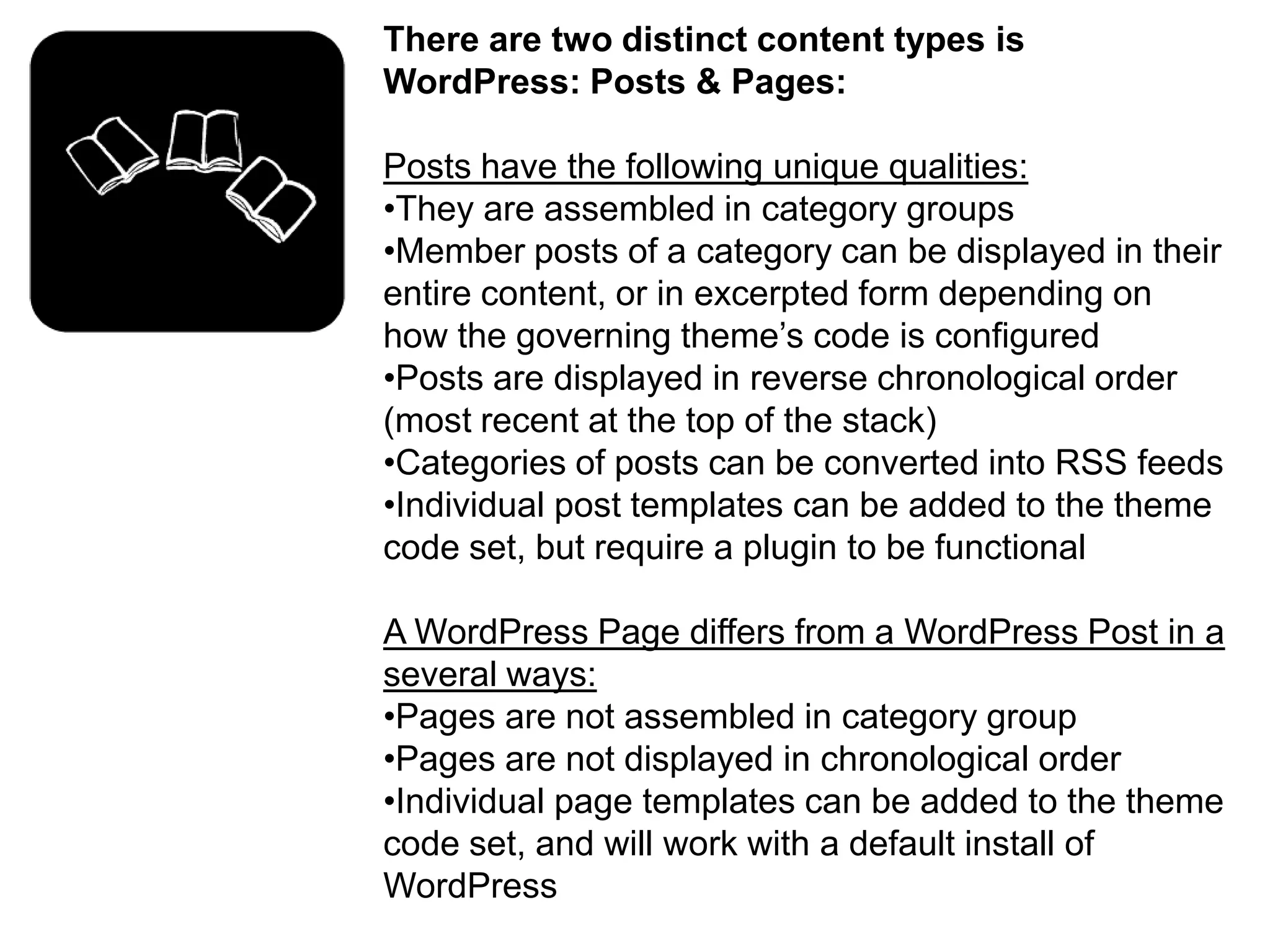
Once you are logged in you will be presented with the “dashboard” screen.
The tabs in the left column will allow access to a variety of editing functions.
There are two distinct content types is
WordPress: Posts & Pages:

Posts have the following unique qualities:
•They are assembled in category groups
•Member posts of a category can be displayed in their
entire content, or in excerpted form depending on
how the governing theme’s code is configured
•Posts are displayed in reverse chronological order
(most recent at the top of the stack)
•Categories of posts can be converted into RSS feeds
•Individual post templates can be added to the theme
code set, but require a plugin to be functional

A WordPress Page differs from a WordPress Post in a
several ways:
•Pages are not assembled in category group
•Pages are not displayed in chronological order
•Individual page templates can be added to the theme
code set, and will work with a default install of
WordPress
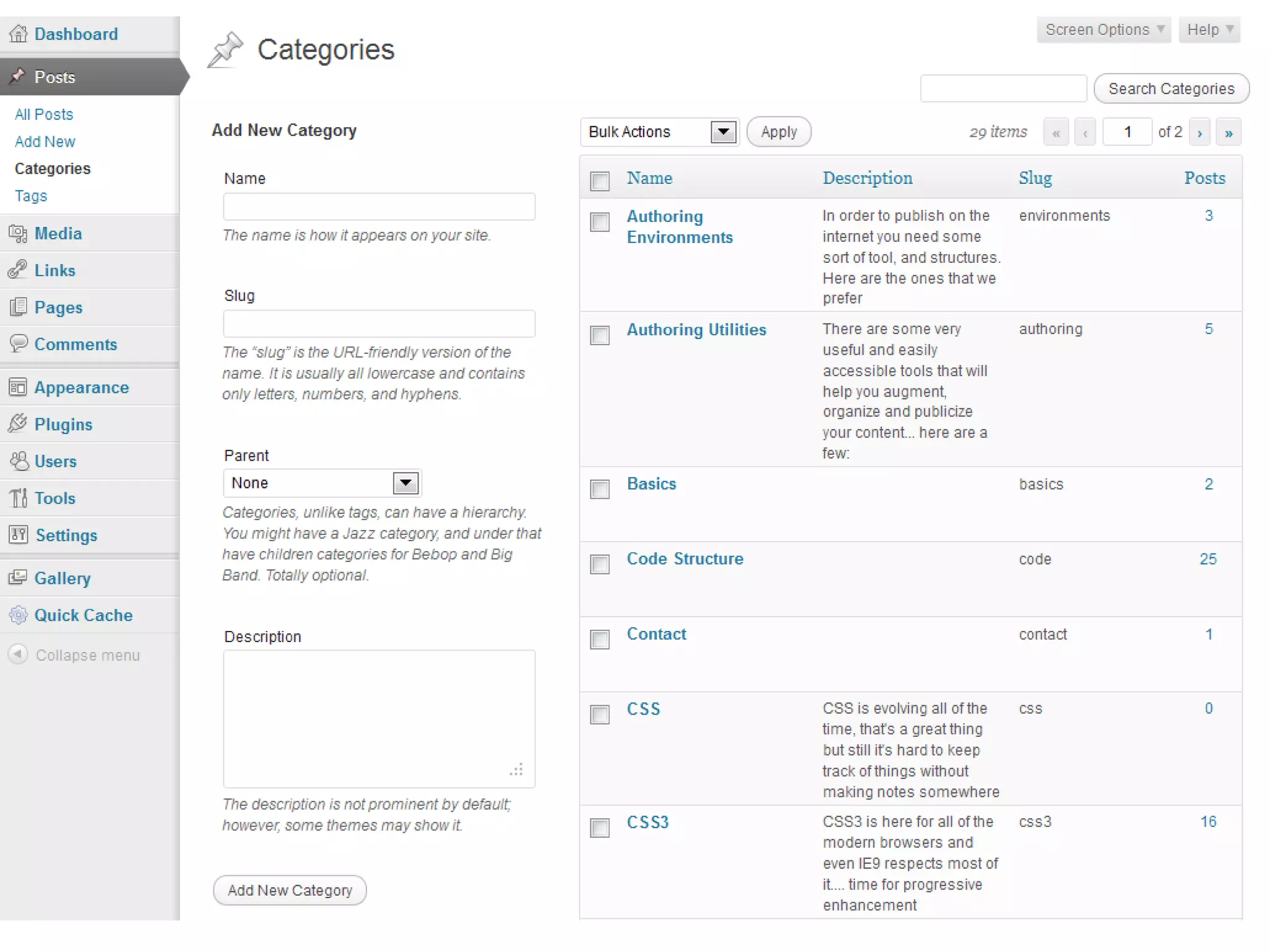
By default WordPress deploys with a single
category called “uncategorized”. My
recommendation is to leave this category empty so
that you can easily locate posts that have been left
inadvertently “uncategorized”

Create custom categories by going to:
   Posts
   Categories
   Populate Name
   Populate slug (“machine name” of category)
   Description (in some themes this text will
   automatically display at the top of a category
   array)

With your categories created you can organize your
post content into logical groups.
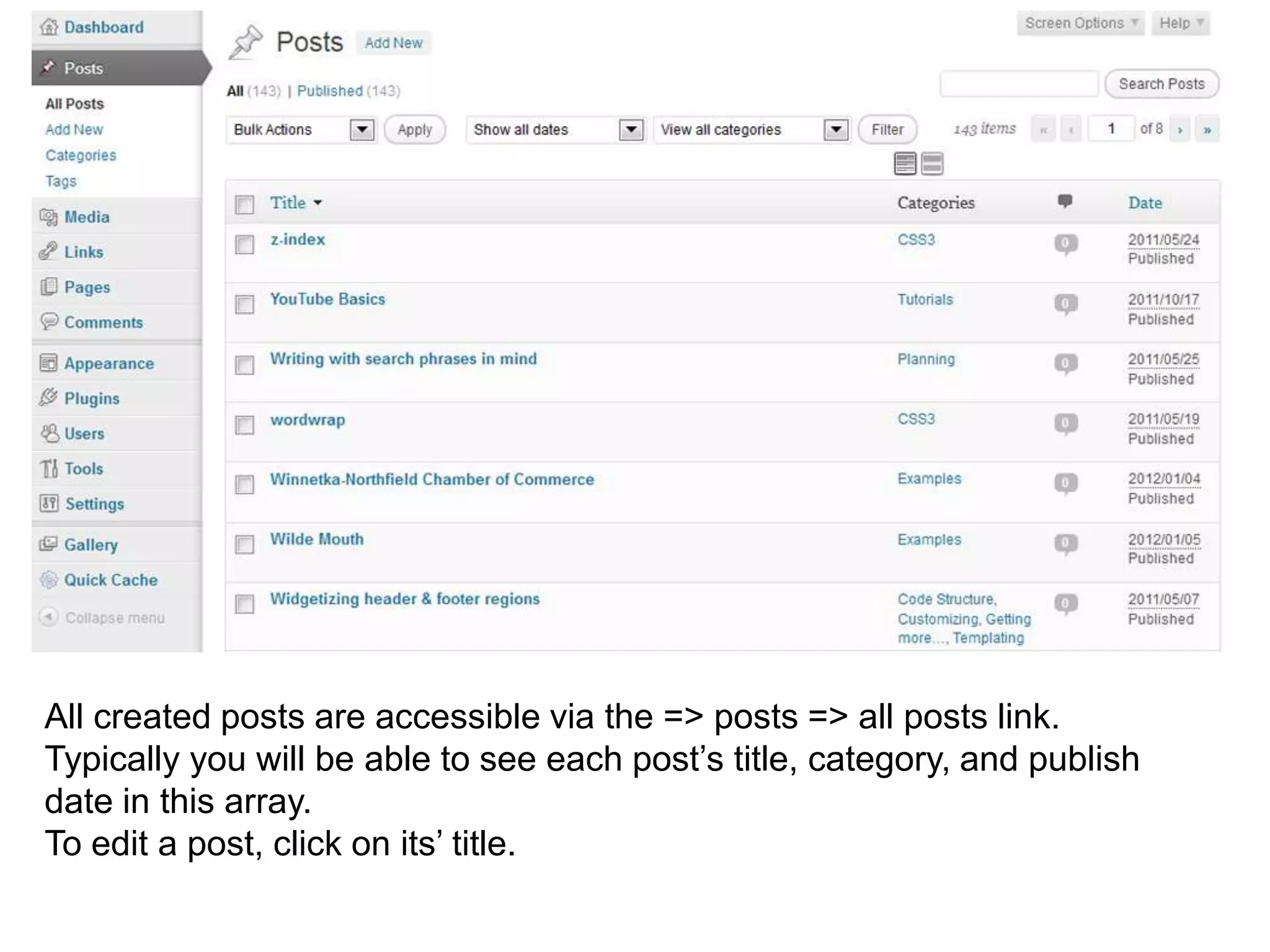
All created posts are accessible via the => posts => all posts link.
Typically you will be able to see each post’s title, category, and publish
date in this array.
To edit a post, click on its’ title.
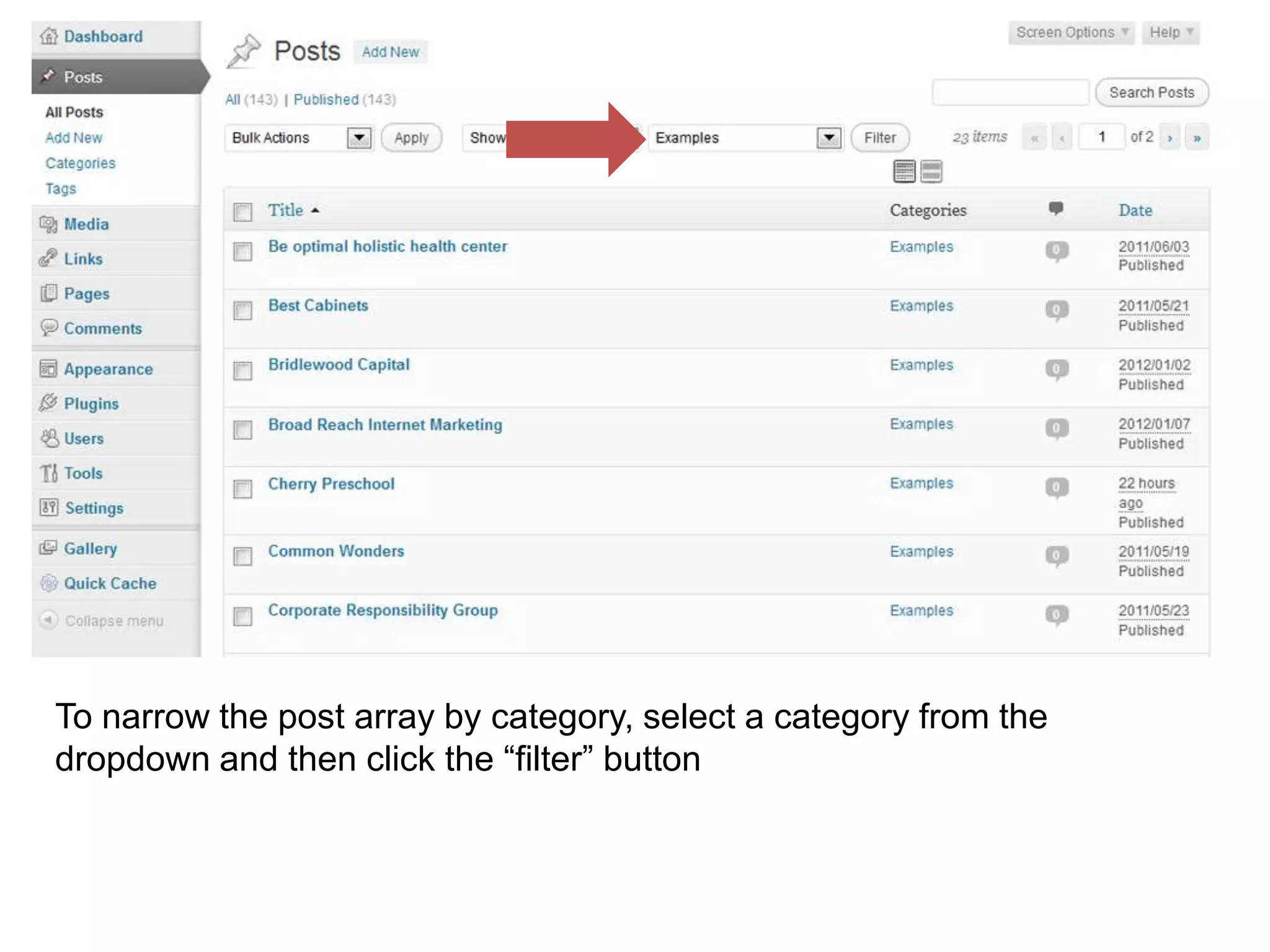
To narrow the post array by category, select a category from the
dropdown and then click the “filter” button
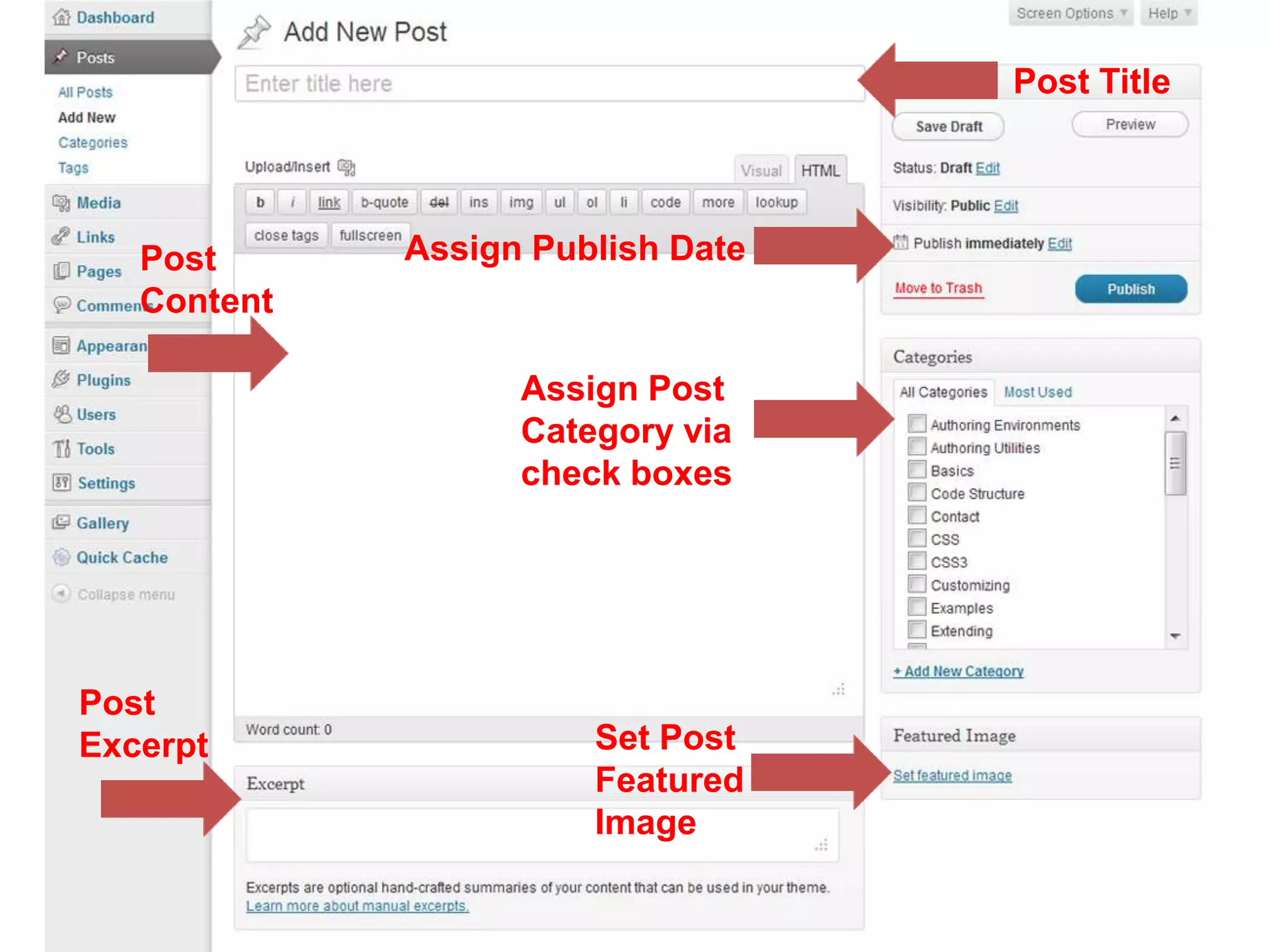
Post Title


   Post      Assign Publish Date
   Content

                   Assign Post
                   Category via
                   check boxes


Post
Excerpt                Set Post
                       Featured
                       Image
In the Post Edit Screen you can:

   Set the Post Title
   Assign the post to a category or
   categories
   Enter the main content of the
   post (including images)
   Edit the post publish date
   Configure the post excerpt
   Set the featured image for the
   post (typically only visible in the
   category display)
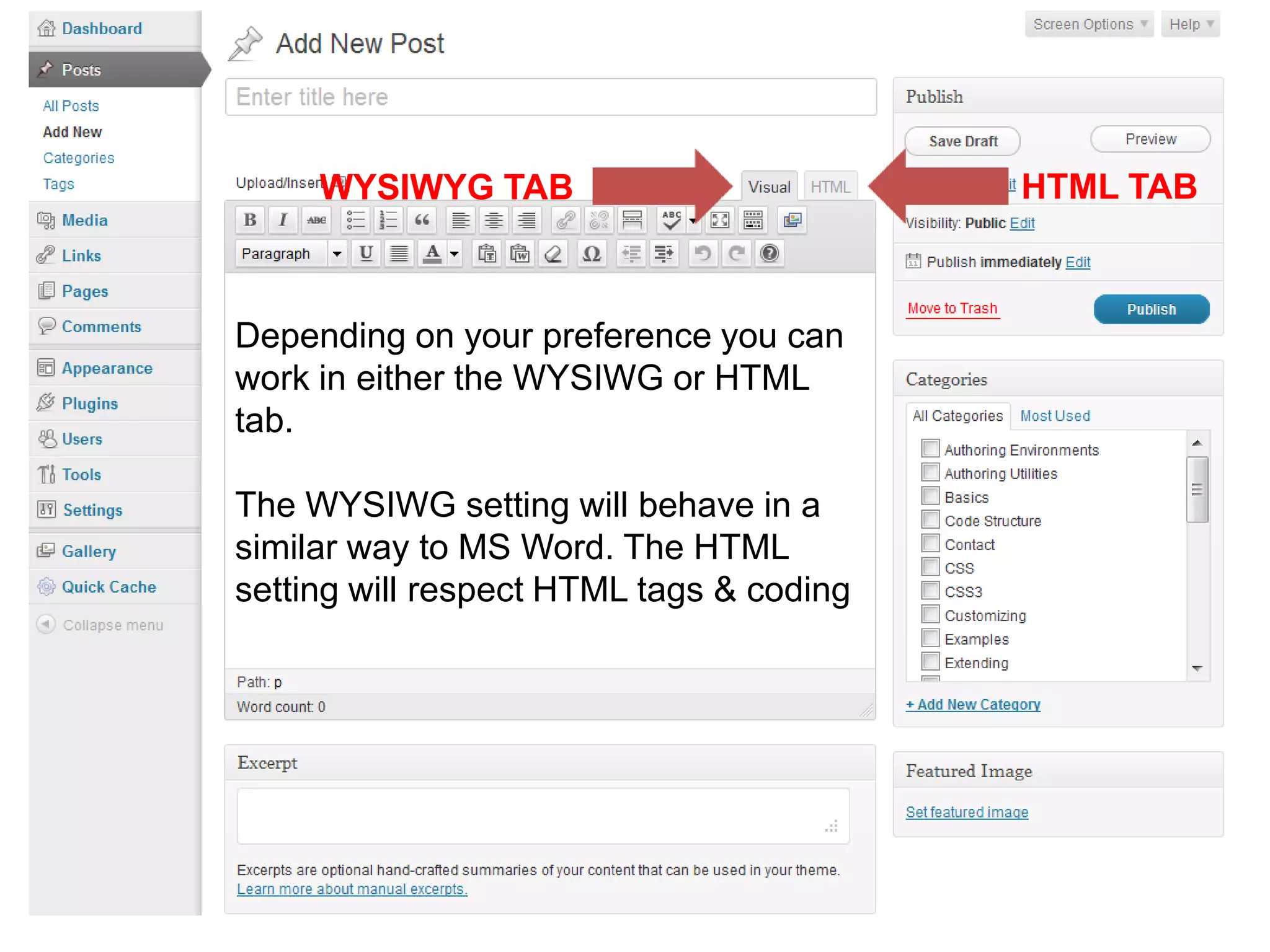
WYSIWYG TAB                          HTML TAB


Depending on your preference you can
work in either the WYSIWG or HTML
tab.

The WYSIWG setting will behave in a
similar way to MS Word. The HTML
setting will respect HTML tags & coding
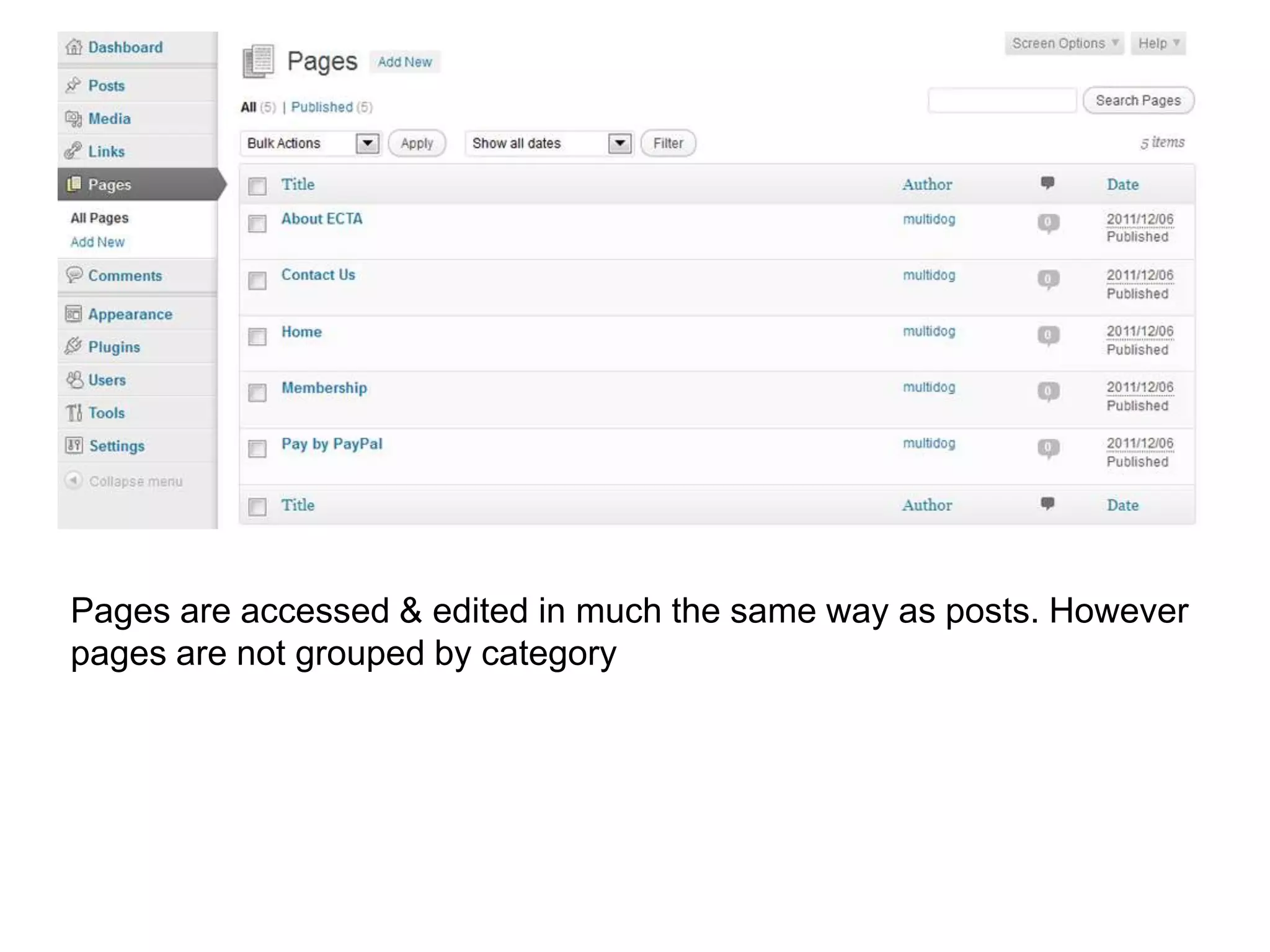
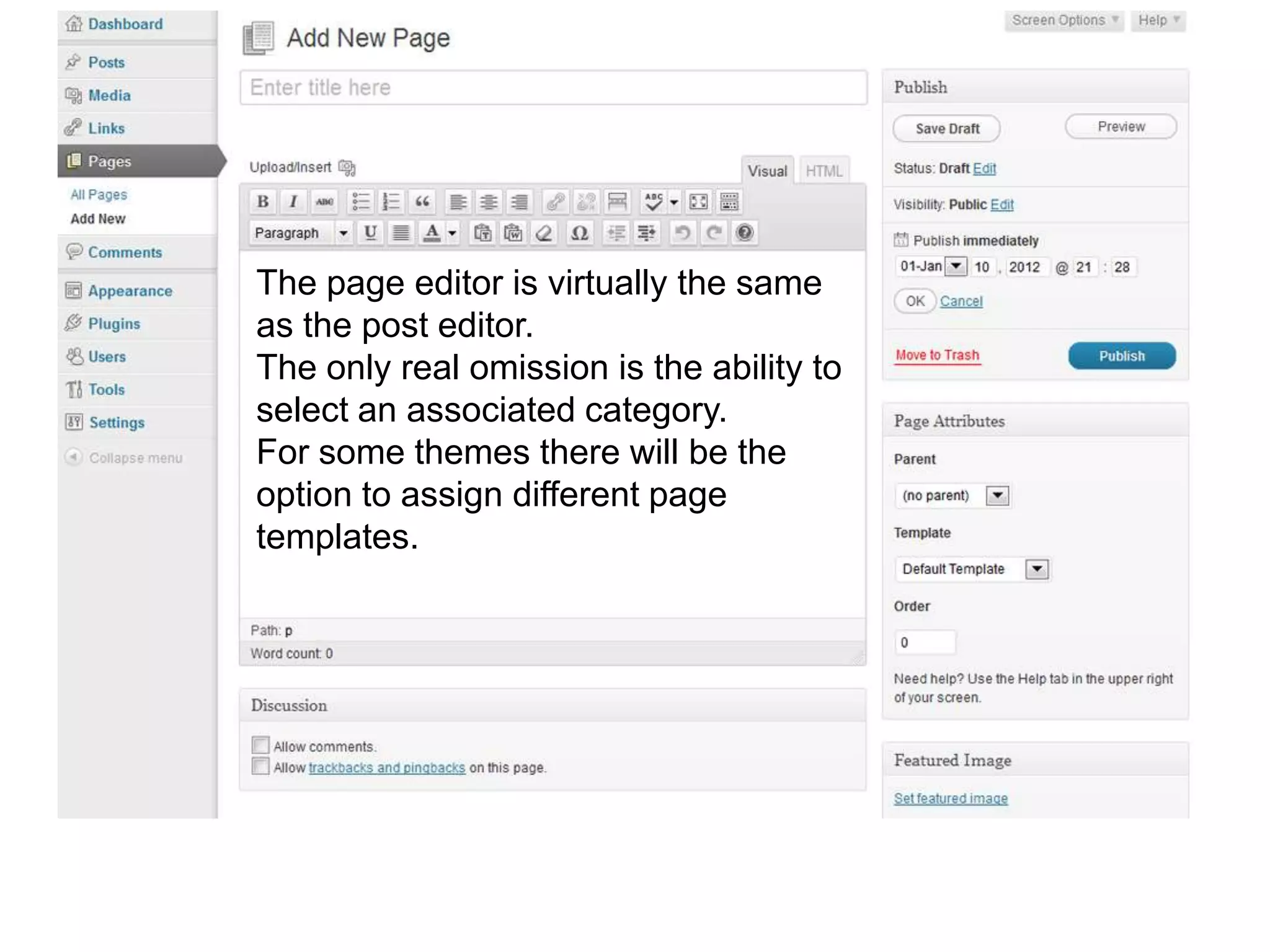
Pages are accessed & edited in much the same way as posts. However
pages are not grouped by category
The page editor is virtually the same
as the post editor.
The only real omission is the ability to
select an associated category.
For some themes there will be the
option to assign different page
templates.
Images are handled via the media manager. WordPress assembles all
media into a single container, which at times can be slightly cumbersome.
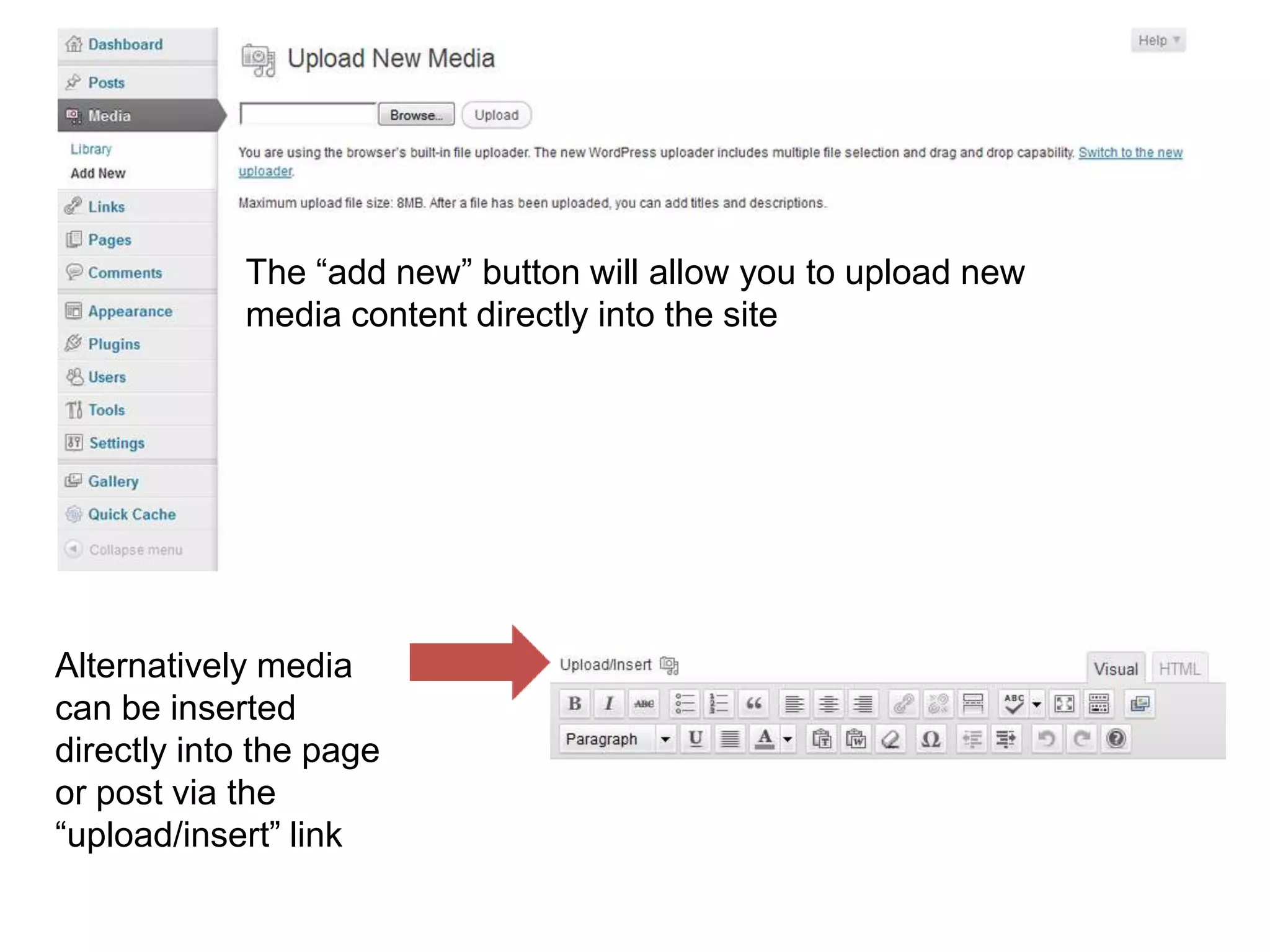
The “add new” button will allow you to upload new
            media content directly into the site


Alternatively media
can be inserted
directly into the page
or post via the
“upload/insert” link
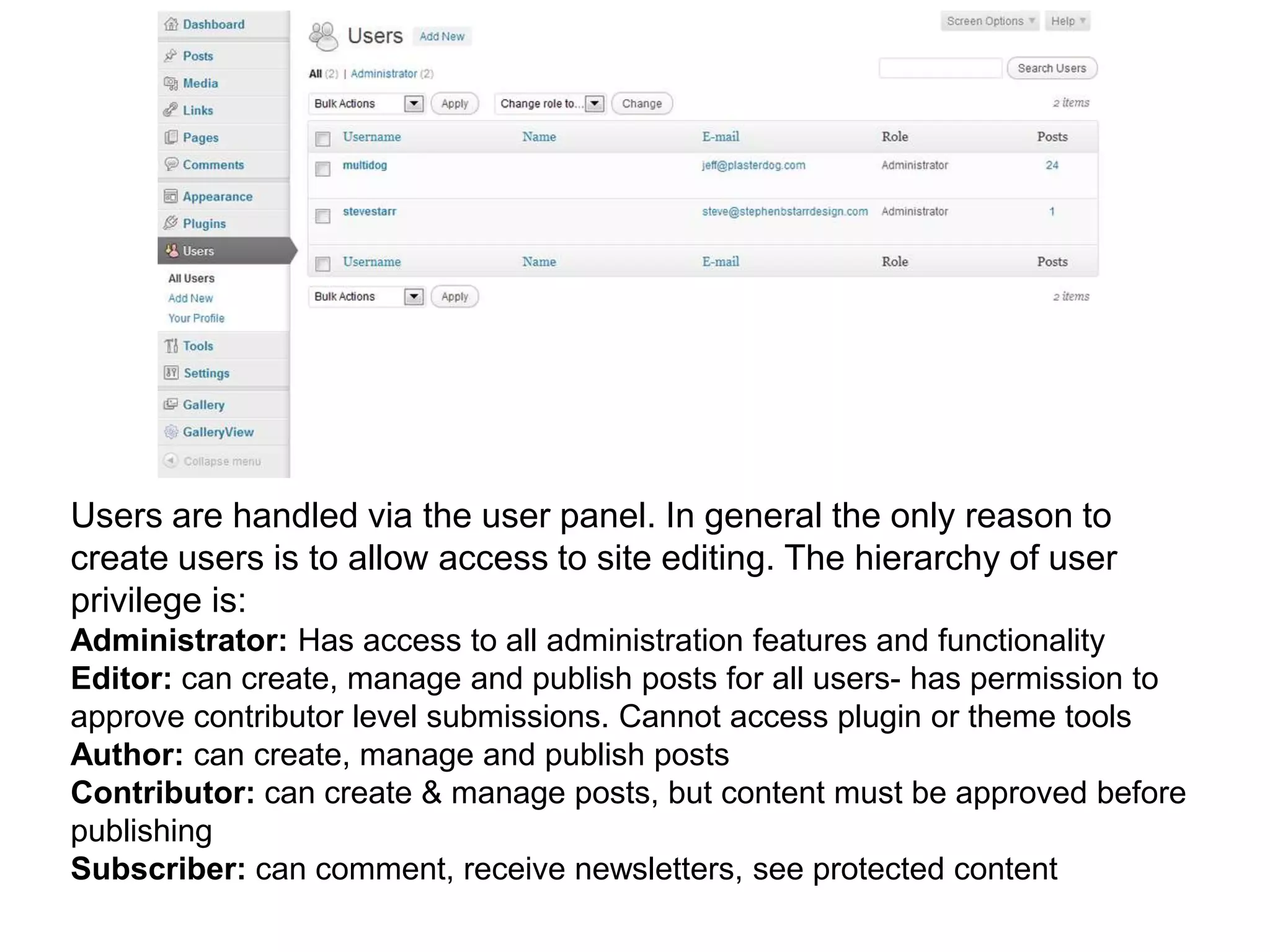
Users are handled via the user panel. In general the only reason to
create users is to allow access to site editing. The hierarchy of user
privilege is:
Administrator: Has access to all administration features and functionality
Editor: can create, manage and publish posts for all users- has permission to
approve contributor level submissions. Cannot access plugin or theme tools
Author: can create, manage and publish posts
Contributor: can create & manage posts, but content must be approved before
publishing
Subscriber: can comment, receive newsletters, see protected content
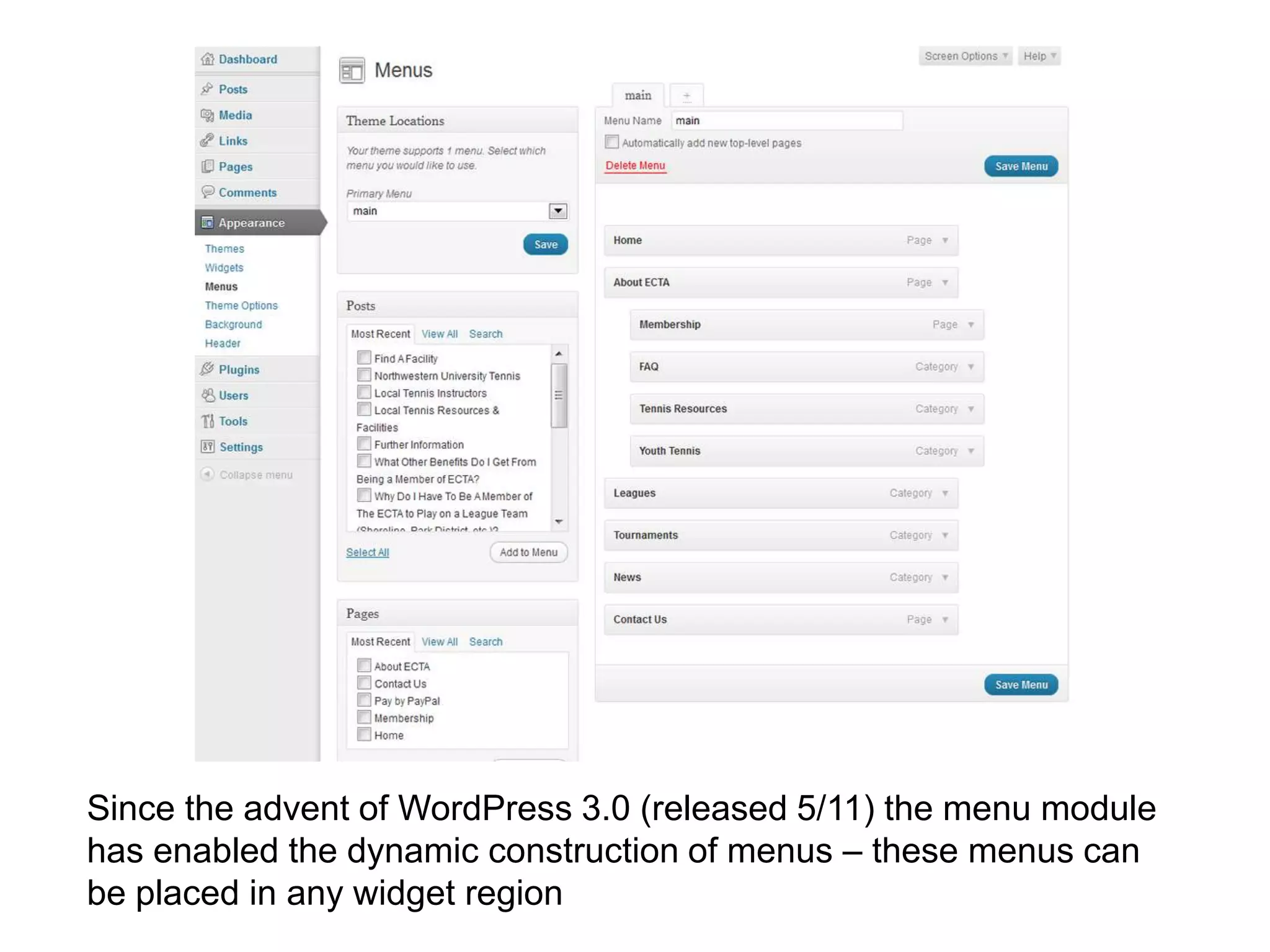
Since the advent of WordPress 3.0 (released 5/11) the menu module
has enabled the dynamic construction of menus – these menus can
be placed in any widget region
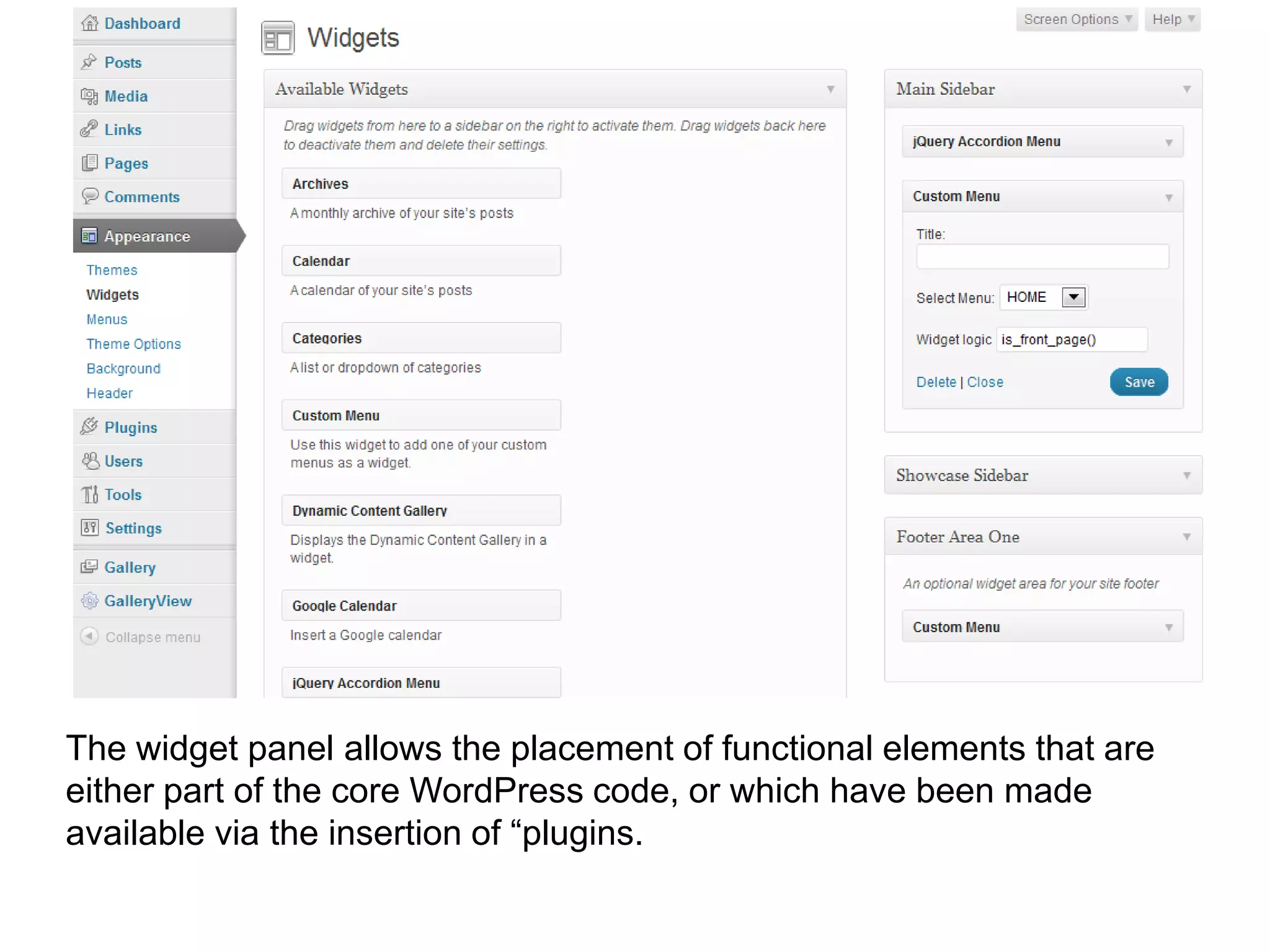
The widget panel allows the placement of functional elements that are
either part of the core WordPress code, or which have been made
available via the insertion of “plugins.
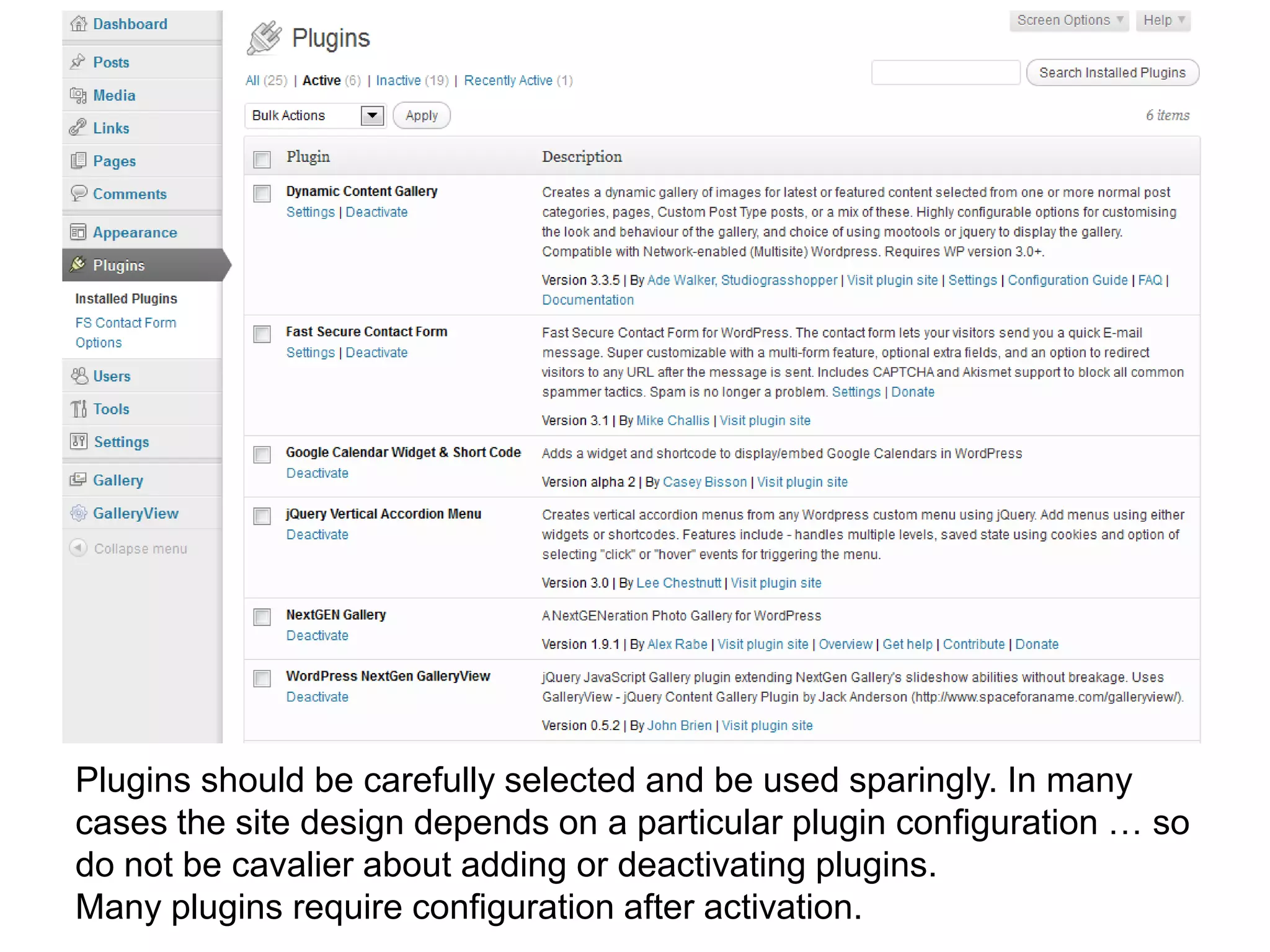
Plugins should be carefully selected and be used sparingly. In many
cases the site design depends on a particular plugin configuration … so
do not be cavalier about adding or deactivating plugins.
Many plugins require configuration after activation.
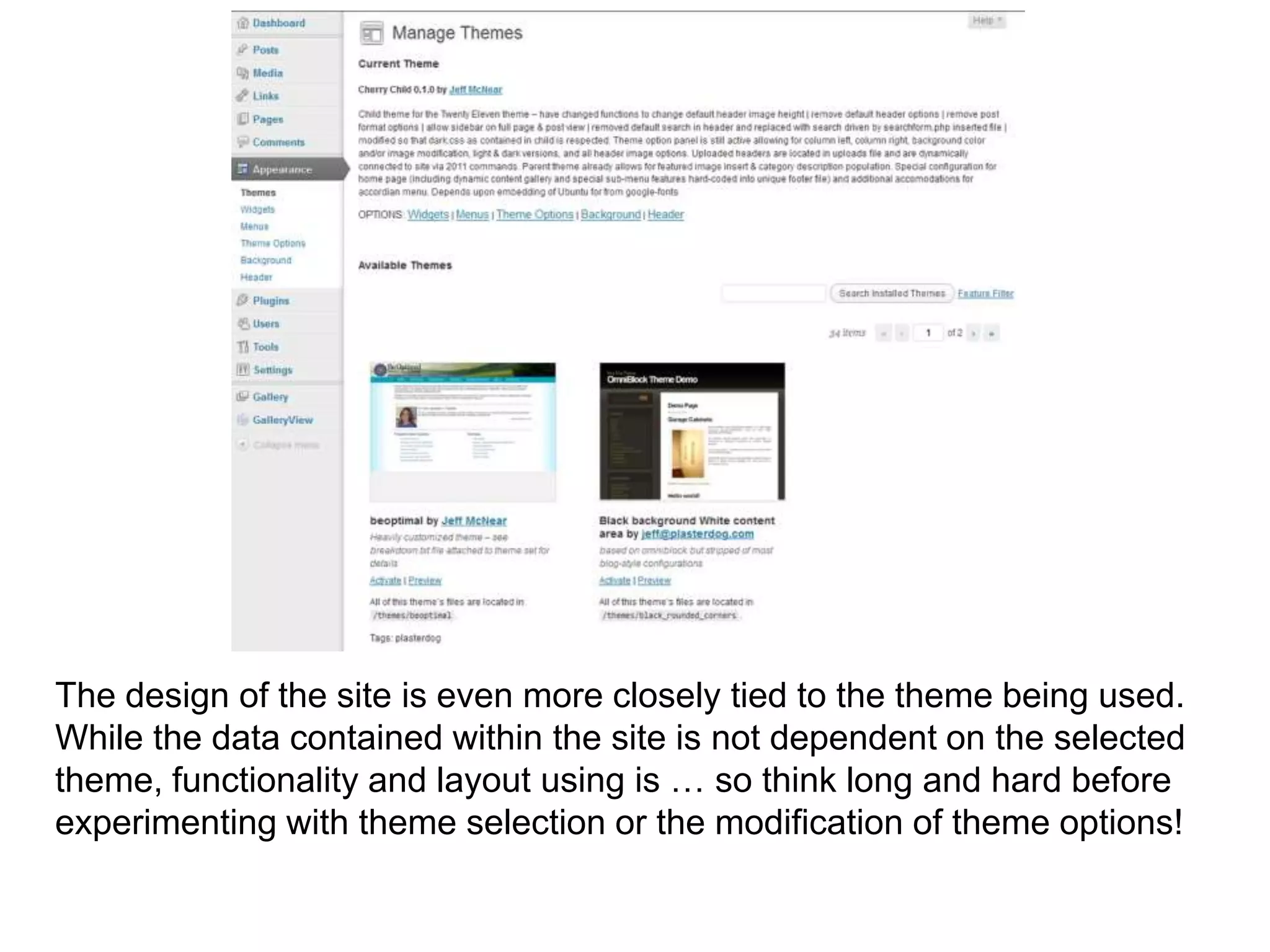
The design of the site is even more closely tied to the theme being used.
While the data contained within the site is not dependent on the selected
theme, functionality and layout using is … so think long and hard before
experimenting with theme selection or the modification of theme options!
Basic wordpress editing

Basic wordpress editing

  • 1.
    Basic Editing ofa WordPress Site Jeff McNear plasterdog.com jeff@plasterdog.com @plasterdog 847/849-7060
  • 2.
    With any WordPresssite the most straight forward way to access the administration interface is to append “/wp-admin” to the root URL of the site. This address will give you access to the login screen. To login you must have a pre-assigned login name and password.
  • 3.
    Once you arelogged in you will be presented with the “dashboard” screen. The tabs in the left column will allow access to a variety of editing functions.
  • 4.
    There are twodistinct content types is WordPress: Posts & Pages: Posts have the following unique qualities: •They are assembled in category groups •Member posts of a category can be displayed in their entire content, or in excerpted form depending on how the governing theme’s code is configured •Posts are displayed in reverse chronological order (most recent at the top of the stack) •Categories of posts can be converted into RSS feeds •Individual post templates can be added to the theme code set, but require a plugin to be functional A WordPress Page differs from a WordPress Post in a several ways: •Pages are not assembled in category group •Pages are not displayed in chronological order •Individual page templates can be added to the theme code set, and will work with a default install of WordPress
  • 6.
    By default WordPressdeploys with a single category called “uncategorized”. My recommendation is to leave this category empty so that you can easily locate posts that have been left inadvertently “uncategorized” Create custom categories by going to: Posts Categories Populate Name Populate slug (“machine name” of category) Description (in some themes this text will automatically display at the top of a category array) With your categories created you can organize your post content into logical groups.
  • 7.
    All created postsare accessible via the => posts => all posts link. Typically you will be able to see each post’s title, category, and publish date in this array. To edit a post, click on its’ title.
  • 8.
    To narrow thepost array by category, select a category from the dropdown and then click the “filter” button
  • 9.
    Post Title Post Assign Publish Date Content Assign Post Category via check boxes Post Excerpt Set Post Featured Image
  • 10.
    In the PostEdit Screen you can: Set the Post Title Assign the post to a category or categories Enter the main content of the post (including images) Edit the post publish date Configure the post excerpt Set the featured image for the post (typically only visible in the category display)
  • 11.
    WYSIWYG TAB HTML TAB Depending on your preference you can work in either the WYSIWG or HTML tab. The WYSIWG setting will behave in a similar way to MS Word. The HTML setting will respect HTML tags & coding
  • 12.
    Pages are accessed& edited in much the same way as posts. However pages are not grouped by category
  • 13.
    The page editoris virtually the same as the post editor. The only real omission is the ability to select an associated category. For some themes there will be the option to assign different page templates.
  • 14.
    Images are handledvia the media manager. WordPress assembles all media into a single container, which at times can be slightly cumbersome.
  • 15.
    The “add new”button will allow you to upload new media content directly into the site Alternatively media can be inserted directly into the page or post via the “upload/insert” link
  • 16.
    Users are handledvia the user panel. In general the only reason to create users is to allow access to site editing. The hierarchy of user privilege is: Administrator: Has access to all administration features and functionality Editor: can create, manage and publish posts for all users- has permission to approve contributor level submissions. Cannot access plugin or theme tools Author: can create, manage and publish posts Contributor: can create & manage posts, but content must be approved before publishing Subscriber: can comment, receive newsletters, see protected content
  • 17.
    Since the adventof WordPress 3.0 (released 5/11) the menu module has enabled the dynamic construction of menus – these menus can be placed in any widget region
  • 18.
    The widget panelallows the placement of functional elements that are either part of the core WordPress code, or which have been made available via the insertion of “plugins.
  • 19.
    Plugins should becarefully selected and be used sparingly. In many cases the site design depends on a particular plugin configuration … so do not be cavalier about adding or deactivating plugins. Many plugins require configuration after activation.
  • 20.
    The design ofthe site is even more closely tied to the theme being used. While the data contained within the site is not dependent on the selected theme, functionality and layout using is … so think long and hard before experimenting with theme selection or the modification of theme options!