Library Instruction
     WRT-201


 Prof. Nicholas C Jackson
         Librarian
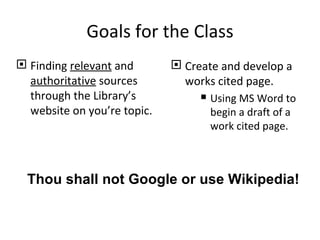
Goals for the Class
 Finding relevant and        Create and develop a
  authoritative sources        works cited page.
  through the Library’s            Using MS Word to
  website on you’re topic.          begin a draft of a
                                    work cited page.


  Thou shall not Google or use Wikipedia!
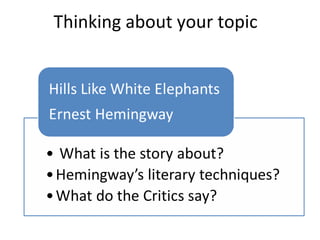
Thinking about your topic
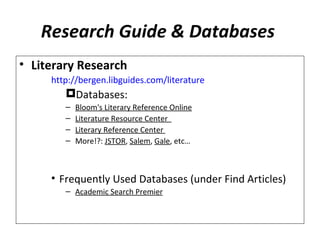
Research Guide & Databases
• Literary Research
     http://bergen.libguides.com/literature
        Databases:
        –   Bloom's Literary Reference Online
        –   Literature Resource Center
        –   Literary Reference Center
        –   More!?: JSTOR, Salem, Gale, etc…


     • Frequently Used Databases (under Find Articles)
        – Academic Search Premier
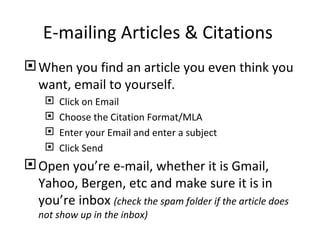
E-mailing Articles & Citations
 When you find an article you even think you
  want, email to yourself.
       Click on Email
       Choose the Citation Format/MLA
       Enter your Email and enter a subject
       Click Send
 Open you’re e-mail, whether it is Gmail,
  Yahoo, Bergen, etc and make sure it is in
  you’re inbox (check the spam folder if the article does
   not show up in the inbox)
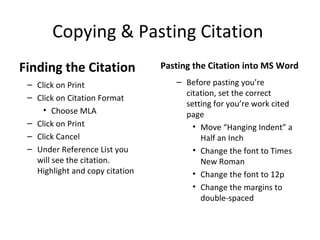
Copying & Pasting Citation
Finding the Citation             Pasting the Citation into MS Word
 – Click on Print                   – Before pasting you’re
 – Click on Citation Format           citation, set the correct
                                      setting for you’re work cited
     • Choose MLA                     page
 – Click on Print                       • Move “Hanging Indent” a
 – Click Cancel                           Half an Inch
 – Under Reference List you             • Change the font to Times
   will see the citation.                 New Roman
   Highlight and copy citation          • Change the font to 12p
                                        • Change the margins to
                                          double-spaced
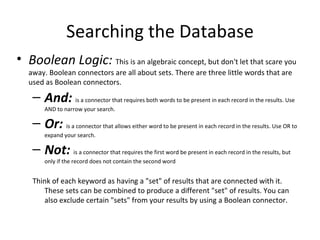
Searching the Database
• Boolean Logic: This is an algebraic concept, but don't let that scare you
   away. Boolean connectors are all about sets. There are three little words that are
   used as Boolean connectors.

    – And: is a connector that requires both words to be present in each record in the results. Use
        AND to narrow your search.

    – Or: is a connector that allows either word to be present in each record in the results. Use OR to
        expand your search.

    – Not: is a connector that requires the first word be present in each record in the results, but
        only if the record does not contain the second word


    Think of each keyword as having a "set" of results that are connected with it.
       These sets can be combined to produce a different "set" of results. You can
       also exclude certain "sets" from your results by using a Boolean connector.
Find Books & Media ​
• Searching by your topic:
• www.bergen.edu/library
  – Find Books/Reserves/Media
     • It’s first searching by keyword (broad)
     • You can narrow the results by Subject
     • You can modify your search to find DVDs, e-books,
       books on CD, etc.
GIVE CREDIT & DO NOT PLAGIARIZE

• Citing Your Sources…
   – Click on Citation Guides
     • (on the left-hand side of the Library’s Home Page)

     http://bergen.libguides.com/citationguides
         – Click on the MLA tab (2nd from the right)
             » In-Text Citation
             » List of Work Cited
             » Formatting & Style
More…
• Further Assistance:
   – Please Contact ME!
       • Nicholas Jackson
           – njackson@bergen.edu


   – Or contact the Library:
       • Ask a Librarian OR Library 1 on 1
           http://bergen.libguides.com/forms
       • Phone: 201-447-7889

Writing 201

  • 1.
    Library Instruction WRT-201 Prof. Nicholas C Jackson Librarian
  • 2.
    Goals for theClass  Finding relevant and  Create and develop a authoritative sources works cited page. through the Library’s  Using MS Word to website on you’re topic. begin a draft of a work cited page. Thou shall not Google or use Wikipedia!
  • 3.
  • 4.
    Research Guide &Databases • Literary Research http://bergen.libguides.com/literature Databases: – Bloom's Literary Reference Online – Literature Resource Center – Literary Reference Center – More!?: JSTOR, Salem, Gale, etc… • Frequently Used Databases (under Find Articles) – Academic Search Premier
  • 5.
    E-mailing Articles &Citations  When you find an article you even think you want, email to yourself.  Click on Email  Choose the Citation Format/MLA  Enter your Email and enter a subject  Click Send  Open you’re e-mail, whether it is Gmail, Yahoo, Bergen, etc and make sure it is in you’re inbox (check the spam folder if the article does not show up in the inbox)
  • 6.
    Copying & PastingCitation Finding the Citation Pasting the Citation into MS Word – Click on Print – Before pasting you’re – Click on Citation Format citation, set the correct setting for you’re work cited • Choose MLA page – Click on Print • Move “Hanging Indent” a – Click Cancel Half an Inch – Under Reference List you • Change the font to Times will see the citation. New Roman Highlight and copy citation • Change the font to 12p • Change the margins to double-spaced
  • 7.
    Searching the Database •Boolean Logic: This is an algebraic concept, but don't let that scare you away. Boolean connectors are all about sets. There are three little words that are used as Boolean connectors. – And: is a connector that requires both words to be present in each record in the results. Use AND to narrow your search. – Or: is a connector that allows either word to be present in each record in the results. Use OR to expand your search. – Not: is a connector that requires the first word be present in each record in the results, but only if the record does not contain the second word Think of each keyword as having a "set" of results that are connected with it. These sets can be combined to produce a different "set" of results. You can also exclude certain "sets" from your results by using a Boolean connector.
  • 8.
    Find Books &Media ​ • Searching by your topic: • www.bergen.edu/library – Find Books/Reserves/Media • It’s first searching by keyword (broad) • You can narrow the results by Subject • You can modify your search to find DVDs, e-books, books on CD, etc.
  • 9.
    GIVE CREDIT &DO NOT PLAGIARIZE • Citing Your Sources… – Click on Citation Guides • (on the left-hand side of the Library’s Home Page) http://bergen.libguides.com/citationguides – Click on the MLA tab (2nd from the right) » In-Text Citation » List of Work Cited » Formatting & Style
  • 10.
    More… • Further Assistance: – Please Contact ME! • Nicholas Jackson – njackson@bergen.edu – Or contact the Library: • Ask a Librarian OR Library 1 on 1 http://bergen.libguides.com/forms • Phone: 201-447-7889