Explore your
world with
EBSCO’s
Explora
Introduction
As a Schaumburg Township District Library patron, your library card gives you access to EBSCO’s
Explora database, which includes full-text news articles, magazines, academic journals, trade
publications, biographies, encyclopedias, primary source documents, and eBooks on many
different topics, including…
• Business and Careers
• Arts and Literature
• Health and Wellness
• Math and Science
• History and Social Sciences
• Current Events
And more!
Finding Explora
On Our Website
To find EBSCO’s Explora from our
homepage, select the “E-Library”
drop-down menu at the top of the
page. Under ”Research Databases,”
click on “Research a Topic.”
Finding Explora
on Our Website,
cont.
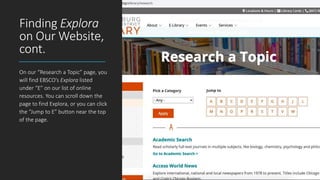
On our “Research a Topic” page, you
will find EBSCO’s Explora listed
under “E” on our list of online
resources. You can scroll down the
page to find Explora, or you can click
the “Jump to E” button near the top
of the page.
Finding Explora
on our Website,
cont.
Once you have found EBSCO’s Explora
in our list of online research
resources, you can access the
database either by clicking on the
word “Explora” or the link labeled “Go
to Explora >.” (https://web-p-
ebscohost-
com.proxy.stdl.org/web/ehpl/home?p
review=false&usrNo=-171815080)
You will be prompted to enter in your
library card number and your PIN to
use this database.
Beginning Your
Search
The Explora homepage will list various
topics of interest that you may want to
look through. However, if you have a
specific topic in mind, use the search
bar at the top of the screen. I’m going
to do a very general search on
“endangered species.” You will see that
the database suggests various ways to
refine the search in a drop-down
menu.
Refining Your
Search
You’ll see that a general search for
“endangered species” results in 33,794
different encyclopedia pages, journal
and magazine articles, books, etc.
Wow! That may seem overwhelming,
but we can narrow this down using
some helpful tools.
Refining Your
Search, cont.
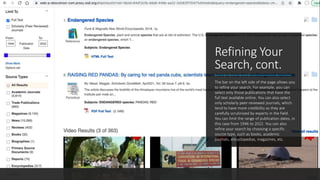
The bar on the left side of the page allows you
to refine your search. For example, you can
select only those publications that have the
full text available online. You can also select
only scholarly peer-reviewed journals, which
tend to have more credibility as they are
carefully scrutinized by experts in the field.
You can limit the range of publication dates, in
this case from 1946 to 2022. You can also
refine your search by choosing a specific
source type, such as books, academic
journals, encyclopedias, magazines, etc.
Refining Your
Search, cont.
In this case, I would like to limit my
search about “endangered species” to
full-text, peer-reviewed academic
journals published from 2012 to 2022.
You can see that selecting these limiters
has narrowed my results down from
33,794 to 3,286, which is a definite
improvement! If I use more precise
search terms, I’ll be able to narrow
down these results even more.
Refining Your
Search, cont.
You can also refine your search using
Boolean operators. For example, if
you wanted to learn more about
giant pandas in particular, you could
search for all articles containing both
the terms “endangered species” AND
“giant pandas.” This will narrow
down your list of results because the
listed articles must contain both
terms.
Refining Your
Search, cont.
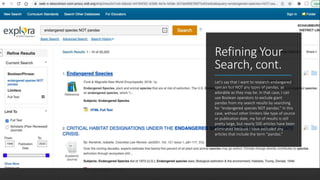
Let’s say that I want to research endangered
species but NOT any types of pandas, as
adorable as they may be. In that case, I can
use Boolean operators to exclude giant
pandas from my search results by searching
for “endangered species NOT pandas.” In this
case, without other limiters like type of source
or publication date, my list of results is still
pretty large, but nearly 500 articles have been
eliminated because I have excluded any
articles that include the term “pandas.”
Expanding
Your Search
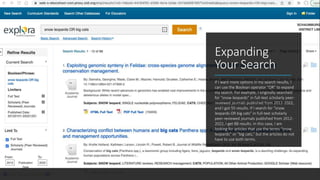
If I want more options in my search results, I
can use the Boolean operator “OR” to expand
my search. For example, I originally searched
for “snow leopards” in full-text scholarly peer-
reviewed journals published from 2012-2022,
and I got 55 results. If I search for “snow
leopards OR big cats” in full-text scholarly
peer-reviewed journals published from 2012-
2022, I get 88 results. In this case, I am
looking for articles that use the terms “snow
leopards” or “big cats,” but the articles do not
have to use both terms.
Advanced
Searching
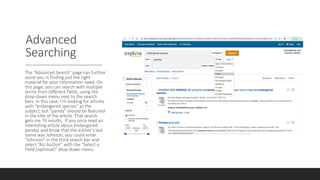
The “Advanced Search” page can further
assist you in finding just the right
material for your information need. On
this page, you can search with multiple
terms from different fields, using the
drop-down menu next to the search
bars. In this case, I’m looking for articles
with “endangered species” as the
subject, but “panda” should be featured
in the title of the article. That search
gets me 76 results. If you once read an
interesting article about endangered
pandas and know that the author’s last
name was Johnson, you could enter
“Johnson” in the third search bar and
select “AU Author” with the “Select a
Field (optional)” drop-down menu.
Advanced
Searching,
cont.
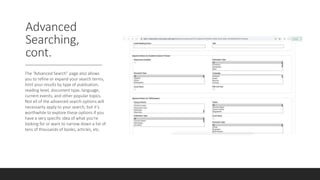
The ”Advanced Search” page also allows
you to refine or expand your search terms,
limit your results by type of publication,
reading level, document type, language,
current events, and other popular topics.
Not all of the advanced search options will
necessarily apply to your search, but it’s
worthwhile to explore these options if you
have a very specific idea of what you’re
looking for or want to narrow down a list of
tens of thousands of books, articles, etc.
Accessing and
Saving Articles
Once you have found an interesting article,
you can click on the title and be taken to the
detailed record for the article, the full text as a
PDF, or the full text as an HTML document. To
the right of the page number and zoom
control, you have the option of downloading
the article to your computer or printing it. A
toolbar on the right side of the screen will
allow you to save the article to your Google
Drive, print the article, email the article to
yourself or someone else, add the article to a
folder so that you can find it later, obtain a
bibliographic citation for the article in a
number of styles, export the article to different
file formats, and obtain a permalink for the
article. This way, you won’t lose the article as
you go through your results list. (Some of
these functions may require you to create a
free user profile with EBSCO.)
Mead, M. (2021). RAISING RED PANDAS: By caring for red panda cubs, scientists learn how to help this endangered
species. Scholastic DynaMath, 39(7), 6–9.
Can’t Find the
Full Text on
Explora?
Sometimes your search results will include
articles that cannot be found on EBSCO’s
Explora as full-text PDFs or HTML documents,
but that doesn’t mean that you can’t access
the article. For example, the detailed record of
this article indicates that it can be found on
the MasterFILE Premier database, which you
can also access as a Schaumburg Township
District Library patron. In this case, you would
need to exit Explora, return to the
Schaumburg Township District Library’s
“Research a Topic” page and click on the link
for MasterFILE Premier to access this article.
Another option is that you can click on “Find
Similar Results using SmartText Searching” to
find another article with similar content on the
EBSCO Explora database.
Can’t Find the
Full Text on Our
Databases?
In the event that an article or
book you would like to access
is not available in our library
or on any of the databases
that we subscribe to, please
contact a librarian, and we will
be happy to assist you in
obtaining the material via our
Interlibrary Loan service or
suggest a similar source that
will meet your needs.
Good Luck with
Your Search!
This is a lot of information! We know that it
may take a while for you to feel comfortable
using EBSCO’s Explora, but it is a powerful tool
accessible to you for free any time of the day
and any day of the week. The librarians at the
Schaumburg Township District Library are here
to help you with your research during our
business hours. Call us for reference assistance
at (847) 985-4000 or email us at
refdesk@stdl.org. In addition, we have a
reference chat line available 24/7…just click the
bright green button labeled “How Can We Help
You?” at the bottom of every page of our
website.

Explore Your World with EBSCO's Explora

  • 1.
  • 2.
    Introduction As a SchaumburgTownship District Library patron, your library card gives you access to EBSCO’s Explora database, which includes full-text news articles, magazines, academic journals, trade publications, biographies, encyclopedias, primary source documents, and eBooks on many different topics, including… • Business and Careers • Arts and Literature • Health and Wellness • Math and Science • History and Social Sciences • Current Events And more!
  • 3.
    Finding Explora On OurWebsite To find EBSCO’s Explora from our homepage, select the “E-Library” drop-down menu at the top of the page. Under ”Research Databases,” click on “Research a Topic.”
  • 4.
    Finding Explora on OurWebsite, cont. On our “Research a Topic” page, you will find EBSCO’s Explora listed under “E” on our list of online resources. You can scroll down the page to find Explora, or you can click the “Jump to E” button near the top of the page.
  • 5.
    Finding Explora on ourWebsite, cont. Once you have found EBSCO’s Explora in our list of online research resources, you can access the database either by clicking on the word “Explora” or the link labeled “Go to Explora >.” (https://web-p- ebscohost- com.proxy.stdl.org/web/ehpl/home?p review=false&usrNo=-171815080) You will be prompted to enter in your library card number and your PIN to use this database.
  • 6.
    Beginning Your Search The Explorahomepage will list various topics of interest that you may want to look through. However, if you have a specific topic in mind, use the search bar at the top of the screen. I’m going to do a very general search on “endangered species.” You will see that the database suggests various ways to refine the search in a drop-down menu.
  • 7.
    Refining Your Search You’ll seethat a general search for “endangered species” results in 33,794 different encyclopedia pages, journal and magazine articles, books, etc. Wow! That may seem overwhelming, but we can narrow this down using some helpful tools.
  • 8.
    Refining Your Search, cont. Thebar on the left side of the page allows you to refine your search. For example, you can select only those publications that have the full text available online. You can also select only scholarly peer-reviewed journals, which tend to have more credibility as they are carefully scrutinized by experts in the field. You can limit the range of publication dates, in this case from 1946 to 2022. You can also refine your search by choosing a specific source type, such as books, academic journals, encyclopedias, magazines, etc.
  • 9.
    Refining Your Search, cont. Inthis case, I would like to limit my search about “endangered species” to full-text, peer-reviewed academic journals published from 2012 to 2022. You can see that selecting these limiters has narrowed my results down from 33,794 to 3,286, which is a definite improvement! If I use more precise search terms, I’ll be able to narrow down these results even more.
  • 10.
    Refining Your Search, cont. Youcan also refine your search using Boolean operators. For example, if you wanted to learn more about giant pandas in particular, you could search for all articles containing both the terms “endangered species” AND “giant pandas.” This will narrow down your list of results because the listed articles must contain both terms.
  • 11.
    Refining Your Search, cont. Let’ssay that I want to research endangered species but NOT any types of pandas, as adorable as they may be. In that case, I can use Boolean operators to exclude giant pandas from my search results by searching for “endangered species NOT pandas.” In this case, without other limiters like type of source or publication date, my list of results is still pretty large, but nearly 500 articles have been eliminated because I have excluded any articles that include the term “pandas.”
  • 12.
    Expanding Your Search If Iwant more options in my search results, I can use the Boolean operator “OR” to expand my search. For example, I originally searched for “snow leopards” in full-text scholarly peer- reviewed journals published from 2012-2022, and I got 55 results. If I search for “snow leopards OR big cats” in full-text scholarly peer-reviewed journals published from 2012- 2022, I get 88 results. In this case, I am looking for articles that use the terms “snow leopards” or “big cats,” but the articles do not have to use both terms.
  • 13.
    Advanced Searching The “Advanced Search”page can further assist you in finding just the right material for your information need. On this page, you can search with multiple terms from different fields, using the drop-down menu next to the search bars. In this case, I’m looking for articles with “endangered species” as the subject, but “panda” should be featured in the title of the article. That search gets me 76 results. If you once read an interesting article about endangered pandas and know that the author’s last name was Johnson, you could enter “Johnson” in the third search bar and select “AU Author” with the “Select a Field (optional)” drop-down menu.
  • 14.
    Advanced Searching, cont. The ”Advanced Search”page also allows you to refine or expand your search terms, limit your results by type of publication, reading level, document type, language, current events, and other popular topics. Not all of the advanced search options will necessarily apply to your search, but it’s worthwhile to explore these options if you have a very specific idea of what you’re looking for or want to narrow down a list of tens of thousands of books, articles, etc.
  • 15.
    Accessing and Saving Articles Onceyou have found an interesting article, you can click on the title and be taken to the detailed record for the article, the full text as a PDF, or the full text as an HTML document. To the right of the page number and zoom control, you have the option of downloading the article to your computer or printing it. A toolbar on the right side of the screen will allow you to save the article to your Google Drive, print the article, email the article to yourself or someone else, add the article to a folder so that you can find it later, obtain a bibliographic citation for the article in a number of styles, export the article to different file formats, and obtain a permalink for the article. This way, you won’t lose the article as you go through your results list. (Some of these functions may require you to create a free user profile with EBSCO.) Mead, M. (2021). RAISING RED PANDAS: By caring for red panda cubs, scientists learn how to help this endangered species. Scholastic DynaMath, 39(7), 6–9.
  • 16.
    Can’t Find the FullText on Explora? Sometimes your search results will include articles that cannot be found on EBSCO’s Explora as full-text PDFs or HTML documents, but that doesn’t mean that you can’t access the article. For example, the detailed record of this article indicates that it can be found on the MasterFILE Premier database, which you can also access as a Schaumburg Township District Library patron. In this case, you would need to exit Explora, return to the Schaumburg Township District Library’s “Research a Topic” page and click on the link for MasterFILE Premier to access this article. Another option is that you can click on “Find Similar Results using SmartText Searching” to find another article with similar content on the EBSCO Explora database.
  • 17.
    Can’t Find the FullText on Our Databases? In the event that an article or book you would like to access is not available in our library or on any of the databases that we subscribe to, please contact a librarian, and we will be happy to assist you in obtaining the material via our Interlibrary Loan service or suggest a similar source that will meet your needs.
  • 18.
    Good Luck with YourSearch! This is a lot of information! We know that it may take a while for you to feel comfortable using EBSCO’s Explora, but it is a powerful tool accessible to you for free any time of the day and any day of the week. The librarians at the Schaumburg Township District Library are here to help you with your research during our business hours. Call us for reference assistance at (847) 985-4000 or email us at refdesk@stdl.org. In addition, we have a reference chat line available 24/7…just click the bright green button labeled “How Can We Help You?” at the bottom of every page of our website.