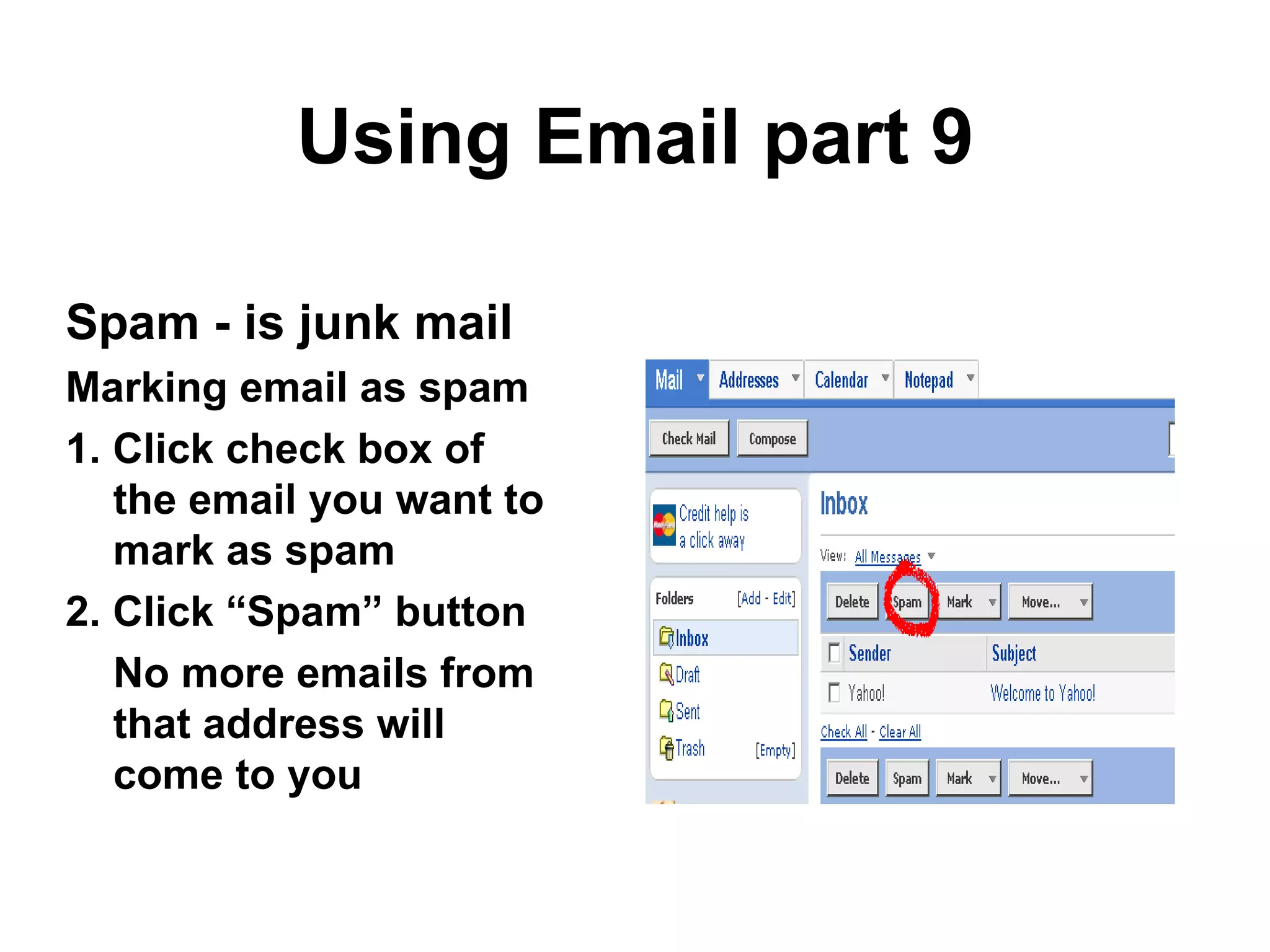
Using Email part 9 Spam - is junk mail Marking email as spam 1. Click check box of the email you want to mark as spam 2. Click “Spam” button No more emails from that address will come to you
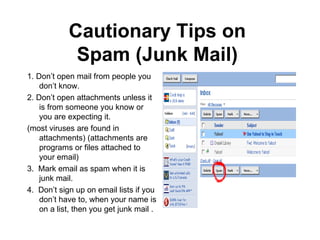
Cautionary Tips on  Spam (Junk Mail)  1. Don’t open mail from people you don’t know.  2. Don’t open attachments unless it is from someone you know or you are expecting it.  (most viruses are found in attachments) (attachments are programs or files attached to your email) 3.  Mark email as spam when it is junk mail.  4.  Don’t sign up on email lists if you don’t have to, when your name is on a list, then you get junk mail .
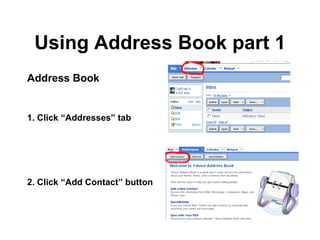
Using Address Book part 1 Address Book 1. Click “Addresses” tab 2. Click “Add Contact” button
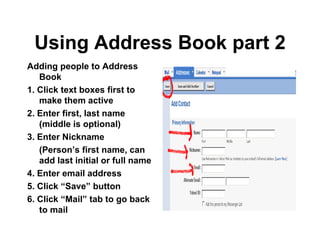
Using Address Book part 2 Adding people to Address Book 1. Click text boxes first to make them active 2. Enter first, last name (middle is optional) 3. Enter Nickname (Person’s first name, can add last initial or full name 4. Enter email address 5. Click “Save” button 6. Click “Mail” tab to go back to mail
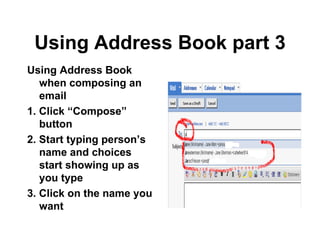
Using Address Book part 3 Using Address Book when composing an email  1. Click “Compose” button 2. Start typing person’s name and choices start showing up as you type 3. Click on the name you want

Email class extras

  • 1.
    Using Email part9 Spam - is junk mail Marking email as spam 1. Click check box of the email you want to mark as spam 2. Click “Spam” button No more emails from that address will come to you
  • 2.
    Cautionary Tips on Spam (Junk Mail) 1. Don’t open mail from people you don’t know. 2. Don’t open attachments unless it is from someone you know or you are expecting it. (most viruses are found in attachments) (attachments are programs or files attached to your email) 3. Mark email as spam when it is junk mail. 4. Don’t sign up on email lists if you don’t have to, when your name is on a list, then you get junk mail .
  • 3.
    Using Address Bookpart 1 Address Book 1. Click “Addresses” tab 2. Click “Add Contact” button
  • 4.
    Using Address Bookpart 2 Adding people to Address Book 1. Click text boxes first to make them active 2. Enter first, last name (middle is optional) 3. Enter Nickname (Person’s first name, can add last initial or full name 4. Enter email address 5. Click “Save” button 6. Click “Mail” tab to go back to mail
  • 5.
    Using Address Bookpart 3 Using Address Book when composing an email 1. Click “Compose” button 2. Start typing person’s name and choices start showing up as you type 3. Click on the name you want